Vault Search
unlistedby Jacob Mei
Semantic search and discovery for your vault using local Ollama embeddings.
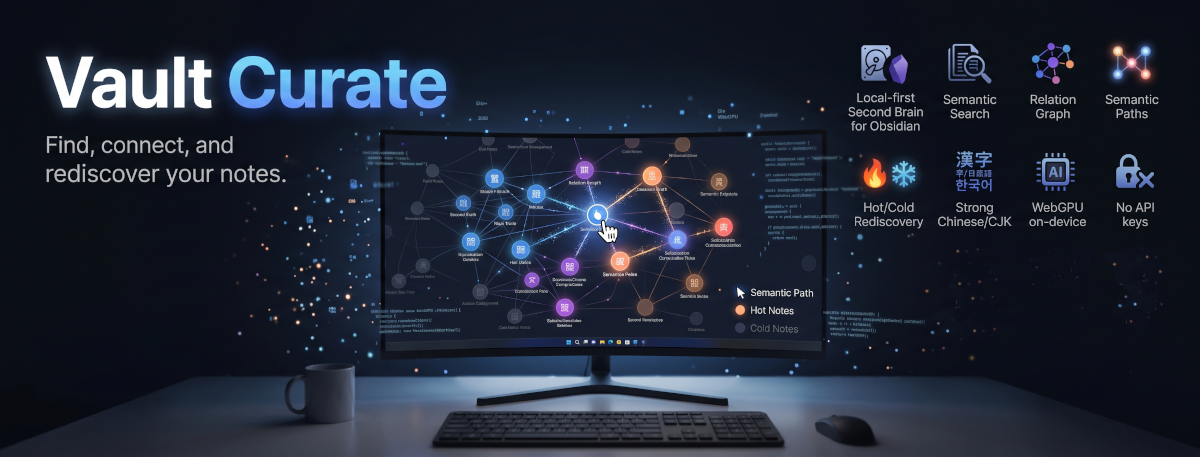
Vault Curate







Find, connect, and rediscover your notes.
A local-first second brain for Obsidian — semantic search · relation graph · semantic paths · Hot/Cold rediscovery · strong Chinese/CJK · desktop builds, mobile searches · no API keys
Why Vault Curate?
Finding a note is only the first step. The harder parts come after: seeing how notes connect — including the links you never drew — and not letting good notes sink out of sight. Obsidian's built-in search is literal (think "prayer", miss "devotional"), its graph shows only the links you made by hand, and old notes quietly fall off your radar.
Andrej Karpathy shared his vision of LLM-maintained knowledge bases — letting AI "compile" your notes into structured wikis. Compelling, but it asks you to hand over full editorial control. Vault Curate takes a different stance: AI should help you see, not think for you.
Four differentiators
| Feature | How it works |
|---|---|
| A closed loop: find → connect → rediscover | Semantic search (keyword + meaning + fuzzy title, fused) finds the note; a relation graph and semantic paths surface related notes you never linked; Hot/Cold tiering resurfaces ones you'd forgotten. And your verdicts close the loop: a suggestion you accept becomes a real wikilink, one you reject never comes back. Each piece exists elsewhere as a single-point plugin — the loop is what makes this a second brain, not a search box. |
| Helps you see, not think for you | No background LLM calls, no auto-rewriting your notes, no chatbot answering for you. Every connection the plugin shows is a suggestion awaiting your yes or no — nothing is written, hidden, or re-ranked without your explicit action. AI curation (descriptions, grouped MOCs) is opt-in. You stay the editor of your own vault. |
| Local-first, strong on Chinese/CJK | Runs on-device via WebGPU (~110 MB model once, 5,004 chunks in about 1m23s; WASM fallback works too), no API keys. The built-in bge-small-zh-v1.5 gives Chinese names, religious terms, and colloquial phrases an edge generic multilingual models miss — switch to Ollama/OpenAI for other languages. |
| One index, every device | The desktop-built index lives inside the vault and travels with whatever sync you already use (iCloud, Obsidian Sync, Syncthing). Phones and tablets open it read-only: search, Discover, and graphs on the go with zero setup. One writer means zero sync conflicts — and no re-indexing or model downloads on your phone. |
How it works: find → connect → rediscover
Four layers form one closed loop. The first three are zero-config and work out of the box; the fourth (curation) is off by default and only runs when you explicitly turn it on.
And the loop answers to you. Everything it surfaces is a suggestion, not a decision — and both of your possible answers stick: say yes to a suggested connection and it becomes a real wikilink (never suggested again — it's a fact now); say no with a hover ✕ and that pair is gone from every suggestion surface, surviving renames, deletions, and index rebuilds. Even Hot/Cold listens the same way: editing a note is a judgment that re-heats it, merely opening one is not. The longer you use it, the more the loop reflects your map of the vault — not an algorithm's guess.
🔍 Find: semantic search
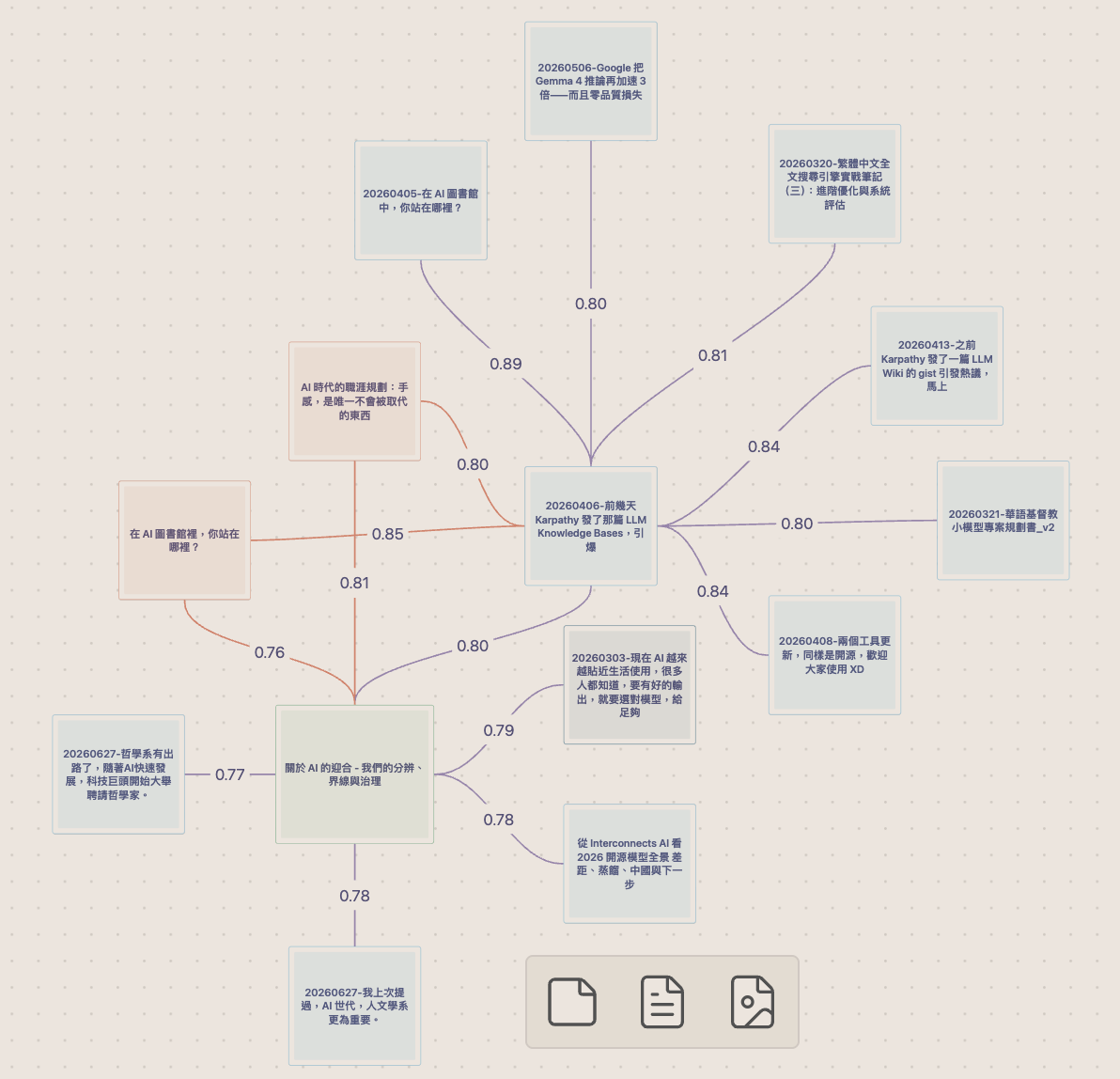
Search by meaning, not just literal characters. Three searches run at once and merge into one ranking:
| Search | Catches |
|---|---|
| Keyword | Exact phrases, keyword combinations |
| Semantic | Different wording, same meaning |
| Fuzzy title | Typos, spelling variants |
- Cmd/Ctrl+P →
Vault Curate: Semantic search (modal)for a quick jump; the sidebar Search tab for persistent results. - Find similar notes: right-click any
.md→ VC: Find similar notes; results land in the sidebar and drag straight to Canvas. Similarity ranks content, not templates: markdown structure is stripped before comparison and the note'sdescriptionproperty joins the ranking, so even when dozens of notes share the same template, what surfaces is the handful actually about the same thing — not a row of identical-looking template mates. On Traditional-Chinese vaults, text is converted Traditional→Simplified under the hood before semantic matching (stored text, keyword search, and snippets stay Traditional) to sharpen ranking. - Ranking is also keyword-aware: Find Similar, the relation graph, and current-note Discover fuse your frontmatter tags with semantic similarity, so notes that merely share your writing style stop crowding out notes that share the topic. No tags? Pure semantic ranking.
- Your own synonyms: under Advanced → Synonym list you can teach the search your private vocabulary — nicknames, org shorthand, domain terms no model could know (
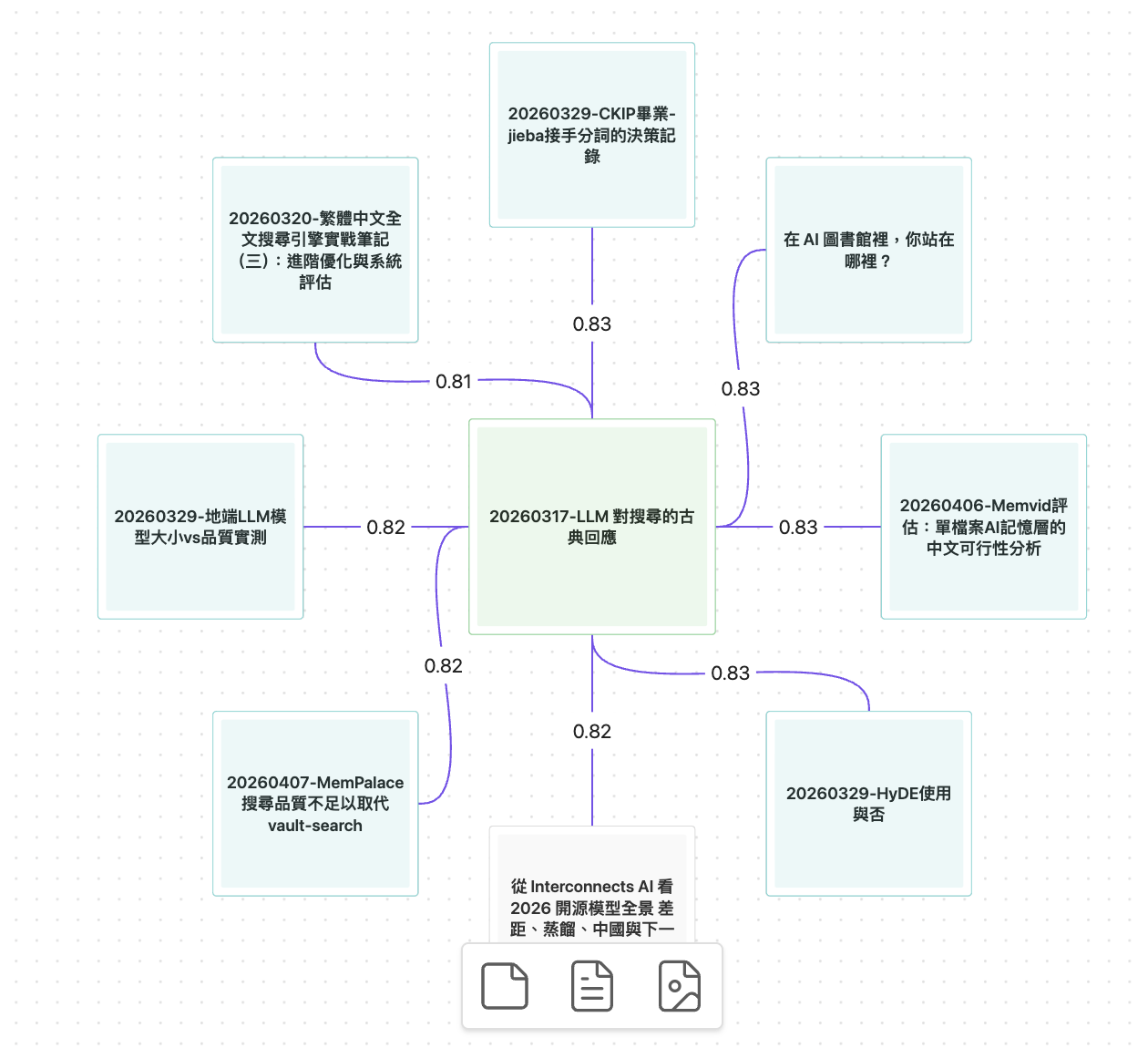
Amy = Amy Chenand the like). A query containing one form silently also searches the others. Especially handy on mobile, where search runs in keyword mode. - Export the results to a Canvas: the Export results to Canvas button on the Search tab lays your current results out on an editable Canvas — the query in the middle, the top 12 results around it, each edge labeled with that result's relevance score. This is the result space of one search, where the relation graph below is the neighborhood of one note. Past 12 results a notice tells you how many were left out; nothing is cut silently.
🕸 See connections: relation graph / semantic path / expand in place
Search finds a single note; this layer shows how notes relate — including the links you never drew by hand.
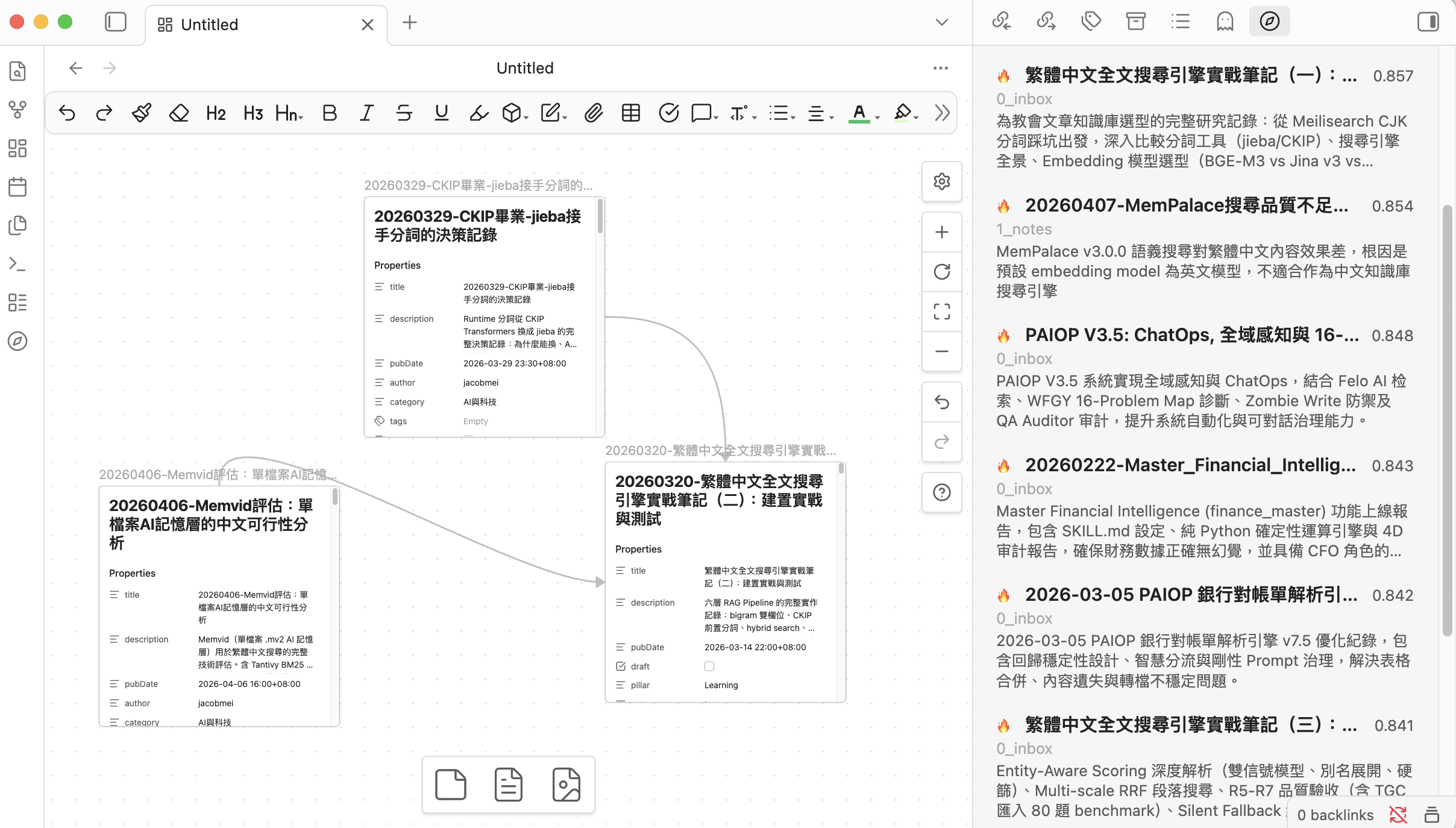
Relation graph (Canvas) — generate an editable Obsidian Canvas around any note: the note in the center, its closest semantic neighbors laid out radially, every edge labeled with its similarity score.
- Purple edges = semantically close but not yet linked — invisible connections the native graph view can't show you
- Gray edges (with direction arrows) = notes you've already wikilinked
- Cyan nodes = Cold notes
- Green edges = relevance to a search query — they appear on the results canvases exported from the Search tab, never between two notes
Entry points: the command palette, right-click VC: Generate relation graph, or the Graph button on the Discover sidebar. Each run writes a fresh timestamped .canvas into the folder set under Advanced → Relation graph folder (default Vault Curate Canvases) — your edited graphs are never overwritten.
Semantic path (Canvas) — pick any two notes and get the chain of stepping-stone notes that connects them. The chain is judged by its weakest hop, so one far-fetched link can't hide behind strong ones; if no consistently strong chain exists, you get an honest "not connected" notice with the actual numbers — information, not an error. The underlying semantic map builds once in the background (progress shown, cancellable, UI never freezes) and then follows your edits in real time — queries stay instant no matter how large your vault grows.
Expand in this graph — right-click any node inside a generated canvas → VC: Expand in this graph grows the graph in place: the clicked note's neighborhood slots into free space around it, notes already on the canvas get connecting edges instead of duplicates, and a note pointed at by two or more edges turns orange (several expansions independently converged on it, which usually means it matters). Your layout edits and manually applied colors are never touched.
Your verdict on every pair — the graph suggests, you decide, and both answers are one click:
- Yes → Apply purple edges as wikilinks. Right-click a generated
.canvas(or run the command) → a checkbox dialog lists every purple edge grouped by source note; Cmd/Ctrl+hover any name for a native page preview. Checked pairs are written into the notes' Related section as real wikilinks — both notes by default, source-only via Advanced → Bidirectional promotion — and the edges turn gray with direction arrows on the spot. Nothing is written unchecked, and accepted pairs never come back as suggestions: they're real links now. - No → Don't suggest this again. The same dialog carries a per-pair Don't suggest button, and every suggestion row in the sidebar (Find Similar, Discover) has a hover ✕. A dismissed pair vanishes from all suggestion surfaces, its slot refilled by the next candidate — rejecting never shrinks your results. Changed your mind? Everything is reviewable and restorable under Settings → Advanced → Hidden suggestions, each entry with an open-note link and a copy-path button.
♻️ Rediscover: Hot/Cold tiering + Discover
A good note shouldn't cease to exist just because you forgot it. Notes are auto-tiered by internal links + recency: Hot (linked, or created/edited recently — any edit counts as a deliberate touch; merely opening a note does not), Cold (orphan and untouched for a while). The cutoff is tunable under Advanced → Hot window (days) and applies instantly — tiers are derived live at query time.
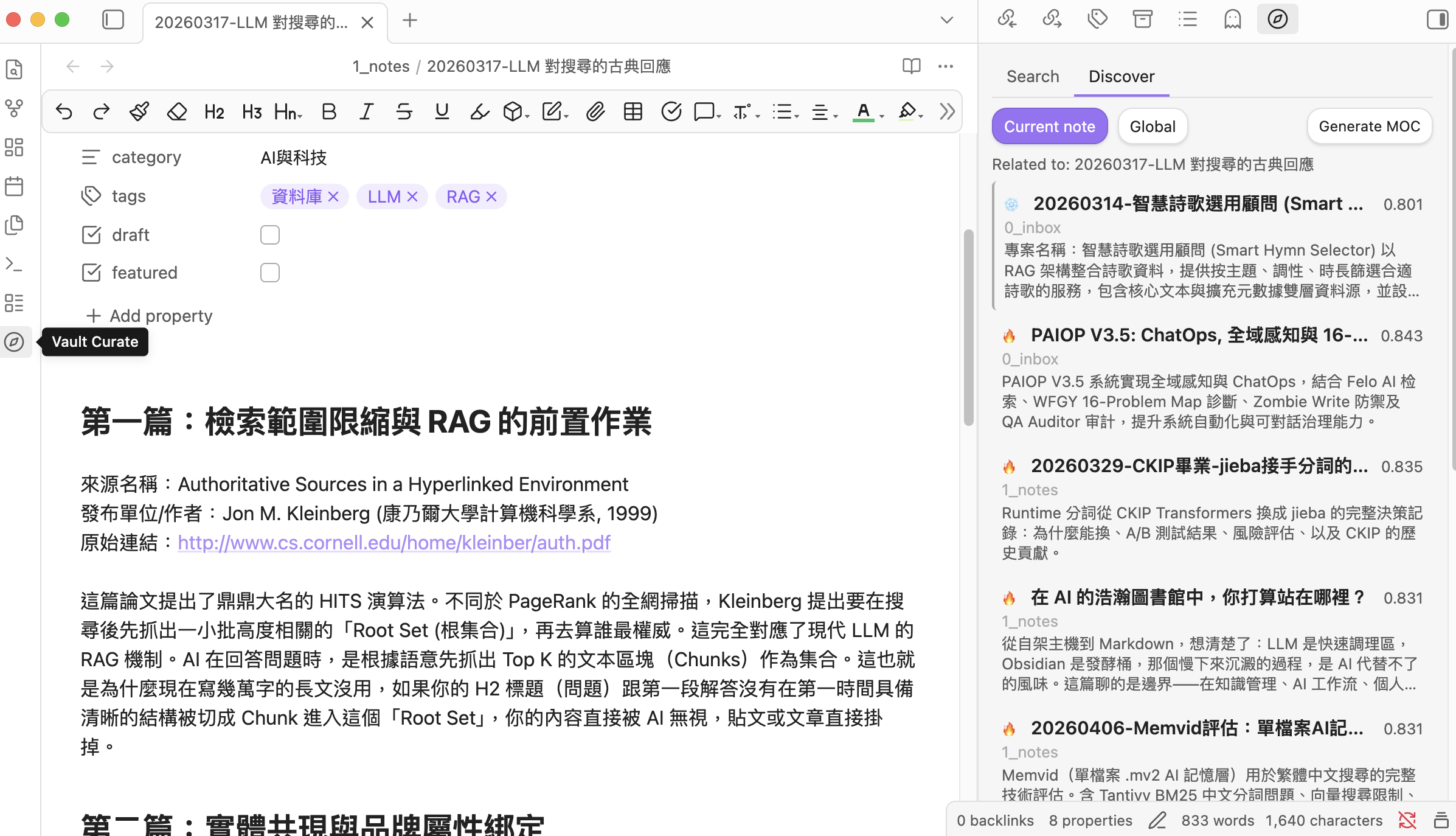
Discover works on notes, not query strings — it actively surfaces semantically related Cold notes you haven't touched recently:
- Current note: opening a file surfaces related notes ranked purely by relatedness, with Cold ones visually highlighted ("you haven't read this one")
- Global: forgotten notes most related to your recent focus — the notes you've recently edited or created, their topic tags, and their semantic centroid — grouped by top-level folder so each corner of your vault surfaces its own best forgotten notes. Intentional blind-spot mining
- Results export to a topic-grouped Map of Content via Generate MOC (falls back to a flat MOC when results are too few or too similar)
- Every row takes your verdict: hover ✕ dismisses a suggestion for good (in global Discover, the note itself), with the freed slot refilled — see Your verdict on every pair above
- Also on a Canvas: the Search tab's Export results to Canvas button does the same for a query's results, so a search's result space and a note's neighborhood can sit side by side
✨ Curate (optional, off by default)
Turn it on under Settings → AI Curation → Enable AI curation to unlock three actions — all manually triggered, never running in the background:
- Generate a description + tags into a single note's frontmatter
- Run description generation across the sidebar's search / discover results in a batch
- Generate a topic-grouped MOC: results are clustered by topic automatically and the AI names each group, producing a table-of-contents note
The LLM provider is configured separately under Settings → AI Curation (local Ollama or any OpenAI-compatible endpoint).
📱 One vault, every device
All four layers run on desktop. On phones and tablets (since 1.5.0) the plugin works as a read-only consumer of the index your desktop maintains — here is exactly what that means per feature:
| Feature | Desktop | Phone / tablet |
|---|---|---|
| Search — keyword + fuzzy title | ✅ | ✅ always available |
| Search — semantic ranking | ✅ built-in model | ✅ point the semantic engine at a remote server (phones can't reach localhost); without one, keyword mode |
| Find Similar / Discover (both modes) | ✅ | ✅ full-featured (they read the desktop-built index; no model needed on the device) |
| Dismiss suggestions (✕) and manage them | ✅ | ✅ your verdicts sync with the vault |
| Relation graph / semantic path / expand in place | ✅ | ✅ generation works (tablets are the sweet spot for canvas editing) |
| Export search results to Canvas | ✅ | ✅ (tablets are the sweet spot) |
| Promote purple edges to wikilinks | ✅ | desktop only |
| Build / update the index | ✅ | desktop only — the index reaches your phone through vault sync |
| AI curation (descriptions, grouped MOC) and flat MOC export | ✅ | desktop only |
On mobile nothing heavy runs at startup: the index loads the first time you open the search panel (with a visible loading state). The settings page shows when the index was last built, with a Reload index button for after a desktop rebuild; notes written on your phone appear in search once your desktop has indexed them. Oversized indexes (over 300 MB — roughly a 10k-note vault) are politely refused instead of crashing the app.
Getting started
Requirements: Obsidian v1.7.2+ — desktop for building the index, and (since 1.5.0) phones/tablets for searching it. The advanced paths (Ollama / OpenAI-compatible) additionally need a local Ollama instance or any OpenAI-compatible server.
Installation
From Community plugins (recommended)
- Open Settings → Community plugins, make sure Restricted mode is off, and click Browse
- Search Vault Curate, then click Install → Enable
Via BRAT (optional, tracks GitHub releases)
- Install and enable BRAT from Community plugins
- Cmd/Ctrl+P →
BRAT: Add a beta plugin for testing→ enternotoriouslab/vault-curate, then enable - New releases are picked up automatically (or on demand via
BRAT: Check for updates to all beta plugins)
Manual install
- Download
main.js,manifest.json,styles.cssfrom Releases (the two.wasmruntimes are fetched automatically on first launch) - Copy them into
.obsidian/plugins/vault-curate/in your vault, then enable in Settings → Community plugins
Tip: If your vault is Git-tracked, add
.obsidian/plugins/*/data.jsonand.obsidian/plugins/*/index.sqliteto.gitignore.
First launch
The Welcome to Vault Curate modal opens automatically: under Embedding provider pick Built-in (on-device, WebGPU), then click Index my vault now. After the ~110 MB model download and WebGPU indexing finish, click the sidebar compass icon and start searching.
On your phone or tablet
Install the plugin from Community plugins on mobile the same way. Two prerequisites, then everything in the availability table just works: your desktop has built the index at least once, and your sync has carried the vault (index included) to the device. Open the sidebar search panel and the index loads on the spot.
Reference
Commands
From the Command Palette (Cmd/Ctrl+P), type Vault Curate: to see them all.
| Command | What it does | Requires |
|---|---|---|
Semantic search (modal) | Modal-style semantic search with quick jump | always available |
Open search panel | Open the sidebar panel | always available |
Find similar notes | Find semantically related notes to the active .md | always available |
Rebuild index | Wipe the existing index and re-index everything | desktop only |
Update index | Incremental update (re-index files with newer mtime) | desktop only |
Discover related Cold notes | Global discover: forgotten notes most related to your recent focus, grouped by folder | always available |
Generate relation graph (Canvas) | Editable Canvas of the active note's semantic neighborhood | always available |
Generate semantic path (Canvas) | Widest-path chain between the active note and a picked destination | always available |
Apply purple edges as wikilinks | Promote a canvas's purple (unlinked) edges into real wikilinks via a checkbox dialog | a .canvas is active; desktop only |
Generate description for active note | LLM-write description + tags to the active file's frontmatter | AI curation on; desktop only |
Generate descriptions for current results | Batch description for the current sidebar results | AI curation on; desktop only |
Generate MOC (topic-grouped) | Auto-cluster results by topic, AI-name each group, output a table-of-contents note | AI curation on; desktop only |
Notes deleted while Obsidian was closed (through a sync client, git, or your file manager) are dropped from the index at the next launch, so search never offers you a note that isn't there.
Right-click menus expose these directly on a note: VC: Find similar notes, VC: Generate relation graph, VC: Generate semantic path, VC: Expand in this graph (while a .canvas is open), and VC: Generate description (AI curation on). Right-clicking a .canvas file offers VC: Apply purple edges as wikilinks.
Scripting & agents (Obsidian CLI)
Obsidian 1.12+ ships an official CLI, and Vault Curate is scriptable through it — the same search the panel runs, callable from your terminal, shell scripts, or AI agents:
# Semantic search from the terminal (returns ranked results as JSON)
obsidian vault="your-vault" eval code="app.plugins.plugins['vault-curate'].search('embedding models').then(r => JSON.stringify(r))"

# Only search forgotten (Cold) notes
obsidian vault="your-vault" eval code="app.plugins.plugins['vault-curate'].search('embedding models', { scope: 'cold' }).then(r => JSON.stringify(r))"
search(query, { scope? }) searches the whole vault by default (scope: "all"); pass "hot" or "cold" to narrow it. On invalid arguments or an index backend that isn't ready yet it throws instead of returning an empty list, so [] always genuinely means "no matches" — useful, because the CLI always exits 0.
Every command in the table above is also reachable by id:
obsidian vault="your-vault" command id="vault-curate:update-index"
obsidian commands filter=vault-curate   # list all ids
Settings
| Section | Settings | Default |
|---|---|---|
| Quick setup | Embedding provider (Built-in / Ollama / OpenAI-compatible); excluded folders | Built-in; empty |
| AI Curation | Enable toggle; LLM provider; LLM model | off; Ollama; qwen3:1.7b |
| Advanced | top results, min score, relation graph folder, related section heading, bidirectional promotion, hidden suggestions (count + manage/restore), Hot window (days), default search scope, chunk size + overlap, synonym list, auto-index toggle, rebuild + update buttons, index stats | see panel |
Changing the embedding provider or model triggers a confirmation modal — the index is wiped and rebuilt.
Troubleshooting
- A full rebuild right after a major OS update can be much slower than usual — the OS itself is busy in the background (rebuilding Spotlight, re-syncing iCloud) and competes for the same resources. It passes on its own; nothing in the plugin needs fixing.
Privacy & security
Three embedding modes, picked from Quick setup → Embedding provider:
| Mode | Where embeddings run | Where note text goes |
|---|---|---|
| Built-in | On-device WebGPU / WASM | Stays on your device |
| Ollama (local daemon) | Local Ollama daemon on 127.0.0.1 | Stays on your device |
| OpenAI-compatible API | Any endpoint you point it at — local (LM Studio, llama.cpp, …) or remote (OpenAI etc.) | Depends on the endpoint you choose; may leave your device |
The same applies to AI curation (description / MOC naming), which uses an independently-configured LLM endpoint.
No telemetry. No usage tracking. Nothing is sent to any server unless you configure a remote endpoint.
Audit disclosures
The Obsidian Developer Dashboard's automated audit may flag the following items on this plugin. They are intentional and disclosed here for transparency:
- Vault enumeration (
vault.getMarkdownFiles()): The indexer needs to walk the full list of markdown files in your vault to build the semantic index. The "excluded folders" setting (Settings → Advanced) lets you scope this — e.g. excluding_templates/,.trash/, or any folder you don't want indexed. No file is read until it's in the included set. - Dynamic code execution (
new Functionin bundled@huggingface/transformers): The Hugging Face Transformers library usesnew Functioninternally to create type-safe method dispatchers during model loading. Vault Curate's own source code contains zeroeval()ornew Function(). We bundle the upstream library as-is to avoid divergence; the dynamic dispatch happens only inside the embedding model's tokenizer/inference setup, not on any vault content. - Direct filesystem access: The bundled
sql.jsships an Emscripten output with a Node.js fallback path that importsnode:fs/node:crypto. These branches are dead code in Obsidian's renderer process (gated byprocess.type !== "renderer"). As of v1.0.3, the esbuild config strips thoserequire()strings from the released bundle so the audit no longer sees them.
🔒 About API key storage
Vault Curate, like every Obsidian plugin, stores its settings (including any OpenAI API key) as plain text in <vault>/.obsidian/plugins/vault-curate/data.json. This is Obsidian's plugin storage mechanism, not a vault-curate-specific design choice.
If your vault syncs to a cloud service (iCloud / Dropbox / Google Drive) or pushes to a public Git repository, you should:
- Add
.obsidian/plugins/vault-curate/data.jsonto your sync exclusion list or.gitignore - Or use the Built-in model / Ollama path — neither requires an API key
Tech Stack
- TypeScript + esbuild (two-stage bundle for worker + main)
- sql.js (SQLite via WASM) for the storage layer — replaces v0.x's
data.json/index.json - Pure-TS BM25+ (
src/storage/bm25.ts) for CJK-aware full-text search (no native FTS5 dependency) @huggingface/transformers+bge-small-zh-v1.5q8 (~110 MB, WebGPU/WASM) for on-device embeddingshdbscan-tsfor topic clustering (MOC)- Reciprocal Rank Fusion (k=60) combining BM25 + semantic + fuzzy
- Optional: Ollama / any OpenAI-compatible endpoint for higher-end embedding or LLM models
Development
git clone https://github.com/notoriouslab/vault-curate.git
cd vault-curate
npm install
npm run dev    # watch mode
npm run build  # production build
npm test       # vitest unit tests
New to the codebase? Start with the interactive architecture map — components link back to their source files.
License
For plugin developers
Search results and similarity scores are powered by semantic analysis of your plugin's README. If your plugin isn't appearing for searches you'd expect, try updating your README to clearly describe your plugin's purpose, features, and use cases.