Vault Terminal
unlistedby obst2580
Open a right-sidebar terminal rooted at the current vault.
Obst Terminal
Obst Terminal is an Obsidian Desktop plugin that opens a vault-rooted multi-session AI Agent Console in the right sidebar. This branch currently reports version 0.6.95.
Desktop only. Claude Code, Codex CLI, Antigravity CLI (
agy), Node.js, Git, npm, and other external tools are not bundled. Install them on your machine and make sure they work from a normal terminal.
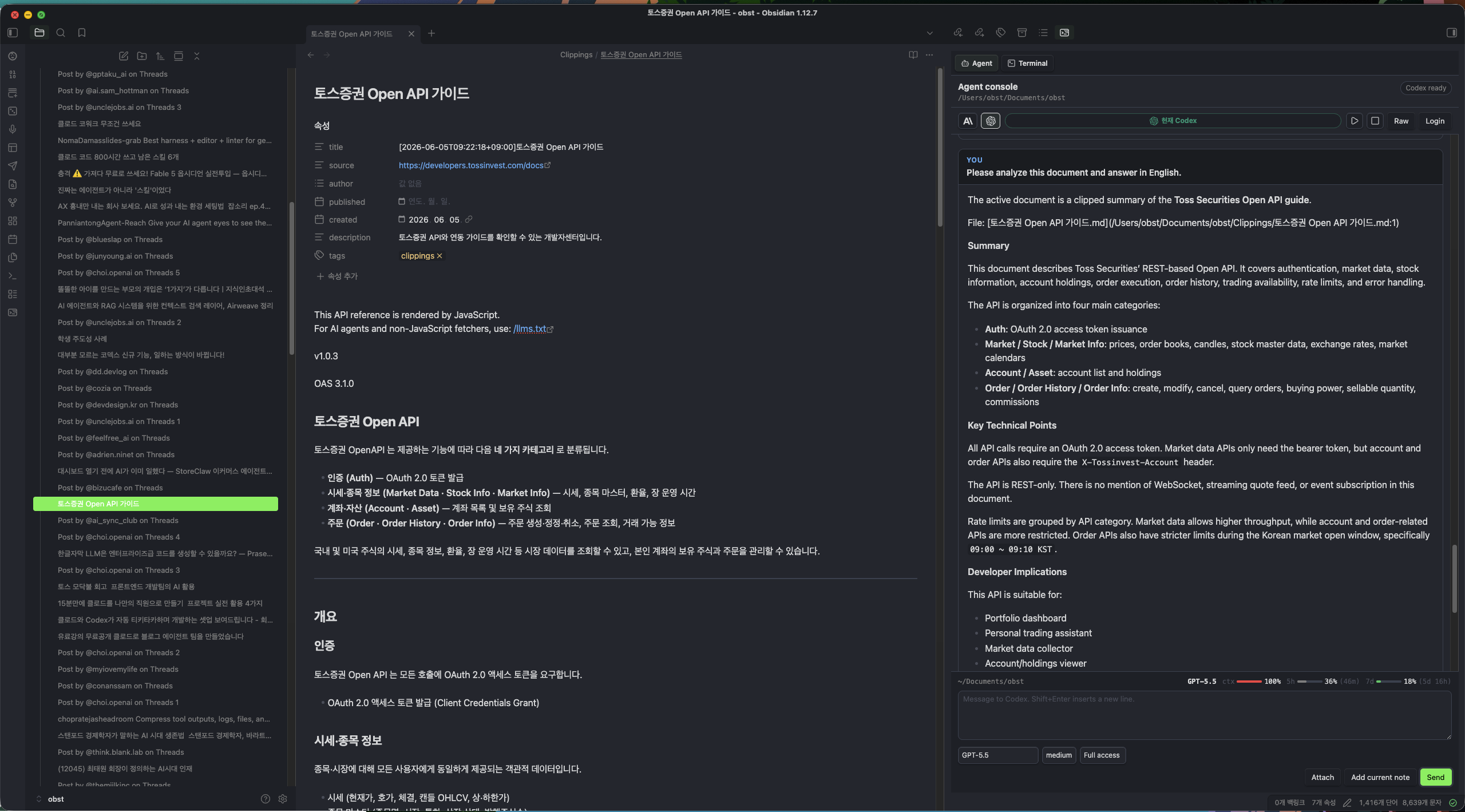
Multi-Session AI Workspace
Obst Terminal is not just a single chat console. It is designed as a multi-session AI workspace inside one Obsidian vault, where several Claude Code, Codex, and Antigravity sessions can stay open side by side as plugin tabs.
- Add an AI session tab by choosing Claude Code, Codex, or Antigravity from the plugin
+menu or theOpen new AI sessioncommand. - Each tab is fixed to the provider selected at creation and keeps its own session ID, transcript, and running state.
- Switching tabs does not stop the running agent; background sessions continue writing to their own transcripts.
- Claude, Codex, and Antigravity transcripts preserve their scroll positions per session/provider, so background updates and tab switches do not pull the view back to the top.
- Personal Agent UI state is stored outside the vault in the current user's local Obst Terminal state.
.obsidian/plugins/vault-terminal/data.jsonis reserved for shared plugin settings and does not store Claude/Codex/Antigravity session IDs, thread IDs, input drafts, or transcript HTML. - Use role-based sessions such as PM, Writer, Reviewer, and Researcher next to the same project documents.
- Delegate prompts to other running AI sessions with
@all,@codex,@claude,@gemini(=@antigravity), or@"session title". - Attach files from the composer's paperclip button or paste images directly. Pasted images are saved in the configured attachment folder and sent to Claude, Codex, or Antigravity as local file paths.
- Use the microphone button to record audio. Pressing Stop sends the complete recording to the configured server exactly once for transcription. Only elapsed time is shown while recording, and the completed text is inserted into the originating tab without being sent automatically.
- The composer continuously shows the active Obsidian note and selected lines. Unless unlinked, each normal turn captures that note as shared context, so implicit phrases such as
this,here, orthis partresolve without requiring a special command. - Mouse selection and copy inside Claude, Codex, and Antigravity transcripts are handled by the plugin so copying a partial selection does not expand to the whole message card.
- Vault documents mentioned or created during a conversation become clickable links in the transcript. Clicking opens the note in the main workspace (Ctrl/Cmd+click for a new tab); a
path.md:12reference jumps to that line. Only paths that resolve to an existing vault file are linkified.
Current Behavior
The first Agent Console tab defaults to Claude Code. After that, choose Claude Code, Codex, or Antigravity from the + menu at the end of the tab row. A tab's provider does not change after creation.
You can split work across multiple AI sessions in the same vault. Open AI workspace reuses the first Obst Terminal view, while Open new AI session or the Agent Console + menu adds a tab for the selected provider inside the plugin instead of opening a new Obsidian workspace tab. Each tab keeps a provider-based label, independent session ID, transcript, and running backend/process state. Switching tabs does not stop the running agent; background sessions keep writing to their own transcripts. This is intended for project-management roles such as PM, Writer, Analyst, and Reviewer working beside the same vault documents. A session can delegate a prompt to other running tabs with @all, @codex, @claude, @gemini(=@antigravity), or @"session title".
Claude Code and Codex tabs include a tab-local Deep Vault toggle. It is off by default. When enabled, the prompt directs the agent to check the vault index, run several focused searches, open the strongest source documents, refine retrieval until no material evidence is added, and cite vault paths. This is a plugin workflow profile, not a native model or reasoning tier, and it can consume substantially more input and output tokens. The same options row shows provider-reported IN and OUT usage for the current turn; values are never estimated.
Codex
The Codex Agent Console uses codex app-server by default instead of embedding the fullscreen Codex TUI.
- Talks to
codex app-serverover JSON-RPC. - Checks ChatGPT login state and can start browser or device-code login.
- Shows model, reasoning effort, and access-level controls as in-console dropdowns below the composer.
- Discovers the signed-in account's model catalog from
codex app-server, includingGPT-5.6-Sol(frontier),GPT-5.6-Terra(balanced), andGPT-5.6-Luna(fast) when the account has access. Each model exposes its supported reasoning levels: Sol and Terra includemaxandultra, while Luna includesmax. - Keeps each user turn in one transcript card, including reasoning, command execution, tool calls, and the final answer.
- Turns the composer arrow into a stop icon while a turn is active.
- Queues additional messages while Codex is still answering.
- Buffers streaming deltas before rendering so Obsidian stays responsive during long answers.
- Updates the
INandOUTmeter fromthread/tokenUsage/updated; the tooltip includes cached input and reasoning output when Codex reports them. - Settings expose Codex executable, app-server mode, approval policy, and login method. The model is selected inside the Agent Console, not typed in Settings.
Claude Code
The Claude Code Agent Console separates normal chat turns from login/control prompts.
- Checks login with
claude auth status --json. - Sends normal prompts through a session-specific Claude Code print turn with the configured
--permission-modeand--output-format stream-json. - The Claude model, effort, and permission mode are selected inside the Agent Console. Latest aliases show an explicit current version (
Fable 5,Opus 4.8,Sonnet 5,Haiku 4.5— theopusalias still resolves to Opus 4.8), while pinned choices use full model ids such asclaude-opus-5for Opus 5.Custom model IDaccepts future or gateway-specific ids without a plugin update. After Claude responds, the options row shows the actual resolved model from the stream and updates the selected alias label when it differs. - Settings expose Claude executable, effort, permission mode, and strict MCP behavior.
- Parses Claude's streaming usage events while the turn is running and updates exact
INandOUTvalues. Cache creation and cache-read tokens are included inINand exposed in the tooltip. - Reads Claude's JSON
session_idafter each print turn and keeps the plugin tab bound to the actual Claude Code session. - Passes the prompt through stdin and waits for the
claudeprocess to finish, allowing long-running skills such as audio transcription or large document analysis. - Streams intermediate turn progress into the open turn card: each assistant step message (including mid-turn questions) appears as it arrives, tool activity shows as compact chips (Bash commands, Read/Edit/Write targets as clickable vault links), and AskUserQuestion calls render as a question card with their options.
- Opens the visible turn card and keeps the in-chat
생각 중indicator attached while the print-command process is running. - If Claude reports that the session ID is already in use, the console retries once with
--resume <sessionId> --fork-sessionso the fallback keeps the previous Claude context instead of starting from an empty UUID. - Claude normal-response processes are tracked by pid in a per-user local state folder.
Stop, tab close, and plugin reload clean them up, and startup checks the localagent-processes.jsonfor stale pids left by a previous crash. - Uses the background PTY host for
/login, MCP connection prompts, permission prompts, and command-style control input. Typed Claude slash commands are sent to this control host when it is running. - Uses Claude session logs to track control flow and keep transcript offsets aligned.
Antigravity CLI
The third provider slot uses the official Google Antigravity CLI (agy), the successor to the consumer Gemini CLI that stopped serving individual Google accounts on 2026-06-18.
- Starts
agyfrom PATH,%LOCALAPPDATA%\agy\bin\agy.exe, or the optionalAntigravity executablesetting. A legacygeminibinary is still used when only it is installed (Gemini Code Assist Standard/Enterprise licenses keep Gemini CLI access). - Sends normal prompts with
agy --print ... --print-timeout 12hthrough the PTY capture path, becauseagyblocks on non-TTY pipes. - Exposes Antigravity model and approval-mode dropdowns inside Agent Console. Model values are
agy modelsdisplay names (Antigravity default,Gemini 3.5 Flash (Low/Medium/High),Gemini 3.1 Pro (Low/High),Claude Sonnet 4.6 (Thinking),Claude Opus 4.6 (Thinking),GPT-OSS 120B (Medium)); approvalyolomaps to--dangerously-skip-permissions. - Checks login with a PTY
agy modelsprobe;Loginopens the Antigravity Google OAuth sign-in flow inside the Agent Console, including the paste-authorization-code prompt. - Install on Windows with
irm https://antigravity.google/cli/install.ps1 | iex(macOS/Linux:curl -fsSL https://antigravity.google/cli/install.sh | bash), then confirmagy --versionworks from a normal terminal before starting Obsidian.
Requirements
- Obsidian Desktop.
- Node.js installed system-wide.
- Any CLI you want to use from Agent Console, such as
claude,codex, oragy.
CLI runtimes bundled inside editor extensions are not enough. Obsidian starts this plugin from the normal desktop environment, so these commands should work from PowerShell, Terminal, zsh, or bash:
node --version
claude --version
codex --version
agy --version
Installation
GitHub Release ZIP
Download the full ZIP for your OS and CPU architecture:
https://github.com/obst2580/obsidian-powershell/releases
| File | Target |
|---|---|
ObstTerminal-<version>-windows-x64.zip | Windows x64 |
ObstTerminal-<version>-macos-x64.zip | macOS Intel |
ObstTerminal-<version>-macos-arm64.zip | macOS Apple Silicon |
Extract it into your vault:
<vault>/.obsidian/plugins/vault-terminal/
The display name is Obst Terminal, but the plugin ID and folder remain vault-terminal for compatibility.
A full ZIP install should contain:
manifest.json
main.js
styles.css
pty-host.js
node_modules/
runtime.json
Restart Obsidian and enable the plugin:
Settings > Community plugins > Obst Terminal > Enable
BRAT / Community Plugin Style
BRAT and Community Plugin style installs may initially install only the standard plugin files:
manifest.json
main.js
styles.css
Obst Terminal also needs a native node-pty runtime for interactive Claude Code login/control flows. If the runtime is missing or out of date, the plugin reads runtime-manifest.json from the matching GitHub Release, downloads the OS-specific runtime ZIP, verifies size and SHA-256, and extracts it into the plugin folder.
Runtime commands and settings:
Command palette > Update runtime files
Settings > Obst Terminal > Runtime files > Install runtime
Settings > Obst Terminal > Install runtime automatically
Settings > Obst Terminal > Advanced runtime and network settings
For BRAT testing, add this repository:
https://github.com/obst2580/obsidian-powershell
Using Agent Console
- Open the project vault in Obsidian.
- Run
Open AI workspacefrom the command palette or open the Obst Terminal right-sidebar tab. - The active tab starts its agent automatically. The same applies to a new tab or a stopped tab when selected.
- For another provider, press
+at the end of the tab row and chooseClaude Code,Codex, orAntigravity. A fixed-provider tab is created and starts automatically. - If authentication is required, complete the provider CLI login in an external terminal and press the play icon. The icon shows an active state after authentication and input readiness are confirmed.
- Type a message and press the arrow icon.
When Codex, Claude, or Antigravity is answering, the arrow changes to a stop icon. Additional messages are queued until the active turn finishes.
For multiple AI collaborators, run Open new AI session from the command palette or choose a provider from the + menu at the end of the Agent Console tabs. No tab is created until a provider is selected, and the resulting tab stays fixed to Claude Code, Codex, or Antigravity. New and stopped tabs start as soon as they are selected; an already running tab is not restarted.
Delegation commands are typed in the same composer:
@all Review the current project plan and list risks.
@codex Check whether the implementation looks consistent.
@claude Draft the handoff note.
@gemini Compare this with the latest Antigravity-facing assumptions.
@"Reviewer" Summarize open questions from this vault.
/send @"PM" Turn this into a task list.
Delegation sends text and selected attachments to matching tabs that are already running. If a target is stopped, waiting for login, or blocked on an interactive prompt, both the sender and target transcripts record the failed delivery instead of starting or approving anything automatically.
Attachments
Use the paperclip icon inside the composer to attach files.
- A fixed-size count badge appears on the paperclip after files are selected.
- Compact file/image chips appear inside the input control.
- Use the chip remove icon to remove one attachment.
- You can send attachments without text.
On the Codex app-server path, images are sent as localImage inputs and other files as mention inputs. Claude is given explicit Read targets, while Antigravity/Gemini receives @ file references. Files selected outside the vault are copied into the attachment folder first so every provider can access them from the vault workspace.
Pasting an image in Agent Console adds it as an attachment chip.
Default attachment folder:
Obst Terminal Attachments/
Setting:
Settings > Obst Terminal > Attachment folder
The active-note strip above the input updates immediately when the user switches notes. Selected text is shared first; otherwise the active note path and cursor line are shared. The link icon disables or restores this context without changing the open note.
Voice Transcription
Press the microphone icon beside the paperclip to start recording. The composer shows only the recording timer and Stop control while audio is captured. Stop sends the complete in-memory recording to the configured transcription server once, then inserts the returned text at the cursor.
- No partial or live transcript is displayed while recording.
- Audio stays in memory and is not saved in the vault.
- The transcript is inserted into the tab where recording started and is never sent to an agent automatically.
- The active note context and company reference documents provide short terminology hints to the transcription request.
- After transcription, explicit aliases and spacing variants are normalized against
용어사전.md,조직구조.md,조직구조-전직원.md,제품구조.md, and과제목록.md. - Reference files are read locally from the current vault or the default local
obst-indexervault. Full employee and reference documents are not uploaded. - The first recording may trigger the operating system's microphone permission prompt.
Settings
The default settings screen shows only day-to-day Agent Console options. Runtime, PTY, Node.js, and custom CA controls are kept under Advanced runtime and network settings.
| Setting | Behavior |
|---|---|
Attachment folder | Stores pasted or dropped attachment files before they are sent to Agent Console. |
Voice transcription server | Whisper-compatible /v1/audio/transcriptions service that receives the recording once after Stop. |
Voice transcription language | Uses Korean, English, or auto-detect as the server language hint. |
Persist Agent transcript snapshots | Saves visible transcript HTML only to the current user's local Obst Terminal state, outside the shared vault. |
Advanced settings:
| Setting | Behavior |
|---|---|
Node executable | Point to Node.js when it is not on PATH. |
Runtime files | Install or reinstall the native runtime used for interactive Claude Code and Antigravity CLI login/control flows. |
Windows PTY backend | Choose the interactive agent control PTY backend on Windows. |
Install runtime automatically | Allows automatic native runtime installation. |
Use system certificate store | Injects Node system CA behavior for Node-based CLIs. |
Extra CA certificate | Provides a custom PEM certificate path and exports it through common CA bundle variables for Claude, Codex, Antigravity, Python, curl, git, and gRPC-style tools. |
TLS / Custom CA
By default, Obst Terminal does not change TLS behavior. If a corporate proxy or private CA causes certificate errors in Node-based CLIs such as Claude Code, use:
Settings > Obst Terminal > Use system certificate store
Settings > Obst Terminal > Extra CA certificate
When Extra CA certificate is empty, the plugin checks these shared locations:
OBST_TERMINAL_EXTRA_CA_CERT
VAULT_TERMINAL_EXTRA_CA_CERT
C:\certs\extra-ca.pem
C:\ProgramData\Obst Terminal\extra-ca.pem
%USERPROFILE%\.obst-terminal\extra-ca.pem
%USERPROFILE%\.vault-terminal\extra-ca.pem
certs/extra-ca.pem
Windows release packages include helper scripts:
.\configure-corporate-ca.ps1 -VaultPath "C:\path\to\vault" -Thumbprint "<root-ca-thumbprint>"
.\configure-corporate-ca.ps1 -VaultPath "C:\path\to\vault" -PemPath "C:\path\to\custom-ca.pem"
Add -SetUserEnvironment when you also want normal PowerShell sessions outside Obsidian to see the same PEM. Open a new PowerShell after setting user environment variables.
Development
npm install
npm run build
Install into a Windows vault:
.\install.ps1 -VaultPath "C:\path\to\vault"
The installer copies the plugin/runtime files and adds vault-terminal to the vault's .obsidian/community-plugins.json.
Install into a macOS or Linux vault:
npm install
npm run build
./install.sh /path/to/vault
Create a local Windows release package:
pwsh -NoProfile -File .\scripts\package-release.ps1 -Platform windows -Arch x64 -OutputDir dist
Release
Release tags must match manifest.json exactly. Do not prefix tags with v.
git tag 0.6.95
git push origin 0.6.95
The release workflow runs npm ci, npm run build, full ZIP packaging, runtime-only ZIP packaging, runtime-manifest.json generation, and standard plugin file upload.
Security
Obst Terminal no longer starts a raw local shell by default. It may use a separate Node.js PTY host process only for interactive Claude Code or Antigravity CLI login/control flows.
- Claude Code, Codex CLI, or Antigravity CLI processes started from Agent Console run with your local OS user permissions.
- Those CLI processes can access local files, network resources, and credentials according to the CLI and OS permissions.
- Claude Code, Codex CLI, Antigravity CLI, git, npm, and other external tools are not bundled.
- Native runtime files are included in full ZIPs or downloaded from the matching GitHub Release and verified with SHA-256.
- TLS / CA environment variables are injected only when enabled in settings.
- Agent session state and transcript snapshots are not saved to plugin
data.json; they are stored only in the current user's local Obst Terminal state. - To clean old shared vault state left by earlier versions, run
pwsh -NoProfile -File .\scripts\clean-shared-ai-state.ps1 -VaultPath "C:\path\to\vault". - The plugin does not include telemetry, analytics, or advertising code.
Only install release assets from sources you trust.
License
MIT
For plugin developers
Search results and similarity scores are powered by semantic analysis of your plugin's README. If your plugin isn't appearing for searches you'd expect, try updating your README to clearly describe your plugin's purpose, features, and use cases.