Agent Console
approvedby Vinod Panicker
Forked from RAIT-09/obsidian-agent-client
Finally put your second brain to work. Connect your vault to the best AI models and build alongside them – docs, slides, projects, even code. Each project leaves your notes richer for the next. - This plugin has not been manually reviewed by Obsidian staff.

Agent Console
Finally put your second brain to work.





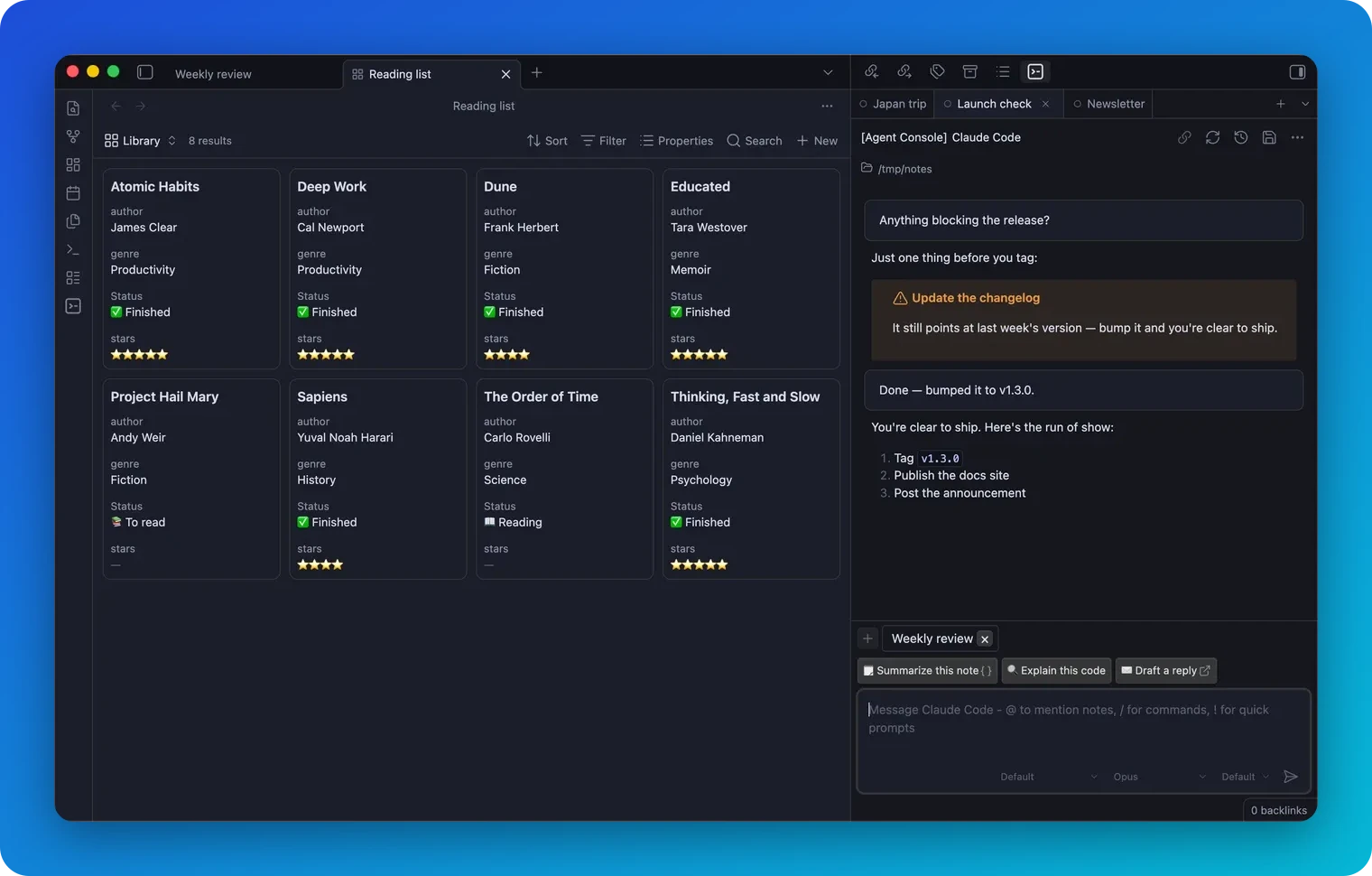
Why Agent Console
Most AI agents start every chat from zero – they know nothing about you until you paste it in. Agent Console brings agents into your Obsidian vault instead, so they work from the notes you’ve already written. @mention a note and the agent reads it – and the notes it links to – for context. Ask it to write back – capture a decision, draft a note, link an idea – and your second brain grows as you work, without the tedious upkeep.
Because the agents live in your vault, you stay in control: you pin what they see, and you approve anything that runs. And since they work asynchronously, you can run several at once – one researching, one drafting, one vibe-coding a script – each in its own tab, each showing whether it’s ready, busy, or waiting on you. Stop waiting on one before starting the next.
The shift in how you work: Tell the agent what you want done, not how to do it. With the right skills, the agent figures out the steps. You stay focused on the work itself. With many tabs, you can have several things happening at once, without losing track.
See it in action
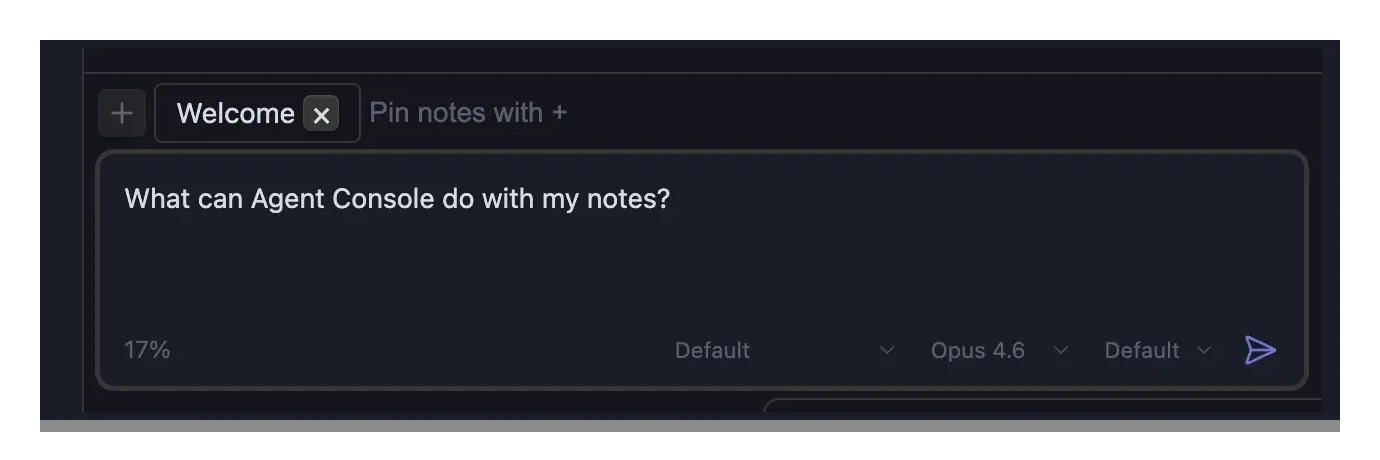 Bring your notes in as context Pin notes in the context strip, or @-mention any note. |
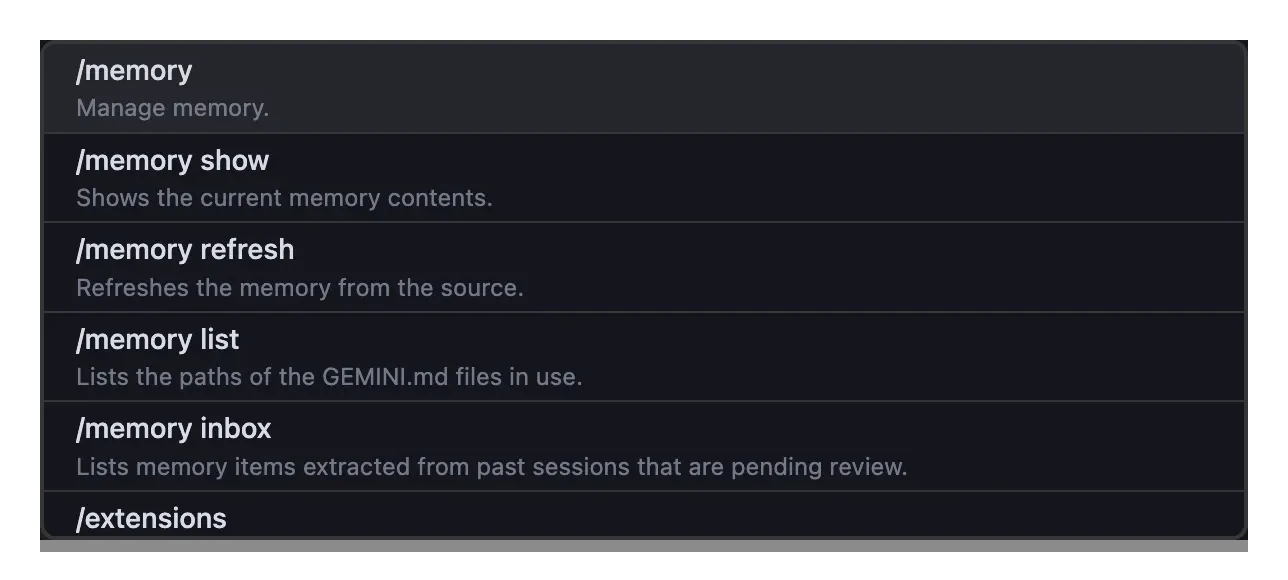 Slash commands, built in Type / to run your agent's commands. |
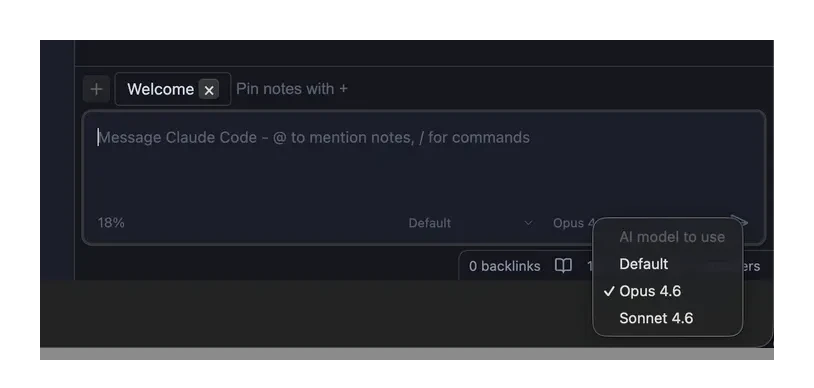 A model for every task Switch model or mode per tab, mid-chat. |
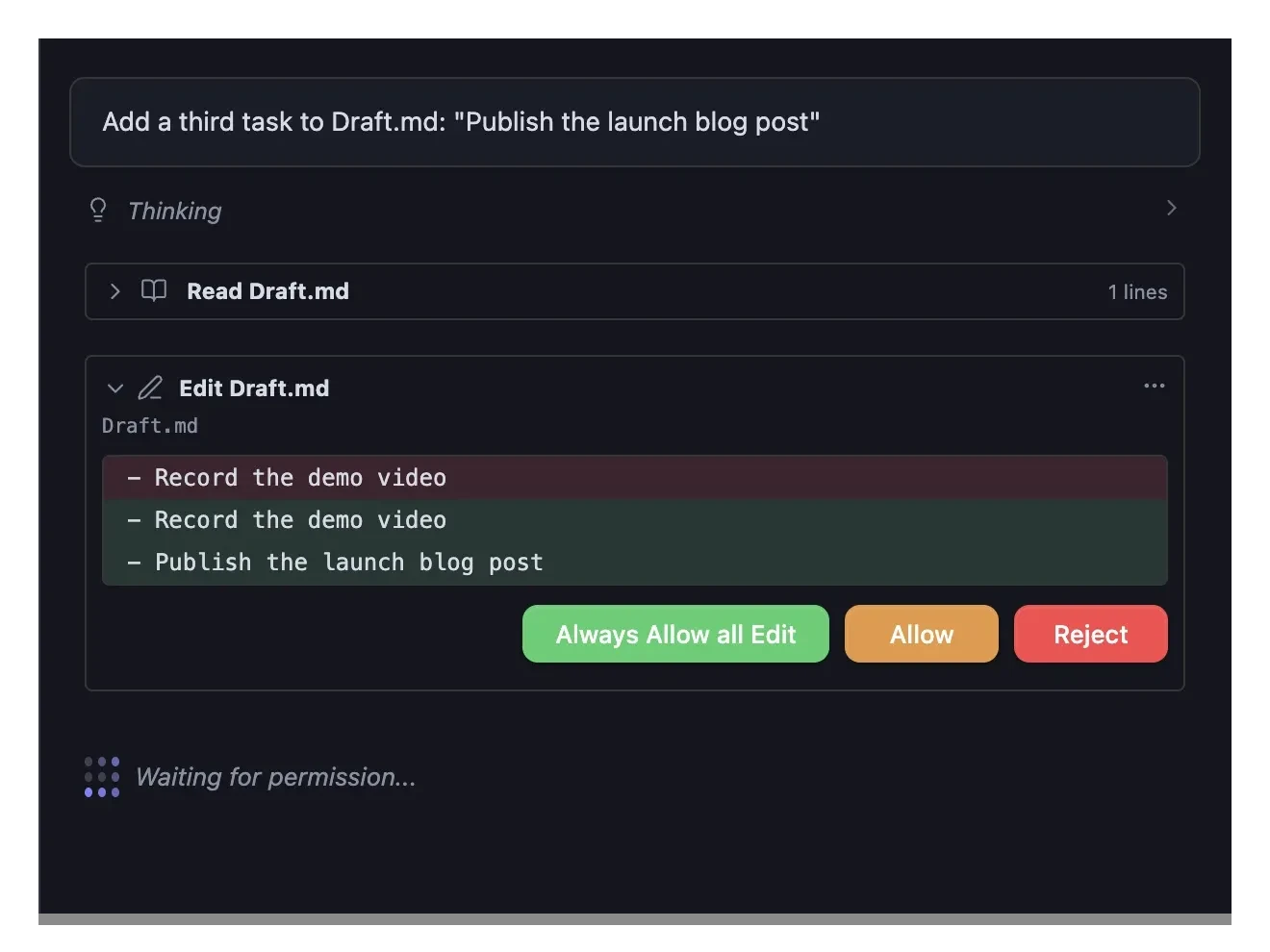 See and approve what runs Edits and commands wait for your OK. |
Features
- Save your go-to prompts and fire them in one click – turn the kickoffs you retype every session (“debrief this meeting”, “summarize the selection”) into notes, then launch them from context-aware chips above the composer, a
!search right in the message box, or the command palette - Work from the notes you’ve already written – @mention a note and the agent reads it, and the notes it links to, as context. Drag in images, run slash commands – it starts from your knowledge, not a blank slate
- Let your second brain grow itself – ask an agent to write back: capture decisions, draft notes, and link ideas straight into your vault, without the manual upkeep
- Stop waiting on one agent before starting the next – run several agent chats side by side in one sidebar
- Use the agent you’ve already set up – Kiro CLI, Claude Code, Codex, Gemini CLI, OpenCode, or any custom agent built on the Agent Client Protocol; on a fresh install Agent Console defaults to one it finds installed and opens the panel for you
- Your sessions are safe – your tabs and conversations reopen after an Obsidian restart or a panel close, closing a panel with two or more chats checks first, you can undo a closed chat to bring it back with its full transcript, and half-typed messages survive a restart
- Search your whole chat history – find a past conversation by title or by what was actually said inside it, then reopen it in a tab and pick up where you left off
- Take a conversation to another agent – switch a chat to a different agent and bring the conversation along, shown as a collapsible read-only block; nothing is cleared without asking first
- Agents know they’re in Obsidian – each agent gets a short briefing on the first message so it renders links, math, and diagrams and works with your notes; you choose exactly what it’s told
- Your context budget goes further – context notes are referenced, not re-pasted into every message, so a long chat uses 65–80% fewer context tokens than re-sending the full note each turn
- Drive it all from the keyboard – every control is keyboard-operable with a clear focus ring; bind hotkeys to switch tabs, show the tab list, and fire quick prompts
More features
- See what every agent is doing without clicking around – status icons show ready, busy, waiting on you, or stuck; the “agent finished” notification names the tab it came from, and clicking it jumps there
- Tabs name themselves – each tab picks up a short title from what you’re working on, so a wall of tabs stays readable; rename any one yourself, drag to reorder, right-click to close
- Scroll up to read while the agent is still typing – the incoming stream won’t yank you back to the bottom; tabs also keep their scroll position when you switch away and back
- Tabs don’t spin up until you type – opening a tab won’t start an agent session, or any of its MCP servers, until you actually type, so rereading past chats stays light
- A working directory per chat – point each chat, or a specific agent, at the folder it should work in, and that choice sticks across restarts
- Pick the right model for each task – switch modes and models per chat without restarting
- Read the conversation, not the logs – tool calls render as a single tappable summary row by default. Click to expand, click to collapse, errors auto-expand so you don’t miss them.
- Your MCP tools come along – whatever MCP servers your agent uses keep working in Agent Console with no extra setup
- Switching from another agent plugin? Bring your setup – import agent definitions, defaults, and API keys from another plugin (like Agent Client) in one click
- Looks like part of your Obsidian – it adopts Obsidian’s own styling and your theme’s variables instead of hardcoded colors and chrome, so any custom theme restyles it like a built-in panel
What you can do with it
- Do several things at once – ask one agent to research a topic, another to prep your next meeting, a third to clean up your email. Each one works at its own pace.
- Vibe-code a script or tool – describe what you want, get working code back, and review the diff
- Pull in your notes – type
@and the name of any note – meeting notes, contact info, project pages – and the agent uses it as context for the task - Make your vault fill itself – with the right skills, agents write meeting notes, research summaries, and action items straight into your vault. No manual capture.
- Compare two agents – give the same task to two different agents in side-by-side tabs and see which answer you like better
- Stay focused – status icons tell you when an agent is ready or still working, so you don’t break your flow checking on it
The pattern: tell the agent what you want done. Switch tabs. Come back when status says ready.
Install
Through Obsidian Community Plugins (recommended)
Agent Console is in the Obsidian Community Plugins store:
- Open Settings → Community plugins in Obsidian
- Click Browse and search for "Agent Console"
- Click Install, then Enable
Obsidian updates the plugin automatically when a new version is released. When an update is waiting, the chat header shows a Plugin update available! pill – click it to jump straight to Settings → Community plugins, where you can update with one more click.
Quick start
You’ll need an AI agent installed on your computer. Popular choices:
- Kiro CLI – Amazon's agent
- Claude Code – Anthropic’s coding agent
- Codex – the Agent Client Protocol Codex adapter
- Gemini CLI – Google’s command-line agent
- OpenCode – open-source agent; runs local models via ollama
- Custom agents like Qwen Code and others
Once you’ve set up the agent:
- Open Settings → Agent Console
- Enter the path to the agent and any API keys it needs
- Click the robot icon in the ribbon to open the chat panel
- Click the + button to open more tabs as you need them
On a brand-new install, Agent Console detects an agent you already have, makes it the default, and opens the chat panel once – so steps 1–3 are often already done for you.
Configuration
Customize how each agent behaves under Settings → Agent Console – agent paths, modes, models, permissions, and tab behavior. Per-agent setup guides are in the documentation.
Hotkeys
Move between tabs with a keystroke instead of the mouse. Set your preferred bindings under Settings → Hotkeys.
How it works with your agent
Three things come together, and you control all of them:
- Your notes give the agent context – it reads notes, mentions, and attachments from your vault, so it works with your knowledge instead of starting from scratch
- Your agent stays itself – task instructions, custom rules, tools – Agent Console doesn’t get in the way of anything your agent already supports
- Agent Console keeps everything running – many tabs, status icons, parallel chats. The piece that lets you do more without losing track.
Whatever your agent can do, Agent Console lets you do many of those at once.
Enterprise-grade quality
A plugin that runs live agent sessions in your vault has to be dependable. A few things keep it that way:
- Bugs come back with a test – when something breaks, the fix ships with an automated test that reproduces the bug first, so it stays fixed. There are 1,800+ tests across the plugin’s core logic.
- Every change is checked before it lands – each pull request runs linting, type-checking, and a full build before it can merge.
- The efficiency claim is measured, not asserted – the “65–80% fewer context tokens” figure comes from a benchmark you can run yourself (
npm run bench:tokens), with a test that keeps it honest against the shipped code. - Performance is tracked against a baseline – rendering and context-handling are benchmarked against a saved baseline on every change, so a slowdown gets flagged before it ships.
Contributing
Issues and pull requests are welcome on the GitHub repo.
For a big new feature, please file an issue first so we can talk about scope. Bug fixes can go straight to a pull request.
License and Attribution
Apache License 2.0 – see LICENSE.
Agent Console is based on Agent Client by @RAIT-09, originally released under Apache-2.0. Changes are © Vinod Panicker. See NOTICE for full credits.
The Agent Client Protocol is developed by Zed Industries.
For plugin developers
Search results and similarity scores are powered by semantic analysis of your plugin's README. If your plugin isn't appearing for searches you'd expect, try updating your README to clearly describe your plugin's purpose, features, and use cases.