Classic Notebook
unlistedby Anton Schmidt
Classic notebook navigation with section tabs, section groups, nested pages and native Canvas pages.
Classic Notebook
A classic notebook interface for Obsidian: colored section tabs across the top, section groups, and a hierarchical page list on the right. Write on native Canvas pages or use ordinary Markdown notes.
Desktop beta 3.5.0 · MIT · Obsidian 1.14.5+
Download the beta · Deutsche Anleitung · Alternatives · Testing and limitations
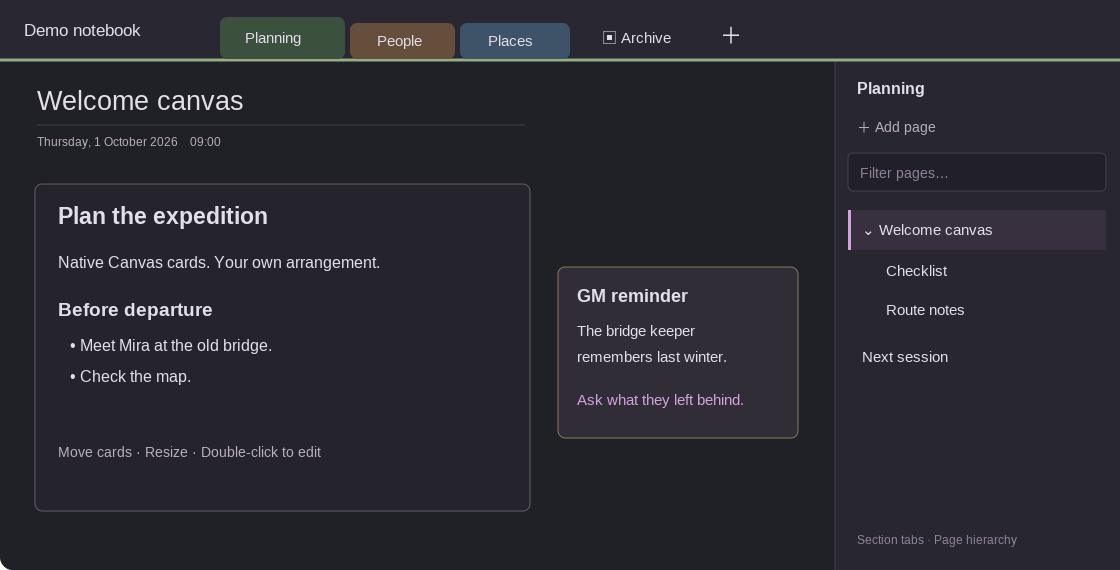
Layout illustration using fictional notes, not an Obsidian screenshot.
What it does
- Colored section tabs, draggable ordering, section groups and a back button to the parent group.
- Nested pages up to five levels, collapsible children, drag ordering, rename and recoverable deletion.
- Native
.canvaspages with freely positioned text cards, a title and creation date; Markdown pages are also supported. - Remembered Canvas position, zoom and card scroll; explicit links and search hits retain their own destinations.
- Text colors, display-only automatic links from page names/aliases, and a picker for linking to a page, card, heading or paragraph.
- Exact text highlighting in supported Canvas text cards, including table cells. Complex embedded content can still require native Find.
- A light/dark switch, ribbon toggle and a setting to use your current theme colors.
- A persistent bottom-right vault switcher, help and settings footer, independent of sidebar and ribbon visibility.
- Canvas text cards that grow with their text and push the cards below them down, show text that cannot fit instead of clipping it, and edit with the same text positions as in reading view. Card backgrounds are transparent by default so cards and images can overlap.
No adventure, character list or link mapping is bundled.
Install the beta
This plugin is not yet listed in the Obsidian community directory. Try it in a copy or disposable vault first.
- Download
main.js,manifest.jsonandstyles.cssfrom the linked release, or extract its ZIP. - Put the three files in
<your vault>/<your config folder>/plugins/classic-notebook/. The config folder is normally.obsidian. - Reload Obsidian and enable Classic Notebook under Community plugins.
- Run Classic Notebook: Notizbuch anzeigen from the command palette if the page list is not visible.
Alternatively, add SetupCoding/obsidian-classic-notebook through BRAT, selecting the 3.5.0 beta release if needed. Manual release installation is the directly validated path.
Start a notebook
Top-level vault folders become sections. Notes in the vault root appear under Allgemein (General). Existing files are left in place. Create a section with + or the notebook menu; create a section group from that menu. Enter a group to see its own set of tabs and use the back arrow to leave it.
Use Seite hinzufügen (Add page) to create a Canvas page. Under Settings → Classic Notebook, select Canvas or Markdown for future pages. The choice never converts existing notes; a notebook explicitly configured as Canvas-only continues using Canvas.
Right-click a page to rename, delete, indent or outdent it. Drag a page onto another page to nest it; its children move with it. The five-level limit applies to the whole branch. Click the Canvas page title to rename it directly.
Double-click a native Canvas text card to edit it. Move or resize the card using native Canvas controls. Reading and editing are still Markdown views: this plugin reduces common layout jumps but does not turn Canvas into a full rich-text editor.
The main notebook controls and command names are currently German; settings and this guide are English. Full UI localization is still pending.
Settings and shortcuts
Settings expose new-page format, classic colors, automatic links and startup explorer collapse. Disable Classic colors to inherit the active theme's colors; structural notebook styling remains active. Other themes have not all been tested.
Use Obsidian's Hotkeys settings to assign commands. No global default shortcuts are installed. To search the vault with Ctrl+E, assign Obsidian's Search: Search in all files command yourself. Existing personal hotkey assignments are not changed.
For automatic links, open Automatische Verknüpfungen verwalten. These are display-only links: your source text is not rewritten. Textstelle verknüpfen inserts an explicit link from selected text to a chosen destination.
Data and privacy
There is no telemetry, account requirement or plugin-initiated network access. All settings are vault-local. The plugin reads note content to build its local link/navigation indexes. Data details explain metadata, deletion and uninstall behavior.
Markdown and Canvas remain normal files. Notebook-specific creation dates, aliases, card labels and anchors use an additional notebook object in Canvas JSON. Core Canvas can still display the cards without this plugin; notebook-specific navigation and metadata preservation depend on it. Other tools may discard unknown metadata.
This distribution is not a generic OneNote importer. Optional legacy import-profile support exists for previously converted notebooks, but conversion scripts and source exports are not bundled. See the alternatives for dedicated import tools.
One source for several vaults
Use the source repositories as the authoring location and deploy their tested runtime files with one command:
npm run vaults:plan
npm run vaults:sync
npm run vaults:check
First create the ignored local configuration from sync-vaults.example.json. The workflow validates both plugins, backs up changed installations and distributes only the three runtime files. Each vault keeps its own settings, hierarchy, notes and import profiles. On Windows, Sync-Vaults.cmd runs the same workflow from any current directory. Setup and recovery.
The handling roadmap records pending work from the detailed Fluent OneNote comparison. It distinguishes planned improvements from implemented features.
Development
Use Node.js 22.13+ or 24.x:
npm ci
npm run build
npm run check
npm run lint
npm test
The runtime has no bundled third-party dependencies. Obsidian and CodeMirror are supplied by Obsidian. build.cjs expands the shared source modules into the root main.js; the root runtime files are committed for installation and reproducibility. npm run lint is a documented subset of official Obsidian checks, not the full community security/review scan.
The companion repository has integration tests for character pages and shared TODOs. See CONTRIBUTING.md and TESTING.md.
Status and license
Released as an early desktop beta under MIT. Windows is the development platform. macOS, Linux, mobile and broad third-party plugin compatibility have not been verified. Canvas enhancements use internal Obsidian interfaces and may need updates after an Obsidian release.
The community-directory submission and its automated review are pending. No approval by Obsidian is implied. Classic Notebook is independent of Microsoft and Obsidian.
For plugin developers
Search results and similarity scores are powered by semantic analysis of your plugin's README. If your plugin isn't appearing for searches you'd expect, try updating your README to clearly describe your plugin's purpose, features, and use cases.