Telescope
unlistedby Mark
A heatmap-based habit tracker with folders, tags, frequency rules, and palette-driven colors.
🔭 Telescope — Habit Tracker for Obsidian
A heatmap-based habit tracker plugin for Obsidian. Track your habits and routines with a GitHub-style calendar, flexible frequency rules, folders, tags, and palette-driven colors.
Features
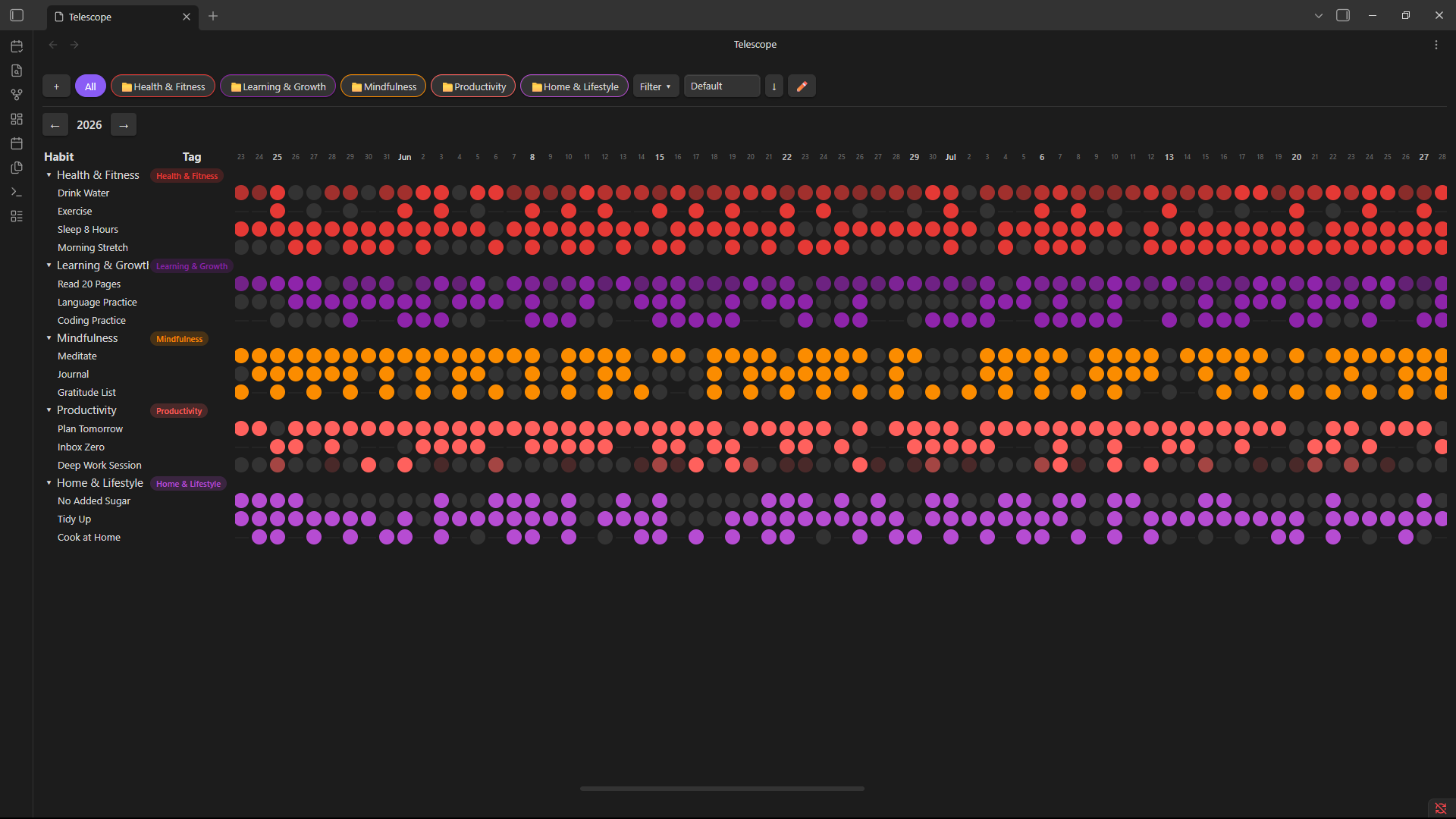
Heatmap calendar — A full-year grid where each cell represents one day. Click any past cell to log a habit. Color intensity reflects how much of the goal was completed (for quantitative habits).
Folders & tags — Organize habits into folders. Assign tags with auto-assigned colors from the active palette, or pick a color manually.
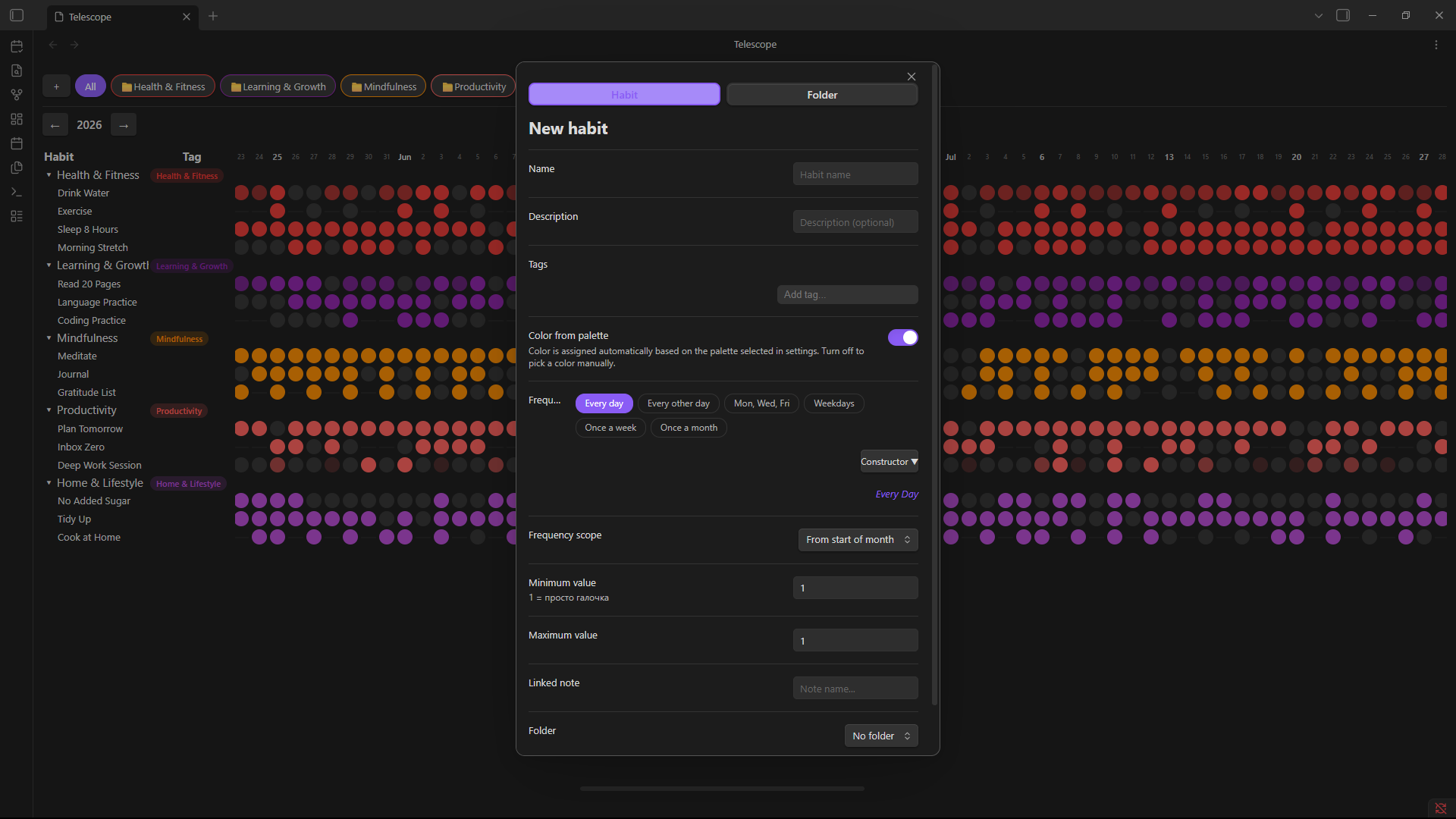
Flexible frequency rules — Define schedules using a token-based constructor: every day, specific weekdays, N times per month, ordinal days (1st Monday), and more. Frequency presets let you save and reuse common rules.
Palette-driven colors — Choose from five built-in color palettes (Ocean, Forest, Sunset, Arctic, Berry). Tag and habit colors auto-assign from the palette and update globally when you switch palettes. Manual color overrides are preserved.
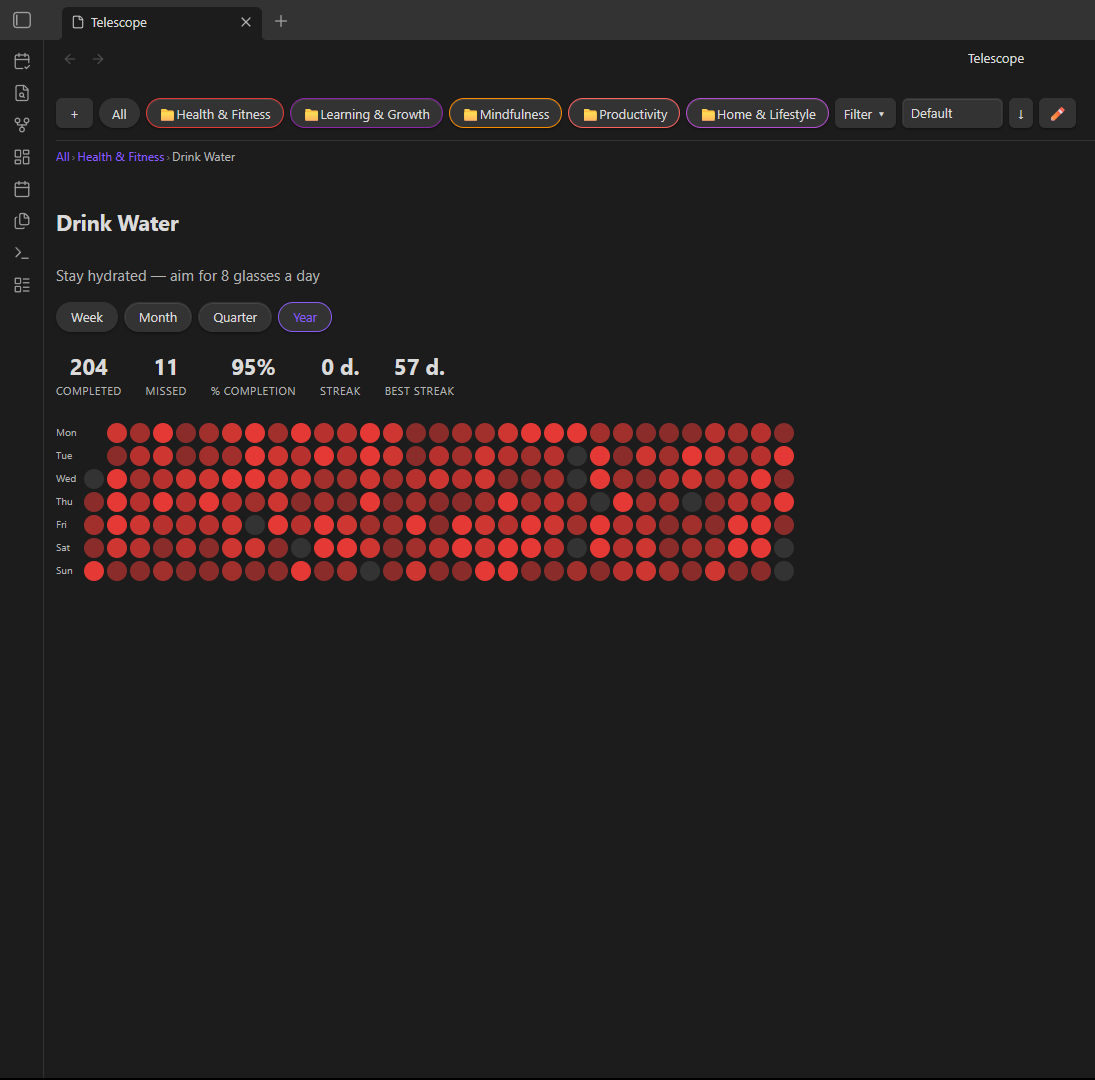
Detail view — Click into any habit to see a weekly heatmap, streak stats, completion rate, and linked Obsidian note.
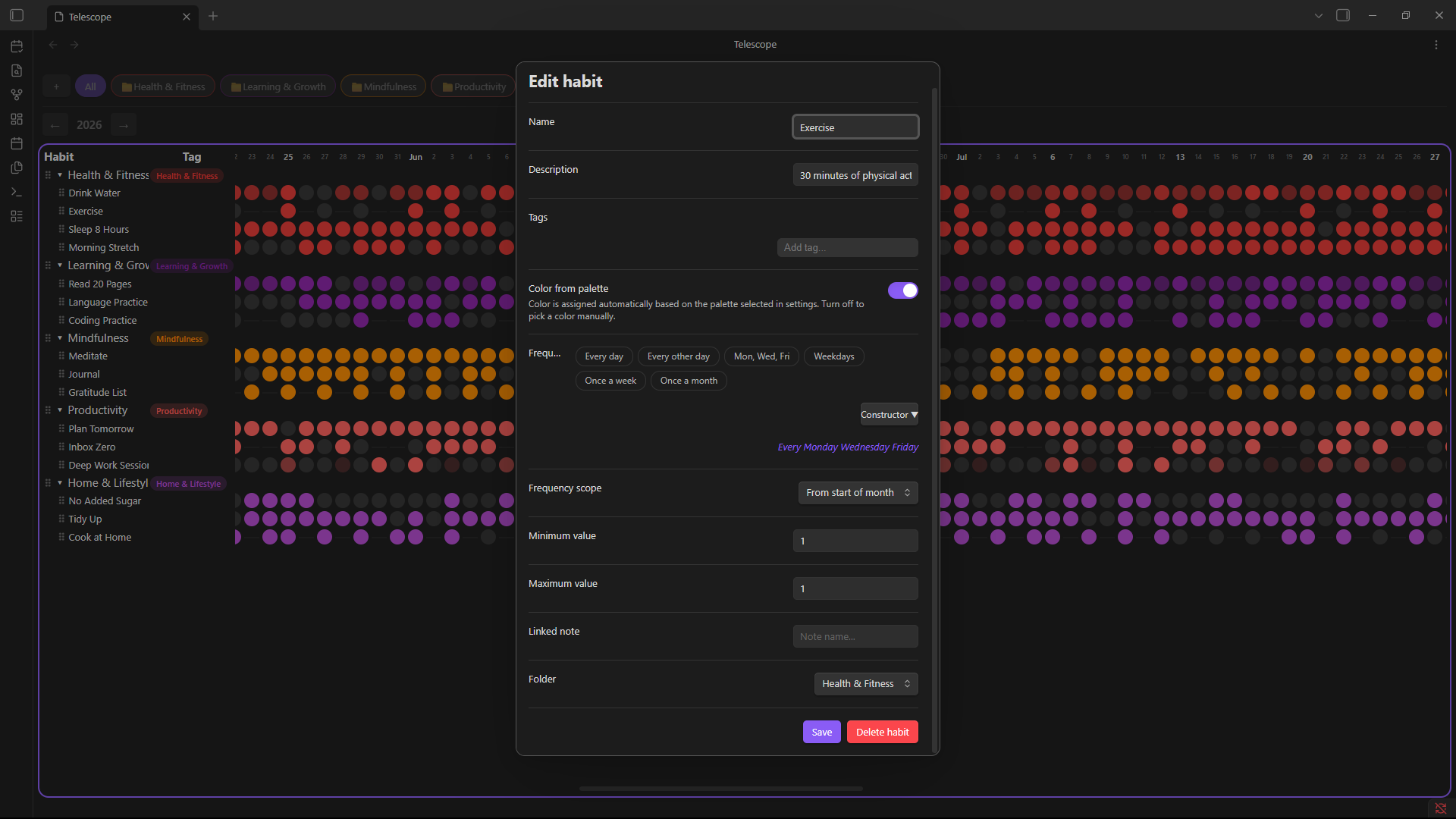
Edit mode — Toggle edit mode to reorder habits and folders via drag-and-drop (smooth animated reorder). The active edit zone is highlighted; clicking outside exits edit mode automatically.
Filtering & sorting — Boolean tag filters (AND / OR / NOT), sort by name, tag, created date, or completion rate.
i18n — Interface available in English, Russian, and Japanese. Auto-detects Obsidian's language by default.
Screenshots
| Heatmap | Detail view | Edit mode |
|---|---|---|
 |  |  |
Installation
Via BRAT (recommended for early access)
- Install the BRAT plugin from the Obsidian community plugins browser.
- Open BRAT settings → Add Beta Plugin.
- Paste the URL of this repository and click Add Plugin.
- Enable Telescope in Settings → Community Plugins.
Manual installation
- Download
main.js,styles.css, andmanifest.jsonfrom the latest release. - Copy them into your vault at
.obsidian/plugins/telescope-habit-tracker/. - Reload Obsidian and enable Telescope in Settings → Community Plugins.
Usage
Creating a habit
- Click the calendar icon in the ribbon, or run the command
Open Telescope. - Click + Create → Habit.
- Set a name, tags, frequency, and optionally link an Obsidian note.
- Toggle Color from palette on (default) to auto-assign a color, or off to pick manually.
Logging a habit
- Click any past cell in the heatmap to log it as done.
- For quantitative habits (min/max value > 1), a dialog will ask for the value.
Folders
Create folders to group related habits. A folder can have a tag that colors the entire group.
Edit mode
Click the ✏️ button in the top bar to enter edit mode:
- Click a habit or folder name to edit it.
- Drag the ⠿ handle to reorder habits and folders.
- Click anywhere outside the table to exit edit mode.
Settings
- Appearance — Choose a color palette, cell radius, styles for unscheduled and missed days.
- Language — Auto-detect from Obsidian or set manually.
- Tags — Manage all tags: rename, recolor, or toggle between palette and manual color.
- Export / Import — Back up and restore all habit data as JSON.
Feedback & Contributions
Found a bug or have a suggestion? Open an issue on GitHub.
Pull requests are welcome for bug fixes. For new features, please open an issue first to discuss the idea.
Development
git clone https://github.com/your-username/telescope-habit-tracker
cd telescope-habit-tracker
npm install
npm run dev
The plugin builds into the directory symlinked to your vault's .obsidian/plugins/telescope-habit-tracker/.
License
MIT
For plugin developers
Search results and similarity scores are powered by semantic analysis of your plugin's README. If your plugin isn't appearing for searches you'd expect, try updating your README to clearly describe your plugin's purpose, features, and use cases.