Excel HTML Paste
unlistedby SMOKE-19
Paste Excel clipboard tables as managed image and HTML assets.
Excel HTML Paste
Excel HTML Paste is an Obsidian plugin that stores tables copied from Excel as managed assets in your vault. It reads text/html and image/png from the clipboard, saves them under the vault, and inserts a code block that points to the managed asset.
Quick Start
- On Windows x64, choose the
with-helperZIP for more reliable Excel formatting when copying a table back to Excel. Chooseno-helperto use the basic workflow without the helper executable. Download from Releases - The optional helper's Rust source and GitHub Actions build are published in this repository. Helper source · Build workflow · Build it yourself
- Follow Windows installation, then try the Excel → Obsidian → Excel workflow.
Features
- Adds an editor context-menu command:
Paste Excel table (HTML) - Stores the original Excel HTML as
table.html - Stores the clipboard image as
table.pngwhen available - Creates a searchable Markdown index file,
table.search.md - Renders
excel-html-assetcode blocks as image previews in Reading view - Provides an
HTMLbutton on rendered assets to copy the original HTML back to the clipboard - Provides rendered-asset context-menu actions for history-preserving replacement, full replacement, and deletion
- On Windows, improves CF_HTML read/write behavior through a native clipboard helper
Why Not Markdown Tables?
This plugin is not intended to replace Excel-to-Markdown conversion plugins. It is designed for cases where preserving Excel's visual formatting matters more than Markdown editability.
Use this plugin when:
- the table contains merged cells
- colors, borders, widths, or layout carry important meaning
- the table is too wide or visually complex for comfortable Markdown editing
- you want to keep the original Excel HTML representation as a vault asset
- you still want Obsidian search support through a generated
table.search.mdsidecar file
If you want an editable Markdown table, an Excel-to-Markdown plugin is usually a better fit. If you want a faithful visual preview plus preserved HTML source, this plugin is the intended tool.
UX With And Without The Windows Helper
The plugin can be used without the helper. The helper is not required for the basic asset workflow. However, on Windows, round-tripping Excel HTML formatting is most reliable when the helper is available.
The helper is a small Rust native executable. It directly reads and writes the Windows HTML Format clipboard format, also known as CF_HTML. CF_HTML is not just a plain HTML string. It includes Windows-specific offset headers such as StartHTML, EndHTML, StartFragment, and EndFragment. Excel often handles this format more consistently than standard browser text/html clipboard data.
Without The Helper
Paste Excel table (HTML)readstext/htmlandimage/pngthrough the browser/Electron Clipboard API.- Asset creation, image preview,
table.html,table.search.md, replacement, and deletion still work. - The
HTMLbutton writestext/htmlandtext/plainthrough the standard Clipboard API. - Copying HTML into browsers, mail clients, and document editors will usually work.
- Pasting back into Excel is environment-dependent. The table structure may survive, but formatting, merged cells, widths, colors, or Excel-specific details may be degraded.
- If the helper is missing or fails, the plugin automatically falls back to this path and shows a
Noticewhen possible.
With The Helper
- On Windows Desktop, when the helper executable is found, the plugin first reads Excel clipboard HTML through the native CF_HTML path.
- When the
HTMLbutton is clicked, the saved HTML is written directly to the WindowsHTML Formatclipboard format. - The helper also sets
CF_UNICODETEXT,CF_TEXT, andCF_OEMTEXTfallback formats to improve paste compatibility with non-Excel applications. - Pasting back into Excel is more likely to preserve table structure and HTML formatting than the helperless path.
- The helper is used only on Windows. On macOS, Linux, or Windows installations without the helper, the plugin falls back to the standard Clipboard API.
Practical Difference
| Task | Without helper | With helper |
|---|---|---|
| Save an Excel table into Obsidian | Works | Works |
| Render image previews | Works | Works |
Create table.search.md | Works | Works |
| Replace/delete managed assets | Works | Works |
| Copy HTML into browsers or document apps | Usually works | Usually works |
| Paste HTML back into Excel | Environment-dependent | More reliable |
| Preserve Excel-like formatting round-trip | Hard to guarantee | Recommended path |
In short, the helper is an optional component for improving Windows Excel formatting round-trip quality. It is not required for the core asset storage workflow.
Usage Flow
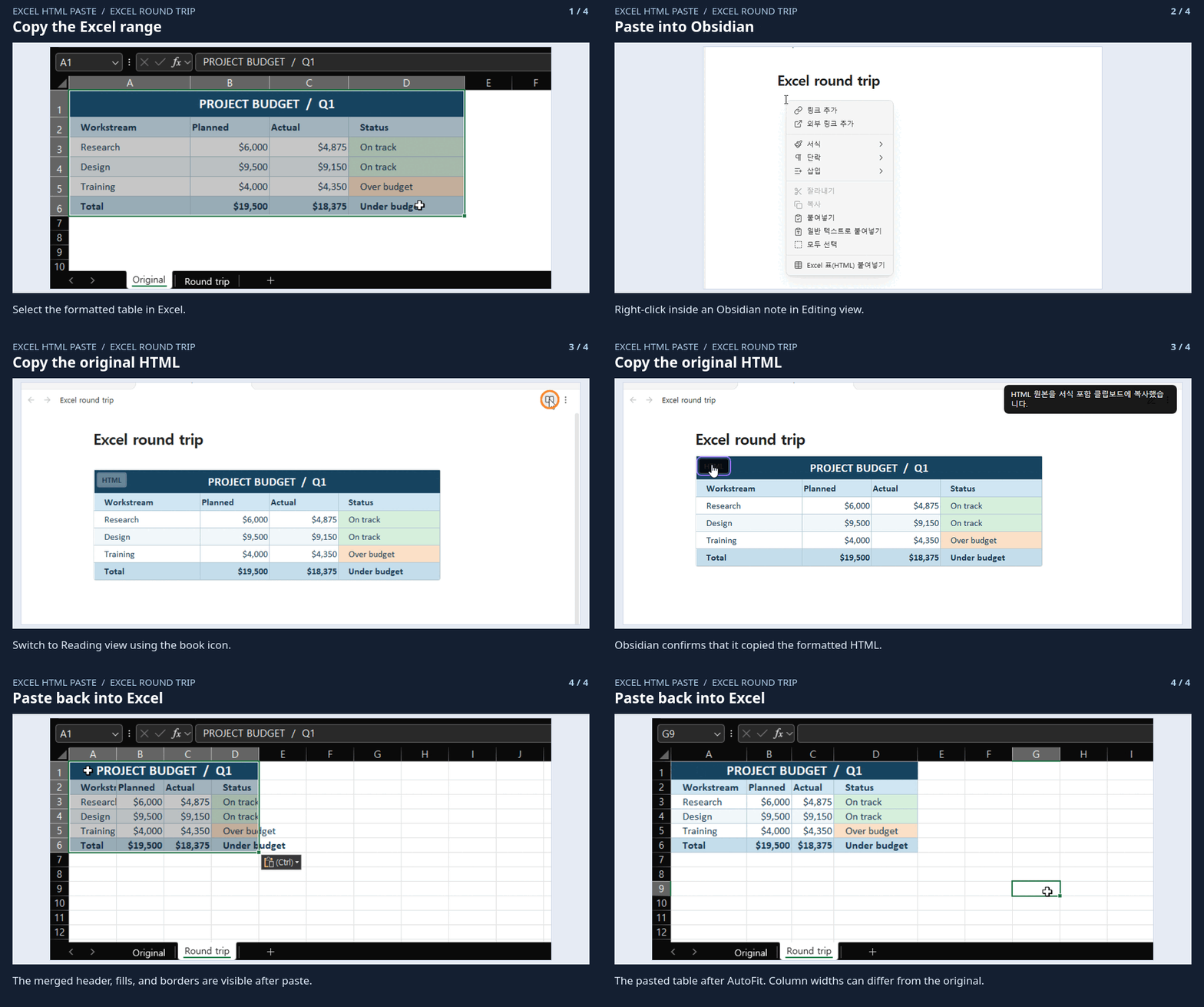
Copy a range in Excel with Ctrl+C, right-click in the Obsidian editor, and choose Paste Excel table (HTML). Wait for the asset to appear in the note before switching views.
When Obsidian's Files and links → Default location for new attachments is configured, the plugin creates its asset folder under that location and inserts a code block into the current note. If no attachment folder is configured or the path cannot be resolved, it uses the legacy default path.
{attachment folder}/excel-paste/{id}/
  meta.json
  table.html
  table.png
  table.search.md
The fallback path is assets/excel-paste/{id}/.
The inserted note content looks like this:
```excel-html-asset
path: assets/excel-paste/{id}/meta.json
```
Switch to Reading view to see the table preview. Click HTML on the preview, return to Excel, select a destination cell, and paste with Ctrl+V. If Excel supplies no clipboard image, Obsidian shows an HTML-only fallback with the same HTML copy button.
The Windows demo uses the with-helper ZIP. The sample's merged header, fill colors, and borders are visible after pasting back into Excel. The destination column widths can differ. To fit them to the text, select the pasted columns and double-click a column heading boundary.
Asset Management
Right-click a rendered Excel asset to access these actions:
Replace Excel table (HTML), keep history: Archives the currenttable.html,table.png,table.search.md, andmeta.jsonwith timestamped filenames, then replaces the active files with the current clipboard content.Replace Excel table (HTML) completely: Overwrites the active files with the current clipboard content and deletes previous history files.Delete Excel asset: Removes the code block from the note and deletes the linked asset folder.
Replacement operations include rollback handling where possible, so existing files are restored if replacement fails partway through.
Project Structure
main.ts: Obsidian plugin entrypoint, clipboard handling, asset creation/rendering/replacement/deletion logicstyles.css: Styles for rendered Excel images, the HTML copy button, fallback states, and error statesmanifest.json: Obsidian plugin metadataesbuild.config.mjs: Bundlesmain.tsintomain.js.github/workflows/build-plugin.yml: Builds release artifacts with GitHub Actions and attaches them to tagged Releaseshelper/: Rust native helper for Windows CF_HTML read/write supportbin/: Target location for packaged native helper executables
Build
Install dependencies.
npm install
Build the Obsidian plugin JavaScript.
npm run build
main.js is a generated bundle. It is ignored by Git and produced by GitHub Actions for Release artifacts.
Building the Windows native helper requires the Rust toolchain.
npm run build:helper:win64
Place the built helper executable at this path before packaging.
bin/excel-html-clipboard-win32-x64.exe
The arm64 Windows helper should use this filename.
bin/excel-html-clipboard-win32-arm64.exe
Installation
- Download the Windows installer, run it, and open or create a local vault in Obsidian. Obsidian downloads
- Download a plugin ZIP and use Extract All in File Explorer. Excel HTML Paste Releases
- Copy the extracted
excel-html-pastefolder into your vault's.obsidian/plugins/directory. Createpluginsif needed. - In Obsidian, open Settings → Community plugins, turn on community plugins if prompted, and enable Excel HTML Paste under Installed plugins. Refresh the list if the plugin does not appear.
The with-helper ZIP produces this layout.
.obsidian/plugins/excel-html-paste/
  manifest.json
  main.js
  styles.css
  bin/
    excel-html-clipboard-win32-x64.exe
The no-helper ZIP provides the three plugin files. To install a self-built helper, place the executable under bin/ as shown above. Build instructions
Behavior Notes
- The plugin is desktop-only.
- The plugin uses English UI text by default. When Obsidian's language starts with
ko, menus, notices, confirmations, and plugin-rendered errors are shown in Korean. - If the clipboard does not contain
text/html, paste is aborted. - If the clipboard does not contain an image, only the HTML source and searchable Markdown index are stored.
- Generated assets are stored under
excel-paste/in the folder resolved from Obsidian'sattachmentFolderPathsetting./means the Vault root,./means the current note's folder, and./attachmentsmeans anattachmentsfolder below the current note's folder. The legacyassets/excel-paste/path is used only when the setting cannot be read or is unsafe. - Dot-prefixed hidden folders such as
.assetssupport storage, rendering, HTML copy, replacement, and deletion. The plugin accesses files in these paths directly through the Adapter API, but Obsidian may exclude them from its search index. table.search.mdis a sidecar Markdown file that converts HTML table content into Markdown table text so Obsidian search can index it.
For plugin developers
Search results and similarity scores are powered by semantic analysis of your plugin's README. If your plugin isn't appearing for searches you'd expect, try updating your README to clearly describe your plugin's purpose, features, and use cases.