Structural Tables
approvedby ZhengYX
Merged cells, multi-row headers, and row headers for readable Markdown tables. - This plugin has not been manually reviewed by Obsidian staff.
Structural Tables
Structural Tables adds merged cells, multi-row column headers, and row headers to ordinary pipe-table Markdown while keeping the source readable and portable.
Tables in blockquotes, callouts and list continuations retain their container when formatted or edited. Keep the same prefix on every table row. Move a nested table to the top level before upgrading it to Base.
Screenshots
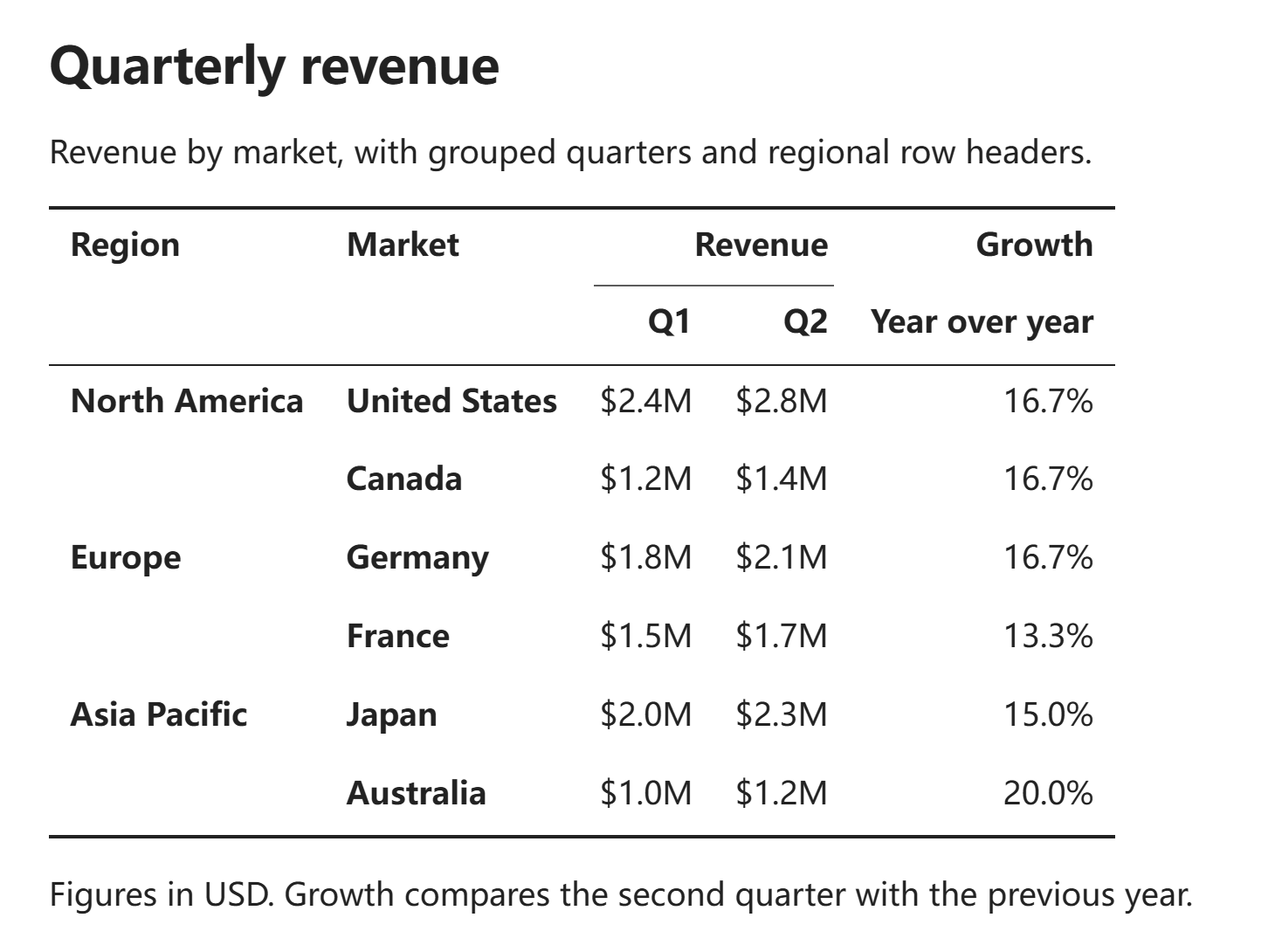
Three-line table in Reading view
Group columns under multi-row headers and merge row headers across related records. Three-line styling adds short rules below column groups while keeping the table body uncluttered.
Live Preview
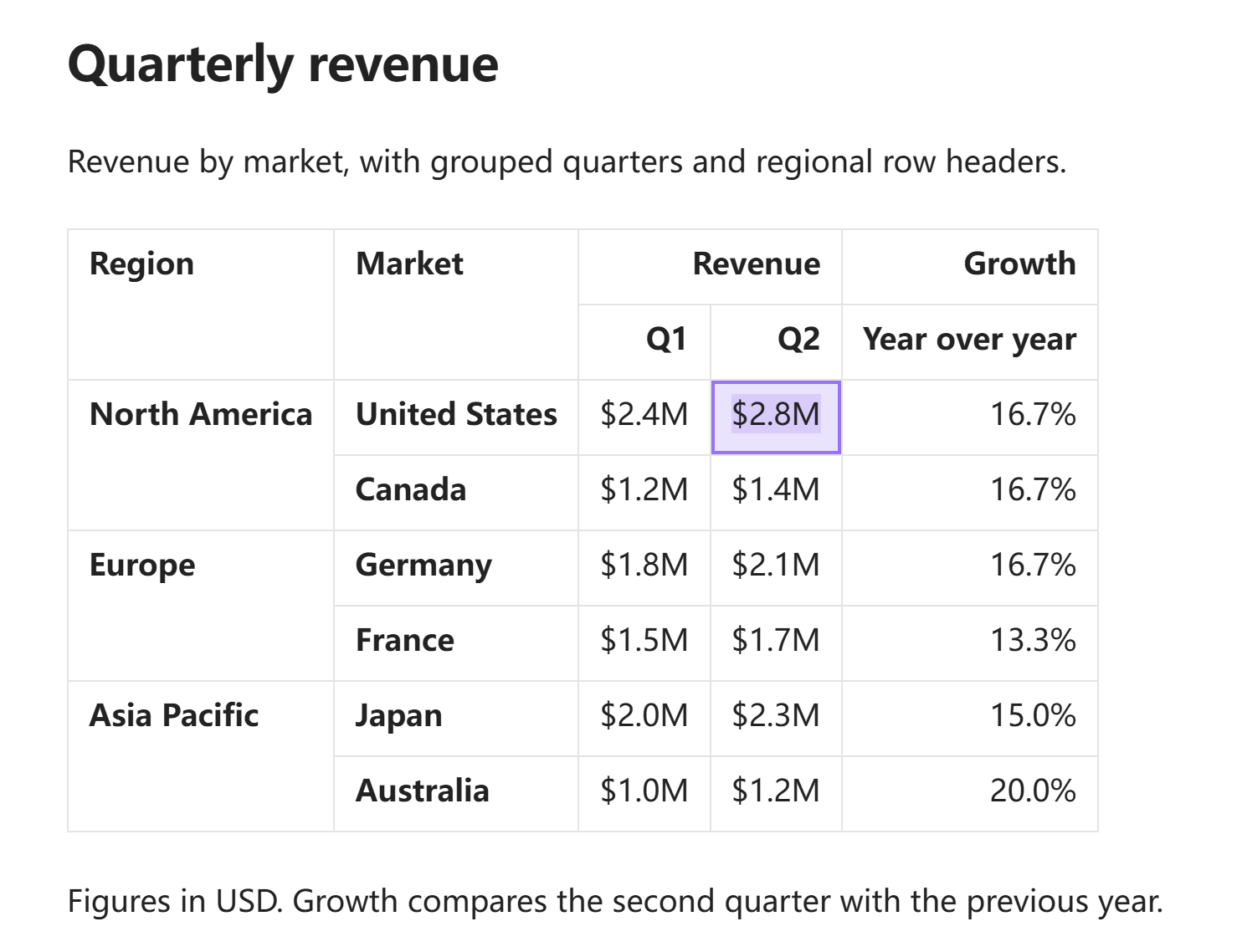
Edit cells directly in Live Preview while keeping merged headers visible. The same table is shown here with the optional grid style; click a cell on desktop, or double-tap it on touch screens, to edit it in place.
Appearance settings
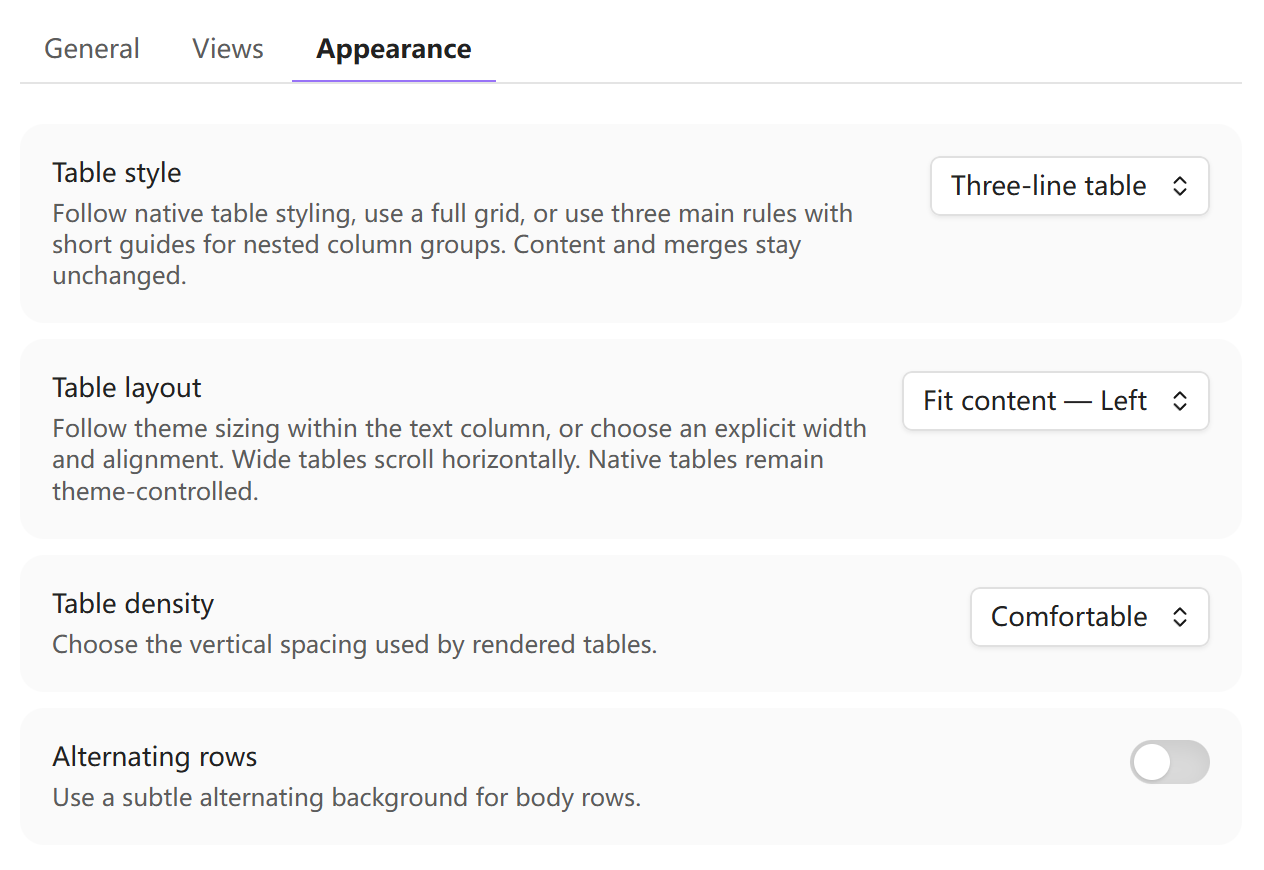
Choose Follow theme, Grid, or Three-line table independently of table layout and density. General, Views, and Appearance keep the settings organized in three tabs.
Features
- Merge left with an exact
<cell and merge up with an exact^cell. - Use consecutive header rows before the delimiter for multi-row column headers.
- Put one adjacent
||inside the delimiter row to mark row-header columns. - Render semantic, accessible tables in Reading view and Live Preview.
- Edit cells in place with one stable focus border and no column expansion, including automatic
|escaping for pasted Wiki links. - Select complete rows or columns with handles, then insert, delete, move, align, merge, split, or set headers from the context menu. On desktop, hovering a cell reveals its row and column handles; keyboard-focused or selected handles remain visible. Coarse-pointer devices keep touch-sized handles visible. Tab enters each cell or handle group once, while arrow keys move within that group.
- Paste HTML tables from browsers and spreadsheets while preserving row and column spans plus visual cell line breaks.
- Copy valid tables as semantic HTML, portable GFM, TSV, or CSV, and preview before flattening a table to GFM.
- Convert unambiguous Sheets Extended separator columns into canonical row-header syntax.
- Upgrade a valid ordinary or structural table into an embedded Obsidian Base whose rows are independent Markdown notes, directly from the table context menu or command palette.
- Keep promoted membership in the Obsidian-friendly
structural-tableslist and allow record notes to move or be renamed without leaving the Base; records need no plugin-specific identity property. - Preview every promotion, create a schema-versioned recovery manifest, roll back failed file creation to trash, restore the original table without deleting generated notes, and organize later records created by either the native Base New action or the plugin command under the host note's current folder.
- Diagnose invalid structures without rewriting the note.
Requirements and compatibility
Structural Tables requires Obsidian 1.12.7 or later and supports desktop Obsidian and Android. Upgrade to Base additionally requires Obsidian's Bases core plugin to be enabled. Structural Tables owns the meaning of exact <, ^, and delimiter || tokens inside a structural table. By default it warns once when an enabled table plugin is known to assign overlapping meanings to those tokens.
Installation
Install Structural Tables from Obsidian's Community plugins directory: open Settings → Community plugins → Browse, search for Structural Tables, select Install, and then enable the plugin.
For manual installation, download structural-tables-<version>.zip from the latest release and extract it into Vault/.obsidian/plugins/. The archive contains the structural-tables/ directory with main.js, manifest.json, and styles.css. Reload Obsidian, then enable Structural Tables under Community plugins.
Usage
- Create or paste an ordinary pipe table in a Markdown note.
- Use an exact
<cell to merge left, an exact^cell to merge up, or one adjacent||inside the delimiter row to mark the columns on its left as row headers. - Leave the table in Live Preview, or switch to Reading view, to see the rendered structure.
- Click a rendered cell on desktop, double-tap it on a touch screen, or select it and press Enter/F2, to edit it in place. Shift+Enter or Insert line break in cell from the editor's context menu inserts
<br>; Enter commits, Escape cancels, and Tab/Shift+Tab commits and moves through visible cells in source order, skipping merged placeholders. - Use + below the table to add a data row or + on its right edge to add a column. Tab from the final visible cell adds a data row and opens its first cell; the edit and insertion undo together.
- Use the row/column handles, drag across cells with a mouse, or tap the first and last cell of a rectangle on Android. Then right-click or long-press to insert, safely delete, move, align, merge, split, or set headers.
- Select a row or column handle first, then drag a selected handle to reorder. Shift-click another handle on desktop, or tap another handle on Android, to select a range. Red drop markers indicate a blocked move: include complete merged cells and stay within the same header/data region. Escape or releasing outside the table cancels a drag.
- Paste an HTML table from a browser, Excel, or Google Sheets to preserve supported row and column spans and cell line breaks.
- Open the command palette to preview and confirm canonical formatting, copy the current valid table as HTML, GFM, TSV, or CSV, preview a flatten-to-GFM conversion, or migrate a Sheets Extended row-header separator. Explicit table writes align source pipes by display width, including around CJK text, without touching the note during rendering.
- Right-click a table and choose Upgrade to Base…. Structural tables use Expand structure and upgrade to Base…, whose preview explains flattened header paths, ordinary row-header properties, repeated merged row-header values, and any blocking merged data cell before files can be created.
| Region  | Sales | <   |
| Quarter | Q1    | Q2  |
| ---     || ---  | --- |
| North   | 10    | 12  |
| ^       | 8     | 11  |
All equal-width rows immediately before the delimiter are column-header rows. The || divider is internal, appears at most once, does not add a column, and makes columns to its left row headers. A merge must resolve to one top-left content cell, form a complete rectangle, and stay inside one header/data role region. Write \< or \^ for literal marker text.
Inside a cell, <br>, <br/>, and <br /> all render as a visual line break in Reading view and owned Live Preview tables. Hand-written spellings remain unchanged during formatting; Shift+Enter, the editor menu, multiline plain-text paste, and imported HTML use canonical <br>. Semantic HTML export emits real break elements, while text-oriented GFM, TSV, and CSV keep the tag as text. This is visual line-break syntax, not block content or a true multiline Markdown cell.
Spreadsheet clipboard fragments are supported even when the surrounding table tag is omitted. If the source supplies no semantic column headers, the first row and any rows joined to it by merged cells become the header group. Bold text alone does not identify row headers. Pasting a single spreadsheet cell into the cell editor preserves its visible line breaks without adding spreadsheet export quotes or a trailing blank line.
To paste into Word, right-click a rendered cell and choose Copy whole table for Word / HTML, or place the source cursor in the table and run Copy current table as HTML. Both copy the entire table, including merged cells and multi-row headers. Bold, emphasis, code, external links, and visual line breaks are exported as portable HTML; Wiki links and embeds use their visible labels. A readable tab-separated alternative is supplied to plain-text destinations. Copying while typing inside a cell retains the normal text-selection behavior. Word's paste option and document style can affect the final appearance; use the option that keeps source formatting.
Once a table uses any structural feature, every row must have exactly the delimiter width. Invalid structures keep their Markdown and show a diagnostic. Use Format current structural table for the canonical representation: the top-left cell stores content, the rest of the top row uses <, covered cells below use ^, and source pipes line up by terminal display width. Row-header ||, alignment markers, escaped pipes, Wiki links, code spans, and existing LF/CRLF/CR endings remain valid. The same alignment runs after an explicit edit, merge, split, row/column operation, or imported-table write; passive rendering never rewrites Markdown. GFM, TSV, and CSV conversion repeats merged values and joins multi-row column-header paths with / so the flattened result remains explicit.
In Live Preview, ordinary Markdown tables remain in Obsidian's native editor by default. Enable Take over ordinary Markdown tables to give unchanged GFM tables the same rendered widget, row/column handles, cell selection, in-place editor, context menu, layout, density, and alternating-row appearance as structural tables; disabling it restores native behavior immediately. Rendered tables follow native theme styling by default, preserve logical merged borders, and retain touch-sized interactive rows on coarse pointers. Optional density and style overrides do not alter source content. Handles overlay the table's outer gutter instead of shifting its content alignment; hovering a cell reveals only its row and column handles, while keyboard-focused or selected handles remain visible. An owned cell selection clears when focus or the editor cursor moves away. Pasting [[Target|Alias]] or ![[Image|Size]] into an owned cell automatically stores the table-safe forms [[Target\|Alias]] and ![[Image\|Size]]; existing escapes are not doubled. Operations that would discard non-empty content or break a merged rectangle are refused.
Promotion creates records under <host-folder>/_structural-table-records/<table-id>/. Each record uses a normal list Property:
structural-tables:
  - stb_example
The directory is a creation inbox, not a membership boundary: moving or renaming a record note does not change its membership. Existing records stay where the user placed them when the host note moves. The generated Base's native New action can move a just-created note into the inbox beside the host note without adding a record ID; a note that the user has already moved stays at its chosen location. Create record for current promoted Base remains available from the command palette and context menu. Use Restore table from current promoted Base to recover the original table from _promotion.json; generated notes are deliberately kept. Promotion preserves every non-empty header, including numeric and leading-zero headers, as its Property name and uses column_n only for a blank header. Duplicate or reserved names receive a numeric suffix. Imported cell values remain strings, so leading zeroes and identifiers are unchanged.
Existing Bases that use structural_table_ids remain supported. Run Migrate legacy Structural Tables Base properties… to preview each affected file and its intended changes, replace the old membership Property and Base filters, and optionally remove retired structural_record_id values only from notes with valid Structural Tables membership. Cleanup is off by default, and its count plus per-file actions update when the toggle changes. Nothing migrates at startup; invalid or conflicting old/new membership Properties stop the migration without overwriting them, and rollback preserves unrelated edits made concurrently.
Settings
The settings page follows Obsidian's native controls and has General, Views, and Appearance tabs. General controls HTML-table paste conversion and startup conflict warnings. Views includes the default-off ordinary-table takeover alongside Reading view, Live Preview, and diagnostics. New installations follow the theme for table style, width, and density. Appearance offers Follow theme, Grid, and Three-line table styles, independent content-left/content-center/fill-text-width layouts, comfortable/compact spacing, and alternating rows; language can Follow Obsidian or use English/Simplified Chinese.
Plugin-owned tables stay within the text column, including under theme wide-table classes; wide content scrolls inside the table. Native ordinary tables continue to follow Obsidian and the theme. Enable Take over ordinary Markdown tables to apply the same controls to both. Existing explicit width and density preferences are preserved; choose Follow theme for native spacing. Three-line style draws the top rule, one separator below the complete header group, and the bottom rule, without vertical or body-row rules. Multi-level column groups also have short, inset rules below spanning titles with child headers; these never cross row-spanning headers. HTML copying uses portable grid or three-line borders when that style is selected; theme mode exports a neutral borderless table. Exported group rules use real cell borders instead of inset decorations for compatibility. Width, density, alternating rows, and theme colors stay in Obsidian. Appearance settings never change Markdown.
Limitations
Structural Tables does not support formulas, per-cell styling, block-level or true multiline Markdown cell content, captions, numbering, source attributes for repeated headers, or automatic rich-text-to-Markdown conversion inside imported HTML cells. Imported HTML content becomes plain text plus canonical <br> visual breaks. Base upgrade flattens layout structure into properties: multi-row header paths are joined with /, row headers become ordinary properties, and merged row-header values repeat per record. A merged data cell blocks confirmation and identifies its location until it is split. Native-New adoption is deliberately limited to just-created notes that match exactly one Structural Tables Base; ambiguous notes are left in place. Recovery requires the generated _promotion.json to remain at the path recorded in the Base block. The parser deliberately refuses ambiguous or nonrectangular merges.
Privacy and security
Structural Tables works locally. It does not make network requests, load remote assets, collect analytics, or send note content anywhere. Rendering never changes source Markdown; in-place and menu edits are explicit and validated before replacement. Promotion creates only the previewed local record notes and recovery manifest. A failed promotion moves its newly created table-specific directory to the configured Obsidian trash.
Development
Use Node 24.19.0 and npm 11.17.0.
npm ci
npm run check
Developer references:
- Product requirements
- UX specification
- Architecture
- Testing strategy
- Changelog
- Contributing guide
- Security policy
Support
- Use General for workflow ideas and general feedback.
- Use Q&A for usage and configuration questions.
- Use the structured GitHub issue forms for reproducible bugs and concrete feature requests. Include the Obsidian version, editing mode, theme, relevant table Markdown, expected result, and actual result.
- Report vulnerabilities only through GitHub's private vulnerability reporting; see the security policy for details.
Never post real private Vault paths, note content, credentials, or personal information publicly.
License
MIT © ZhengYX
For plugin developers
Search results and similarity scores are powered by semantic analysis of your plugin's README. If your plugin isn't appearing for searches you'd expect, try updating your README to clearly describe your plugin's purpose, features, and use cases.