Mumbler
unlistedby u1e2k
Quickly jot down your thoughts and append them to today's daily note in reverse chronological order.
Mumbler


An Obsidian plugin that lets you quickly jot down thoughts and micro-memos like a personal Twitter/X timeline, automatically appending them to today's daily note in reverse chronological order.
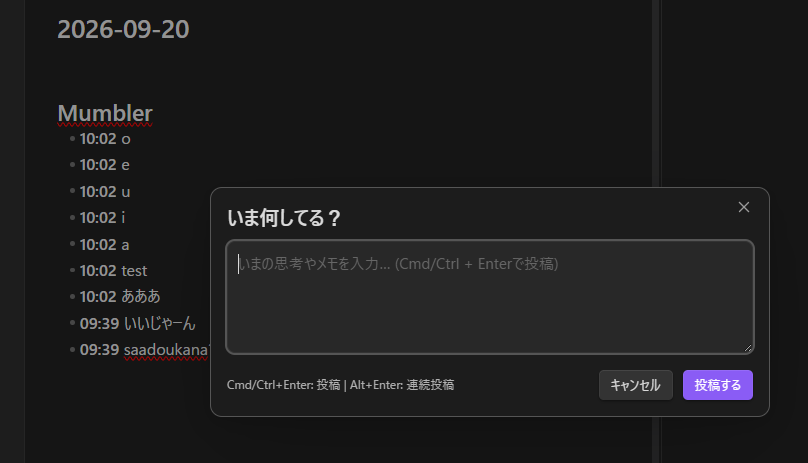
Features
- ⚡ Quick Input Popup:
- Open a sleek modal instantly via the ribbon icon (
message-square) or command palette. - Submit instantly with
Cmd + Enter(Mac) orCtrl + Enter(Windows/Linux). - Continuous Posting: Press
Alt + Enter(orOption + Enteron Mac) to submit without closing the modal so you can post multiple notes in a row. - Optimized for mobile/iPad: automatically delays focus slightly to reliably bring up the on-screen keyboard.
- Open a sleek modal instantly via the ribbon icon (
- 📅 Automatic Daily Note Appending:
- Automatically appends notes to today's daily note (
Daily/YYYY-MM-DD.md) with timestamps (HH:mm). - Reverse Chronological Order: New entries appear at the top of the section (timeline style).
- Multi-line Preserving: Multi-line thoughts are neatly indented as child list items to preserve Markdown list syntax.
- Automatically creates the
Dailyfolder and note if they don't exist yet.
- Automatically appends notes to today's daily note (
- ⚙️ Customizable Heading:
- Customize the destination section heading (default:
## つぶやき/## Thoughts) to fit your workflow.
- Customize the destination section heading (default:
Usage
- Open Mumbler:
- Left-click the message-square ribbon icon on the left sidebar, or trigger "Mumbler: つぶやきを投稿" from the Command Palette (
Ctrl/Cmd + P). - Right-click the ribbon icon to open the Mumbler Settings tab directly!
- Left-click the message-square ribbon icon on the left sidebar, or trigger "Mumbler: つぶやきを投稿" from the Command Palette (
- Type your thought or memo into the text area.
- Submit:
Cmd + Enter/Ctrl + Enter(or click 投稿する): Post and close the popup.Alt + Enter/Option + Enter: Post and keep the popup open for continuous entries.
- Today's daily note is updated with your new entry inserted right under your chosen heading.
Settings
Go to Settings > Community Plugins > Mumbler to customize:
| Setting | Description | Default |
|---|---|---|
| コアプラグインの設定を使用する (Use Daily Notes Settings) | Automatically use the Daily Notes core plugin settings (folder and date format). | true (ON) |
| フォルダ名 (Folder Path) | Destination folder path for daily/log notes (active when core plugin settings are disabled). | "" (Vault Root) |
| 日付フォーマット (Date Format) | Date format for filenames using Moment.js syntax (e.g. YYYY-MM-DD). | YYYY-MM-DD |
| 見出しレベル (Heading Level) | Markdown heading level for memos (H1 to H6). | H2 (##) |
| 見出し名 (Heading Text) | The text for the destination heading (e.g. つぶやき, Thoughts, Log). | つぶやき |
[!TIP] You can choose any heading level from H1 (
#) to H6 (######) and customize the heading title to fit your personal note structure.
Installation
Via BRAT (Recommended for Beta Testing)
You can easily install and stay up-to-date with Mumbler using the Obsidian42 - BRAT plugin:
New Installation
- Install and enable the BRAT plugin from Obsidian's Community Plugins.
- Open Settings > Community plugins > BRAT, or run the command
BRAT: Add a beta plugin for testingfrom the Command Palette (Ctrl/Cmd + P). - Enter the repository URL:
https://github.com/u1e2k/mumbler - Click Add Plugin, then enable Mumbler in Settings > Community plugins.
Updating via BRAT
- Manual Update: Open the Command Palette (
Ctrl/Cmd + P) and run:BRAT: Check for updates to all installed plugins and update them - Automatic Updates: If enabled in BRAT's settings ("Auto-update plugins at startup"), BRAT will automatically check for and apply updates whenever Obsidian starts up.
From Community Plugins (Once Approved)
- Open Settings > Community plugins in Obsidian.
- Search for Mumbler.
- Click Install, then Enable.
Manual Installation
- Download
main.jsandmanifest.jsonfrom the latest GitHub Release. - Copy them into
<YourVault>/.obsidian/plugins/mumbler/. - Reload Obsidian or toggle Mumbler in Settings > Community plugins.
Development
Direct Build Output to Local Vault (Optional)
Copy env.example.json to env.json and set your local vault path. The build script will automatically output main.js and copy manifest.json directly into your vault plugin directory.
{
  "vaultPath": "C:/path/to/your/Obsidian Vault"
}
(Note: env.json is git-ignored and will not be pushed to GitHub.)
Build Commands
# Install dependencies
npm install

# Watch mode (auto-rebuild on file change)
npm run dev

# Production build
npm run build

# Version bump & tag (e.g. 0.0.2 -> 0.0.3)
npm version patch
日本語ガイド
Obsidian内で「一人用Twitter」のように、思いついた瞬間に手軽にメモを書き込み、今日のデイリーノートの指定見出し配下に自動追記するプラグインです。
主な特徴
- 素早い入力: 左リボンアイコン(左クリック)やコマンドパレットから起動し、
Cmd/Ctrl + Enterでキーボードから手を離さずに即時投稿。 - 連続投稿対応:
Alt + Enter(MacではOption + Enter)を押すことで、モーダルを閉じずにテキストエリアをクリアして次々と連続投稿可能。 - 設定への素早いアクセス: 左リボンアイコンを右クリックすると、設定モーダルが開きMumblerの設定タブへダイレクトにアクセス可能。
- 逆時系列タイムライン: 新しいつぶやきが上に来る形で挿入され、過去の思考をすばやく振り返ることができます。
- 安心のMarkdown維持: 複数行にわたるつぶやきもスペース2つのインデントを自動付与し、Markdownのリスト構造を保持します。
- 見出しカスタマイズ: 設定画面から追記先見出しレベル(H1〜H6)と見出し名を自由に変更可能。
設定画面
Obsidianの「設定」> プラグインオプション > 「Mumbler」から見出しレベルや見出し名、保存先フォルダ等を変更できます。
インストールとアップデート(BRAT推奨)
新規インストール
- Obsidianの「コミュニティプラグイン」から BRAT (Obsidian42 - BRAT) をインストールして有効化します。
- コマンドパレット(
Ctrl/Cmd + P)でBRAT: Add a beta plugin for testingを実行します。 - リポジトリURLを入力して「Add Plugin」をクリックします:
https://github.com/u1e2k/mumbler - 「コミュニティプラグイン」一覧で Mumbler を有効化します。
アップデート手順
- 手動アップデート: コマンドパレット(
Ctrl/Cmd + P)から以下のコマンドを実行します:BRAT: Check for updates to all installed plugins and update them - 自動アップデート: BRAT設定の「Auto-update plugins at startup」をONにしておくことで、Obsidian起動時に自動で最新リリースへ更新されます。
License
This project is licensed under the MIT License.
For plugin developers
Search results and similarity scores are powered by semantic analysis of your plugin's README. If your plugin isn't appearing for searches you'd expect, try updating your README to clearly describe your plugin's purpose, features, and use cases.