Jot
unlistedby ichris007
Quickly capture and organize fleeting thoughts.
Jot



Jot is a quick note‑taking plugin for Obsidian. It helps you capture fleeting thoughts, jot down ideas, and manage fragmented notes with ease. Features like nested tags, file attachments, a calendar overview, full‑text search, and seamless Markdown rendering make it a perfect fit for your Obsidian workflow.
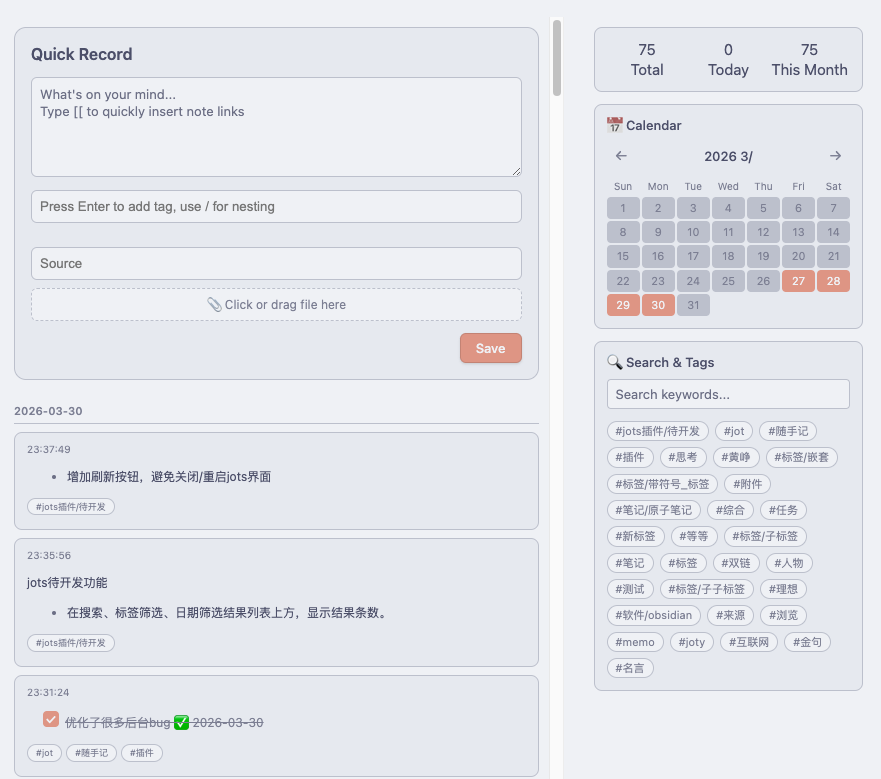
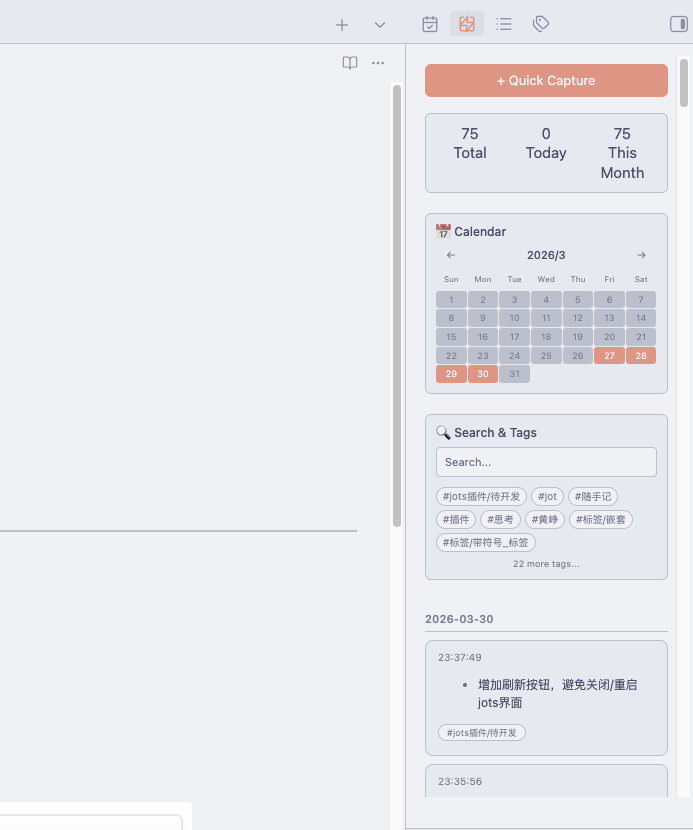
Preview
Workspace Area
Sidebar
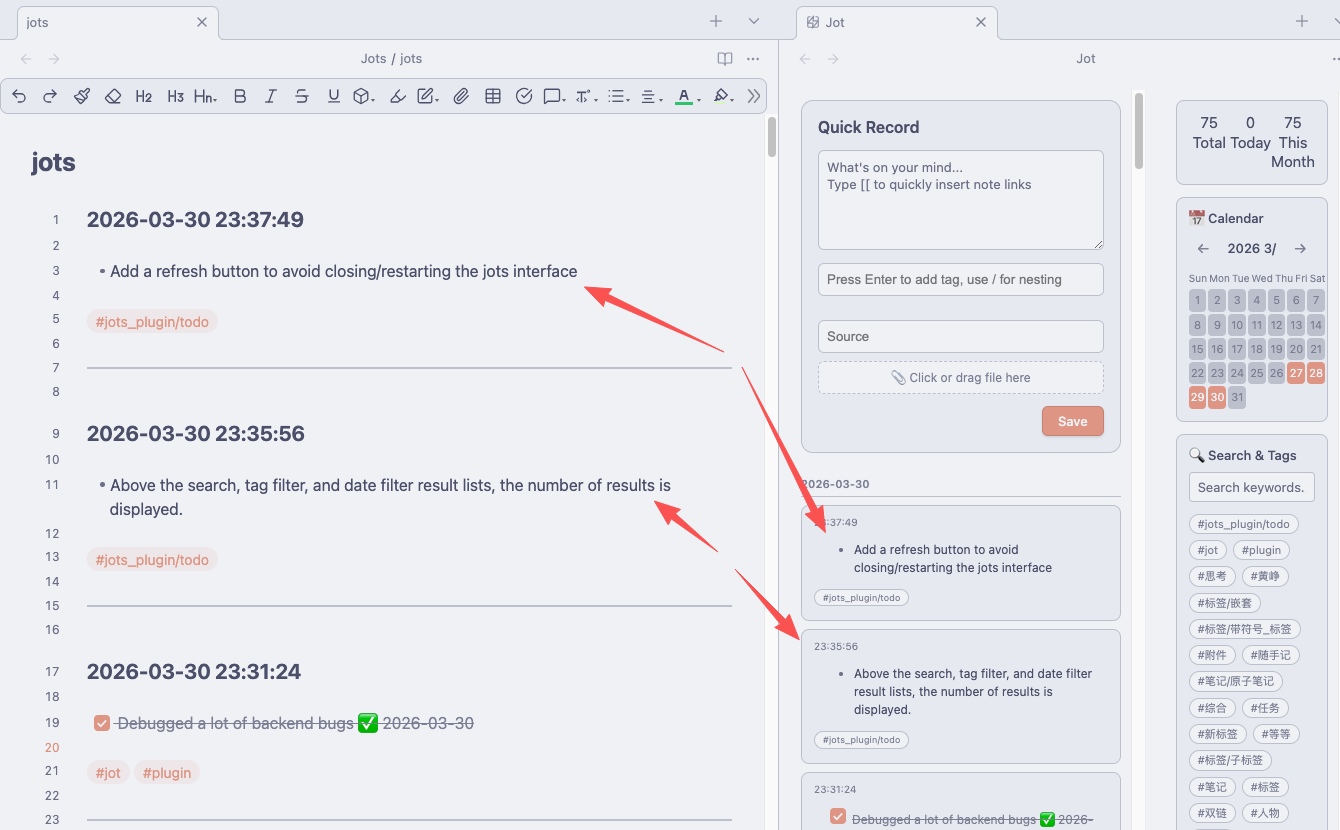
Jots.md Note
1 ✨ Features
- Quick Capture – Open a dedicated modal with one click and start writing immediately.
- Smart Tags – Support nested tags (e.g.
Work/ProjectA), with auto‑completion from existing tags. - Sources & Attachments – Add source information and attach files (images, documents). Attachments are automatically named
jot-YYYYMMDD-number. - Calendar View – Visualise daily note counts at a glance; click any date to filter entries.
- Search & Filter – Full‑text search, multi‑keyword AND queries, and tag‑based filtering.
- Markdown Rendering – Full support for Obsidian syntax: wikilinks, lists, checklists, blockquotes, embeds, and more.
- Multi‑language – Built‑in Chinese and English; follows Obsidian language settings or can be switched manually.
- Flexible Storage – Choose between “one file per day” or a single master file.
- Zero interference – Jot creates .md files only in your chosen folder, leaves your other notes untouched. Uninstall anytime – your jots remain intact.
- Lightweight & Efficient – Incremental loading and file caching for optimal performance.
2 📦 Installation
2.1 Install via BRAT (Recommended)
- Install BRAT (Beta Reviewer’s Auto-update Tool) if you haven’t already.
- Go to Settings → BRAT → Beta Plugin List → Add Beta Plugin.
- Enter the GitHub repository URL of this plugin:
https://github.com/ichris007/obsidian-jot-plugin - Click “Add Plugin” and wait for the installation to complete.
- Return to Community Plugins and enable
Jot.
2.2 Manual Installation
- Download the latest
main.js,manifest.json, andstyles.cssfrom the Releases page. - Create a folder
.obsidian/plugins/obsidian-jot-pluginin your vault. - Copy the three files into that folder.
- Reload Obsidian and enable the plugin in the Community Plugins settings.
3 🚀 Usage
3.1 Opening the Capture Panel
- Click the ✨ icon in the left ribbon.
- Use the command palette:
Jot: Quick Capture/Jot: Open Jot View. - Right‑click any text in an editor and choose “Save as Jot”.
3.2 Quick Capture Modal
- Content – Write your thoughts; supports Markdown and Obsidian syntax.
- Tags – Enter a tag (e.g.
inspirationorWork/ProjectA). PressEnterto add. Tags cannot contain spaces – use/for nesting. - Source – Optional: record where the note came from (e.g., a URL, book title).
- Attachments – Click or drag a file to upload. Files are automatically named with date and sequence number; images show 🖼️, other files show 📎.
- Save – Click “Save” or press
Cmd/Ctrl + Enterto save the note.
3.3 Jot View
- Calendar – Displays the current month; days with notes are highlighted. Click any date to filter entries.
- Search – Type keywords (space‑separated for AND logic) to find matching notes.
- Tag Filter – Click any tag button to filter notes containing that tag.
- Note Cards – Each card shows the time, rendered Markdown content, tags, source, and attachments. Click a card to jump directly to the corresponding location in the source file.
4 ⚙️ Settings
| Option | Description |
|---|---|
| Save Folder | Location where note files are stored (default: Jots) |
| Attachments Folder | Where uploaded files are saved (default: Jots/attachments) |
| Log Mode | One file per day or Single file |
| File Format | Filename pattern for multi‑file mode, e.g., jot-YYYYMMDD |
| Use Fixed Tag | Automatically add a fixed tag to every note |
| Fixed Tag Value | The tag to add (without #) |
| Enable Frontmatter Tags | Write tags into YAML frontmatter in multi‑file mode (for Dataview etc.) |
| Language | Interface language (Chinese / English) |
5 🌍 Localisation
The plugin supports Chinese and English. It automatically follows Obsidian’s language setting, but you can also switch manually in the plugin settings. Contributions for other languages are welcome.
6 🛠 Development & Build
# Clone the repository
git clone https://github.com/ichris007/obsidian-jot-plugin.git
cd obsidian-jot-plugin

# Install dependencies
npm install

# Development mode (auto‑rebuild on changes)
npm run dev

# Production build
npm run build
The built main.js and styles.css can be used directly in Obsidian.
7 📝 File Format
7.1 Multi‑File Mode
One file per day, named according to the configured format (e.g., jot-20260326.md). Each note inside follows this structure:
### YYYY-MM-DD HH:mm:ss

Note content

#tag1 #tag2/subtag

Source: Example source

![[attachment_path]] or [[attachment_path]]

---
7.2 Single File Mode
All notes are saved in a single jots.md file using the same format.
8 ❓ FAQ
Q: Attachment upload fails or filenames conflict?
A: The plugin automatically generates unique filenames based on the date and sequence number and checks for existing files to avoid overwrites. If the problem persists, please check folder permissions or contact the developer.
Q: What if I need spaces in a tag?
A: Tags cannot contain spaces. Use / to create nested tags (e.g., Work/Important).
Q: How can I import existing notes into Jot?
A: There is currently no direct import, but you can copy and paste the content into the Quick Capture modal.
Q: The calendar doesn’t show all entries?
A: Ensure your note files are stored in the configured save folder. Try reloading the plugin or restarting Obsidian.
9 🤝 Contributing
Issues and pull requests are welcome! Before submitting a PR, please ensure:
- Code style is consistent with the existing codebase.
- New features are documented.
- Tests pass.
10 🙏 Acknowledgements
- This plugin was inspired by Andrej Karpathy “The append‑and‑review note” method. Many thanks for the inspiration.
- The UI design was inspired by the open‑source note‑taking tool Memos. My thanks as well.
11 📄 License
This project is released under the MIT License.
Enjoy jotting down your thoughts!
For plugin developers
Search results and similarity scores are powered by semantic analysis of your plugin's README. If your plugin isn't appearing for searches you'd expect, try updating your README to clearly describe your plugin's purpose, features, and use cases.