Document to Markdown
unlistedby Hannah
Turn PDFs and Word documents into editable Markdown with headings, text, tables, and extracted images.
English · 简体中文
Document to Markdown
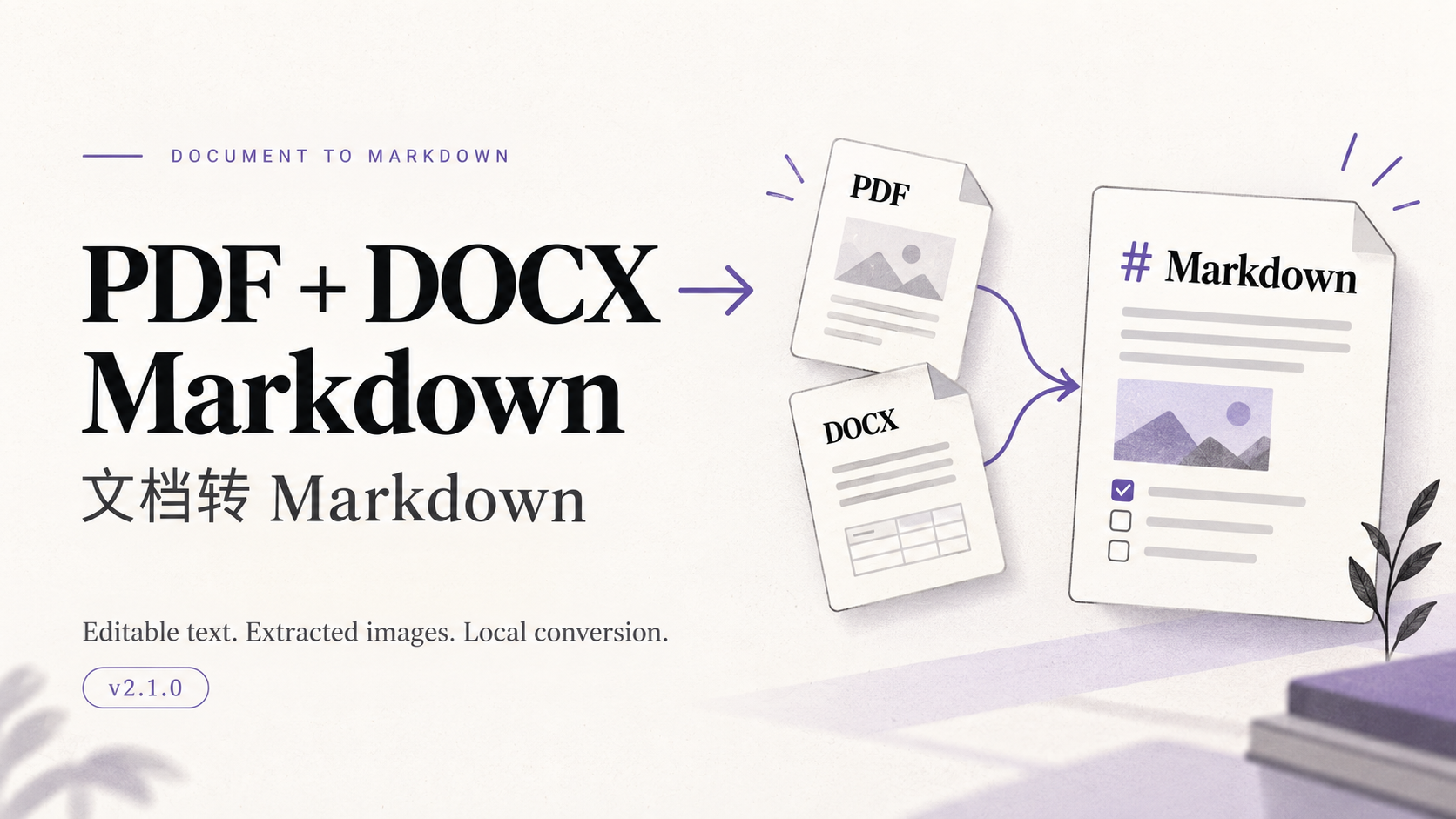
Turn PDF and Word documents in your Obsidian vault into editable Markdown notes, with headings, paragraphs, lists, tables, and extracted pictures.
Version 2.1.0 · Desktop only · Local conversion · MIT
Two jobs, one plugin:
- PDF → Markdown: reconstruct an article from a text-based PDF, instead of putting a page screenshot above a text transcript.
- DOCX → Markdown: find Word files even when Obsidian's normal file list hides them, then convert their content into a note.
Download an installable package · 中文说明 · AI integration · Changelog · Report a problem
View real PDF and DOCX conversion examples.
What you get
- Single-file, multiple-file, or folder conversion, with a preview before starting.
- Heading levels and basic alignment; bold, italic, lists, links, and simple tables where the source structure can be recovered.
- Separate image attachments linked from the article, in source order where supported.
- Editable body text without page headings, OCR indexes, full-page screenshots, or a technical footer.
- A content-based extractive summary and note properties:
tags,source,created,updated,summary,model. - A default limit of 10 files per batch, configurable image resolution, timeout, task time limit, progress, and cancellation.
- Existing originals and notes are kept. Completed conversions are skipped when their saved result and attachments still validate.
The plugin works without an AI account or network connection. An optional MCP server and CLI let an AI assistant request conversions; setup is separate.
Install
This project is not currently listed in Obsidian Community Plugins. Install the complete ZIP from this repository's Releases page.
- Download the ZIP matching your operating system and Obsidian process architecture.
- Extract it. You should get a folder called
pdf-to-md-preserve. - In your vault, open
.obsidian/plugins/(createpluginsif necessary). Put that entire folder inside it. - Reload Obsidian. Open Settings → Community plugins, enable community plugins if needed, and enable Document to Markdown.
- Run Document to Markdown: Convert PDF / DOCX files or folders from the command palette, or right-click a document/folder.
Expected layout:
YourVault/.obsidian/plugins/pdf-to-md-preserve/
├── manifest.json
├── main.js
├── styles.css
├── core.js, article.js, runtime.js, bridge.js, …
└── engine/
    ├── document-engine (document-engine.exe on Windows)
    ├── runtime.json
    └── _internal/
| Release ZIP suffix | Intended machine |
|---|---|
darwin-arm64 | Apple Silicon Mac, native ARM Obsidian |
darwin-x64 | Intel Mac, or x64 Obsidian running under Rosetta |
win32-x64 | Windows x64 |
linux-x64 | Linux x64, Ubuntu 24.04 or a compatible newer system |
The release pipeline builds on macOS 15, Windows Server 2022, and Ubuntu 24.04. Engine smoke tests run on each builder; this is not a claim of full Obsidian UI testing on every OS. Mobile and native Windows/Linux ARM packages are not supported in this release. Native executables are not signed/notarized; your operating system may show a trust prompt.
Do not download GitHub's “Source code (zip)” for normal installation. Do not copy only main.js. The complete platform ZIP includes the native engine; you do not need a separate Python installation. Standard three-file installers such as BRAT are not supported by this packaging yet. Obsidian 1.8.0+ is required.
Use
- Choose one document, several paths (one per line), or a vault-relative folder such as
Documents. - Click Preview files, review the file list, and set the maximum batch size.
- Click Convert. Use Open latest result when it finishes.
For Word files, use Find PDF / DOCX files (including hidden documents) if they are absent from the sidebar. The DOCX tab is a read-only conversion entry point, not a Word layout viewer or editor. Only .docx is supported; legacy .doc files must first be saved as DOCX elsewhere.
A note is created beside its source. Images are stored in a sibling images/ARTICLE-…/…/ folder. Keep that folder with the note when moving or sharing it. Existing .md filenames are never overwritten: a suffix is used instead. Conversion bookkeeping lives in attachment manifests and plugin job files, not the note body.
Previously converted files still count toward the selected batch limit. To process the next batch, select the remaining files explicitly or raise the limit. Cancellation stops current work and keeps already completed notes; it is not an undo operation or page-level resume.
The default tag is reference (or 参考资料 for Chinese titles). The optional Tag vocabulary setting accepts a vault-relative Markdown file with allowed tags in backticks. Summaries are extracted locally, not generated by an LLM. The model property records that no model was used. No cssclasses property is added; centered/right-aligned headings use small HTML fragments inside Markdown.
Fidelity and current limits
Markdown preserves article structure, not a PDF's fixed page geometry. Exact fonts, point sizes, line spacing, page breaks, and pixel-perfect layout are not retained.
| Input | Current behavior |
|---|---|
| Text-based PDF | Heuristic heading/paragraph order and alignment, simple tables, embedded raster image regions |
| Scanned/image-only PDF | No OCR in this release; may fail or have incomplete content |
| DOCX | Paragraph/heading structure, inline and floating image relationships, common lists, simple tables, links, basic Office Math and footnotes |
| Complex research documents | Columns, vector-only charts, merged tables, complex formulas, chemical structures, SmartArt and drawing shapes may be incomplete or require correction |
There is no full-page screenshot fallback. In particular, vector-only PDF graphics and page-wide background images may be omitted. A successful conversion does not certify that every source element was recovered. Review important technical documents against the original. Use only documents you trust: the local native parsers are not a sandbox.
Privacy and local files
The converter has no telemetry, cloud conversion API, or API-key requirement. It reads selected local documents and writes Markdown, images, conversion manifests, and local job status files in your vault/plugin folder. Unique extraction staging directories are removed after a conversion attempt; retained job records contain local filenames and result paths. Your own vault sync tool may sync these files. If you connect an AI assistant, its handling of tool arguments/results follows that assistant's configuration.
Build and contribute
See CONTRIBUTING.md for source installation, tests, and native builds; AI-USAGE.md for MCP/CLI; SECURITY.md for reporting security issues.
The plugin keeps its original technical ID, pdf-to-md-preserve, for compatibility. 2.1.0 is the first public release, following local 1.x/2.0 iterations. The cover is conceptual AI-generated artwork, not an Obsidian screenshot. See artwork notes.
License
Project code and original examples: MIT. Bundled engines include third-party software under its own licenses; see THIRD_PARTY_NOTICES.md and each package's engine/third-party-licenses/ directory. This is an independent community project, not an official Obsidian product.
For plugin developers
Search results and similarity scores are powered by semantic analysis of your plugin's README. If your plugin isn't appearing for searches you'd expect, try updating your README to clearly describe your plugin's purpose, features, and use cases.