Jupyter Notebook Reader
unlistedby ZdAkk
View Jupyter notebooks (.ipynb) as they were saved: text, code and stored results, plots included. Read-only: it runs no code and never writes.
Jupyter Notebook Reader
Read Jupyter notebooks (.ipynb) inside Obsidian: the text, the code, and the results
stored in the file, plots included.
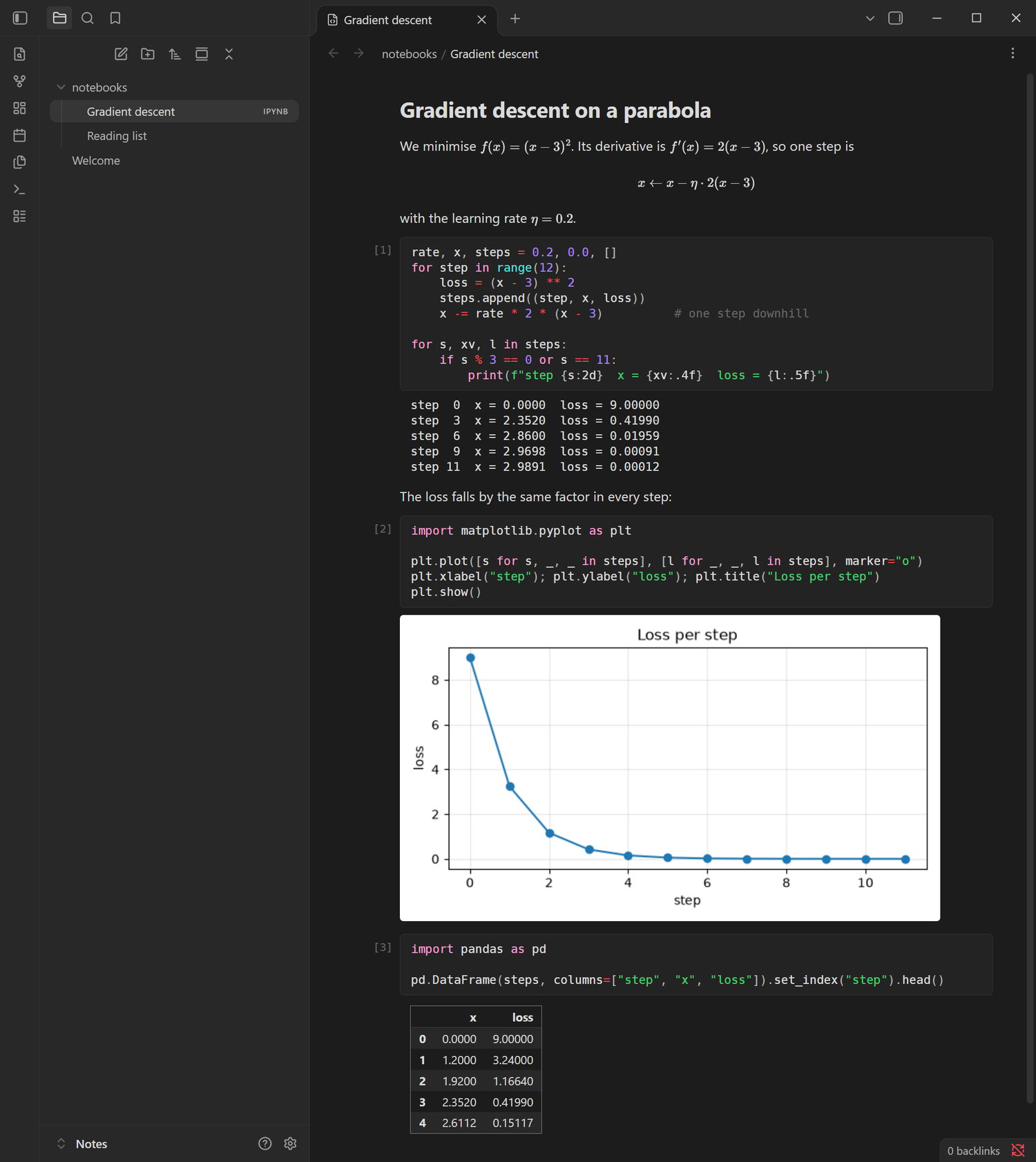
The plugin only reads. It does not run code, it does not change the notebook, and it has no settings.
What it shows
- Text cells, drawn by Obsidian's own Markdown renderer: headings, formulas, tables, pictures pasted into a cell, and pictures named by a path beside the notebook.
- Code, highlighted in the notebook's language.
- Results as they were saved: plots and other pictures (PNG, JPEG, GIF, WebP, SVG), tables (HTML), formulas (LaTeX), Markdown, printed lines, warnings and errors. A plot keeps a white background in a dark theme.
- Changes on disk: a notebook that changes while it is open (a sync brought a new version, another program wrote it again) is drawn again, and the view stays where you had scrolled to.
What it does not do
- It does not run or edit notebooks.
- A result that only a script can draw (an interactive Plotly or Bokeh chart, a widget) is not shown. Where the notebook stores a plain-text stand-in for it, that is shown.
- Colours in printed text (ANSI codes) are removed, not shown.
- Notebooks in the old format 3 are not shown. Opening and saving one in Jupyter brings it to the current format.
Safety
Opening a notebook cannot run anything inside Obsidian.
- HTML results go through Obsidian's own sanitizer. On top of that, style rules, embedded pages (
iframe) and forms are removed, and a result cannot lay itself over the rest of the window. - A drawing (SVG) is shown as a picture, where nothing inside it runs.
- Everything else is shown as text.
The plugin makes no network requests, writes no files and collects nothing. As in any note, a text cell can refer to a picture on the web, and Obsidian then loads that picture.
Install
Once it is listed: Settings → Community plugins → Browse, search for "Jupyter Notebook Reader".
By hand: download main.js, manifest.json and styles.css from the
latest release into <your vault>/.obsidian/plugins/ipynb-reader/, then switch the
plugin on under Settings → Community plugins.
Only one plugin can open .ipynb files at a time. If another notebook plugin is switched on, switch it off
first.
Tried on
Obsidian 1.9.14 and 1.15.1 on Windows, in a light and a dark theme, and in Obsidian's phone layout emulated on the desktop. Not yet tried on macOS, Linux, or a real phone or tablet. Reports are welcome.
Development
There is no build step: main.js is the source.
node tests/test.jsruns the checks, with stand-ins for Obsidian and for the page.docs/demo.ipynbis a small notebook to try the plugin with.
Licence
For plugin developers
Search results and similarity scores are powered by semantic analysis of your plugin's README. If your plugin isn't appearing for searches you'd expect, try updating your README to clearly describe your plugin's purpose, features, and use cases.