DocWen Assistant
unlistedby ZhengYX
Launch DocWen from Obsidian, pass current file path, and support background export/doctor via DocWenCLI. Includes single instance management.
DocWen Assistant
English · 简体中文 · 繁體中文 · Deutsch · Français · Русский · Português · 日本語 · Español · 한국어 · Tiếng Việt
DocWen Assistant connects Obsidian to the local DocWen desktop application for conversion, proofreading, numbering, and file opening.
DocWen is required. Install a compatible DocWen 0.10.x version from Microsoft Store, or fully extract the portable package from DocWen Releases.
Screenshots
These screenshots show the packaged plugin running in desktop Obsidian with local DocWen.
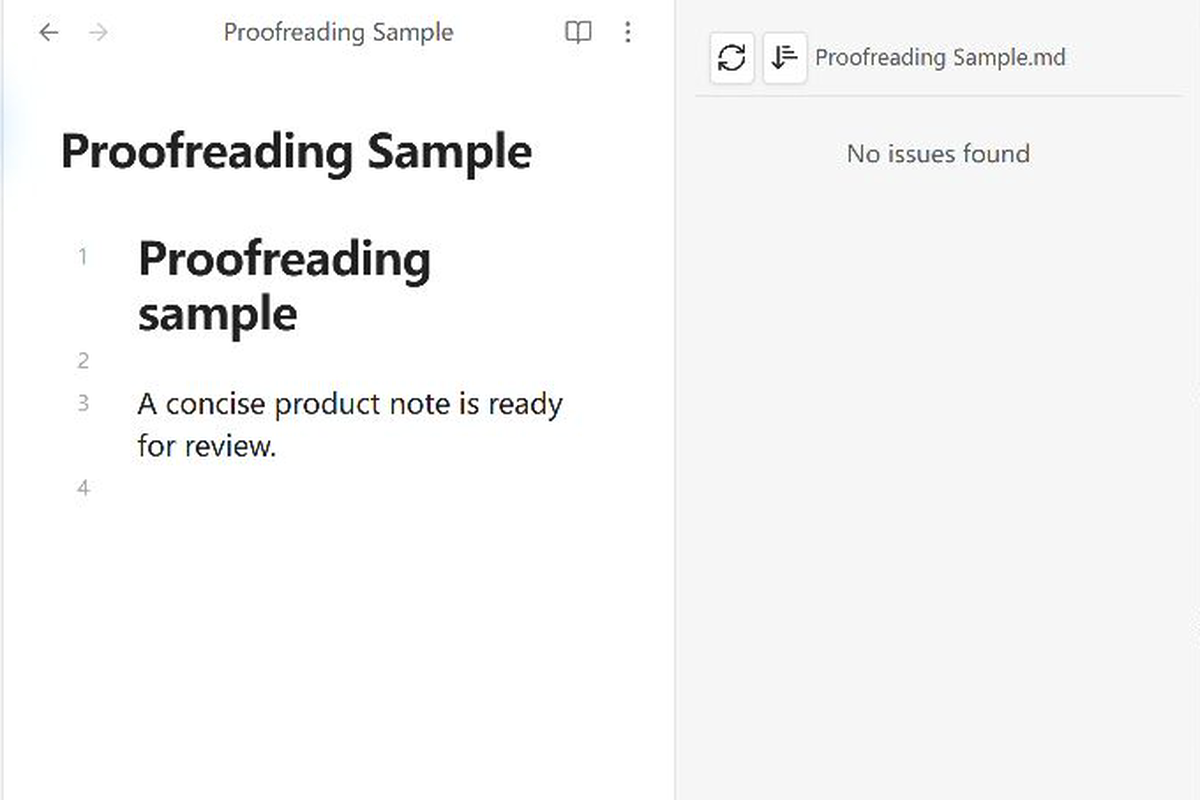
Proofreading sidebar
Review issues by line or rule and jump back to the matching source range without rewriting the note.
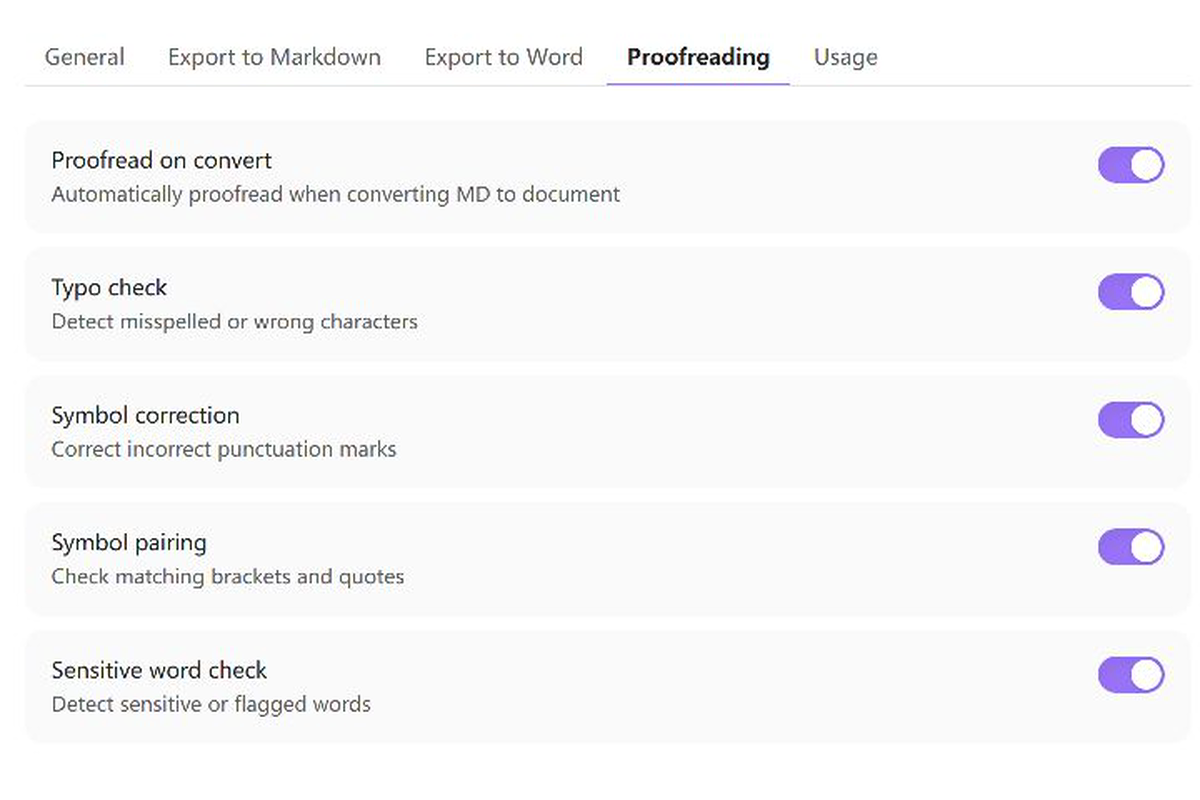
Top-tab settings and DocWen connection
Use the four top tabs and their contextual help cards to connect automatically to the Microsoft Store installation, configure a portable installation when needed, and tune conversion and proofreading.
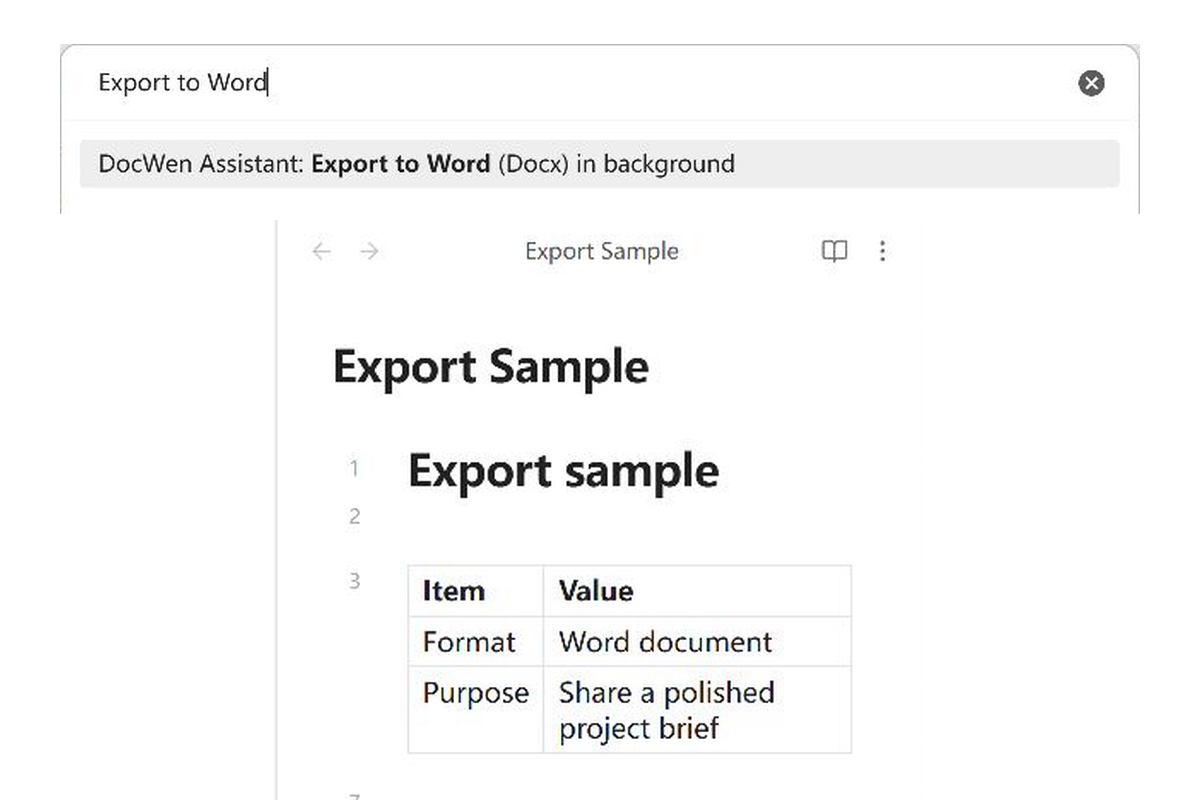
Capability-selected export
Choose an available conversion route and an explicit output location while keeping the source note unchanged.
Features
- Open the active Obsidian file in DocWen or activate the DocWen window.
- Export to Word, Excel, or Markdown with an explicit output location.
- Add or remove Markdown heading numbering.
- Proofread Markdown in an Obsidian sidebar.
- Check the local DocWen connection.
- Use file-explorer context menu actions.
- Use localized UI in 11 languages.
Requirements and compatibility
- Windows and Obsidian 1.12.7 or later. The plugin is desktop-only.
- A compatible DocWen 0.10.x installation from Microsoft Store, or a fully extracted portable Windows package. The plugin does not download DocWen automatically.
- The plugin requires
docwen.machine.v1anddocwen.artifact_bundle.v2; incompatible DocWen versions fail validation instead of using a fallback protocol.
Automatic detection is the default and uses the registered docwen.exe application execution alias, so Microsoft Store updates do not invalidate a saved package path. Portable ZIP users can switch to manual installation and select the extracted DocWen folder, DocWen.exe, or DocWenCLI.exe. The plugin never scans WindowsApps, recursively searches for executables, exchanges command files, downloads software, or falls back to an older protocol.
Installation
Install DocWen and the plugin
- Install a compatible DocWen 0.10.x version from Microsoft Store. Alternatively, download
DocWen-windows-x64.zipfrom DocWen Releases and extract it completely. - Install DocWen Assistant from Obsidian Community Plugins. For manual installation, download
docwen-assistant-x.y.z.zipfrom DocWen Assistant Releases, then copymain.js,manifest.json, andstyles.cssinto<Vault>/.obsidian/plugins/docwen-assistant/. - Reload Community plugins and enable DocWen Assistant.
- Automatic detection needs no file selection. If you use the portable ZIP, open Settings → DocWen Assistant → General, choose Manual installation, and select the extracted DocWen folder.
Installation safety
The release package contains only main.js, manifest.json, and styles.css; it never contains, replaces, or deletes data.json. Keep data.json and replace only the three runtime files. The fixed manifest.id is docwen-assistant, which fixes the installed-plugin identity and settings-file location. Delete data.json only when you explicitly want to reset all plugin preferences.
Usage
Use the ribbon icon, file-explorer DocWen submenu, or Command Palette:
- Launch DocWen / Launch DocWen with current file
- Export to Word (Docx) in background
- Export to Excel (XLSX) in background
- Export to Markdown (MD) in background
- Add numbering to Markdown headings
- Remove numbering from Markdown headings
- Proofread current Markdown file
- Check DocWen connection
Choose an output folder. Each conversion creates its own result folder, preserving the generated filenames, linked resources and layout manifest. Names include the source name, timestamp and input format. Existing result folders are never overwritten.
Word export produces an independent DOCX inside its result folder. Keep the original Markdown yourself. Reverse conversion reads DOCX content and structures without an original-source companion. Optional Markdown extensions are selected in DocWen settings; identical spelling and whitespace are not guaranteed.
With a compatible Number Suite version enabled, Word export preserves its validated virtual heading and caption numbers plus same-note references without adding those numbers to the Markdown note.
Settings
- Obsidian 1.12.7 or later uses four horizontally scrollable top tabs: General, Export to Markdown, Export to Word, and Proofreading. Contextual help appears on the relevant tab instead of a separate Usage page.
- Plugin language defaults to Follow Obsidian and can be overridden with any of DocWen Assistant's 11 languages. Resource discovery receives the same resolved locale.
- Connection method defaults to Detect automatically, which supports Microsoft Store. Manual installation reveals the portable-folder picker. The status row checks the product identity, version, protocol, and health without exposing package paths.
- Tabs support arrow keys (including RTL direction), Home/End, visible keyboard focus, 20 px UI text, and coarse-pointer targets. Runtime numbering schemes are queried only when their tab is rendered.
Limitations
- DocWen Assistant is Windows desktop-only and requires a compatible local DocWen installation.
- Automatic mode uses only the fixed registered
docwen.exealias. Manual mode accepts only the selected DocWen folder,DocWen.exe, orDocWenCLI.exe; neither mode searches arbitrary folders. - Background export requires an explicit output folder, and proofreading does not rewrite the source note.
- A command is rejected when the CLI response, source snapshot, editor state, or target cannot be verified safely.
Privacy and security
The plugin takes a snapshot of the current Obsidian editor buffer (including unsaved text) or Vault file and gives DocWen only isolated temporary inputs. It intentionally accesses files outside the Vault only to start the registered DocWen execution alias or the manually selected portable executable, manage isolated temporary inputs and validated artifacts, and write to an output path explicitly chosen by the user; this access is required for local conversion and export. It never opens or stores the versioned Microsoft Store package path. For Markdown-to-DOCX, Obsidian resolves image embeds explicitly present in that note, including cross-folder short Wiki links and filenames with spaces; the plugin authenticates and embeds those bytes in a neutral request. It never scans the Vault for matching filenames. Conversion publishes the complete validated result folder inside the selected directory. It preserves the producer's relative paths and reports the preferred output separately from the layout manifest. Proofreading is read-only. Numbering is produced in an isolated output, then committed once through the current Obsidian editor or Vault API only if the source snapshot still matches. The plugin does not upload documents or enumerate the Vault for DocWen operations.
The CLI boundary uses JSON-RPC 2.0 with canonical Content-Length framing. Every task uses integrity-pinned input handles and a request-owned staging directory; every returned Artifact Bundle is graph-, path-, size-, and SHA-256-validated before the plugin commits outputs atomically. Calls have timeouts, task cancellation, output limits, and child-process cleanup.
See Machine integration contract for the exact methods, capabilities, and Bundle rules.
Development
Use Node.js 24.19.0 and npm 11.17.0.
npm ci
npm run check
npm run release
Runtime source is under src/; the DocWen boundary is under src/docwen/; tests are under tests/. Generated dist/ and release/ files are not source.
Stable documents: Product requirements · UX specification · Architecture · Testing strategy
Repository governance: Changelog · Contributing · Security
Support
- Use General for workflow ideas and general feedback.
- Use Q&A for usage and configuration questions.
- Use the structured DocWen Assistant issue forms for reproducible Obsidian integration bugs and concrete feature requests.
- DocWen core issues: conversion, OCR, proofreading, or CLI behavior outside Obsidian.
- Report vulnerabilities privately through the repository's security policy.
Remove private document content, file and Vault paths, CLI logs, executable locations, and credentials before posting publicly.
License
MIT © ZhengYX
For plugin developers
Search results and similarity scores are powered by semantic analysis of your plugin's README. If your plugin isn't appearing for searches you'd expect, try updating your README to clearly describe your plugin's purpose, features, and use cases.