by ovitrif
Preview external URLs on hover. Works in Editor, Live Preview, and Reader modes.
URL Preview for Obsidian
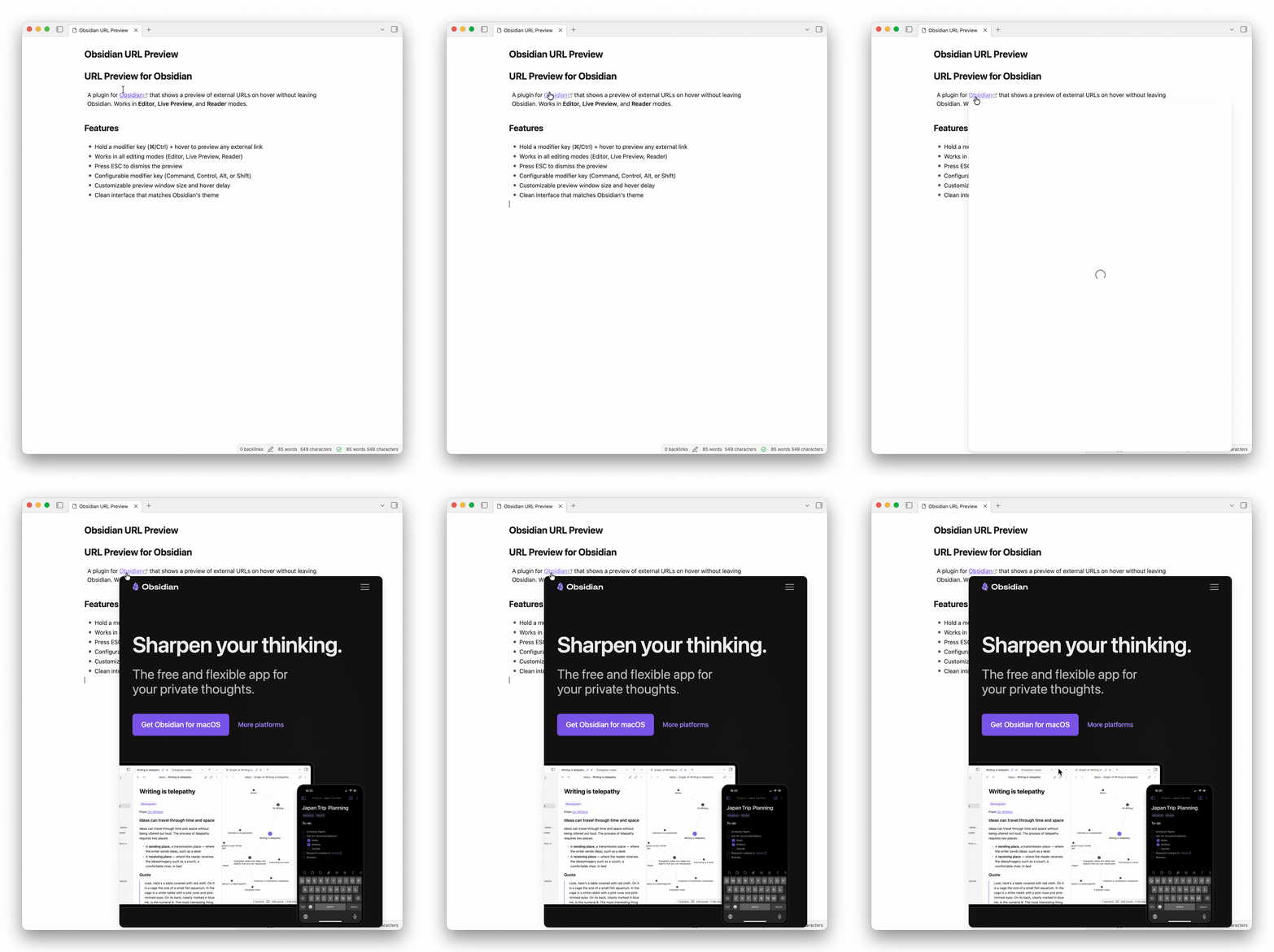
A plugin for Obsidian that shows a preview of external URLs without leaving Obsidian. Works in Editor, Live Preview, and Reader modes.
Features
- Hold configurable modifier keys (⌘, Control, Alt, or Shift) + click to preview URLs
- Works in all view modes (Editor, Live Preview, Reader)
- Works in secondary Obsidian windows/popouts
- Clean interface that matches Obsidian's theme
- Press ESC to dismiss the preview window
- Customize preview window size
- Resize preview window by dragging edges or corners
- Toolbar button to quickly expand or restore the preview size
- Accent-colored border highlight on resize handle hover (uses Obsidian's accent color)
- Live size indicator showing dimensions during resize
- Optionally persist resized dimensions across previews
- Preview controls live in a toolbar above the content, with back, forward and reload buttons and an editable address bar
- Open one reusable right-side panel inside the current page, keeping your note on the left
- Keep up to five recent previews in memory for immediate reopening with their scroll position preserved
- Optionally show a small eye button beside hovered links to open the preview directly
- Bare GitHub URLs and short references such as
owner/repo#123show a GitHub button to convert them to Markdown links - Toolbar zoom controls remember zoom per domain
- Toolbar buttons show bottom-positioned action tooltips
- Sign in and out using the website's own controls inside the preview
- Right-click an editor URL to convert it to a Markdown link using the page title
Keyboard
A preview takes focus when a click opens it, and while it has focus the browser keys work in it: Cmd+[ and Cmd+] go back and forward, and Cmd+L selects the address for typing (Ctrl on Windows and Linux).
Installation
- Open Obsidian Settings
- Go to Community Plugins and disable Safe Mode
- Click Browse and search for "URL Preview"
- Install the plugin and enable it
Settings
- Preview click modifiers: which keys to hold while clicking a link (Command, Control, Option, Shift — combine as many as you like)
- Sticky popup: keep the preview open until Escape or a click outside
- Show open in browser button: show a button that opens the URL in your default browser
- Show close button: show a button that closes the preview
- Show loading indicators: show the initial loading overlay and the spinners (off by default); turning it off also drops the content-area background override
- Show preview button on link hover: show the eye button beside hovered links (off on new installs)
- Show external-link icon: keep Obsidian's external-link glyph beside links
- Show GitHub hover cards: show a card with the title and state when hovering a GitHub issue or pull request with your modifier keys held
- Show GitHub issue and PR numbers: show
#123beside GitHub issue and pull request links - Maximum height / width: maximum size of the preview window, in pixels
- Allow resize: drag the preview's edges and corners to resize it
- Persist resize: reuse the resized dimensions for later previews, with a reset button
Usage
Hold your configured modifier keys (⌘ on Mac, Ctrl on Windows/Linux by default) and click any external link to see a preview. Without a mouse, put the cursor on a link and run URL Preview: Preview link at cursor from the command palette.
URLs written inside inline code or a fenced code block are left alone: they get no preview and no GitHub badge.
Use Open in right-side panel in the toolbar to place the preview beside your note without creating a workspace split or tab. Further preview links reuse that panel; Back and Forward follow both links opened from notes and navigation within the website. Closing the panel restores the note's full width. Closing a preview keeps its loaded page in memory. On reopening, the cached page appears immediately while a fresh copy loads behind it. The replacement preserves page scrolling; failed refreshes and active edits keep the existing page. Refreshes are triggered only by reopening a closed preview. A cached page is silenced while it is out of sight, and is dropped five minutes after you close it, when a sixth page pushes it out, or when the plugin unloads.
The panel docks beside the note or Kanban board the preview was opened from, or beside the most recent one. The side-panel toolbar button switches back to a floating preview without reloading. Drag the divider to resize the note and preview; its position is remembered. The divider highlights in the accent color on hover and while dragging, and supports Left/Right arrow keys when focused.
In Live Preview or source mode, right-click an external URL, a scheme-less github.com/... URL, or a short GitHub reference such as owner/repo#123, then choose Convert URL to Markdown link to replace it with [page title](url). For GitHub pull request and issue links, the menu also includes Add repo name prefix, Copy issue or PR ID, and Copy agent session title.
API
Other plugins can open a preview through app.plugins.plugins['url-preview'].api, present while URL Preview is enabled:
api.open(url: string, options: { anchor: HTMLElement; side?: boolean }): boolean
api.openNote(path: string, options: { anchor: HTMLElement }): boolean
anchoris the element the preview opens beside, as if a link there had been modifier-clicked. When the side panel is already open beside it, the panel shows the URL.side: trueopens the preview in the side panel straight away.- It returns
false, and opens nothing, for a URL that is nothttporhttps. openNoteshows the vault note atpathin the side panel beside the note or board that holdsanchor, in Reading view or Live Preview (the pencil button switches, and the panel can edit the note), exactly as a tab shows it, with the same zoom controls. Its title shows the note's folders as breadcrumbs: a folder opens a list of its docs (Arc Theme's breadcrumb dropdown when Arc is on), and a pick opens in the panel; a click on the name copies it. Open side panels come back after a restart, each on its tab: a note panel with its history, a docked preview at its page. Back and forward step through the notes the panel showed; hold either, or right-click it, to pick from the list. It follows edits to the note, a link in it opens in the panel, and it shares the panel with docked URLs: one replaces the other. It returnsfalsewhen the path is no note or no note or board can hold the panel.
Authentication
On desktop, previews use Obsidian's persistent embedded browser session when available, so login state can be reused by later previews. Use the website's own sign-in and sign-out controls.
Limitations
On desktop the preview is an embedded browser view, so a site's framing rules do not apply and most pages load.
Where that embedded view is unavailable — on mobile, or in a host without it — the preview falls back to an iframe. There, a site that blocks framing cannot be previewed, a blocked page stays blank with no message, and Back and Forward only follow links opened from your notes, not navigation inside the page.
Credits
The GitHub hover card's loading skeleton is drawn with a two-glyph subset of Flow Circular by Dan Ross, licensed under the SIL Open Font License 1.1.
Support
If you encounter issues or have suggestions, please file them on the GitHub repository.
Changelog
See CHANGELOG.md for release history.
License
MIT. See LICENSE.
For plugin developers
Search results and similarity scores are powered by semantic analysis of your plugin's README. If your plugin isn't appearing for searches you'd expect, try updating your README to clearly describe your plugin's purpose, features, and use cases.