Extended Browser
approvedby Sharbel Marshi
Embed websites and automatically fill URLs and login credentials when you open them. - This plugin has not been manually reviewed by Obsidian staff.
Extended Browser
Extended Browser opens websites, fills in login credentials, and helps you keep web apps inside Obsidian. Websites can open in tabs, floating preview, a full window, or directly inside notes with Markdown embeds.
Features
- Save passkey profiles with a URL, display name, and optional sign-in credentials
- Open saved sites in a tab or a floating preview
- Open a one-off Temp site from the command palette without saving it as a passkey
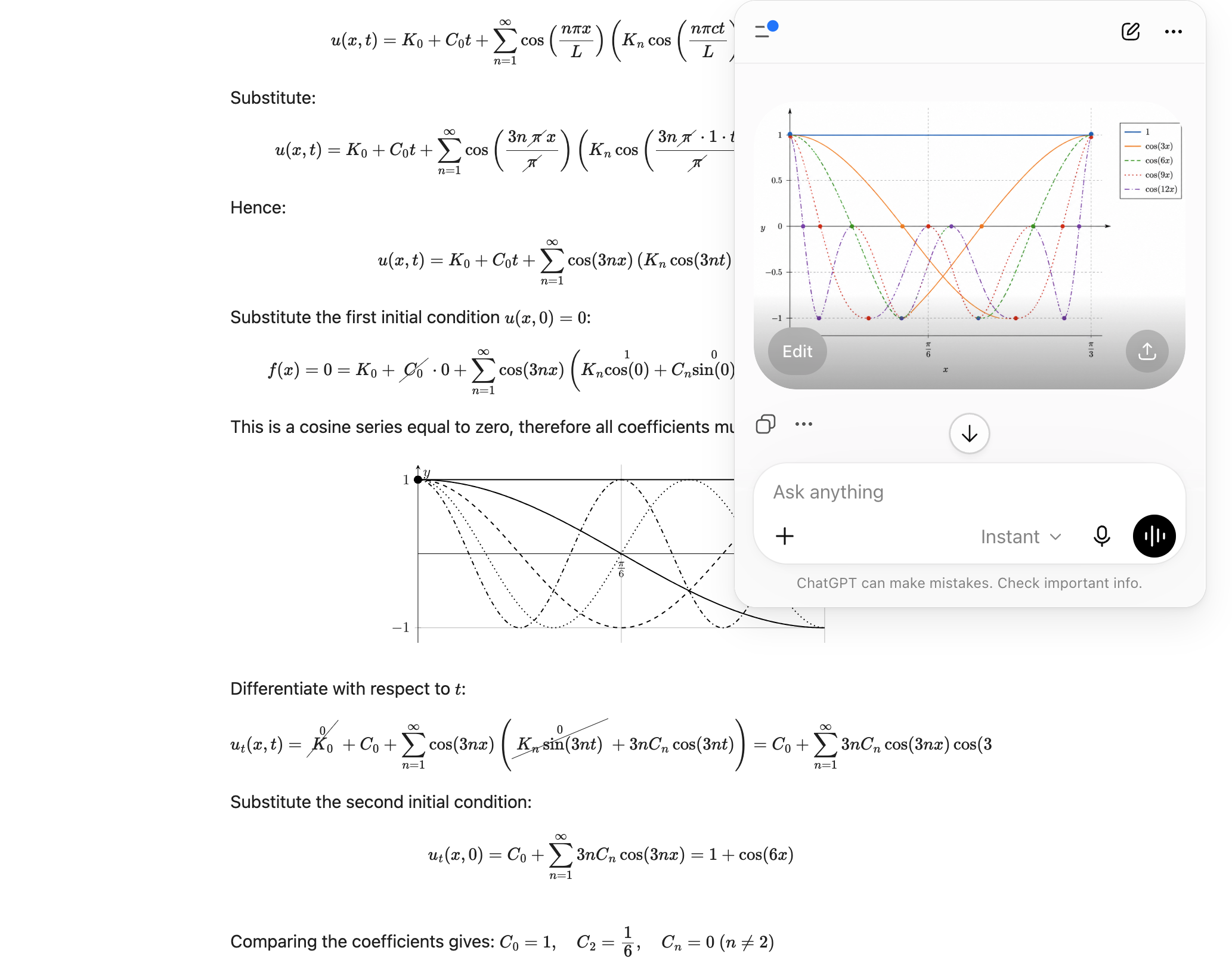
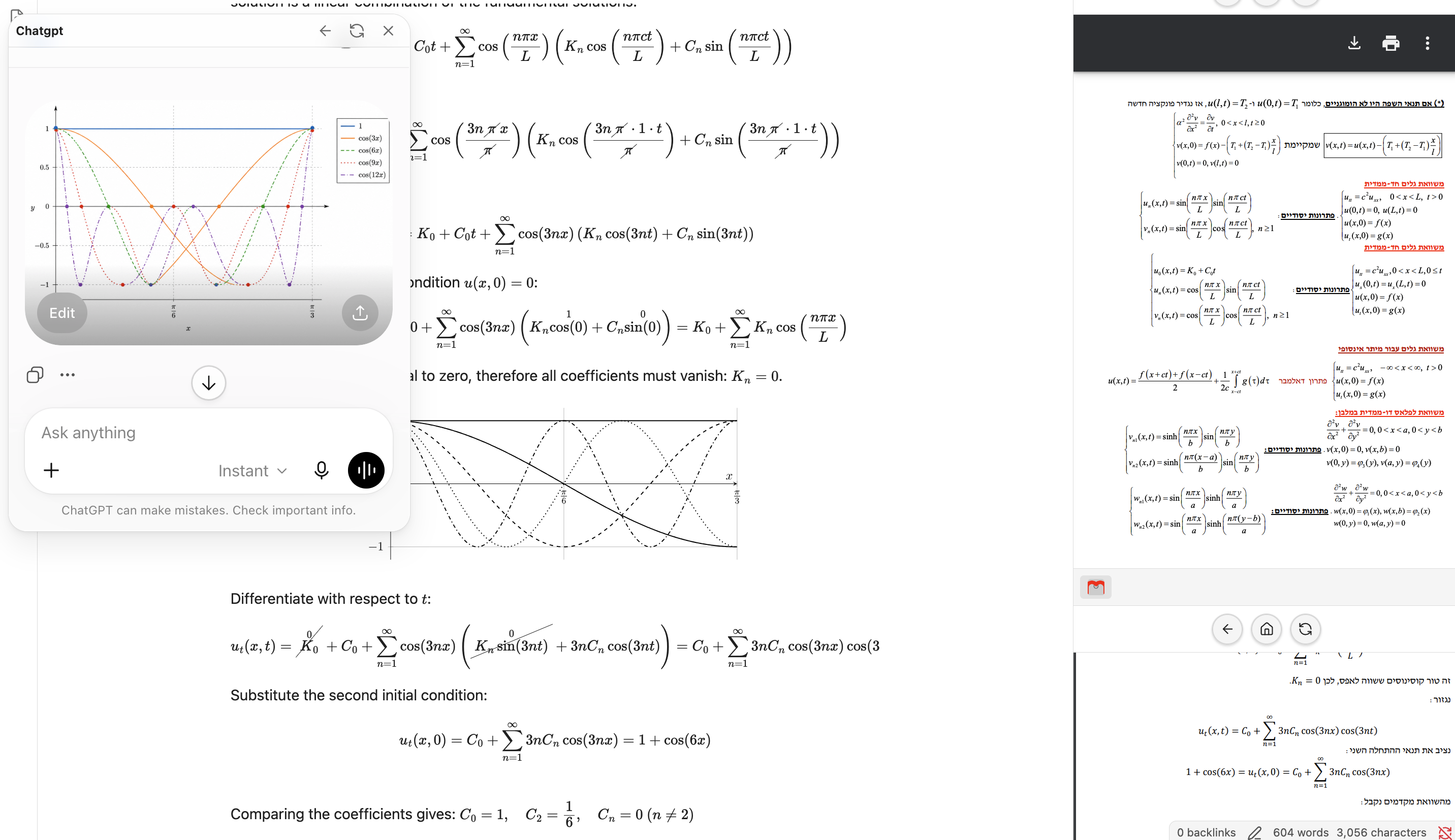
- Open saved websites in a floating window so you can keep a web page visible while working in notes. To use it, open the Command Palette with Cmd+P and run Toggle floating preview. The floating preview can be resized and includes a back button for navigation.
- Embed websites directly inside notes with fenced
embblocks - Optional automatic sign-in by scanning the page DOM for the most likely login form, including three-field sign-ins
- Detect and trigger custom login buttons used by modern web apps, not just native submit buttons
- Generate site icons with multiple favicon fallbacks and a monogram fallback when needed
- Insert gate links in notes and open sites from the command palette or ribbon
Floating window and full productivity screen
|
|
Introducing the new notch
Usage
- Open Settings → Extended Browser and click New passkey.
- Enter the site URL, name, and optional sign-in details.
- Open the site from the ribbon icon, command palette, or passkey list.
You can also use these commands from the Command Palette:
- Create new site
- List sites
- Open Temp site
- Toggle floating preview
Markdown embeds
Use a fenced emb block to render a website directly inside a note:
```emb
open https://website.com
```
You can also stack multiple sites in the same note:
```emb
height 280
open https://github.com
open https://obsidian.com
```
Markdown embeds: post-rendering example
Temp site
Use Open Temp site from the Command Palette to open a temporary website without saving it to your passkey list. This is useful for quick one-off browsing inside Extended Browser.
Automatic sign-in
When enabled for a passkey, Extended Browser scans the page DOM, finds the most likely login form, fills the configured credentials, and submits it when the page opens. It can handle both two-field and three-field sign-ins, including sites that ask for an ID plus email/username and password.
The sign-in flow also tries to work with modern app-style login pages that use custom buttons and client-side event handlers instead of plain HTML form submits. Google uses official API connection instead of embedded sign-in.
If a site uses unusual field labels, you can still set advanced identifier, username, and password field overrides.
Icons
Extended Browser tries several favicon sources to build a site icon automatically. If a site does not expose a usable favicon, the plugin falls back to a generated monogram instead of a blank globe.
Gate links
Use the editor menu to insert a gate link, or convert an existing link to a gate link. Gate links open the configured site through Extended Browser.
Security and privacy
Passkey data (URLs, usernames, and passwords) is stored locally in the plugin settings file inside your vault. It is not sent to a remote service by this plugin.
Do not use Extended Browser for high-security credentials unless you understand the risk. Embedded pages run in a webview and local settings are not encrypted by default.
Google Docs, Sheets, Drive, and account login limitations
Google Docs, Google Sheets, Google Drive, and Google Account login pages may not work reliably inside Extended Browser.
This is usually caused by Google authentication, cookie, iframe, and embedded-browser restrictions. It is not normally a plugin rendering bug, and it is not solved by adding a Google API key.
For Markdown emb blocks, private Google Docs or Sheets files may fail because the embedded frame cannot access the required Google account session. Normal Google Docs or Sheets /edit URLs are designed for a full browser session and may not work reliably inside an embedded context.
This can also affect Google login inside an Extended Browser tab or floating window, because those views still run inside Obsidian's embedded browser/webview environment. Some Google sign-in flows require a normal external browser and cannot be forced to work from the plugin side.
For Google Docs or Sheets that are intended to be embedded in notes, use Google's "Publish to web" option and embed the published/public URL instead of the normal /edit URL.
For private Google files or Google account login, open the page in a normal external browser.
License
MIT
For plugin developers
Search results and similarity scores are powered by semantic analysis of your plugin's README. If your plugin isn't appearing for searches you'd expect, try updating your README to clearly describe your plugin's purpose, features, and use cases.