Variant Editor
approvedby kunalja
Create variations of words and sentences and compare them, in context, with a single click
Variant Editor Obsidian Plugin




Writing is an iterative process, and finding the perfect phrasing often requires exploring multiple variations of the same text. This plugin makes that process seamless by allowing you to:
- Create multiple variants of words, phrases, or entire sentences
- View each variant in context with a single click
- Compare alternatives side-by-side
- Commit to your favorite variant when you're ready
Stop deleting and rewriting the same sentence over and over. With Variant Editor, you can keep all your ideas and variations in one place, making your writing process more efficient and creative.
Use
- Open Obsidian Settings
- Go to Community Plugins and click "Browse"
- Search for "Variant Editor"
- Click Install and then Enable
- Optionally set the hotkeys for the "Create Variant from Selection" and "Commit All Variants in Selection/Document"
- Select a range of text and use the command palette to create variants!
Features
Create and Compare Variants
Variant Editor allows you to create multiple versions of text and quickly switch between them to see which one works best in context.
- Highlight text and use the command palette to create variants
- Click on variants to see them in context
- Drag and reorder variants to prioritize your favorites
- Commit your chosen variant when you're satisfied
Cross-Platform Support
Variant Editor works seamlessly across all platforms that Obsidian supports:
- Desktop (Windows, macOS, Linux)
- Mobile (iOS and Android)
- Tablet (iPad and Android tablets)
Screenshots
Dark Mode

Light Mode
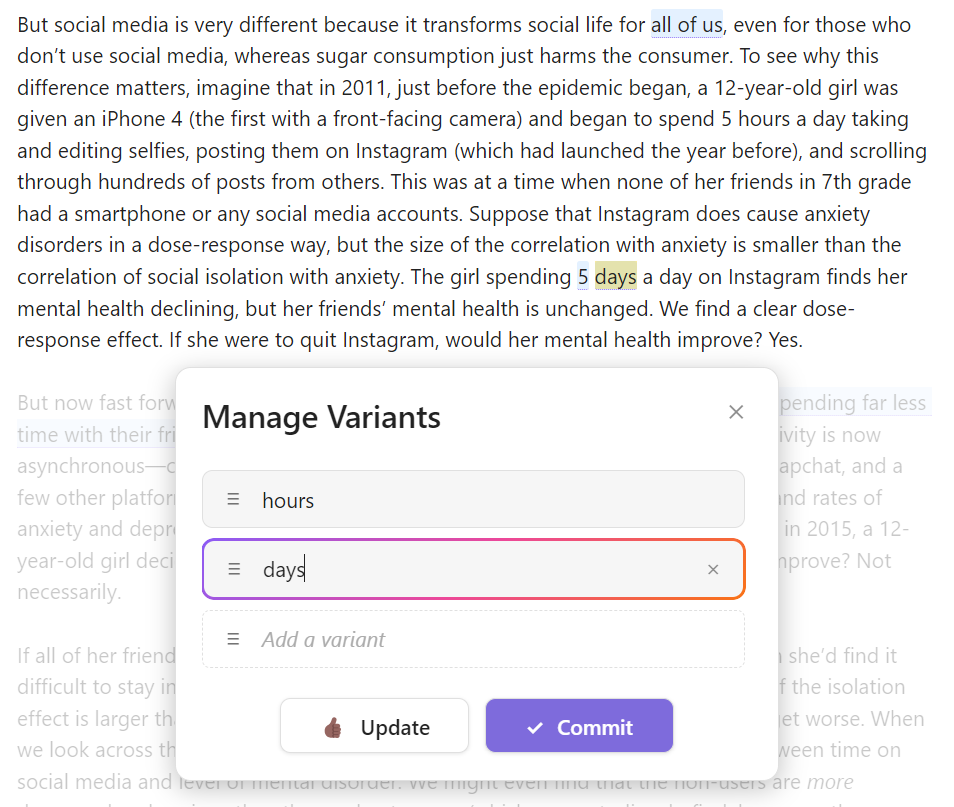
See Variants in Context
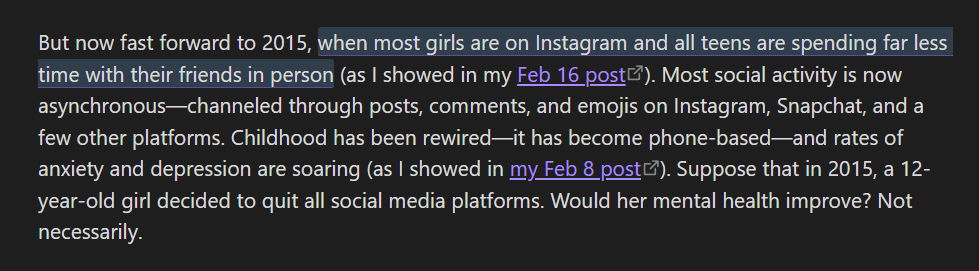
Commit All Variants
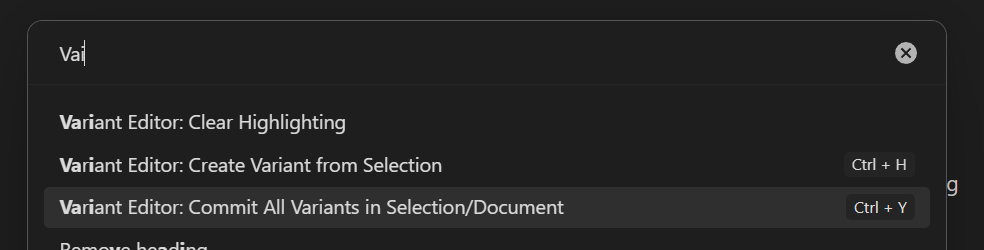
How It Works
Variant Syntax
Variant Editor uses a special syntax to store variants in your Markdown files:
{{variant1|variant2|variant3}}^INDEX
Where:
- Each variant is separated by a pipe character (
|) INDEXis the currently selected variant (0-based)
For example, {{quick|fast|rapid}}^0 means "quick" is currently selected.
Usage
-
Create Variants:
- Highlight text you want to create variants for
- Use the command palette (
Ctrl/Cmd+P) and select "Create Variants" - Enter multiple variants in the modal that appears
- Drag to reorder variants if needed
- Click "Update" to save your variants
-
View Variants:
- Click on any variant in your document to see it in context
- The active variant will be highlighted with a rainbow border
-
Commit Variants:
- When you're satisfied with a variant, click "Commit" in the modal
- This will replace the variant syntax with the selected text
- You can also use the "Commit All Variants" command to finalize all variants in your document
https://github.com/kunalJa/VariantEditor/raw/master/screenshots/feature_showcase.mp4
Note on Sharing
If you share your Markdown files with others who don't have the Variant Editor plugin, or turn the plugin off, you'll see the raw variant syntax which looks like {{variant1|variant2|variant3}}^INDEX. You can also manually create variants by using this syntax.
Contributing
Contributions are welcome! Please feel free to submit a Pull Request.
License
For plugin developers
Search results and similarity scores are powered by semantic analysis of your plugin's README. If your plugin isn't appearing for searches you'd expect, try updating your README to clearly describe your plugin's purpose, features, and use cases.