by Deke Li
Forked from kevinmkchin/Obsidian-GitHub-Sync
Sync your vault to GitHub with a clean linear history: rebase instead of merge commits, a lock against overlapping syncs, and commit messages that summarise your notes.

Vault Digest
Sync your vault to a personal GitHub repo for syncing across devices, with a linear git history and commit messages that describe what changed in your notes.
Highlights
- Sync your vault with a single ribbon action.
- Reduce notice noise with configurable notice levels.
- Keep the success notice to one short confirmation message or hide it entirely.
- Note-aware commit messages, computed locally in a few milliseconds: no AI, no API key, no diff sent anywhere.
- Rebase on pull: no merge commit on every sync between devices. When you are behind the remote, your local edits are stashed, rebased onto it, then restored before the commit is made. If restoring them conflicts, resolve the conflicts and sync again: the stash (named
vault-digest autostash) is dropped automatically once no conflict markers remain. If the rebase itself is not possible, the plugin restores your edits, commits first, then rebases, and as a last resort merges so conflicts can be resolved as before. - Sync suspended on conflicts, git mergetool to resolve them: while any file still contains conflict markers, nothing is committed, pulled or pushed, including scheduled and on-startup syncs. A conflict met by a sync you start yourself (ribbon or command) opens the merge tool configured in git (
merge.tool, oropendiffon macOS when none is set). Scheduled and on-startup syncs never open it: use the Resolve with git mergetool button in the conflict notice or the command palette. Once every file is resolved, the sync resumes by itself. Without a configured tool on Linux or Windows, rungit config --global merge.tool <tool>(for examplevscode,meld,kdiff3). Backup.origfiles are not kept. - Sync recap: the success notice lists the files pushed and pulled.
Commit messages
vault: sync from my-laptop (1 added, 3 modified +40 -8; +3 links, +2 tags, 5 tasks done, 1 new tasks)

Links added: [[Project Alpha]], [[Meeting 2026-11-20]]
Tags added: #idea, #review
A notes/new-idea.md (+12 -0)
M notes/todo.md (+9 -4)
The summary counts, from the staged markdown diff only: links ([[...]]) added or removed, tags (#tag) added or removed, tasks checked off and new tasks. A link or tag that only moves inside a note is not counted. One extra git diff call on *.md files is made, and the analysis is skipped above 20,000 changed lines so a big sync stays fast. Any failure falls back to the plain file counts.
Messages are size-limited however many notes change: the subject stays under 100 characters (the least important parts are dropped first), each body line under 100 characters, and the body under about 1,500 characters, ending with ... and N more when it is cut.
How to Use
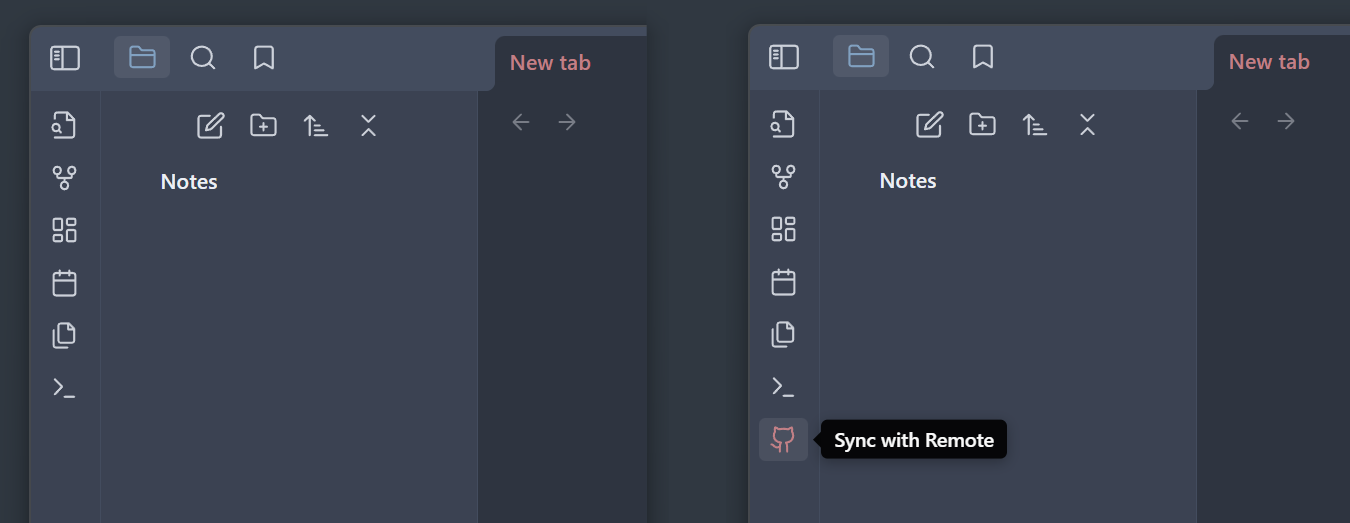
Click the Sync with remote ribbon icon to pull changes from your GitHub repo and push local changes. If there are any conflicts, the unmerged files will be opened for you to resolve (or just push again with the unresolved conflicts - that should work too).
Setup
Setting up a GitHub repo
If your vault is already set up as a GitHub repository, you can skip this step. Otherwise, create a new public or private GitHub repository that you want to use for your vault.
Navigate to your vault and git init the folder.
At this point, add anything you don't want syncing across your devices to a .gitignore.
This is not required, but you should try pushing your vault to your GitHub repository before continuing to make sure you can do that in the first place before using this plugin:
git add .
git commit -m "my obsidian vault first commit"
git branch -M main
git remote add origin <remote-url>
git push -u origin main
Verify that this works before continuing.
For simplicity, this plugin does not support branching. Everything gets pushed to main.
Setting up remote URL
All this plugin needs now is your GitHub repo's remote URL. You can grab this from the GitHub repo page for your vault:
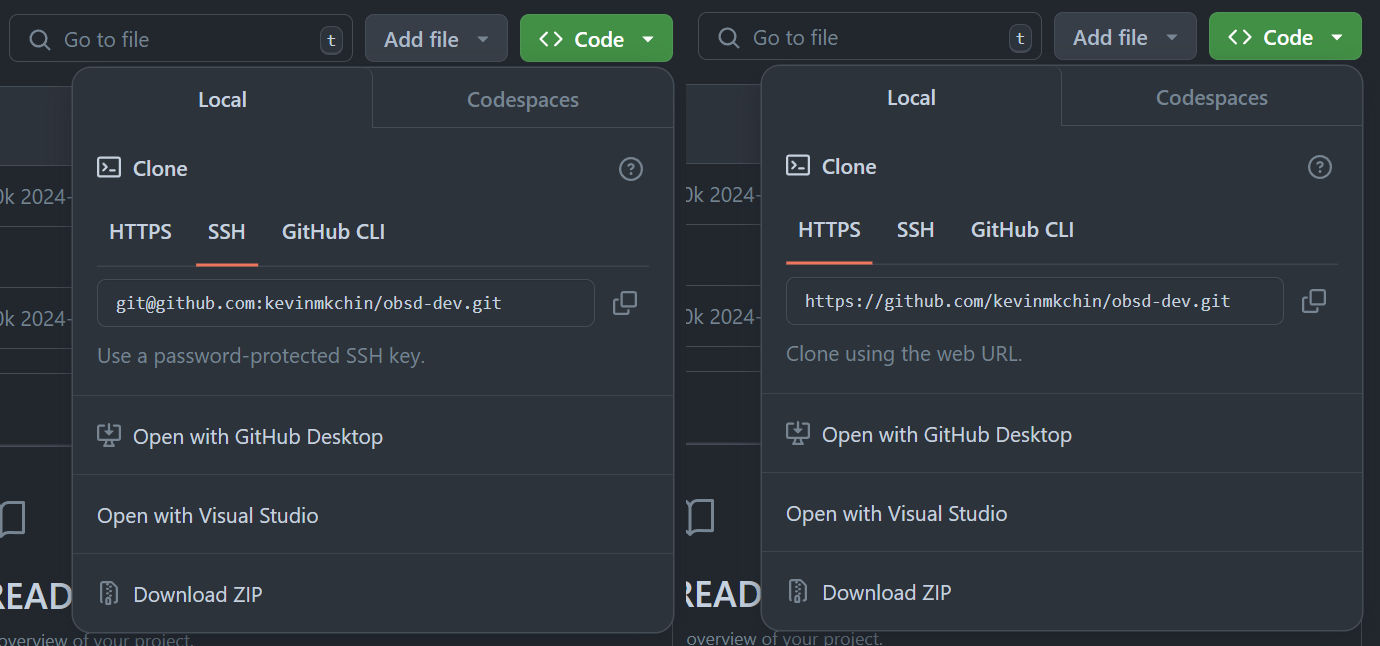
You can use either the HTTPS or SSH url. Grab it and paste it in the Vault Digest settings tab like so:
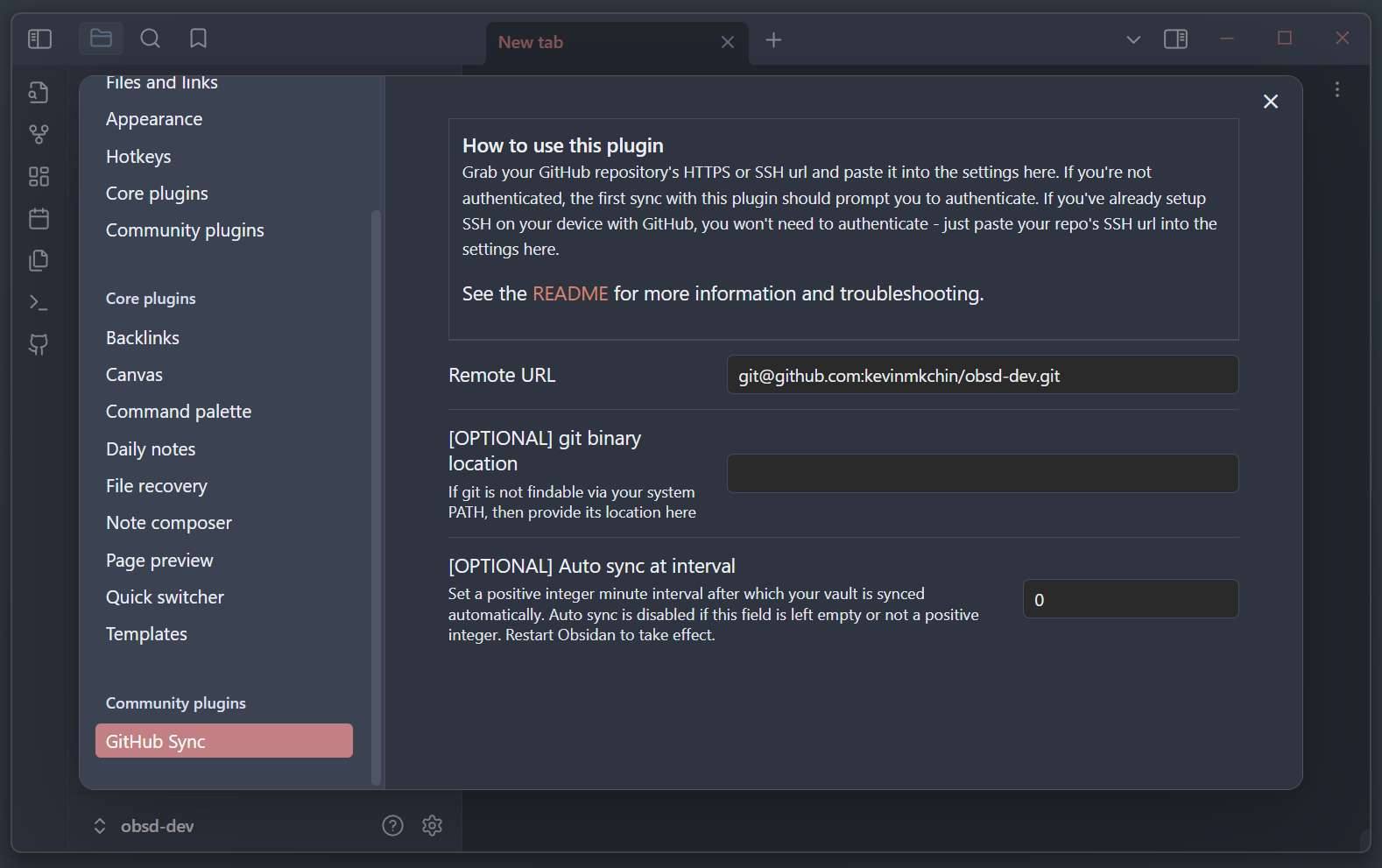
Done. Try clicking the Sync button now - it should work.
The first time may prompt you to authenticate if you haven't, or it may ask you to configure git with your email and name.
Optional
Main branch: by default the plugin pulls from and pushes to main. If your vault uses another branch (for example master), enter its name in the Main branch setting. The vault must be on that branch, otherwise the sync stops with an explanatory notice.
You can reduce UI noise from sync operations with the Notice level setting:
ALLshows every Vault Digest notice.WARNINGshows only warnings and errors.ERRORshows only error notices, so sync can run mostly in the background.
You can also use Hide success message to suppress the single confirmation notice shown after a successful sync. With the toggle off and Notice level set to ALL, a successful sync shows exactly one success message instead of multiple informational notices.
If your git binary is not accessible from your system PATH (i.e. if you open up Command Prompt or Terminal and can't use git), you need to provide its location. I initialize git only when launching Cmder, so I need to input a custom path like so: C:/Users/Kevin/scoop/apps/cmder-full/current/vendor/git-for-windows/cmd/. Note that I excluded git.exe from the end of the path.
You can also include your GitHub username and personal access token in the remote url. Like so: https://{username}:{personal access token}@github.com/{username}/{repository name}. This is not recommended anymore, but it was how the plugin worked prior to 1.0.4. If you're doing this, you'll have to add .obsidian/plugins/vault-digest/data.json to your .gitignore.
Security and privacy
Vault Digest is desktop only. It needs two capabilities that the Obsidian community directory flags:
- Shell execution: the plugin runs the
gitbinary (through simple-git, andgit mergetoolwhen you resolve conflicts). It only runsgit, from the location in the settings or your system PATH, inside your vault folder. - Filesystem access: simple-git uses the Node.js
fsmodule to check that the vault folder exists. The plugin itself reads conflicted files through the Obsidian vault adapter.
Network access goes through git only, to the remote URL you configure. The plugin has no telemetry, and the commit message summary is computed locally: no diff is sent anywhere.
Contributing
Commits and PR titles follow Conventional Commits, because releases are automated with release-please:
feat: ...new feature (minor version bump)fix: ...bug fix (patch version bump)feat!: ...or aBREAKING CHANGE:footer: breaking change (major version bump)docs:,chore:,ci:,refactor:,test:do not trigger a release
The release workflow only runs when code files change (main.ts, styles.css, build config, package*.json, manifest.json). Docs-only pushes such as README.md never trigger it, even with a feat: or fix: title. To run it manually, use the Actions tab or gh workflow run release-please.yml; it still needs at least one feat: or fix: commit since the last release, or a Release-As: x.y.z footer to force a version.
npm run lint checks the code with eslint-plugin-obsidianmd, the rules of the Obsidian community directory review. The CI workflow runs the lint, the build and QUICK=1 npm test on every pull request.
npm test runs an end-to-end simulation of several people syncing one remote (concurrent edits, conflicts, rejected pushes, offline). It runs the real plugin code with a stubbed obsidian module and needs only git. QUICK=1 npm test skips the slowest scenario.
Pull requests are merged with squash (no merge commits), so the PR title must follow the convention.
On each push to main, release-please opens or updates a release PR that bumps package.json and manifest.json. Merging it creates the tag (without a v prefix) and the GitHub release, with main.js, manifest.json and styles.css attached. Release notes are generated on the GitHub release; there is no CHANGELOG.md.
Rationale
This plugin is for personal use, but I figured others might find it useful too. This is basically a glorified script - the code is tiny its like ~200 SLOC. I keep a private GitHub repository for my Markdown notes, and I wanted some way to pull/push my notes from within Obsidian without opening a command line to run a script or set up an auto sync script on a timer. I don't use Git branches for my notes so this plugin doesn't support branching.
The Node API used by this plugin works with any remote host, but I use GitHub so I centered the whole plugin around that.
Mobile support could come in the future depending on how much I need it myself.
Follow my stuff at https://github.com/lideke
For plugin developers
Search results and similarity scores are powered by semantic analysis of your plugin's README. If your plugin isn't appearing for searches you'd expect, try updating your README to clearly describe your plugin's purpose, features, and use cases.