by Giljae Joo
Sync your vault across desktop and mobile through a private GitHub repo you choose.
GitHub Repo Sync
Sync your Obsidian vault across your own private GitHub repository. No subscription, no server, no account with us — just your notes, backed up in your GitHub account. Works on Windows, macOS, Linux, Android and iOS.
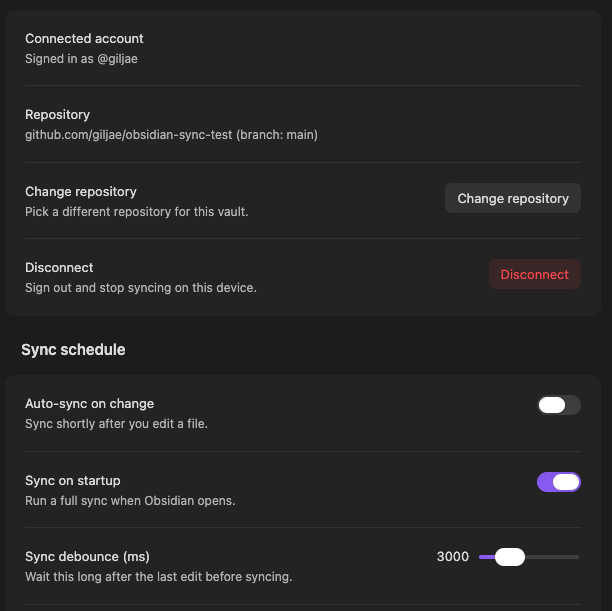
GitHub Repo Sync keeps every device you use in step through a private GitHub repository that you choose. You don't need to know Git: install the plugin, approve it once in your browser, pick (or create) a repository, and it does the rest.
Unlike many sync plugins, it does not just invent a repository name for you. You decide exactly which repository this vault talks to, so you can reuse one you already have, keep different vaults in different repositories, and even sync several vaults from the same GitHub account.
Requirements
- Obsidian 1.13.0 or later (check under Settings → About).
- A GitHub account (free).
- An internet connection — offline edits are queued and synced when you are back online.
Why it's free and private
- Your notes live in your own private GitHub repository. No middleman server ever sees them.
- The plugin talks only to
github.comandapi.github.com, directly from your device. - There is no telemetry and no analytics.
- The only thing stored by the plugin is a GitHub access token, kept in Obsidian's local plugin data on each device.
How it works
   Your GitHub account
        │
        ├── private repo  "obsidian-personal-notes"   ← Vault 1
        └── private repo  "obsidian-work"             ← Vault 2

   Windows ─┐
   macOS    │
   Linux    ├──▶  same private repo  ──▶  all devices in step
   Android  │
   iOS     ─┘
The whole vault is the local side: the vault you have open is exactly what syncs (vault root ↔ repository root). Every device that connects to the same repository shares the same notes — there is no need for the vault names to match.
Quick start
- Install the plugin (see Installation).
- Open Settings → GitHub Repo Sync → Connect GitHub. A browser window opens; approve the request (one click).
- Back in Obsidian, click Select repository and either pick one of your existing repositories or create a new private one.
- Done. The plugin uploads your vault and keeps it in sync from then on.
To use the same notes on another device, install the plugin there and pick the same repository — see Adding another device.
Installation
Option A — Community plugins (recommended)
- In Obsidian, open Settings → Community plugins and turn off Restricted Mode if prompted.
- Click Browse and search for GitHub Repo Sync.
- Click Install, then Enable.
Option B — BRAT (install from this GitHub repo)
Use this to install straight from the repository — for example, to try a new release before it reaches Community plugins.
- Install the BRAT plugin from Community plugins.
- Open BRAT settings → Add Beta Plugin.
- Paste this repository's URL.
- Enable GitHub Repo Sync under Settings → Community plugins.
Option C — Manual install
- Download
main.js,manifest.jsonandstyles.cssfrom the latest release. - Create the folder
.obsidian/plugins/github-repo-sync/inside your vault. - Copy the three files there.
- Open Settings → Community plugins, turn off Restricted Mode if prompted, and enable GitHub Repo Sync.
Connecting GitHub
Do this on every device, with the same GitHub account.
-
Settings → GitHub Repo Sync → Connect GitHub.
-
A panel shows a URL and an 8-character code:
Authorize on GitHub In your browser, open the link below and type this code. https://github.com/login/device AB12-CD34 Waiting for you to finish in the browser… -
Your browser opens automatically. Enter the code, review the access request (it asks for access to private repositories), and click Authorize.
-
Obsidian shows
Connected as @your-username.
The code expires after 15 minutes. If it expires, click Connect GitHub again.
Choosing a repository
After connecting, click Select repository (or Change repository later). The picker lists every repository you can push to — your own, ones you collaborate on, and your organisations' — with a search box.
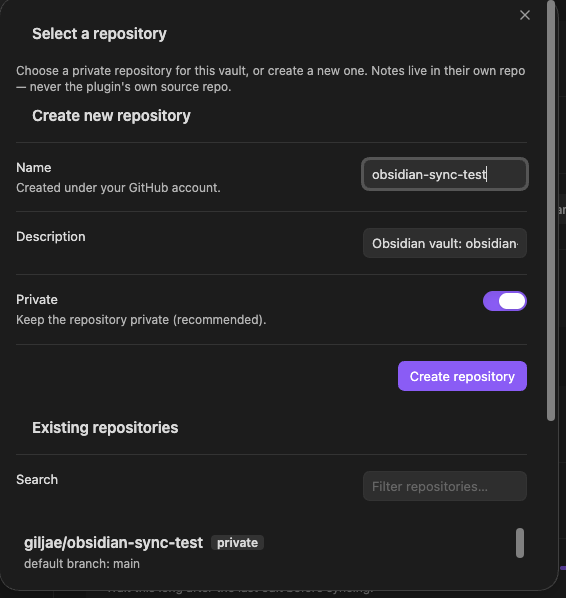
Pick any repository to use it, or use Create new repository:
- The name is prefilled from your vault (
My Notes→obsidian-my-notes); you can change it. - Private is on by default — strongly recommended.
- New repositories are created under your own GitHub account.
Use a repository for your notes, not for code. The plugin maps your vault to the repository root, so pointing it at a repository that already contains something else (for example, the plugin's own source code) would mix the two. The plugin refuses to start when both the repository and the vault already have content — nothing is ever overwritten silently.
First-time behaviour
Depending on the repository you choose:
| Repository | Vault | What happens |
|---|---|---|
| New or empty | anything | Your vault is committed and pushed as the first snapshot. |
| Has content | empty | The repository is cloned into the vault. |
| Has content | has content | Stopped with a message — choose an empty repository, or open an empty vault to clone into. |
Adding another device
The device and the repository are linked by your choice of repository, not by the vault name.
- Install the plugin on the new device.
- Connect the same GitHub account.
- Pick the same repository you used on the first device.
- The plugin clones your notes into the vault.
For the smoothest start, use an empty vault on the new device (do not copy the folder over). If the vault already contains files that also exist in the repository, the plugin stops rather than overwrite them. Move those notes out, connect, then copy them back.
Using the plugin day to day
The ribbon icon
The left ribbon shows a ⟳ sync icon. Click it any time to sync immediately. It reflects the current state:
- spinning while syncing,
- warning-coloured on a conflict,
- error-coloured after a failure.
Status bar
The bottom-right corner shows the current state:
| Indicator | Meaning |
|---|---|
✓ Up to date | All good, fully in sync |
Checking GitHub… | Pulling from GitHub |
Publishing… | Pushing to GitHub |
⚠ Needs review | Two devices edited the same file — action needed |
✗ Sync failed | Network or authentication issue |
Click it to sync now. You can also use the command palette: GitHub Repo Sync: Sync vault now.
What triggers a sync
| Event | What happens |
|---|---|
| You save or edit a file | Changes are committed and pushed after a short debounce (default 3 s) |
| You open Obsidian | A full sync runs (unless Sync on startup is off) |
| The window or app regains focus | Changes are pulled (so other devices' edits arrive quickly) |
| A background timer fires | A full sync runs every 5 minutes by default |
| You close Obsidian | Any pending changes are flushed |
Resolving conflicts
A conflict happens when the same file is edited on two devices before either has synced. The plugin shows a side-by-side modal:
Resolve conflict
File 1 of 2 · notes/daily/2025-06-01.md

Changed lines:
- meeting at 3pm
+ meeting at 4pm

┌── This device ──┐   ┌── From GitHub ──┐
│ # June 1        │   │ # June 1        │
│ meeting at 3pm  │   │ meeting at 4pm  │
└─────────────────┘   └─────────────────┘

[ Keep this device ]  [ Keep GitHub ]  [ Open file ]
| Button | Action |
|---|---|
| Keep this device | Use this device's version; discard the remote change |
| Keep GitHub | Use the remote version; discard the local change |
| Open file | Close the modal and open the file to merge by hand |
Until every conflicted file is resolved, nothing is pushed and auto-sync stays
paused (the status bar shows ⚠ Conflict). The pending conflict survives an
Obsidian restart.
Syncing across Windows, macOS, Linux, iOS and Android
The same vault is edited on several platforms, and most syncing trouble comes from the platforms rather than from Git. The plugin handles the common cases for you:
- OS housekeeping files are ignored automatically —
.DS_Store,._*,Thumbs.db,desktop.ini,*.tmp, and trash folders never enter the repository. - Obsidian's own config folder is not synced by default, because it is device-specific. You can turn it on in settings if you want.
- Two devices pushing at once are handled automatically: the plugin re-fetches, merges, and tries again.
- A file that cannot exist on another platform (a name with
:,?,*or a reserved Windows name, a name that differs only by letter case, or a filename with unusual Unicode) is skipped with a warning instead of breaking the whole sync.
A note on line endings
The plugin copies files byte-for-byte and never rewrites line endings, so your
attachments (images, PDFs, and so on) can never be corrupted. If you also use
Git elsewhere and want consistent line endings, add a .gitattributes file to
your repository with:
* text=auto eol=lf
Settings reference
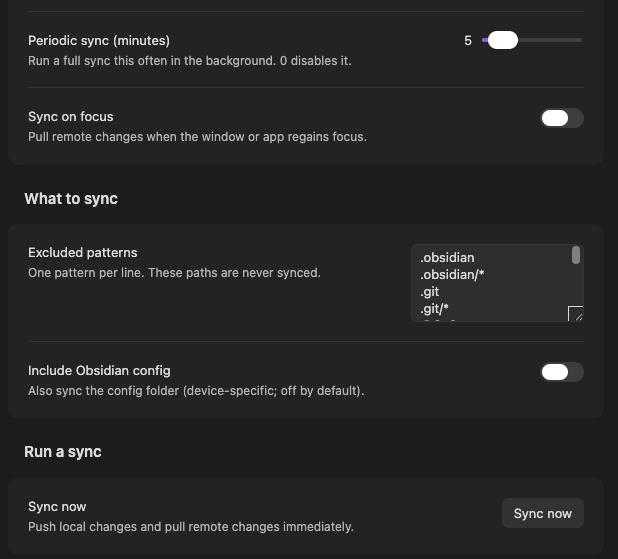
| Setting | Default | What it does |
|---|---|---|
| Auto-sync on change | On | Sync shortly after you edit a file |
| Sync on startup | On | Run a full sync when Obsidian opens |
| Sync debounce (ms) | 3000 | How long to wait after your last edit before syncing |
| Periodic sync (minutes) | 5 | Run a full sync on a timer. 0 turns it off |
| Sync on focus | On | Pull remote changes when the window or app regains focus |
| Excluded patterns | Built-in defaults | One pattern per line; matching paths are never synced (Private/*). Prefilled with the defaults above and freely editable |
| Include Obsidian config | Off | Also sync the Obsidian config folder (device-specific) |
Patterns are simple globs where * matches any characters (including /). The
field starts with the built-in defaults — the Git directory, the Obsidian config
folder (unless you turn on "Include Obsidian config"), and the OS housekeeping
files above — and you can edit them freely. The plugin's own settings file,
which holds your access token, is always excluded and cannot be synced.
Troubleshooting
"Device code expired" — The code lasts 15 minutes. Click Connect GitHub again for a fresh one.
"Access denied" — You cancelled the browser approval. Click Connect GitHub to try again.
✗ Sync failed — Check your connection first. Then open Settings → GitHub Repo Sync; if you appear signed out, reconnect. GitHub tokens can be revoked, and reconnecting issues a fresh one.
"This repository already has content and this vault is not empty" — The plugin will not overwrite either side. Pick a different (empty) repository, or create an empty vault and clone into it. Nothing was changed.
A file didn't sync, with a warning about "cannot sync across platforms" — Rename the file so it is valid on Windows (no < > : " | ? *, no trailing dot or space, not a reserved name such as CON), and make sure no other file differs only by letter case.
Mobile shows "Failed to load plugin" — Install from the latest release (main.js, manifest.json, styles.css), and delete the plugin folder before reinstalling if an older version is present.
.git shows up in my vault — Add .git to Settings → Files & Links → Excluded files. (It is hidden by default.)
FAQ
Is my data private? Yes. You choose the repository, and it can be private. Only your GitHub account can reach it.
Does the developer see my notes? No. The plugin runs entirely on your device and talks only to GitHub. There is no server in between.
What happens if I edit the same file on two offline devices? When both come online, the plugin detects the conflict and shows the resolution modal.
Can I use a vault that already has notes? On the first device, yes — everything is pushed to the new repository. On later devices, connect into an empty vault and let it clone, so nothing is overwritten.
Can I use the same repository for two vaults? No. One repository belongs to one vault. Use a separate repository per vault.
Does this replace Obsidian Sync? It is an alternative, not a companion. Running both at once is not recommended.
What's the storage limit? GitHub repositories have a soft limit of about 1 GB. A vault of Markdown notes is usually far under that.
Can I browse my notes on GitHub?
Yes — GitHub renders Markdown beautifully. Open github.com/<you>/<repo>.
Privacy, network use and revoking access
Network destinations
| Destination | Purpose |
|---|---|
github.com/login/device | Start the Device Flow login and check for approval |
api.github.com | Read your username, list your repositories, create one, and read repository details |
github.com/<you>/<repo>.git | Clone / fetch / push your vault's files over HTTPS |
No analytics, telemetry, or third-party servers are used.
Your token is stored only in Obsidian's local plugin data
(.obsidian/plugins/github-repo-sync/data.json) on each device and is never
synced to the repository (the config folder is excluded by default).
To revoke access: GitHub → Settings → Applications → Authorized OAuth Apps → revoke GitHub Repo Sync.
Build from source
Only needed if you want to modify or rebuild the plugin.
Prerequisites
- Node.js 20.12+ and npm 9+
- Git
Clone and install
git clone <this-repo-url> obsidian-github-sync
cd obsidian-github-sync
npm install
Register a GitHub OAuth App
Device Flow needs a Client ID baked into the build. This is done once.
-
Go to github.com/settings/developers → OAuth Apps → New OAuth App.
-
Fill in:
Field Value Application name Repo Sync for Obsidian(must not start with "GitHub" or "Gist")Homepage URL your repository URL Redirect URI https://obsidian.md(placeholder — Device Flow does not use it)Enable Device Flow tick this Expire user access tokens leave unchecked -
Register, then copy the Client ID (
Ov23li…). -
Put it in
src/client-id.ts:export const CLIENT_ID = "Ov23liYOUR_ACTUAL_ID";The build inlines this value into
main.js.
Do not generate a client secret — Device Flow does not need one, and secrets must never be embedded in a plugin.
Build
npm run dev     # watch mode, rebuilds on save
npm run build   # production build → main.js
npx tsc --noEmit # type check
npm test        # unit tests
Test in a vault
Copy main.js, manifest.json and styles.css into
YourVault/.obsidian/plugins/github-repo-sync/, then enable the plugin.
During development you can symlink the project into the plugins folder so every
build is picked up automatically:
ln -s "$(pwd)" "YourVault/.obsidian/plugins/github-repo-sync"
Releasing
Tag exactly the version in manifest.json (no v prefix), add that version to
versions.json, and publish a release with main.js, manifest.json and
styles.css attached.
License
MIT. See LICENSE.
For plugin developers
Search results and similarity scores are powered by semantic analysis of your plugin's README. If your plugin isn't appearing for searches you'd expect, try updating your README to clearly describe your plugin's purpose, features, and use cases.