Vault in Vault
approvedby 0xFAFE
Encrypt selected files and lock plaintext after inactivity, tab closure, or on demand. - This plugin has not been manually reviewed by Obsidian staff.
Vault in Vault
Keep private notes and images encrypted inside your Obsidian vault, and unlock them only when you need them.
Vault in Vault helps you:
- Protect sensitive content at rest. Encrypt journals, personal records, work notes, and images that should not remain readable in copied, backed-up, or synchronized vaults.
- Keep files where they belong. Locked files stay in their original folders as standard password-encrypted
.agefiles. - Use Obsidian normally while unlocked. Open a protected file, enter its password, and continue with Obsidian's native editor, image preview, links, and search.
- Lock plaintext again without leaving Obsidian. Encrypt one file when its last tab closes, lock every exposed file on demand, or enable automatic locking after Vault inactivity.
- Choose what is protected. Configure file extensions and exclude public folders, templates, or individual files with a Vault-wide
.ageconfigpolicy. - Use the plugin in your language. The interface follows Obsidian and currently supports English, Simplified Chinese, Traditional Chinese, Japanese, and Korean.
Vault in Vault protects file contents. File names and folder structure remain visible.
[!WARNING] Vault in Vault writes plaintext to disk while a file is unlocked. Keep backups and read the security model before using it with important data. This project has not received an independent security audit.
English · 简体中文 · 繁體中文 · 日本語 · 한국어
Install from Obsidian Community plugins
- Open Settings -> Community plugins in Obsidian.
- Select Browse and search for Vault in Vault.
- Select the plugin, then choose Install and Enable.
Vault in Vault is currently available on desktop only. You can also view its Obsidian Community listing.
Quick tour
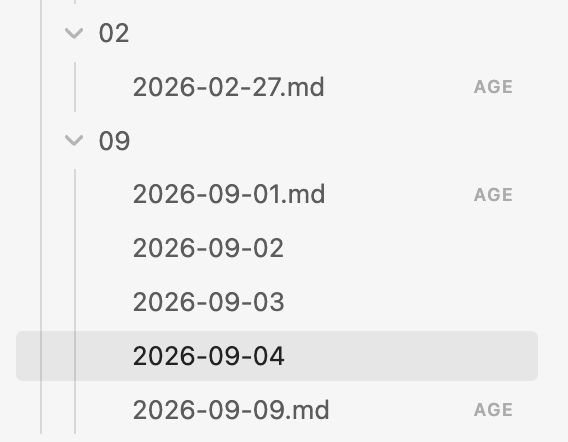
Locked files remain in their original folders
Encrypted files are marked AGE in the file explorer. Their names and folder structure remain available, while their contents are unreadable without the password.
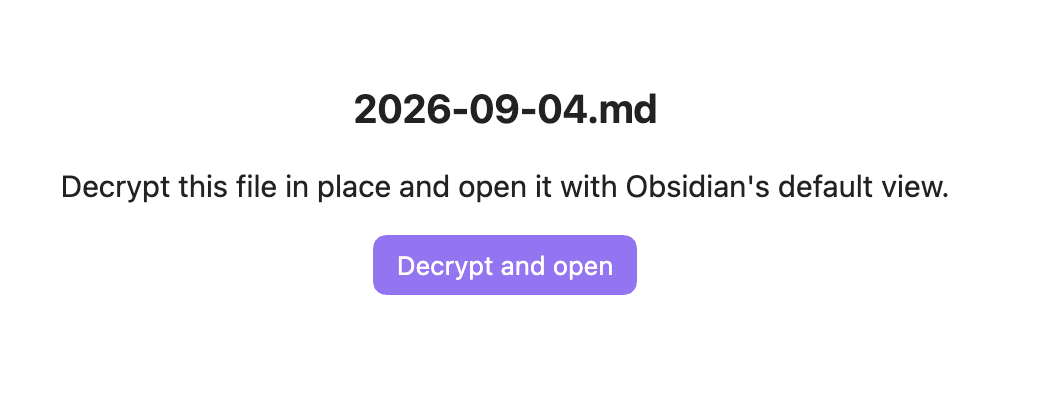
Click a locked file to open it
Select Decrypt and open when you want to read or edit the file.
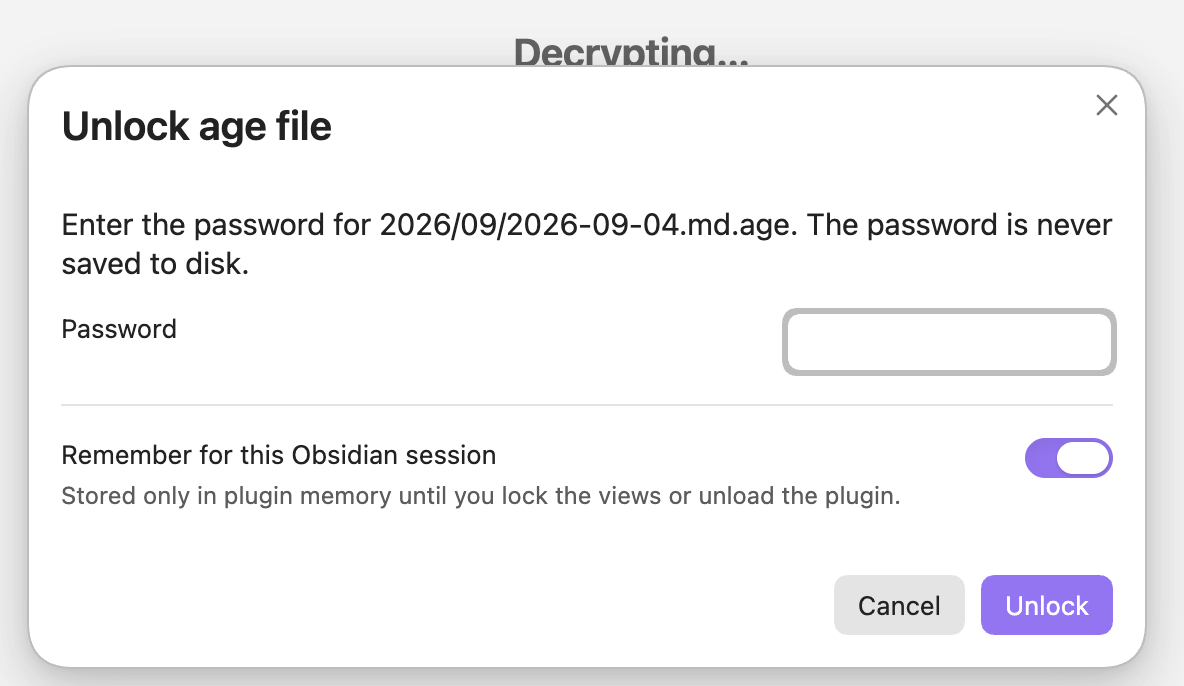
Enter the password. You can optionally remember it in memory for the current Obsidian session; it is not saved to disk.
After decryption, the note opens in Obsidian's normal editor. Markdown features, image previews, links, search, and compatible plugins continue to work while the file is unlocked.
Decide what to lock when a tab closes
When the last protected plaintext tab closes, choose whether to encrypt that file, encrypt every matching plaintext file, or leave the files as they are. Closing one protected tab while another remains open does not interrupt you.
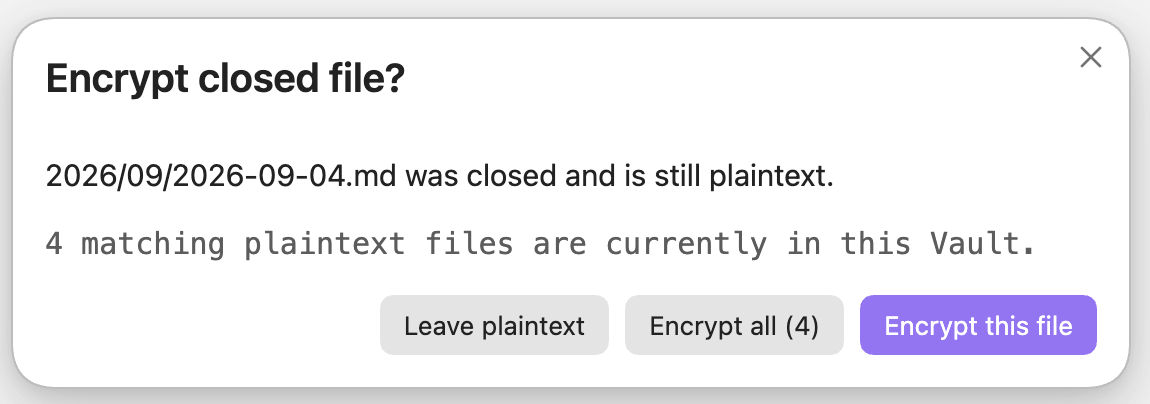
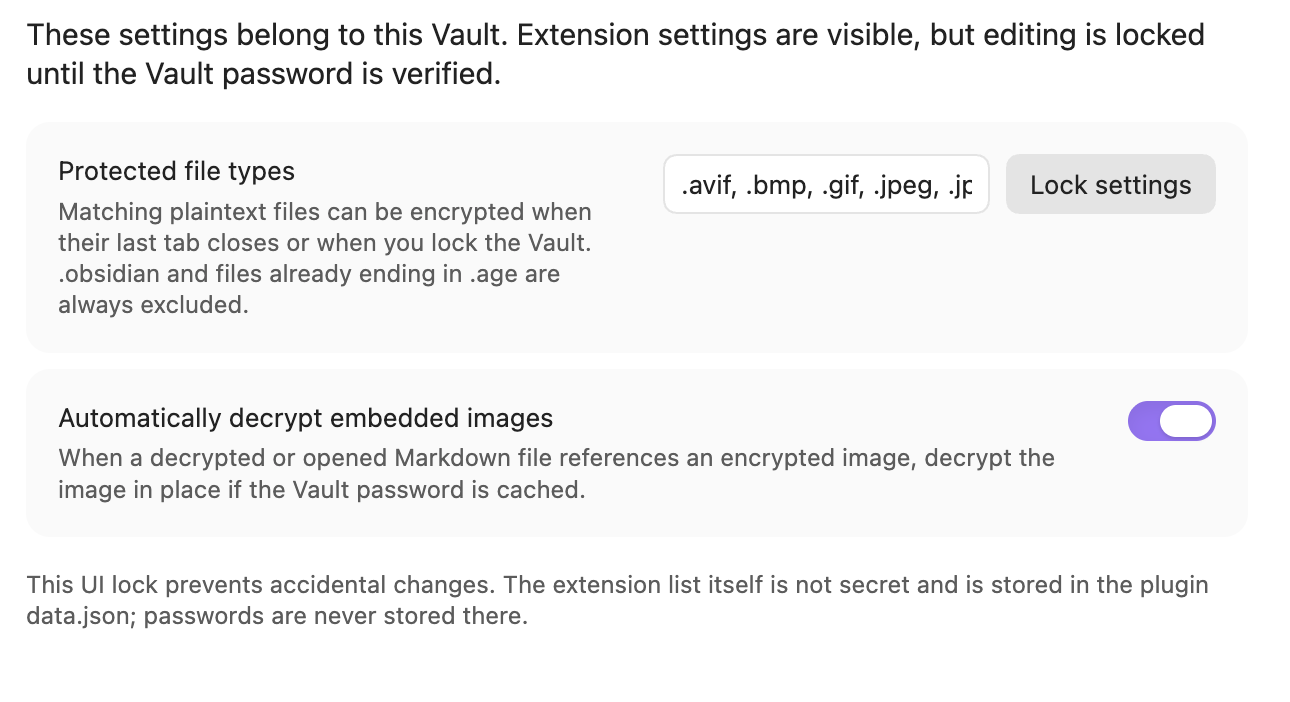
Choose which file types are protected
The settings page shows the file extensions covered by vault-wide locking. Settings are visible by default, but changing them requires password verification to prevent accidental edits.
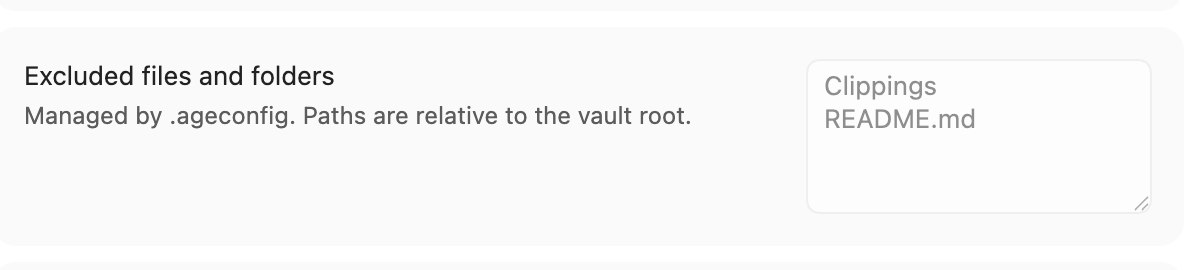
Leave selected files and folders unencrypted
Add vault-relative paths to exclude in .ageconfig when a public folder, template, or individual file should never be included in encryption or password-verification scans. A folder entry excludes its entire subtree. The settings page shows the active exclusions as read-only when the shared policy is in use.
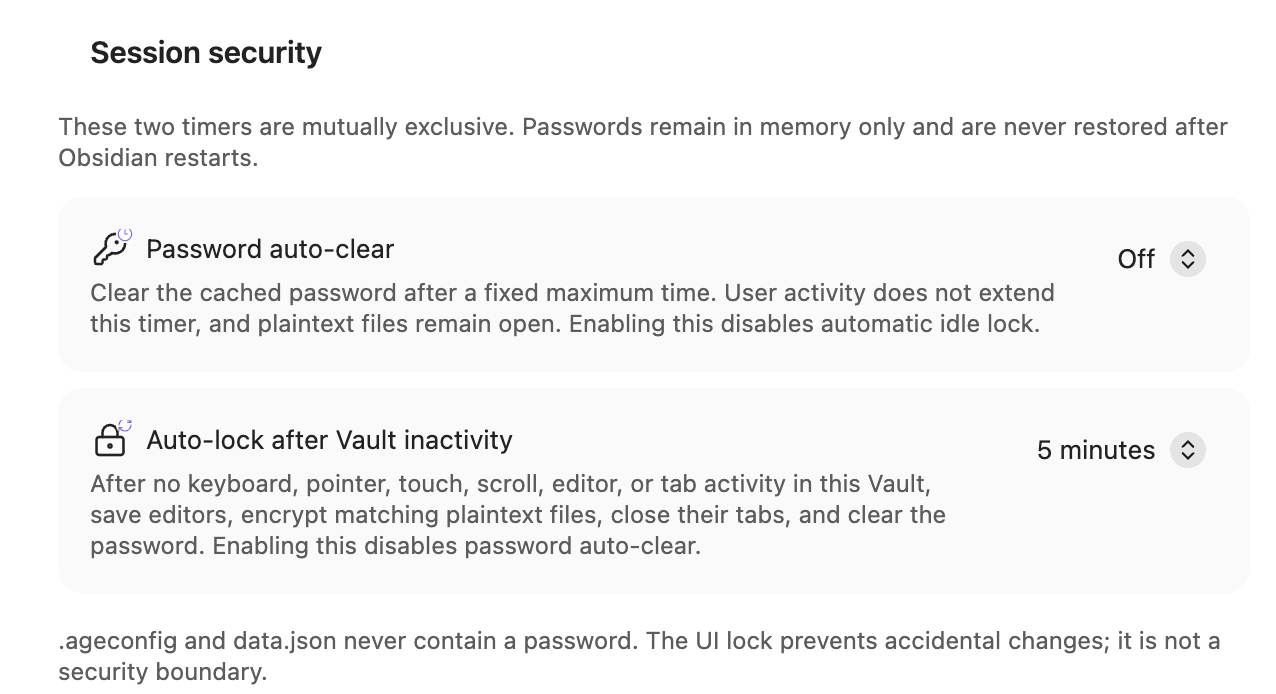
Limit how long the password remains available
Session security offers two mutually exclusive choices. Password auto-clear only removes the cached password after a fixed time. Auto-lock after Vault inactivity waits for a period without activity, saves open Markdown editors, encrypts matching plaintext files, closes successfully protected tabs, and clears the password.
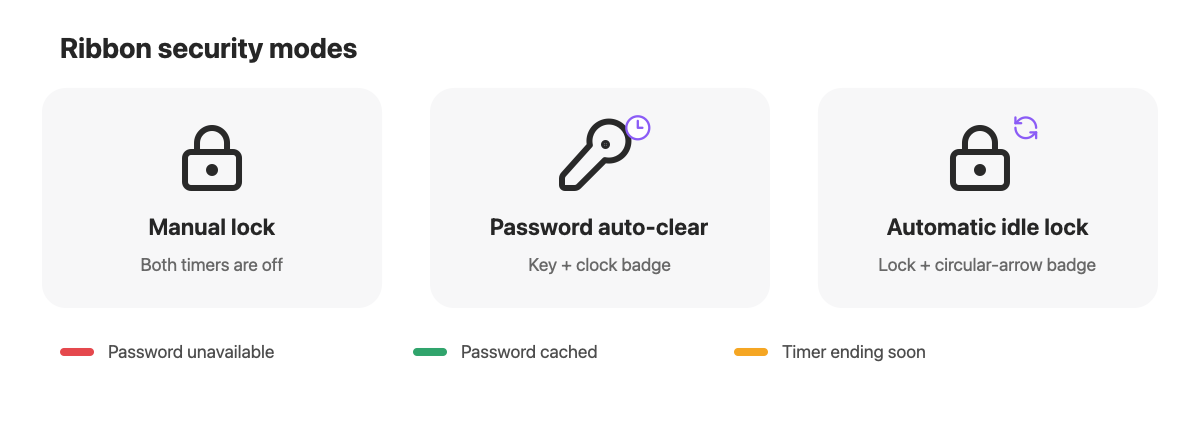
The Ribbon icon shows the configured mode separately from password status:
Features
- Opens password-encrypted
.agefiles from the file explorer. - Decrypts Markdown and images in place so native editing, previews, links, search, and other plugins continue to work.
- Re-encrypts the final closed file or every matching plaintext file after the last protected plaintext tab closes.
- Provides an Encrypt and lock vault now command and ribbon action.
- Caches a password in memory only when the user chooses to remember it for the current session.
- Shows a red, green, or yellow light under the ribbon lock for unavailable, cached, or soon-expiring password state.
- Can clear a cached password after a hard time limit, or automatically encrypt and lock after no activity in this Vault.
- Uses configurable protected extensions and vault-relative file/folder exclusions. The defaults are
.md,.avif,.bmp,.gif,.jpeg,.jpg,.png,.svg, and.webp. - Preserves subfolders and excludes the vault configuration directory and files already ending in
.age. - Verifies every new plaintext or ciphertext copy before deleting its source.
- Follows Obsidian's interface language, with English, Simplified Chinese, Traditional Chinese, Japanese, and Korean translations.
How it works
Opening notes/private.md.age and selecting Decrypt and open performs this transition:
notes/private.md.age
    -> decrypt and verify notes/private.md
    -> remove notes/private.md.age
    -> open notes/private.md in the native editor
When the last open protected plaintext tab closes, Vault in Vault offers three choices and a collapsed list of all matching plaintext files. If .ageconfig excludes paths, a second collapsed list shows which configured files and folders will be skipped:
- Encrypt this file
- Encrypt all (N)
- Leave plaintext
The tab closes first, allowing Obsidian to finish saving it. Encryption then runs while the app remains open. If the password prompt is cancelled, a file changes during encryption, or verification fails, the plaintext source is retained.
Choosing Encrypt all or running Encrypt and lock vault now deliberately forgets the cached session password after encryption. Opening another encrypted file then asks for the password again. Encrypting only the closed file keeps the current session password cached.
The plugin does not attempt interactive encryption from an application quit hook. Obsidian does not reliably wait for that asynchronous work. Before quitting, close protected tabs or run Encrypt and lock vault now.
Images
Images use the same in-place workflow:
- Open
photo.png.ageand select Decrypt and open image for the native image preview. - When an unlocked Markdown file embeds
photo.png, the plugin can find and decryptphoto.png.ageautomatically. - Use Decrypt encrypted images in current note when automatic decryption is unavailable.
Image links in Markdown retain their ordinary names and do not need an .age suffix.
Password behavior
- Existing non-excluded
.agefiles are used to verify the supplied password before a vault-wide encryption operation. - If no
.agefile exists, the password must be entered twice. - A remembered password is held only in JavaScript memory for the current plugin session.
- Passwords are never written to
data.json. - There is no password recovery. A lost password makes the encrypted files unrecoverable.
Session security timers
The settings page offers two mutually exclusive timers. Both are off by default:
- Password auto-clear removes the cached password after a fixed time measured from when it entered memory. Activity does not extend the deadline, and plaintext files remain as they are.
- Auto-lock after Vault inactivity resets on keyboard, pointer, touch, scroll, editor, and tab activity in this Vault. When it expires, the plugin waits for open Markdown editors to save, encrypts every matching non-excluded plaintext file, closes successfully protected tabs, and clears the password without another confirmation.
The ribbon uses a key with a clock badge for password auto-clear and a lock with a circular-arrow badge for automatic idle lock. With both timers off it shows the ordinary lock. The badge identifies the configured mode; the separate red, green, or yellow bar identifies password availability and an approaching deadline. The settings page uses the same icons.
Automatic idle lock requires the password to remain cached. While that mode is enabled, password prompts keep Remember until automatic lock enabled. A restart never restores the password, so automatic lock is unarmed until a password is entered again.
The timer measures activity visible to the plugin in this Vault's Obsidian windows, including popouts. It is not operating-system idle detection. Switching to another app continues the countdown. Background sync and unrelated file modification times do not reset it. If the computer sleeps or Obsidian is suspended, the deadline is checked as soon as the app resumes.
Settings
Open Settings -> Vault in Vault to inspect the protected extensions, excluded paths, embedded-image behavior, and session security timers. Editing the protection policy is locked until an existing vault password is verified. Timer controls remain available so a cached password can always be constrained. The UI lock prevents accidental policy changes; it is not a security boundary.
Settings are stored per vault in:
<vault>/.obsidian/plugins/vault-in-vault/data.json
The actual configuration directory may be customized by Obsidian. Vault in Vault obtains it from the Obsidian API rather than assuming .obsidian internally.
Shared .ageconfig policy
To share one policy with the companion Go CLI, create .ageconfig in the vault root:
{
  "extensions": [".md", ".png", ".jpg"],
  "exclude": ["Public", "Templates/daily.md", "attachments/shared"]
}
exclude entries are vault-relative exact file paths or directory paths. A directory excludes its entire subtree. Paths are case-sensitive and do not support globs; absolute paths and .. are rejected. Excluding a plaintext name also excludes its corresponding .age file from CLI decrypt and password-change scans.
extensions is optional. A policy containing only exclusions uses the built-in Markdown and common-image defaults:
{
  "exclude": ["Public", "Templates"]
}
An explicitly supplied extensions array must not be empty.
When .ageconfig exists, it takes precedence over the extension and exclusion lists in data.json. The plugin displays those shared fields as read-only. The settings page can open the file in the system default editor or reveal it in Finder/the desktop file manager; use Reload .ageconfig after saving. data.json remains the fallback when .ageconfig is absent. An invalid .ageconfig blocks encryption instead of silently falling back to a broader policy. Neither file stores the password.
Security model
Vault in Vault protects selected files at rest, subject to these boundaries:
- Unlocked content exists as ordinary plaintext files on disk.
- Search indexes, metadata caches, File Recovery, third-party plugins, sync tools, and system backups may retain plaintext.
- A crash, forced termination, power loss, or direct application quit can leave plaintext files behind.
- JavaScript cannot guarantee that password strings are immediately erased from process memory.
- The plugin deliberately removes a source only after creating, reading back, and cryptographically verifying its replacement. Moving plaintext to a trash folder would leave an unencrypted copy, so this encryption transition does not use the normal Obsidian trash behavior.
- Vault in Vault cannot protect data from software or users that can inspect the running Obsidian process while files are unlocked.
The plugin has no telemetry, advertisements, account requirement, network service, or access outside the current vault. Cryptographic code is bundled into main.js; normal use is offline.
Manual installation
To install a local development build, use Node.js 20 or newer:
npm ci
npm run check
npm run install:vault -- "/absolute/path/to/your/vault"
The last command copies main.js, manifest.json, and styles.css to:
<vault>/.obsidian/plugins/vault-in-vault/
Alternatively, copy those three files manually. Restart Obsidian or reload the app, then enable Vault in Vault under Settings -> Community plugins.
If you installed an earlier development build under fileencrypt-age-viewer, disable that build before enabling vault-in-vault. The new ID is intentionally treated as a separate plugin. Copy the old data.json into the new plugin folder only if you want to preserve its extension settings; it contains no password.
Development
npm ci
npm run dev      # watch and rebuild main.js
npm test         # run the test suite
npm run check    # test, type-check, and create a production bundle
Tests cover age round trips, a Go-generated age fixture, wrong passwords, Unicode Markdown, randomized ciphertext, shared extension/exclusion configuration, configuration-directory exclusion, image references, and tab-close tracking.
Release process
- Update the version with
npm version patch,npm version minor, ornpm version major. This synchronizespackage.json,manifest.json, andversions.json. - Run
npm run checkand test the build in a disposable vault. - Push the commit and its tag. The tag must exactly match the version, with no
vprefix. - The release workflow builds the plugin, attests the three Obsidian assets, and creates a draft GitHub Release.
- Open the draft, add release notes, and verify that
main.js,manifest.json, andstyles.cssappear as separate downloadable assets. - Select Publish release. A draft is not installable by Obsidian and is not ready for Community submission.
The workflow is the normal Create a release step; there is no need to create a second release or upload the files manually. Obsidian downloads these assets from the published release whose tag matches manifest.json.version.
Compatibility
Vault in Vault 0.8.0 and later requires Obsidian 1.8.7 or newer so it can follow Obsidian's selected interface language.
Vault in Vault uses age-encryption with an age scrypt work factor of 14. Files are compatible with standard passphrase-encrypted age files. See THIRD_PARTY_NOTICES.md for bundled dependency notices.
Vault in Vault is desktop-only because opening and revealing .ageconfig uses Electron and desktop filesystem APIs. Mobile is not currently supported.
If you're also using Obsidian calendar plugin, you may take a look at the updated version which support .md.age extension.
License
For plugin developers
Search results and similarity scores are powered by semantic analysis of your plugin's README. If your plugin isn't appearing for searches you'd expect, try updating your README to clearly describe your plugin's purpose, features, and use cases.