vibgyor
approvedby zerodark-0
Customize your notes with custom color palettes and built-in background patterns. - This plugin has not been manually reviewed by Obsidian staff.
vibgyor
Customize your Obsidian notes with custom color palettes and built-in background patterns.


Give each note its own personality -> apply custom page colors, text colors, link colors, accent colors, and background patterns through a simple visual interface or frontmatter properties.
Features
- Per-note theming : Set unique background, text, link, and accent colors for individual notes
- Background patterns : Apply textures like Grid, Blueprint, Cosmos, Starfield, Zen Waves, and more
- Image color matching : Automatically tints transparent-background images to match your note's pen color, with a one-click toggle to view originals
- 10 built-in presets : Ready-to-use themes including Dark Mode, Vampire, Nord Dark, Neon Noir, and more
- Custom palettes : Create and save your own reusable color combinations
- Real-time updates : Changes to frontmatter are applied instantly
Getting Started
Ribbon Icons & Usage
The plugin provides two main entry points in your left ribbon:
| Icon | Name | Purpose |
|---|---|---|
 | Create Themed Note | Opens a modal to name a new note and pick its initial theme/pattern. |
 | Edit Active Theme | Modifies the theme and pattern of the note you are currently viewing. |
🎨 Creating a Themed Note
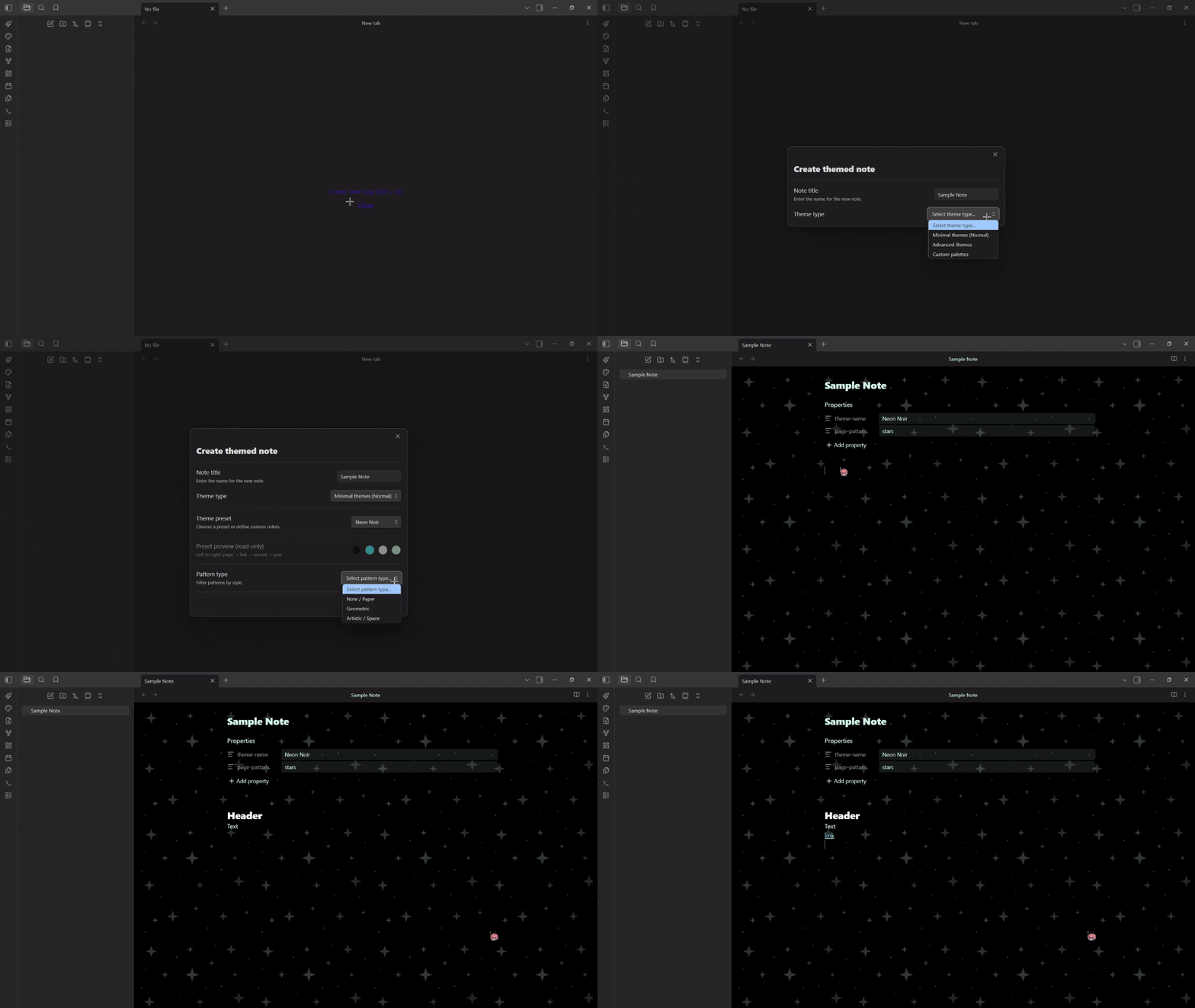
Use the Paintbrush ribbon icon or the command palette (Create themed note) to open the creation modal:
- Enter a note title
- Pick a theme type : Minimal, Advanced, or Custom Palettes
- Choose a preset or define custom colors (page, link, accent, pen)
- Select a background pattern (optional)
- Click Create note
✏️ Editing an Existing Note's Theme
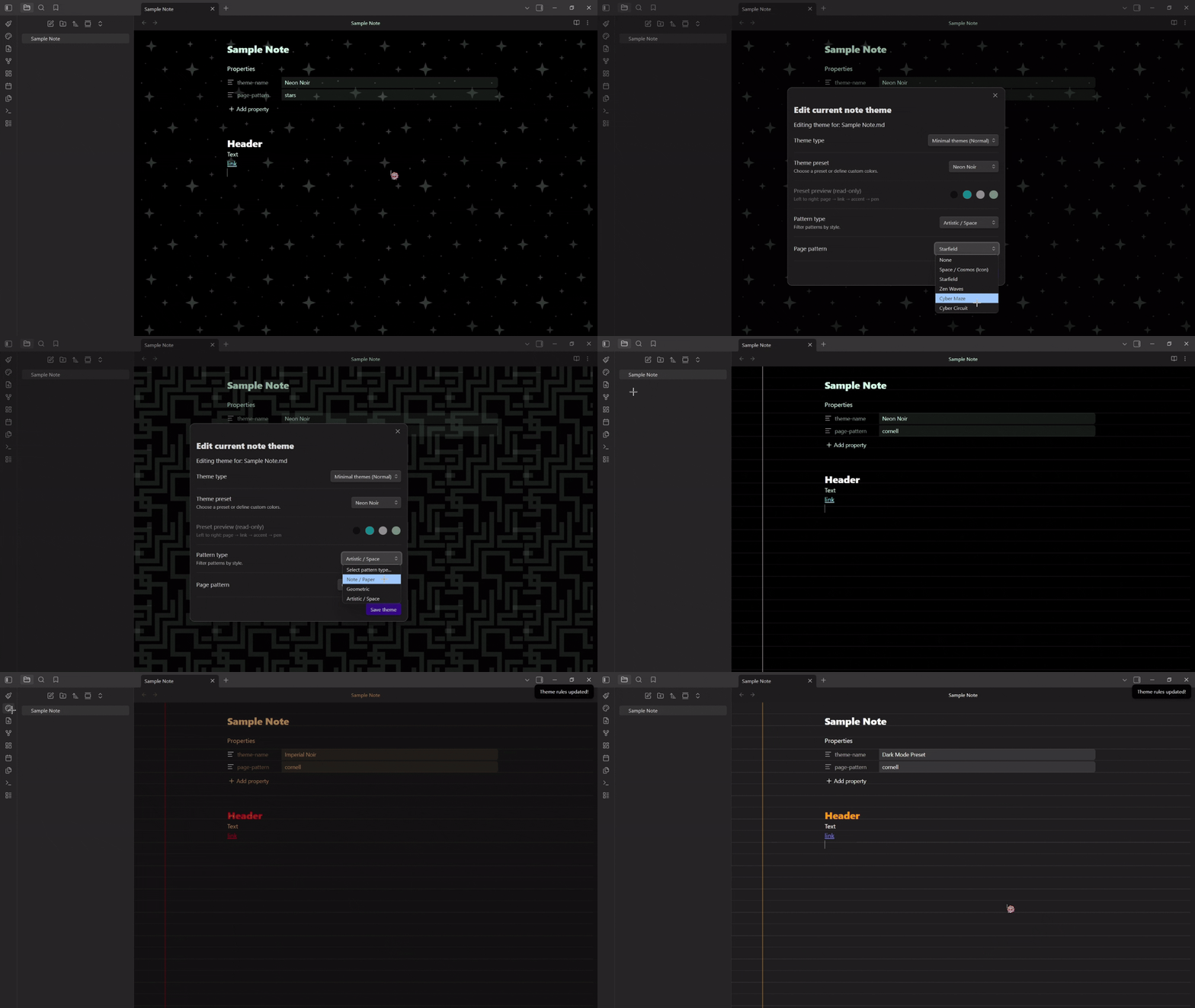
- Navigate to the Edit active note theme at the left sidebar.
- Pick the new theme type and the new palette or custom colors.
- Modify as you wish.
- Click on Save theme button to apply the changes.
🖌️ Create Custom Palettes
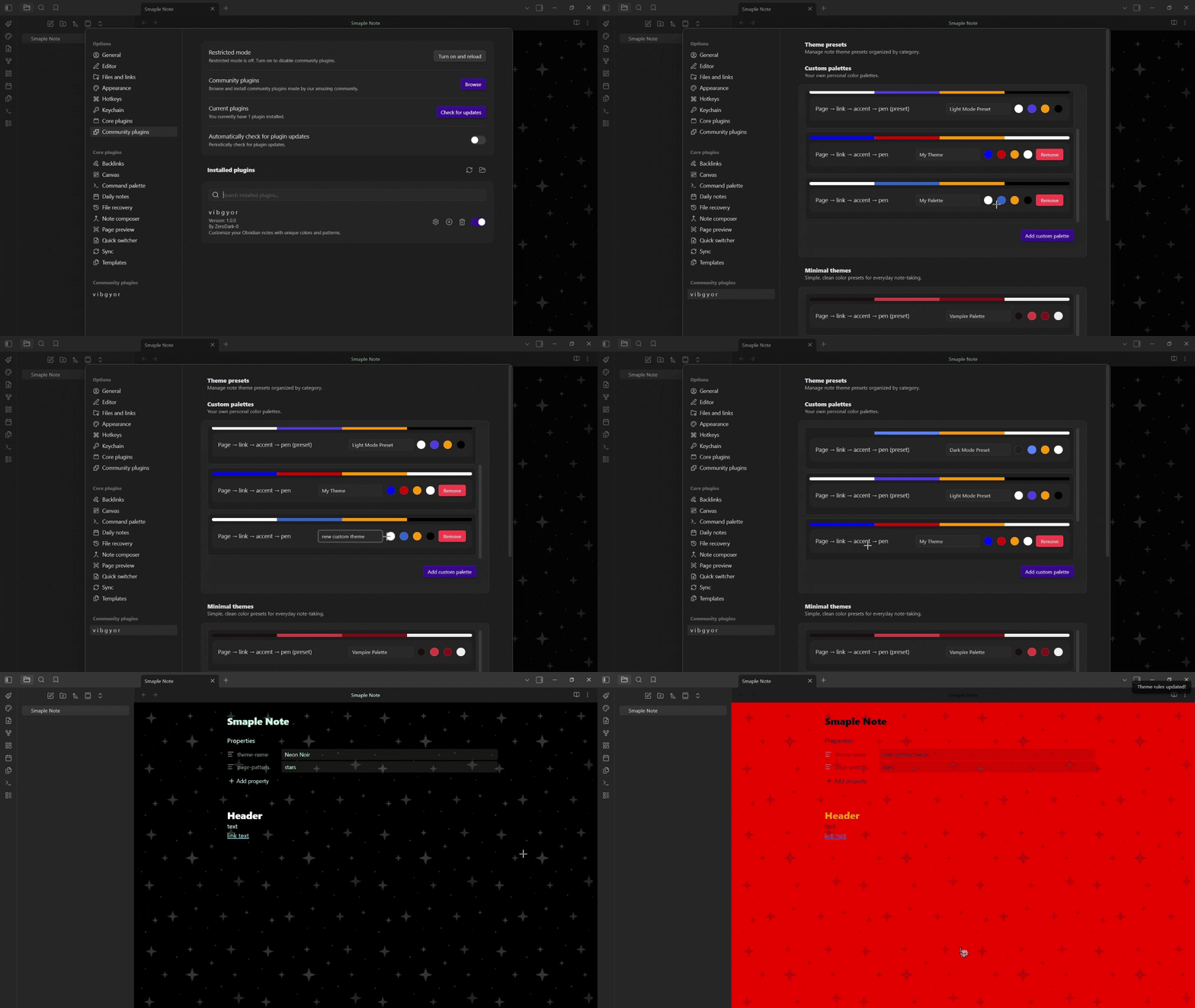
- Navigate to the Obsidian Settings tab.
- Under Community plugins search for vibgyor, hit the settings icon.
- Under Custom palettes, click Add custom palette, name it and define your own color combinations.
- Navigate back to the Edit active theme tab, select Custom Palettes and use your custom colors.
🖼️ Image Color Toggle
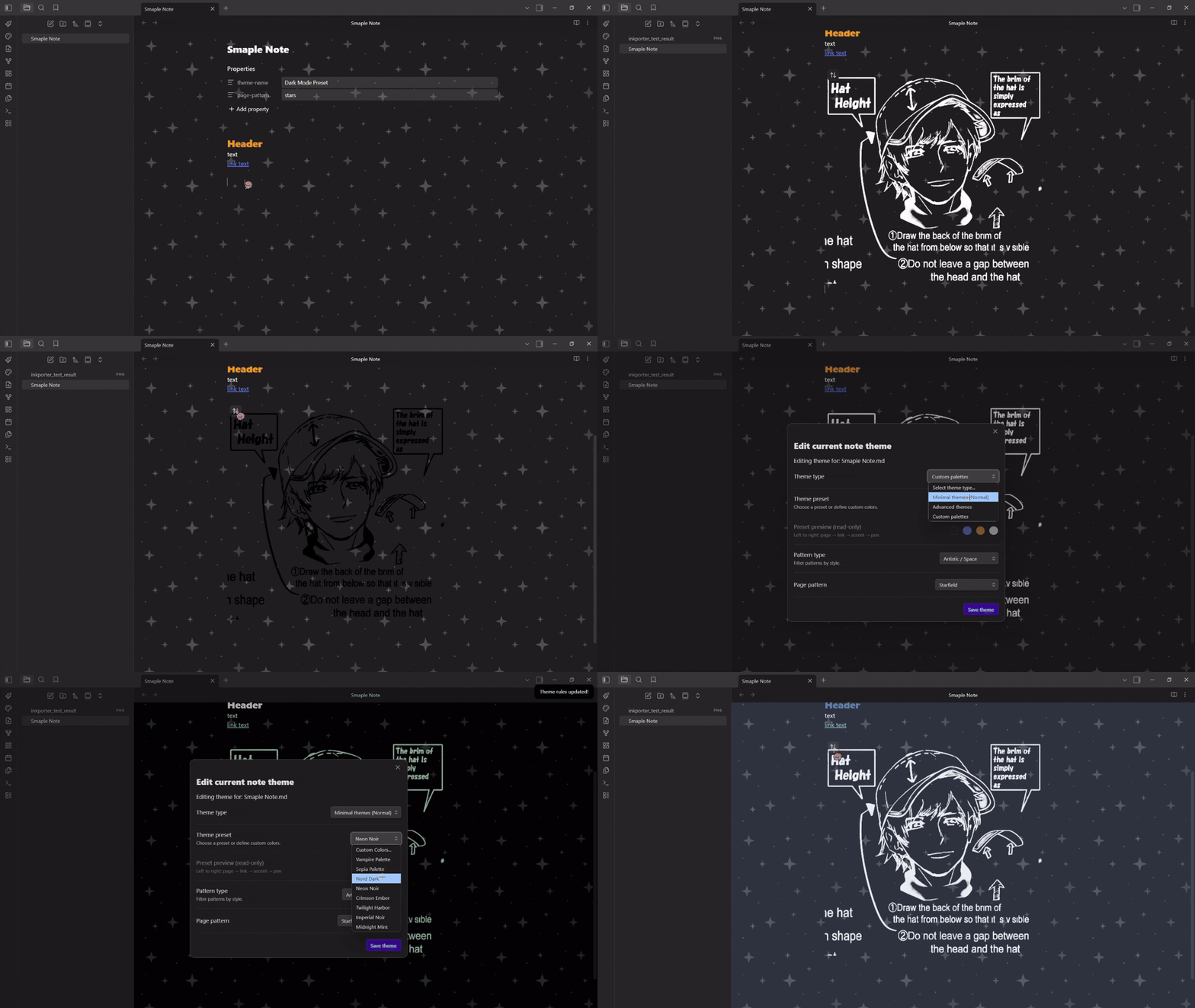
When a note has a theme applied, images with transparent backgrounds are automatically tinted to match the pen color. Hover over any image to reveal a toggle button at the top-left corner:
- Click to view original colors
- Click again to re-apply theme tinting
The plugin remembers your choice per image.
Built-in Theme Presets
| Theme | Palette Preview (Page, Pen, Link, Accent) |
|---|---|
| Dark Mode |     |
| Light Mode |   |
| Vampire |     |
| Sepia |     |
| Nord Dark |     |
| Neon Noir |   |
| Crimson Ember |     |
| Twilight Harbor |     |
| Imperial Noir |    |
| Midnight Mint |     |
Background Patterns
🗒️ Note / Paper
- Lined : Horizontal ruled lines
- Dotted : Evenly spaced dot grid
- Grid : Square grid overlay
- Cornell : Ruled lines with a left margin
- Blueprint : Fine + coarse grid (engineering style)
📐 Geometric
- Woven : 45° crosshatch texture
- Hexagonal : Sci-fi hexagonal grid
🌌 Artistic / Space
- Cosmos : Scattered stars and sparkles
- Starfield : Dense 4-pointed star field
- Zen Waves : Concentric ripple circles
- Cyber Maze : Thick maze-like corridors
- Cyber Circuit : Circuit board traces with nodes
Settings
Open Settings → vibgyor to manage your theme library:
- Custom palettes : Create, edit, and delete your own color combinations
- Minimal themes : View built-in preset themes (read-only)
Frontmatter Reference
The plugin reads and writes these frontmatter properties:
---
theme-name: "Vampire Palette"   # Name of the selected preset
page-pattern: "grid"            # Background pattern
page-color: "#1a1a1a"           # Page background (custom colors only)
pen-color: "#ffffff"            # Text color (custom colors only)
link-color: "#3366cc"           # Link color (custom colors only)
accent-color: "#ff9900"         # Headings & accent (custom colors only)
grid-color: "#333333"           # Pattern grid color (optional)
---
Note: When using a preset, only
theme-nameandpage-patternare stored. The colors are resolved from the preset at runtime, so updating a preset automatically updates all notes using it.
Installation
📦 From Obsidian Community Plugins
- Open Settings → Community plugins → Browse
- Search for vibgyor
- Click Install, then Enable
🔧 Manual Installation
- Download
main.js,manifest.json, andstyles.cssfrom the latest release - Create a folder named
vIbGyOrin your vault's.obsidian/plugins/directory - Move the downloaded files into that folder
- Reload Obsidian and enable the plugin in Settings → Community plugins
Development
git clone https://github.com/ZeroDark-0/vIbGyOr.git
cd vIbGyOr
npm install
npm run dev       # Start compilation in watch mode
npm run build     # Production build
npm run lint      # Run ESLint
Contributing
Found a bug or have a suggestion? All feedback is welcome!
- 🐛 GitHub Issues: Having any issues, tell me!!
- 💬 Discord: Boldness
- 💡 Ideas & Brainstorming: Discussions
- ✉️ Email: Slide into my inbox
Support
If you enjoy vIbGyOr and want to support its development, any support means a lot!


Acknowledgements
[!IMPORTANT] 🎨 The image background removal feature is handled by Inkporter -> a fantastic plugin by AmadeussSystem. If you enjoy that feature, go show their plugin some love! ⭐
License
MIT License -> MIT © ZeroDark-0
For plugin developers
Search results and similarity scores are powered by semantic analysis of your plugin's README. If your plugin isn't appearing for searches you'd expect, try updating your README to clearly describe your plugin's purpose, features, and use cases.