by Rawlence
VS Code style find and replace widget for the editor: floating, match case, whole word and regex, VS Code keybindings, works in reading view.
VSCode Search
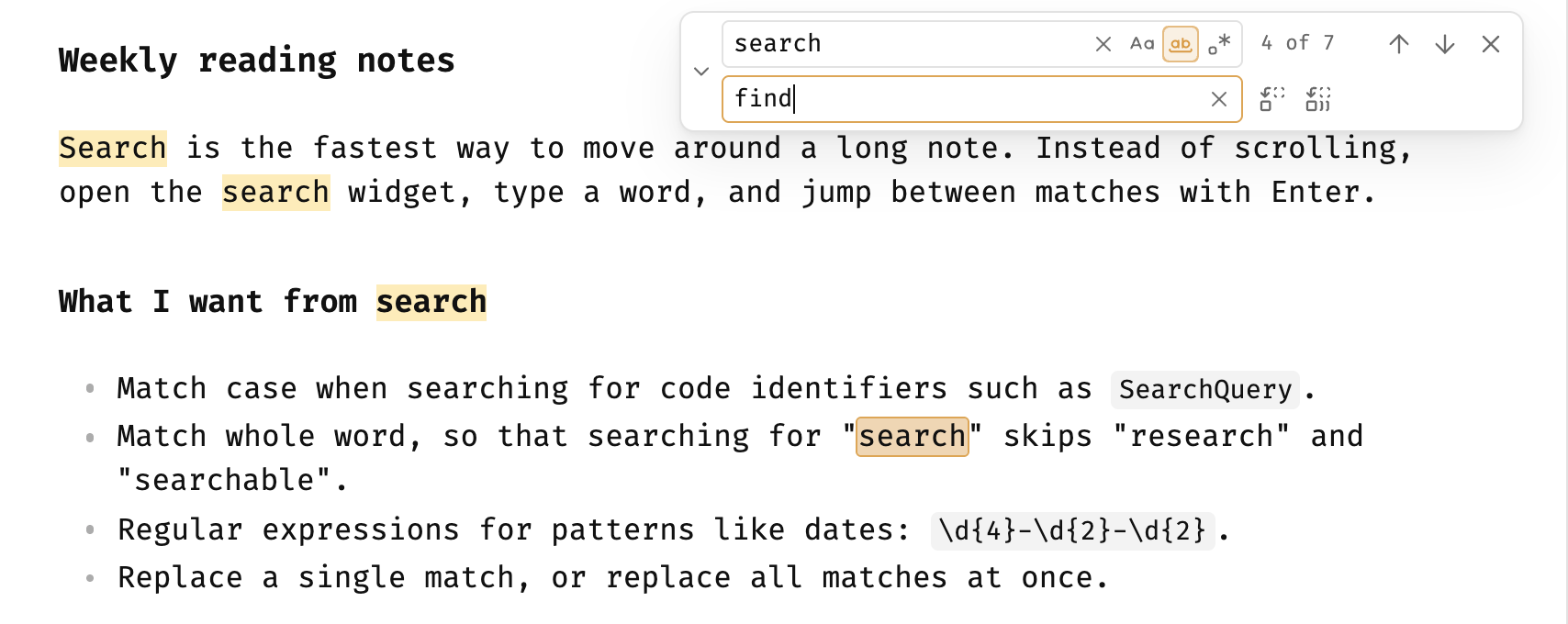
A VS Code style find and replace widget for the Obsidian editor.
Based on Enhanced search and replace by Liu Hao (Apache-2.0).
Features
- Floating widget in the top-right corner of the editor, like VS Code. It overlays the note instead of pushing the text down.
- Movable and resizable. Drag any empty part of the widget (for example the match count) to move it out of the way, and drag its left edge to change the width, like VS Code. The position and width are shared by all notes and by reading and editing view, are remembered across restarts, and the widget always stays inside the note area. Double-click an empty part to put it back in the top-right corner; double-click the left edge to switch between the default width and a wide one.
- Match case, match whole word and regular expression toggles inside the search box.
- Collapsible replace row (the chevron on the left), with replace and replace all.
- Highlights all matches and shows
n of total. - VS Code keybindings while the editor or the widget is focused (see below).
- Works in reading view without switching modes: matches are highlighted on the rendered page, with the same toggles and keybindings. Reading view is find only: Find and replace (or the chevron) switches the note to editing view and back when the widget closes. Text selected in reading view pre-fills the search box.
- Vim mode aware:
Escin insert or visual mode goes to Vim first;Escin normal mode closes the widget.
Commands
Bind them in Settings → Hotkeys (search for VSCode Search):
| Command | Suggested hotkey (macOS) |
|---|---|
Find | Cmd+F (replaces Search current file) |
Find and replace | Alt+Cmd+F (replaces Search & replace current file) |
Find next / Find previous | optional |
Toggle match case / Toggle match whole word / Toggle use regular expression | optional |
On Windows / Linux, use Ctrl+F and Ctrl+H.
Remove the built-in binding when you assign the same key, otherwise Obsidian runs whichever command it finds first.
Built-in VS Code keybindings
These work without any setup while the widget is open and the focus is in the editor or the widget. In that situation they take precedence over global hotkeys on the same keys (for example Cmd+G → Open graph view). Everywhere else, the global hotkeys are untouched.
| Action | macOS | Windows / Linux |
|---|---|---|
| Next match | Enter, Cmd+G, F3 | Enter, F3 |
| Previous match | Shift+Enter, Shift+Cmd+G, Shift+F3 | Shift+Enter, Shift+F3 |
| Toggle match case | Alt+Cmd+C | Alt+C |
| Toggle match whole word | Alt+Cmd+W | Alt+W |
| Toggle regular expression | Alt+Cmd+R | Alt+R |
| Replace (replace row open) | Shift+Cmd+1 | Shift+Ctrl+1 |
| Replace all (replace row open) | Alt+Cmd+Enter | Alt+Ctrl+Enter |
| Close | Esc | Esc |
Behaviour that matches VS Code:
- Running Find again while the widget is open moves the focus back to the search box.
- Find and replace with a search term focuses the replace box.
- Find next / Find previous open the widget pre-filled with the selection when it is closed.
- When the selected text is a match, it is the current match.
Install
In Obsidian, open Settings → Community plugins → Browse and search for VSCode Search.
Manual install: copy main.js, manifest.json and styles.css to <Vault>/.obsidian/plugins/vscode-search/, then enable VSCode Search in Settings → Community plugins.
Development
npm install
npm run dev     # watch
npm run build   # type check + production build
npm run lint
Releases are built by GitHub Actions with build provenance attestations. Bump the version with npm version x.y.z, then git push --follow-tags.
License
Apache-2.0. This project is a modified version of Enhanced search and replace; see LICENSE and NOTICE.
For plugin developers
Search results and similarity scores are powered by semantic analysis of your plugin's README. If your plugin isn't appearing for searches you'd expect, try updating your README to clearly describe your plugin's purpose, features, and use cases.