Wayfinder Maps
approvedby Matthew Ford
Wayfinder Maps turns a GitHub repo's issues into a live picture of what to work on next. Each issue labeled wayfinder:map renders as a head card with its tickets laid out in a dependency-layered tree, - This plugin has not been manually reviewed by Obsidian staff.
Wayfinder Maps for Obsidian
Visualizes wayfinder maps from a GitHub repo's issues inside Obsidian: each wayfinder:map issue renders as a head card with its tickets arranged in a dependency-layered tree below it, drawn from GitHub's native issue-dependency (blocked-by) edges.
The wayfinder skill and methodology this plugin visualizes — maps, tickets, frontier, AFK/HITL delegation — come from Matt Pocock's skills repo; this plugin just draws what that workflow puts in your issues. Plugin 1.x is aligned to the v1.1.0 skills release.
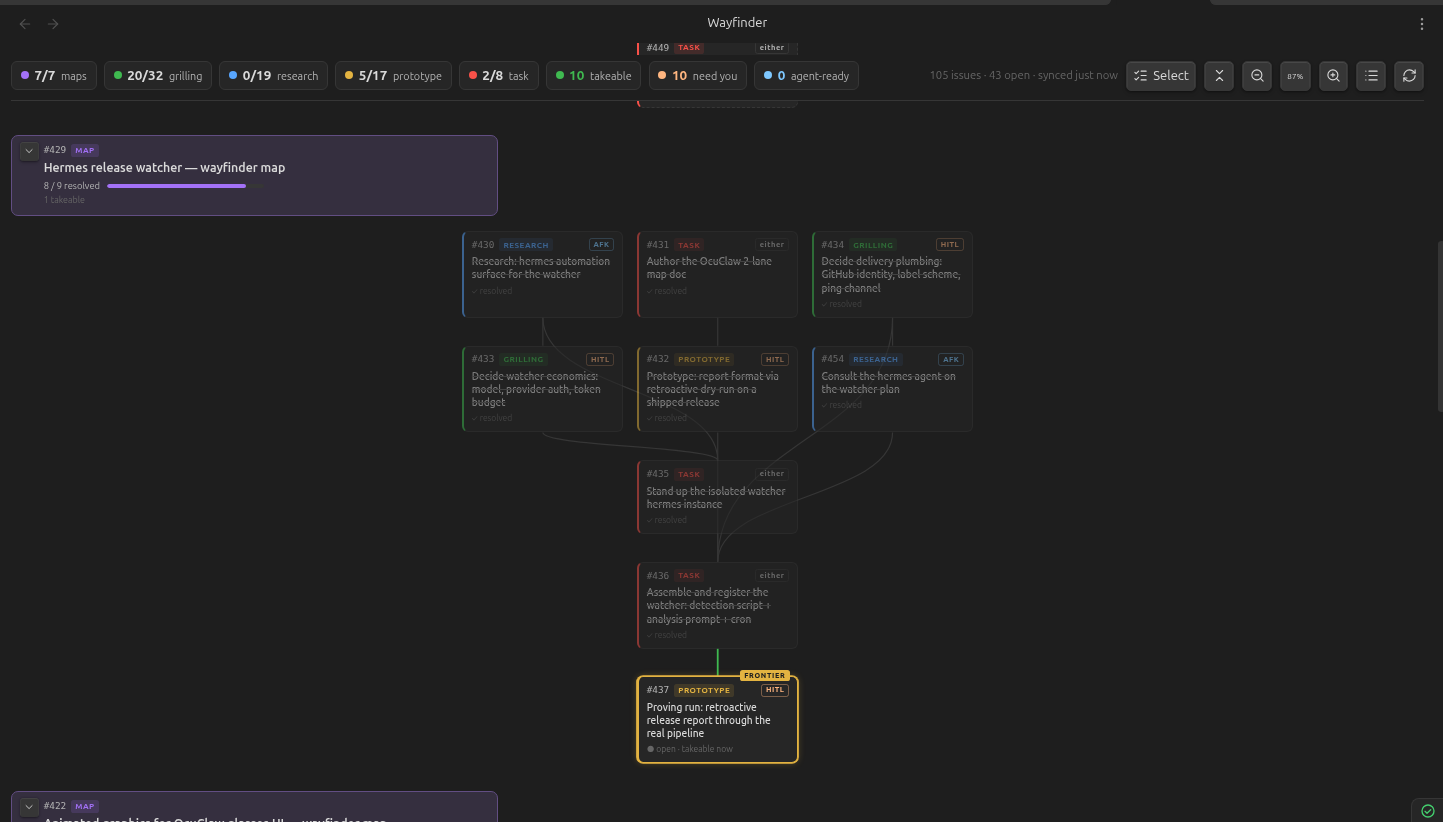
What it shows
- Global tally bar — open/total chips per
wayfinder:*type, plus takeable, need-you, agent-ready, and either delegation chips, last-sync time, refresh, view-mode, fold, and zoom controls. Tallies always cover the shown repositories, independent of map focus and display filters. - Map navigation + filters — choose All maps or one repository-qualified map, include or hide completed maps, and optionally show only incomplete tickets. Open maps are expanded newest first; completed maps are collapsed with a final progress bar. Click/tap a map header to expand or collapse it; ⓘ opens its details.
- Tree, list + hybrid modes — dependency-layered trees draw the actual blocker routes; compact lists group tickets by actionability; hybrid combines both views side by side in wide panes and stacks them in narrow panes. List is the mobile default.
- Ticket state — the frontier (open + verified unblocked + unassigned) glows with a FRONTIER flag; blocked tickets are dashed with a 🔒 naming open blockers; resolved tickets are dimmed with strikethrough.
- Type + mode badges — the
wayfinder:*label colors each card; AFK/HITL is derived per the wayfinder skill (research→AFK, prototype/grilling→HITL, task→ready-for-agent/ready-for-humanlabels, else "either"). - Orphan warnings —
wayfinder:*tickets whose "Part of #N" parent is missing or isn't a map get flagged instead of silently vanishing. - Ticket details + actions — click/tap a ticket for a modal with its rendered Markdown description, linked blockers, assignee, live-fetched comments, and Copy
/wayfinder/ Open-on-GitHub buttons. The ⧉ on every card copies immediately; on takeable tickets it first checks for a new claim or resolution and replaces the action with a warning when necessary. ↗ opens GitHub. - Per-device view state — map focus, display filters, view mode, and zoom are stored locally on each device. Use the toolbar, Ctrl/Cmd+wheel, or pinch to adjust zoom.
Setup
- Install Wayfinder Maps from Settings → Community plugins and enable it.
- Create a fine-grained personal access token (github.com → Settings → Developer settings → Fine-grained tokens) scoped to your repo with read-only Issues permission — the plugin only ever reads issues.
- In Settings → Wayfinder Maps, set the repo (
owner/name) and paste the token, then open the view via the compass ribbon icon or the "Open Wayfinder view" command.
The view syncs when opened, re-polls every 2 minutes (configurable) while open, and syncs on window focus when stale. Commands cover Open Wayfinder view, Sync now, and Copy /wayfinder for the next takeable ticket. The manual refresh button forces a full relationship re-fetch. Note: the token is stored in plain text in the vault's plugin data.json, so treat that file (and anything that syncs it) accordingly.
Development
npm install
npm run dev      # watch build
npm run build    # typecheck + production build
npm run deploy   # build + copy into the vault (set VAULT via env or deploy.env)
GH_TOKEN=$(gh auth token) SMOKE_REPO=owner/name npm run smoke   # run the data pipeline against a live repo
Manual install (without the community directory): copy main.js, manifest.json, styles.css into <vault>/.obsidian/plugins/wayfinder-maps/, then enable the plugin in Settings → Community plugins.
For plugin developers
Search results and similarity scores are powered by semantic analysis of your plugin's README. If your plugin isn't appearing for searches you'd expect, try updating your README to clearly describe your plugin's purpose, features, and use cases.