WebDAV Image Uploader
approvedby koishiiko
Uploads, downloads and deletes images on WebDAV server within notes.
WebDAV Image Uploader
This is an Obsidian (https://obsidian.md) plugin for managing local images by storing them on WebDAV server, and previewing them via links (![]()):
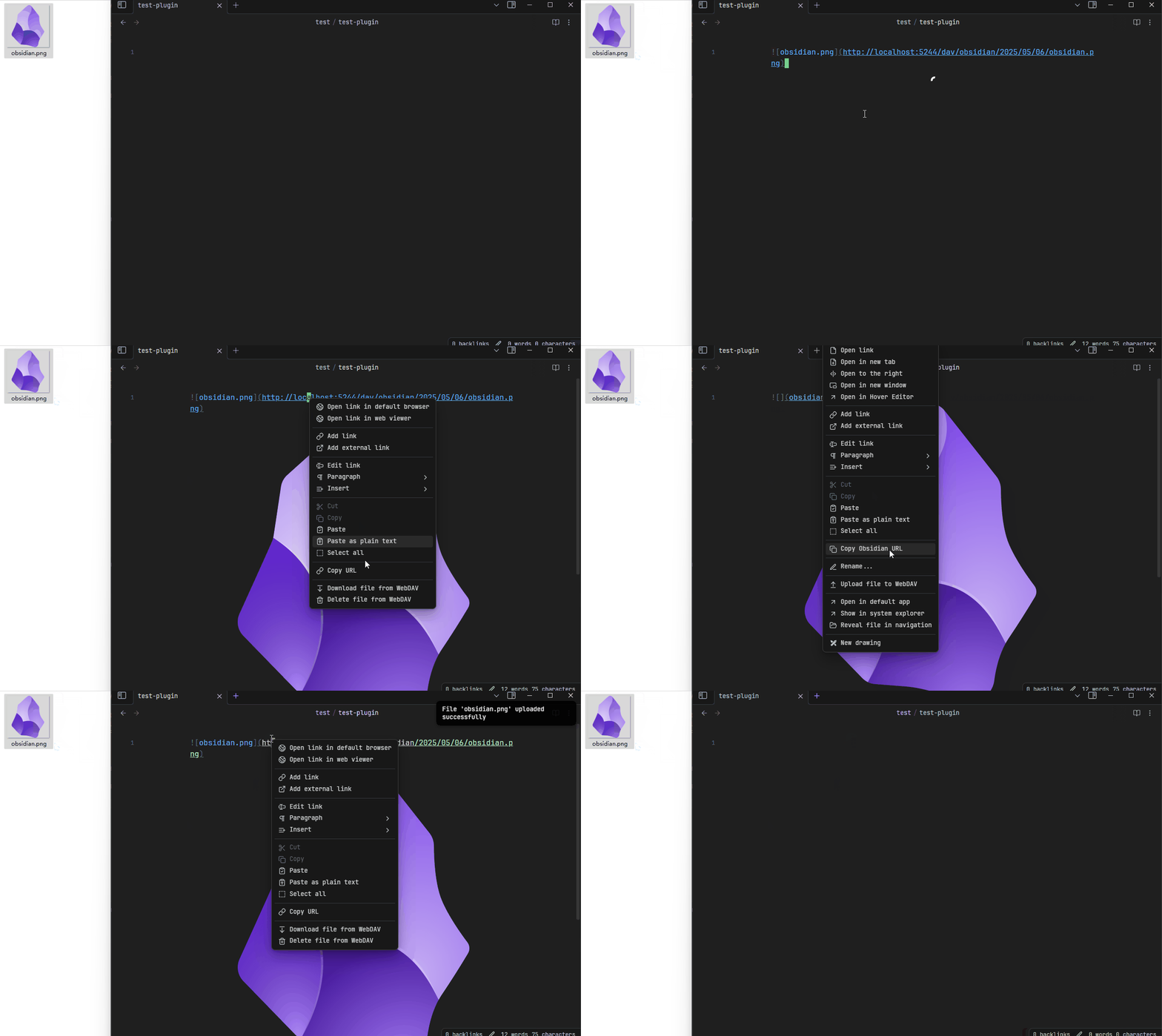
Features
Upload, Download, and Delete Files
- When pasting or dragging images into a note, the plugin will intercept the action, upload the image to the WebDAV server according to the configured path format (Plugin Settings -> Basic -> Path Format), and then insert a preview link for the image (
). You can enable/disable it in the plugin settings, or executeWebDAV Image Uploader: Toggle auto uploadcommand. - You can also right-click on a local image link (
) and select theUpload file to WebDAVoption from the menu to upload the image and insert the link. You can configure whether to keep the local file after a successful upload. - When right-clicking a preview link, you can select
Download file from WebDAVto download the image locally. The path is related to your Obsidian configuration (Settings -> Files & Links). - When right-clicking a preview link, you can select
Delete file from WebDAVto delete the image from the WebDAV server and remove the link from the note. - When right-clicking a preview link, you can select
Rename file from WebDAVto rename(move) the image from the WebDAV server.
Batch Upload/Download
In the Plugin Settings -> Commands, some buttons are provided for batch uploading and downloading images:
- Read all notes in the vault, and upload all local images (
) to the WebDAV server. - Read all notes in the vault, and download all remote images (
) to locally.
In the file explorer, you can:
- Right-click on a file, and upload/download all images in this file to/from WebDAV.
- Right-click on a folder(attachment folder), and upload all images in this folder to WebDAV.
- Right-click on a folder, and upload/download all images in this folder's notes to/from WebDAV (including subfolders).
Batch Process Log
After performing batch upload/download operations, a log file named webdav-batch-log-<timestamp>.md will be created in the vault's root directory. This log file records the results of each file processed during the batch operation, you can check it to see which files were successfully processed and which ones failed. And you can enable/disable this feature in the plugin settings.
Note: These batch process features have not been thoroughly tested (only run once in my vault). Please be sure to back up your vault before running them to prevent damage due to bugs.
Dummy PDF
When Settings -> Enable Dummy PDF is enabled, the plugin will create a Dummy PDF file after PDF file is uploaded, then you can preview the PDFs stored on WebDAV server by PDF++ plugin. You can also upload/download/delete PDF files in the same way as other files. (Thanks the idea from here)
More details about the new features can be found in the Release Page.
Others
About Image Preview
WebDAV may require Http Authentication to verify permissions when accessing files. But Obsidian (CodeMirror) does not seem to provide an API to add request headers for requests sent by ![](). Therefore, this plugin manually fetching and displaying the images. This display behavior differs from Obsidian's default behavior and may result in loading failures (in rare cases), and it doesn't work in other cases (like reading mode or image properties).
If you don't like this feature, you can disable it in the plugin settings (and restart Obsidian), then configure your server to allow image access (or simply disable authentication). For example, you can identify Obsidian's requests using the following headers:
# desktop app
User-Agent: obsidian/x.x.x

# mobile app
X-Requested-With: md.obsidian
So we can identify these requests in Nginx like this:
# concat the headers and match "obsidian", return the token if matched
map "$http_user_agent|$http_x_requested_with" $obsidian_header {
    default $http_authorization;
    # generate your token by encoding "username:password" in base64 format:
    # $> echo -n "username:password" | base64
    "~*obsidian" "Basic {TOKEN}";
}

server {
    # ...
    location /obsidian {
        proxy_set_header Authorization $obsidian_header;
        # ...
    }
}
Then you don't need to use this plugin's account settings and the preview feature. If you have a better solution, pull requests are welcome.
About This Plugin
This plugin was primarily written for my personal use to replace the image-auto-upload plugin, due to it requires running an additional PicGo locally, and it does not offer a feature to upload images for the entire vault (I have thousands of notes needs to process).
After trying my plugin out for a few days, I feel that it already meets my needs: uploading all images to WebDAV (even though it only ran once), and then easily uploading and downloading images within notes (with the ability to conveniently delete them when something goes wrong).
Inspired by
For plugin developers
Search results and similarity scores are powered by semantic analysis of your plugin's README. If your plugin isn't appearing for searches you'd expect, try updating your README to clearly describe your plugin's purpose, features, and use cases.