by xfjbnlsnflb
Preserve copied wiki text when pasting into Obsidian Markdown.
Wiki Paste
Seamless LaTeX copy-paste, Canvas card automation, and smart editor shortcuts for Obsidian.



Features at a Glance
1. Copy & Paste LaTeX from Webpages and AI Chats
Copy rendered equations or Markdown responses directly from ChatGPT, DeepSeek, Claude, Gemini, Wikipedia, Zhihu, GitHub, MathJax, or KaTeX and paste them straight into Obsidian — no broken symbols, no duplicated text, and no escaped $ signs.
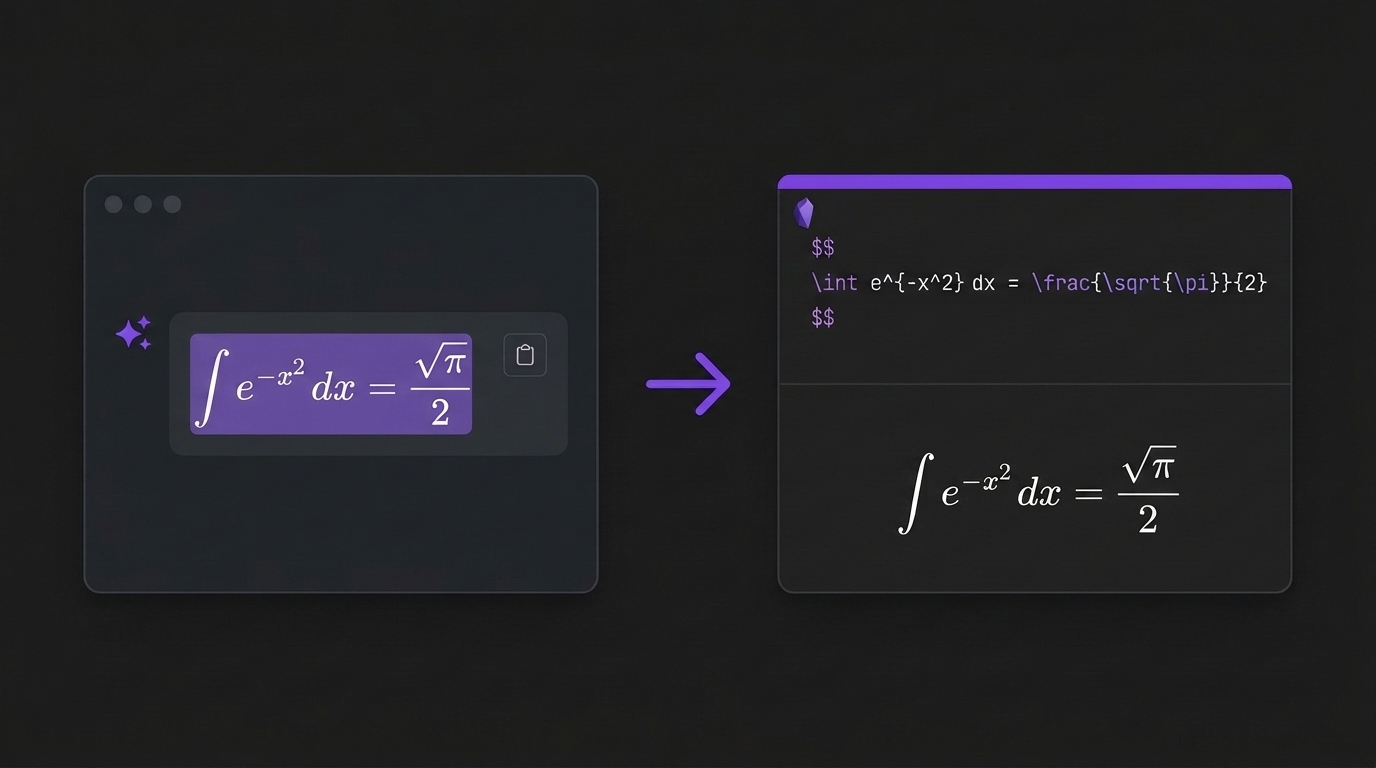
- Rendered Web Math → Obsidian: Extracts KaTeX, MathJax v2/v3 (with pure MathML fallback), Wikipedia
.mwe-math-element, Zhihudata-tex, and Gemini formulas into clean$...$and$$...$$. - AI Chat Delimiters: Automatically converts
\(...\)→$...$(trimmed for Obsidian) and\[...\]→$$...$$while skipping code blocks and inline code. - Internal Copy Safe: Copying and pasting inside Obsidian stays untouched.
2. Canvas Auto-Expand & Card-to-Markdown / Card-to-Card
Work faster in Obsidian Canvas without manual resizing or clipboard loss.
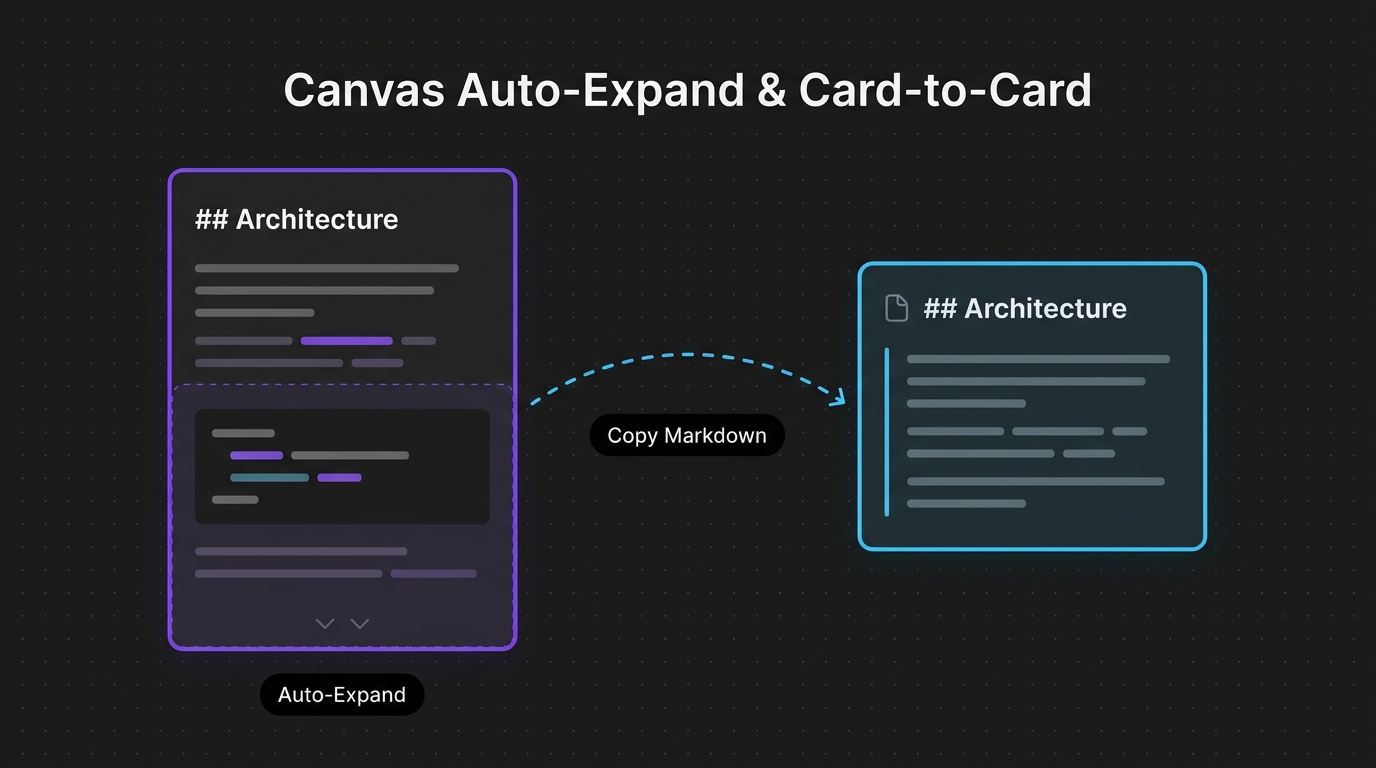
- Auto-Expand Pasted Cards: Automatically measures rendered Markdown and expands pasted Canvas text cards so content fits cleanly without inner scrollbars.
- Card-to-Markdown & Card-to-Card: Copy or cut a single Canvas text card (
Ctrl+C/Ctrl+X) and paste its exact Markdown directly into a Markdown note or another Canvas card's editor.
3. Smart Editor Shortcuts (Ctrl+A & Alt + ↑ / ↓)
Familiar editing ergonomics for both Markdown notes and Canvas text cards.
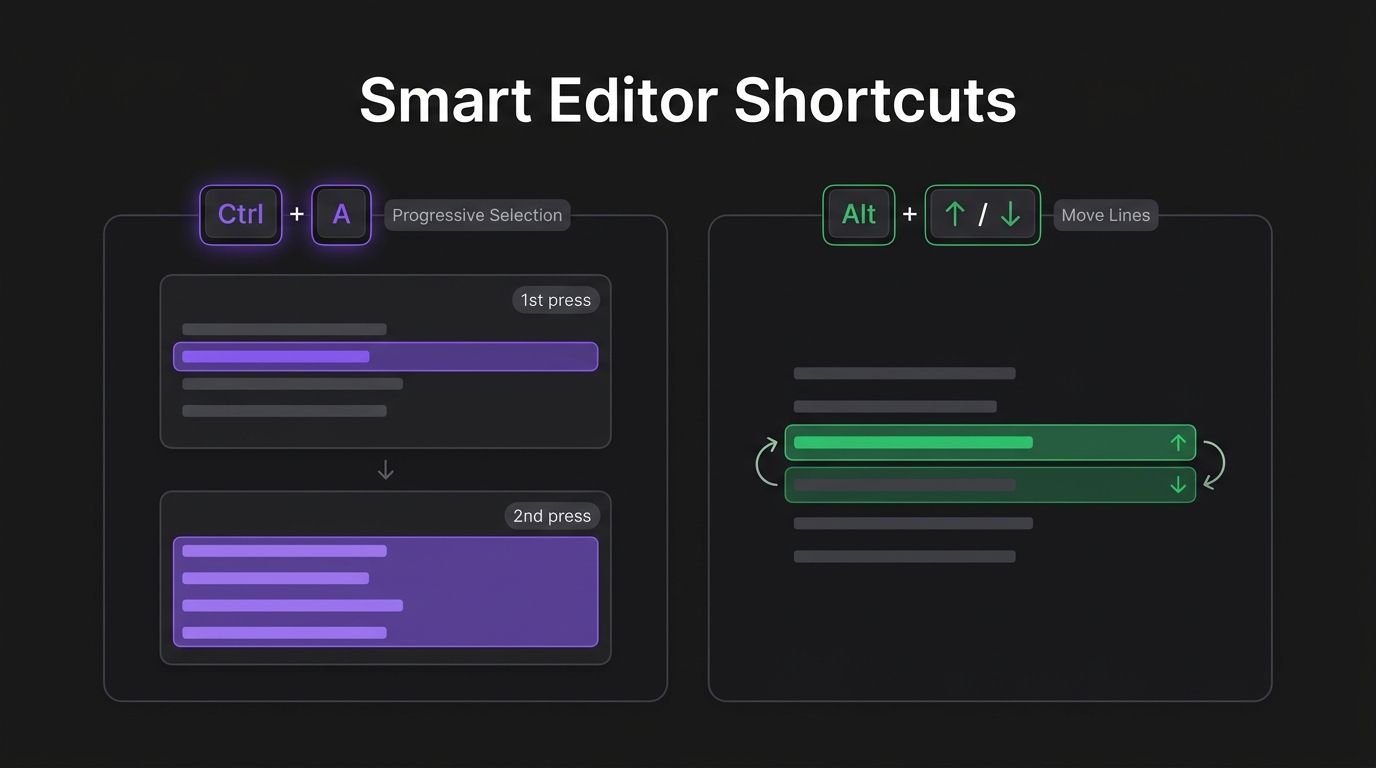
- OneNote-Style
Ctrl+A(Cmd+Aon macOS):- 1st press: Selects the current line.
- 2nd press: Selects the entire note.
- Move Selected Lines (
Alt + ↑/Alt + ↓): Moves and swaps the current line or multi-line selection up or down while keeping your cursor/selection intact.
Settings Overview
| Setting | Default | Description |
|---|---|---|
| Convert and preserve pasted LaTeX | ON | Converts web/AI math HTML and \(...\) / \[...\] to $...$ / $$...$$. |
| Auto-expand pasted Canvas cards | ON | Resizes Canvas text cards after pasting so content is visible. |
| Paste copied or cut Canvas cards to Markdown / Canvas card | ON | Pastes a copied/cut Canvas text card into a note or another Canvas card. |
| OneNote-style Ctrl+A (select line, then all) | ON | Progressive Ctrl+A / Cmd+A selection in Markdown & Canvas editors. |
| Move selected lines with Alt+Up/Down | ON | Swap the current line or selected lines up/down with Alt+ArrowUp / Alt+ArrowDown. |
| [Hack] Escape pasted Markdown syntax | OFF | Legacy opt-in: escapes Markdown/Obsidian syntax in plain-text pastes. |
| [Hack] Show paste options popup | OFF | Prototype opt-in: shows a Word-style visual paste options menu. |
| [Hack] Paste web content as raw HTML | OFF | Experimental opt-in: inserts raw clipboard HTML unchanged. |
Installation
- Open Settings → Community plugins → Browse in Obsidian and search for Wiki Paste.
- Click Install, then Enable.
- Or download
main.js,manifest.json, andstyles.cssfrom GitHub Releases into<vault>/.obsidian/plugins/wiki-paste/.
Feedback & Issue Reporting
Found a bug or want to request a feature?
- Inside Obsidian: Open Settings → Wiki Paste → Support & feedback → Report issue, or run the command
Wiki Paste: Submit issue / feedback on GitHubfrom the Command Palette (Ctrl+P). Your plugin version, platform, and enabled options are pre-filled automatically. - On GitHub: Open an Issue.
For plugin developers
Search results and similarity scores are powered by semantic analysis of your plugin's README. If your plugin isn't appearing for searches you'd expect, try updating your README to clearly describe your plugin's purpose, features, and use cases.