Window Spaces
approvedby Edward Hsieh
Save and restore window layouts for Obsidian popout windows. Seamlessly manage multi-window popout workspaces. - This plugin has not been manually reviewed by Obsidian staff.
Window Spaces — Obsidian Plugin
Transform bare popouts into dedicated, distraction-free workstations.
Per-Window Layouts · Native Popout Activity Bars · Folder Spaces Synergy · Accent Identity Frames




💡 The Philosophy: Free Your Main Workspace
Obsidian’s vibrant plugin ecosystem and flexible layouts make it the ultimate "Everything Notebook". But as our vaults grow, so does the clutter:
- 🗂️ The Overcrowded Main Window: Canvas whiteboards, Excalidraw sketches, Dataview dashboards, graph views, and complex note splits all compete for the exact same screen real estate.
- ⚡ Context Switching Overhead: Switching between project management, deep literature research, and daily task review constantly disrupts your open tabs, sidebars, and pane splits.
- 🖥️ Underutilized Multi-Monitors: Modern workstations feature multiple displays, yet managing distinct, persistent layouts across separate windows is difficult.
Window Spaces is an organic, seamless extension of Obsidian. Instead of cramming everything into a single main window, Window Spaces lets you isolate distinct workflows into dedicated Popout Work Cabins (Spaces).
With focus interception technology, popout activity bar engines, and per-window layout lifecycle management, your heavy plugins, complex splits, and research setups effortlessly transition into independent windows — letting you focus on one task at a time with zero clutter.
⚖️ Obsidian Core Workspaces vs. Window Spaces
| Feature | Obsidian Native Workspaces | Window Spaces |
|---|---|---|
| Scope of Layout | Global (replaces main window & all splits) | Per-Window (isolates independent popout cabins) |
| Popout Sidebar & Activity Bar | ❌ None (bare popout windows only) | ✅ Full Native-like Left & Right Activity Bars |
| Visual Window Identity | ❌ Generic, indistinguishable windows | ✅ 4-Side Accent Frames, Logos, & Status Badges |
| Filesystem Context Isolation | ❌ Shows full vault file tree | ✅ Pairs with Folder Spaces for directory scoping |
| File Routing Protection | None; tabs and views across main/popout windows interfere with each other | ✅ Window-Locked Routing: Routes file opens to center editor; core views (Outline, Backlinks) & community views (Grid Explorer) co-exist as independent multi-instances without interference |
| Dual Layout Collapse Guardrails | ❌ Closing the last tab destroys container and breaks split layout | ✅ Dual Guardrails: Closing last central tab converts in-place to New Tab; sidebar last tab deletion prevention |
| Auto-Save Granularity | Manual snapshot only | ✅ Per-Space Auto-Save (5s debounce + close snapshot) |
| Multi-Monitor Geometry | Prone to multi-DPI shifts | ✅ Pixel-precise restoration with off-screen protection |
🖼️ Visual Showcase
| 🗺️ Quartz Studio Work Cabin | 📁 Folder-Scoped Project Cabin |
|---|---|
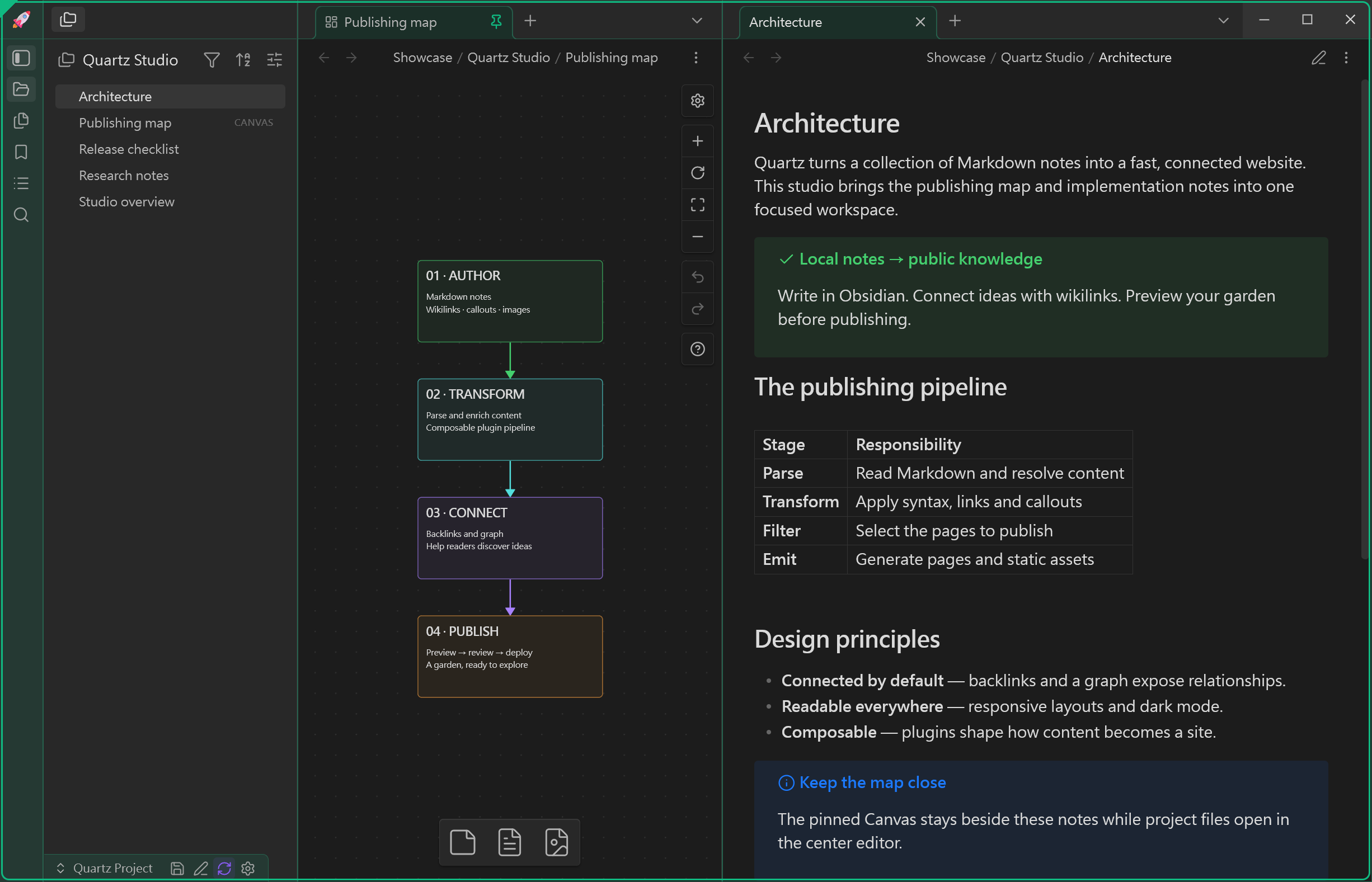 | 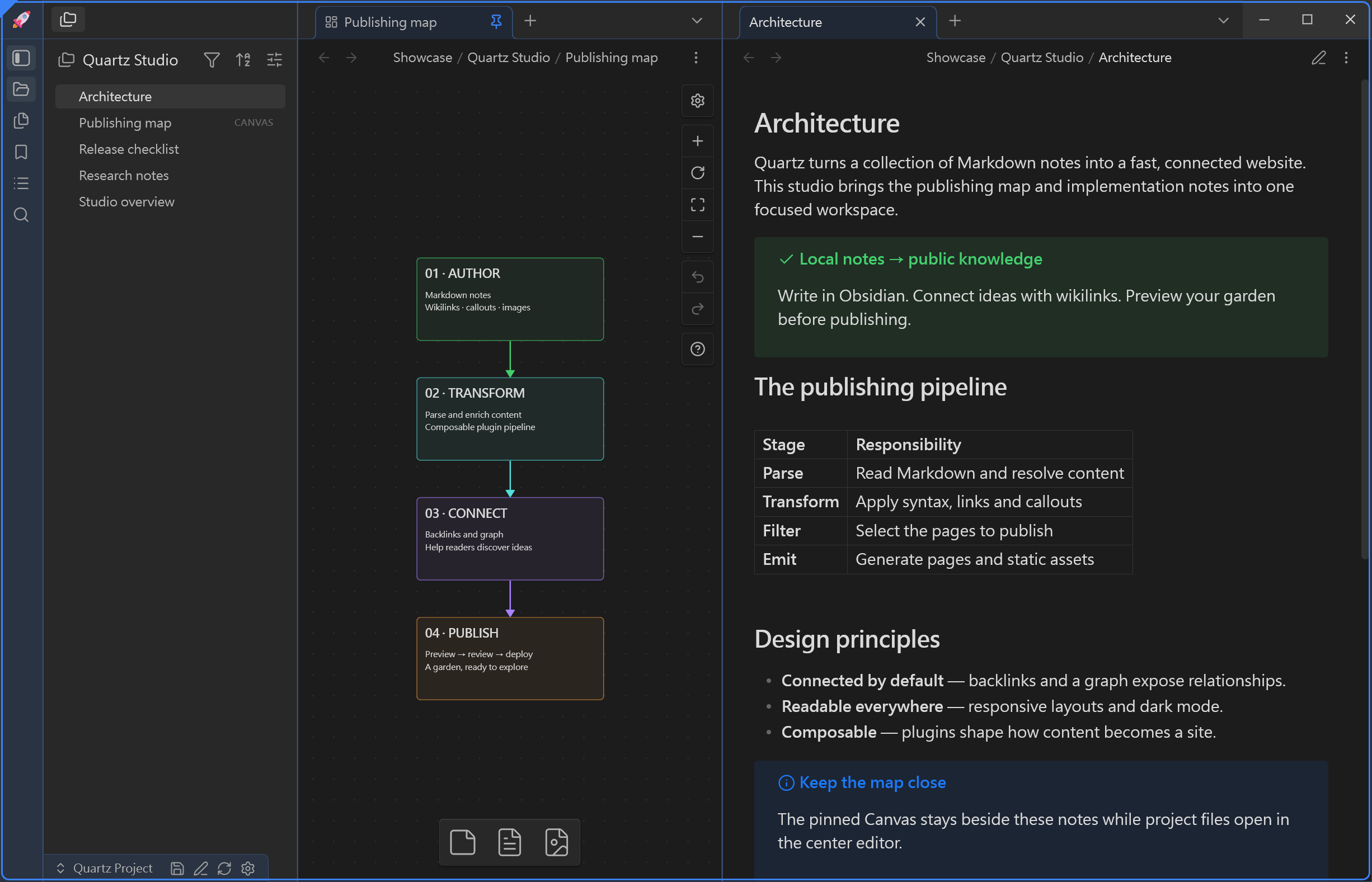 |
| Emerald-accented popout with Canvas, architecture notes, and a live status badge | Folder Space Explorer keeps the Apollo project tree focused inside its own cabin |
| 🧭 Popout Activity Bar | 🛡️ Dual Layout Guardrails |
|---|---|
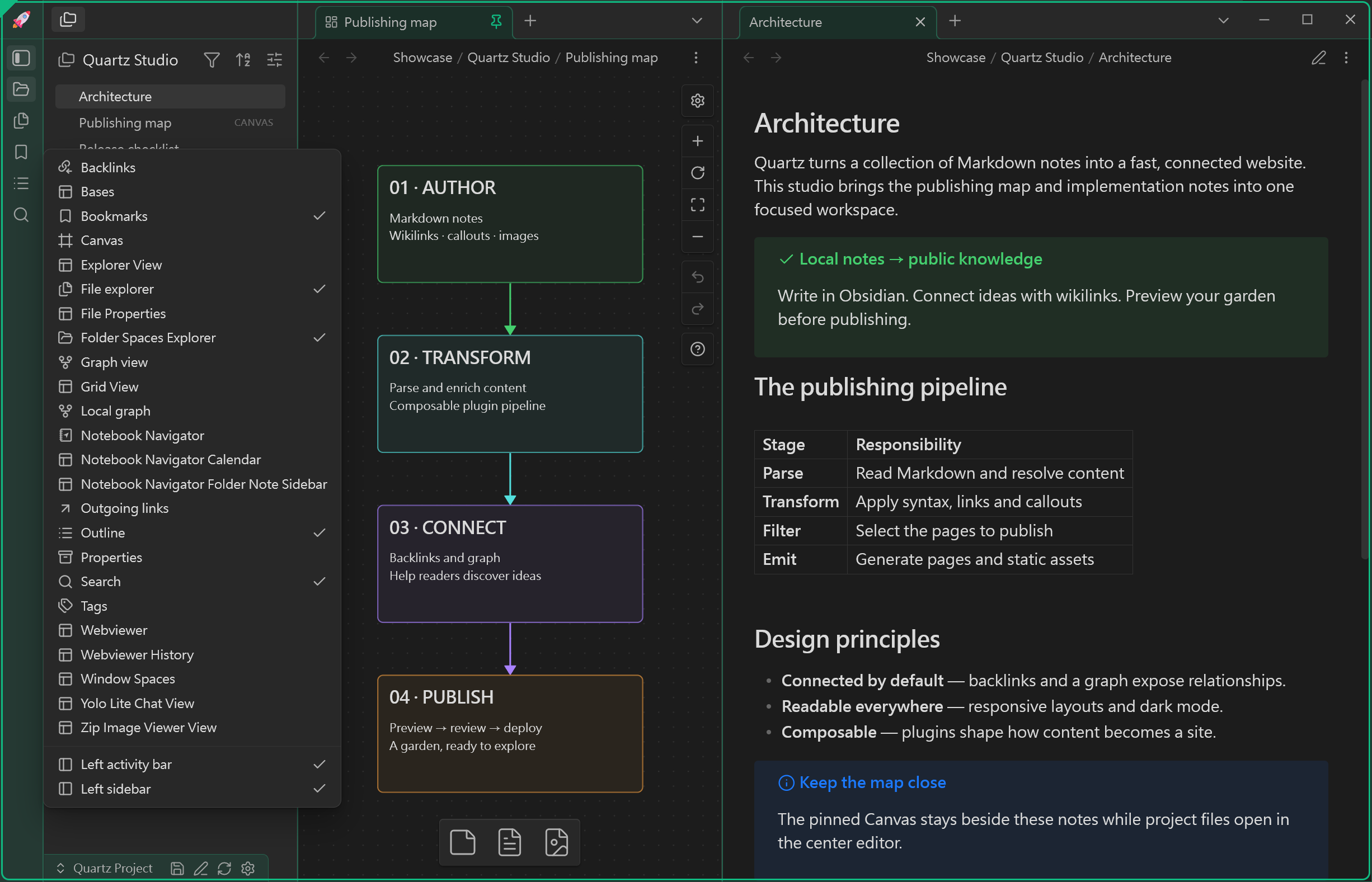 | 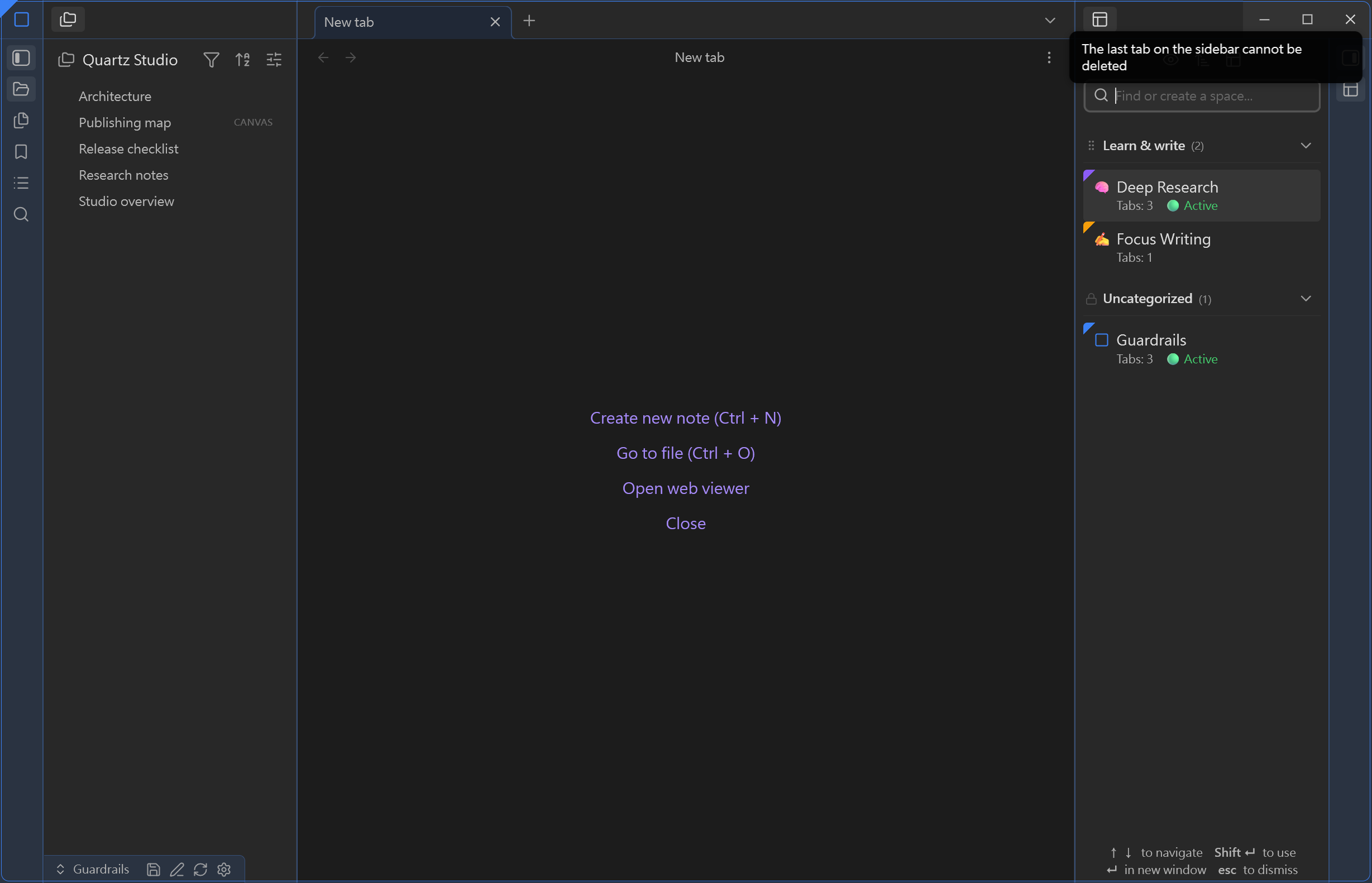 |
| Native-style activity bar and view context menu in a dedicated popout | Three-column layout preserved: central last tab becomes New Tab while the sidebar shows its protection Notice |
| ⚙️ Activity Bar Settings | 🎨 Space Appearance |
|---|---|
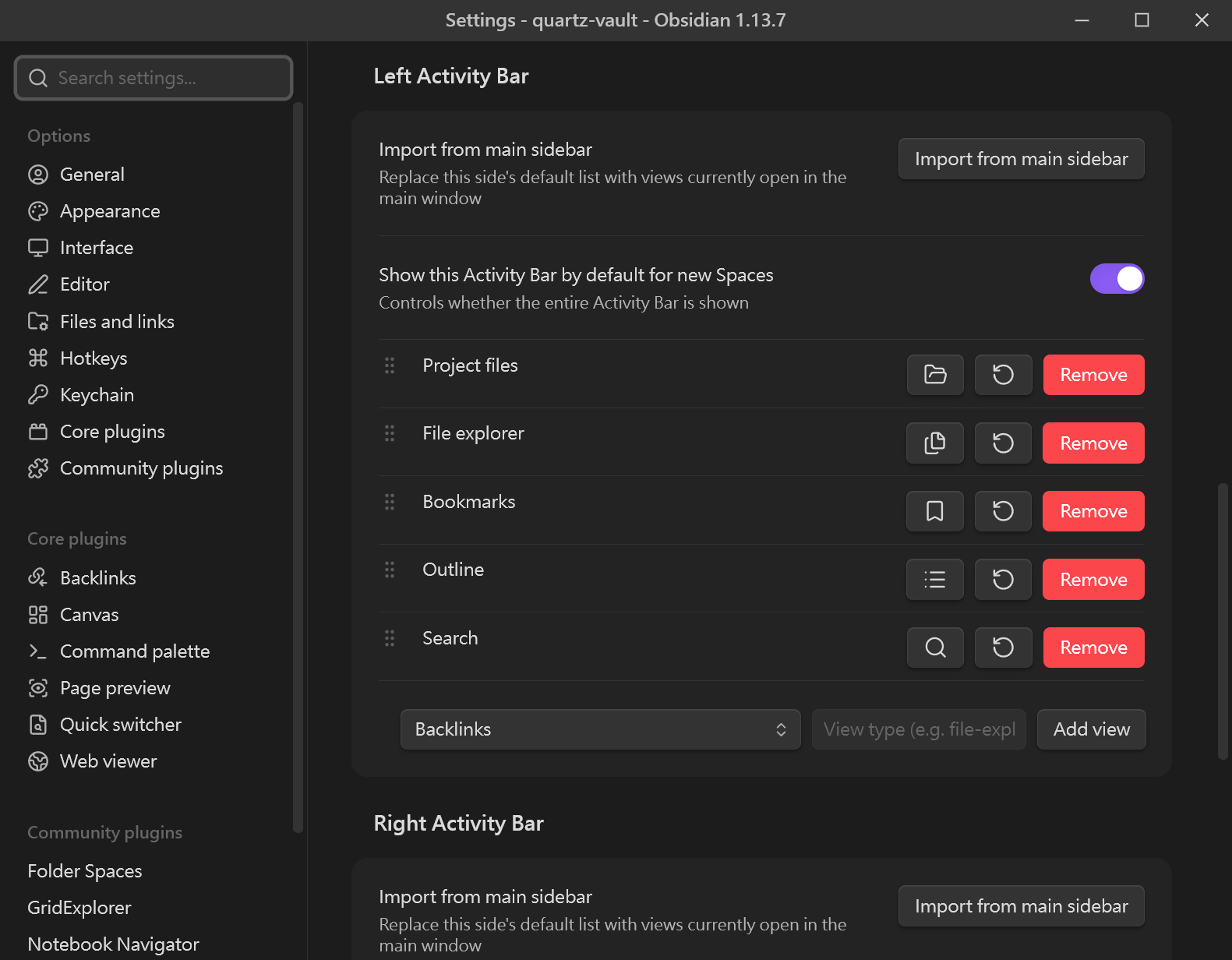 | 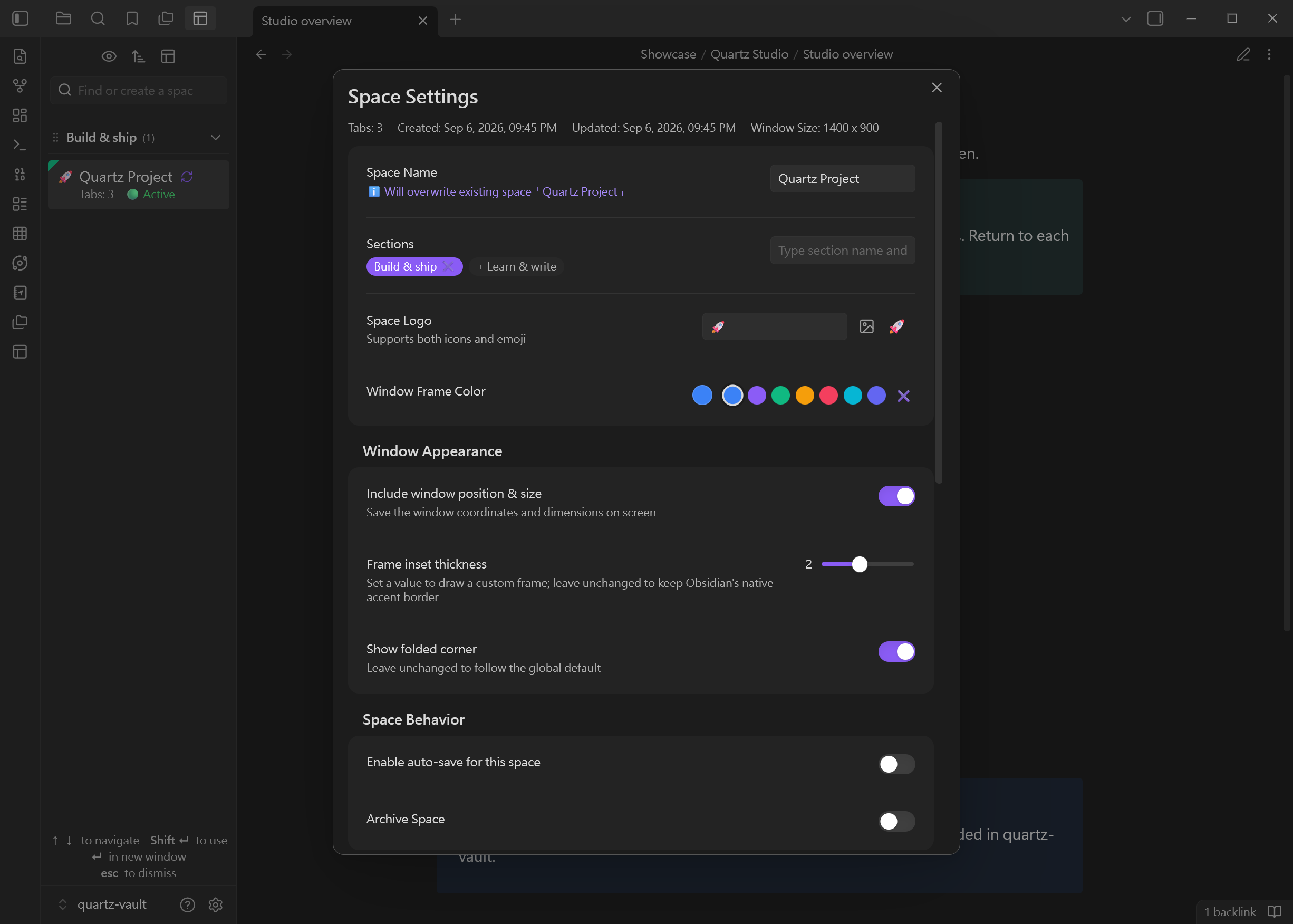 |
| Drag-to-reorder controls and one-click import from the main window | Name, icon, accent color, and live preview for a distinctive Space identity |
| 🧩 Unified Panels & Switcher |
|---|
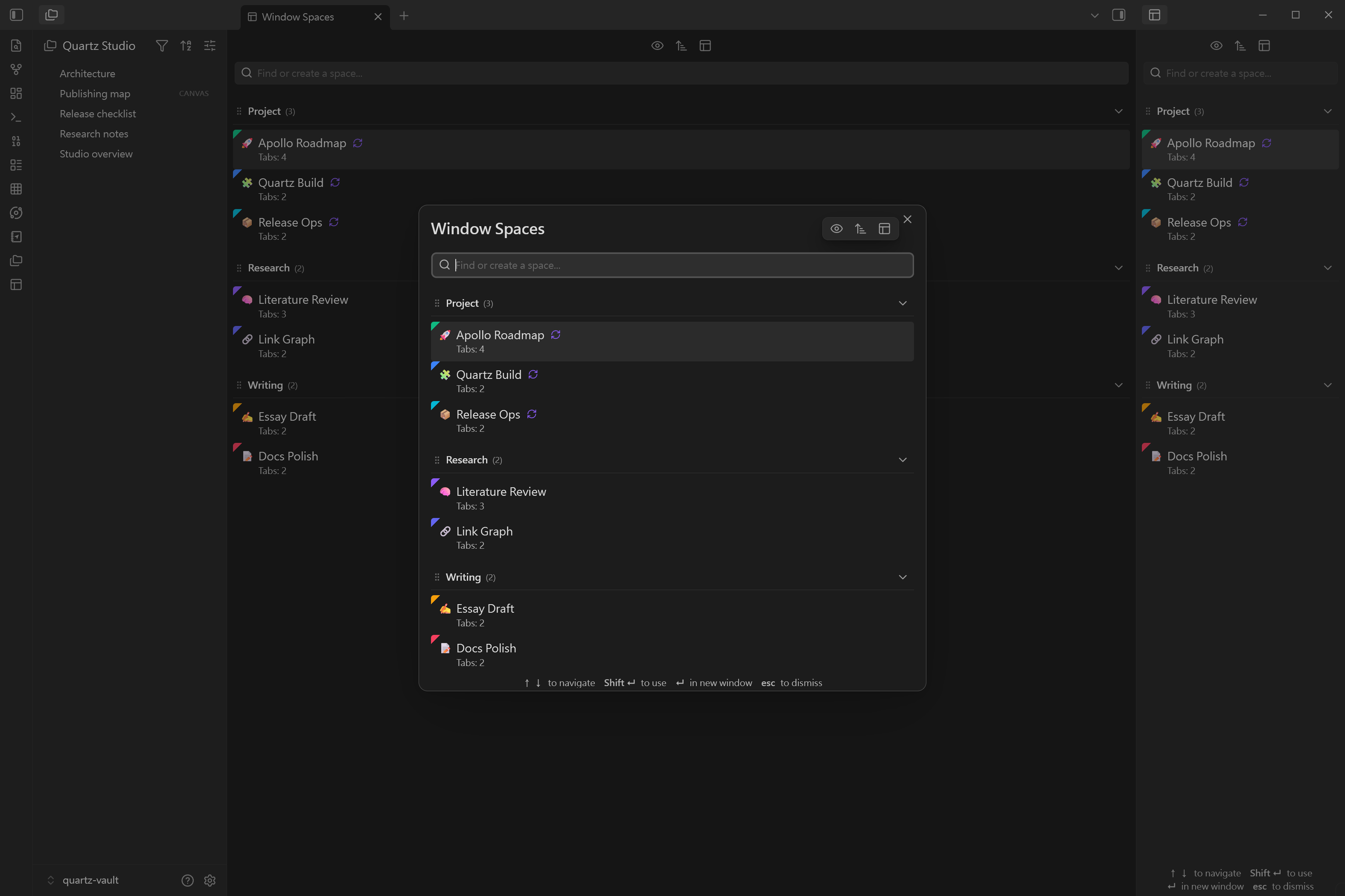 |
| Folder Space Explorer on the left, Window Spaces panels in the center and right, plus a seven-space Project / Research / Writing switcher |
✨ Key Features & Recent Highlights
🪟 1. Popout Activity Bar & Sidebar Engine (New in v1.1+)
Obsidian popout windows natively lack sidebars. Window Spaces injects a true, native-like Activity Bar & Collapsible Sidebar engine directly into popout windows:
- Collapsible Sidebars: Toggle left/right sidebars using native-styled toolbar buttons or customizable hotkeys.
- Right-Click Context Menu: Right-click directly on any Activity Bar icon to toggle view visibility, switch sidebars, or hide/show the activity bar and sidebar.
- Dynamic View Discovery & Prewarming: Embed File Explorer, Bookmarks, Search, Outline, or third-party views directly in popouts.
- Ultra-Smooth Sidebar Resizing: Uses exact
borderBoxSizemeasurements with a 1px change-threshold guard to eliminate sidebar jitter, bounce-back, and slow border shrinkage. - Drag-to-Reorder & One-Click Import in Settings: Rearrange popout activity bar buttons with intuitive drag-and-drop, and import your current main window sidebar layout with a single click; resetting settings safely preserves your saved spaces.
🚀 2. Folder Spaces Synergy: Scoped Project Cabins
Pair Window Spaces with Folder Spaces to achieve Double Context Isolation:
- Window Isolation: Window Spaces isolates the window lifecycle, multi-monitor position, popout activity bars, and accent frame themes.
- Filesystem Scoping: Dock a
Folder Space Explorerin the popout sidebar, locking the visible file tree strictly to a specific project subfolder (e.g.Projects/Apollo/). - Smart Leaf Routing: Clicking any file inside the scoped explorer routes directly into the popout's central editor without disturbing the sidebar structure.
- Micro-Vault Experience: Work in an isolated project cabin with zero visual clutter from the rest of your vault.
🎨 3. Visual Identity & Accent Window Frames (New in v1.1+)
Never lose track of your open cabins across multiple displays:
- 4-Side Perimeter Accent Frame: Highlights the window border with your Space's theme color (automatically hides when maximized for a seamless edge-to-edge view).
- Custom Logos & Corner Folds: Assign any Emoji or Lucide icon, paired with folded corner accents.
- Status Bar Badge: Displays the active space name and quick-save status at the bottom of the popout.
- Atmospheric Accents: Subtle theme glows on pane splitters and soft background tints on activity bars.
🎯 4. Window-Locked Routing & Dual Layout Guardrails (New in v1.2+)
Obsidian's architecture is natively designed around a single main window. Opening an Outline, Backlinks, or community views (such as Grid Explorer or Notebook Navigator) in a popout window frequently causes views to jump back to the main window, steal focus, or overwrite each other due to global getLeavesOfType lookups. Window Spaces introduces Window-Locked Routing & Deep Leaf Interception, paired with comprehensive layout collapse defenses:
- Multi-Instance Concurrency for Core & Community Views: Breaks Obsidian's singleton limitations. Native core views (Outline, Backlinks, Tags, Search, Bookmarks) and community plugin views (e.g. Grid Explorer, Notebook Navigator) can now co-exist as multiple independent instances across different windows simultaneously without stealing focus or colliding.
- Per-Window Event Gating & Active File Tracking: Intercepts
file-openevent broadcasts andworkspace.getActiveFile(). An Outline in Window A strictly tracks the note active in Window A, while an Outline in Window B tracks Window B — completely eliminating cross-window context bleeding. - Dual Layout Collapse Guardrails:
- In-Place New Tab Conversion: When closing the last remaining tab in the central content area, Window Spaces intercepts
detachand converts the view in-place into an Obsidian native New Tab (emptyview), preventing container destruction and split collapse. - Sidebar Tab Protection: Attempting to close the sole remaining tab in a popout sidebar is cleanly blocked with a native notice ("The last tab in the sidebar cannot be closed"), safeguarding the sidebar container.
- In-Place New Tab Conversion: When closing the last remaining tab in the central content area, Window Spaces intercepts
- Non-Navigable & Pinned Tab Safe Routing: When the active center leaf contains a non-navigable view (e.g., Outline, Canvas, Graph) or a pinned tab, clicking a file from the sidebar automatically opens a new tab in the central area rather than failing navigation or overwriting the view.
- Layout Structure Guardrails: Drop boundaries prevent tabs from accidentally breaking activity bars; missing or renamed files are safely held by native empty tab placeholders.
⚡ 5. Zero-Flicker Restore & Multi-Monitor Geometry (New in v1.2+)
- Target-Only Reconcile: Restoring or updating a space only updates the target window without jittering or flickering other open windows.
- Geometry Pre-positioning: Remembers exact window coordinates and sizes across multiple monitors.
- Off-Screen Guard: Automatically recalculates coordinates if an external monitor was disconnected.
- Startup Auto-Matching: Automatically detects and re-links existing popout windows upon Obsidian restart.
🔄 6. Per-Space Auto-Save
- Effortless Synchronization: Toggle
🔄 Auto-saveon any Space. Modifications made during your work session are automatically saved in the background with a 5-second debounce and an instant snapshot on window close. - Template Safety: Keep auto-save disabled on standard template spaces to prevent accidental layout drift.
🗂️ 7. Unified 3-in-1 Interface & Section Groups
- Flexible Mount Points: Access your Spaces seamlessly from the Left/Right Sidebar, as an Editor Tab, or via the Quick-Popup Modal (
Ribbon IconorHotkeys). - Section Groups & Archiving: Organize your spaces into collapsible sections, drag to reorder, and archive inactive spaces (
📦 Archived). - Hover Content Preview: Hover over any Space to instantly preview its included files, active tab, and pinned document structure.
🚀 Typical Space Workflows
| Space Workflow | Layout Composition | Primary Use Case |
|---|---|---|
| 🚀 Scoped Project Cabin (Folder Spaces Synergy) | Popout Sidebar: Folder Space Explorer locked to /Projects/Apollo/+ Center: Pinned Canvas roadmap + active specs note | Zero-clutter project workstation: Restricts file tree to project files only; file clicks route cleanly to the center editor. |
| 🗺️ Project Map & Workbench | Pinned Canvas/Base on the left + Project specs on the right | High-level system architecture, milestone planning, and active deliverables. |
| 🧠 Deep Research & Literature | Popout Activity Bar (Outline) + PDF reader / Literature note + Zettelkasten splits | Distraction-free academic reading, concept linking, and knowledge synthesis. |
| ✍️ Focus Writing & Showcase | Clean markdown editor + Rendered preview / CSS showcase | Deep long-form writing, technical documentation, and publishing workflows. |
| ⚙️ Dev & System Maintenance | Dataview queries + Configuration templates & checklists | Task reviews, vault maintenance, release checklists, and issue triage. |
📥 Installation
From Obsidian Community Plugins (Recommended)
- Open Obsidian Settings > Community plugins.
- Turn off Restricted mode and click Browse.
- Search for Window Spaces.
- Click Install, then click Enable.
Manual Installation
- Download
main.js,manifest.json, andstyles.cssfrom the latest GitHub Release. - Create a folder named
window-spacesinside your vault:<vault>/.obsidian/plugins/window-spaces/. - Move the downloaded files into this folder.
- Reload Obsidian and enable Window Spaces under Community plugins.
🛠️ Quick Start Guide
1. Save Your First Space
- Open a new popout window (
Ctrl/Cmd + Shift + Nor drag any tab out). - Arrange your split panes (e.g. Canvas on the left, notes on the right, or a sidebar view).
- Open the Command Palette (
Ctrl/Cmd + P) and runWindow Spaces: Save current Space. - Set a name, assign an icon/emoji, choose an accent border color, and optionally enable auto-save.
2. Restore and Manage Spaces
- Open the Spaces panel from the Ribbon Icon, the sidebar, or run
Window Spaces: Open as popup window. ClickorEnter: Instantly launches the Space in a fresh popout window.Shift + ClickorShift + Enter: Restores the layout directly into the current window.- Click the dropdown menu (
...or right-click) to toggle Auto-save 🔄, rename, edit, or delete.
⌨️ Shortcuts & Hotkeys
| Action | Shortcut / Trigger | Description |
|---|---|---|
| Open Spaces Modal | Configurable via Hotkeys | Quick floating modal to switch or launch Spaces |
| Open in New Window | Enter / Single Click | Spawns the highlighted Space in a new popout window |
| Apply to Current Window | Shift + Enter / Shift + Click | Restores the selected Space into the active popout window |
| Quick Navigate | ↑ / ↓ Arrow Keys | Move selection up or down within the list |
| Dismiss / Close | Escape | Closes the modal or exits search focus |
🤝 Ecosystem Synergy & Heavy Plugins
Window Spaces harmonizes beautifully with heavy and canvas-like community plugins. For detailed integration patterns with Excalidraw, Excalibrain, Canvas, Dataview, and Notebook Navigator, check out our community guide:
📖 Full User Guide & Plugin Synergy Walkthrough
💻 System Compatibility
- Obsidian Version:
v1.13.0or newer - Platform: Desktop (Windows, macOS, Linux)
- License: MIT License
For plugin developers
Search results and similarity scores are powered by semantic analysis of your plugin's README. If your plugin isn't appearing for searches you'd expect, try updating your README to clearly describe your plugin's purpose, features, and use cases.