Windrose MapDesigner
approvedby alas, poor ophelia
Interactive dungeon and world mapping tool for tabletop RPGs - This plugin has not been manually reviewed by Obsidian staff.

Windrose MapDesigner
A TTRPG mapping tool that lives in your Obsidian notes. Windrose started as something like graph paper in Obsidian and then... grew. Draw dungeons and world maps on grid or hex, paint them with image tiles, stock them with objects and labels, obscure them with fog of war — and link all of it to your notes, because you never left your text editor.
Low tech enough to run in your note-taking app, high tech enough to make you forget you're in your note-taking app.
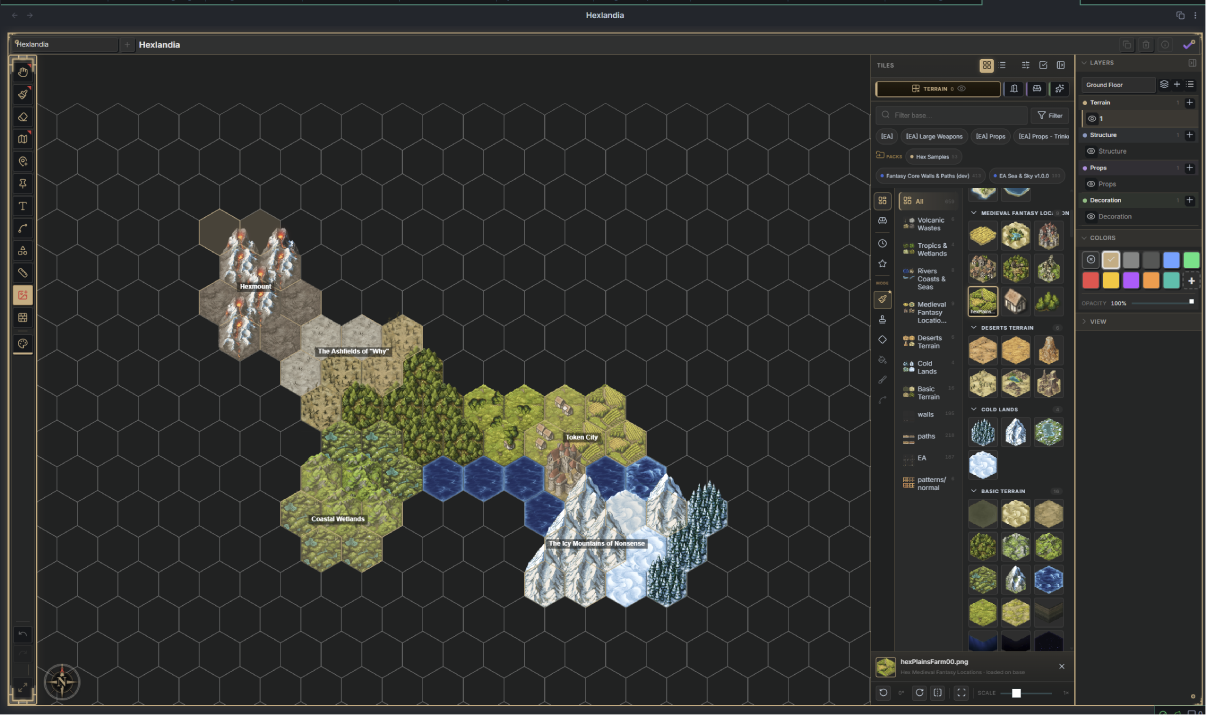
Windrose supports both grid (square) maps — dungeons, battlemaps, building plans — and hex maps — world and region maps, with radial or rectangular layouts, named regions, and nested sub-maps. Touch is first class: it's designed to be fully usable on a tablet, and everything also works on desktop with keyboard and mouse conveniences layered on top.
"Windrose" is a reference to a compass rose, a visual object I've always had a fascination with. The marketing copy would be that it speaks to the "care in design" I put into this project, but really I just liked the name. Feel free to call it just "Map Designer" — above all I want this tool to be useful.
Installation
From the Community Plugins browser
- Open Settings → Community plugins and turn off Restricted mode if it is on.
- Click Browse, search for Windrose MapDesigner, and click Install.
- Click Enable.
From BRAT (beta releases)
BRAT (the Beta Reviewers Auto-update Tool) installs and updates pre-release builds ahead of the stable listing.
- Install BRAT from the Community Plugins browser and enable it.
- Open the command palette and run BRAT: Add a beta plugin for testing.
- Enter the repository:
alas-poor-ophelia/windrose-md - BRAT downloads the latest release and installs Windrose. Enable it under Settings → Community plugins.
Manual
Download main.js, styles.css, and manifest.json from the latest release and copy them into <your-vault>/.obsidian/plugins/windrose-md/. Reload Obsidian and enable the plugin.
Migrating from the Datacore version
If you used the original Datacore-based Windrose: your maps migrate automatically. On first load, the plugin imports your settings and locates your data files from the previous installation — no manual steps. You can safely disable the old version afterward.
Quick start
- Enable Windrose. The first time, a short survey asks what kind of maps you make and picks which tools start visible. (Everything can be toggled later in settings.)
- In any note, run Windrose MapDesigner: Insert map from the command palette, pick grid or hex, and name it. A map appears right in the note.
- Pick the paint tool and start filling in cells — click or drag, like graph paper. Grab objects from the sidebar to drop in doors, stairs, and monsters.
- Prefer a whole-tab canvas? Click the compass ribbon icon or run Open map in full pane to work on any map in a full workspace tab.
- In a hurry? Run Generate random dungeon and let the generator do the drawing.
Maps live in your notes as a small windrose-map code block; the drawing data is stored in a JSON file in your vault (see Data and sync). They render in Reading mode, Live Preview, and even inside callouts.
[!alert] FULL DOCUMENTATION Windrose has a documentation site: alas-poor-ophelia.github.io/windrose-md — every tool, setting, and feature, organized and searchable. (The single-file Feature List also remains, for reading right here on GitHub.)
Features
Drawing
Painting is the core loop — think filling in squares on graph paper, but it can get a bit more advanced:
- Paint cells with customizable colors and opacity, one at a time or by dragging.
- Rectangle and circle fills with live previews; diagonal fill smooths staircase edges in one click.
- Segment painting (grid) subdivides a cell into eight triangles — half-cells, quarter-cells, true diagonals.
- Edge painting (grid) colors the grid lines themselves, cell-by-cell or in point-to-point lines — borders, walls, subdivisions.
- Freehand drawing creates organic, non-grid-locked shapes. Close the loop and the shape fills in and behaves like painted cells — erasable cell-by-cell, interior grid lines and all.
- Outline tool (hex) draws polygon shapes point-to-point.
- Eraser and clear area tools, for when your artistic vision is scuffed or a cat walks on your keyboard.
- 50-level undo/redo, for when the cat walks on your keyboard a lot.
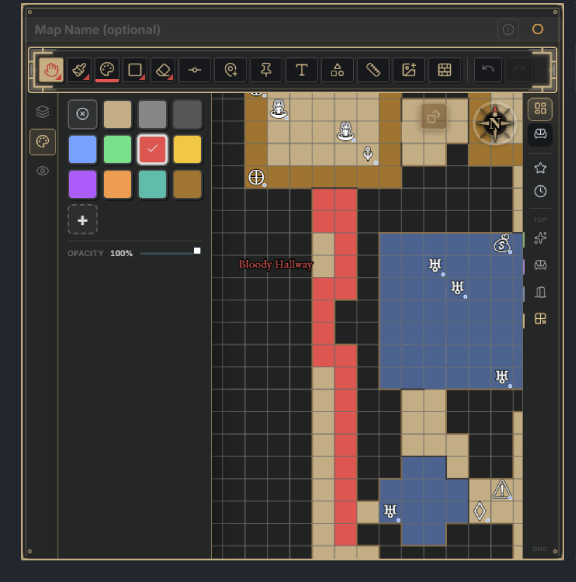
Image tiles
New in 2.0, and the biggest thing Windrose has grown: paint your maps with image tiles instead of (or alongside) flat color, on both grid and hex maps.
- The tile drawer — a browsable, searchable library of your tiles, organized by category and tag, with grid and list views, starred favorites, and recents.
- Six placement tools, chosen from a ribbon in the drawer: Paint (per-cell), Stamp (single freeform placement), Scatter (freeform with jitter), Fill (flood-fill an area), Brush (a soft, world-space terrain brush that blends seamless textures), and Draw (walls and paths — see below).
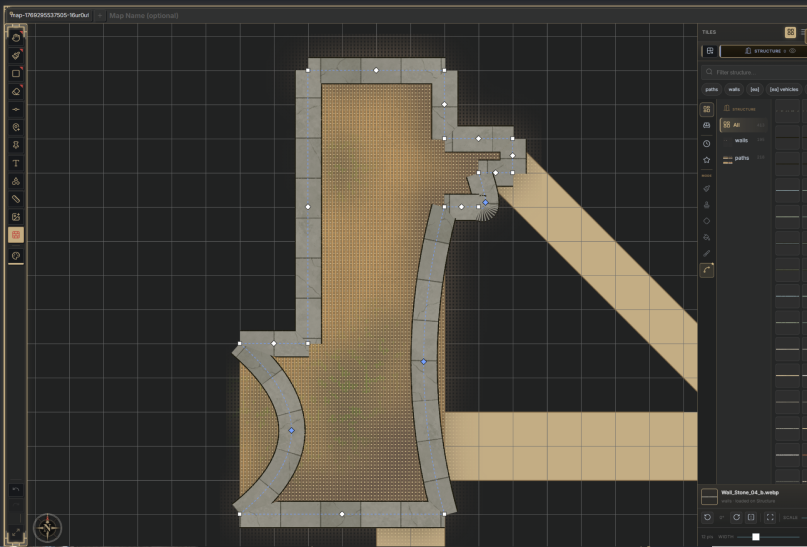
- Walls and paths — draw wall segments and winding paths that follow your cursor, with curves (drag to bow a segment) and vertex editing. Wall and path tiles from Dungeondraft packs are detected and handled automatically.
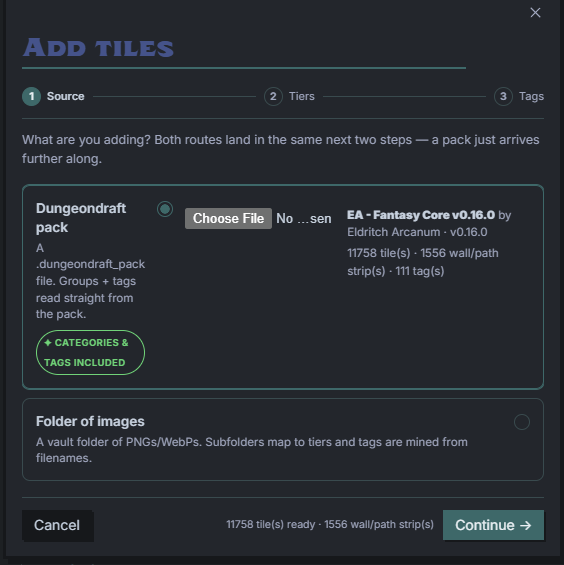
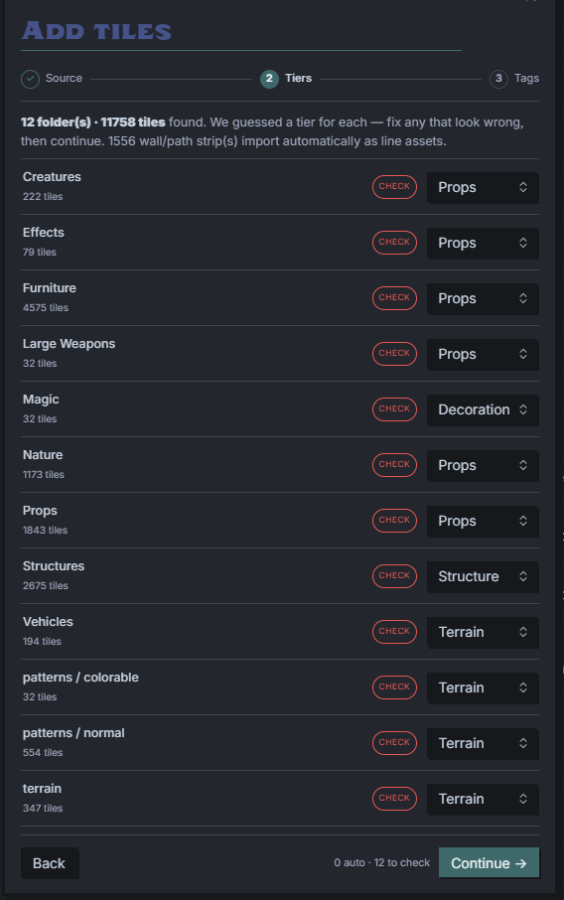
- Dungeondraft import — bring in a
.dungeondraft_packfile via the Add tiles wizard (Settings → Tilesets) and its assets arrive already grouped and tagged. Plain image folders from your vault import through the same wizard, with automatic detection of how each tile should render. - Rotation, flipping, and scaling on placed tiles; per-tileset render settings for fine control.
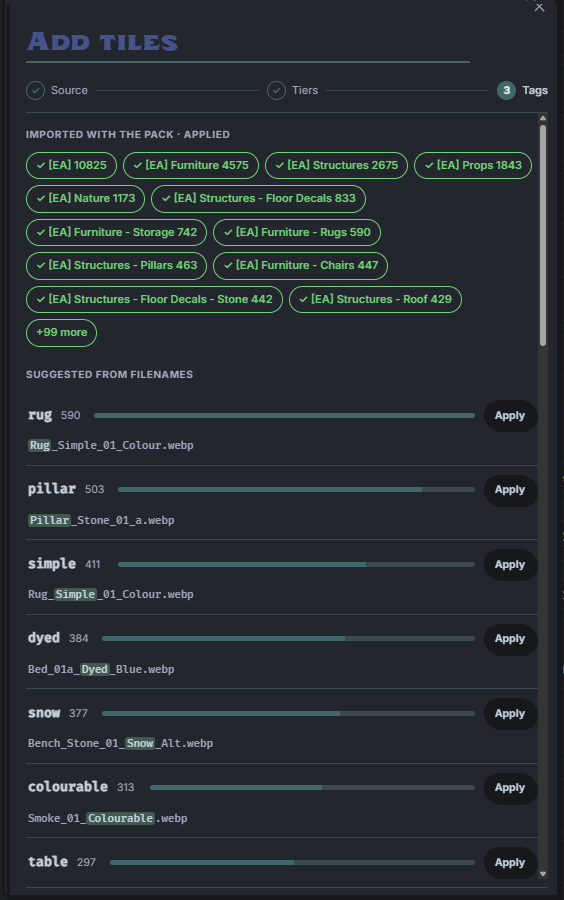
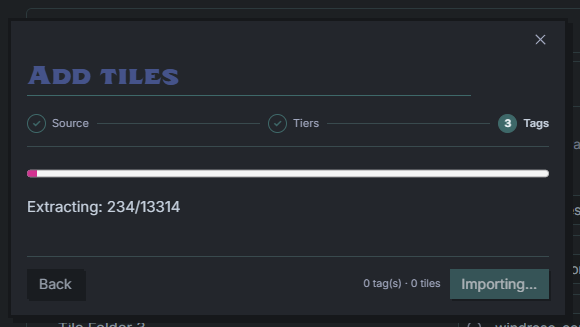
The Add tiles wizard walks a Dungeondraft pack (or a plain folder of images) through three steps — pick the source, confirm the guessed strata for each category, and apply tags — then extracts everything into your vault:
| 1. Source | 2. Tiers | 3. Tags | Importing |
|---|---|---|---|
 |  |  |  |
Content packs
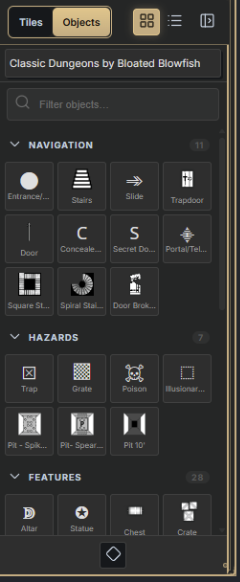
Content packs — curated object sets, fog-of-war textures, and travel rule packs — can be browsed and installed directly from the plugin (Settings → Objects → Browse content packs, or Settings → Travel Packs → Browse travel packs). Object and fog packs download into your vault; travel packs install into settings.
Hex maps
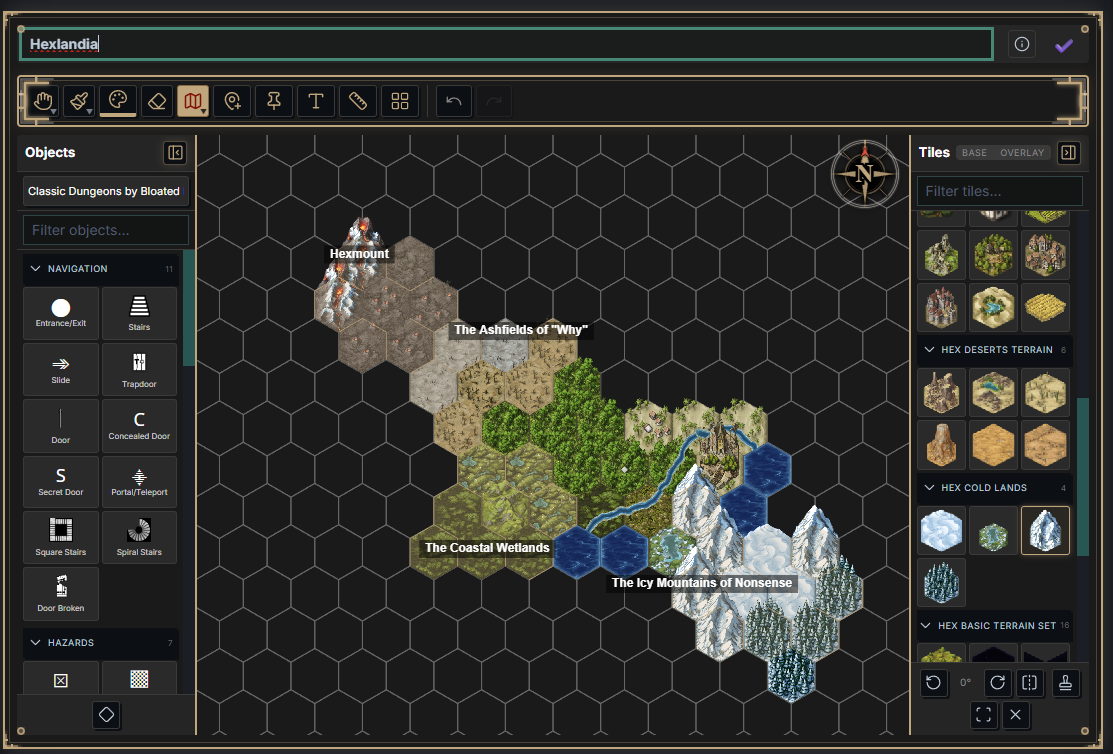
- Radial (rings from a center) or rectangular (offset rows) layouts, sized per map.
- Regions — name and color areas of your world, painted hex-by-hex or drawn as a polygon boundary. Region names float over the map and scale with zoom; a regions sidebar jumps to or hides any of them. Regions can link to notes.
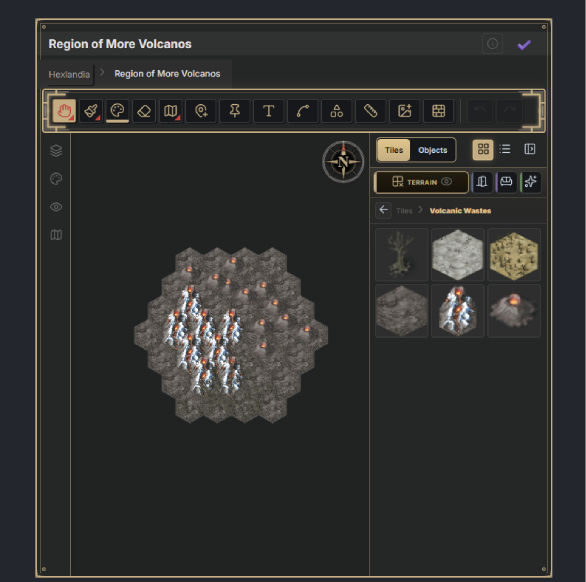
- Sub-maps — double-click a hex to drill into a nested map of its own: a full Windrose instance with its own layers, regions, and settings. Breadcrumbs track where you are. Think clicking a city on your world map to see its streets.
- Seamless zoom — zooming into a hex that holds a sub-map descends into it directly, and zooming out surfaces back, with the parent map visible as a backdrop behind the nested grid. A world and its sub-maps read as one continuous zoom.
- Neighboring sub-maps can display as previews around the one you're in — click one to slide directly across. And a sub-map you're done with can be deleted from its hex's right-click menu, nested contents and all.
- Coordinates, pointy or flat-top orientation, and up to four objects per hex.
- Background images — lay a map image under the grid and size the hexes to it, with presets or full sub-pixel control. (Grid maps support background images too.)
Objects
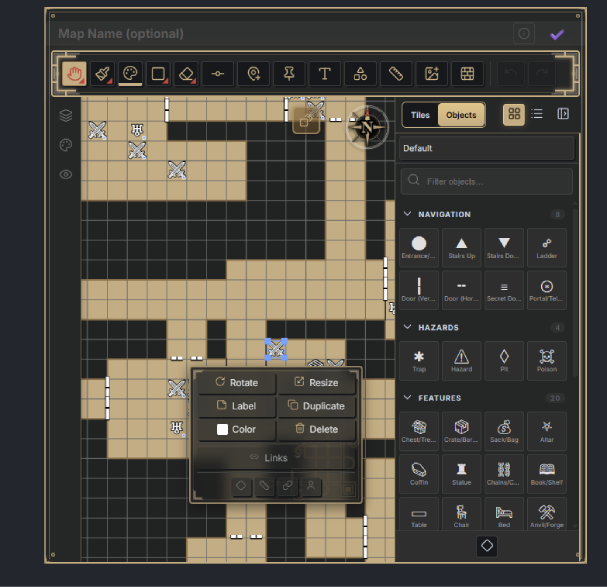
- ~40 built-in object types across categories — doors, stairs, portals, traps, chests, altars, monsters, NPCs, markers — and full customization: rename anything, change icons (any Unicode character, the bundled RPG Awesome set, or your own images), build custom objects and categories.
- Object sets — themed packs of objects you can import, export, and swap globally or per map.
- Rotate (45° steps), resize (up to 4×), recolor, duplicate, add tooltips — or forget what ♅ means and let the tooltip remind you.
- Grid, edge, or freeform placement — objects snap to cell centers by default; hold Alt to snap to edges, or unlock an object entirely for free world-space positioning.
- Link any object to a note — hover to preview, Ctrl/Cmd+click to open. Link objects to each other for staircases between floors or portals across maps.
- Deep links — copy a link to any object and paste it in another note; clicking it opens the map and zooms to that object. Hovering shows a thumbnail preview with a crosshair on the target.
Text labels and note pins
- Text labels go anywhere, free of the grid — drag, rotate, edit in place, with configurable font, size, color, and opacity, and optional note links.
- Note pins link a spot on the map straight to a vault note and display as a pin icon — a lighter-weight alternative to objects when the note is the point.
Beacon & travel
The Beacon is a movable position marker with a configurable range — track the party, a faction, an army on the march, or an approaching storm:
- Place it from the pin tool group and set a range in the map's measurement units. The range displays as a ring — a plain circle, or a highlight of the cells within range.
- Notes and markers within range are listed sorted by distance; each entry can open the note or pan the map to the marker. Optionally, Windrose maintains a beacon note in the vault with the same results as note links.
- Travel packs are importable rule bundles — units, terrain speed multipliers, travel modes, and per-day allowances — for a given system (D&D 5e overland travel, for example). With a pack enabled, measured routes and Beacon results also show travel times.
- The measure tool draws multi-waypoint routes, which can be saved as persistent paths on the map with per-segment terrain assignments.
Details in the Beacon and Measurement and travel docs.
Boards, Strata, and Layers
Windrose is like an onion. It has layers. No but really. There's 3 layers of layers.
Boards
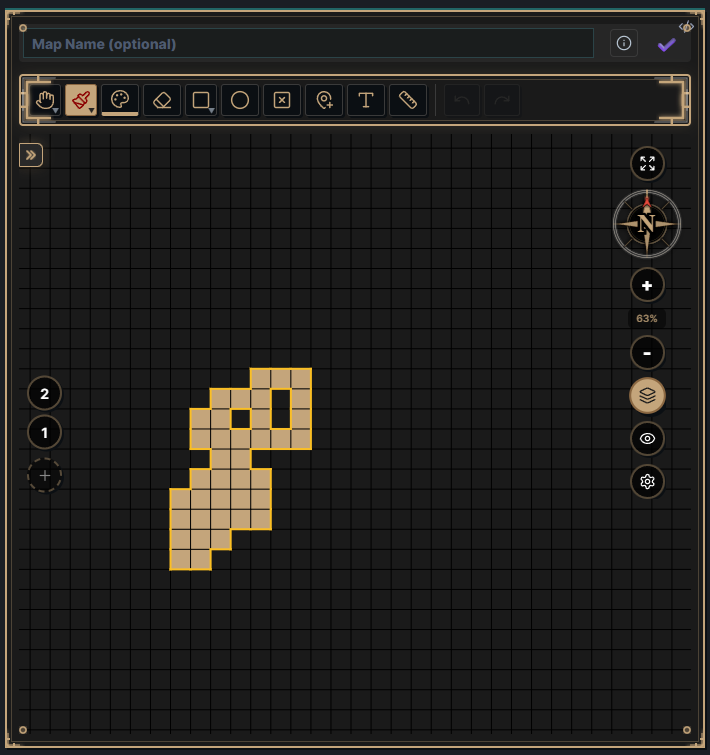
Give an entire map multiple layers — floors of a dungeon, states of a battlefield, before-and-after with the boards feature (previously layers). Rename them, give them icons, and adjust per-layer opacity so lower floors ghost through for alignment. Objects can link between layers.
The Boards/overall layers display can be swapped between a "simple" mode that only shows a flat list of boards and the more complex view that shows the other layer classifications.
_NOTE: If you don't care about image tiles, you don't need to care about Strata or Layers. You are however, still free to use them even without image tiles._
Strata
When painting with images tiles, there are 4 hardcoded Strata. From the ground and up, starting with Terrain, there is:
- Terrain - Your base ground layer
- Structure - Walls, paths, etc
- Props - Furniture, clutter, accoutrements
- Decorations - Your finishing touches, items on tables, etc.
Although you can put anything on any strata, Dungeondraft packs in specific will get auto-categorized to put appropriate styles of tiles in the right strata. You can however change this either while importing, or later.
Of course, you may want to work with multiple layers in each strata...
Layers
Layers are the sub-categorization of strata. Have a base of grass, but want to soft brush in some patches of old cobble as a separately editable composition? You can with these layers. Layers can be individually toggled for visibility.
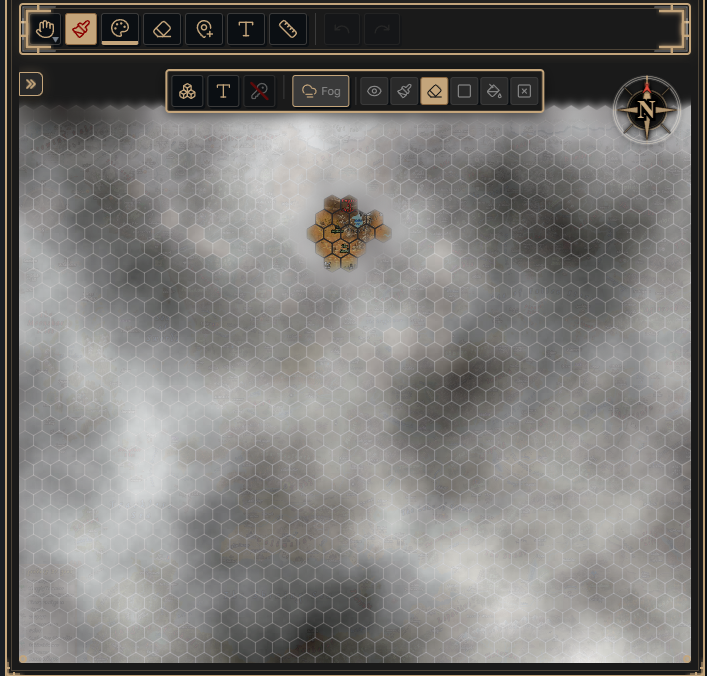
Fog of war
Obscure any part of a map — for hex crawls, solo dungeon delving, or theatrics:
- Fog with a solid color or a tileable image from your vault (or an installed fog texture pack).
- Add or clear fog cell-by-cell, in rectangles, or across the whole map at once.
- Optional edge blur for a softer, more immersive look.
Random dungeon generation
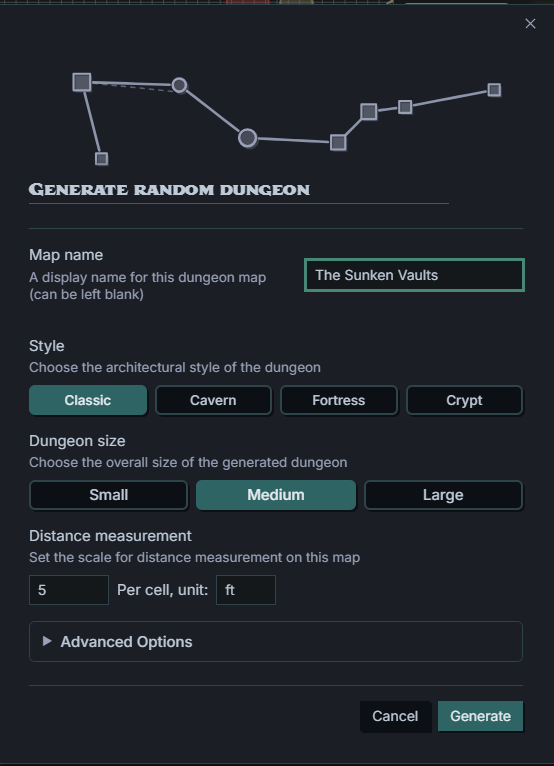
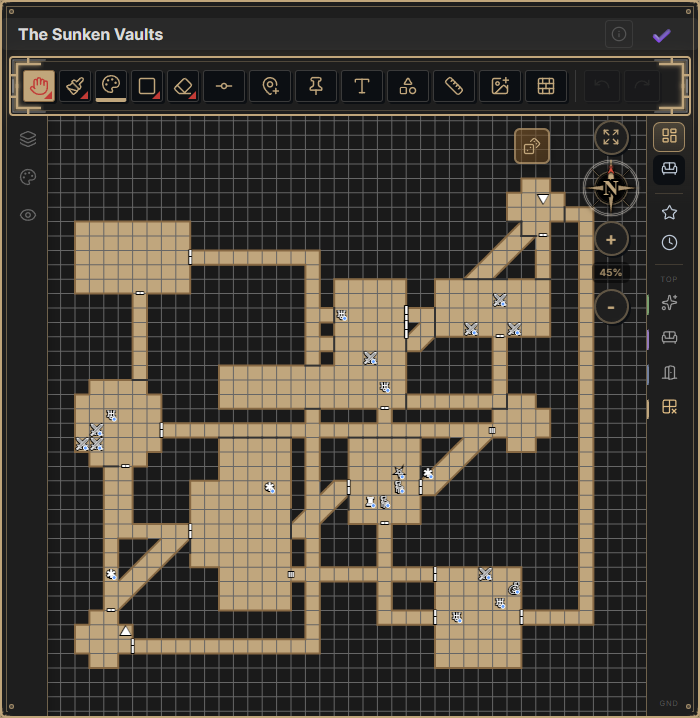
Generate a full dungeon layout from the command palette — pure old-fashioned math and graphs, no AI involved; the generation animation you watch is an approximation of the actual algorithm at work. Not that you cared.
- Four styles — Classic, Cavern, Fortress, Crypt — in three sizes, with advanced sliders for room shapes, corridor styles, door and secret-door frequency, water features, and more, with a live preview that updates as you tweak.
- Dungeon stocking optionally populates rooms with monsters, traps, treasure, and themed furniture.
- Solo play: auto-fog the generated dungeon and explore it room by room.
| The generator | The result |
|---|---|
 |  |
Solo-play
Windrose has a small set of solo play features that are more by emergence than purposeful design, but worth calling out.
Player tokens: An object can be designated as a "player". This unlocks the ability to measure/show movement across the grid, as well as a toggleable lighty radius that will auto clear fog of war if dropped onto it.
Full-pane view
Maps don't have to live inline. Open any map in a full workspace tab — from the compass ribbon icon, the command palette, or a picker that lists every map in your vault. Panels like the tile drawer can pop out into floating, dockable windows, Photoshop-style, when you want the canvas to yourself.
Feature toggles
Windrose has grown a lot of tools, and not everyone wants all of them on day one. A first-run survey (four questions) picks a starting set of visible tools. Behind it are plain feature toggles in settings: hex maps, regions, sub-maps, fog of war, tiles, walls, the dungeon generator, and more can each be switched on or off at any time. Disabled features are hidden, not removed — existing map content stays visible, and any toggle can be changed later.
Navigation
- Pan: drag with the select tool, hold Space and drag with any tool, hold the scroll wheel, or two-finger drag on touch.
- Zoom: scroll wheel, pinch, or the zoom controls (10%–200%).
- Rotate the whole map via the Windrose compass in the corner (grid maps rotate for real; on hex it's aesthetic — and it looks great).
- Measure distances as multi-waypoint routes, in units configured globally or per map; a measurement can be saved as a route on the map.
Configuration
- Global settings (Settings → Windrose MapDesigner): defaults for colors and palettes, hex orientation, fog of war, object sets and custom objects, tileset folders and tile packs, feature toggles, keyboard shortcuts, and more.
- Per-map settings (from the map controls): override any global default for one map — grid colors, fog style, object set, background image, hex layout and size, canvas height, measurement units — plus PNG export of the current layer, background and all.
Data and sync
A map in a note is just a small code block:
```windrose-map
id: your-map-id
name: My Map
type: grid
```
This works the same as any other codeblock in Obsidian. For instance, put it in a callout like this:
> [!INFO]
> ```windrose-map
> id: your-map-id
> name: My Map
> type: grid
```
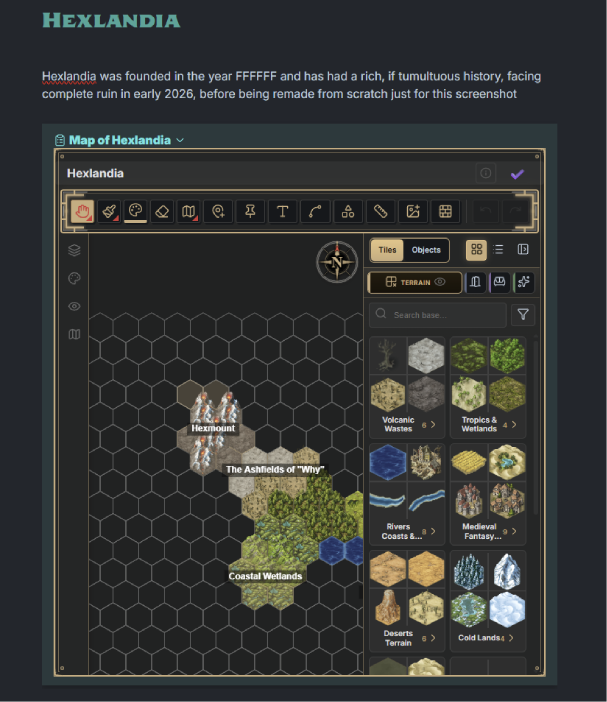
The drawing data lives in windrose-map-data.json in your vault, keyed by id — plain JSON that travels with your vault and works with Obsidian Sync and friends. Delete the code block and your data is still there; paste the block somewhere else and the map comes with it.
Your data is defended in depth: saves are journaled and hold Obsidian's quit until flushed, a data file that fails to parse is never overwritten (loading refuses and offers recovery instead), and Windrose keeps two rolling known-good backups with a Restore from backup action. With the same map open in two panes, saves are generation-checked so the panes can't silently clobber each other.
Thanks to
Many members of the Obsidian TTRPG discord, including:
- BloatedBlowfish
- Coehoorn
- 36457453746
- LastElf
- And many others, especially those who goaded me into and taught me about hex mapping.
My DM, who got me excited about both TTRPGs, and about having fun with software dev again.
And Blacksmithgu for creating Datacore — Windrose started life as a Datacore compiled script, and that framework is what made it possible to trick myself into thinking that learning React was a good idea. v2.0 is a standalone plugin, but we wouldn't be here without that foundation.
License
For plugin developers
Search results and similarity scores are powered by semantic analysis of your plugin's README. If your plugin isn't appearing for searches you'd expect, try updating your README to clearly describe your plugin's purpose, features, and use cases.