WorkBuddy AI
approvedby bigbay
Access WorkBuddy AI in Obsidian sidebar: multi-task chat, strong references, source tracing, quick selection actions, and work templates. - This plugin has not been manually reviewed by Obsidian staff.
WorkBuddy AI
中文
在 Obsidian 桌面端侧边栏中接入本机 WorkBuddy,把笔记选区、项目资料和本地文件直接交给 AI 搜索、分析与处理。
非官方社区插件。本项目与 Obsidian、腾讯及 WorkBuddy 官方不存在隶属或背书关系;WorkBuddy 等名称与标识归其各自权利人所有。
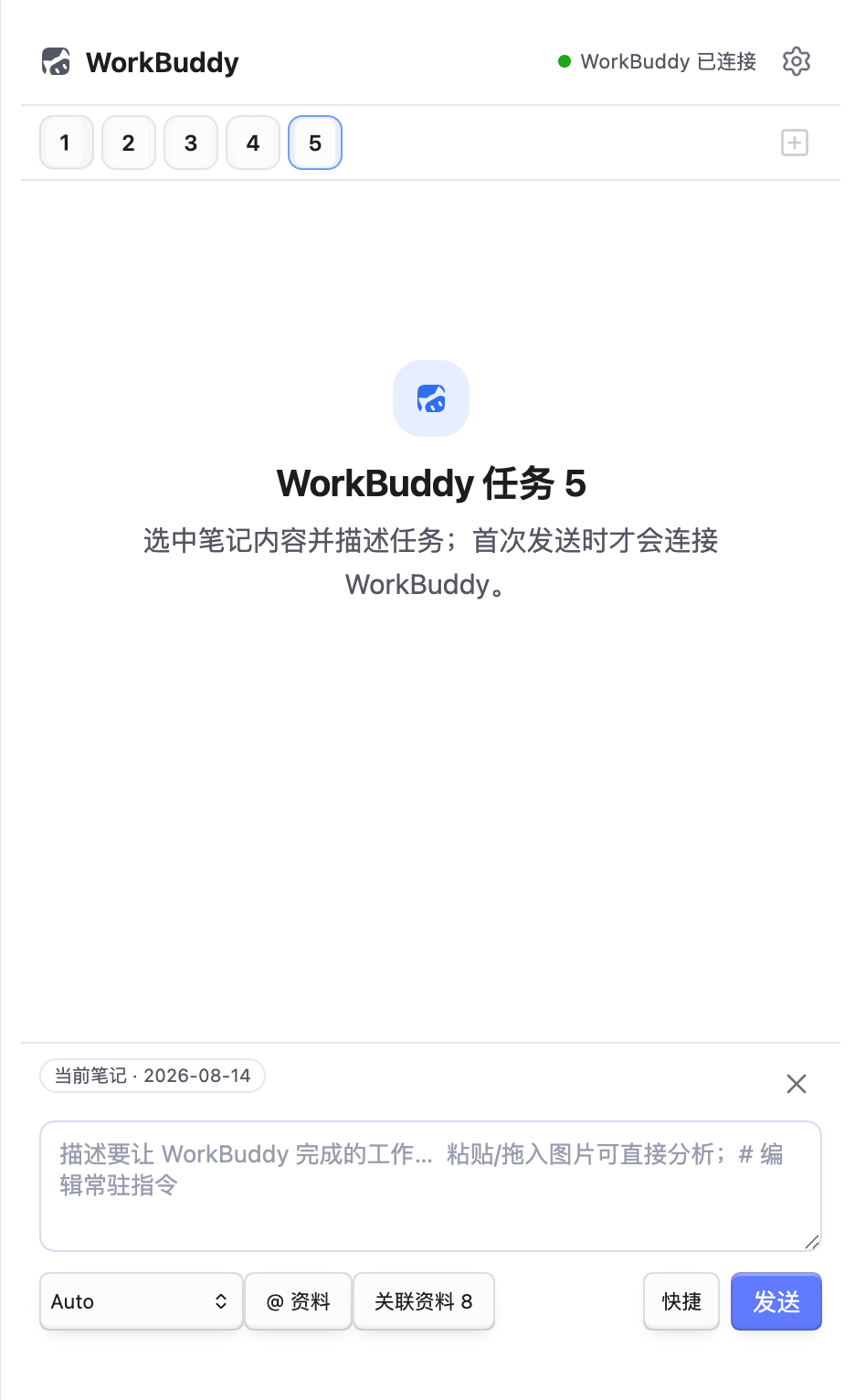
功能亮点
- 最多 5 个相互独立的任务页,可切换、重命名、关闭和恢复。
- 自动捕获选区文字,在右侧显示引用的文字,实现对局部文字的提问和优化。
- 在输入框粘贴或拖入图片,直接随消息交给模型分析。
@引用笔记、文件夹、标签、标题段落、PDF、图片及其他 Vault 文件。- "上传本地文件"支持系统多选,复制到
WorkBuddy/Uploads/后加入当前任务。 - 回答底部展示可点击的 Vault 与网页来源,回答正文里的文件名也会自动转成可点击链接。
- 发送键在工作时变为红色停止按钮,支持中途打断,停止位置会标记"已停止"。
- 根据双链、反向链接、标签、标题和目录结构推荐关联笔记。
- 选区右键支持润色、总结、缩写、扩写、转表格和生成汇报提纲。
- 右下角"快捷"面板内置正式润色、口语润色、一键翻译、代码审查、笔记整理等指令,可在设置页自定义。
- 左下角模型选择器:默认 Auto 跟随 WorkBuddy,可手动切换;通过
session/setConfigOption实时换模型,不重启 CLI。 - 常驻指令(人设):在输入框输入
#即可编辑,每次发送自动拼接。 /通用工作模板内置会议纪要、内容润色、汇报提纲、案例总结和执行方案。- 自动保存聊天恢复态;支持历史全文搜索、重要回答收藏、选择性保存和完整 Markdown 导出。
- 可配置主题色,自定义
Auto默认选中行为与更多细节。 - 可配置 GitHub Release 更新源,支持检查、校验、备份和一键安装。
工作方式与安全边界
插件通过本机 codebuddy --acp 启动私有 stdio 子进程:
- 不开放本地 HTTP 端口。
- 不保存模型 API Key。
- 打开侧边栏时不会连接 WorkBuddy,首次发送任务时才启动 CLI。
- 涉及写文件、执行命令等副作用时,继续使用 WorkBuddy 权限确认。
- 本地文件上传是"复制进 Vault",不会移动或修改电脑上的原文件。
更多说明见 PRIVACY.md 与 SECURITY.md。
合规披露
按 Obsidian 社区目录的披露要求,列明插件对外的行为边界:
- 需要账号:插件依赖你本机已安装并登录的 WorkBuddy CLI。没有 WorkBuddy 账号时,插件无法完成任何任务。
- 网络访问:插件自身不发起任何网络请求。所有网络访问(模型调用、资料检索等)都由你本机已安装并登录的 WorkBuddy CLI 发起,具体去向取决于 WorkBuddy 与你所配置的模型提供方,请参阅它们各自的隐私政策。
- 访问 Vault 之外的文件:插件以你的 Vault 路径为工作目录启动本机 WorkBuddy CLI。该 CLI 具备读写本机文件的能力 —— 这正是它能处理你 Vault 之外资料的原因(例如你对它说「看一下 ~/Downloads 里的这份财报」)。插件界面本身只会把你通过「上传本地文件」主动选中的文件复制一份到 Vault 的
WorkBuddy/Uploads/,不会移动或修改原文件。 - 遥测与广告:插件不包含任何客户端遥测、(动态或静态)广告或第三方分析 SDK。
- 自我更新:插件不会安装或更新自身及其依赖;更新由 Obsidian 自带的社区插件更新机制负责。
前置条件
- Obsidian 桌面版 1.13.0 或更高版本(声明式设置 API 要求)。
- Node.js 18 或更高版本。
- 已安装并登录 WorkBuddy CLI。
npm install -g @tencent-ai/codebuddy-code
codebuddy --version
codebuddy
首次运行 codebuddy 时请按终端提示完成登录;进入交互界面后可按 Ctrl+C 退出。
安装
从 GitHub Release 安装
- 打开仓库的 Releases 页面,下载最新版本 ZIP。
- 解压到
<你的知识库>/.obsidian/plugins/workbuddy-for-obsidian/。 - 确认目录中至少包含
main.js、manifest.json、styles.css。 - 在 Obsidian → 设置 → 第三方插件中启用 WorkBuddy for Obsidian。
从源码构建
git clone https://github.com/bigbay957-sudo/workbuddy-for-obsidian.git
cd workbuddy-for-obsidian
npm install
npm run verify
然后把 main.js、manifest.json、styles.css 复制到插件目录。
快速使用
选区工作
- 在左侧笔记中选中文字、列表、表格源码或代码块。
- 右侧引用卡片会显示被引用的原文。
- 输入工作要求并发送。
- 回复后可复制、插入、保存为笔记。
添加资料与上传文件
- 在输入框中键入
@,或点击"@ 添加资料"。 - 列表第一项"上传本地文件"可一次选择多个电脑文件。
- 文件复制到
WorkBuddy/Uploads/;同名文件自动增加序号,单个文件上限 200MB。 - 其他选项可引用 Vault 内的笔记、文件夹、标签、标题、PDF 和图片。
多任务与聊天记录
- 点击顶部"+"增加任务,最多同时打开 5 个。
- 双击任务名称可重命名。
- 在任务标签上点击右键,可保存聊天、打开任务历史或关闭任务。
- 历史记录支持搜索、恢复和完整导出;回答下方星标可收藏重要结果。
关联资料
- "关联资料"完全在本地按链接、标签、标题和目录评分,不上传 Vault 建立外部索引。
- 每次发送任务前自动刷新条目数,可在右侧直接插入到当前消息。
模型与人设
- 左下角模型下拉默认显示 Auto,与 WorkBuddy 的 auto 模式对齐;手动选过的模型会被记住。
- 右上角设置按钮的二级菜单里可编辑人设(常驻指令),输入框输入
#也能快速打开同一编辑器。
设置
- WorkBuddy CLI 路径:留空自动检测,也可填写完整路径。
- 模型:留空使用 WorkBuddy 默认模型。
- 权限模式:推荐
default,插件不会启用bypassPermissions。 - 自动附加当前笔记 / 优先附加选区:控制默认上下文。
- 上下文字符上限:控制单次发送的文本量。
- GitHub 更新仓库:填写
owner/repository后可检查 Release 更新。
开发与验证
npm install
npm run typecheck
npm test
npm run build
npm run probe
完整质量门:npm run verify
发布标签必须与 manifest.json 版本一致。仓库内的 GitHub Actions 会构建并上传标准三文件与安装 ZIP。
常见问题
- 找不到 CLI:在插件设置中填写完整路径;macOS npm 全局安装通常位于
~/.local/bin/codebuddy。 - 无法连接:先在终端运行一次
codebuddy,确认已经登录。 - 修改 CLI 路径、模型或权限后未生效:关闭并重新打开 WorkBuddy 侧边栏,或重新加载插件。
- 本地文件上传失败:确认使用 Obsidian 桌面版,并检查 Vault 是否可写。
路线与反馈
- 版本变化见 CHANGELOG.md。
- Bug 与功能建议请通过 GitHub Issues 提交。
- 贡献代码前请阅读 CONTRIBUTING.md。
License
English
Access WorkBuddy AI directly in the Obsidian desktop sidebar — send note selections, project references, and local files to the AI for search, analysis, and processing.
Unofficial community plugin. This project is not affiliated with or endorsed by Obsidian, Tencent, or WorkBuddy. All product names and trademarks belong to their respective owners.
Features
- Up to 5 independent task tabs — switch, rename, close, and restore.
- Auto-captures selected text and shows it as a引用 card for targeted questions and refinement.
- Paste or drag images into the input box to send them with your message.
@references notes, folders, tags, headings, PDFs, images, and other Vault files.- "Upload local files" supports multi-select; files are copied to
WorkBuddy/Uploads/. - Clickable Vault and web sources at the bottom of each response; file names in the response body become clickable links.
- Send button turns into a red stop button during generation — interrupt anytime; stopped positions are marked.
- Recommends related notes based on backlinks, tags, headings, and directory structure.
- Right-click selection for polish, summarize, shorten, expand, convert to table, and generate report outline.
- Bottom-right quick action panel with built-in formal polish, casual polish, translate, code review, and note organize — customizable in settings.
- Bottom-left model selector: defaults to Auto (follows WorkBuddy), switchable in real time via
session/setConfigOptionwithout restarting CLI. - Persistent instructions (persona): type
#in the input box to edit; auto-prepended to every message. /work templates: meeting minutes, content polish, report outline, case summary, and action plan.- Auto-saves chat recovery state; supports full-text search, star-favorite responses, selective save, and full Markdown export.
- Configurable theme color, Auto default behavior, and more.
- Configurable GitHub Release update source with check, verify, backup, and one-click install.
How It Works & Security
The plugin launches a private stdio subprocess via local codebuddy --acp:
- No local HTTP port is opened.
- No model API key is stored.
- Opening the sidebar does not connect to WorkBuddy; the CLI starts only on first send.
- Side effects (writing files, running commands) continue to use WorkBuddy's permission confirmation.
- Local file upload copies into the Vault — original files on your computer are not moved or modified.
See PRIVACY.md and SECURITY.md for details.
Disclosures
As required by the Obsidian community directory, here is exactly what this plugin does outside its own interface:
- Account required: the plugin relies on a locally installed and signed-in WorkBuddy CLI. Without a WorkBuddy account it cannot complete any task.
- Network use: the plugin itself makes no network requests. All network access (model calls, research) is performed by the locally installed and signed-in WorkBuddy CLI; the destinations depend on WorkBuddy and the model provider you configure. Refer to their privacy policies.
- Accessing files outside the vault: the plugin launches the local WorkBuddy CLI with your vault path as its working directory. That CLI can read and write files on your machine — which is what lets it work with material outside your vault (for example, "take a look at this report in ~/Downloads"). The plugin UI itself only copies the files you explicitly pick through "Upload local file" into
WorkBuddy/Uploads/; it never moves or modifies the originals. - Telemetry and ads: none. No client-side telemetry, no ads (dynamic or static), no third-party analytics SDK.
- Self-update: the plugin does not install or update itself or its dependencies; updates are handled by Obsidian's built-in community plugin updater.
Prerequisites
- Obsidian Desktop 1.13.0 or later (the declarative settings API requires it).
- Node.js 18 or later.
- WorkBuddy CLI installed and signed in.
npm install -g @tencent-ai/codebuddy-code
codebuddy --version
codebuddy
On first run, follow the terminal prompts to sign in; press Ctrl+C to exit.
Installation
From GitHub Release
- Go to the repository's Releases page and download the latest ZIP.
- Extract to
<your-vault>/.obsidian/plugins/workbuddy-for-obsidian/. - Ensure the directory contains at least
main.js,manifest.json,styles.css. - Enable WorkBuddy for Obsidian in Obsidian → Settings → Community plugins.
Build from Source
git clone https://github.com/bigbay957-sudo/workbuddy-for-obsidian.git
cd workbuddy-for-obsidian
npm install
npm run verify
Then copy main.js, manifest.json, styles.css to the plugin directory.
Quick Start
Selection Workflow
- Select text, lists, table source, or code blocks in the left pane.
- The right panel shows the referenced text as a card.
- Type your request and send.
- After the response, copy, insert, or save as a note.
References & File Upload
- Type
@in the input box, or click "@ Add Reference". - The first option "Upload local files" supports multi-select from your computer.
- Files are copied to
WorkBuddy/Uploads/; duplicate names get a suffix; 200MB per-file limit. - Other options reference Vault notes, folders, tags, headings, PDFs, and images.
Multi-task & History
- Click "+" at the top to add a task — up to 5 simultaneous tabs.
- Double-click a task name to rename.
- Right-click a task tab to save chat, open history, or close.
- History supports search, restore, and full export; star important responses.
Related Notes
- "Related Notes" scoring is entirely local — based on links, tags, headings, and directory structure. No external indexing of your Vault.
- Auto-refreshes the count before each send; insert directly into the current message.
Model & Persona
- The bottom-left model dropdown defaults to Auto (aligned with WorkBuddy's auto mode); manually selected models are remembered.
- Edit persona (persistent instructions) from the settings menu (top-right gear icon), or type
#in the input box for quick access.
Settings
- WorkBuddy CLI path: Leave empty for auto-detect, or enter a full path.
- Model: Leave empty to use WorkBuddy's default model.
- Permission mode:
defaultrecommended — the plugin never enablesbypassPermissions. - Auto-attach current note / Prefer selection: Controls default context.
- Context char limit: Controls the text volume per send.
- GitHub update repo: Enter
owner/repositoryto check for Release updates.
Development
npm install
npm run typecheck
npm test
npm run build
npm run probe
Full quality gate: npm run verify
Release tags must match the manifest.json version. GitHub Actions build and upload the standard three files plus an install ZIP.
FAQ
- CLI not found: Enter the full path in plugin settings; macOS npm global install is typically at
~/.local/bin/codebuddy. - Cannot connect: Run
codebuddyin the terminal first to confirm you're signed in. - Changes to CLI path / model / permissions not taking effect: Close and reopen the WorkBuddy sidebar, or reload the plugin.
- Local file upload fails: Ensure you're using Obsidian Desktop and the Vault is writable.
Roadmap & Feedback
- See CHANGELOG.md for version history.
- File bugs and feature requests via GitHub Issues.
- Read CONTRIBUTING.md before contributing code.
License
For plugin developers
Search results and similarity scores are powered by semantic analysis of your plugin's README. If your plugin isn't appearing for searches you'd expect, try updating your README to clearly describe your plugin's purpose, features, and use cases.