by theluckystrike
Convert selected YAML, JSON, or TOML data with a preview and checks for data loss.
Data Format Converter
Data Format Converter converts selected YAML, JSON, or TOML data in an Obsidian note. Choose the source and target formats, inspect the preview, then confirm the replacement. The plugin checks the values before it writes the result. The selection command, parse checks, preview, and replacement are free.
Use it when a note contains a small configuration example that you need in a different format. It operates on selected data, not on a complete Markdown document. Select the contents of a code block without its opening and closing fences. You choose the format; the plugin does not infer it from the note.
Features
Choose formats and inspect the preview
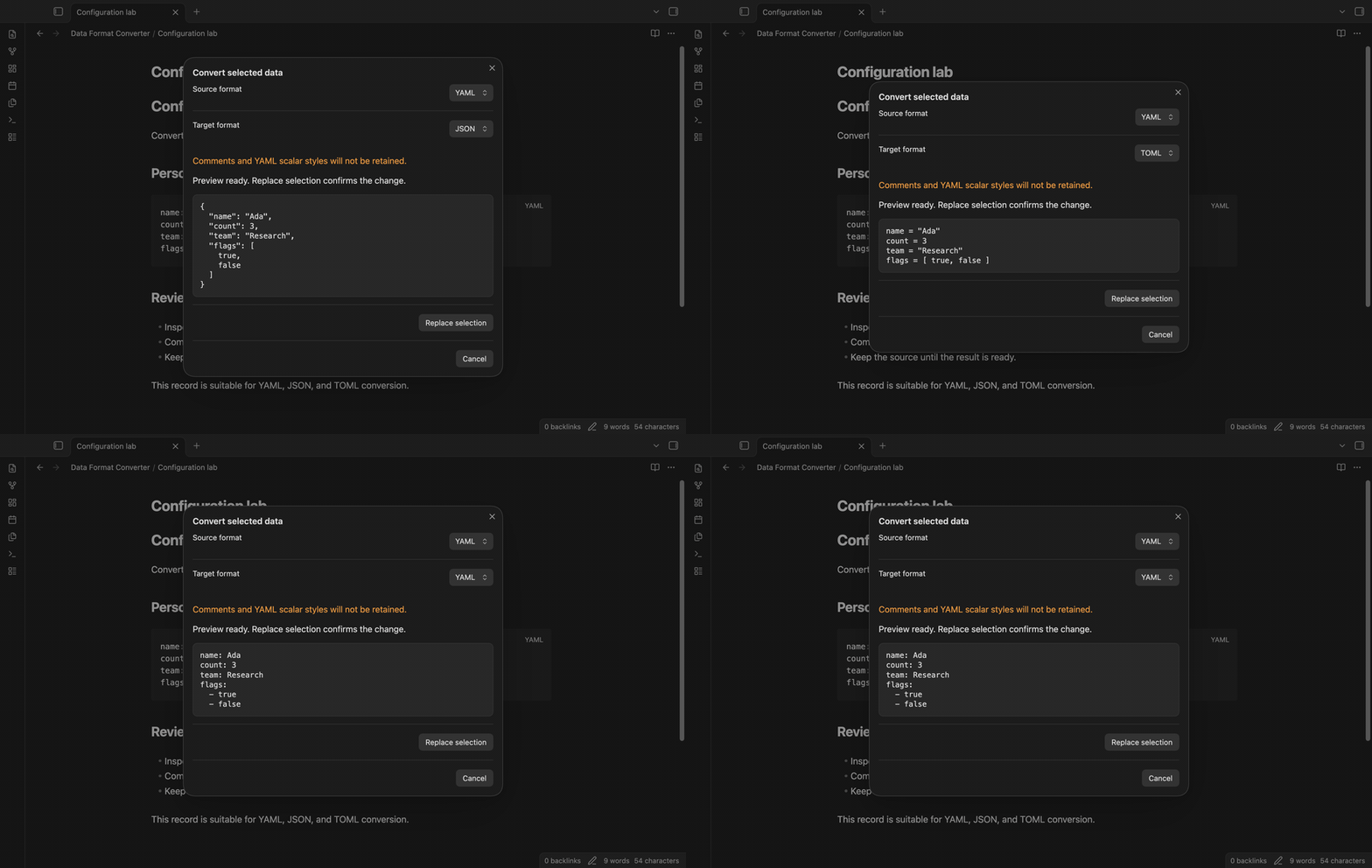
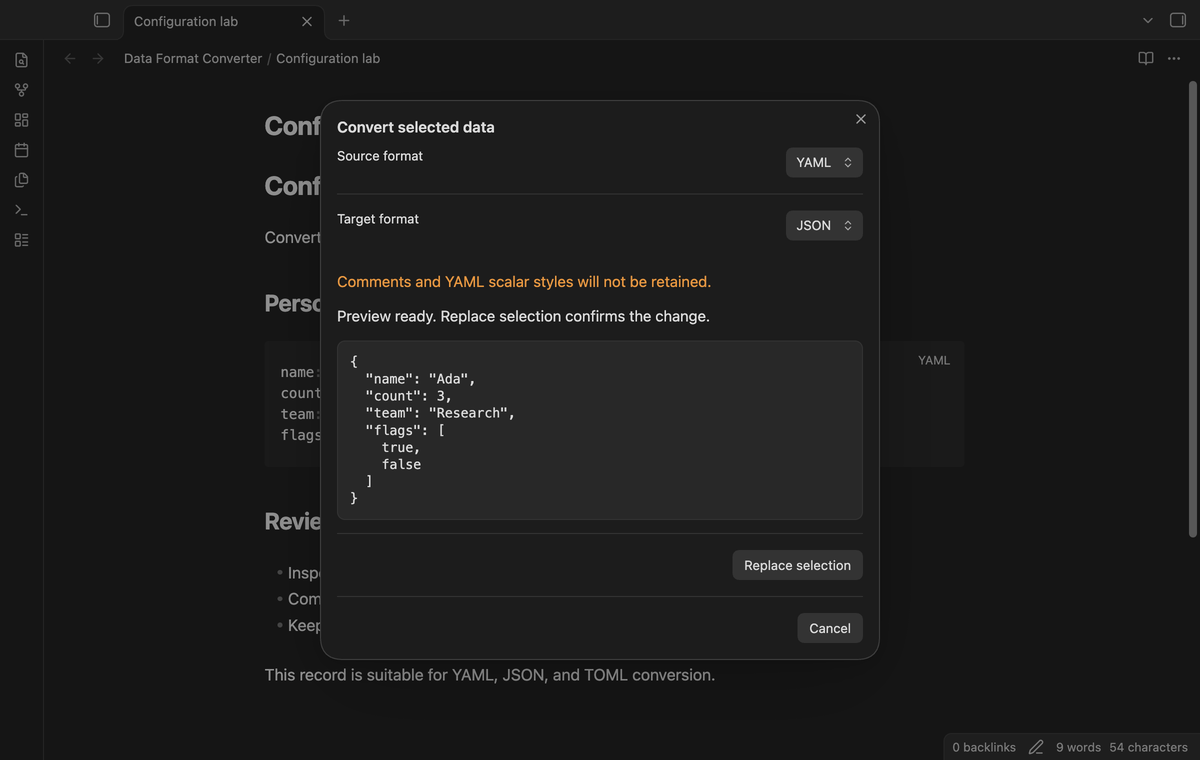
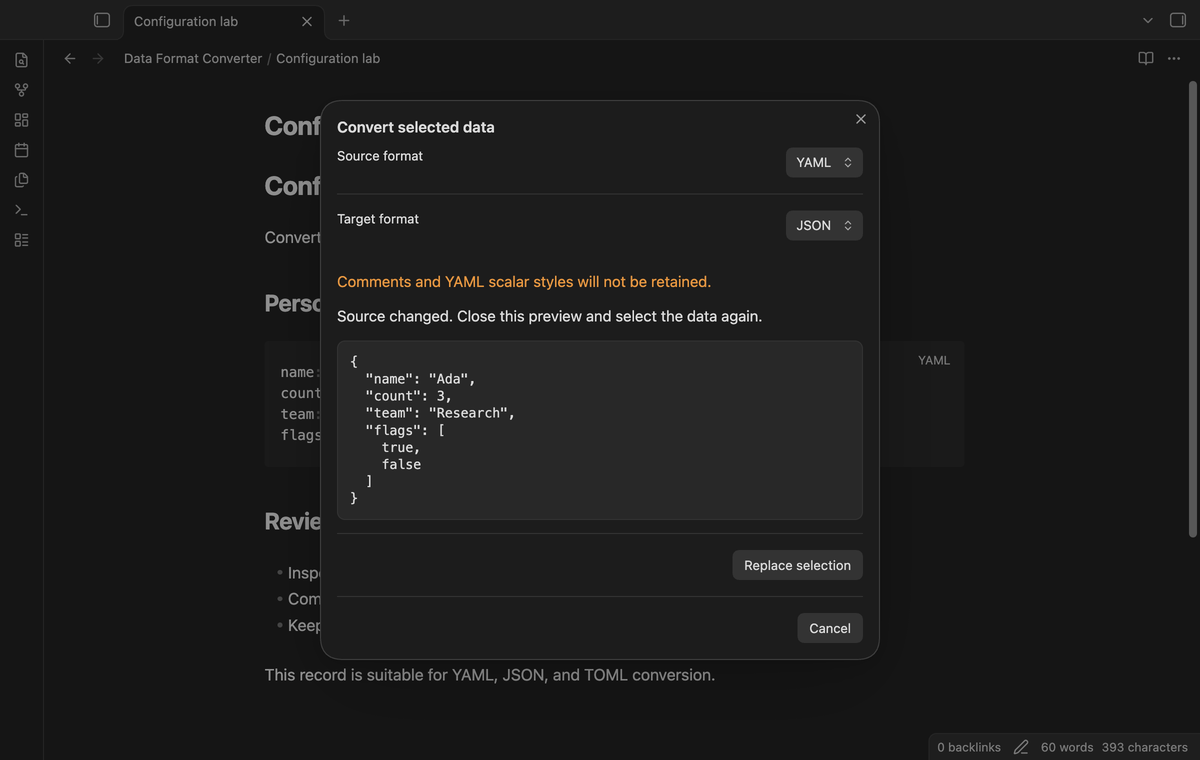
Run “Convert selected data” from the command palette. The modal starts with YAML as the source and JSON as the target. Change either dropdown to recalculate the result. JSON output uses two spaces for indentation. TOML tables and arrays keep their parsed values. A preview alone does not change the note.
The warning states that comments and YAML scalar styles will not be retained. Quotation marks, key order, and spacing can differ from the input. The output retains supported data values rather than source formatting.
Parse errors with available locations
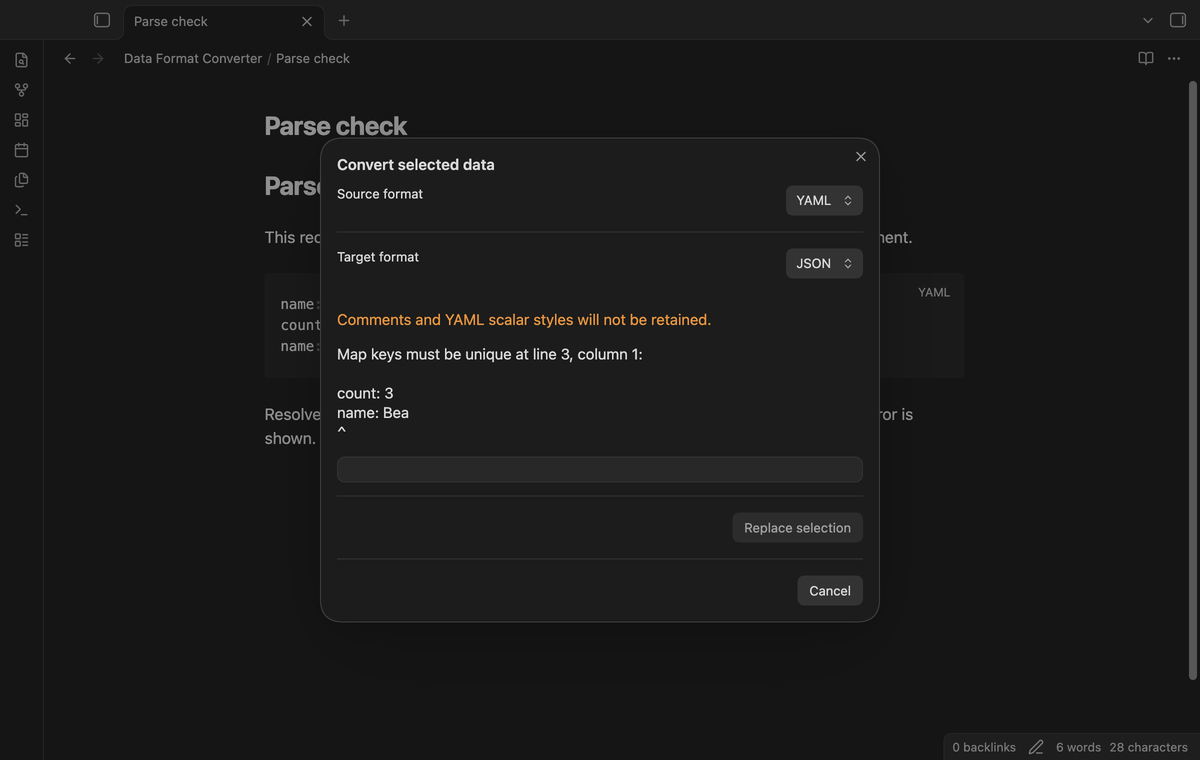
An invalid selection shows a parser error in the modal. YAML duplicate keys are rejected before conversion. YAML and TOML parser messages include a source location when the parser supplies one. JSON syntax messages depend on the app's JavaScript engine. The replacement button is disabled when the preview has an error.
Checks for values that cannot be retained
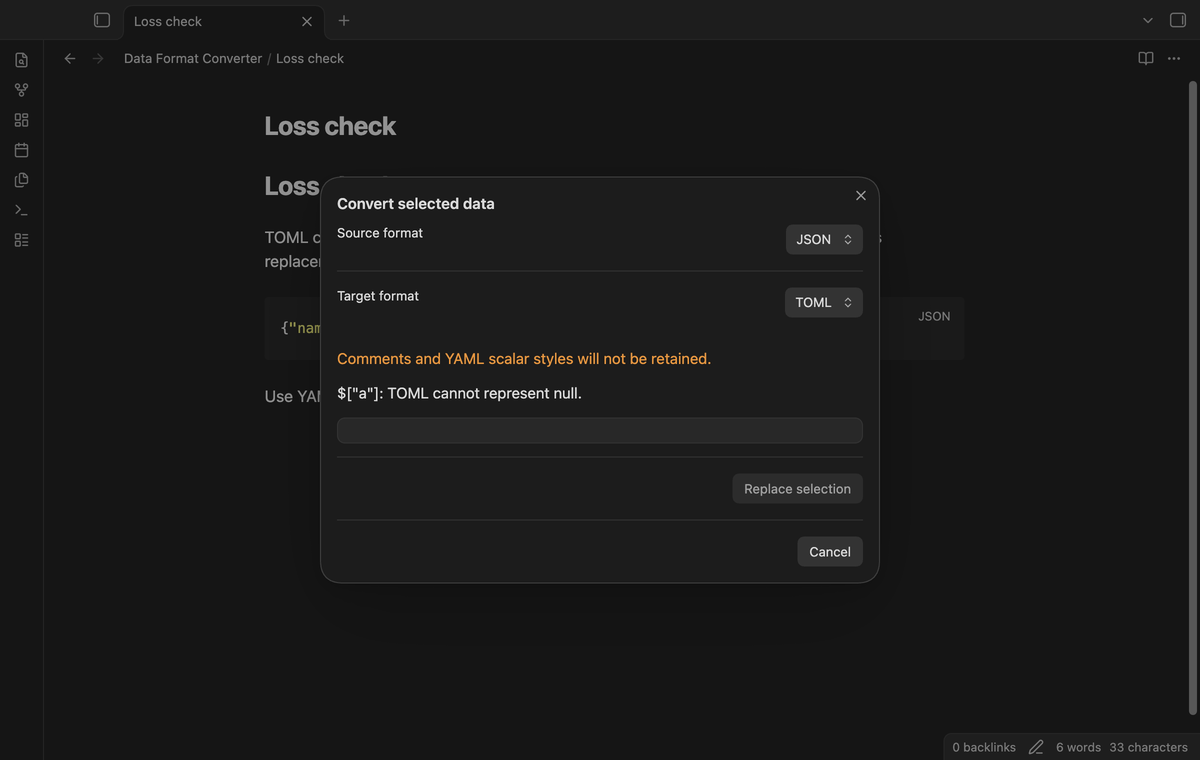
TOML cannot represent null. A selection such as {"a":null} is rejected with the data path $["a"]. The plugin also rejects cyclic aliases, custom YAML tags, non-string YAML mapping keys, dates represented as date objects, negative zero, and non-finite numbers. Numbers with magnitude above 9,007,199,254,740,991 are rejected. Decimal numbers that underflow to zero are rejected. A decimal with more digits than a JavaScript number keeps, such as 19.999999999999999999, is rejected. Integer and float types are not kept apart: 1.0 becomes 1, which TOML and YAML read as an integer.
After formatting, the plugin parses the output and compares its data with the input. If a writer drops a key or changes a value, conversion is blocked. TOML output needs an object at the root. A root array or scalar can be converted to JSON or YAML instead.
Confirm a guarded replacement
“Replace selection” confirms the change. The plugin checks the captured selection range and the complete editor text. The output keeps the line end of the selection, so a closing fence stays on its own line. If the note changed after the preview opened, replacement is blocked. Close the preview and select the data again. This conservative check also blocks edits elsewhere in the same note.
“Cancel” closes the preview without a replacement. The command does not write frontmatter through a separate file operation. If you select frontmatter contents, you control that edit through the editor.
Validate a local JSON Schema (Pro)
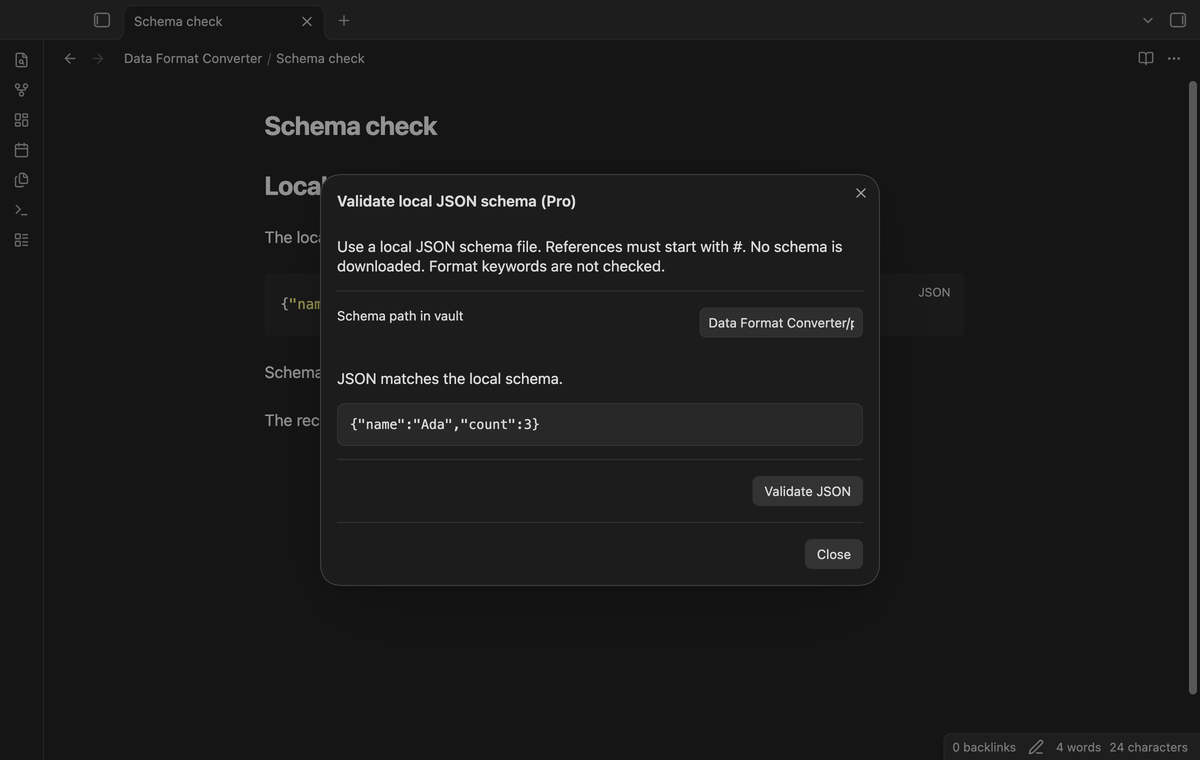
Select JSON data and run “Validate selected JSON against a local schema (Pro)”. Enter the schema path relative to the vault root. The plugin reads that local file and shows validation errors with JSON Pointer paths. It does not replace the selection.
The validator supports Draft-07 rules through the bundled jsonschema library. References must be local fragments beginning with #; references to another file or a remote service are blocked. Format keywords are skipped. For example, a string with an email format rule is checked as a string, but its address syntax is not checked. Unsupported validation keywords report an error.
Convert chosen code blocks into new files (Pro)
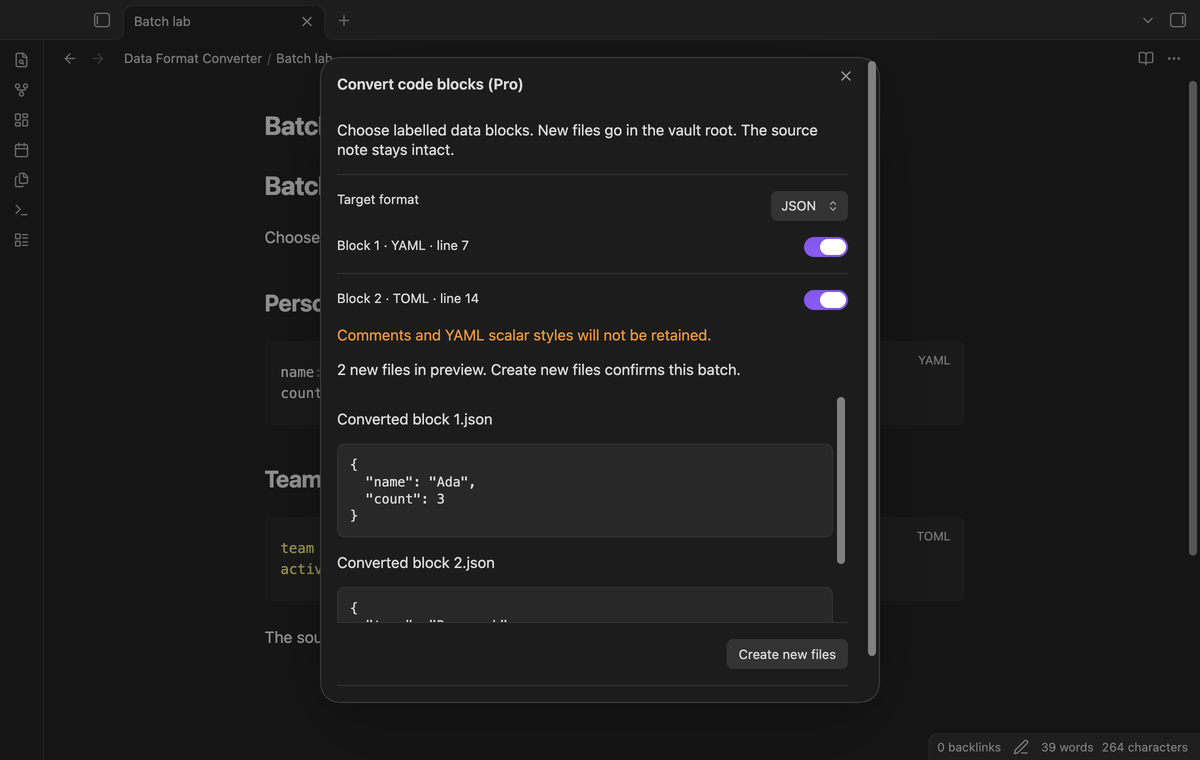
Run “Convert chosen code blocks into new files (Pro)” in the current note. Choose labelled YAML, YML, JSON, or TOML blocks and a target format. The modal previews the output paths and contents before you select “Create new files”. It recognizes unindented backtick or tilde fences with matching closing fences. The language label must immediately follow the opening fence.
Files use names such as Converted block 1.json in the vault root. Existing paths block the batch. The source note stays intact. A parse or conversion error in a chosen block blocks the preview. Source changes and loss of Pro access block creation. A file-system failure during creation can leave a partial batch; the message lists the files that were created.
Install
For a manual installation, copy main.js, manifest.json, and styles.css from a release into <vault>/.obsidian/plugins/yaml-json-toml-converter/. Enable the plugin in Community plugins. This version needs Obsidian 1.13.4 or later. The repository contains the TypeScript source and the tests.
Usage
- Open a note in an editor and select the data that you need to convert.
- Open the command palette and run “Data Format Converter: Convert selected data”.
- Set the source format to match the selection. Set the target format.
- Read the preview and the comment warning. Correct the input if an error appears.
- Select “Replace selection” to confirm, or “Cancel” to keep the source.
For a first check, select YAML with name: Ada and count: 3 on separate lines. Choose JSON. The preview contains a string name and a numeric count. Choose TOML to inspect assignments for those same values. Keep the preview open only while you inspect it; a later editor change requires a new preview.
Settings
The settings tab contains a short conversion description and the GitHub Sponsors controls. Formats are selected in the conversion modal and start from the defaults when you open a new modal. There is no saved schema path, automatic conversion, background note scan, or default command hotkey. Add a hotkey in Obsidian if you need one.
FAQ
Why did a date fail?
A parsed date object is outside the plain data model. Use a quoted string if that representation is suitable for your data. The converter does not choose a date representation for you.
How much input can I select?
The input limit is 1,000,000 characters. Data deeper than 100 levels is rejected. A batch can contain up to 50 chosen blocks. These limits do not constitute a performance measurement.
What was not tested?
Physical phones and tablets, Linux and Windows desktop, large schemas, malicious regular expressions in schemas, real GitHub payment and sign-in, and file-system failures during a batch were not tested. Desktop end-to-end checks use sample records and a simulated Sponsors answer. The manifest permits mobile because the plugin uses browser and public Obsidian APIs, but this README makes no mobile test claim.
Payment, account and network
The core features are free. Pro features need a GitHub Sponsors sponsorship of theluckystrike: $5 a month or more, or $15 once. A total payment of $15 meets the payment requirement for Pro without further payment. Sign-in and the checks below still apply. Your notes stay readable and editable with or without Pro.
GitHub handles the payment. Sponsor at https://github.com/sponsors/theluckystrike. You need no account for the free features. Pro needs the GitHub account that sponsors.
Until you select "Sign in with GitHub" in the settings, Data Format Converter makes no network requests. Sign in uses the GitHub device flow. Data Format Converter sends its public client ID and the scope read:user to https://github.com/login/device/code and shows you a code. While you enter the code at https://github.com/login/device, it asks https://github.com/login/oauth/access_token every few seconds to check the sign-in status. The scope permits profile reads only. GitHub needs this access to show the sponsorship tier. It grants no repository scope and no write access.
After sign in, Data Format Converter sends one query to https://api.github.com/graphql. It checks if the signed-in account sponsors theluckystrike. It asks for the tier and the total payment to theluckystrike. The plugin reuses a successful check for 7 days. Failed checks can retry after 6 hours. Select Refresh to request an earlier check. It sends no note content, file names or other vault data, and it has no telemetry.
After a successful check, Pro can work offline for up to 14 days. Sign out or a negative sponsorship answer turns Pro off. The plugin stores the GitHub token through the secret storage API of Obsidian. It does not put the token in its saved settings or its local sponsorship data. The local storage of this device keeps your GitHub login, the tier and the time of the last check. Sign out clears the token. You can also revoke the access in your GitHub settings, under Applications.
Support
Report a bug in this repository's issues. Include the Obsidian version, source and target formats, and a small input that reproduces the problem. Remove private values before you share a sample. Data Format Converter uses the MIT license. It bundles yaml under ISC, smol-toml under BSD-3-Clause, and jsonschema under MIT; their notices are retained in the source and distribution.
For plugin developers
Search results and similarity scores are powered by semantic analysis of your plugin's README. If your plugin isn't appearing for searches you'd expect, try updating your README to clearly describe your plugin's purpose, features, and use cases.