YouTube Video Summarizer
approvedby mbramani
Summarize YouTube videos using Gemini AI. Extract transcripts, generate summaries, and create structured notes.
YouTube Video Summarizer for Obsidian
Generate AI-powered summaries of YouTube videos directly in Obsidian using Gemini, OpenAI, Anthropic, and other compatible LLMs.
Demo
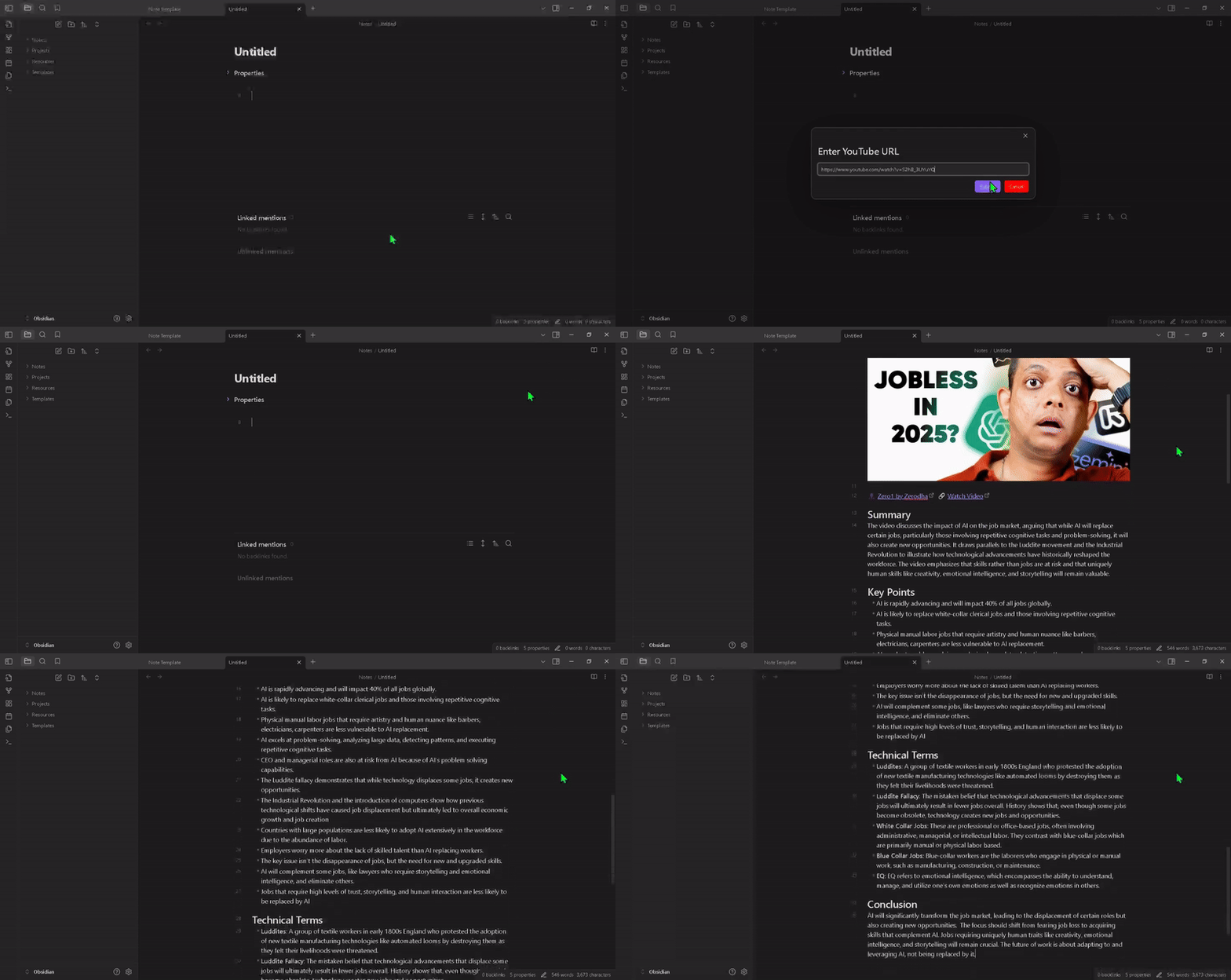
Features
- 🎥 Extract transcripts from YouTube videos
- 🤖 Generate summaries using various LLMs: Gemini, OpenAI, Anthropic (Claude), and other compatible models
- 📝 Create structured notes with key points
- 🔍 Identify and explain technical terms
- 📊 Format summaries with metadata and tags
Installation
- Open Obsidian Settings
- Go to Community Plugins and disable Safe Mode
- Click Browse and search for "YouTube Video Summarizer"
- Install and enable the plugin
Requirements
- Obsidian v0.15.0+
- API key for one of the supported LLM providers:
- Gemini API key (Get one here)
- OpenAI API key (Get one here)
- Anthropic API key (Get one here)
- Key for any LLM provider, offering OpenAI or Antropic compatible API
Configuration
Initial Setup
To start using the YouTube Video Summarizer plugin, you need to:
- Navigate to the plugin settings by clicking on the Settings icon in Obsidian and finding "YouTube Video Summarizer" in the Community plugins section.
- In the "AI Providers" tab, select an AI provider (Gemini, OpenAI, Anthropic, etc.) by expanding its section.
- Enter your API key for the selected provider.
- Choose an active model from the dropdown at the top of the settings page.
Once these steps are completed, the plugin is ready to generate summaries of YouTube videos.
Managing AI Models
Each AI provider comes with pre-configured models, but you can add, edit, or remove models based on your needs.
You can add a new model by clicking the "Add Model" button within a provider section. You'll need to specify the model name (technical name used by the API) and optionally a display name. For editing models, only the display name can be modified as the model name is the technical identifier used by the API.
Note for OpenAI users: Make sure that both default and custom models you use are available in your OpenAI project. You can verify model availability in your OpenAI dashboard.
Adding Custom AI Providers
The plugin supports adding custom AI providers that are compatible with OpenAI or Anthropic APIs. This is useful for services like OpenRouter, Grok, or self-hosted models.
To add a custom provider, click the "Add Provider" button at the bottom of the AI Providers tab. You'll need to specify a name for your provider, select the API compatibility type, enter your API key, and optionally set a custom API endpoint URL.
Examples of compatible providers:
- OpenRouter has been tested with this plugin using the endpoint URL:
https://openrouter.ai/api/v1. You can find your API keys at OpenRouter Settings and explore available models on their website.- Grok has been tested using the endpoint URL:
https://api.x.ai/v1. API keys and model names can be found in the Grok console.- Any other provider with compatible API endpoints can also be added
Custom providers can be edited or removed using the respective icons next to their names.
Selecting the Active Model
At the top of the settings page, you can select which model will be used for generating summaries from the "Active Model" dropdown. This dropdown shows all available models from all configured providers.
After selecting a model, it will be used for all summary operations until you change it again.
Summary Settings
The Summary Settings tab provides several options for customizing how your video summaries are generated:
Summary Prompt: Allows you to customize the instructions sent to the AI model. This is useful if you need specialized summary formats or want to focus on specific aspects of videos.
Maximum Number of Tokens: You can safely increase this value depending on your provider:
- For Gemini and Anthropic: Up to 8,000 tokens
- For OpenAI: Up to 16,000 tokens with gpt-4o-mini or up to 32,000 tokens with GPT-4.1 models
If the summary is truncated (i.e., it hit the token limit), the plugin appends a warning: [Summary truncated due to max token limit. Please increase 'Max Tokens' in settings.]
Temperature: Adjust this value to control how deterministic or creative your summaries will be. Lower values (closer to 0) produce more consistent and focused summaries, while higher values introduce more creativity and variation.
Model pricing is displayed in the settings UI — next to each model in the provider accordions and in the active model dropdown.
Usage
Method 1: Command Palette
- Copy YouTube URL
- Open command palette (
Ctrl/Cmd + P) - Search for "Summarize YouTube Video"
- Paste URL when prompted
Method 2: Selection
- Paste YouTube URL in note
- Select the URL
- Use command palette or context menu to summarize
Method 3: Summarize with Custom Prompt
- Copy YouTube URL
- Open command palette (
Ctrl/Cmd + P) - Search for "Summarize YouTube Video (with prompt)"
- Paste the URL
- Enter custom instructions in the prompt modal
- The instructions are appended to the default prompt for this summarization only
Output Format
The plugin prepends video metadata at the top of the note:
# Video Title

👤 [Channel Name](channel-url) 🔗 [Watch video](video-url)
The section headings and content below are generated by the AI model following the configured summary prompt. By default, the AI is instructed to produce sections like Summary, Key Points, Technical Terms, and Conclusion.
Support
If this plugin helps your YouTube + Obsidian workflow, consider supporting development.
❤️ Sponsor this plugin on GitHub
Your support helps maintain the plugin, fix bugs, improve documentation, and add new features. No pressure — starring the repo or sharing feedback also helps a lot.
License

This project is licensed under the MIT License - see the LICENSE file for details.
For plugin developers
Search results and similarity scores are powered by semantic analysis of your plugin's README. If your plugin isn't appearing for searches you'd expect, try updating your README to clearly describe your plugin's purpose, features, and use cases.