AI Model Workbench
approvedby flash555588
Turn 3D models into linked knowledge assets. - This plugin has not been manually reviewed by Obsidian staff.
AI Model Workbench
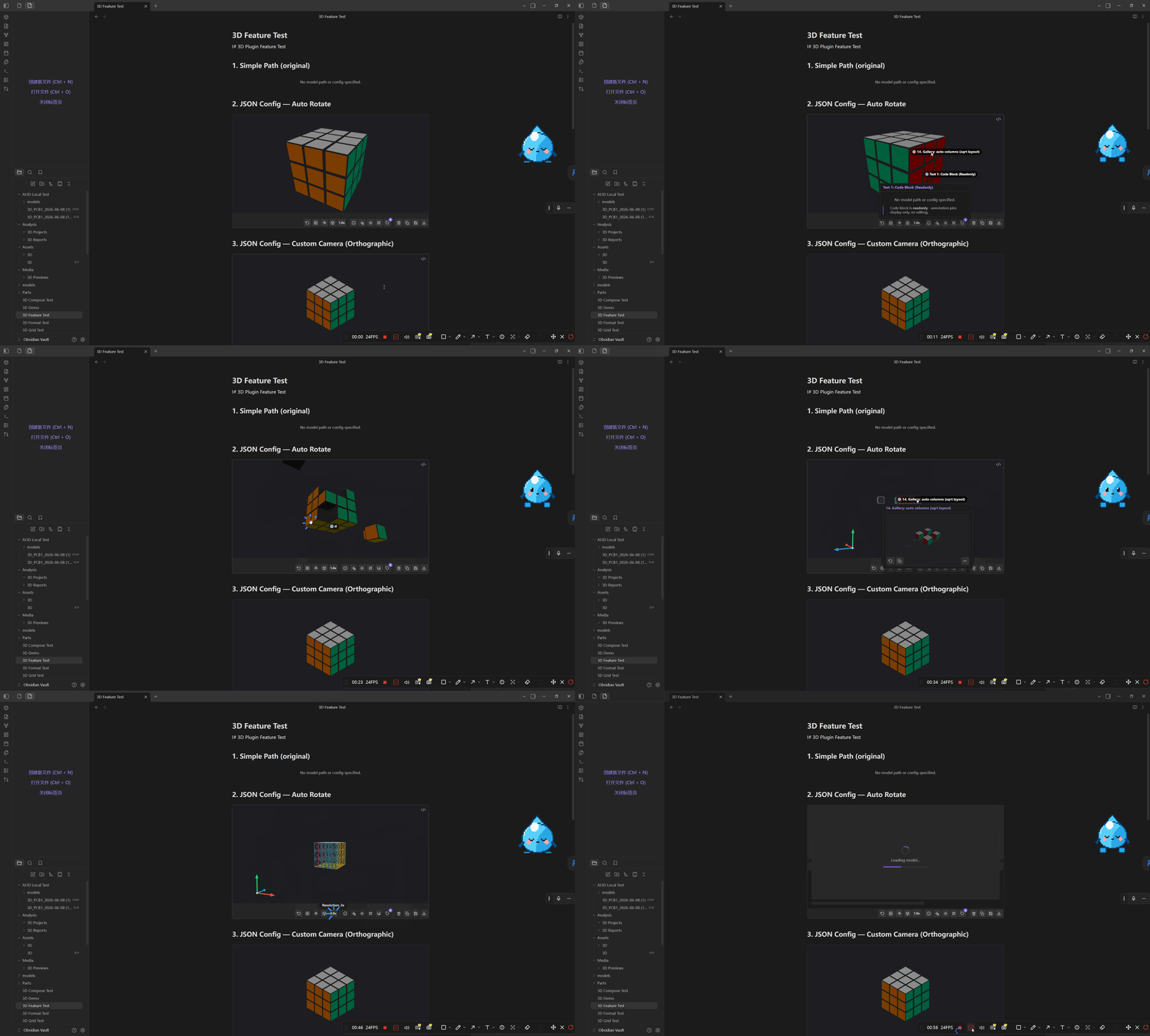
A local-first Obsidian 3D viewer focused on knowledge workflows. It renders common 3D assets in local WebGL viewports, lets you annotate key parts, and turns models into linked notes. Single-model previews (GLB, GLTF, STL, PLY, OBJ) use Babylon.js compatibility mode by default, with Three.js available as an explicit opt-in rollout across reading surfaces and direct file view. The file-view workbench can opt into an experimental Three.js GLB/GLTF path with Babylon.js fallback, while
3dgridand SPLAT stay on the Babylon.js capability path that fits them best.
English | 简体中文
Important: STEP/STP support is conversion-only, not direct rendering. STEP files require Obsidian Desktop plus a configured local Python + CadQuery/OCCT converter. Mobile cannot run STEP conversion, and large or complex STEP/PCB assemblies can take a long time on first open or fail if the local CAD environment is missing. If reliability matters, pre-convert the model to GLB or check the plugin's converter diagnostics before troubleshooting the viewer.
Table of Contents
- Features
- Warnings And Risks
- Current Release
- Platform Support Matrix
- Quick Start
- Installation
- Format Support
- Usage
- Settings
- External Dependencies
- Security & Privacy
- Funding
- Technical Details
- Known Limitations
- Deployment
- License
Features
- Direct mesh preview for GLB/GLTF, STL, OBJ, and PLY (Babylon.js compatibility mode by default, Three.js opt-in)
- Optional conversion for CAD, FBX, 3MF, and DAE assets
- Hybrid preview routing: single-model previews default to Babylon.js compatibility mode, with explicit Three.js rollouts for GLB/GLTF/STL/PLY/OBJ
- Inline and file previews: Live Preview, code blocks, and direct file view
- Grid system: render multiple models in a single viewport with presets
- 3D annotations: click-to-pin bookmarks with labels, colors, and depth-aware occlusion
- Knowledge notes: generate structured Markdown from loaded models, preserve meaningful small-part candidates, and auto-register captured parts for cross-model reuse checks
- Snapshots: copy, save, or download rendered previews as PNG
- i18n: English and Simplified Chinese with auto-detect system locale
- Desktop support: Obsidian Desktop on Windows, macOS, and Linux
- Mobile support: iOS, iPadOS, and Android support direct formats, inline previews, and direct file view
Warnings And Risks
- STEP/STP and CAD files are not direct-render formats. They need desktop conversion first. Missing Python packages, incompatible CAD geometry, very large assemblies, or converter timeouts can prevent preview even when the plugin itself is installed correctly.
- Local converters are external desktop tools. They parse model files on your machine. Use trusted model files, keep converter command paths explicit, and check converter diagnostics before running unknown CAD, FBX, 3MF, DAE, or SLDPRT assets.
- Large models can stress Obsidian. Big GLB files and converted STEP/PCB assemblies can consume high CPU, GPU, RAM, and disk I/O, stall the UI, trigger WebGL context loss, or take minutes on first open. Lower render quality/scale, open one heavy model at a time, and prefer pre-converted GLB for repeat work.
- Generated side files can be large or sensitive. Converted GLBs, snapshots, reports, indexes, and JSON sidecars may include filenames, assembly names, part IDs, dimensions, geometry summaries, and preview images. Put auxiliary files in an intentional folder and exclude them from sync or Git if needed.
- Renderer routes can look different. Babylon.js compatibility mode is the safest path. Three.js fast paths can be faster, but colors, picking, measurement, or toolbar behavior may differ on some assets. Disable the Converted GLB Three fast path or switch back to compatibility mode when diagnosing display issues.
- Mobile support is direct-format only. Mobile can view GLB/GLTF/STL/OBJ/PLY and already-converted GLB files, but it cannot run local conversion tools or converter diagnostics.
- Remote drafting is optional and should be treated as sensitive. The plugin is local-first by default, but configured remote draft requests can include sanitized evidence such as model basenames, part names, counts, and dimensions. Vault paths, user notes, tags, and note references are always removed.
Current Release
0.8.1 is the current Obsidian source-review compatibility release.
Release highlights:
- Removes the forbidden source-review lint suppressions from the settings implementation.
- Uses
requireApiVersion("1.13.0")to expose declarative settings only when the host supports them, while retaining the older imperative renderer through a plugin-owned method. - Documents the limited, user-triggered vault enumeration used by model selection and annotation heading search.
- Verifies the real settings window in Obsidian 1.13 and guarantees temporary verification-vault cleanup.
- Preserves all
0.8.0measurement, preview, conversion, privacy, and renderer behavior.
See docs/release-notes/0.8.1.md, docs/release-notes/0.8.0.md, and CHANGELOG.md for the full release history.
Platform Support Matrix
| Capability | Windows / macOS / Linux | iOS / iPadOS / Android |
|---|---|---|
| Direct formats (GLB, GLTF, OBJ, STL, PLY) | Yes | Yes |
| Direct file view | Yes | Yes |
| Inline embed / Live Preview for direct formats | Yes | Yes |
| Local conversion (CAD, FBX, 3MF, DAE, SLDPRT) | Yes | No |
| Converter diagnostics and local CLI checks | Yes | No |
Already converted .ai3d-converted.glb assets | Yes | Yes |
Quick Start
- Install the plugin from Obsidian, a release download, or a local build.
- Put a supported model file into your vault, for example
model.glb. - Embed it in any note:
![[model.glb]]
![[model.glb|400x300]]
You can also click a supported model file in the file explorer to open the direct file view.
Installation
Choose one install path, then use the embed syntax from Quick Start.
Requirements
- Obsidian 1.5.0 or later
- Obsidian Desktop on Windows, macOS, or Linux for local tool-based conversion
- A local Obsidian vault folder on your computer
- This plugin folder inside the vault:
<vault>/.obsidian/plugins/ai-model-workbench/
All install methods place the same three files in that folder:
| File | Size | Description |
|---|---|---|
main.js | ~3.9 MB | Plugin runtime bundle |
manifest.json | ~1 KB | Obsidian plugin manifest |
styles.css | ~40 KB | Plugin styles |
Direct rendering works on desktop and mobile. Local converter tools for CAD, FBX, 3MF, and DAE require desktop OS access.
Option A: Build from Source
- Clone the repository and build the plugin:
git clone https://github.com/flash555588/ai-model-workbench.git
cd ai-model-workbench
npm install
npm run build
- Install the built files into a vault:
# Install to the bundled test vault
npm run install:vault

# Or install to your own vault
npm run install:vault -- --vault "C:\path\to\your-vault"
The installer copies main.js, manifest.json, and styles.css into .obsidian/plugins/ai-model-workbench/ and enables ai-model-workbench in community-plugins.json.
- If Obsidian is already open, reload the app or disable and re-enable
AI Model WorkbenchinSettings > Community Plugins.
Manual fallback: create <vault>/.obsidian/plugins/ai-model-workbench/, copy main.js, manifest.json, and styles.css into that folder, then enable AI Model Workbench in Obsidian.
Option B: Download a Release
- Download
main.js,manifest.json, andstyles.cssfrom Releases. - Create
<vault>/.obsidian/plugins/ai-model-workbench/if it does not exist. - Put the three files in that folder.
- In Obsidian, enable
AI Model WorkbenchinSettings > Community Plugins.
Option C: Symlink for Development
- Make sure
<vault>/.obsidian/plugins/already exists. - Create a symlink named
ai-model-workbenchthat points to this repository.
Windows (PowerShell):
New-Item -ItemType SymbolicLink `
  -Path "C:\path\to\your-vault\.obsidian\plugins\ai-model-workbench" `
  -Target "C:\path\to\ai-model-workbench"
macOS / Linux:
ln -s /path/to/ai-model-workbench \
  /path/to/your-vault/.obsidian/plugins/ai-model-workbench
- In this repository, run
npm installonce if needed. - Run
npm run devwhile developing. - In Obsidian, enable
AI Model WorkbenchinSettings > Community Plugins.
After Install
If Obsidian is already open, reload the app or disable and re-enable AI Model Workbench. Then add a supported model file to the vault and use the Quick Start embed syntax.
Security & Privacy
AI Model Workbench does not collect telemetry, phone home, or run background network sync. Model previews are loaded from files already present in the Obsidian vault, and OBJ material/texture references are resolved from the vault instead of being fetched from the network.
The plugin enumerates vault file paths only for user-triggered features that require discovery: the model picker filters the vault for supported 3D assets, and annotation heading search filters cached Markdown heading metadata. Heading search does not read every note body; note content is read only after the user selects a heading for preview or binding.
The bundled Babylon.js runtime contains generic loader utilities that are capable of loading URLs for web applications. This plugin passes vault file bytes to Babylon as data URLs, overrides OBJ MTL loading to avoid remote fetches, and installs a runtime guard that rejects explicit http(s) / ws(s) asset or script URLs while disabling Babylon retry hooks for those requests. Optional converter diagnostics and conversions run only after a user action and execute local tools on desktop platforms.
Knowledge-note generation is local-only by default. If you configure an optional remote draft service, the plugin sends only the selected evidence payload to your configured POST /draft-note endpoint. The current client refuses raw model upload, and geometry summaries or preview image references must be enabled explicitly before they are included.
Copied diagnostics reports are sanitized for public support use: draft service URLs, converter command paths, and vault-relative model/report/index paths are omitted or redacted while preserving renderer state, counts, and status summaries.
Release assets are limited to the three files Obsidian downloads: main.js, manifest.json, and styles.css. GitHub Actions builds these files from source and publishes artifact attestations for provenance verification.
Funding
AI Model Workbench does not include donation prompts, payment flows, or cryptocurrency wallet addresses in the plugin bundle.
Format Support
Direct Rendering (No External Tools)
| Format | Extension | Features |
|---|---|---|
| GLB / GLTF | .glb .gltf | PBR materials, animations, textures, scene hierarchy; .gltf resolves vault-relative .bin and texture files |
| STL | .stl | Binary format, per-face colors (VisCAM/SolidView) |
| OBJ | .obj | MTL materials, vault-relative texture resolution, case-insensitive same-folder texture fallback |
| PLY | .ply | ASCII/binary, vertex colors, point cloud support |
SPLAT preview is temporarily disabled in packaged builds while its loader is replaced with a local-only implementation.
SPLAT Status and Roadmap
- Current status: SPLAT preview is temporarily disabled in community release builds. GLB, GLTF, STL, OBJ, PLY, and the current local conversion routes are unaffected.
- Why: the current Babylon SPLAT/SPZ loader still carries dynamic script and remote module fallback paths. The plugin runtime already rejects remote requests, but the packaged release also aims to remove those paths from the shipped bundle to reduce review and static-scan risk.
- Roadmap: first restore local-only
.splatloading; then reopen it after idle-render stability is improved for Windows and large scenes; finally evaluate.spzseparately, and only re-enable it if the decoder dependencies can be bundled locally and reviewed as local assets.
Conversion (Requires External Tools)
STEP/STP note: STEP is supported through local conversion to GLB only. It is not a browser/WebGL-native format and depends on the desktop converter environment shown in plugin settings.
| Format | Extension | Converter | Output |
|---|---|---|---|
| STEP | .step .stp | Python + CadQuery/OCCT | GLB |
| IGES | .iges .igs | Python + CadQuery/OCCT | GLB |
| BREP | .brep | Python + CadQuery/OCCT | GLB |
| SLDPRT | .sldprt | FreeCAD | GLB |
| 3MF | .3mf | Python + trimesh | GLB |
| DAE | .dae | Python + trimesh | GLB |
| FBX | .fbx | FBX2glTF | GLB |
STEP conversion preserves XDE assembly/component labels when available, exporting each component as its own GLB node with extras.ai3d identity metadata. PCB STEP files from tools such as EasyEDA can therefore register reference-designator parts like R1, USB1, and U4 instead of collapsing the board into one mesh.
Format Feature Matrix
| Feature | GLB/GLTF | STL | OBJ | PLY | FBX (converted) | CAD |
|---|---|---|---|---|---|---|
| Mesh | Yes | Yes | Yes | Yes | Yes | Yes |
| Point Cloud | No | No | No | Yes | No | No |
| Materials | PBR | Basic | MTL | Basic | Basic | No |
| Textures | Embedded | No | External | No | No | No |
| Colors | Vertex | Face | No | Vertex | No | Face (STEP) |
| Animation | Yes | No | No | No | Yes | No |
Usage
The README keeps only the common entry points. Full workflow and syntax details now live in dedicated docs:
- Usage Guide - preview surfaces, direct file view, annotations, measurements, snapshots, knowledge notes, part evidence, conversion, performance tips, and troubleshooting.
- Common Usage Syntax - copy-paste examples for
wikilink embeds,
3dblocks,3dgridblocks, common fields, supported extensions, and shortcuts.
Quick examples:
![[model.glb]]
![[model.glb|400x300]]
```3d
model.glb
```
```3dgrid
{
  "models": [
    { "path": "v1.step" },
    { "path": "v2.step" }
  ],
  "preset": "compare"
}
```
For model review, open a supported model file directly from the Obsidian file
explorer. Direct file view is the focused surface for annotations, measurements,
snapshots, part evidence, and knowledge-note generation.
Measurement endpoints lock onto the selected object and snap to its mesh
vertices and triangle edges by default for precise short-distance work. If no
object is selected, the first measurement click selects the target; hold
Alt/Option while placing an endpoint to use the free surface pick backup.
After measuring a known feature, the measurement inspector can scale the loaded
model uniformly to the entered real-world length so subsequent dimensions read in
physical units.
Settings
| Setting | Default | Description |
|---|---|---|
| Language | auto | UI language (English / Simplified Chinese / auto-detect) |
| Annotation preview mode | plain-text | How saved annotation content renders inside readonly previews |
| AI drafting mode | Local evidence only | Keeps knowledge-note drafting local unless an optional remote draft service is configured |
| Draft service URL | empty | Base URL for a service that accepts POST /draft-note |
| Preview compatibility mode | Compatibility mode | Controls how widely the newer single-model GLB preview path is used |
| Experimental Three workbench | off | Tries the Three.js workbench path for direct GLB/GLTF file views, with automatic Babylon.js fallback |
| Canvas height | 400 | Preview height in pixels |
| Auto-rotate | off | Start with turntable animation |
| Auto-rotate speed | 0.5 | Rotation speed (0.1-2.0) |
| Render quality | high | Quality preset (low/medium/high) |
| Render scale | 1.0 | Resolution multiplier (0.25-2.0) |
| Snapshot folder | Media/3D Previews | Export folder |
| Snapshot naming | model-name | File naming mode for exported PNG snapshots |
| Report folder | Analysis/3D Reports | Knowledge notes folder |
| Part notes folder | Parts/3D Components | Folder for generated part note drafts |
| Log level | warn | Console log verbosity |
Converter Settings
| Setting | Description |
|---|---|
| Enable CAD converter | Enable STEP/IGES/BREP via CadQuery |
| Enable SLDPRT converter | Enable SolidWorks via FreeCAD |
| Enable mesh converter | Enable 3MF/DAE via trimesh |
| Enable OBJ2GLTF converter | Optional OBJ normalization through obj2gltf |
| Enable FBX2glTF converter | Enable FBX conversion through FBX2glTF |
| Python command path (for CAD conversion) | Override the Python executable used for STEP/IGES/BREP conversion |
| FreeCADCmd path (for SLDPRT conversion) | Override the FreeCAD executable used for .sldprt conversion |
| obj2gltf command path | Override the obj2gltf CLI path |
| FBX2glTF command path | Override the FBX2glTF CLI path |
| Python command path (for 3MF/DAE conversion) | Override the Python executable used for 3MF/DAE conversion |
| Converter command diagnostics | Show which executable path the plugin will actually use and run lightweight self-checks for Python environments and converter CLIs |
Portability and diagnostics
The rendering layer is cross-platform: direct formats like GLB, OBJ, STL, PLY, and already-converted .ai3d-converted.glb assets can render anywhere Obsidian Desktop can provide WebGL.
On iOS, iPadOS, and Android, the plugin now supports direct formats such as GLB, GLTF, OBJ, STL, and PLY. Local conversion routes for CAD, FBX, 3MF, DAE, and SLDPRT remain desktop-only because they depend on external CLI tools and Python environments.
The conversion layer is less portable because it depends on local tools and Python environments that vary by machine. Use the converter diagnostics panel in plugin settings as the first check when a CAD or mesh format fails. It verifies both the executable path the plugin resolved and whether the selected Python environment can import the required packages or the native converter CLI can launch.
For repository-level implementation rules, see docs/cross-platform-development.md.
On macOS in particular, the system Python at /usr/bin/python3 often exists but does not include CAD packages. If diagnostics show that path and the self-check fails, install a separate Python environment and point the plugin setting to that interpreter explicitly.
External Dependencies
Only needed for CAD, FBX, and mesh conversion. Direct formats work without any external tools.
Python + CadQuery (STEP, IGES, BREP)
# Recommended: use a dedicated conda/mamba environment
conda create -n ai3d-cad python=3.11
conda activate ai3d-cad
mamba install -c conda-forge cadquery trimesh
# Or, if mamba is unavailable:
conda install -c conda-forge cadquery trimesh

# Pip can also work when compatible CadQuery/OCP wheels are available
python -m pip install cadquery trimesh
Verify with the Python command your OS uses:
- Windows:
py -c "import cadquery, trimesh; from OCP.STEPCAFControl import STEPCAFControl_Reader; from OCP.RWGltf import RWGltf_CafWriter; print('OK')" - macOS / Linux:
python3 -c "import cadquery, trimesh; from OCP.STEPCAFControl import STEPCAFControl_Reader; from OCP.RWGltf import RWGltf_CafWriter; print('OK')"
If diagnostics resolve to /usr/bin/python3 on macOS and the import check fails, install a separate Python (for example Homebrew Python), install cadquery and trimesh there, then set that interpreter path in plugin settings.
FreeCAD (SLDPRT)
Install FreeCAD for your platform:
- Windows: install from freecad.org/downloads
- macOS: install the app bundle or use
brew install --cask freecad - Linux: install your distro's FreeCAD package and make sure
freecadcmdis available
The plugin prefers the explicit setting and environment variable first, then checks common user-managed install locations, then PATH, and finally system fallback hints such as:
- Windows:
%LOCALAPPDATA%\Programs\FreeCAD*\bin\FreeCADCmd.exe - macOS:
/Applications/FreeCAD.app/Contents/MacOS/FreeCADCmd,/usr/local/bin/FreeCADCmd,/opt/homebrew/bin/FreeCADCmd - Linux:
/usr/bin/freecadcmd
Python + trimesh (3MF, DAE)
pip install trimesh numpy networkx pycollada
Auto-discovery: Same Python as CadQuery (see above).
Override: Environment variable AI3D_ASSIMP_CMD.
obj2gltf (OBJ, optional)
The plugin already has a built-in OBJ loader. obj2gltf is an optional alternative that can produce higher-fidelity GLB output.
Install:
npm install -g obj2gltf
Resolution order: The plugin prefers the explicit setting and environment variable first, then checks common user-managed install locations, then PATH, and finally system fallback hints such as obj2gltf.cmd on Windows and obj2gltf in standard macOS/Linux locations like /usr/local/bin/obj2gltf and /opt/homebrew/bin/obj2gltf.
Enable: Settings > Enable OBJ2GLTF converter, or set "obj2gltf path".
FBX2glTF (FBX)
FBX files are converted to GLB through the local FBX2glTF binary. The older community FBX loader is not bundled because its current release targets Babylon.js 8, while this plugin uses Babylon.js 9.
Install:
Download or build FBX2glTF for your platform and place the binary in a known location.
Resolution order: The plugin prefers the explicit setting and environment variable first, then checks common user-managed install locations, then PATH, and finally system fallback hints such as:
C:\Program Files\FBX2glTF\FBX2glTF-windows-x64.exe
C:\Program Files\FBX2glTF\FBX2glTF.exe
/usr/local/bin/FBX2glTF
/opt/homebrew/bin/FBX2glTF
/usr/local/bin/fbx2gltf
Enable: Settings > Enable FBX2glTF converter, or set "FBX2glTF path".
Environment Variables
| Variable | Purpose |
|---|---|
AI3D_FREECAD_CMD | Python command for CadQuery |
AI3D_FREECADCMD | FreeCADCmd path |
AI3D_ASSIMP_CMD | Python command for trimesh |
AI3D_OBJ2GLTF_CMD | obj2gltf command path |
AI3D_FBX2GLTF_CMD | FBX2glTF command path |
The legacy alias AI3D_FREECMDCMD is still accepted for compatibility, but new setups should use AI3D_FREECADCMD.
Technical Details
Architecture
src/
├── main.ts                    # Plugin lifecycle, commands
├── domain/
│   ├── models.ts              # Shared interfaces
│   └── constants.ts           # Default settings, extensions
├── store/
│   ├── create-store.ts        # Custom store primitive
│   └── plugin-store.ts        # Obsidian saveData bridge
├── render/
│   ├── preview/               # Renderer-agnostic abstraction layer
│   │   ├── types.ts           # ModelPreview, AnnotationPreview, WorkbenchPreview interfaces
│   │   ├── routing.ts         # Three/Babylon route decision logic
│   │   ├── factory.ts         # Dynamic import factory for renderers
│   │   ├── selection.ts       # Preview selection with logging
│   │   ├── annotations.ts     # AnnotationManager (pin overlay + occlusion)
│   │   ├── geometry.ts        # Renderer-agnostic vector math
│   │   ├── bounds.ts          # Bounding box utilities
│   │   ├── camera-fit.ts      # Camera fitting algorithms
│   │   ├── disassembly.ts     # Disassembly controller (adapter pattern)
│   │   ├── explode.ts         # Explode view (adapter pattern)
│   │   ├── report.ts          # Markdown report generation
│   │   └── summary.ts         # Model/part summary creation
│   ├── three/                 # Three.js renderer
│   │   ├── scene.ts           # ThreeModelPreview class (GLB/GLTF/STL/PLY/OBJ)
│   │   ├── loaders.ts         # Format-specific loaders with vault MTL resolution
│   │   ├── disassembly.ts     # ThreeDisassemblyAdapter
│   │   └── explode.ts         # ThreeExplodeAdapter
│   ├── babylon/               # Babylon.js renderer
│   │   ├── scene.ts           # BabylonModelPreview class
│   │   ├── grid.ts            # GridRenderer class
│   │   ├── picking.ts         # Click-to-pick with highlight
│   │   ├── loaders/
│   │   │   ├── stl-loader.ts  # Custom binary STL parser
│   │   │   ├── ply-loader.ts  # Custom ASCII/binary PLY parser
│   │   │   └── register.ts    # Babylon SceneLoader plugins
│   │   └── presets/           # Grid layout presets
├── io/
│   ├── formats/
│   │   └── registry.ts        # Format capability registry
│   ├── conversion/
│   │   ├── manager.ts         # Conversion orchestration
│   │   └── adapters/          # Converter implementations
│   └── model-pipeline.ts      # Format routing logic
└── view/
    ├── workbench/             # Knowledge-note helpers
    ├── inline/                # Code blocks, live preview
    └── direct-view.ts         # Direct file opening
Model Import Pipeline
1. Format Detection
   - getFormatCapability(ext) -> { family, strategy }
2. Source Preparation
   - strategy: "direct" -> prepareDirectLoad()
   - strategy: "convert" -> convertForPreview()
3. Preview Route Decision
   - GLB/GLTF/STL/PLY/OBJ default -> Babylon.js compatibility mode
   - GLB/GLTF/STL/PLY/OBJ opt-in rollout -> Three.js
   - 3dgrid, conservative workbench, fallback -> Babylon.js
4. Renderer Loading
   - Babylon.js -> SceneLoader or direct STL/PLY buffers
   - Three.js -> loadThreeGLTF/STL/PLY/OBJ
Why Direct Buffer Loading for STL/PLY Fallbacks
Babylon.js compatibility mode is the default single-model path, while Three.js remains available as an explicit opt-in rollout. Babylon.js still backs 3dgrid, conservative workbench, and fallback routes. Babylon.js v9 SceneLoader has a bug where custom plugins receive data URL strings instead of ArrayBuffer when loading via SceneLoader.ImportMeshAsync(). Built-in loaders (GLTF and OBJ) are unaffected.
Workaround: STL and PLY parsers are called directly with the raw ArrayBuffer, bypassing SceneLoader entirely.
Conversion Caching
- Location: Same directory as source file
- Format:
{filename}.ai3d-converted.glb - Validation: Checks converter identity, cache key, file existence
- Invalidation: Automatic when converter settings change
- Manual clear: Command palette > "Clear Conversion Cache"
Known Limitations
| Issue | Affected Formats | Workaround |
|---|---|---|
| External converter required | FBX | Install and enable FBX2glTF |
| External tools required | STEP/IGES/BREP/SLDPRT | Install Python + CadQuery or FreeCAD |
| Texture path resolution | OBJ | Place textures beside the OBJ/MTL; missing textures show a non-blocking asset warning |
| External resource path resolution | GLTF | Keep .bin and textures in the vault beside the .gltf or in referenced relative folders |
| Conversion timeout | SLDPRT | 10-minute timeout for complex assemblies |
Deployment
Prerequisites
- Node.js >= 18
- npm >= 9
- Obsidian >= 1.5.0
Build Commands
npm install           # Install dependencies
npm run dev           # Development build with watch
npm run build         # Production build
npm run typecheck     # TypeScript type check
npm run verify:preview  # Targeted browser preview smoke test
npm run verify:preview:success  # Full preview routing success suite
npm run verify:obsidian  # End-to-end Obsidian app smoke test
npm run verify:release   # Release asset version/hash/size check
npm run verify:settings  # Legacy data.json/default-settings migration check
npm run verify:remote-draft  # Remote draft privacy/client behavior check
npm run verify:knowledge-index  # Knowledge index link and refresh regression check
npm run verify:diagnostics  # Sanitized diagnostics report regression check
Preview Verification
Run npm run verify:preview:success before shipping preview changes. For a focused default-route check, npm run verify:preview still works. The harness auto-detects common Chrome, Edge, Chromium, and Brave installs on Windows, macOS, and Linux; set PLAYWRIGHT_CHROMIUM_EXECUTABLE only when using a custom browser path. The success suite launches a temporary Playwright harness, loads models/rubiks-cube-3x3.glb, and verifies:
- default simple
GLBpreview - default direct-edit
GLBpreview - default readonly saved-pin
GLBpreview - reading-surfaces-only rollout behavior
- compatibility-mode rollback behavior
- workbench Babylon fallback routing and experimental Three.js workbench probe
- direct-format
STL,PLY, andOBJpreview routing - helper toolbar interactions, focus mode, moving-pin occlusion, selected-part export, performance snapshots, and wheel-scroll containment
If verification fails, the script saves a screenshot and a log with preview state plus browser messages under .tmp/preview-failures/.
Obsidian Verification
Run npm run verify:obsidian before release when Obsidian is installed and the host can launch it. The script builds a temporary test vault under the OS temp directory, installs the packaged plugin, opens a note in Obsidian through a remote debugging port, trusts the temporary vault when prompted, confirms that GLB/STL preview canvases are loaded, checks converter feedback for an FBX route without FBX2glTF enabled, then opens the real GLB file view with Experimental Three workbench enabled and checks backend selection, focus/disassembly controls, annotation mode, diagnostics command availability, and knowledge-note generation.
Use npm run verify:obsidian -- --clean when you want the temporary vault removed after the run. The clean path quits Obsidian and unregisters the temporary vault before deleting it so the developer console does not keep reporting stale vault reads.
Knowledge Note Verification
Run npm run verify:knowledge-index after changing generated reports, part drafts, or model index behavior. The script bundles the knowledge-note helpers with a small Obsidian shim, builds a representative model index, refreshes the AI-managed block, and confirms user-written notes remain intact.
Build Output
ai-model-workbench/
├── main.js           # ~3.8 MB (minified plugin runtime bundle)
├── manifest.json     # Plugin manifest
├── styles.css        # Plugin styles
└── src/              # Source code
Release Publishing
Releases are published by the GitHub Actions Release workflow. Push a tag that matches manifest.json, for example 0.8.0, or run the workflow manually. The workflow uploads only main.js, manifest.json, and styles.css, removes unsupported release assets, verifies asset sizes and SHA-256 hashes, includes versioned release notes when available, and generates GitHub artifact attestations for the published files. After a release is published, run npm run verify:obsidian -- --release-tag 0.8.0 to install the assets downloaded from GitHub into the temporary Obsidian vault.
Release Token Safety
Prefer GitHub Actions or GitHub CLI browser login for publishing. See SECURITY.md for the token safety checklist and PAT leak response.
Bundle Size Optimization
The rendering runtimes dominate the bundle size. The project keeps the output in check with:
- Subpath imports (
@babylonjs/core/Engines/engine.js) instead of barrel imports - Tree-shaking to remove unused features
- esbuild for fast, optimized bundling
Because the shipped preview mix now includes both Babylon and Three paths, the exact bundle size moves as routing coverage changes. Treat the build output above as the current reference point rather than a fixed ceiling.
Acknowledgments
Thanks to the LinuxDo community (https://linux.do) for their support.
For plugin developers
Search results and similarity scores are powered by semantic analysis of your plugin's README. If your plugin isn't appearing for searches you'd expect, try updating your README to clearly describe your plugin's purpose, features, and use cases.