STEP Viewer
approvedby ondreu
Open and view STEP (.step/.stp) and STL, OBJ, CAD, FCStd models in an interactive 3D viewer. - This plugin has not been manually reviewed by Obsidian staff.
STEP Viewer for Obsidian
View CAD models directly inside Obsidian in an interactive 3D viewer. Click a
supported file in the file explorer and it opens in a
three.js-powered viewer with orbit / pan / zoom, model
colours, edges, measurement, annotations and a navigation cube — or embed a
model inline in any note.
Supported formats:
- STEP (
.step/.stp) — full B-rep parsing with assembly hierarchy and per-face colours. - FreeCAD (
.FCStd) — native FreeCAD documents; the visible objects are rendered with their placements and colours. - OBJ / STL — plain triangle meshes.
Geometry parsing is done with
occt-import-js (OpenCASCADE
compiled to WASM), which reads both STEP and the BREP shapes stored inside
FreeCAD documents.

Mobile support (beta). The plugin also runs on Obsidian mobile: the layout adapts to small touchscreens and orbit / pan / pinch-zoom work with touch (tap a part to see its info). Because the WASM parser can run out of memory on large models in the mobile webview, opening a large file first shows a warning you can dismiss to continue.
Screenshots
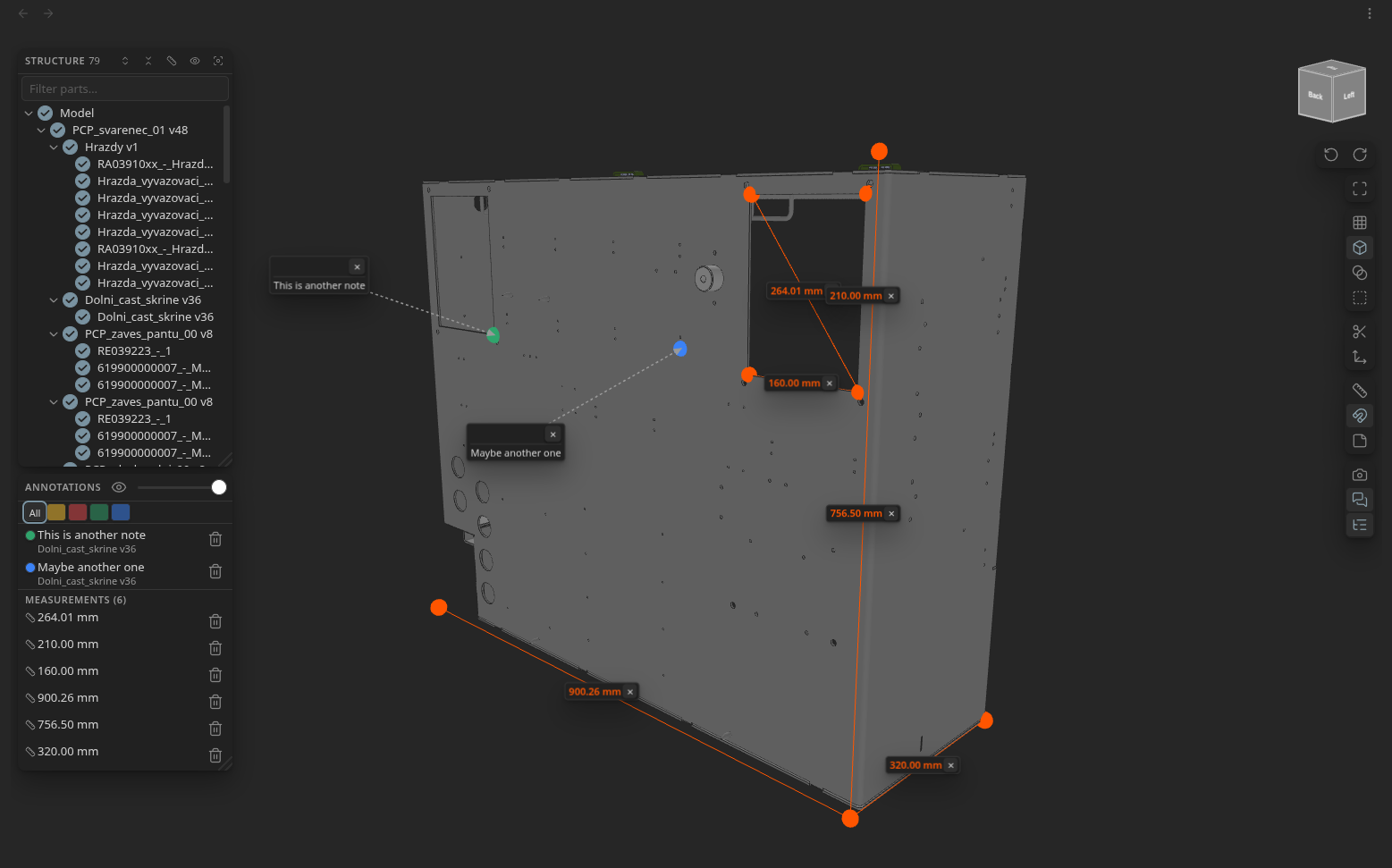
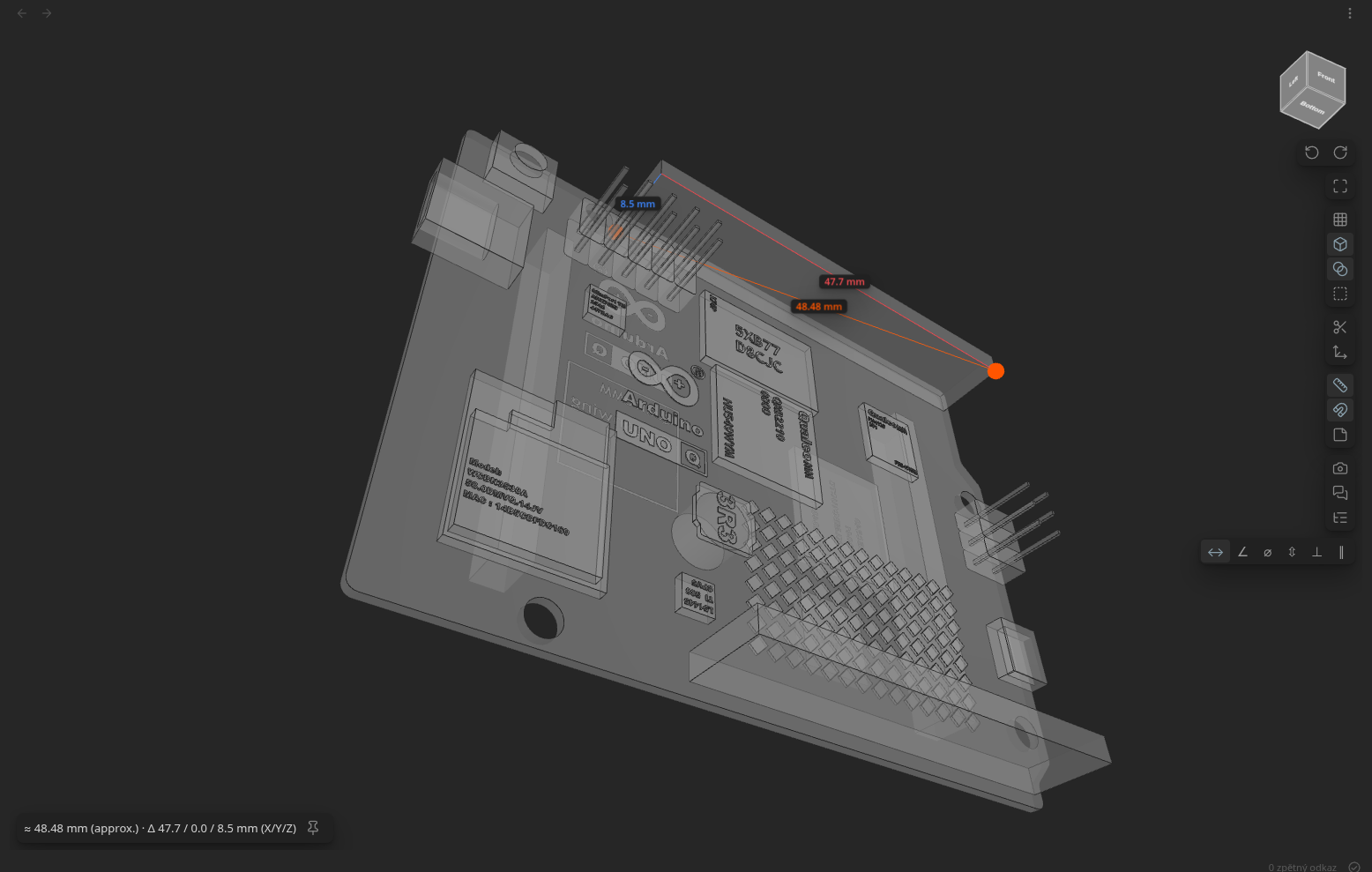
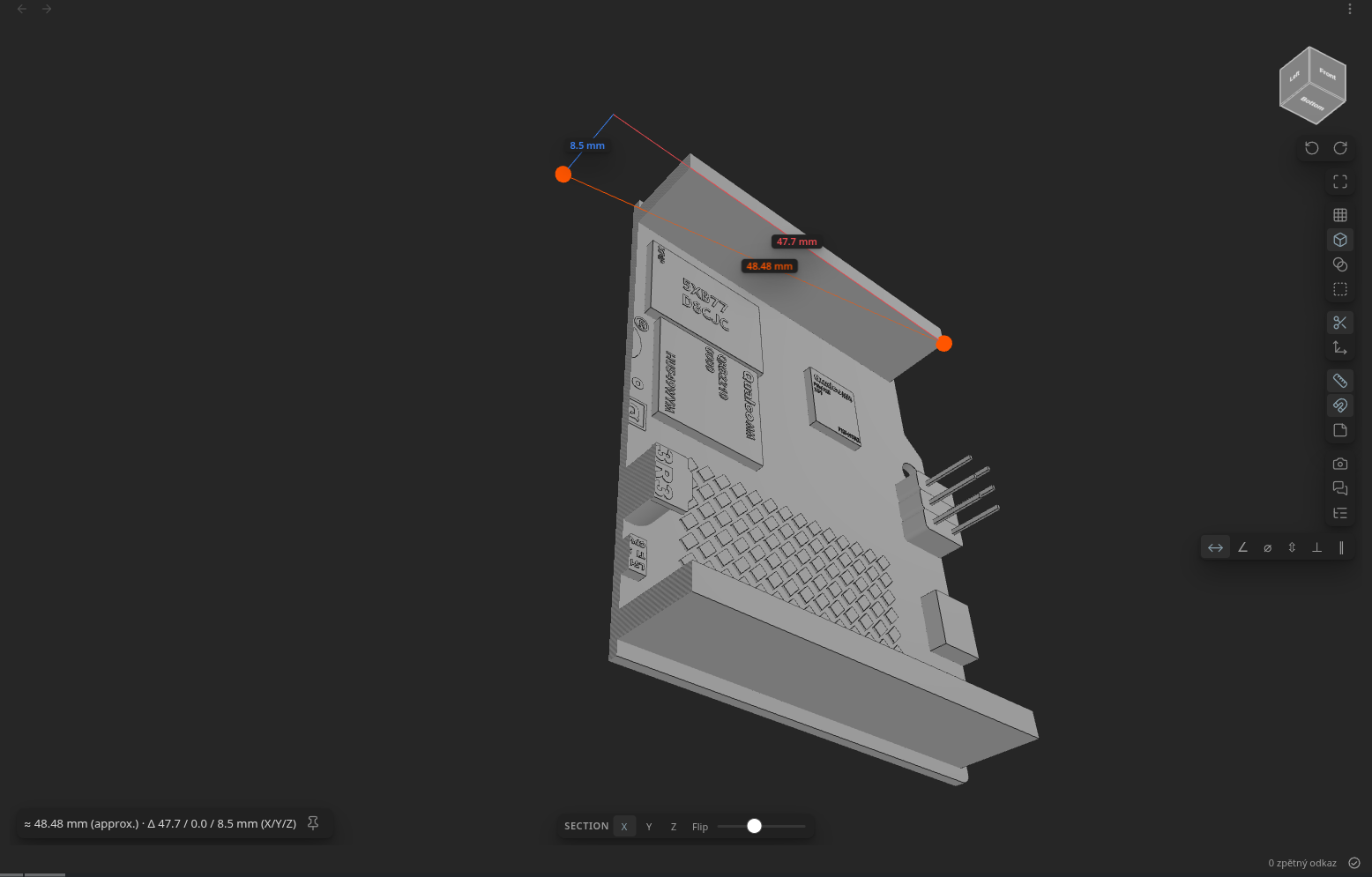
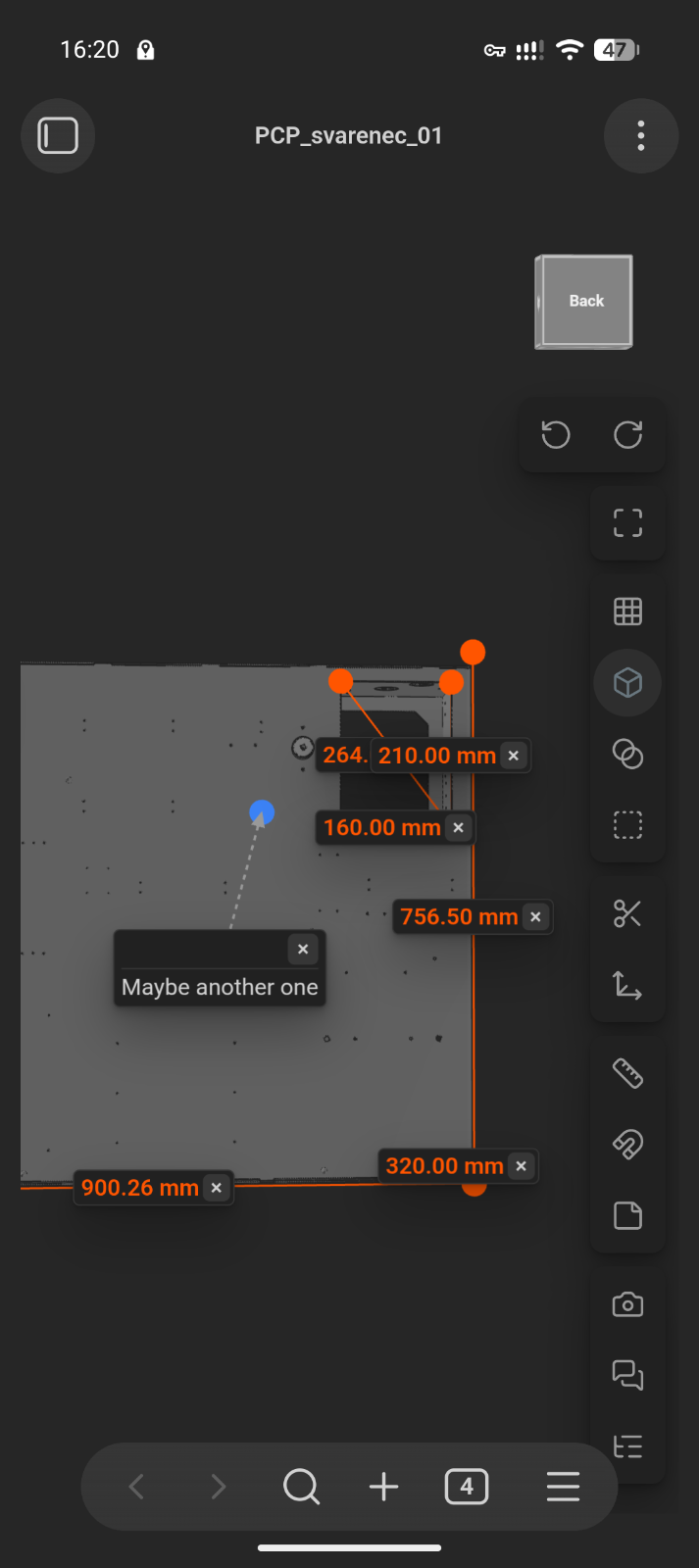
Install
Install from the Obsidian Community Plugins browser (search for "STEP Viewer"), or install manually:
Download main.js, manifest.json and styles.css from the
latest release into
<vault>/.obsidian/plugins/step-viewer/, then enable the plugin.
Features
- Open CAD files straight from the file explorer —
.step/.stp,.FCStdFreeCAD documents, and.obj/.stltriangle meshes. - FreeCAD documents — a
.FCStdfile is a ZIP of native BREP shapes; the plugin unzips it, renders every object that is visible in FreeCAD, applies each object's placement, and colours it from its FreeCAD shape colour. Sketches, datums and hidden construction features are skipped. - Export the selected part (or the whole model) as an
.objmesh. - 3D rendering with
three.js: orbit / pan / zoom, per-face colours from the model (default material otherwise), edge display, and auto-fit on load. - Navigation cube (top-right) that tracks the camera — click a face to snap to a standard view (front / back / top / bottom / left / right), with ↶ / ↷ arrows that animate a 90° roll.
- Wireframe and transparency toggles (transparency reveals internals). Right-click a part to swap it between solid and transparent on its own.
- Perspective / orthographic projection toggle (orthographic is often better for judging CAD proportions).
- Section plane — a movable clipping plane (X / Y / Z axis, flip side, and a position slider) that cuts into the model to inspect internal dimensions. The cut face is filled with a hatch pattern (stencil cap) so cut solids read as solid rather than hollow.
- Explode view — a slider that spreads an assembly's top-level parts outward from its centre.
- Isolate — hide everything except the selected part; annotations and measurements anchored outside that part are hidden with it.
- Hover / selection info — the part under the cursor is highlighted and an info panel (bottom-right) shows its name, assembly path, material (read from the STEP metadata when present), bounding-box size, approximate volume and surface area, colour swatch and triangle count; the matching node is revealed in the structure tree. Clicking a part pins its info card so it stays shown when the cursor moves away.
- Structure tree — the assembly hierarchy, with per-part visibility toggles and click-to-frame. The panel is resizable (drag the corner grip), the expand / collapse buttons step one level at a time across the whole tree, and an auto-measure button pins the selected part's (or the whole model's) bounding-box L × W × H as measurements in one click.
- Measurement types — choose from a strip below the ruler button:
- Distance — two points: straight-line distance plus per-axis X / Y / Z components, as colour-coded legs and numbers beside each line.
- Angle — three points (the corner is the 2nd).
- Radius / diameter — three points around a circular edge (circle fit).
- Thickness — a point on a face; a ray through the solid finds the far side.
- Point → face — perpendicular distance from a point to a face's plane.
- Face → face — distance between two faces along the first face's normal.
- Pinned measurements — press the 📌 pin button in the readout to keep a measurement. Pinned measurements are parented to the model (so they follow rolls) and are saved per file; each has a distance label with a delete button. They're also listed in the annotations panel (click a row to fly to it), and their end markers scale with zoom so they stay a constant on-screen size.
- Snap to corners / edges — the magnet toggle snaps both measurement and annotation picks to the nearest visible vertex/edge, with a live preview marker (green when snapping, orange when free).
- Annotations — pin editable notes to points on the model; they follow the
part through rolls and are saved per file. Their anchor pins scale with
zoom to stay a constant on-screen size. An annotations list panel lists each
note (and the pinned measurements) with a show/hide toggle — which hides notes
and measurements together — and an opacity slider that fades the notes,
their anchor pins and their leader arrows. Each note has per-note controls:
- Hover-only — collapse the note to a dot and reveal the text on hover.
- Leader — drag a note off the model (or use the leader button) to pull it out to the side; a dashed line with an arrowhead points back to its anchor. Drag again to reposition; the leader button snaps it back.
- Category colour — a swatch opens a palette of presets (Note / Issue / OK / Info) plus a custom colour picker for any colour; the list panel can filter by category. You can also recolour a note straight from the list by clicking its colour dot.
- Markdown — note text renders as Markdown in read state (click to edit).
- Link — attach an Obsidian note (wikilink); a ↗ chip opens it.
- Screenshot — capture the current view (model + measurement/note captions) as a PNG saved next to the model, with an embed link copied to the clipboard.
- Adaptive quality — mesh detail is reduced automatically as files grow (configurable in settings), and parsed geometry of large models is cached off-vault so reopening them is near-instant.
- Note embeds — render a model inline in any note (see below).
Measurement and annotations are approximate. They run against the tessellated mesh, not the exact B-rep geometry, so readings are close to — but not exactly — the true CAD dimensions. The measurement readout is labelled
(approx.)accordingly.
Usage
Open any supported file from the file explorer. The toolbar (top-right, below the navigation cube) provides:
| Button | Action |
|---|---|
| Fit | Reset / fit the camera to the model |
| Wireframe | Toggle wireframe rendering |
| Edges | Toggle edge display |
| Transparency | Make surfaces translucent to see inside |
| Projection | Switch perspective ↔ orthographic |
| Section | Show the clipping-plane control (axis / flip / position) |
| Explode | Show the explode slider |
| Measure | Enable measuring; pick a type from the strip that appears |
| Snap | Snap measurement/annotation picks to corners & edges |
| Annotate | Click a point to pin an editable note |
| Screenshot | Save a PNG of the current view next to the model |
| Annotations | Open the annotations list panel |
| Structure | Open the assembly structure tree |
The buttons are split into separate cards by group (framing · appearance · inspect · measure/annotate · output/panels). The ↶ / ↷ arrows below the cube roll the view; clicking a cube face first undoes any roll so the view snaps to a clean, upright standard view.
Hovering a part in the model highlights it; clicking a part selects it (the highlight sticks, and its info card stays pinned) and reveals it in the structure tree — hovering never scrolls the tree. In the structure tree, hover a row to highlight that part in 3D, click it to select and frame it, and use the header controls to expand/collapse one level at a time, toggle all visibility, auto-measure the selection's bounding box, filter by name, or isolate the selection. Drag the panel's bottom-right grip to resize it.
Embedding a model in a note
```step
path: Models/bracket.step
height: 320
view: front          # optional: front/back/left/right/top/bottom/iso
rotate: 90           # optional: initial roll in degrees (or `roll: 1` in quarter turns)
annotations: false   # optional: hide saved notes in this embed (default true)
quality: detailed    # optional: fastest/balanced/detailed, or a coarseness like 0.01
```
path accepts a wikilink target ([[bracket.step]]) or a vault-relative path;
height is optional (pixels, default 400). Each embed mounts its own viewer
when it scrolls into view and is disposed when it scrolls away, so a note with
many embeds doesn't exhaust the browser's limited WebGL contexts.
Annotations and pinned measurements are keyed by file path, so notes and measurements added in the full view also appear in embeds of the same model, and vice versa.
Settings
- Performance profile — how aggressively mesh detail is reduced as files grow (Fastest / Balanced / Detailed), with an advanced size → coarseness table for fine control.
- Reconstruct missing faces — rebuild flat faces the STEP reader couldn't tessellate so they render solid (see Troubleshooting). On by default.
- Cache — parsed geometry of large models (≥ 15 MB) is cached off-vault (IndexedDB, never synced) so reopening is near-instant; the cache size cap is configurable and it can be cleared from settings.
Troubleshooting
Some surfaces render as hollow "frames" (you can see through them). A few
STEP files describe faces the geometry kernel can't tessellate — the surface
comes back with no interior triangles, so it renders as just its outline (the
reader, occt-import-js, does no shape healing).
The plugin reconstructs these planar faces automatically: it caps the open boundary loops of the affected parts, preserving holes and cutouts, so they render solid. This is on by default (Settings → Reconstruct missing faces) and only ever touches parts that are otherwise invisible.
Reconstruction handles flat faces. For anything it can't rebuild (curved faces),
the plugin shows a notice listing the parts; re-export the file through a
healing tool — opening it in FreeCAD and exporting again (as STEP, or as
.obj / .stl, which this plugin reads) rebuilds all faces cleanly.
A FreeCAD model looks empty or is missing parts. Only objects that are
visible when the document was last saved in FreeCAD are rendered, and only
objects that carry solid/surface geometry (sketches and datums are skipped). Make
the parts you want visible in FreeCAD, save, and reopen. Assembly features that
rely on FreeCAD's own solver (e.g. some App::Link / assembly workbench setups)
may not carry standalone shapes; exporting such a document to STEP is the most
reliable route.
Development
npm install
npm run build     # type-checks and bundles a self-contained main.js
npm run dev       # esbuild watch mode
The build inlines occt-import-js.wasm into main.js (gzipped, inflated at
runtime), so no separate WASM file ships.
Cutting a release
Bump the version in manifest.json, package.json and versions.json, commit,
then push a matching tag (no v prefix):
git tag 1.13.0 && git push origin 1.13.0
.github/workflows/release.yml builds and publishes a GitHub release with the
plugin assets (main.js, manifest.json, styles.css).
Architecture
Source lives in src/:
main.ts                     Plugin: registers view, extensions, embed processor
view/StepView.ts            FileView: file lifecycle, owns the viewer
embed/StepEmbed.ts          `step` code-block embed (lazy mount/dispose)
viewer/mountViewer.ts       Builds the full viewer + UI (shared by view & embed)
viewer/OcctLoader.ts        Lazy singleton over the inlined occt-import-js WASM
viewer/occt.worker.ts       Off-main-thread STEP/BREP parse (Web Worker)
viewer/StepToThree.ts       occt result JSON -> THREE.Group + structure tree
viewer/MeshLoaders.ts       OBJ / STL parsing into the viewer model
viewer/FreeCadLoader.ts     .FCStd unzip + Document/GuiDocument.xml + BREP shapes
viewer/GeometryCache.ts     Off-vault (IndexedDB) parsed-geometry cache
viewer/HealFaces.ts         Reconstruct untessellated planar faces
viewer/ViewerController.ts  Scene, camera, controls, picking, measure, dispose
viewer/fitCamera.ts         Camera fit to bounding box
viewer/params.ts            Tessellation parameters by file size
ui/Toolbar.ts               Toolbar buttons + measurement-type strip
ui/ViewCube.ts              Navigation cube
ui/ViewControls.ts          Floating section + explode controls
ui/TreePanel.ts             Structure-tree panel (select / frame / isolate)
ui/PartInfoPanel.ts         Hover info panel
ui/LabelLayer.ts            Projected HTML labels + leader lines (screenshot draw)
ui/AnnotationLayer.ts       Annotation pins + notes (markdown / link / colour)
ui/AnnotationsPanel.ts      Annotations list panel (hide / opacity / filter)
ui/MeasurementLayer.ts      Pinned (persistent) measurements
annotations/AnnotationStore.ts  Per-file annotation persistence (plugin data)
annotations/MeasurementStore.ts Per-file pinned-measurement persistence
annotations/pluginData.ts   Serialized read-modify-write of data.json
types.ts, occt-import-js.d.ts   occt typings + result shape
Each open view (and embed) owns a WebGL context and disposes it on close
(renderer.dispose() + forceContextLoss()), which is essential to avoid
exhausting the browser's limited context pool.
License
MIT (this plugin). occt-import-js / OpenCASCADE is LGPL-2.1; the bundled
occt-import-js.wasm is distributed under that licence (see
node_modules/occt-import-js/dist/license.*.txt).
For plugin developers
Search results and similarity scores are powered by semantic analysis of your plugin's README. If your plugin isn't appearing for searches you'd expect, try updating your README to clearly describe your plugin's purpose, features, and use cases.