AI Tools
approvedby solderneer
Adding powerful semantic search, generative answers, and other AI tools, using Supabase + OpenAI.
Obsidian AI
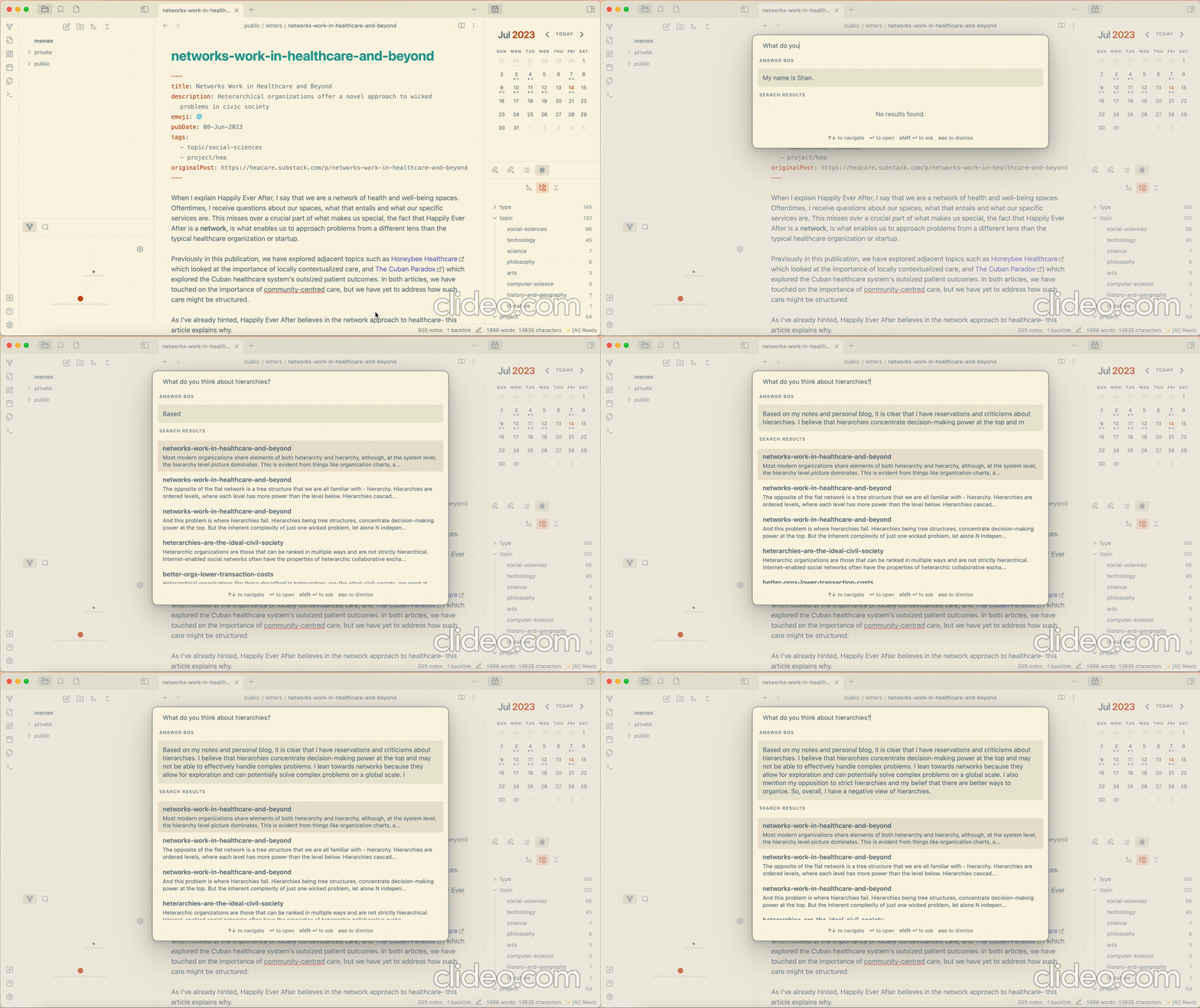
Talk to an LLM clone of yourself, or even host it for everyone else to talk to
This plugin aims to bring every useful AI-powered feature to Obsidian while maintaining the self-hosted ethos. Right now, it offers powerful semantic search and generative question answering over your notes. In the future, I plan to add features like note auto-tagging, faster hybrid search etc.
Powered by Supabase Vector and the OpenAI API.
Features
- ✅ Semantic search over your notes
- ✅ Talk to your notes
- ✅ Simple unified UI
- ✅ Public endpoint to allow others to talk to your notes
Wishlist
- Suggest related notes to link to the active note
- Suggest tags for note
- Hybrid search with keyword and semantic matching
- Natural language querying of frontmatter with SQL translation
- (and I dream of more and more!)
If you have any requests, let me know by opening an issue :)
Demo
Installation
This plugin uses Supabase, and you can choose if you prefer a remote project or a local one. I will provide instructions for setting it up either way. I recommend the remote approach just for the sake of convenience and reliability.
Pre-requisites
- A Supabase project. You can set up by going to the Supabase Dashboard and following the instructions.
- An OpenAI Account and API Key. You can register for one on the OpenAI website.
Instructions
Set up the Supabase Project
Using Supabase CLI
- Install Supabase CLI by following these instructions
- Login to Supabase CLI
supabase login - Clone this repo
git clone git@github.com:solderneer/obsidian-ai.git cd obsidian-ai - Link to remote project
supabase link --project-ref <project-id> # You can get <project-id> from your project's dashboard URL: https://supabase.com/dashboard/project/<project-id> - Deploy database
supabase db push - Deploy supabase functions if you want to create a public endpoint for the public documents.
supabase functions deploy
Manually
- Navigate to the SQL Editor inside the project dashboard.
- In another tab, navigate to the SQL migrations in this repo and copy them into a new query.
- Run the query and verify if the Table Editor now shows two tables,
documentanddocument_section.
Install the plugin
From Community Plugins
This plugin is now available directly from within the Obsidian Community Plugins. Navigate to Settings > Community Plugins > Browse, and then search AI Tools to find and install it. Alternatively, click here. You can then proceed on to the setup section below.
Manually
- Go to the latest release, and download
main.js,manifest.jsonandstyles.css. - Copy them into your obsidian vault in a new folder,
VaultFolder/.obsidian/plugins/obsidian-id/. - Restart Obsidian if it was already running.
- Now, go to the Obsidian Settings and navigate to the Community Plugins tab.
- You should see Obsidian AI in the list, click the toggle to enable.
Setup the plugin
- Navigate to the Obsidian AI Settings under the Obsidian Settings.
- Go to the previously set up Supabase Project, and under Project Settings, find the Supabase URL and the Supabase Service Role Key.
- Copy the Supabase URL and Service Role Key into the appropriate inputs in the Obsidian AI Settings
- Next, go to your OpenAI Account, retrieve your API Key and copy it into the appropriate input in the Obsidian AI Settings.
- You should see a status indicator saying,
✨ [AI] Ready. This means everything is working! - At this point, remember to configure the Excluded Directories, for any directories you don't want to index.
- Press
Cmd/Ctrl + pand search forObsidian AI: Refresh Index. Executing that will calculate all the embeddings and index them in the Supabase database. This can take a while, so please be patient. - When it's completed, the status indicator should switch back to
✨ [AI] Readyand the Supabase Tables should be populated with entries!
Usage
- Press
Cmd/Ctrl + pand search forObsidian AI: AI Search. - Select the command and the unified UI modal will appear!
- I recommend configuring a hot key for the AI Search, I personally use
Cmd + a.
Using a local Supabase project instead
Pre-requisites
- A local Supabase environment. Follow the instructions on the Supabase website
Instructions
Instead of the Supabase instructions above, do the following instead.
-
Clone this repo and navigate to it
git clone git@github.com:solderneer/obsidian-ai.git cd obsidian-ai -
Start Supabase locally (you need docker as well)
supabase start -
Apply migrations to set up table
supabase db reset
For plugin developers
Search results and similarity scores are powered by semantic analysis of your plugin's README. If your plugin isn't appearing for searches you'd expect, try updating your README to clearly describe your plugin's purpose, features, and use cases.