Alternative Explorer
approvedby sk-obsidian
Browse folders and notes in an Apple Notes–style sidebar that switches between folder and notes lists. - This plugin has not been manually reviewed by Obsidian staff.
Alternative Explorer
Alternative Explorer is an Apple Notes–style sidebar for browsing folders and notes in Obsidian. Switch between an expandable folder tree and a notes list — a compact alternative to the built-in File Explorer.
What’s new in 1.2.0.
The sidebar is easier to scan and quicker to use. Folders show how many notes they hold, sort and grouping live in one Display menu, and clicking a note opens it and automatically shifts focus to the editor pane so you can type right away. Full release notes.
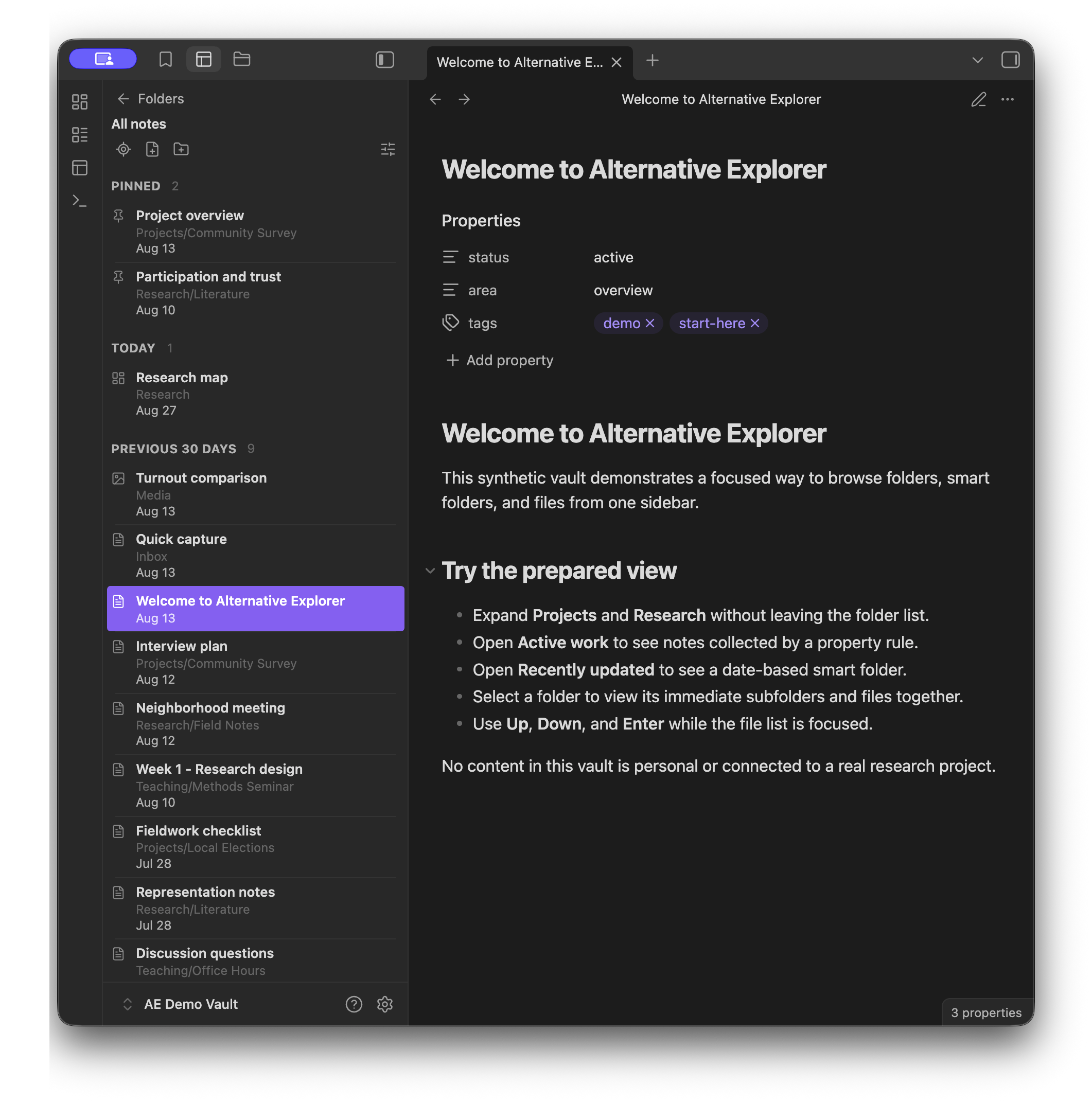
Folders and Notes
- Browse the folder tree, open All notes for a vault-wide list, and use Reveal current note to jump to the active note's folder.
- Each folder shows its note count on the right.
- Expand or fold the whole tree, including its sections, in one action.
- Group root folders into named, collapsible sections.
- Drag the grip on a section, folder, or smart folder to change sidebar order. Click a folder to open its notes. Drop a folder onto another folder, or back to the vault root, to nest or un-nest it in the vault.
- Sort folders by name, modified time, created time, or a custom order. Set the default in Settings → Alternative Explorer, and override it for an individual folder from the explorer.
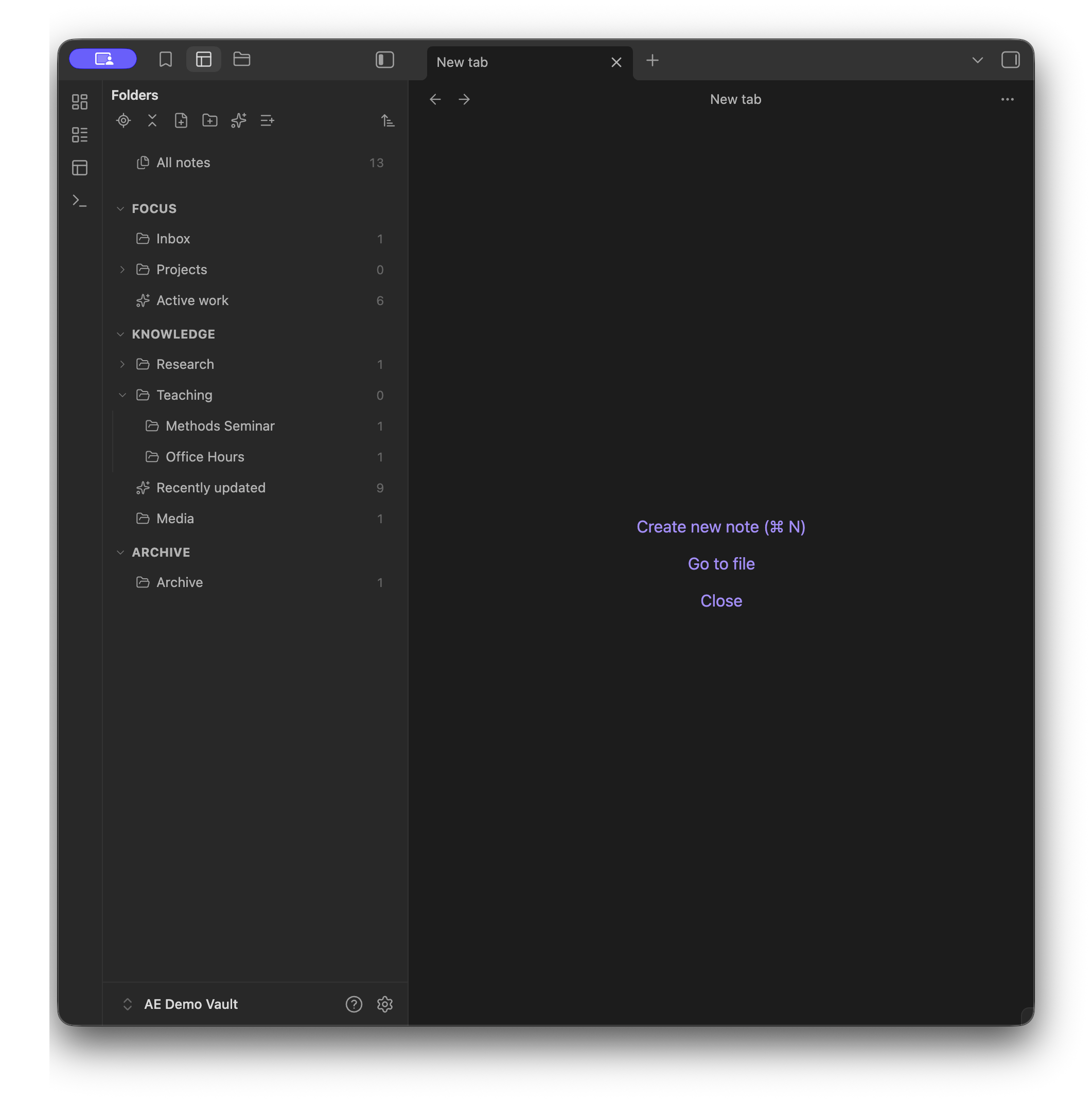
- Open a folder to see its notes.
- Switch This folder / All below to show only notes in that folder, or notes in that folder and its subfolders.
- Click a note to open it and move typing into the editor.
- Create a New note or New folder from the sidebar.
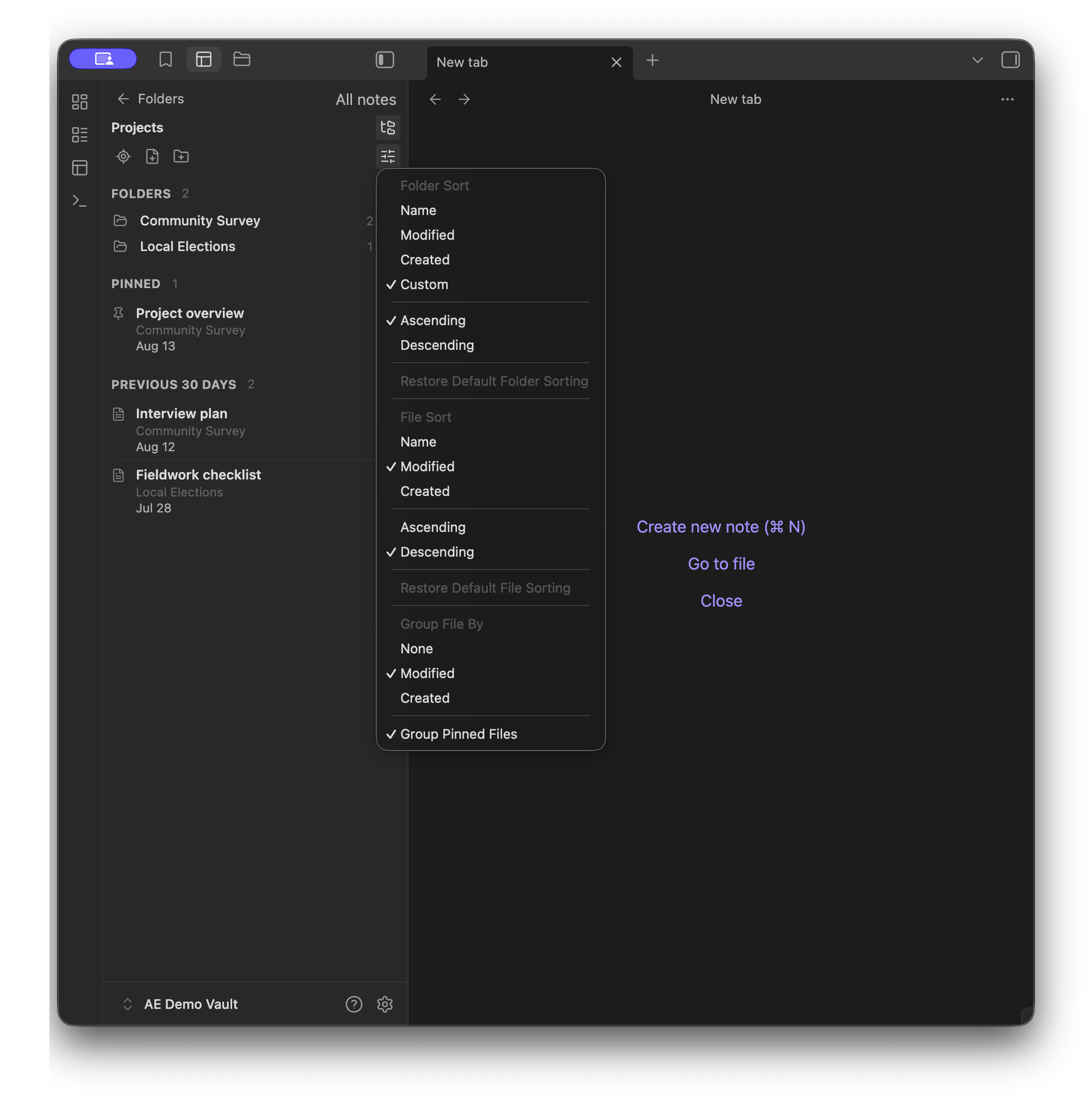
Smart folders
- Create saved searches from rules for tags, properties, name, path, created or modified dates, and pinned status.
- Match all or any of the rules, and nest a smart folder under a real folder or a section.
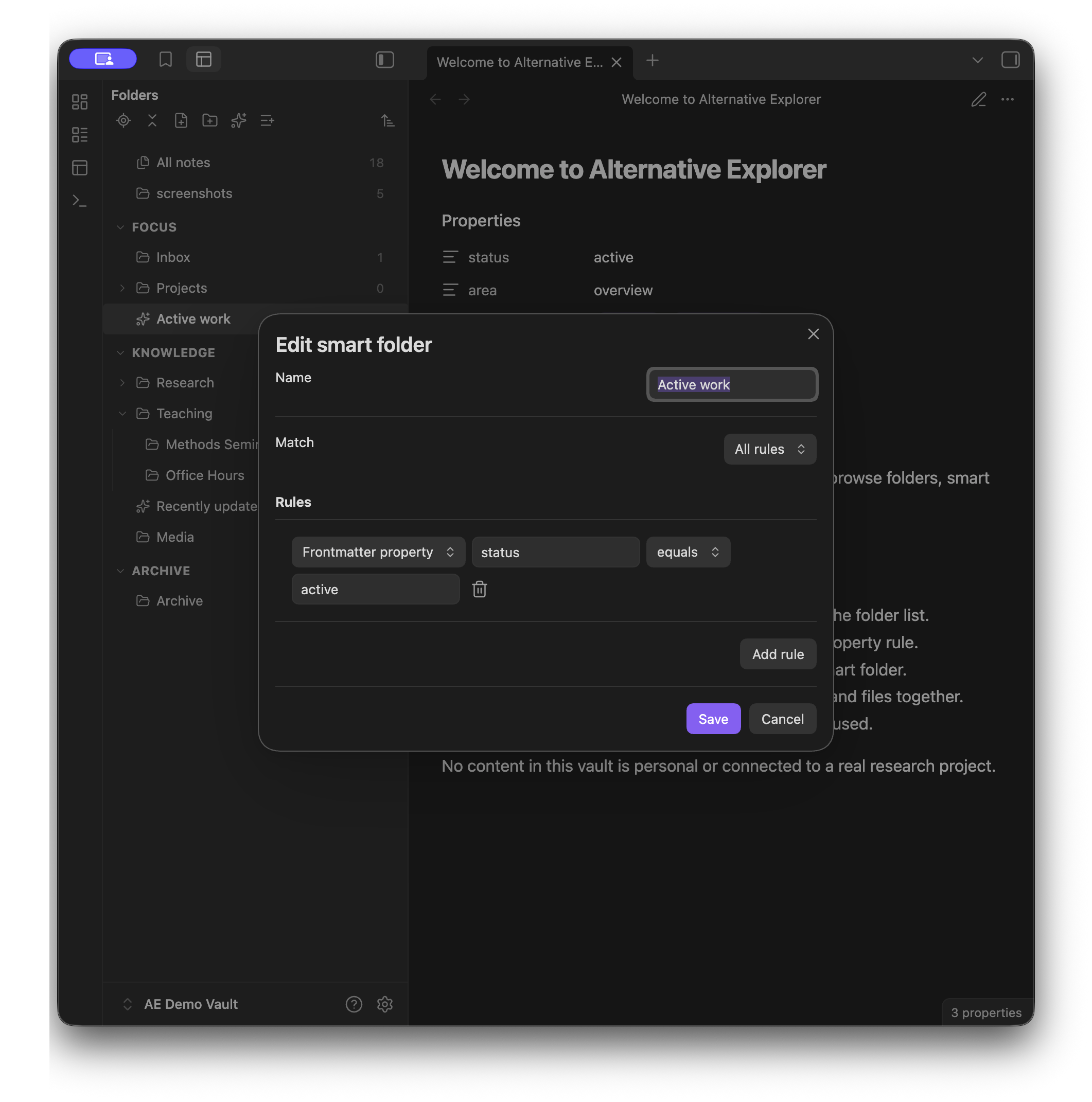
Install and open
- In Obsidian, open Settings → Community plugins.
- Search for Alternative Explorer, select Install, and then select Enable.
- Select the Alternative Explorer ribbon icon or run Alternative Explorer: Open explorer view from the command palette.
Some Details
- Sections, smart folders, sidebar order, and sort overrides are stored in plugin settings. They do not edit vault content.
- Dropping a folder onto another folder, or a nested folder back to the vault root or a section, moves that folder in the vault. (They DO edit vault content.)
- On a phone or tablet, a custom folder order still applies, but you cannot rearrange it. Drag-to-reorder is desktop-only for now. A future version will allow mobile rearrangement.
- Pin notes through Obsidian's core Bookmarks plugin. If Bookmarks is disabled, pinned groups are empty and pinning is unavailable.
- Vault files that Obsidian cannot open appear in the notes list. A second click or Enter opens them in the system default application when available.
- Alternative Explorer does not search note contents, and it does not rename or delete existing notes.
- Alternative Explorer has been tested only on macOS, iOS, and iPadOS. Other platforms may work but have not been verified.
- The minimum supported Obsidian version is 1.7.2.
Acknowledgements
Alternative Explorer was inspired by Apple Notes and Notebook Navigator (GitHub).
License
Alternative Explorer is released under the MIT License.
For plugin developers
Search results and similarity scores are powered by semantic analysis of your plugin's README. If your plugin isn't appearing for searches you'd expect, try updating your README to clearly describe your plugin's purpose, features, and use cases.