Arbor
approvedby kpyr
Write notes as branching Markdown cards while keeping a normal note as the source of truth. - This plugin has not been manually reviewed by Obsidian staff.
Arbor
Think in branches. Keep one note.
Arbor is a writing-first branching editor for Obsidian. It lets you build a note as small Markdown blocks arranged left-to-right while keeping the note itself as a normal .md file.
No separate canvas file. No sidecar database.
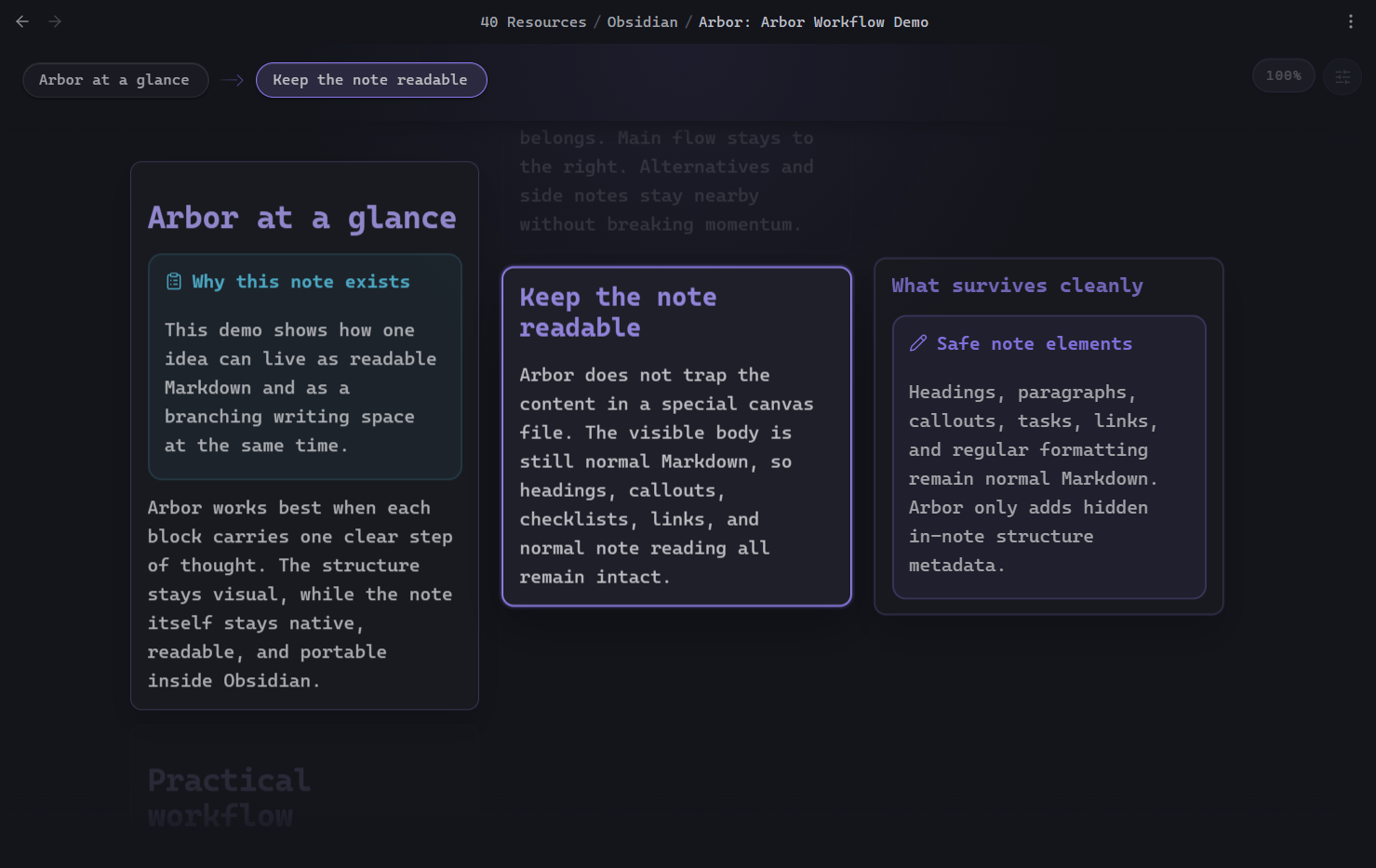
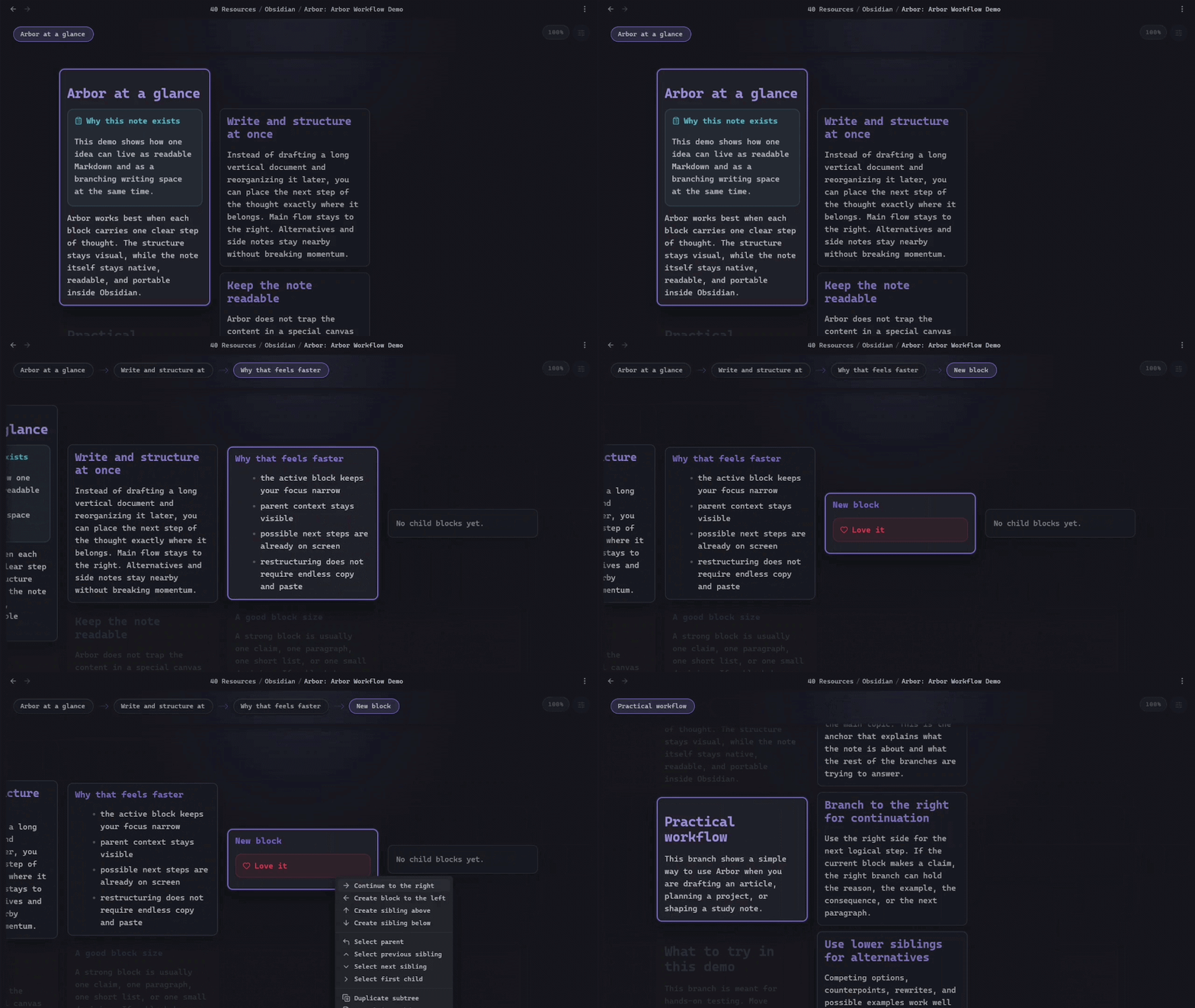
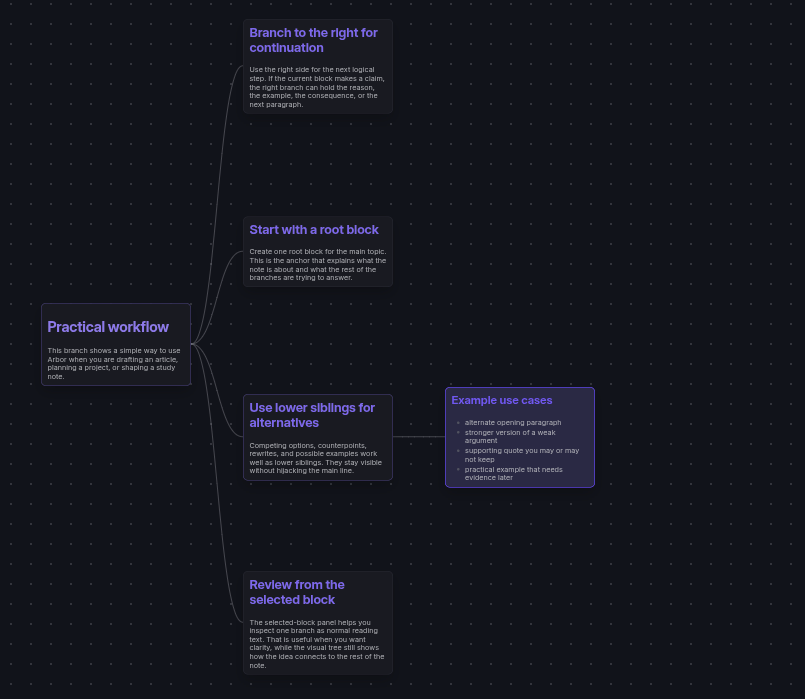
The core idea:
- write in short blocks instead of one long wall of text
- see the current branch, nearby alternatives, and next steps at the same time
- reorganize ideas without copy-paste chaos
- stay inside one note instead of splitting thoughts across many files
Arbor works on desktop, phones, and tablets. It requires Obsidian >= 1.7.2.
Why Arbor
Arbor is for notes where order matters, but thought does not arrive linearly.
Good fit:
- article and essay drafting
- study notes with branches and alternatives
- argument building
- structured brainstorming
- rewriting and rearranging long notes without losing the original Markdown
Arbor is not a canvas, mind map, or whiteboard. It is still note editing, just with a branching spatial view.
Core Features
- Left-to-right branching editor for one Markdown note
- Stable block tree with inline editing
- Normal readable Markdown body as the source document
- Visible block markers plus a readable in-note structure footer for exact recovery
- Selected block panel with focused preview and inline editing
- Context-aware dimming so the active branch stays readable
- Drag-and-drop reorder and reparent
- Keyboard-first navigation and structure editing
- Search overlay for block-level search
- Zoom, breadcrumbs, view menu, and context menus
- Whole-tree Overview map with connected, fully rendered Markdown cards
- Tree Overview export as a PNG or one-page PDF
- Touch-first phone editor with a focused sibling column and 44 px action controls
- One-finger Tree Overview pan and two-finger pinch zoom
- Automatic and custom palettes through Theme Studio
- Mouse-wheel navigation through sibling blocks and visible branch columns
- Auto-open managed Arbor notes in Arbor view
- File Explorer labels that mark managed notes with
ARBOR - Clean Markdown export copies with an optional YAML frontmatter
- Named Output Profiles for producing several clean versions from one complete tree
- Safe rebuild when the note changed in plain Markdown mode
Use a clean export copy as the Markdown handoff for Pandoc or another DOCX converter; Arbor does not generate DOCX directly.
Output Profiles
Output Profiles let one Arbor note hold the complete tree while producing different versions such as Draft, Short version, or Final.
Full treeis built in, always includes every block, and is the default for existing notes.- Use the profile pill in the Arbor toolbar, then Manage output profiles…, to create, duplicate, rename, delete, or switch profiles.
- In a custom profile, right-click a card to Include block only, Exclude block only, Include subtree, or Exclude subtree. Inherited exclusions stay visible in the editor and explain which parent rule caused them.
- Presets in Output profiles provide Include all, Exclude all, Invert selection, Include only selected branch, Root blocks only, and Reset profile.
- Output preview renders only the included Markdown in the current Arbor view. It never creates a temporary file or changes the source note.
- Export clean copy… exports the active profile and can either omit excluded blocks or keep them as HTML comments. YAML frontmatter can be kept or removed independently.
The source .md always retains the complete Arbor tree. Switching profiles, previewing, and exporting change the output version—not the source content.
Install
Community Plugins
Once Arbor is approved in the Obsidian community catalog:
- Open
Settings -> Community plugins -> Browse. - Search for
Arbor. - Install it.
- Enable it.
Manual install
If you want to install Arbor before it appears in the community catalog:
- Download
manifest.json,main.js, andstyles.cssfrom the latest GitHub release. - Create this folder in your vault:
.obsidian/plugins/arbor
- Place those three files inside it.
- Open Obsidian.
- Go to
Settings -> Community plugins. - Enable
Arbor.
Quick Start
- Open any Markdown note.
- Run
Open view for current note. - Create a root block.
- Press
Enteron a selected card to edit it on desktop, or double-tap it on mobile. - Use
Ctrl/Cmd + Arrowto grow the structure. - Use the right-click menu to duplicate, move, delete, or continue a branch.
- Turn on
Selected block panelfrom the Arbor menu if you want a focused preview/editor panel.
Mobile controls
On a phone, Arbor keeps the selected block's sibling column on screen and puts navigation in a bottom action bar. Tap a card to select it; double-tap a card or use Edit to edit it. Save and Cancel are always visible while editing. Plain Enter makes a new line, while Ctrl/Cmd + Enter on a hardware keyboard saves. Pinch with two fingers in the branch editor to adjust card and text density without leaving the active sibling column.
In Tree Overview, drag with one finger to pan and pinch with two fingers to zoom. A drag never opens a card editor. Use the top-left map button to return to the branch editor.
Support
If Arbor is useful to you, you can support development here:
Built-In View Shortcuts
These work inside Arbor itself. They are not command-palette bindings.
Navigation
| Shortcut | Effect |
|---|---|
ArrowUp | Select previous sibling |
ArrowDown | Select next sibling |
ArrowLeft | Select parent |
ArrowRight | Select first child |
Home | Jump to first sibling |
End | Jump to last sibling |
Backspace / Delete | Delete the selected block |
Enter | Edit the selected block |
Editing
| Shortcut | Effect |
|---|---|
Enter in editor | Save block and leave edit mode on desktop; insert a newline on mobile |
Shift + Enter | Insert a newline inside the block on desktop |
Ctrl/Cmd + Enter | Save the block on mobile with a hardware keyboard |
Escape | Cancel current edit |
Ctrl/Cmd + Z in editor | Native text undo inside the current textarea |
Structural creation
| Shortcut | Effect |
|---|---|
Ctrl/Cmd + ArrowUp | Create sibling above |
Ctrl/Cmd + ArrowDown | Create sibling below |
Ctrl/Cmd + ArrowRight | Create child to the right |
Ctrl/Cmd + ArrowLeft | Create a block to the left at parent level |
Notes:
- The table describes the
Left to rightlayout. InRight to left, horizontal arrows and Ctrl/Cmd + horizontal-arrow creation mirror visually:ArrowLeftselects a child andArrowRightselects the parent. Ctrl/Cmd + ArrowLeftis intentionally conservative and does nothing when the selected block is already at the root level.- Arbor uses
event.codefor view-level shortcuts where needed, so layout-dependent bindings like search remain stable across keyboard layouts. Delete subtreeshows a confirmation modal. NormalDelete blockdoes not.
Search and zoom
| Shortcut | Effect |
|---|---|
Ctrl/Cmd + F | Open Arbor search overlay |
Ctrl/Cmd + Z | Undo the last Arbor structural/content change |
Ctrl/Cmd + Shift + Z | Redo the last undone Arbor change |
Ctrl/Cmd + Mouse wheel | Zoom the scene if zoom is enabled in settings |
| Mouse wheel over a branch column | Move through sibling blocks, or enter the visible parent/child column under the pointer |
| Click zoom indicator | Reset zoom to 100% |
Tree overview
Use Tree overview from the view menu or Command Palette to see every block in one connected map. Drag empty space to pan; Ctrl/Cmd + mouse wheel changes zoom. Cards render normal Obsidian Markdown and grow to fit their content. Select a card, then press Enter or double-click it to edit directly in place; Arbor smoothly reveals the editor when it is outside the viewport. Export the whole map as a PNG or one-page PDF from the overview menu. Overview always shows collapsed descendants and does not support drag-and-drop reparenting.
Command Palette Actions
All of these are exposed as normal Obsidian commands. By default, they have no bound hotkey unless you bind one yourself in Obsidian.
| Command | ID | Scope | Default hotkey |
|---|---|---|---|
| Open view for current note | open-view | Global | None |
| Create new note | create-note | Global | None |
| Create new note in Markdown editor | create-note-markdown | Global | None |
| Create demo note | create-demo-note | Global | None |
| Export clean copy | export-clean-copy | Arbor view | None |
| Open tree overview | open-tree-overview | Arbor view | None |
| Return to branch editor | close-tree-overview | Arbor view | None |
| Open block actions menu | open-block-actions-menu | Arbor view | None |
| Create new root block | new-root-block | Arbor view | None |
| Create sibling above | create-sibling-above | Arbor view | None |
| Create sibling below | create-sibling-below | Arbor view | None |
| Create child to the right | create-child-right | Arbor view | None |
| Create block to the left at parent level | create-parent-level-block-left | Arbor view | None |
| Select parent block | select-parent-block | Arbor view | None |
| Select previous sibling block | select-previous-sibling-block | Arbor view | None |
| Select next sibling block | select-next-sibling-block | Arbor view | None |
| Select first child block | select-first-child-block | Arbor view | None |
| Select first sibling block | select-first-sibling-block | Arbor view | None |
| Select last sibling block | select-last-sibling-block | Arbor view | None |
| Move block up among siblings | move-block-up | Arbor view | None |
| Move block down among siblings | move-block-down | Arbor view | None |
| Move block left to parent level | move-block-left | Arbor view | None |
| Move block right to become child of previous block | move-block-right | Arbor view | None |
| Delete block | delete-block | Arbor view | None |
| Delete subtree | delete-subtree | Arbor view | None |
| Duplicate block | duplicate-block | Arbor view | None |
| Duplicate subtree | duplicate-subtree | Arbor view | None |
| Toggle edit mode | toggle-edit-mode | Arbor view | None |
| Reveal current block in linear Markdown | reveal-current-block-in-linear-markdown | Arbor view | None |
| Rebuild linear Markdown from tree | rebuild-linear-markdown-from-tree | Arbor view | None |
| Rebuild tree from metadata | rebuild-tree-from-metadata | Arbor view | None |
| Undo branch action | undo-branch-action | Arbor view | None |
| Redo branch action | redo-branch-action | Arbor view | None |
View Menu
Arbor includes a compact view menu in the top-right corner of the editor.
Current menu actions:
- switch the active Output Profile or open
Manage output profiles… - open
Output preview - toggle
Selected block panel - toggle breadcrumb path
- toggle breadcrumb flow
- toggle
Ctrl/Cmd + wheelzoom - reset zoom to
100% - open Arbor settings
Settings
| Setting | Default | Meaning |
|---|---|---|
| Theme | Automatic | Follow Obsidian, choose a built-in palette, or open Theme Studio for custom themes |
| Layout direction | Left to right | Choose which physical side the root starts on; right-to-left also mirrors directional navigation and controls |
| Default opening mode | Branch editor | Choose whether Arbor notes open in the branch editor or Tree Overview |
| Split direction | Vertical split | Where Arbor opens relative to the current note; desktop only |
| Card width | 300 px | Base card width in the branching scene |
| Card minimum height | 120 px | Minimum card height before content expands it |
| Horizontal spacing | 20 px | Gap between columns |
| Vertical spacing | 12 px | Gap between sibling cards |
| Default zoom | 100% | Initial scene scale when Arbor opens |
| Preview snippet length | 220 chars | Maximum preview text for compact card snippets |
| Drag and drop | On | Enable drag reorder and reparent; desktop only |
| Ctrl/Cmd + wheel zoom | On | Allow scene zoom with Ctrl/Cmd + mouse wheel |
| Auto-open managed notes | On | Open Arbor-managed notes directly in Arbor view |
| Show breadcrumb path | On | Show the active path strip at the top |
| Show breadcrumb flow | On | Show subtle connectors between breadcrumb items |
| Preferred breadcrumb line prefix | # | Prefer the first non-empty line that starts with # when generating breadcrumb labels |
| Breadcrumb fallback | First non-empty line | What Arbor uses when no preferred-prefix line exists |
| Selected block panel | Off | Show the focused preview/editor panel for the selected block; desktop only |
How Notes Stay Normal Markdown
Arbor does not move your note into a database or sidecar file.
Each Arbor note contains:
- the visible Markdown body
- machine-written block markers before each block in the visible body
- an optional
%% arbor:outputcomment for custom Output Profiles - one readable structure footer at the end of the same note
Example shape:
<!-- arbor:block:v1 id="root-1" parent="" order="0" -->
# A visible markdown note

This text is still readable in normal Obsidian.

%% arbor:structure
```json
{
  "arbor-plugin": "tree",
  "version": 2,
  "blocks": [{ "id": "root-1", "parent": null, "order": 0 }]
}
```
%%
Important behavior:
- frontmatter is preserved
- the visible body stays readable if the plugin is disabled
- Arbor keeps stable block IDs in both visible markers and the readable structure footer
- if the structure footer is stale, Arbor recovers the exact block tree from the visible markers
- if you open an older Arbor note without visible markers, Arbor upgrades it automatically to the precise marker format
- if you edit the note in normal Markdown mode, Arbor will safely rebuild the tree from the visible note body instead of silently dropping content
Beautiful blocks in the > [!note] style are still normal Markdown callouts. In the screenshots and demo notes, that styling comes from Callout Manager.
Privacy and disclosures
- No account is required.
- No telemetry is collected.
- No ads are shown.
- Arbor does not make network requests for its core functionality.
- Arbor stores plugin settings with Obsidian's plugin data system.
- Arbor stores branch structure inside the note itself as a readable Obsidian comment footer.
- If you paste an image into a block, Arbor writes that image into your vault as a normal attachment.
Demo Notes
Arbor ships with a built-in demo note generator.
Use the command palette action:
Create demo note
The command creates a new Arbor-managed demo note in the current note folder, or in the vault root if there is no active note.
Compatibility
- Desktop, Android, and iOS
- Obsidian
>= 1.7.2 - Plugin ID:
arbor - Current version:
0.2.9
Known Limitations
- Plain-Markdown rebuild is conservative by design. It protects content first and structure second.
- Undo and redo are Arbor view history, not native editor history.
- Very large notes can still benefit from future virtualization work.
- Mobile Tree Overview exports are capped at 4,096 px on a side and 8 MP before rendering, to avoid unsafe raster allocations.
Roadmap
- richer block search navigation
- stronger conflict handling when Arbor view and plain Markdown both change the same note
- more refinement for very large note trees
Development
Contributor workflow:
npm install
npm run dev
Release checks:
npm run lint
npm run build
npm test
Arbor includes a local eslint-plugin-obsidianmd setup so the same reviewer-facing checks can be run before submission updates.
Manual interaction checks live in:
docs/manual-qa.md
Repository Layout
arbor/
  assets/
  demo/
  docs/
  src/
    model/
    storage/
    view/
  tests/
  manifest.json
  package.json
  styles.css
For plugin developers
Search results and similarity scores are powered by semantic analysis of your plugin's README. If your plugin isn't appearing for searches you'd expect, try updating your README to clearly describe your plugin's purpose, features, and use cases.