by Wilson Neto
Draw system design diagrams from a few lines of text or by clicking, save versions and see what changed. Each diagram is a Markdown note with a code block.
Archslate
Your diagram is text: edit it by typing or by clicking, save versions, and see exactly what changed.
Draw system design diagrams from a few lines of text or by clicking. Each diagram is a Markdown note with a code block.
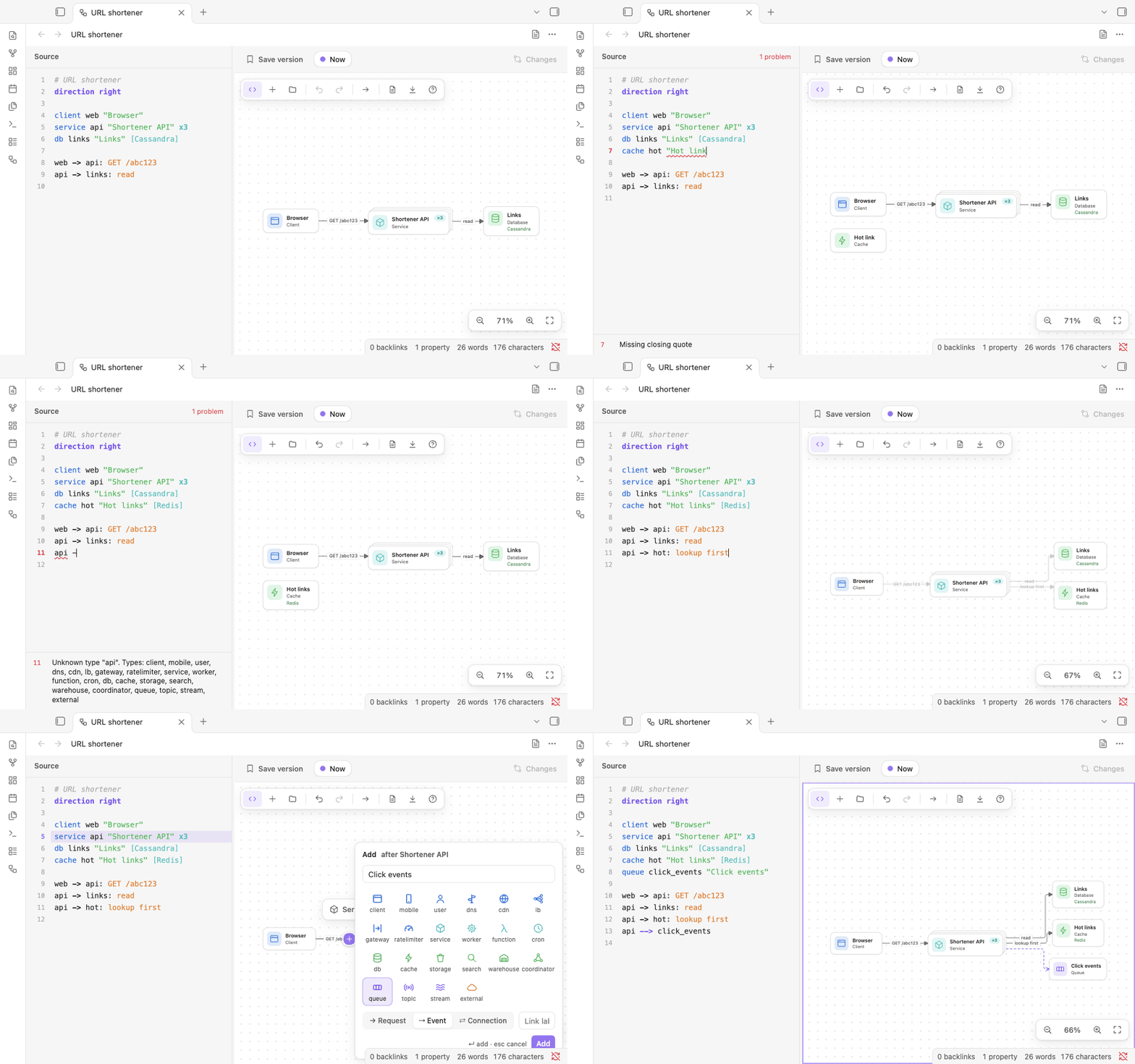
Archslate keeps a diagram as a small, readable language in a code block:
service api "Orders API"

api -> db: write
api --> events: OrderPlaced
The source and the canvas are two views of the same text, so typing a line draws a box, and clicking (+) on the canvas writes the line for you. Layout is automatic. Save a version before you change the design, and the Changes view shows what was added, removed and changed since. Requirements, estimates and trade-offs go below the diagram as ordinary Markdown, in the same note.
Features
- Text and canvas, one diagram. Type in the source and the canvas follows; click, drag a link or rename on the canvas and the source follows. An edit rewrites only the lines it touches, so comments and ordering stay.
- Made for system design. 22 component types (clients, gateways, rate limiters, services, workers, databases,
caches, queues, topics, streams, warehouses, coordinators...), and three kinds of link: requests (
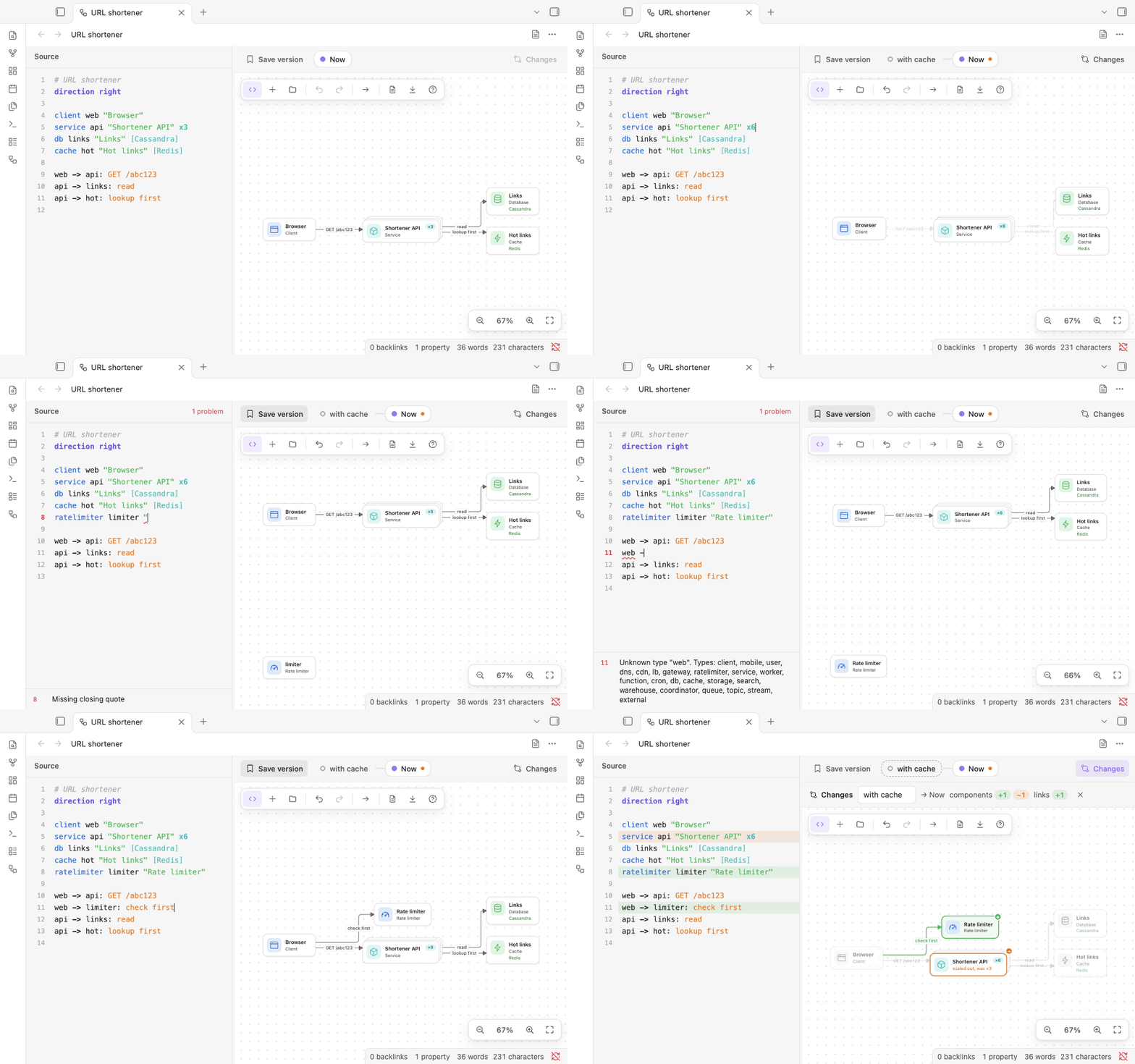
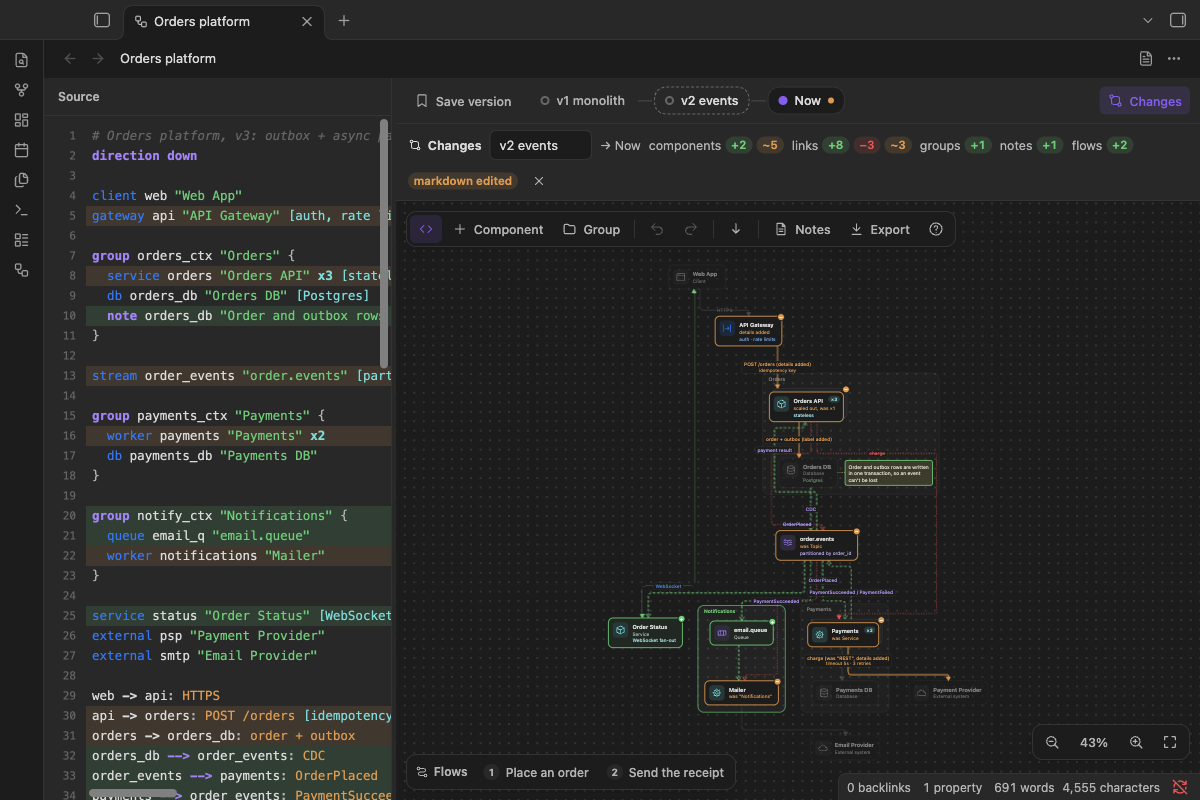
->), events (-->) and open connections such as WebSockets (<->).x3orxNshows a component that runs as several copies;[Postgres, sharded by user_id]puts the details that matter under its name; anotesticks a remark beside it. - Versions and changes. Save a named version at any step (Cmd/Ctrl+S). Changes compares the diagram with a version: added in green, removed in red, changed in orange with what it was ("scaled out, was ×3", "was request"). Open any version read-only, or restore it; restoring never loses your current work.
- Walk through a flow.
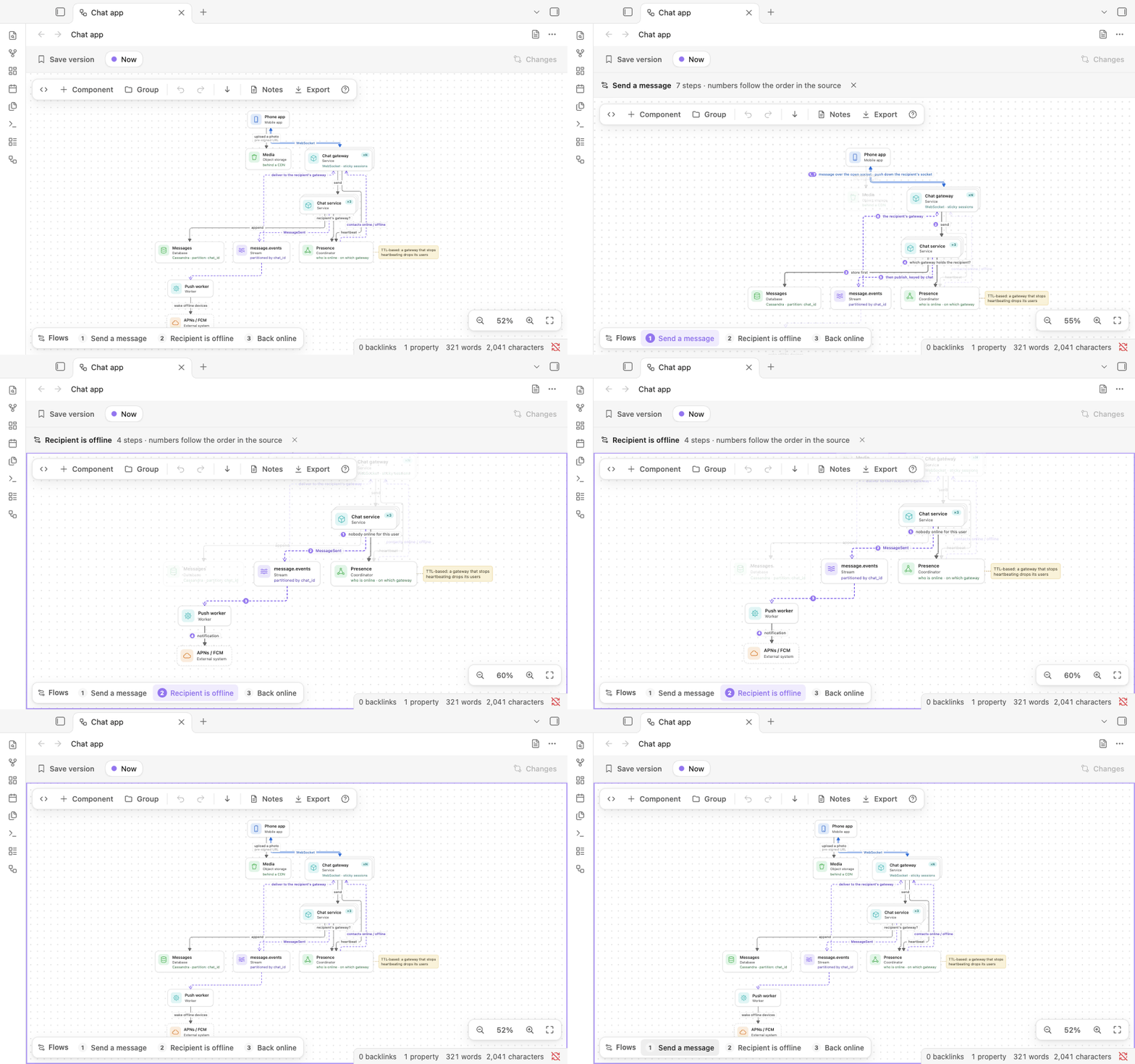
flow checkout "Place an order" { ... }lists the steps of one request; select it and the steps are numbered, the rest dims, and the view follows the path. Press W for the next flow. - Your notes, in the same note. Everything below
---in the source is Markdown, shown rendered beside the diagram by Obsidian itself: links, tags, tables, callouts. - A note like any other. In reading view and live preview the code block is drawn as the diagram. Search, links, Sync and git see a Markdown note. Opening a note as a diagram never changes it.
- Edits from elsewhere show up. A change from Obsidian Sync, git or another app reloads the open diagram, and Undo brings back what you had.
- Each diagram as you left it. Zoom, pan, the source pane's width and the notes panel are kept for every note.
- Export. PNG or SVG of exactly what is on screen (a version, the changes, a flow), in your theme, saved to your attachment folder.
- Your theme, your devices. Light or dark, your accent colour. On phones and tablets: Undo, Redo and Fit in the view's header.
- Diagrams from your AI agent. An agent skill teaches Claude, or another agent, to write these notes (For AI agents).
- Also in your browser. The same editor runs as a web page, Archslate on the web, and opens and saves the same notes. Nothing leaves the browser.
How it compares
Obsidian draws mermaid code blocks itself, and several plugins draw diagrams. The table sets out what each one
says about itself in the community directory.
| A diagram is | Edit by clicking | Edit as text | Versions and a visual diff | Made for | |
|---|---|---|---|---|---|
| Archslate | A code block in a Markdown note | Yes | Yes, side by side, both ways | Yes, kept in the note | System design |
| Mermaid (built into Obsidian) | A code block in a Markdown note | — | Yes | — | Many kinds of diagram |
| Excalidraw | An Excalidraw drawing | Yes | — | — | Drawing anything |
| Diagrams | A Draw.io diagram | Yes | — | — | — |
| D2 | D2 text ("a modern diagram scripting language") | — | Yes | — | — |
| PlantUML | PlantUML text | — | Yes | — | — |
The others also do things Archslate doesn't: Excalidraw and Draw.io draw freely, anything you like; Mermaid, D2 and PlantUML cover many more kinds of diagram (sequence, class, entity-relationship).
Getting started
Open a note as a diagram
- New diagram: the command Archslate: New diagram, the diagram button in the ribbon, or right-click a folder in the file explorer and choose New diagram. It opens with a small example to change.
- A note you are in: Archslate: Open as diagram, or Open as diagram in a split to keep the Markdown beside it. Right-clicking the note (in the file explorer, in its text, or the tab's ⋯ menu) offers it too.
- Back to Markdown: the page button in the view's header, ⋯ > Open as Markdown, or Archslate: Open as Markdown.
- Always as a diagram: Archslate: Always open this note as a diagram adds
archslate: diagramto the note's properties; new diagrams have it already. Archslate: Stop always opening this note as a diagram takes it out again (the palette offers whichever of the two applies), and the note's right-click menu has a checkbox for it. A tab where you choose Open as Markdown keeps that note as Markdown while the tab is open, and comes back the same way after a restart. - A diagram inside a note: Archslate: Insert diagram puts an
archslatecode block at the cursor. It is drawn in reading view and live preview, and the button on its corner opens the note as a diagram. The editor works on the firstarchslateblock at the note's top level, so only that block gets the button; one inside a callout or a list is drawn but not edited. - More commands: Save a version, Show changes against the previous version, Walk through the next flow, Show or hide the source, Show or hide the notes, Fit the diagram to the view, Export as PNG and Export as SVG. Give any of them a hotkey in Settings > Hotkeys.
The language
direction down                               # or right

client web "Web app"                         # <type> <id> ["Label"]
gateway api "API gateway" [auth, rate limits]
service orders "Orders" x3 [stateless]       # x3: three copies; xN: many
db orders_db "Orders DB" [Postgres]

group payments "Payments" {                  # a box; groups nest
  worker charge "Charger" x2
}

note orders_db "Order and outbox rows commit together"

web -> api: HTTPS [10k QPS]                  # ->  request: the caller points at the callee
api -> orders: POST /orders
orders --> charge: OrderPlaced               # --> event: points the way the data goes
web <-> api: WebSocket                       # <-> open connection

flow checkout "Place an order" {             # numbered steps over links declared above
  web -> api: submit
  api -> orders
}
---
## Notes
Markdown from here on: requirements, estimates, trade-offs.
Types: client mobile user dns cdn lb gateway ratelimiter service worker function cron
db cache storage search warehouse coordinator queue topic stream external. Every rule is in
skills/system-design-diagram/reference/FORMAT.md. A typo never
invents a component: a link to an unknown name is reported at its line, and the rest of the diagram still draws.
Keys
| Key | What it does |
|---|---|
| Tab / Shift+Tab | Add a component after / before the selected one, linked to it |
| Drag a (+) | Link to an existing component |
| L | Link from the selection: click a target, or arrows then Enter |
| Enter | Rename the component, or edit the link's label or the note |
| T / D / N | Change the type / instances and details / add a sticky note |
| E / R | Cycle request → event → connection / reverse the link |
| Delete or Backspace | Delete the selection (a group keeps its contents) |
| Arrow keys | Move the selection |
| A / G | Add a component / a group |
| W | Walk through the next flow |
| C | Show the changes against the previous version |
| M / \ | Show or hide the notes / the source |
| Cmd/Ctrl+S | Save a version |
| Cmd/Ctrl+Z, Shift+Cmd/Ctrl+Z | Undo, redo |
| F / 0 | Fit the diagram / zoom to 100% |
| ? | Every key, on the canvas |
The source pane is a plain editor with its own keys (Tab indents, Enter keeps the indent). Obsidian's shortcuts keep working: Cmd/Ctrl+P, Cmd/Ctrl+O, Cmd/Ctrl+W and the others.
What a diagram looks like as a note
---
archslate: diagram
---

```archslate
direction right
client web "Browser"
service api "Shortener API" x3
cache hot "Hot links" [Redis]
db links "Links" [Cassandra]
web -> api: GET /abc123
api -> hot: lookup first
api -> links: read
```

## Requirements
- Redirect in under 20 ms (p99)

%% archslate:versions
{"name":"with cache","createdAt":"2026-11-07T12:00:00.000Z","id":"…","text":"…"}
%%
The block holds the diagram; the notes after it are Markdown; the saved versions sit in a comment at the end (one line each, hidden in reading view). Opening a note never writes it. When you edit the diagram, Archslate rewrites the block, and the versions when you save one; the properties and any text around the block stay, with the note's line endings (blank lines at the very end of the note are not kept). Text added after the versions comment, such as a footnote, is read as notes, and the next save moves the comment back to the end.
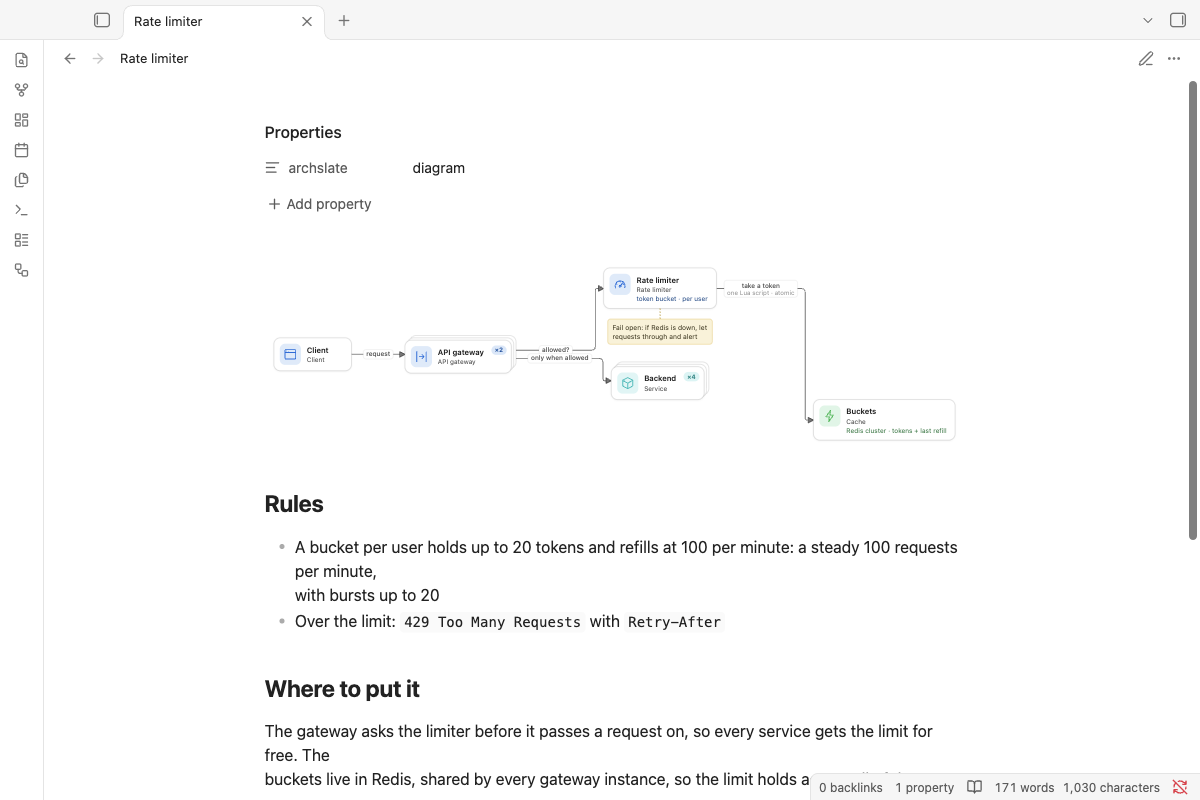
More diagrams to open are in examples/: a URL shortener, a chat app, a rate limiter, and an orders
platform in three versions. Copy the folder into your vault; each note opens as a diagram.
For AI agents
The agent skill in skills/system-design-diagram teaches an AI agent (Claude Code,
the Claude apps, or any agent that reads instructions) to write these diagrams in your vault: the language, what
makes a good system design diagram, and how to change a diagram without breaking it. Its command-line tool is built
from Archslate's own parser and file format, so a note it writes is exactly what the plugin reads; validate prints
the outline the diagram will show, with each problem at its line in the note, and version saves the current
diagram before a big change.
This repository is also a Claude Code plugin marketplace, so you can install the skill from it by name. In Claude Code, run:
/plugin marketplace add wilsonneto-swe/archslate-obsidian
/plugin install archslate@archslate
(From a terminal: claude plugin marketplace add wilsonneto-swe/archslate-obsidian, then
claude plugin install archslate@archslate.) Start a new session and ask, for example: "Design a URL shortener in
my Obsidian vault, with the read path as a flow." The skill is archslate:system-design-diagram. For updates, other
ways to install it, the Claude apps and other agents, see skills/README.md. The skill is not part
of the Obsidian plugin: Obsidian never loads it, and the plugin's releases do not include it.
Installation
- From Community plugins (once it is listed): Settings > Community plugins > Browse, search for "Archslate", then select Install and Enable.
- Manually: download
main.js,manifest.jsonandstyles.cssfrom the latest release into<vault>/.obsidian/plugins/archslate/, reload Obsidian, then enable Archslate in Settings > Community plugins. - On your phone: install it from Community plugins there too, or let Obsidian Sync bring it (turn on "Installed community plugins" and "Active community plugin list" in Settings > Sync on both devices).
Archslate needs Obsidian 1.7.2 or later and runs on desktop (macOS, Windows, Linux) and mobile (iOS, iPadOS, Android). It has been tested with Obsidian 1.14.5 on macOS and in Obsidian's mobile emulation.
Privacy
Archslate works offline. It makes no network requests, has no telemetry or ads, and needs no account. It reads and
writes only the notes you open as diagrams (and the notes its commands create or flag), writes exported images into
your attachment folder, and keeps each diagram's zoom and panels in the plugin's own folder (data.json). It never
reads or writes files outside your vault.
Building from source
This repository holds the plugin and the web version; they share one editor.
npm install
npm run build:obsidian     # apps/obsidian/dist: main.js, manifest.json, styles.css
npm run check              # Obsidian's lint rules, the tests, both builds, a scan for private data
npm run dev                # the web version from the sources: http://localhost:5173/apps/web/
The plugin's code is in apps/obsidian/src; packages/core is the language, the layout, the routing of links and
the file format, and packages/ui is the editor (canvas, source pane, versions); apps/web is the web version;
skills/ holds the agent skill, outside the build (.claude-plugin/ makes the repository a Claude Code plugin
marketplace that serves it). To try a build, run
npm run build:obsidian -- --vault "<path to a test vault>": it copies the three files into that vault's
.obsidian/plugins/archslate/. Releases are built by GitHub Actions when a version tag is pushed
(.github/workflows/release.yml), with build attestations. CONTRIBUTING.md covers reporting a
bug and sending a pull request; docs/ covers the architecture, the tests and releasing.
Feedback
Which system design question would you like to draw next, and what got in the way? Tell us in Discussions, where questions and ideas are welcome too.
Found a bug? Open an issue. Pull requests are welcome too: CONTRIBUTING.md explains how.
Sponsor
Archslate is free, works offline and has no ads or accounts. If it is useful to you, you can support its development on GitHub Sponsors.
License
MIT, see LICENSE.
More plugins by the author
- Mindslate: open a note as a keyboard-first mind map and edit it in place; the note stays an ordinary heading with a nested list.
- Plain Deck: study flashcards written in your notes, with spaced repetition (FSRS); each review is saved in the same note, so your progress syncs with the vault.
For plugin developers
Search results and similarity scores are powered by semantic analysis of your plugin's README. If your plugin isn't appearing for searches you'd expect, try updating your README to clearly describe your plugin's purpose, features, and use cases.