At People
approvedby backmind
Use the @ to create links to people files with smart fuzzy search, accent-insensitive matching, and backlink-based ranking.
At People



A lightweight Obsidian plugin that lets you mention people with @, just like you would in a chat or social media. Type @ followed by a name, pick from the suggestions, and a wiki-link is inserted automatically.
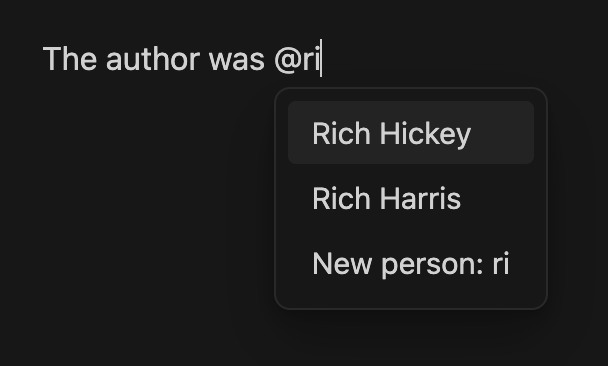
Features
- Smart fuzzy search — finds people even with partial input, typos in word order, or accent differences
"john"matches John Doe"jose"matches José García"jd"matches John Doe (initials)"doe jo"matches John Doe (multi-word)
- Frontmatter aliases — match people by nicknames or alternate names defined in their YAML frontmatter (opt-in)
- Alias as display text — optionally show a person's alias as the visible link text (e.g. a link to
@john-doedisplays asUncle John) while the link still points to the file (opt-in) - Backlink-based ranking — people you reference often appear higher in suggestions, with a slight recency boost for recently edited notes
- Triggers next to punctuation — the
@works glued to symbols such as(@jo,"@joor-@jo, not just after a space. Emails likename@hostare left alone, and so is an@used as a word:Cena @ 21:00never opens the suggester, since a mention has its name glued to the@ - Stays out of code — suggestions never open inside a code block, an inline code span, YAML frontmatter, math, or an existing
[[wikilink]], so@decorator,@mediaor@types/nodewritten inside code are left alone (in prose they still work) - Ready for the next word — optionally leave a space after an inserted link so you can keep typing, skipped when a space or a closing symbol already follows (opt-in)
- Clean names for new people — when creating a person, surrounding spaces (the ones phone keyboards add when accepting a word) are trimmed, repeated spaces are collapsed, and characters that no file name accepts (
\ / : * ? " < > |) or that would break the wikilink (# ^ [ ]) are removed, so@ John Doecreates@John Doe.mdand not a broken link or a look-alike duplicate. The suggestion shows the exact name that will be created; existing people are always linked by their real file name - Link selected text — select any text, run the command "At People: Link selected text to person" from the palette, and convert it into a person link instantly. Assign a hotkey (e.g.
Ctrl+Shift+A) for even faster linking. - Dismiss with Escape — press
Escto dismiss suggestions; they won't reappear until you type a new@(per note, and only for that@) - Auto-create files — optionally create person files and folders on the fly when selecting a suggestion
- Flexible folder modes — store people as flat files, per-person folders, or grouped by last name
- Styleable links — person links get the
at-personCSS class and adata-at-personattribute in both Reading view and Live Preview, so you can format them with your own CSS (e.g. as@-pills); an optional built-in pill style is included
Installation
From Community Plugins
- Open At People in the Obsidian plugin directory, or go to Settings > Community plugins and search for "At People"
- Click Install, then Enable
Manual
- Download the latest release from Releases
- Extract to
<vault>/.obsidian/plugins/at-people/ - Reload Obsidian and enable the plugin in Settings > Community plugins
Important: file naming
By default, person files must start with @ in their filename:
People/
  @John Doe.md
  @Sarah Connor.md
The @ prefix clearly distinguishes person notes from regular notes in your vault.
If your people files don't use @ (e.g. you already have a folder of contacts named John Doe.md), you can disable Require @ prefix in settings. The plugin will then treat every .md file inside your people folder — including subfolders — as a person.
Warning: with the prefix disabled, make sure your people folder contains only person files. Any
.mdfile in it will appear in suggestions.
Configuration
Settings follow the same order as the plugin's settings tab: Files & folders, Links, Aliases, Appearance.
People folder
Set the folder where your person files live (e.g. People/, Contacts/, Reference/People/). The plugin scans this folder and all subfolders for person files.
Folder mode
Choose how person files are organized:
| Mode | Structure | Example link |
|---|---|---|
| Default | One file per person | [[People/@John Doe.md|@John Doe]] |
| Per Person | A folder per person (for related notes) | [[People/@John Doe/@John Doe.md|@John Doe]] |
| Per Lastname | Grouped by last name | [[People/Doe/@John Doe.md|@John Doe]] |
Per Person and Per Lastname modes require Explicit links to be enabled.
Note on last names: the plugin takes the last word of the name as the last name. "Charles Le Fabre" becomes "Fabre", not "Le Fabre".
Auto-create files
When enabled, selecting a suggestion automatically creates the person file (and any necessary folders) in your configured people folder. When disabled, the plugin inserts the link but you need to create the file yourself.
Tip: If you use Templater, you can assign a template to your people folder in Templater's settings (Folder Templates). Every new person file created by At People will then be pre-filled with your template automatically.
Require @ prefix
Enabled by default. When enabled, only files starting with @ are recognized as people. When disabled, all .md files in the people folder are treated as people. See file naming for details.
Explicit links
By default, the plugin inserts simple links:
[[@John Doe]]
Enable Explicit links to include the full path:
[[People/@John Doe.md|@John Doe]]
Add a space after the link
Disabled by default. When enabled, a space is left after an inserted link so you can keep typing straight away, which saves a keystroke on a phone keyboard.
The space is skipped when the text after the link already starts with a space or with a closing symbol such as ) or ,. It cannot know about a mark you type afterwards, though: with this on, typing @john and then . gives [[@John Doe]] . with the period pushed away from the link. Leave it off if you often end sentences with a mention.
Include aliases
Disabled by default. When enabled, the plugin reads the aliases field from each person file's YAML frontmatter and includes them in the search. For example, if @María García.md contains:
---
aliases:
  - Mary
  - mamá
---
Typing @Mary or @mamá will suggest María García. The suggestion shows the matched alias so you know why it appeared (e.g. María García (via Mary)). The inserted link always points to the canonical person name.
Use alias as display text
Off by default, and only available when Include aliases is enabled. Controls whether a generated link uses a person's frontmatter alias as the visible text. The link target never changes; only the displayed text does:
- Off — always use the file name.
- Always prefer alias — use an alias whenever the person has one.
- Only when matched by alias — use the alias only when you searched by it; searching by the file name keeps the file name.
For example, if @john-doe.md has the alias Uncle John, the inserted link becomes [[@john-doe|Uncle John]]. A person with no alias always uses the file name.
Style person links as pills
Disabled by default. When enabled, person links are shown as tag-style pills in Reading view and Live Preview, reusing your theme's tag colors (a pill with @ instead of #). Prefer your own look? See Styling person links below.
Reset to defaults
A button at the bottom of the settings tab restores every setting to its default value. It asks for a second click to confirm, so a stray tap cannot wipe your configuration.
Styling person links
In both Reading view and Live Preview, every person link receives:
- the CSS class
at-person - a
data-at-person="<name>"attribute holding the person's name (without the@prefix)
This lets you target person links from your own CSS snippet or theme. For example, to render them as pills with @ instead of #:
.at-person {
	background-color: var(--tag-background);
	color: var(--tag-color);
	font-size: var(--tag-size);
	padding: var(--tag-padding-y) var(--tag-padding-x);
	border-radius: var(--tag-radius);
	text-decoration: none;
}
To style a specific person, use the data attribute:
.at-person[data-at-person="Jane Doe"] {
	color: var(--color-red);
}
Don't want to write CSS? Enable Style person links as pills in settings for a built-in version of the look above.
How ranking works
Results are ranked by combining three factors: how closely the query matches the name (with a slight preference for shorter, more precise matches), how often the person is referenced across your vault, and a light recency boost for recently edited person notes. Frequently mentioned people naturally rise to the top, while still respecting the relevance of your current query.
Troubleshooting
Suggestions stopped opening in a note. The @ is ignored inside code, frontmatter and math, and an unclosed $$ or code fence makes everything below it count as math or code, in the editor's eyes as much as the plugin's. Look for a stray $$ or ``` above the spot. The "Link selected text to person" command works anywhere, so you can still link while you sort the note out.
Suggestions won't come back for one @. Pressing Esc dismisses that specific @ on purpose. Type a new one, or move to another line, and it returns.
Conflicts
Some plugins conflict with the @ symbol. Check the known plugin conflicts to see if yours is listed.
Comparison
| At People | At Symbol Linking | |
|---|---|---|
| Size | ~45 KB | ~145 KB |
| Focus | People only | Multiple entity types |
| Multi-symbol support | @ only | @, $, etc. mapped to different folders |
| Alias support | Yes (frontmatter) | Yes |
| Fuzzy search | Accent-insensitive, multi-word, initials | Standard |
| Backlink ranking | Yes | No |
| File templates | No | Yes |
Choose At People if you want a fast, focused solution for person linking. Choose At Symbol Linking if you need broader symbol-to-folder mapping.
Contributing
Contributions are welcome. Please open an issue first to discuss major changes.
Contributors
Originally created by saibotsivad, who generously transferred maintenance in October 2025 when the original repository was archived.
- saibotsivad — Original author and creator
- ph4wks — Folder mode variations and auto-file creation
- hExPY — Additional enhancements
- backmind — Current maintainer: fuzzy search, accent-insensitive matching, backlink ranking (v1.1.0+)
License
Published under the MIT License.
For plugin developers
Search results and similarity scores are powered by semantic analysis of your plugin's README. If your plugin isn't appearing for searches you'd expect, try updating your README to clearly describe your plugin's purpose, features, and use cases.