by jeremym
See the scripts and other files the app hides, start an AI in the right folder, and mark notes as written for you or for AI.
Audience
An Obsidian plugin for vaults that AI tools work in. It does three things:
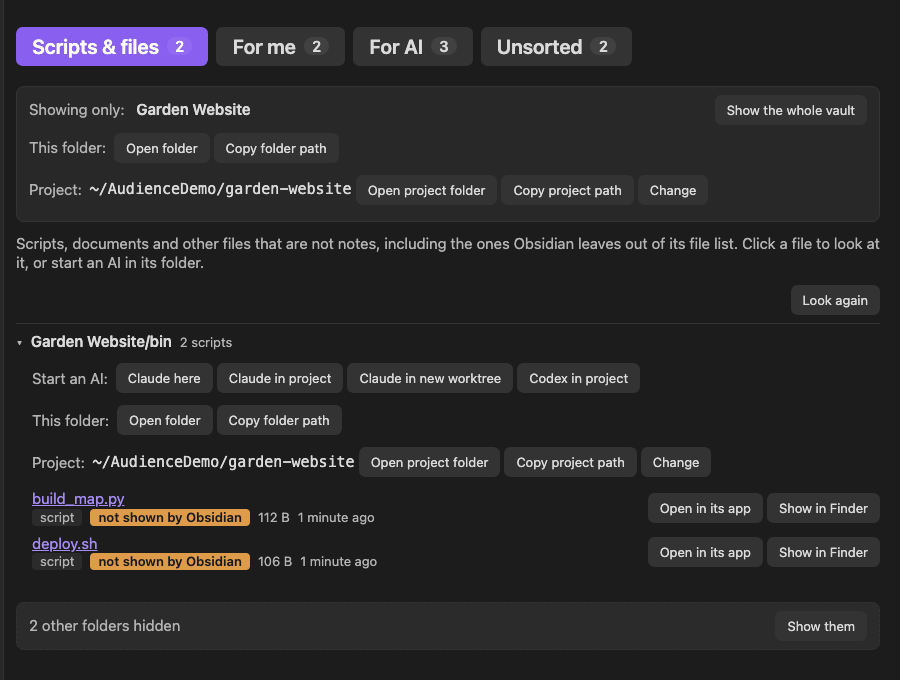
- Shows what Obsidian hides. Folders holding scripts, data and other files Obsidian leaves out of its file list get a “!” badge with a count. Click it to open a file or start an AI there.
- Starts an AI in the right place. One click opens a terminal and starts your AI tool (Claude Code, Codex, anything you type) in the vault folder, in the linked project folder on disk, or in a new git worktree.
- Says who each note is for. One property,
audience: human | ai | both, sorts notes into For me, For AI and Unsorted.
Website with screenshots: https://jeremym.github.io/obsidian-audience/
Install
- From Obsidian (once it is listed): Settings → Community plugins → Browse → search “Audience” → Install → Enable.
- By hand: download
main.js,manifest.jsonandstyles.cssfrom the latest release into<vault>/.obsidian/plugins/audience/, then enable it under Community plugins.
Desktop only. Starting an AI works on macOS and Linux. Windows support is new and not yet tested on a Windows computer: it opens a PowerShell window or Windows Terminal. Reports welcome.
How it works
- Badges. A scan of the vault on disk finds files Obsidian does not list. Kinds of file (scripts, data, databases, documents, archives, media) can be switched off. One list, “Names to ignore”, decides what is not flagged.
- The Audience tab. Four lists: Scripts & files, For me, For AI, Unsorted. From a badge, the tab narrows to that folder, with the rest greyed out below. Every folder has Open folder and Copy folder path buttons, and linked projects have Open project folder and Copy project path.
- Starting an AI. Buttons are yours to define: a name, the command, and where it runs. Worktree buttons only appear for projects kept in git. The terminal app is picked with one click from the ones installed (Terminal, iTerm2, Ghostty, WezTerm, Kitty, Alacritty, Rio on macOS; the common ones on Linux; PowerShell and Windows Terminal on Windows).
- Config as a note. Every setting is also written to one ordinary note, in plain words, so an AI can read it and explain your setup to you.
- The
audienceproperty. The rules are in docs/standard.md. Any tool can use it; nothing ties it to this plugin.
Safety and disclosures
Obsidian asks plugins to say plainly what they do outside the vault. This one:
- Runs commands on your computer. Buttons open a terminal app and run the command you set (such as
claude). Nothing runs without a click. - Writes a temporary script to your system's temporary folder to do that. The script deletes itself when it runs.
- Reads folders outside the vault that you link as project folders, to check whether they exist and are kept in git.
- Creates git worktrees (new folders beside your project) when you use a worktree button.
- Approval guard. A command, terminal or project link changed in the config note, for example by an AI, does not run until you approve it inside Obsidian. Approvals are kept in the plugin's own data file, never in your notes.
- No network. No network calls, no accounts, no API keys, no telemetry.
Develop
Use pnpm.
pnpm install
pnpm dev     # rebuild main.js on every change
pnpm build   # type-check, then build main.js
pnpm test    # Node's built-in test runner
Files with no Obsidian imports hold the logic and have tests in test/. See AGENTS.md for the layout and conventions.
The website is on the site branch, so this branch holds only the plugin.
License
MIT. Not made by or affiliated with Obsidian.
For plugin developers
Search results and similarity scores are powered by semantic analysis of your plugin's README. If your plugin isn't appearing for searches you'd expect, try updating your README to clearly describe your plugin's purpose, features, and use cases.