ClaudeTerm
unlistedby ClaudeTerm
Full-featured terminal for Obsidian - perfect for running Claude Code, vim, git, and more
ClaudeTerm



🚀 Full-featured terminal for Obsidian
Run AI CLI tools (Claude, Gemini, OpenAI, OpenCode), vim, git directly in your sidebar
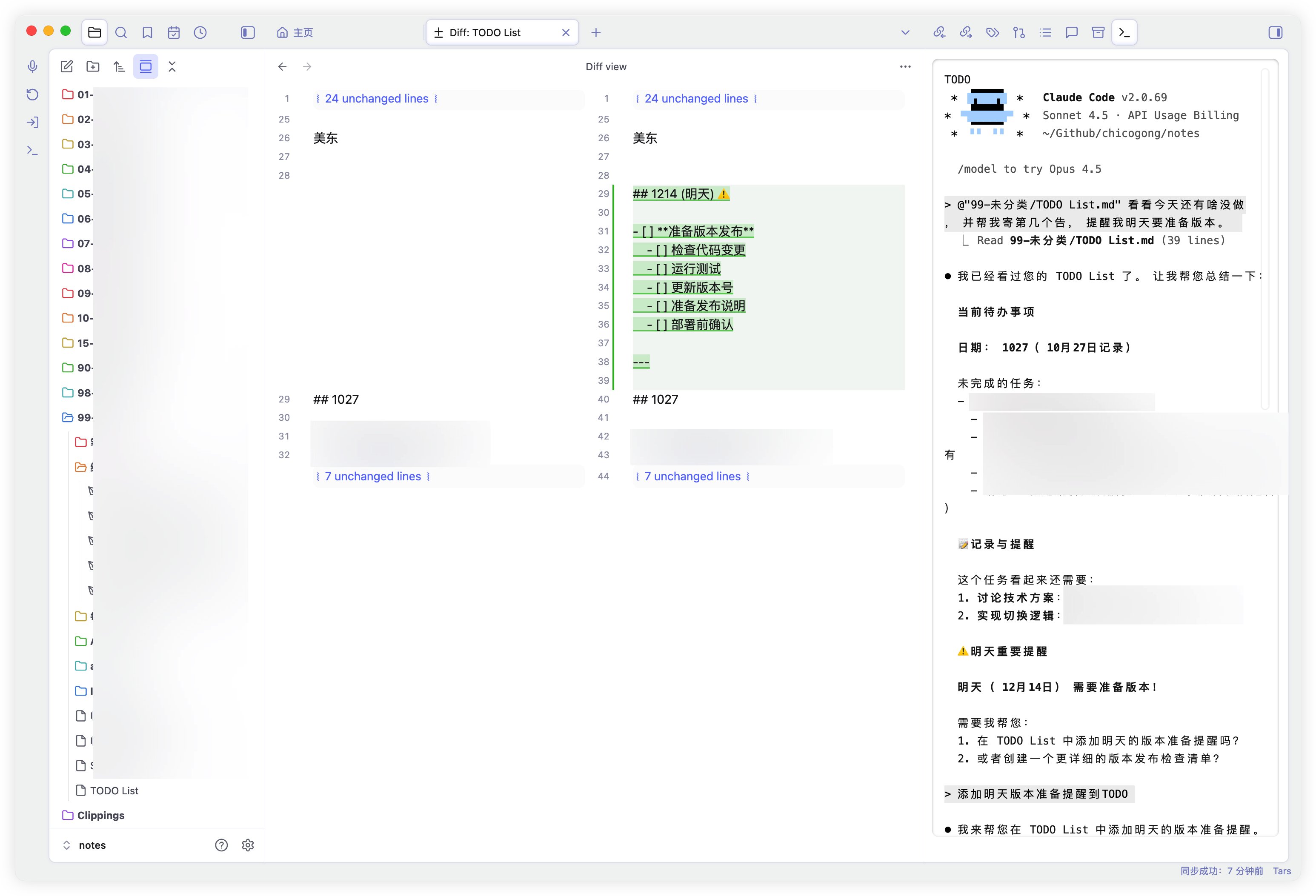
🎬 What Can You Do?
🤖 AI-Powered Note-Taking
Run all major AI CLI tools side-by-side with your notes:
# Claude Code - AI pair programming
claude
claude -p "Help me refactor this code"

# Google Gemini CLI
gemini "Summarize my meeting notes"

# OpenAI ChatGPT / Codex
chatgpt "Generate unit tests for this function"

# OpenCode - open-source coding agent
# Install OpenCode first, then launch it like any other interactive CLI.
opencode
ClaudeTerm is a general PTY terminal rather than a vendor-specific integration. OpenCode needs no plugin adapter: if opencode works in your system terminal and is available on the configured shell PATH, it works inside ClaudeTerm as well.
Perfect workflow:
- Write notes about a problem in Obsidian
- Press
Cmd+Shift+Tto open terminal - Ask AI for help without leaving your notes
- Copy AI's response back to your notes
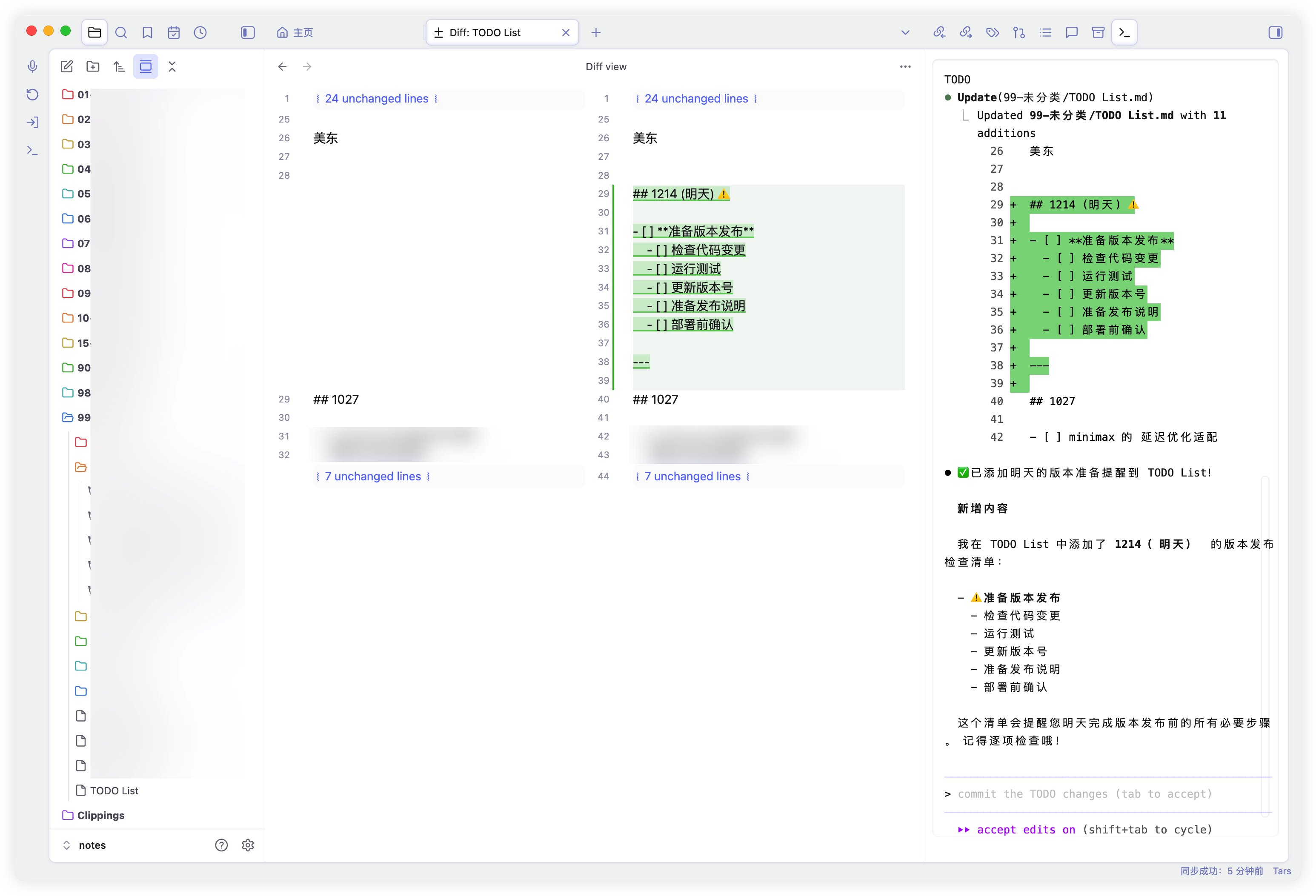
🔄 Perfect with Obsidian Git Plugin
Install Obsidian Git for automatic version control:
-
Install Obsidian Git Plugin:
- Go to
Settings→Community plugins→Browse - Search for "Obsidian Git"
- Click
InstallandEnable
- Go to
-
Visual Git Operations:
- Obsidian Git provides a visual interface for Git
- Auto-commit and sync on schedule
- View changes with built-in diff viewer
- Stage/unstage files with clicks
-
Use ClaudeTerm for Advanced Operations:
- When you need git commands, ClaudeTerm is right there
- Quick
git statusto check changes - Run custom git commands when needed
- Edit commit messages in vim/nano
Perfect combo:
- ✅ Obsidian Git handles automatic syncing
- ✅ ClaudeTerm for when you need terminal control
- ✅ Both work together seamlessly
- ✅ Best of both worlds: GUI + CLI
💻 Full Terminal Experience
Run any command just like in a native terminal - vim, python, npm, docker, and more. All tools work seamlessly.
📦 Installation
Step 1: Install Prerequisites
Check if Python 3 is installed:
python3 --version
# Should show: Python 3.x.x
If not installed:
- macOS:
brew install python3 - Ubuntu/Debian:
sudo apt install python3 - Other Linux: Use your package manager
Step 2: Install ClaudeTerm Plugin
Method A: Using BRAT (Recommended for beginners)
-
Install BRAT plugin first:
- Open Obsidian
- Go to
Settings→Community plugins - Click
Browseand search for "BRAT" - Install and enable BRAT
-
Add ClaudeTerm via BRAT:
- Go to
Settings→BRAT - Click
Add Beta plugin - Enter:
chicogong/obsidian-claude-code - Click
Add Plugin
- Go to
-
Enable ClaudeTerm:
- Go to
Settings→Community plugins - Find "ClaudeTerm" and toggle it ON
- Go to
Method B: Manual Installation (Step by step)
Step 1: Find your vault's plugin folder
- Open Obsidian
- Right-click any note →
Show in system explorer/在系统中显示 - You'll see your vault folder open
- Look for the
.obsidianfolder:- macOS/Linux: Press
Cmd+Shift+.to show hidden files - Windows: Enable "Show hidden files" in File Explorer
- macOS/Linux: Press
- Open
.obsidian→pluginsfolder
Your path should look like:
- macOS:
/Users/YourName/Documents/Obsidian/YourVault/.obsidian/plugins/ - Linux:
/home/YourName/Documents/Obsidian/YourVault/.obsidian/plugins/ - Windows:
C:\Users\YourName\Documents\Obsidian\YourVault\.obsidian\plugins\
Step 2: Download the plugin
Option A: Using Git (Recommended)
Open Terminal/Command Prompt and run:
# Navigate to plugins folder (replace with your actual path)
cd /Users/YourName/Documents/Obsidian/YourVault/.obsidian/plugins/

# Clone the repository
git clone https://github.com/chicogong/obsidian-claude-code.git claudeterm

# Done! The 'claudeterm' folder is now created
Option B: Download ZIP
- Go to https://github.com/chicogong/obsidian-claude-code
- Click green
Codebutton →Download ZIP - Extract the ZIP file
- Rename the extracted folder to
claudeterm - Move the
claudetermfolder to.obsidian/plugins/
Step 3: Verify files
Open the claudeterm folder and make sure you see these files:
claudeterm/
├── main.js           ✓ Must have
├── manifest.json     ✓ Must have
├── styles.css        ✓ Must have
├── pty_proxy.py      ✓ Must have
└── README.md         (optional)
Step 4: Enable the plugin
- Restart Obsidian (completely close and reopen)
- Go to
Settings→Community plugins - Look for "ClaudeTerm" in the list
- Toggle it ON (the switch should turn purple)
- You should now see a terminal icon in the left ribbon!
Troubleshooting:
If ClaudeTerm doesn't appear in the plugin list:
- Check folder name is exactly
claudeterm(lowercase, no spaces) - Make sure files are directly in
claudeterm/, not in a subfolder - Close Obsidian completely and reopen
- Check if
manifest.jsonexists and is valid
Step 3: Configure ClaudeTerm
-
Open Settings:
Settings→ClaudeTerm
-
Choose a theme:
- Light (default) - Clean and professional
- Dark - Easy on the eyes
- Custom - Design your own colors
-
Configure behavior:
- ✅ Auto-cd to note directory (Recommended ON)
- Terminal opens in current note's folder
- Perfect for running commands related to your notes
- ✅ Auto-cd to note directory (Recommended ON)
🚀 How to Use
Opening the Terminal
Method 1: Ribbon Icon (Easiest)
- Click the terminal icon (📟) in the left sidebar
Method 2: Command Palette
- Press
Cmd+P(Mac) orCtrl+P(Windows/Linux) - Type "Open Terminal"
- Press Enter
Method 3: Keyboard Shortcut (Fastest)
- Set it up in
Settings→Hotkeys - Search for "ClaudeTerm"
- Recommended:
Cmd+Shift+TorCtrl+Shift+T
Available Commands
Customize shortcuts in Settings → Hotkeys:
| Command | What it does | Suggested Shortcut |
|---|---|---|
| Open Terminal | Open or focus terminal | - |
| Toggle Terminal | Show/Hide terminal | Cmd+Shift+T |
| Focus Terminal | Jump to terminal | Cmd+K Cmd+T |
| Clear Terminal | Clear screen | - |
| Restart Terminal | Restart shell | - |
Terminal Features
Auto-cd to note directory:
# When editing: Projects/MyApp/notes.md
pwd
# → /vault/Projects/MyApp

# Perfect for project-specific commands!
npm test
git status
All terminal features work:
- ✅ Interactive commands (vim, nano, htop)
- ✅ Colors and formatting
- ✅ Tab completion
- ✅ Command history (↑/↓ arrows)
- ✅ Ctrl+C to cancel
- ✅ Copy/paste
🎨 Themes & Customization
Built-in Themes
Light Theme (Default)
- Professional look
- Perfect for daytime use
- Matches Obsidian's light mode
Dark Theme
- Easy on the eyes
- Great for nighttime
- Matches Obsidian's dark mode
Custom Theme
Full control over terminal colors:
- Enable custom theme in settings
- Customize each color:
- Background & Foreground
- Cursor & Selection
- All 16 ANSI colors (black, red, green, etc.)
- Preview changes instantly
- Reset to defaults anytime
🔧 Troubleshooting
Terminal won't open
Problem: "Failed to start Python proxy"
Solution:
- Check Python installation:
which python3 - If not found, install Python 3
- Restart Obsidian
- Try opening terminal again
Plugin not showing up
Check these:
- ✅ Folder name is
claudeterm(notobsidian-claude-code) - ✅ Files exist:
manifest.json,main.js,pty_proxy.py - ✅ Plugin is enabled in settings
- ✅ Restart Obsidian
Terminal looks weird
Solutions:
- Try switching themes (Light ↔ Dark)
- Resize Obsidian window
- Use "Restart Terminal" command
- Check if Python 3 is working:
python3 --version
Characters appear twice
Already fixed in current version!
If you still see it:
- Update to latest version
- Use "Restart Terminal" command
🗺️ Roadmap
✅ Completed Features
- Full terminal emulation (PTY support)
- All AI CLI tools (Claude, Gemini, OpenAI)
- Git integration (perfect with Obsidian Git)
- Custom themes (Light/Dark/Custom)
- Auto-cd to note directory
- Keyboard shortcuts
🔮 Coming Soon
- Windows support - Using conpty/winpty
- Multiple tabs - Switch between terminals
- Session persistence - Remember state on restart
- Visual git diff - See changes in Obsidian UI
- AI shortcuts - Quick commands for AI tools
- Terminal profiles - Save different configurations
💡 Tips & Tricks
Combine with Obsidian Git
Install Obsidian Git plugin alongside ClaudeTerm:
- Obsidian Git auto-syncs your vault
- Use ClaudeTerm to review changes:
git diff - Stage specific changes:
git add -p - Commit with detailed messages
- Perfect workflow for version control!
Use with AI CLI Tools
Claude Code:
claude           # Interactive mode
claude -p "..."  # One-shot prompt
Gemini CLI:
gemini "question"
gemini -m gemini-pro "complex task"
OpenAI:
chatgpt "question"
openai "generate code for..."
Quick File Editing
# Edit in vim
vim notes.md

# Edit in nano (easier for beginners)
nano notes.md

# Quick changes
echo "# New note" > temp.md
🤝 Contributing
Contributions welcome!
Found a bug? Open an issue
Have an idea? Start a discussion
Want to help?
git clone https://github.com/chicogong/obsidian-claude-code.git
cd obsidian-claude-code
# Edit code
# Test in Obsidian (Cmd+R to reload)
# Submit PR
See ARCHITECTURE.md for technical details.
📄 License
MIT License - see LICENSE
Free to use, modify, and distribute!
🙏 Credits
Built with:
- xterm.js - Terminal emulator
- Obsidian - Note-taking platform
- Obsidian Git - Git integration
Supports:
- Claude Code - AI coding assistant
- Google Gemini - AI assistant
- OpenAI - AI platform
- OpenCode - open-source coding agent
Inspired by obsidian-terminal
Made with ❤️ for developers who live in Obsidian
For plugin developers
Search results and similarity scores are powered by semantic analysis of your plugin's README. If your plugin isn't appearing for searches you'd expect, try updating your README to clearly describe your plugin's purpose, features, and use cases.