Auto Equation Numbering
approvedby Caoshengzhao
Manually toggle and update display-equation numbering per document, and reuse the first number for duplicate equations. - This plugin has not been manually reviewed by Obsidian staff.
Auto Equation Numbering for Obsidian
English
Introduction
When writing Markdown notes with a large number of mathematical equations, you often encounter the following issues:
- Painful manual renumbering: Inserting or deleting an equation in the middle of a long note forces you to manually update
\tag{n}for all subsequent equations, which is highly inefficient and error-prone. - Broken cross-references: Writing references like
As shown in Equation (3)...manually means you must search the entire note and update them one by one whenever the equation numbers change. Missing even one leads to logical confusion for both you and your readers. - Duplicate equation synchronization: During complex derivations, the same equation may be repeated in multiple places. When managing numbers manually, keeping their numbering consistent (or incrementing them independently) is tedious and time-consuming.
- LaTeX compatibility issues: Using
\labeland\tagdirectly in Obsidian often leads to MathJax parsing errors or rendering glitches, disrupting your writing flow.
Automatic Equation Numbering & Cross-Referencing
Auto Equation Numbering is a plugin designed specifically for Obsidian. It fully automates equation numbering and cross-references, freeing you from tedious formatting chores so you can focus on expressing your ideas.
✨ Key Features
1. Automatic Display-Equation Numbering & Renumbering
- Automatic Parsing: Parses all display equations (
$$ ... $$) in your Markdown note and appends a LaTeX-compliant\tag{n}automatically. - Non-Intrusive Design: Ignores inline equations (
$...$) and code blocks (like```blocks) to ensure your source code remains safe and untouched. - Dynamic Updates: When you insert, delete, or rearrange equations, simply update the numbering with one click, and all equation tags will be recalculated and updated instantly.
2. Smart Cross-Reference Synchronization
Supports LaTeX-style equation label declarations and in-text links:
- Define Labels: Use
\label{label_name}inside a display equation to declare a unique identifier. - In-text Reference: Link to the identifier in your text using Markdown link syntax, e.g.,
[Eq. ()](#eq:model). - Automatic Filling & Sync:
- Auto-Fill: On the first update, the plugin automatically fills the parentheses with the correct equation number (e.g., auto-completing to
[Eq. (1)](#eq:model)). - Dynamic Sync: If equation order changes and causes number changes, updating the note will sync all references automatically.
- Auto-Fill: On the first update, the plugin automatically fills the parentheses with the correct equation number (e.g., auto-completing to
3. Flexible Numbering Formats
Customize equation numbering styles globally or per-note to match different document formats and layout requirements:
- Default:
1,2,3... - Prefix style:
A-1,A-2... - Sub-section style:
2.1,2.2... - Parentheses style:
(2-1),(2-2)... - Custom: Full customization where the
*placeholder will be replaced with the equation index.
4. Duplicate Equation Deduplication (Optional)
- Core Structure Extraction: The plugin extracts and normalizes the core LaTeX structure of equations (ignoring insignificant whitespace and existing tags).
- Reuse Numbers: If multiple identical equations are detected within the same note, the plugin reuses the same number by default to maintain derivation consistency.
- Independent Numbering: This can be turned off in the settings, allowing each equation to be numbered sequentially even if they are identical.
5. Convenient Control Panels & Shortcut Buttons
- Redesigned Sidebar Control Panel: A modernized sidebar featuring a custom math logo, simplified settings controls (Format, Repeat Recognition), and a prominent full-width "Update" CTA button. Open it via the ribbon icon or command palette.
- Editor Header Shortcut Button (UpNum): An action button (using the list-ordered icon) is added directly to the top-right view header of active notes. It allows you to trigger updates instantly on the fly without having the sidebar open. It dynamically hides on notes that don't have equation numbering enabled.
- Status Bar Toggle: Click the
🔢icon in the bottom-right status bar to quickly toggle auto-numbering on or off for the active note.
6. Diff-Range Performance Optimization
- Instant Updates: The plugin calculates the minimal changed character block and updates the editor using
editor.replaceRange()instead of replacing the entire file text. This prevents full-page MathJax/KaTeX re-renders and eliminates UI lag or freezing, even in extremely large notes.
| Sidebar Control Panel | Status Bar Switch |
|---|---|
 | 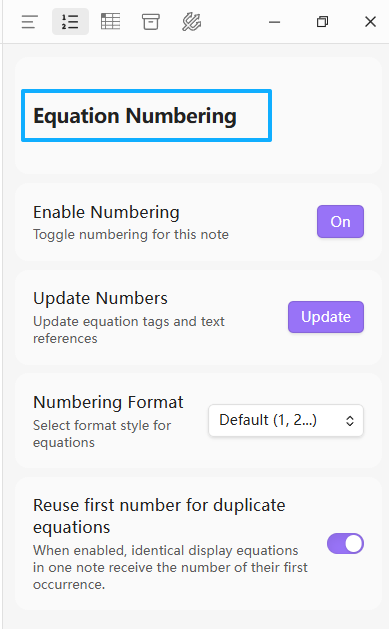 |
(Note: Total Toggle Switch:  )
)
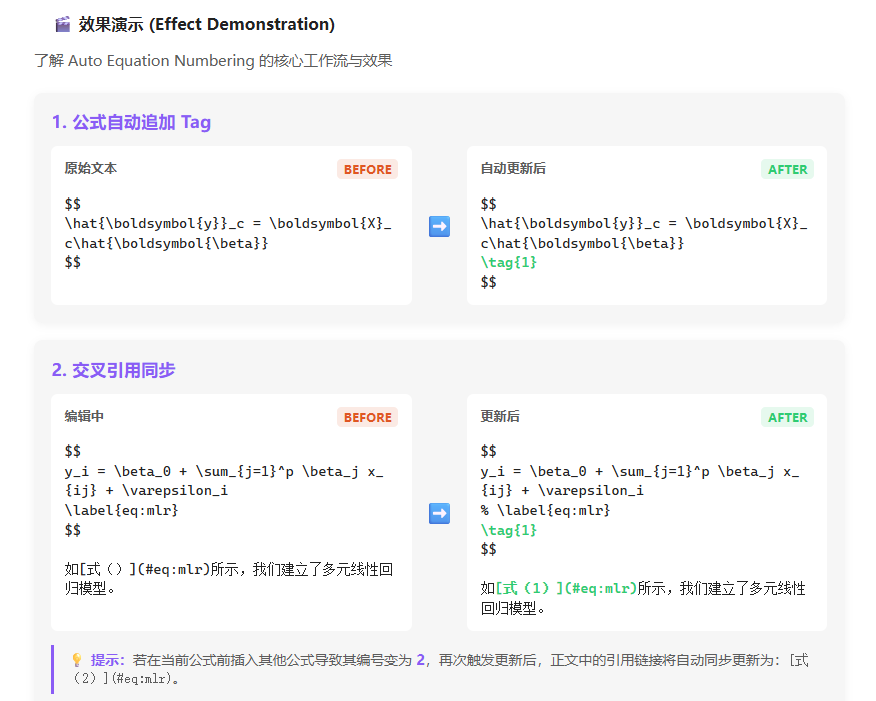
🎬 Demonstration
1. Automatic Tag Appending
Original text:
$$
\hat{\boldsymbol{y}}_c = \boldsymbol{X}_c\hat{\boldsymbol{\beta}}
$$
After auto-update:
$$
\hat{\boldsymbol{y}}_c = \boldsymbol{X}_c\hat{\boldsymbol{\beta}}
\tag{1}
$$
2. Cross-Reference Synchronization
During editing:
$$
y_i = \beta_0 + \sum_{j=1}^p \beta_j x_{ij} + \varepsilon_i
\label{eq:mlr}
$$

As shown in [Eq. ()](#eq:mlr), we establish a multiple linear regression model.
After clicking "Update":
- The link placeholder in the text is filled automatically:
[Eq. (1)](#eq:mlr). - If another equation is inserted before it, shifting its number to
2, updating the document will automatically sync the in-text link to[Eq. (2)](#eq:mlr). For example:
$$
y_i = \beta_0 + \sum_{j=1}^p \beta_j x_{ij} + \varepsilon_i
% \label{eq:mlr}
\tag{2}
$$

As shown in [Eq. (2)](#eq:mlr), we establish a multiple linear regression model.
🛠️ Installation & Building
1. Manual Installation
- Clone or download this repository.
- Install dependencies and build the project in the root folder:
npm install npm run build - Navigate to the
.obsidian/plugins/folder in your Obsidian vault and create a new directory namedobsidian-auto-equation-numbering. - Copy
main.js,manifest.json, andstyles.cssfrom the project root into that folder. - Reload and enable the plugin in Obsidian's "Community plugins" settings.
2. Development
To automatically recompile the code during development, run:
npm run dev
💡 Important Technical Notes
- Overwriting Manual Tags: The plugin manages
\tag{...}tags dynamically. Any manually written\taginside display equations will be overwritten by the auto-numbering logic when you update. - MathJax Rendering Workaround: Because Obsidian's native MathJax rendering might throw errors when it parses a bare
\label{...}, the plugin automatically prepends a%comment prefix (rewriting it as% \label{...}) when modifying the file. This is only a workaround to prevent rendering issues in Obsidian and does not affect the plugin's ability to extract labels and update references.
中文
前言
在撰写包含大量数学公式的 Markdown 笔记时,经常遇到以下问题:
- “牵一发而动全身”的重排痛苦:在长篇笔记中间插入或删除一个公式,后面所有公式的
\tag{n}必须手动逐个修改,效率极低且极易出错。 - 断开的正文交叉引用:在正文中手写了
如公式 (3) 所示...,一旦前面的公式编号发生变动,必须人工搜索全文,逐一核对并修改引用。漏掉一个,就会导致读者和自己逻辑错乱。 - 重复公式的编号同步难题:在复杂的推导过程中,同一个公式可能会在多个地方重复引用。手动管理时,很难保证这些重复公式的编号始终保持一致(或按需独立递增),耗时耗力。
- LaTeX 语法兼容与报错折磨:在 Obsidian 中强行配合
\label和\tag时,常常因为 MathJax 渲染机制导致解析异常或报错,破坏写作流畅度。
自动化公式编号与交叉引用
Auto Equation Numbering 是一款专为 Obsidian 设计的公式管理插件。它将公式编号和正文交叉引用彻底自动化,让您从繁琐的排版纠错中解放出来,专注于思路的表达。
✨ 核心特性
1. 显示公式自动编号与重排
- 全自动解析:解析 Markdown 文档中的所有独立显示公式(
$$ ... $$),并在末尾自动追加符合 LaTeX 规范的\tag{n}。 - 免干扰设计:不对行内公式(
$...$) and Markdown 代码块(如```块内代码)进行任何处理,保证源码安全。 - 动态更新:插入、删除公式或调整段落顺序后,只需一键更新,所有公式编号均会自动重新计算与排列。
2. 正文交叉引用智能同步
支持 LaTeX 风格的公式标签声明与正文内的链接引用:
- 定义标签:在显示公式内部使用
\label{label_name}声明唯一标识符。 - 正文引用:在正文中使用 Markdown 链接指向该标识符,例如
[式()](#eq:model)。 - 自动填充与同步:
- 自动填入:在首次更新时,插件会自动将最新的公式编号填入括号内(如自动补全为
[式(1)](#eq:model))。 - 同步变化:当公式顺序变化导致编号变更时,一键即可让正文中的所有引用链接同步更新,绝无遗漏。
- 自动填入:在首次更新时,插件会自动将最新的公式编号填入括号内(如自动补全为
3. 灵活的多样化编号格式
支持全局或单篇笔记独立的公式编号样式定制,满足不同文档与排版规范的要求:
- Default (默认):
1、2、3... - 前缀样式:
A-1、A-2... - 小节点样式:
2.1、2.2... - 带括号样式:
(2-1)、(2-2)... - Custom (自定义):支持完全自定义输入,其中
*占位符将被替换为公式的顺序序号。
4. 重复公式去重机制(可选)
- 核心结构提取:插件会自动提取并标准化公式的 LaTeX 核心结构(剔除无意义的空白字符与已有 tag)。
- 复用编号:如果检测到同一篇笔记中存在多个完全相同的公式,默认会复用相同的公式编号,以保证推导的一致性。
- 独立编号:该机制可在设置中随时关闭。关闭后,每个公式都将获得独立递增的编号。
5. 便捷的交互面板与快捷按钮
- 全新设计的侧边控制面板:拥有精美的数学公式 Logo、精简的设置选项、以及醒目的通栏(Full-width)“Update”更新按钮,更加美观易用。可点击侧边栏图标或通过命令栏打开。
- 编辑器头部快捷按钮 (UpNum):直接在开启了公式编号的笔记右上角(视图操作栏)生成一个快捷更新按钮。您无需打开侧边栏,在编辑过程中直接点击右上角即可瞬间完成更新。在未开启公式编号的笔记中,该按钮会自动隐藏。
- 状态栏快捷切换:窗口右下角提供
🔢状态指示与快捷开关,随时切换当前笔记的自动编号状态。
6. 差分更新(Diff-Range)性能优化
- 瞬时更新不卡顿:采用差分算法计算文本的最小变化范围,仅通过
editor.replaceRange()进行局部替换,而不是粗暴地覆盖全文。这避免了整个文档的 MathJax/KaTeX 公式完全重新排版,彻底解决了大文档点击更新时的界面卡死和卡顿问题。
| 侧边控制面板 | 状态栏快捷切换 |
|---|---|
| |
(注:自动编号总开关:)
🎬 效果演示
1. 公式自动追加 Tag
原始文本:
$$
\hat{\boldsymbol{y}}_c = \boldsymbol{X}_c\hat{\boldsymbol{\beta}}
$$
自动更新后:
$$
\hat{\boldsymbol{y}}_c = \boldsymbol{X}_c\hat{\boldsymbol{\beta}}
\tag{1}
$$
2. 交叉引用同步
编辑中的笔记内容:
$$
y_i = \beta_0 + \sum_{j=1}^p \beta_j x_{ij} + \varepsilon_i
\label{eq:mlr}
$$

如[式()](#eq:mlr)所示,我们建立了多元线性回归模型。
点击“更新(Update)”后:
- 正文中的占位链接被自动填充为:
[式(1)](#eq:mlr)。 - 若在当前公式前插入其他公式导致其编号变为
2,再次触发更新后,引用链接将自动同步更新为:[式(2)](#eq:mlr)。 例如:
$$
y_i = \beta_0 + \sum_{j=1}^p \beta_j x_{ij} + \varepsilon_i
% \label{eq:mlr}
\tag{2}
$$

如[式(2)](#eq:mlr)所示,我们建立了多元线性回归模型。
🛠️ 安装与构建指南
1. 手动安装
- 克隆或下载本仓库至本地。
- 在项目根目录下执行依赖安装与打包:
npm install npm run build - 在您的 Obsidian 库中定位到
.obsidian/plugins/目录,并创建一个名为obsidian-auto-equation-numbering的新文件夹。 - 将编译生成的
main.js以及项目中的manifest.json复制到该文件夹中。 - 在 Obsidian 的“社区插件”设置中重新加载并启用本插件。
2. 开发命令
本地开发调试时,可在本目录执行以下命令监听文件变化并自动重新编译:
npm run dev
💡 技术注意事项
- 手工 Tag 覆盖:插件会接管显示公式中的
\tag{...}。若文档中存在手动写入的\tag,在执行更新时会被插件的自动编号逻辑覆盖。 - MathJax 渲染兼容处理:由于 Obsidian 原生的 MathJax 渲染可能对
\label{...}抛出解析异常,插件在重写公式时会为其自动添加%前缀(即重写为% \label{...})。该处理仅在渲染层面避免报错,不影响插件对标识符的提取与交叉引用更新。
For plugin developers
Search results and similarity scores are powered by semantic analysis of your plugin's README. If your plugin isn't appearing for searches you'd expect, try updating your README to clearly describe your plugin's purpose, features, and use cases.