Base View Switcher
approvedby hornat
Add custom view switching buttons to the Base database title bar. - This plugin has not been manually reviewed by Obsidian staff.
✦ Base 视图切换器 ✦

我在小红书发布了许多obsidian的教程和插件开发进度,你的关注就是对我最大的支持
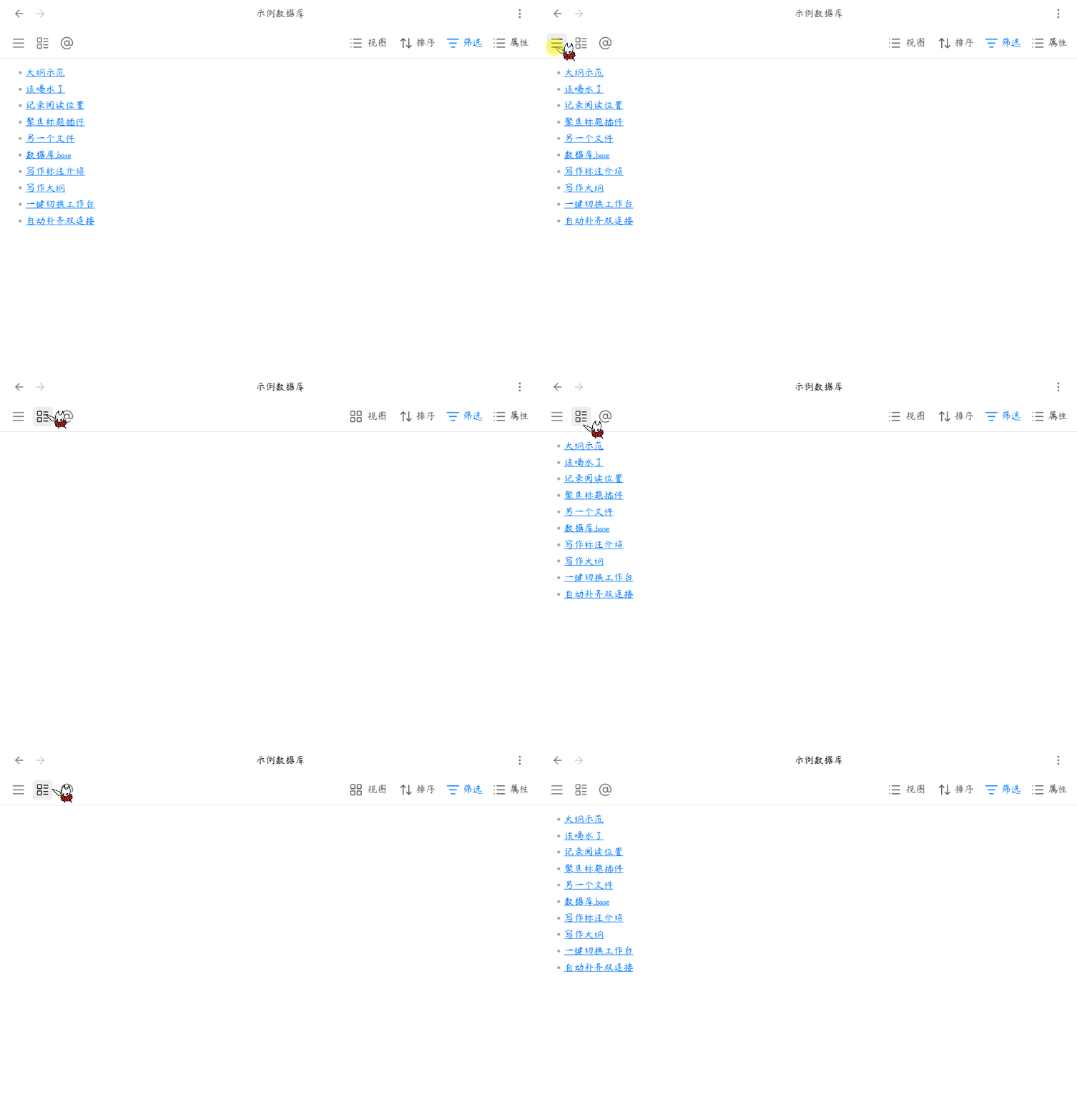
一键切换数据库视图,告别繁琐操作,让数据管理更高效。
简体中文
核心功能
1. 快速视图切换
为 Base 数据库添加自定义按钮,点击即可瞬间切换到指定视图,无需手动选择。
2. 界面美化定制
自由控制工具栏元素显隐,隐藏不需要的按钮和计数,让界面更简洁清爽。
3. 灵活按钮配置
支持默认按钮和自定义按钮,可选择图标模式或文字模式,满足不同使用习惯。
4. 拖拽排序
按钮顺序支持拖拽调整,按照你的使用频率自由排列。
5. 多数据库管理
支持为不同的 Base 文件配置独立的按钮方案,每个数据库都有专属设置。
用法
安装后配置
- 安装插件后,打开 设置 > Base 视图切换器。
- 点击 "+ 添加数据库" 按钮,选择需要配置的
.base文件。 - 配置完成后,打开该 Base 文件即可看到工具栏上的切换按钮。
配置界面美化
在设置页面的 "界面美化" 区域,你可以:
| 选项 | 说明 |
|---|---|
| 启用自定义视图菜单样式 | 解决小尺寸面板下按钮挤压问题 |
| 隐藏 "X 个结果" | 隐藏工具栏上的结果计数 |
| 隐藏 "搜索" 按钮 | 隐藏搜索功能按钮 |
| 隐藏 "属性" 按钮 | 隐藏属性筛选按钮 |
| 隐藏 "筛选" 按钮 | 隐藏筛选功能按钮 |
| 隐藏 "排序" 按钮 | 隐藏排序功能按钮 |
配置默认按钮
默认按钮使用固定的 home 图标,适合绑定主视图:
- 开启 "启用默认按钮" 开关。
- 选择按钮位置:靠左(排在第一) 或 靠右(排在最后)。
- 点击 "选择视图" 按钮,从弹出列表中选择要绑定的视图。
配置自定义按钮
自定义按钮可绑定任意视图,支持图标模式和文字模式:
- 点击 "+ 添加" 按钮创建新按钮。
- 更改图标:点击图标按钮,从弹出的图标库中搜索选择。
- 绑定视图:点击视图名称按钮,从当前数据库的视图列表中选择。
- 切换显示模式:
- 眼睛图标(睁眼):图标模式,只显示图标,节省空间
- 眼睛图标(闭眼):文字模式,显示视图名称,适合宽屏
- 删除按钮:点击垃圾桶图标移除按钮。
- 调整顺序:拖拽按钮左侧的 grip 图标调整位置。
删除配置
如需删除某个数据库的配置:
- 在设置页面切换到对应的数据库标签页。
- 滚动到底部,找到 "危险操作" 区域。
- 点击 "删除此配置" 按钮并确认。
赞赏支持
🎁 如果觉得有用,请作者喝杯咖啡

安装方法
方法一:社区插件安装(推荐)
待插件通过审核并上架社区市场后:
- 打开 Obsidian 设置 > 社区插件 > 浏览。
- 搜索并选择
Base View Switcher。 - 点击 安装 并选择 启用。
方法二:手动安装
- 前往 Releases 页面下载最新的
main.js和manifest.json文件。 - 打开您的 Obsidian 库所在的本地文件夹。
- 进入
.obsidian/plugins/目录,并创建一个名为base-view-switcher的文件夹。 - 将下载的两个文件放入该文件夹中。
- 在 Obsidian 设置 > 社区插件 中重新加载并开启该插件。
QQ 交流群:1094620986
English
Base View Switcher — A powerful view switching plugin for Obsidian's Base database. Add custom buttons to quickly switch between different views, with full control over toolbar elements and button layout.
Features
1. Quick View Switching
Add custom buttons to Base database files for instant view switching without manual selection.
2. UI Customization
Freely control toolbar elements visibility, hide unnecessary buttons and counts for a cleaner interface.
3. Flexible Button Configuration
Support default and custom buttons, choose between icon mode or text mode to suit different preferences.
4. Drag & Drop Sorting
Button order supports drag-and-drop adjustment, arrange by your usage frequency.
5. Multi-Database Management
Configure independent button schemes for different Base files, each database has its own settings.
Usage
After Installation
- After installing the plugin, open Settings > Base View Switcher.
- Click the "+ Add Database" button to select a
.basefile to configure. - Once configured, open the Base file to see the switching buttons in the toolbar.
Interface Customization
In the "Interface Customization" section of settings:
| Option | Description |
|---|---|
| Enable custom view menu style | Fix button squeezing in small panels |
| Hide "X results" | Hide result count in toolbar |
| Hide "Search" button | Hide search functionality button |
| Hide "Properties" button | Hide properties filter button |
| Hide "Filter" button | Hide filter functionality button |
| Hide "Sort" button | Hide sort functionality button |
Default Button Configuration
Default button uses a fixed home icon, suitable for binding to the main view:
- Enable the "Enable default button" toggle.
- Choose button position: Left (first) or Right (last).
- Click "Select view" button to choose from the view list.
Custom Button Configuration
Custom buttons can bind any view, supporting icon mode and text mode:
- Click "+ Add" button to create a new button.
- Change icon: Click the icon button to search and select from the icon library.
- Bind view: Click the view name button to select from current database's view list.
- Toggle display mode:
- Eye icon (open): Icon mode, shows only icon, saves space
- Eye icon (closed): Text mode, shows view name, suitable for widescreen
- Delete button: Click the trash icon to remove the button.
- Reorder: Drag the grip icon on the left side of the button to adjust position.
Delete Configuration
To delete a database configuration:
- Switch to the corresponding database tab in settings.
- Scroll to the bottom, find the "Dangerous Operations" section.
- Click "Delete this configuration" button and confirm.
Installation
Method 1: Community Plugins (Recommended)
Once the plugin is reviewed and listed on the community marketplace:
- Open Obsidian Settings > Community plugins > Browse.
- Search for and select
Base View Switcher. - Click Install and then Enable.
Method 2: Manual Installation
- Go to the Releases page to download the latest
main.jsandmanifest.jsonfiles. - Open your Obsidian vault folder on your computer.
- Navigate to the
.obsidian/plugins/directory and create a folder namedbase-view-switcher. - Place the downloaded files into this folder.
- Reload and enable the plugin in Obsidian Settings > Community plugins.
QQ Group: 1094620986
For plugin developers
Search results and similarity scores are powered by semantic analysis of your plugin's README. If your plugin isn't appearing for searches you'd expect, try updating your README to clearly describe your plugin's purpose, features, and use cases.