Base Views
unlistedby iiz
Always show the view list for base files (including several custom base views).
Base Views for Obsidian (Experimental)
日本語版 README はこちら (README.ja.md)
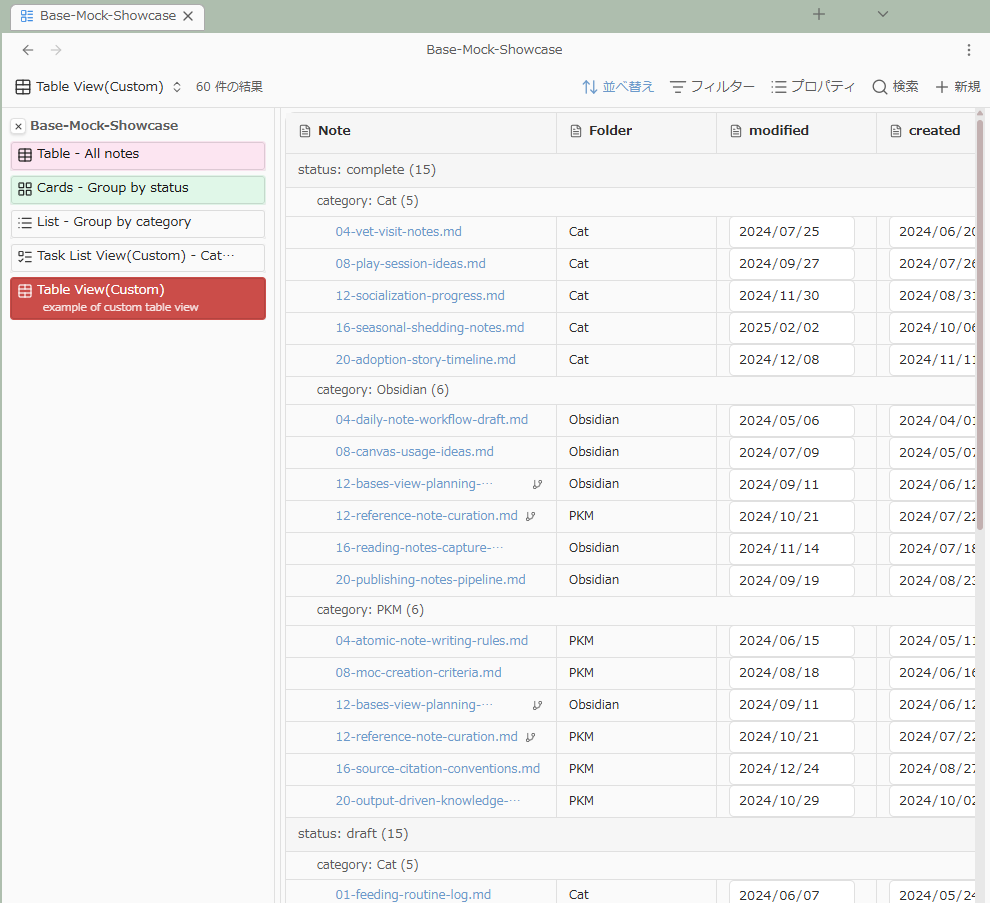
Base Views is an experimental plugin that enhances view operations for Obsidian .base files.
Key features
This plugin is based on a fork of TaskNotes. Table View (Custom) and Task List View (Custom) extend TaskNotes' Bases custom view (Task List View).
- Always show a view list for
.basefiles (this is what the plugin name "Base Views" is intended to represent). Table View (Custom): a view modeled after the original Bases table view, with added unnest behavior for grouping on multi-value properties and TaskNotes' two-level grouping feature ported in.Task List View (Custom): based on TaskNotes' Task List custom view, with added unnest behavior for grouping on multi-value properties.
Notes
- This is an experimental plugin. Bugs may remain. Behavior and settings may change in the future, and compatibility may break due to Obsidian-side changes.
- It depends on Obsidian's Bases feature.
Task List View (Custom)is fully functional only when the TaskNotes plugin is installed and enabled. If you do not use TaskNotes, turning offTask List View (Custom)in settings is recommended.- When you change per-base settings from the view list, some values are written into the base file's
formulas. Also, if you set a per-view description or color, they are written asdescription/bg-colorproperties in each view section (properties outside official Bases specs).
Installation (Obsidian BRAT)
Install this plugin using Obsidian BRAT.
- Install and enable BRAT.
- In BRAT settings, select Add beta plugin.
- Enter this repository URL:
https://github.com/iiz00/obsidian-base-views. - After adding, enable Base Views in Settings → Community plugins.
Usage
At the top of settings, you can toggle these three features. Turn off any feature you do not use.
View list
- In
.basefiles, click items in the view list to switch views. - You can configure placement (
left/top/none/formulaOnly), font size, icon visibility, and narrow-width behavior. - This is only active for
.basefiles with multiple views.
Table View (Custom)
- You can select
Table View (Custom)as a Bases view type. This is modeled after the original Bases Table View behavior. - You can configure row height (
Row height), sub-grouping, and unnest. - Supports column resizing, column summaries (
sum/avg/earliest, etc.), and grouped display. - If the
Iconicplugin is installed, icons can be shown in the file name column (toggleable in settings).
Task List View (Custom)
- You can select
Task List View (Custom)as a Bases view type. - You can configure
Sub-group byandUnnest multi-value groups. - If TaskNotes runtime is available, editing actions are enabled.
- If TaskNotes runtime is unavailable, it is rendered as read-only.
Settings (overview)
- Feature switches
- Toggle each major feature
- Enable view list sidebar
- Enable Table View (Custom)
- Enable Task List View (Custom)
- Interface language (
en/ja) - View list sidebar settings
- Placement (
left/top/none/formulaOnly), side pane placement (left/top/none/formulaOnly), font size, description visibility, icon visibility - Top overflow (
wrap/scroll) - Narrow-width behavior, threshold, native toolbar visibility control
- Placement (
- Custom views settings
- Show Iconic icons in
Table View (Custom) - Show grouping property names
- Show Iconic icons in
View list placement settings and persistence
The view list placement (left / top / none) can be configured through three different paths, each with different persistence behavior.
1. Plugin settings (global defaults)
- The default placement configured in Settings → Base Views.
- Applied to all
.basefiles. - Used as a fallback when no per-base setting exists.
2. Temporary settings (per-session)
- Changed via the view list context menu (
Show on left/Show on top), the "Open view list" toolbar icon, the close button, etc. - Held in memory only — resets when the tab is closed or the plugin is reloaded.
3. Per-base embedded settings (persistent)
- Selecting
Always show on left for this base(or similar) from the view list context menu writes the setting into the.basefile's formulas. - Because it is saved to the file, it persists across restarts.
- Selecting the same item again removes the setting, falling back to the plugin defaults.
Priority order
When multiple settings exist, the priority is: temporary setting → per-base embedded setting → plugin setting.
Privacy / data handling
- Base Views features (view list display, custom view rendering, settings persistence) are designed to run locally in your Obsidian vault.
- Base Views itself does not collect, transmit, or use telemetry for user data.
- However, if you use TaskNotes runtime integration in
Task List View (Custom), behavior of TaskNotes-enabled features follows TaskNotes policies. - For details, see PRIVACY.md (scope to be clarified in a future update).
Credits
- Based on TaskNotes: https://github.com/callumalpass/tasknotes
- This plugin contains modified code based on TaskNotes.
License
- MIT
For plugin developers
Search results and similarity scores are powered by semantic analysis of your plugin's README. If your plugin isn't appearing for searches you'd expect, try updating your README to clearly describe your plugin's purpose, features, and use cases.