by theluckystrike
Edit different Boolean properties through one checkbox column with a source key shown for each note.
Bases Checkbox Router
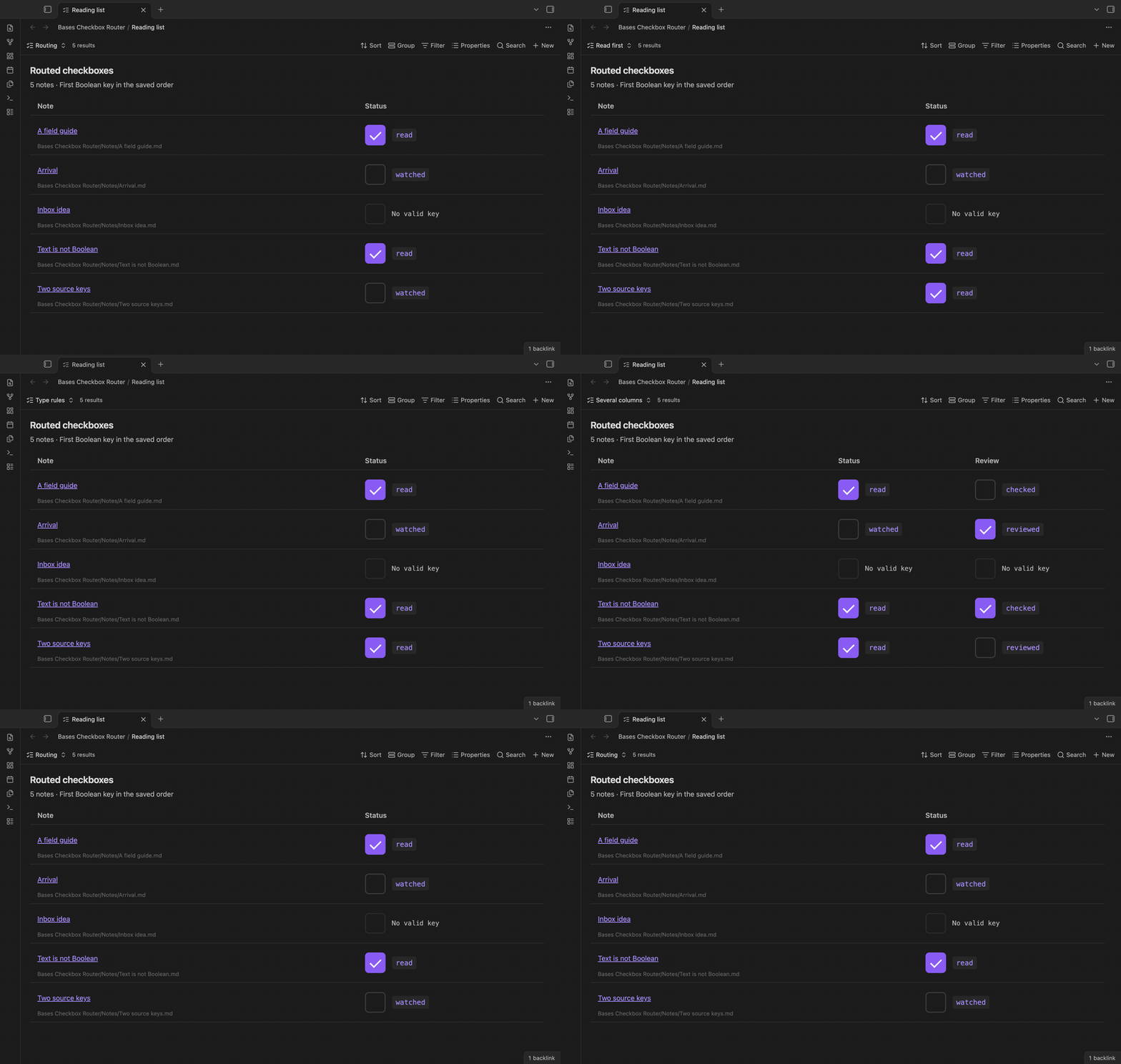
Keep books and films in one base without giving them the same status property. Bases Checkbox Router shows one status control for each note. It selects the first Boolean property in your saved key order and shows that key beside the control.
For example, a film can use watched and a book can use read. You can change either value from the same column. A note without a suitable Boolean has an inactive control. The free version includes the ordered key list, source labels, note links, and checks before a write.
Features
One column with visible source keys
Add watched and read to the property list in that order. The router checks each note for an existing Boolean value. It selects watched: false before read: true, because false is a valid Boolean. A text value such as watched: "false" does not qualify. The view then checks read.
The key beside the switch tells you which property will change. A row marked "No valid key" cannot write a property. The router does not add a missing key or convert text into a Boolean. It uses the notes selected by the base, including its sort and limit.
Save the key order with the view
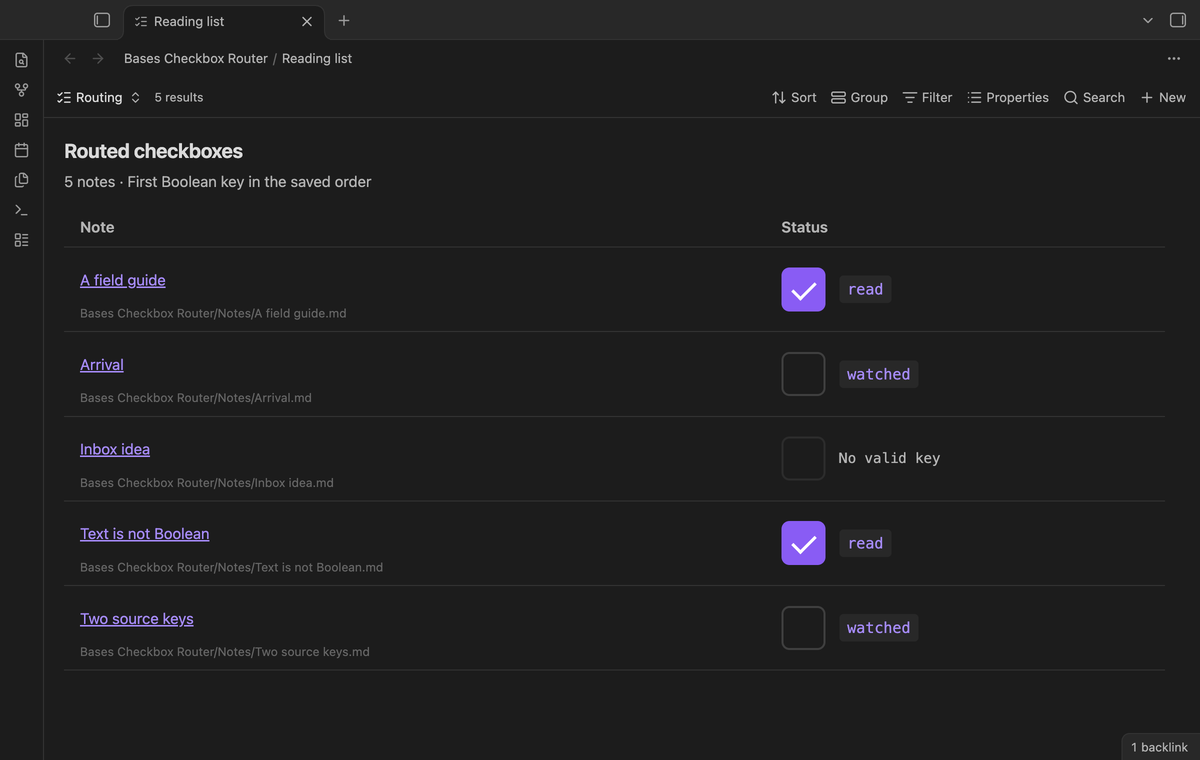
The base file stores the ordered key list. Change the order to change which existing property has priority. For a note that has both watched and read, putting read first selects that key. This selection does not depend on whether its value is checked.
Key names are case sensitive and refer to top-level YAML properties. Use read, not note.read, unless your actual property name contains that prefix. Empty names and repeated names are removed. A saved empty list leaves the controls inactive. A view without a saved list uses watched, then read.
Check the source before a write
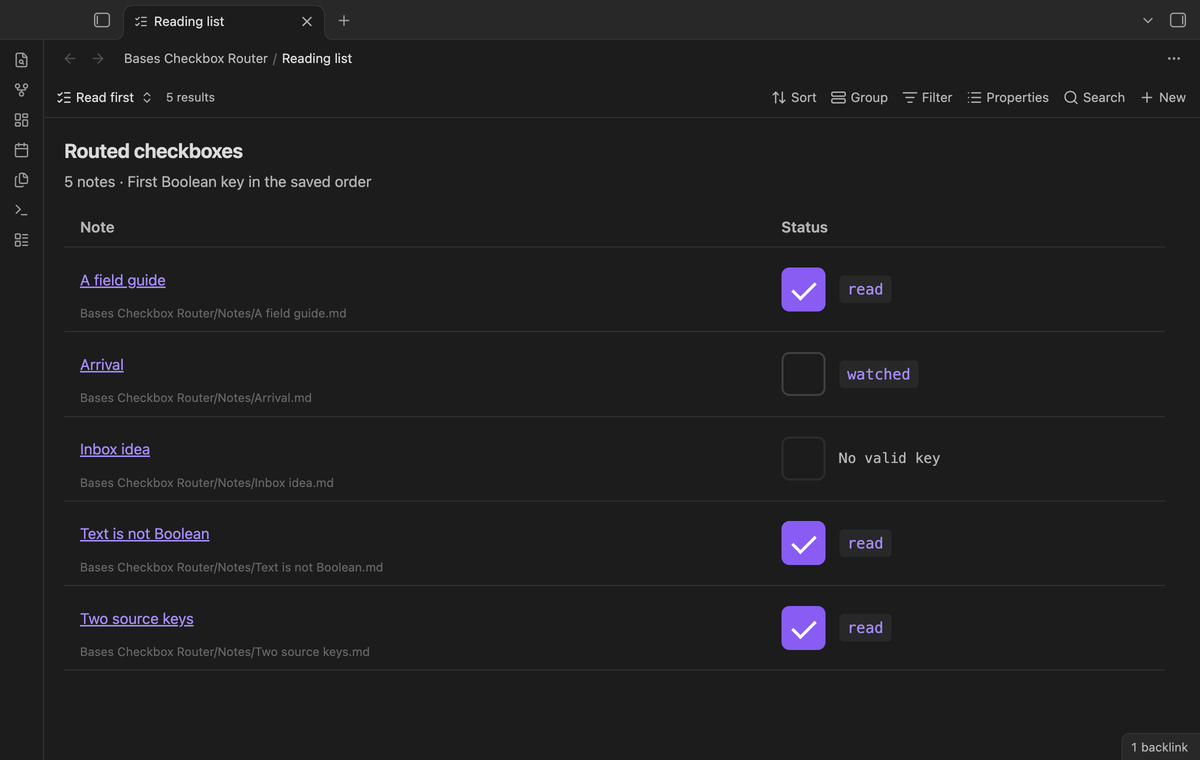
A note can change after the view appears. Before the router writes, it selects the key again inside the Obsidian frontmatter callback. The chosen key and its prior Boolean value must still match the displayed control. A deleted key, a changed value, or a new key with higher priority stops the write.
The row shows a refresh message when that check fails. During a write, controls for that note are disabled. A second tap does not queue another write. After success or error, the view reads the file before it enables the controls. A failed read leaves that row inactive with a message.
Open the source note
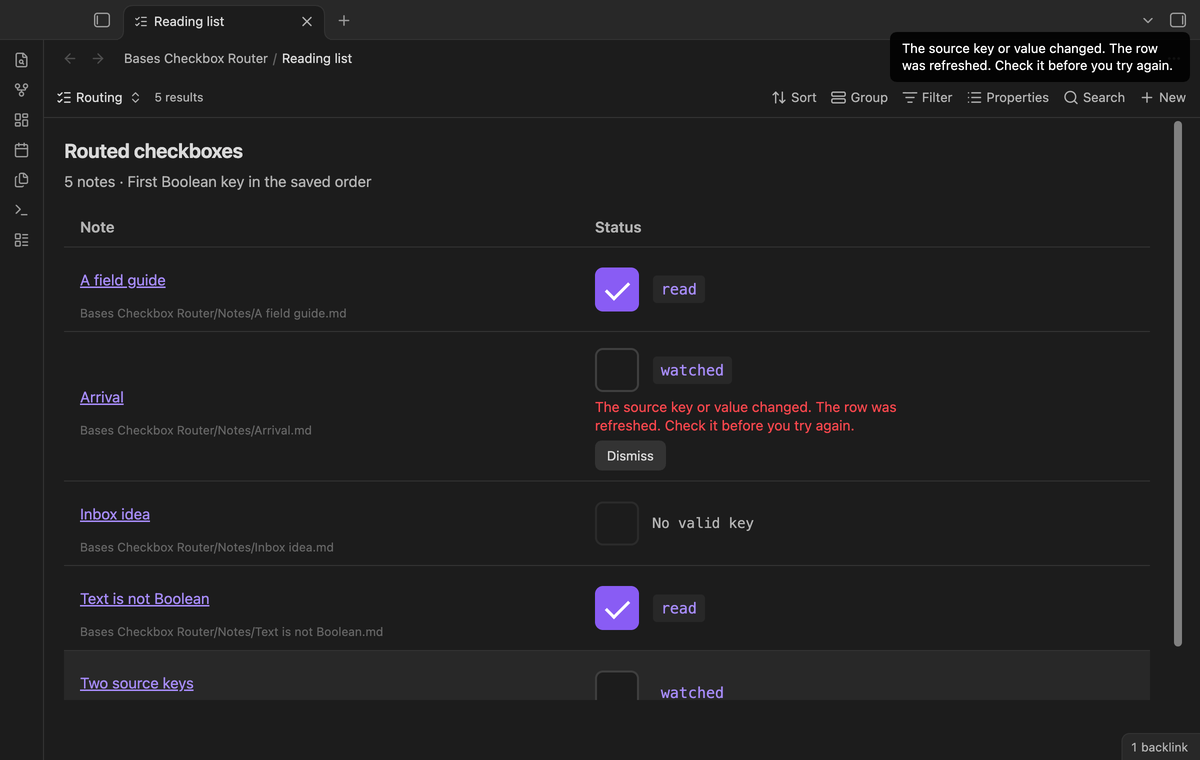
Select the note name to open its source. Ctrl-click, or Cmd-click on macOS, asks Obsidian to use a new tab. The path below the name helps distinguish notes with the same name. Each control has an accessible label with the note name, column name and source key.
The switch and link have a minimum height of 44 CSS pixels. Extra columns can scroll horizontally. The runtime uses public Obsidian APIs and browser elements, with no Node or Electron imports.
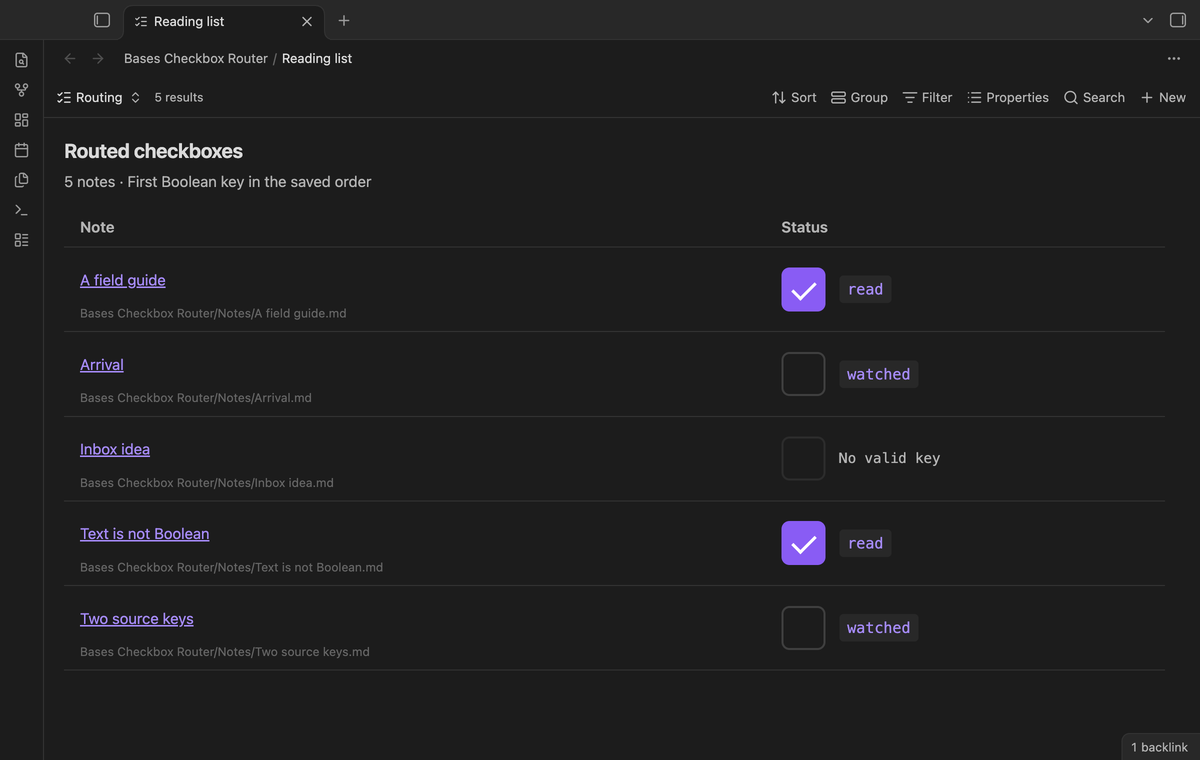
Saved rules for note types (Pro)
Add rules such as book=read and movie=watched. The first rule that matches the note's string type property supplies the main column's keys. A rule can contain several keys, such as article=reviewed,read. Their order has the same meaning as the free list.
A type without a matching rule uses the free key order. Type values are case sensitive. Rules with no keys are ignored. These rules apply to the main Status column. When Pro is off, the saved rules stay in the base but do not affect routing.
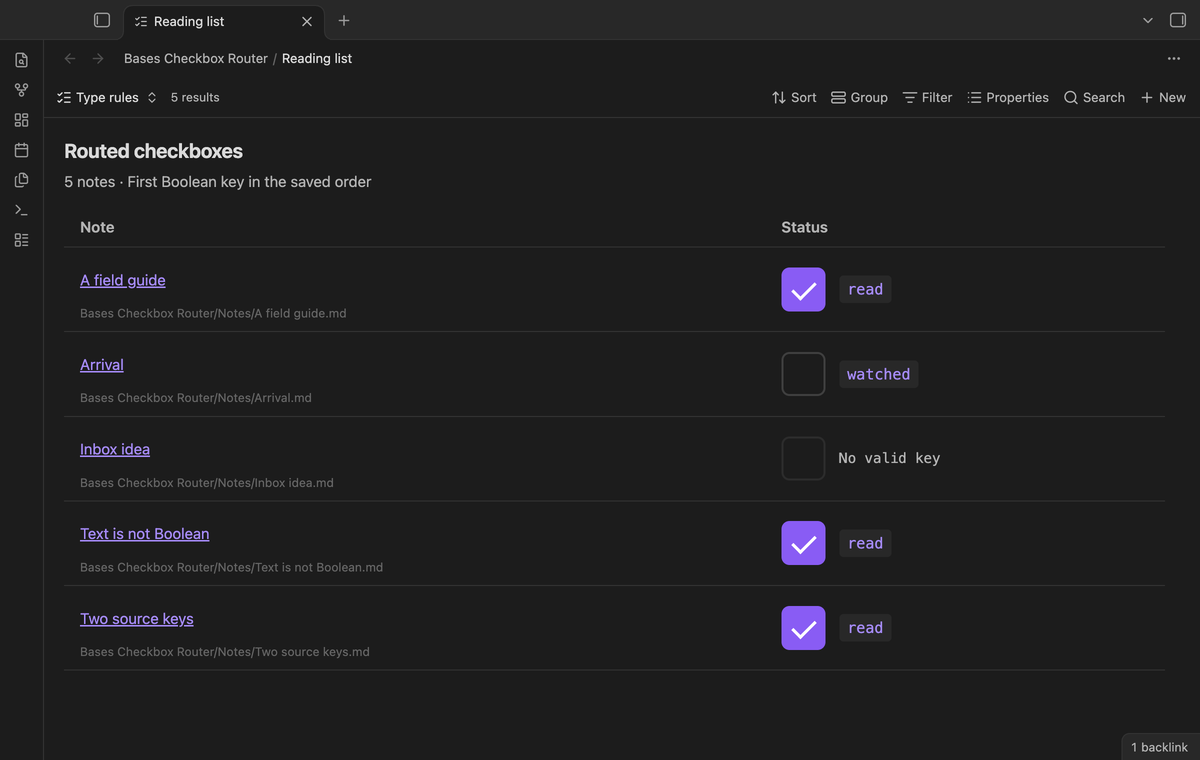
Several routed columns (Pro)
Add Review=reviewed,checked to Extra columns. The view adds a Review column with its own ordered list. Each cell shows the source key that it will edit. Extra columns use their own keys, without the main column's type rules.
Use one entry per column. Commas separate keys and the first equals sign separates the label. A comma in a property name cannot be entered through this syntax. Without Pro, the saved extra columns are inactive and the free Status column remains available.
Install
Use Obsidian 1.13.4 or later and enable the core Bases plugin. For manual installation, copy main.js, manifest.json and styles.css from a release into <vault>/.obsidian/plugins/bases-checkbox-router/. Then enable Bases Checkbox Router under Community plugins. This source build does not establish a community directory listing.
Usage
- Open a base and set its filters to select your notes.
- Add a view with the type "Checkbox router".
- In view options, enter property keys in the required order.
- Check the source key beside a control, then change its value.
- If a refresh message appears, inspect the current row before you try again.
Create Boolean properties in the source note first. The router edits existing values. It does not edit a formula result or invert a formula. Group headings and extra plain property columns are outside this version's scope.
Settings
The base toolbar holds Property keys in order, Note type rules (Pro), and Extra columns (Pro). Bases saves these options per view. The plugin settings tab holds GitHub sign in, sponsorship status, Refresh, and Sign out. The free router needs no account.
FAQ
Does this preserve the YAML text exactly?
No. Obsidian's processFrontMatter can normalize formatting. The router assigns one selected Boolean property. Tests check that unrelated values and note body text remain intact, but byte-for-byte YAML preservation is not promised.
What has not been tested?
Physical phones and tablets, screen readers, Linux app sessions, live GitHub login and payment, and cross-device sync conflicts have not been tested in this build. Desktop app tests cover the earliest supported public release and the latest release. Pro tests use a local response stub with a dummy token. No performance limit has been measured for large vaults.
Payment, account and network
The core features are free. Pro features need a GitHub Sponsors sponsorship of theluckystrike: $5 a month or more, or $15 once. A total payment of $15 meets the payment requirement for Pro without further payment. Sign-in and the checks below still apply. Your notes stay readable and editable with or without Pro.
GitHub handles the payment. Sponsor at https://github.com/sponsors/theluckystrike. You need no account for the free features. Pro needs the GitHub account that sponsors.
Until you select "Sign in with GitHub" in the settings, Bases Checkbox Router makes no network requests. Sign in uses the GitHub device flow. Bases Checkbox Router sends its public client ID and the scope read:user to https://github.com/login/device/code and shows you a code. While you enter the code at https://github.com/login/device, it asks https://github.com/login/oauth/access_token every few seconds to check the sign-in status. The scope permits profile reads only. GitHub needs this access to show the sponsorship tier. It grants no repository scope and no write access.
After sign in, Bases Checkbox Router sends one query to https://api.github.com/graphql. It checks if the signed-in account sponsors theluckystrike. It asks for the tier and the total payment to theluckystrike. The plugin reuses a successful check for 7 days. Failed checks can retry after 6 hours. Select Refresh to request an earlier check. It sends no note content, file names or other vault data, and it has no telemetry.
After a successful check, Pro can work offline for up to 14 days. Sign out or a negative sponsorship answer turns Pro off. The plugin stores the GitHub token through the secret storage API of Obsidian. It does not put the token in its saved settings or its local sponsorship data. The local storage of this device keeps your GitHub login, the tier and the time of the last check. Sign out clears the token. You can also revoke the access in your GitHub settings, under Applications.
Support
Report problems in this repository's issue tracker. Include the Obsidian version, the key order, and a small sample of the affected properties. Remove private text first. The publisher is theluckystrike at notemods.com. The source uses the MIT license.
For plugin developers
Search results and similarity scores are powered by semantic analysis of your plugin's README. If your plugin isn't appearing for searches you'd expect, try updating your README to clearly describe your plugin's purpose, features, and use cases.