by theluckystrike
Save a Bases view setup and restore it after temporary changes.
Bases View Checkpoints
Save a Bases view setup and restore it after temporary changes.
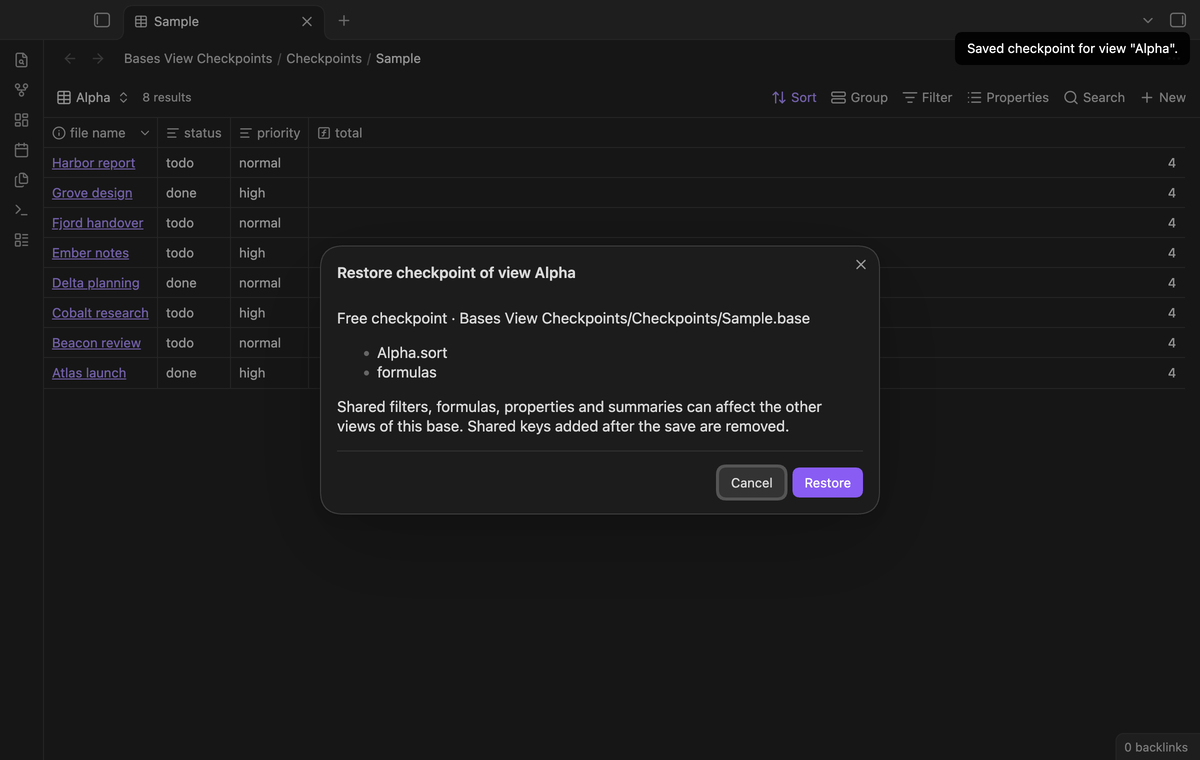
Bases stores the setup of a view inside the .base file. When you change a sort
or a filter for one task, the old setup is gone. This plugin keeps a small copy
of one view and of the shared top-level keys, and puts that copy back when you
ask. The plugin works on the file text, so it does not need the Bases view to be
open.
Features
Save a view checkpoint
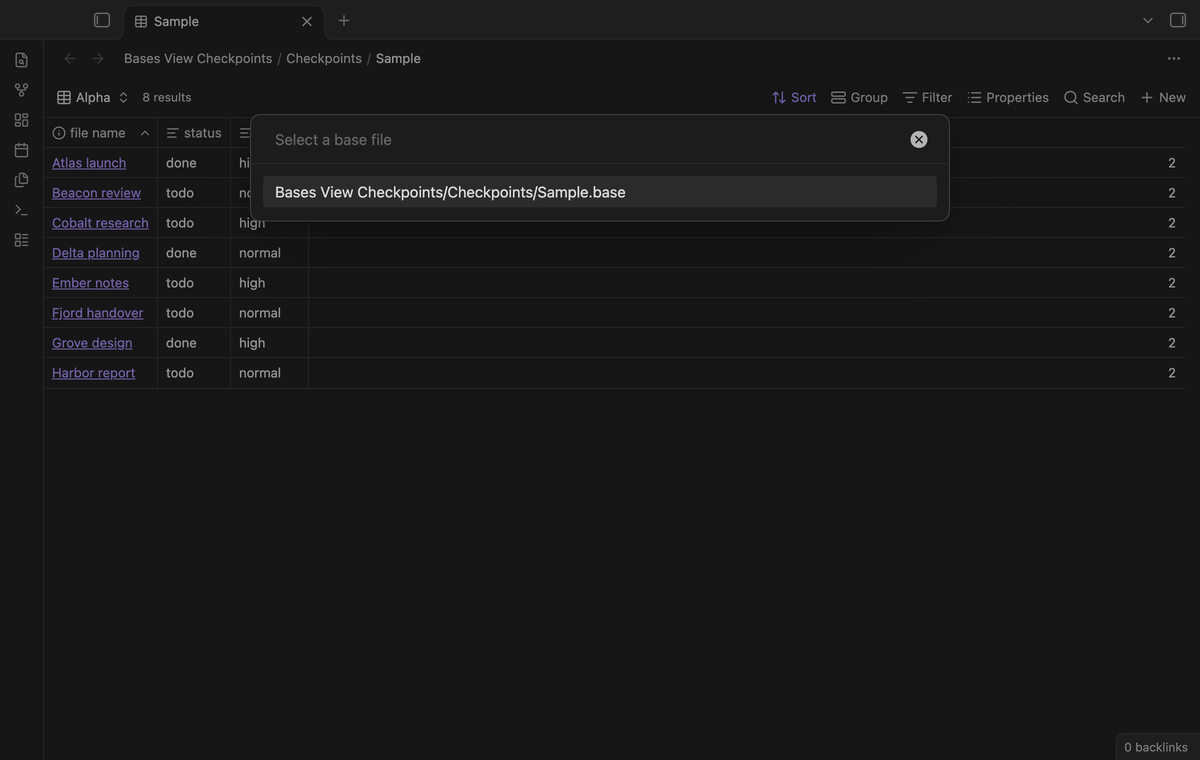
Pick a .base file and one of its views. The plugin saves a copy of that view
entry and of the shared keys (filters, formulas, properties, summaries) in its
plugin data. One checkpoint for each view; saving again replaces it.
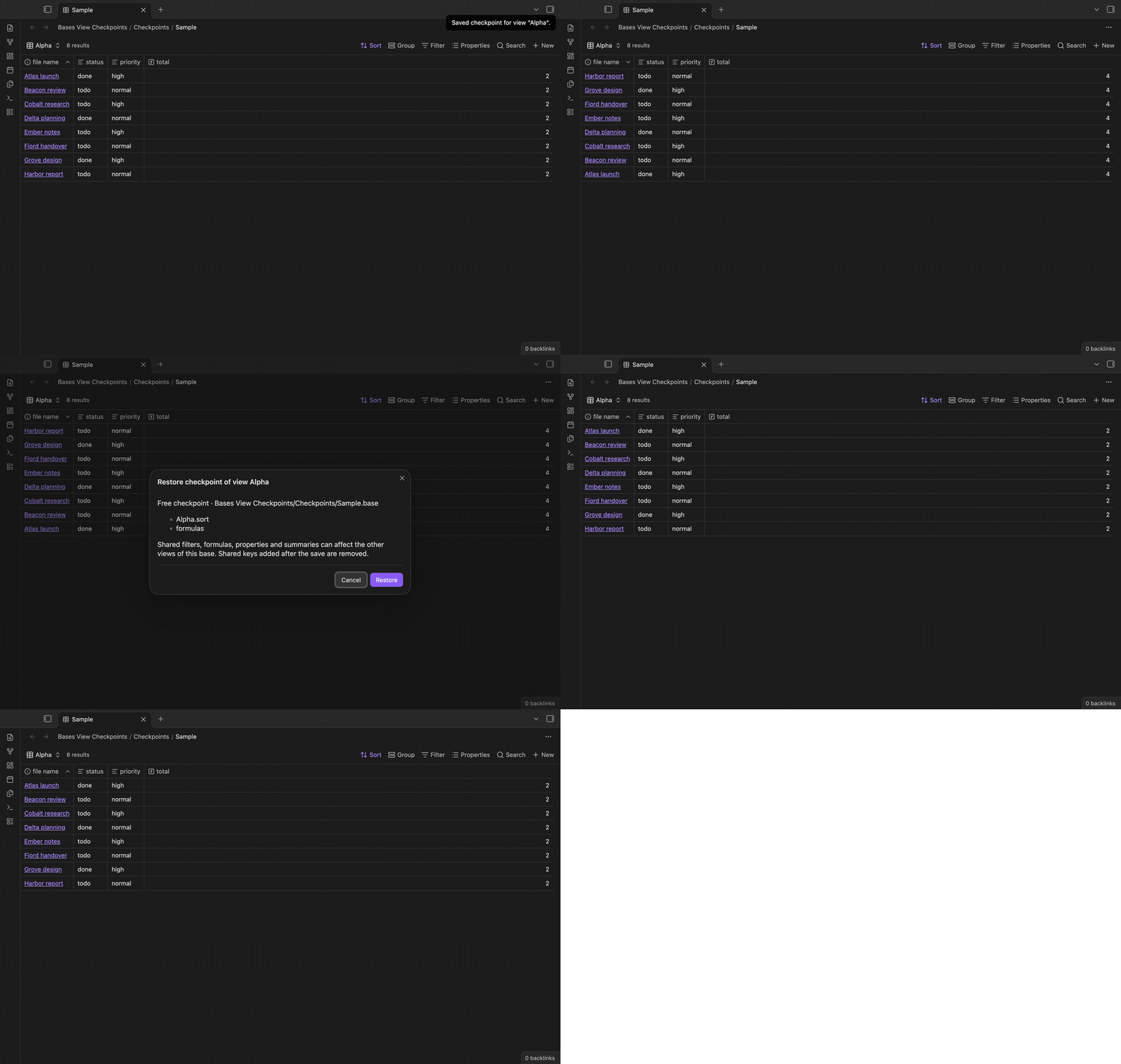
Restore a view checkpoint
The restore shows a preview that lists what changes before the plugin writes
anything. After you confirm, the plugin writes back only that view entry and the
shared keys with Vault.process. Other views and keys that the plugin does not
know stay as they are.
Undo a restore
Before each restore the plugin keeps one copy of the full file text. The command Undo last checkpoint restore puts that text back when the file has not changed since the restore. When the file changed, the undo refuses with a notice.
Several named checkpoints (Pro)
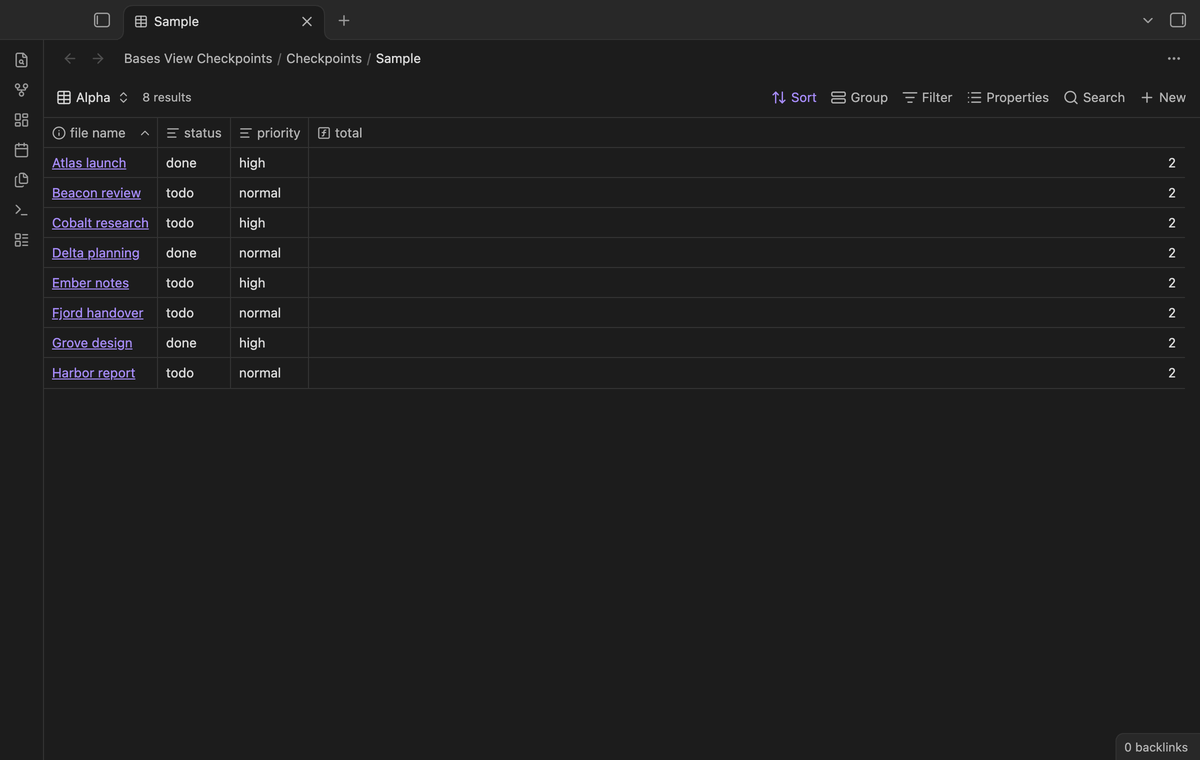
With Pro, run Save named checkpoint, select the file and view, and enter a name such as Weekly review. A new name adds a checkpoint. Saving the same name for that file and view replaces its saved setup. The restore picker shows the checkpoint name, view name and file path. Saved named checkpoints stay in plugin data after sign out, but their restore needs Pro. The free checkpoint stays available.
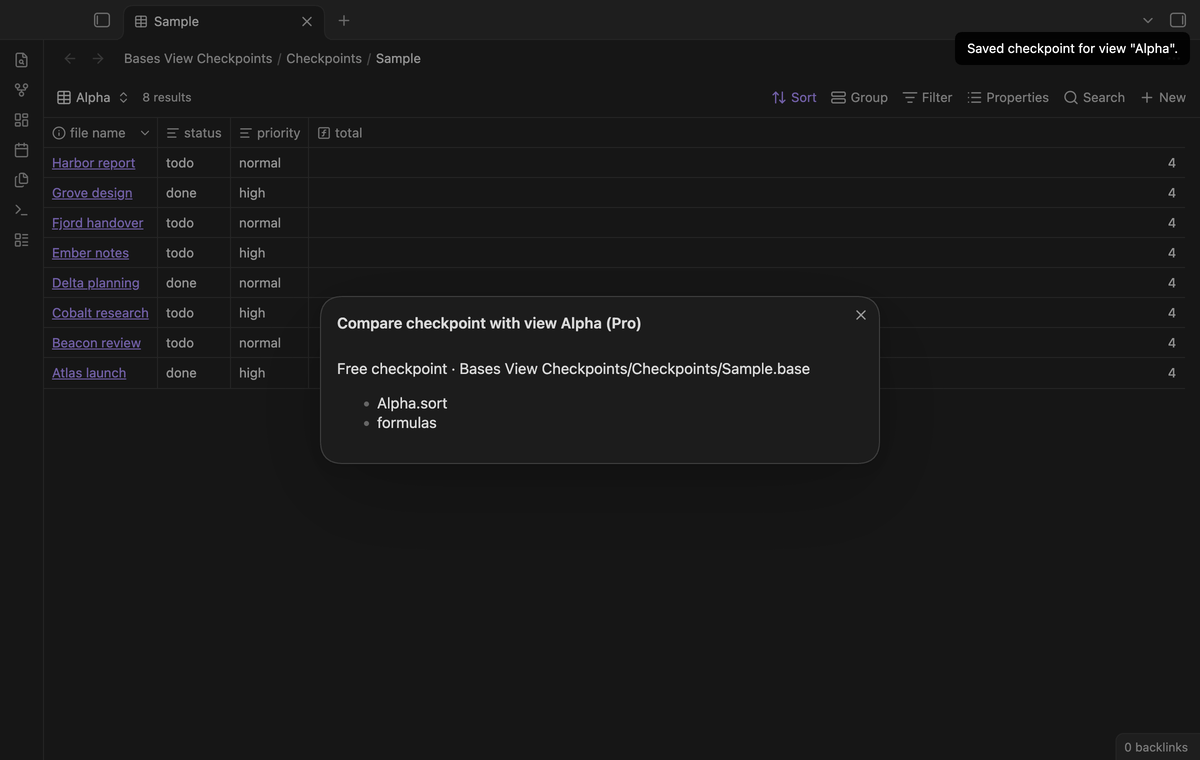
Compare with the current view (Pro)
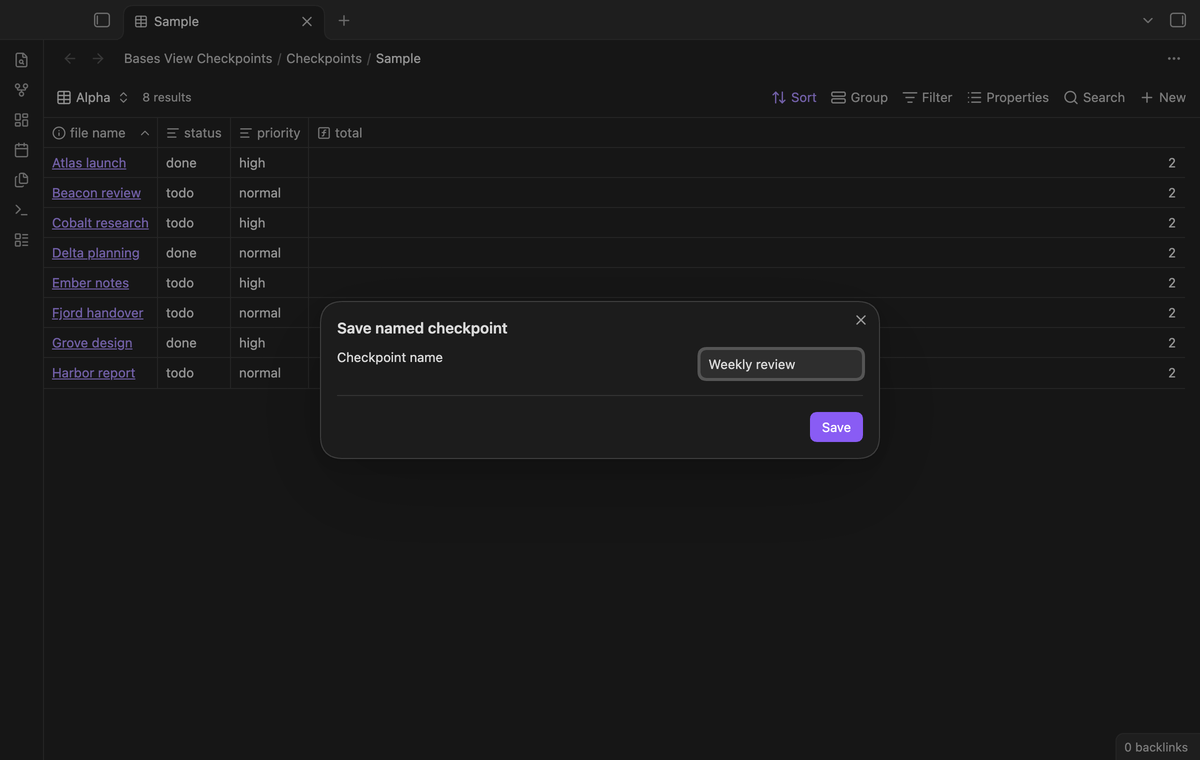
The command Compare checkpoint with current view lists the keys that differ between the checkpoint and the file now, without writing anything.
Install
The plugin is not in the Obsidian community plugin list yet. Install it from a
release: copy main.js, manifest.json and styles.css into
<vault>/.obsidian/plugins/bases-view-checkpoints/, then turn the plugin on in
Settings, Community plugins. The plugin needs Obsidian 1.13.4 or later. It uses browser APIs and the public
Obsidian API. Mobile device tests have not been run. This build is prepared for
release; a public release may not yet be available.
Usage
- Open the base whose view you want to keep.
- Run Save view checkpoint from the command palette. Pick the file and the view.
- Change the view as you like.
- Run Restore view checkpoint. Check the preview and confirm.
- When the result is not what you want, run Undo last checkpoint restore.
The plugin refuses to save or restore when a file holds two views with the same
name, and refuses when the YAML of the file is not valid. In both cases the file
stays unchanged. The restore also refuses when a YAML anchor or alias would
carry the change into another view. The save refuses .inf and .nan values,
because the plugin data cannot keep them. When the view of a checkpoint was deleted from the file, the
restore appends the saved view entry back at the end of the views list.
The restore checks the file text inside the Vault.process callback. If the
file changed after the preview, the plugin refuses the restore and asks you to
open a new preview. The preview has a Cancel button. Closing it also leaves the
file as it is. The undo copy holds the full text of the file before the restore, so an
undo brings back that text when nothing else touched the file after the restore.
Settings
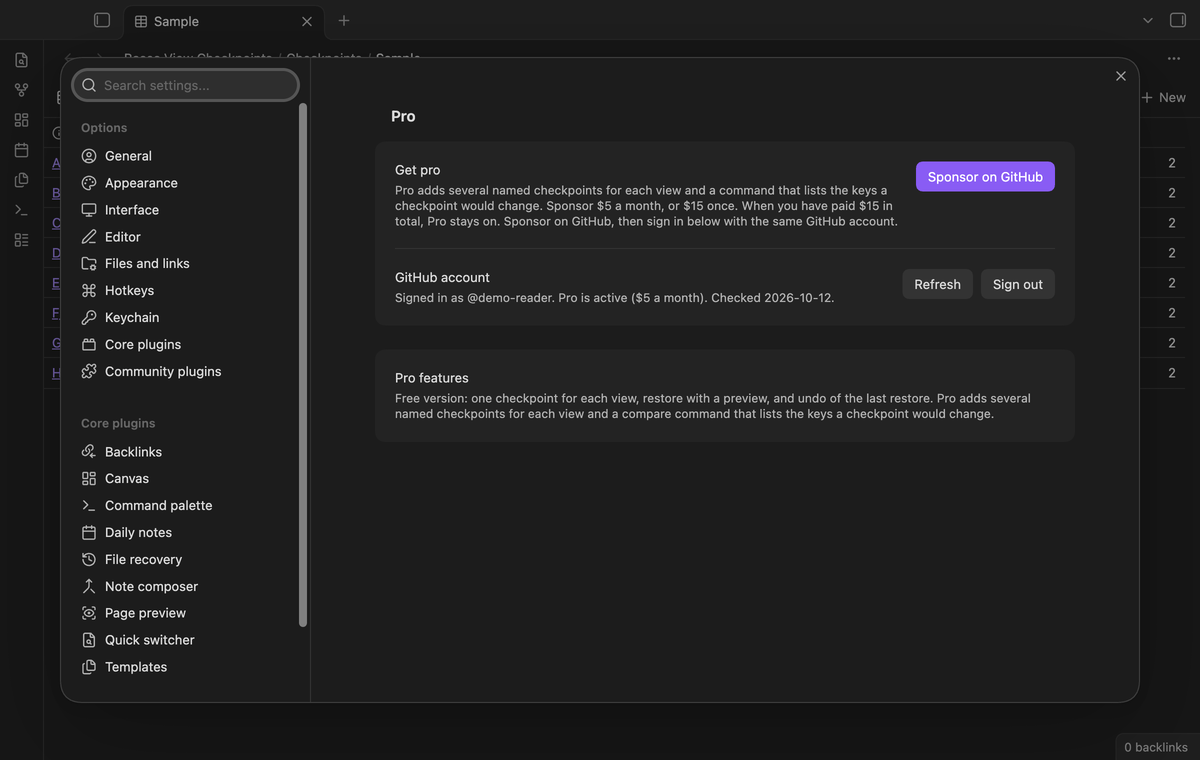
The plugin has no user controls for the free checkpoint loop. The Pro section of the settings tab shows the GitHub sign in and the Pro status after you sign in.
FAQ
Does the plugin save the view of the open tab, or a named view of the file?
It saves a named view of the file. The picker lists the views that the views
key of the file holds, with the names as they are written there. The plugin
reads the file; it does not read the state of an open tab.
Does the plugin change my other views?
A restore keeps the other view entries, but the shared keys can change what those views show. For example, a shared filter can remove rows from both Alpha and Beta. The preview lists the changed shared keys and warns about this effect. Unknown top-level keys keep their current values. Unknown keys in the selected view return to their saved values. YAML spacing and comments in replaced entries can change; a checkpoint is a copy of values, not a copy of that entry text.
What happens when I rename the base file?
The plugin follows a rename of the base file in the same vault, so the checkpoint stays usable. When the file is gone, restore shows a notice.
What did you not test?
The desktop tests run on macOS with Obsidian 1.13.4 and 1.14.4. The tests use file text, visible controls and notices rather than theme colors or fixed waits. Linux, Windows, Android and iOS were not tested in this lane. Live payment and GitHub sign in were not tested; Pro tests use a fake token and a local HTTP reply. Sync conflicts, external renames and very large vaults were not tested.
Can I keep more than one checkpoint for a view without Pro?
No. The free tier holds one checkpoint for each view, and a new save replaces the old one. Pro holds several named checkpoints for each view.
What do the shared keys hold?
The keys filters, formulas, properties and summaries at the top level of the file. A checkpoint saves them next to the view, and a restore writes them back. These values are shared by the views of the base. The plugin restores the saved shared keys. A shared key absent from the checkpoint is removed from the current file, and its name appears in the preview when this changes the file. A restore does not force an open Bases view to reload; reopen the base if its display has not updated.
Does it work with large base files?
The plugin reads and writes the file text with the Obsidian Vault API. No test set a size limit, so the plugin makes no claim about a size limit.
Payment, account and network
The core features are free. Pro features need a GitHub Sponsors sponsorship of theluckystrike: $5 a month or more, or $15 once. A total payment of $15 meets the payment requirement for Pro without further payment. Sign-in and the checks below still apply. Your notes stay readable and editable with or without Pro.
GitHub handles the payment. Sponsor at https://github.com/sponsors/theluckystrike. You need no account for the free features. Pro needs the GitHub account that sponsors.
Until you select "Sign in with GitHub" in the settings, Bases View Checkpoints makes no network requests. Sign in uses the GitHub device flow. Bases View Checkpoints sends its public client ID and the scope read:user to https://github.com/login/device/code and shows you a code. While you enter the code at https://github.com/login/device, it asks https://github.com/login/oauth/access_token every few seconds to check the sign-in status. The scope permits profile reads only. GitHub needs this access to show the sponsorship tier. It grants no repository scope and no write access.
After sign in, Bases View Checkpoints sends one query to https://api.github.com/graphql. It checks if the signed-in account sponsors theluckystrike. It asks for the tier and the total payment to theluckystrike. The plugin reuses a successful check for 7 days. Failed checks can retry after 6 hours. Select Refresh to request an earlier check. It sends no note content, file names or other vault data, and it has no telemetry.
After a successful check, Pro can work offline for up to 14 days. Sign out or a negative sponsorship answer turns Pro off. The plugin stores the GitHub token through the secret storage API of Obsidian. It does not put the token in its saved settings or its local sponsorship data. The local storage of this device keeps your GitHub login, the tier and the time of the last check. Sign out clears the token. You can also revoke the access in your GitHub settings, under Applications.
Support
Open an issue on the GitHub repository of the plugin. The repository is https://github.com/theluckystrike/bases-view-checkpoints. Write in English. Include the plugin version, the Obsidian version and the steps that show the problem. Do not paste the content of private notes.
For plugin developers
Search results and similarity scores are powered by semantic analysis of your plugin's README. If your plugin isn't appearing for searches you'd expect, try updating your README to clearly describe your plugin's purpose, features, and use cases.