by theluckystrike
Show notes whose date properties match a daily note in an auto-built Bases view.
Date Property Backlinks
Date Property Backlinks shows notes whose date properties match the date of a daily note. Set up your daily notes template once, or enable the automatic view for existing daily notes. The view updates when the Base query or the current daily note changes.
Features
Set up the daily notes template once
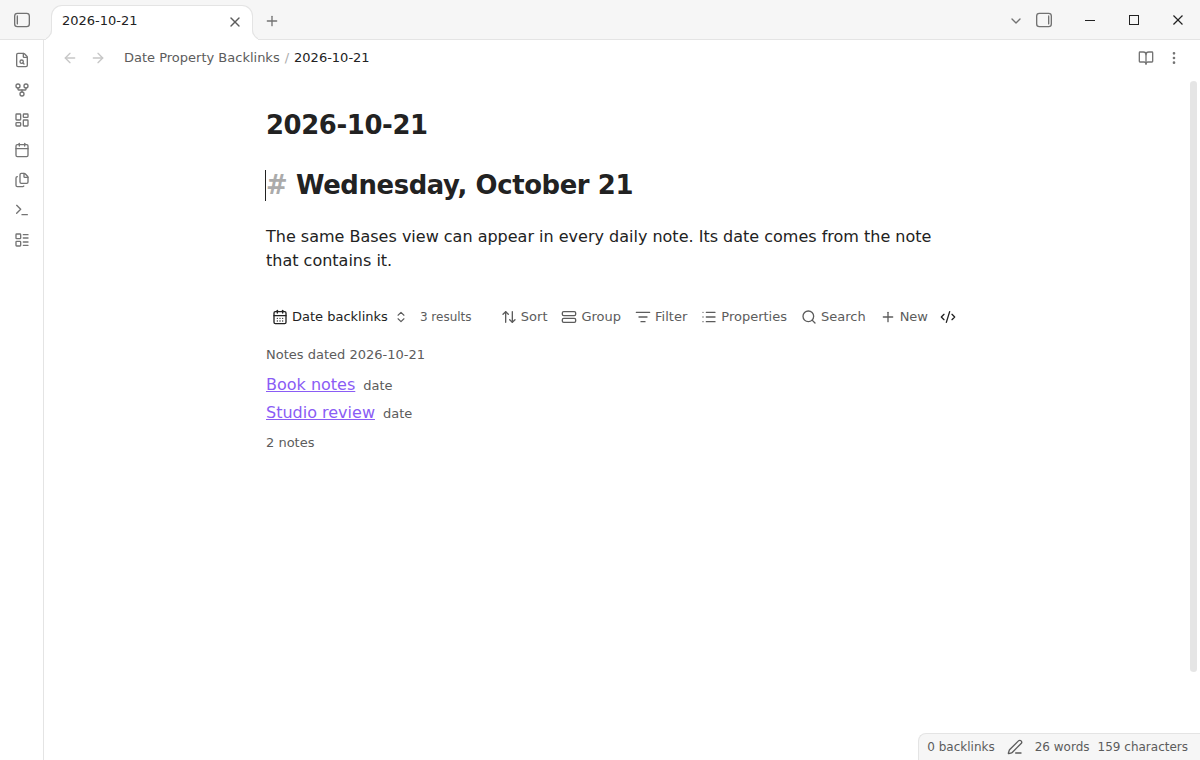
The free tier matches one date property. Pro adds week and month rollups, more date properties, and inclusive date ranges. Pro costs $15 one time or $5 a month. Use the monthly offer or get Pro for $15 once.
Choose a template in core Daily notes or Periodic Notes. In this plugin's settings, select "Add to the daily notes template". Preview the change, then select "Add view to template". This adds one shared Base embed. Every new daily note made from that template includes the view. Repeating setup adds no duplicate.
The shared Base reads results without adding backlink properties to source notes. With the default filename formula, each view uses its own pane's note date, including split panes.
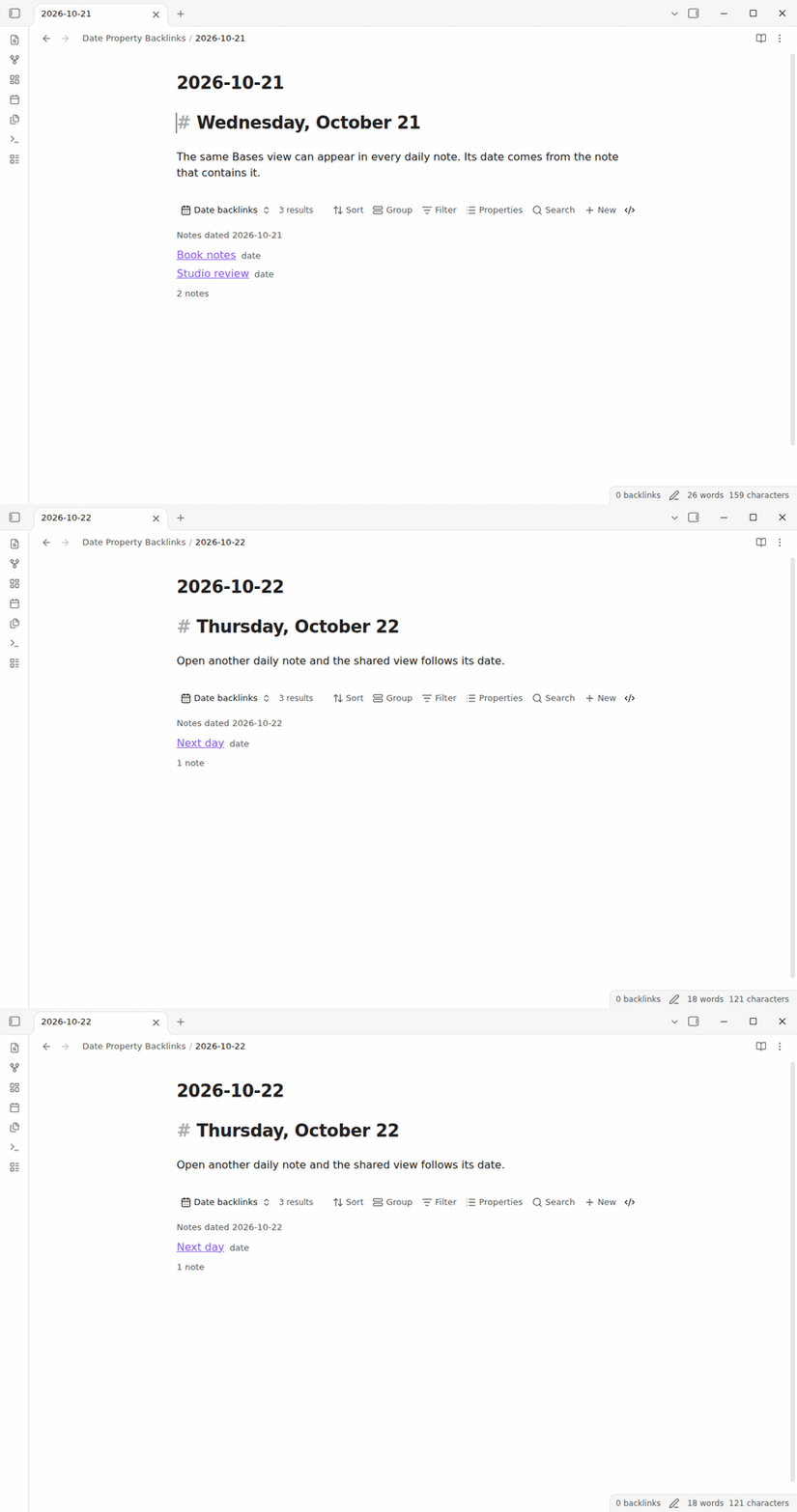
Show existing daily notes automatically
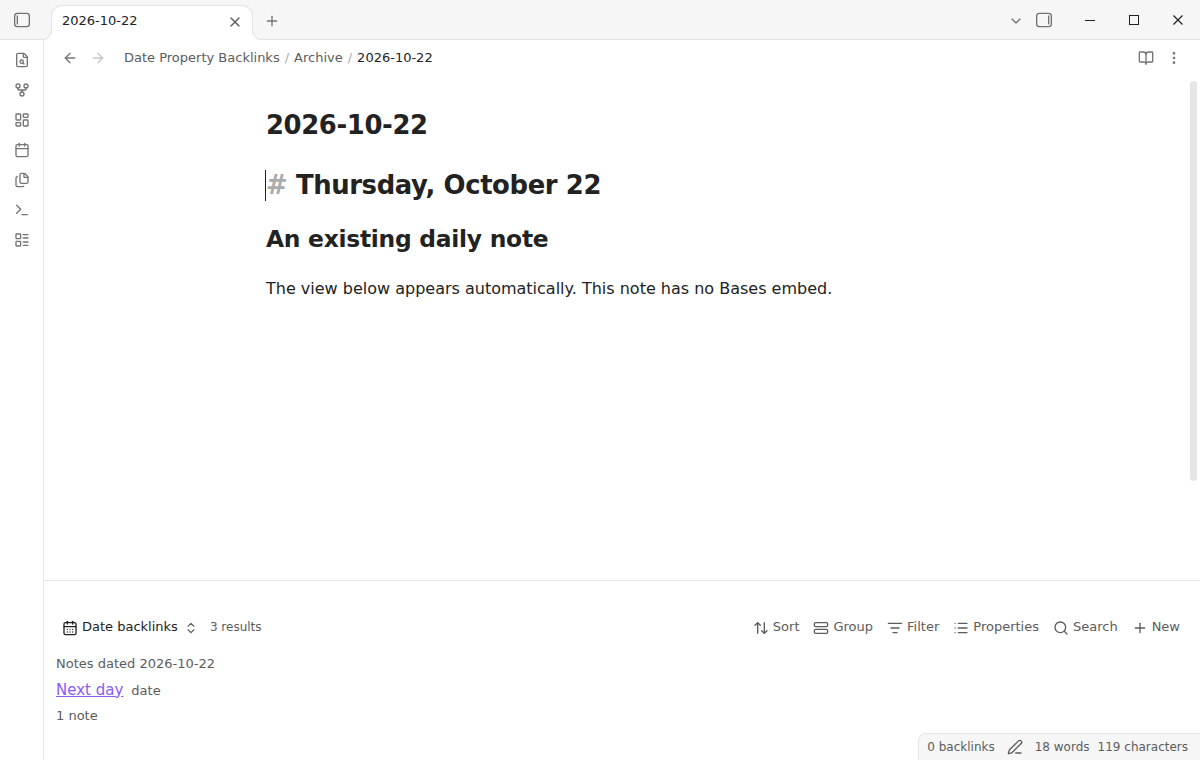
Enable the automatic view in plugin settings to cover existing daily notes. It appears below the note and uses the configured daily filename format. Template embeds and automatic views share the same Base settings.
Match dates and date-times
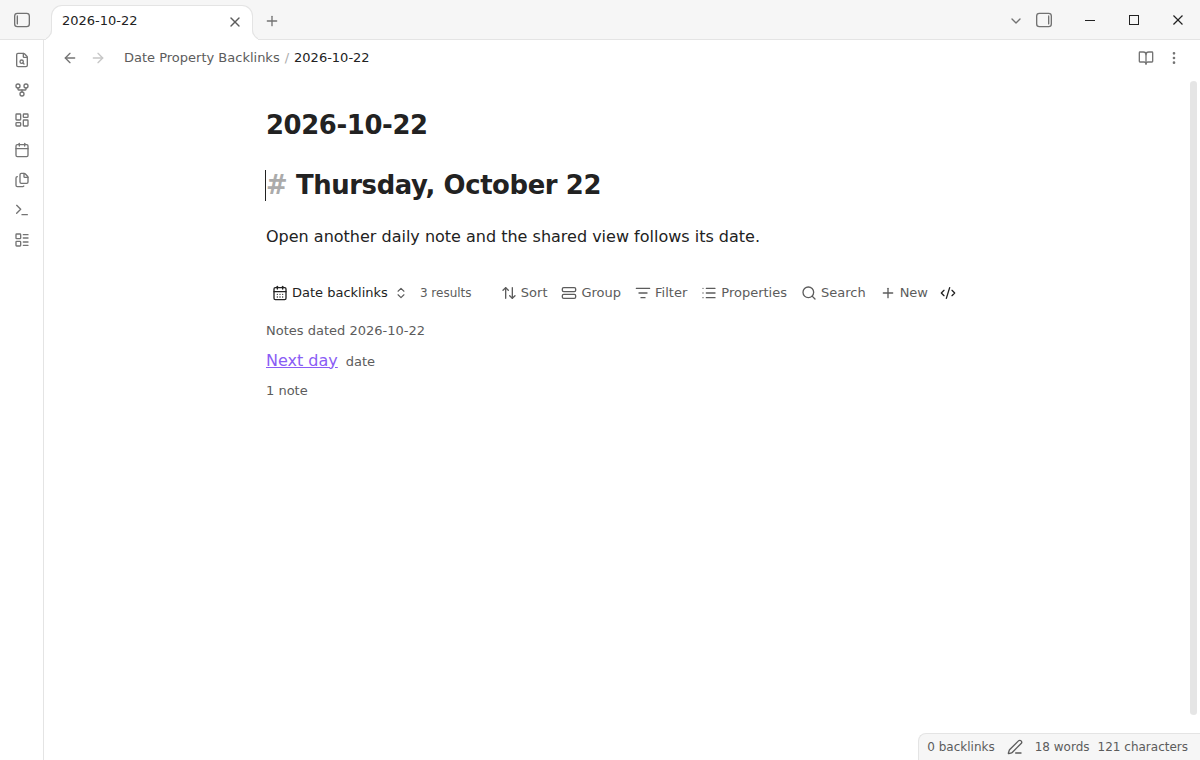
Choose a date property in the Bases view settings. The default is note.date. The property can have a Date value or a Date and time value. A date-time value matches when its local calendar date is the same as the daily note date.
The default formula file.name reads the daily note filename. A note named 2026-10-21 finds notes dated October 21, 2026. Change the default format YYYY-MM-DD using Obsidian Moment tokens.
The generated query filters Markdown files with a selected date or range property. Its named formula follows your property selections. You can add folder filters to narrow the query. A list date property matches when any item in the list falls on the target date. Empty, invalid, and different dates do not match.
Roll up a week or month with Pro
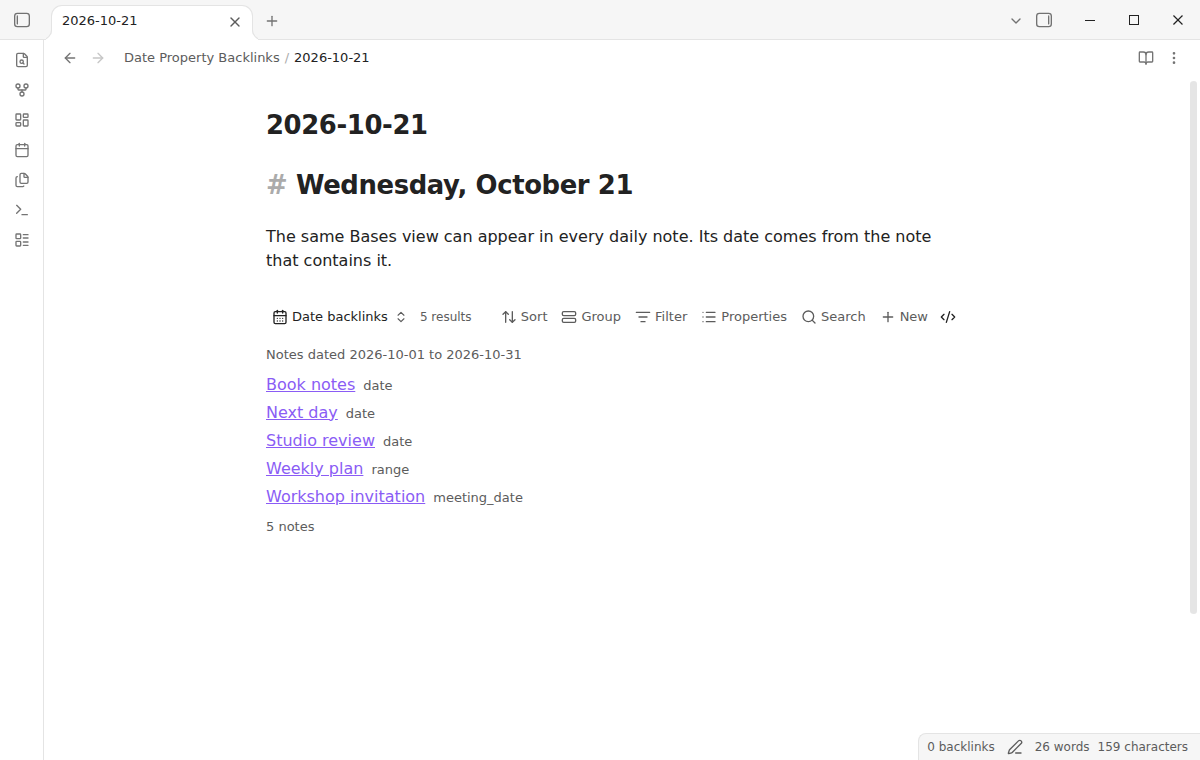
Pro adds Day, Week, and Month rollups. Choose Monday (ISO) or Obsidian locale for the week start. A month includes its first and last calendar dates. Set a rollup in the view settings when you use a weekly or monthly note.
Choose extra date properties to include notes when any selected property matches. For projects or trips, choose start and end properties. Their inclusive range matches when it overlaps the selected window.
The screenshot shows sample Pro data. Pro requires the sponsorship check.
Install
When listed, find Date Property Backlinks under Settings, Community plugins, Browse. Select Install, then Enable.
For manual installation, copy release files main.js, manifest.json, and styles.css into <vault>/.obsidian/plugins/bases-date-backlinks/. Reload and enable the plugin.
Date Property Backlinks needs Obsidian 1.13.4 or newer. The core Bases plugin must be enabled in the vault.
Usage
- Enable the Bases core plugin and configure your template in Daily notes or Periodic Notes.
- Run "Add to the daily notes template", or select the same button in this plugin's settings. Review the template path and preview, then add the view.
- Create a daily note from that template. See matching notes in reading view or live preview.
- Choose your date property in the Bases view settings. The default is
note.date.
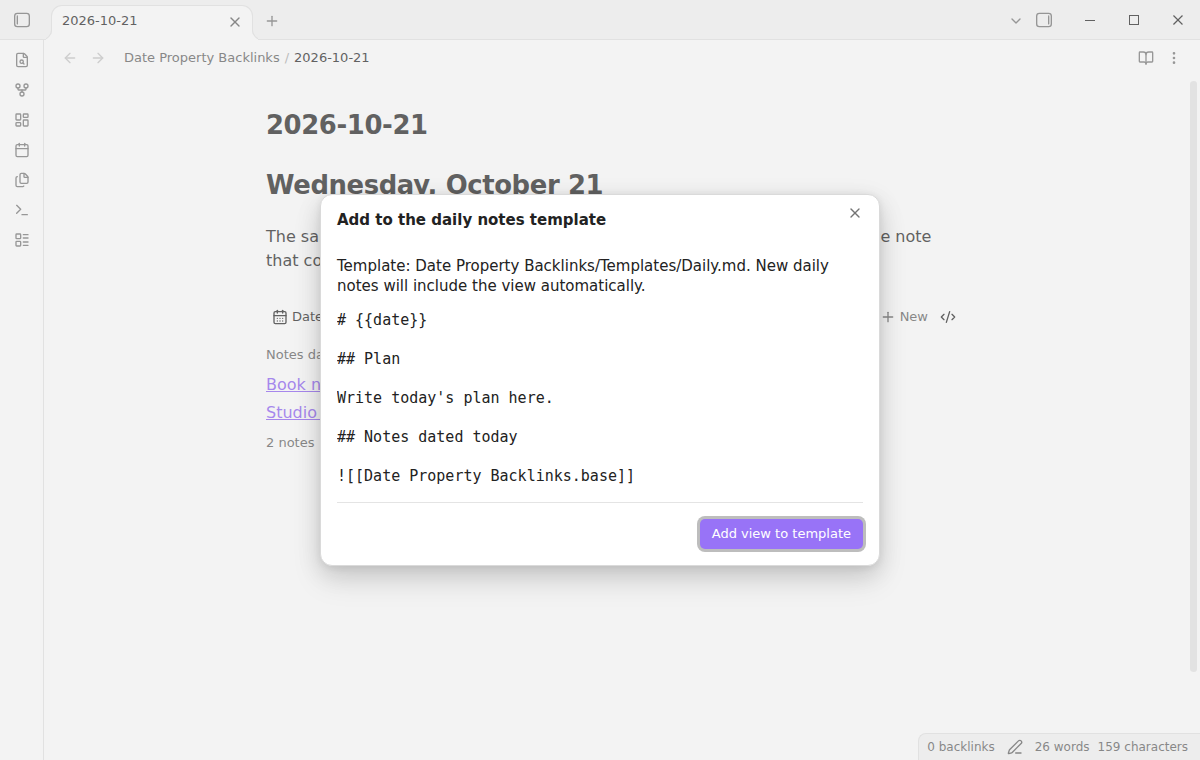
For existing daily notes, turn on "Show automatically in daily notes" in the plugin settings. It displays the shared view below open notes whose filenames match the configured daily format. It leaves note text unchanged and skips notes with an existing embed. This option is free and off by default. Turn it off to remove these automatic views.
The manual command "Insert date backlinks view in the current note" remains available for selected notes. It creates Date Property Backlinks.base and inserts its embed once. You can move the embed afterwards. Opening the Base on its own requires a daily note context.
Settings
The Bases view settings have three free fields:
| Field | Default | Use |
|---|---|---|
| Match date property | note.date | Select the date property to match. |
| Daily note date | file.name | Default: containing filename. Other formulas use the active note. |
| Daily note date format | YYYY-MM-DD | Parse the target date from the formula result. |
Pro adds the rollup period, ISO or locale week start, additional date properties, and range start and end properties. Rows label only properties that matched, or the matching range. Links support modifier clicks, middle clicks and hover previews. The plugin settings show the GitHub account, sign-in controls, refresh control, and a direct link to the $15 offer while Pro is off.
FAQ
Why is the view empty?
Check that the core Bases plugin is enabled. Open the embed from a daily note, and check that the filename matches the selected format. Then choose the date property used by your notes. The Base query must include the notes that you want to see.
Do date and date-time properties both work?
Yes. A date-time matches on its local calendar date. A date list matches when any value in the list matches. Unsupported text and invalid dates are ignored.
Can I use a daily note with a different name format?
Yes. Set Daily note date format using Moment tokens. Custom Bases formulas use the active note context.
Does this change my date properties?
No. Setup creates a Base and adds a template embed. Source properties remain unchanged.
How is this different from Date Linker?
Date Linker writes daily note links into a managed frontmatter property. Date Property Backlinks shows matching rows in a Bases view inside the daily note. This keeps the results live and avoids adding a link value to each matching note.
Why use this instead of Dataview or a plain Bases filter?
Dataview queries and core Bases filters with this.file can also list notes for a daily date. Use those if you already have a query that works. This plugin provides setup without writing a query, handles date-time and list values, and offers optional week, month and range controls. It does not require Dataview.
What happens if the generated Base file name already exists?
The command does not replace a file that it did not create. Rename the existing file, then run the command again.
Payment, account and network
The core features are free. Pro features need a GitHub Sponsors sponsorship of theluckystrike: $5 a month or more, or $15 once. A total payment of $15 meets the payment requirement for Pro without further payment. Sign-in and the checks below still apply. Your notes stay readable and editable with or without Pro.
GitHub handles the payment. Sponsor at https://github.com/sponsors/theluckystrike. You need no account for the free features. Pro needs the GitHub account that sponsors.
Until you select "Sign in with GitHub" in the settings, Date Property Backlinks makes no network requests. Sign in uses the GitHub device flow. Date Property Backlinks sends its public client ID and the scope read:user to https://github.com/login/device/code and shows you a code. While you enter the code at https://github.com/login/device, it asks https://github.com/login/oauth/access_token every few seconds to check the sign-in status. The scope permits profile reads only. GitHub needs this access to show the sponsorship tier. It grants no repository scope and no write access.
After sign in, Date Property Backlinks sends one query to https://api.github.com/graphql. It checks if the signed-in account sponsors theluckystrike. It asks for the tier and the total payment to theluckystrike. The plugin reuses a successful check for 7 days. Failed checks can retry after 6 hours. Select Refresh to request an earlier check. It sends no note content, file names or other vault data, and it has no telemetry.
After a successful check, Pro can work offline for up to 14 days. Sign out or a negative sponsorship answer turns Pro off. The plugin stores the GitHub token through the secret storage API of Obsidian. It does not put the token in its saved settings or its local sponsorship data. The local storage of this device keeps your GitHub login, the tier and the time of the last check. Sign out clears the token. You can also revoke the access in your GitHub settings, under Applications.
Support
Report a bug or ask for a feature in the GitHub repository. Include your Obsidian version, the daily note date format, the date property name, and one sample value that did not match. For product support and other NoteMods tools, visit notemods.com.
License
MIT
For plugin developers
Search results and similarity scores are powered by semantic analysis of your plugin's README. If your plugin isn't appearing for searches you'd expect, try updating your README to clearly describe your plugin's purpose, features, and use cases.