by Madhurya

A continuous stream of all your daily notes in reading view
Daily notes stream
Read your daily notes as one continuous timeline. Every day appears on one page, with the newest at the top and older days loading as you scroll. The stream is for reading; to edit a note, click its date.
It works with the daily notes you already have. There's no new folder, format or template to set up, and it never changes your notes. It's lightweight, and stays fast with years of notes.
Features
- One stream. Every daily note appears on one scrolling page, newest first,
including notes in nested folders such as
2025/03/2025-03-04.md. - Always current. When you create, edit, rename or delete a note, the stream updates right away.
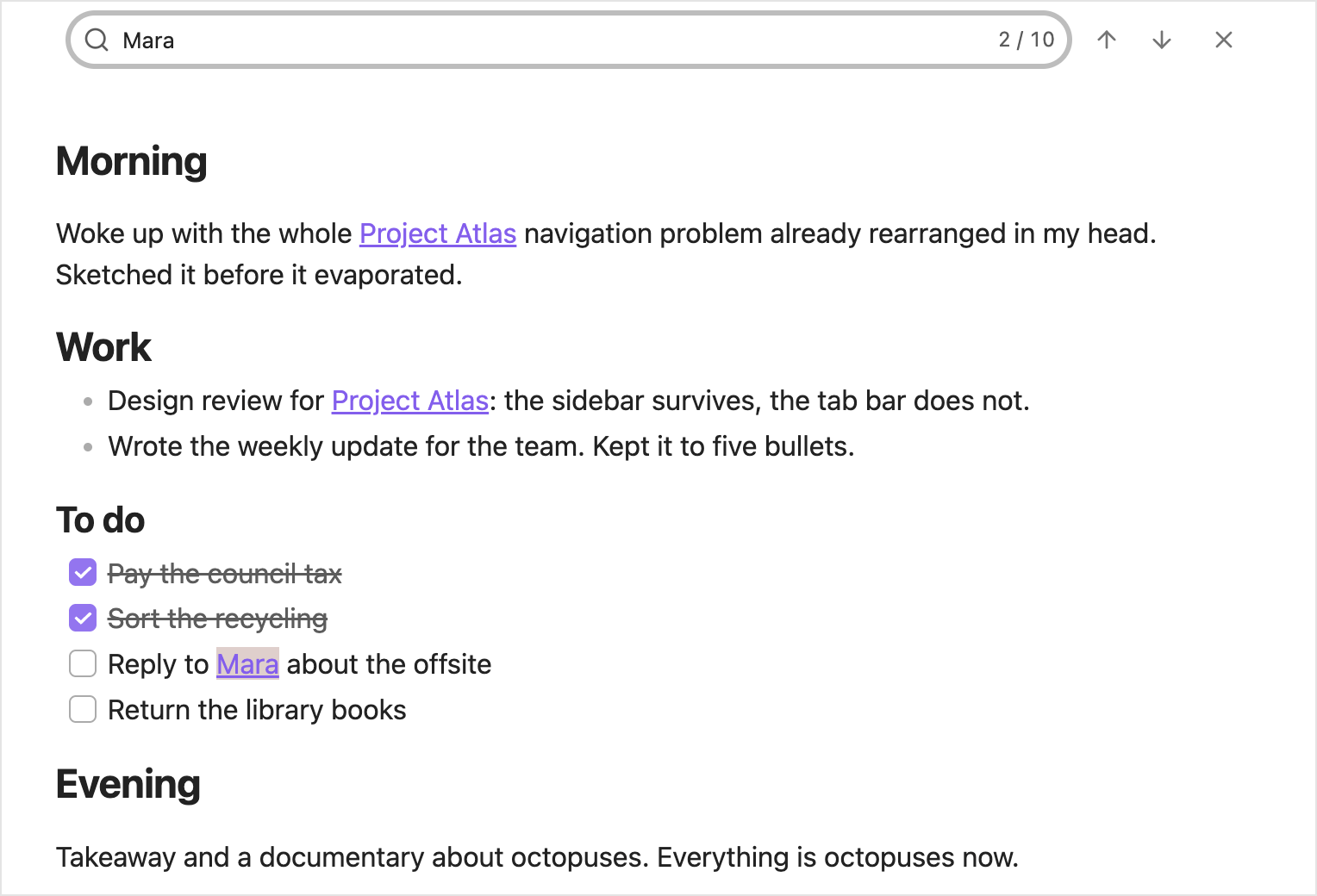
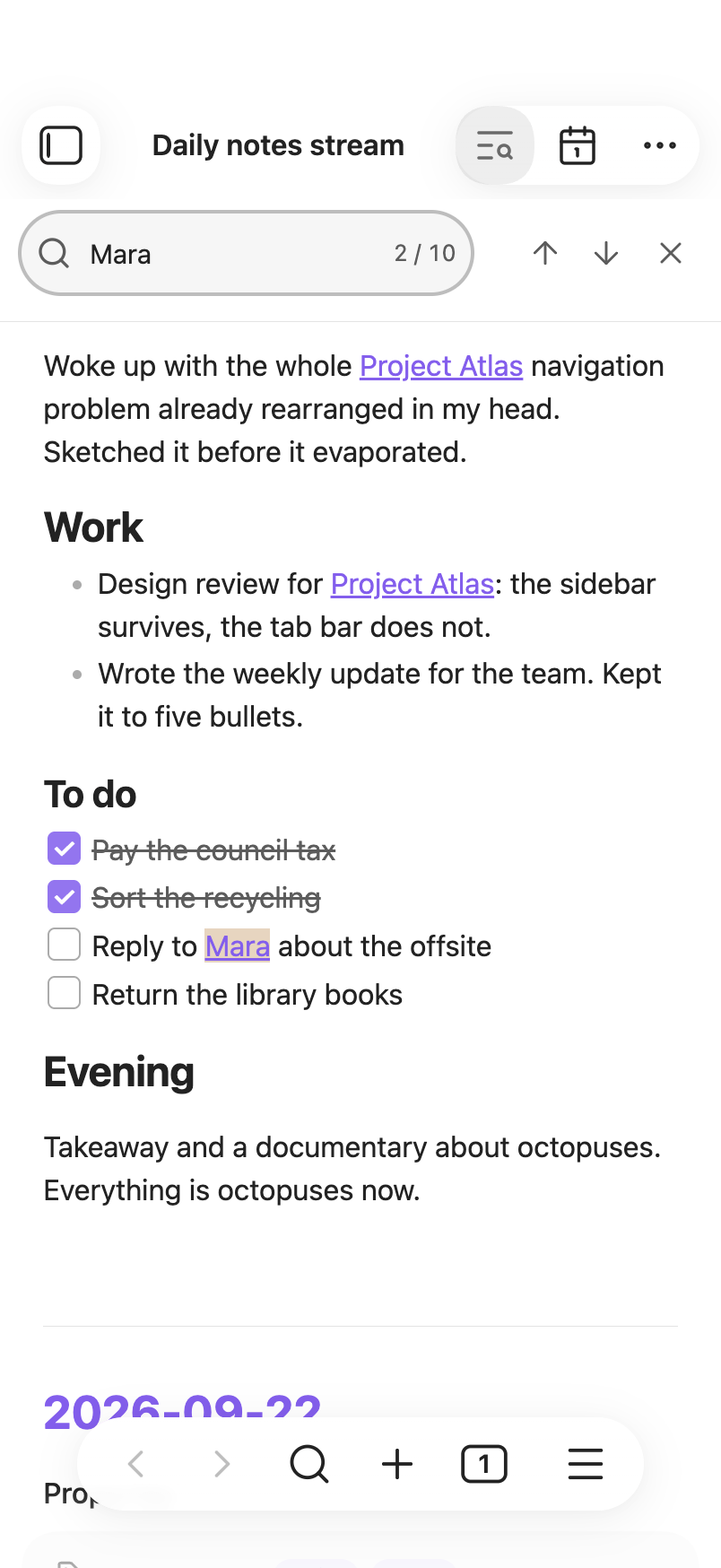
- Search. Press Ctrl/Cmd+F to find text across every note.
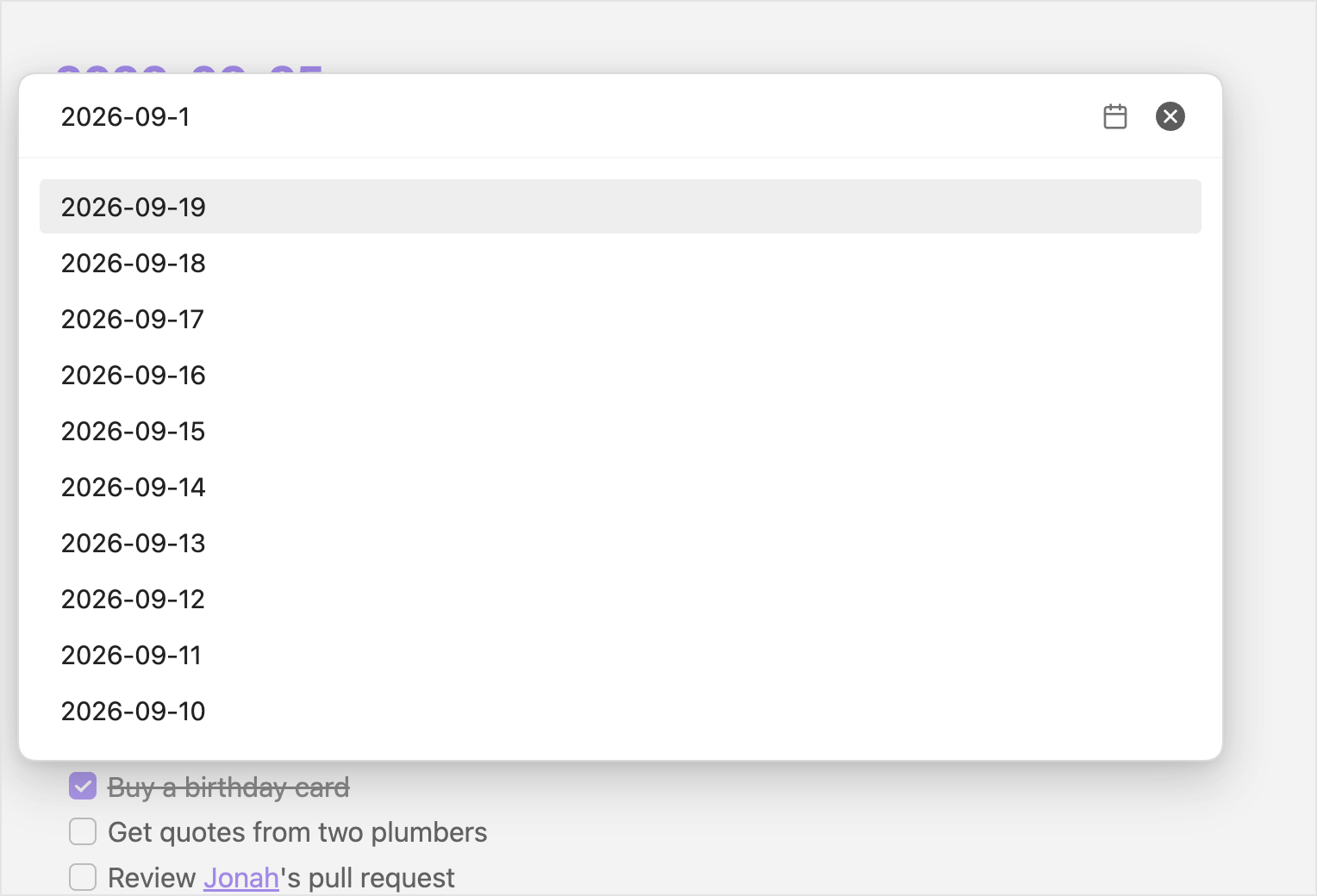
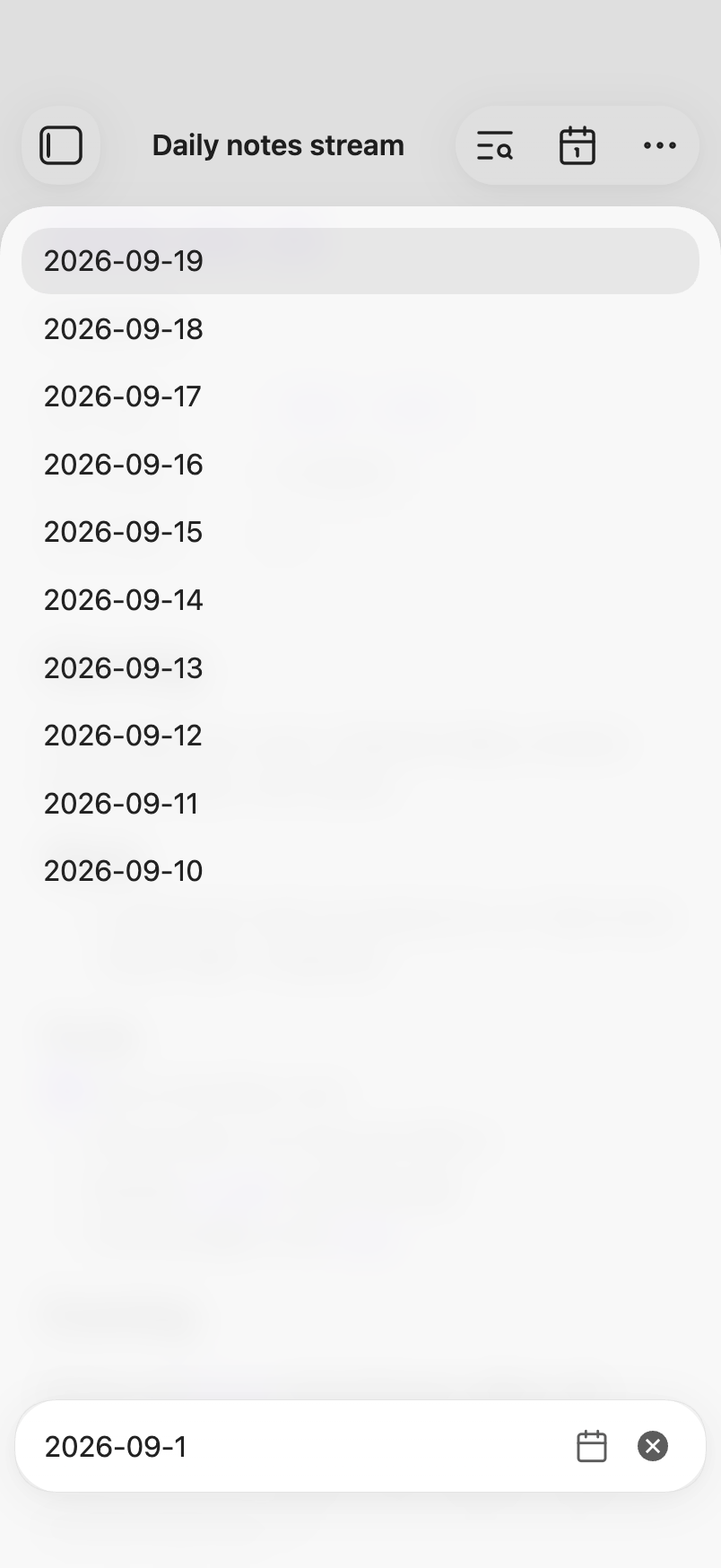
- Jump to a date. Go straight to any day that has a note.
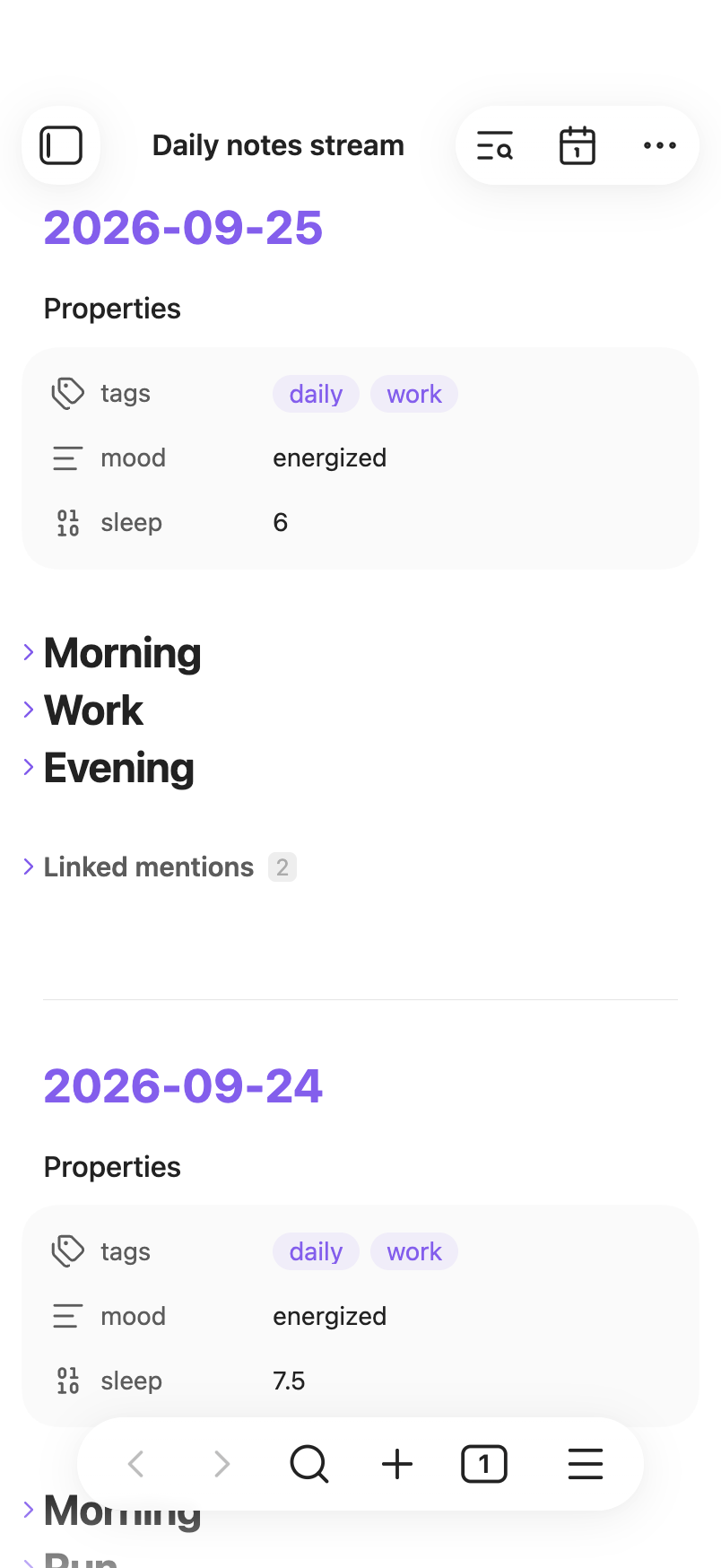
- Fold sections. Collapse any heading or nested list, and the stream remembers it.
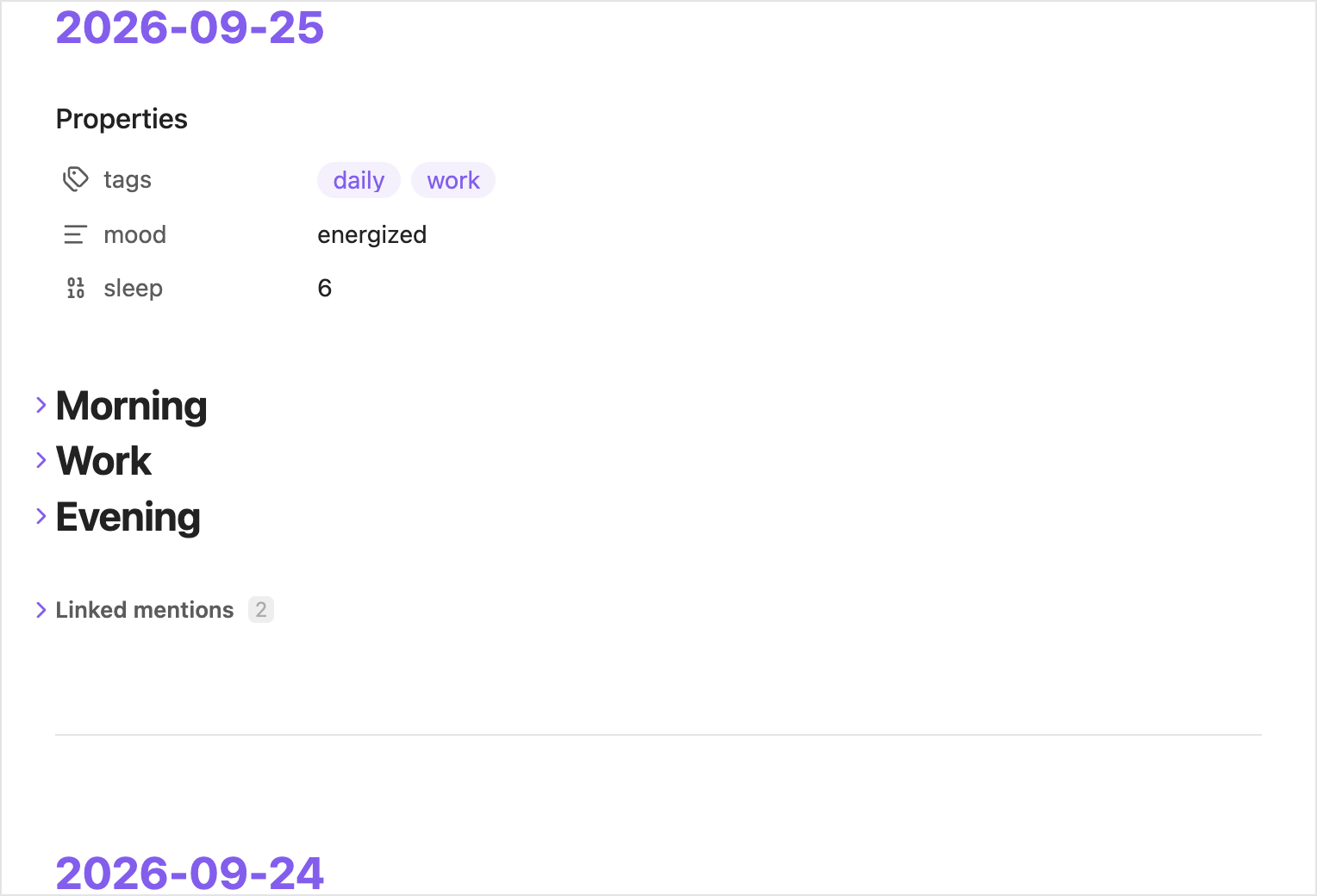
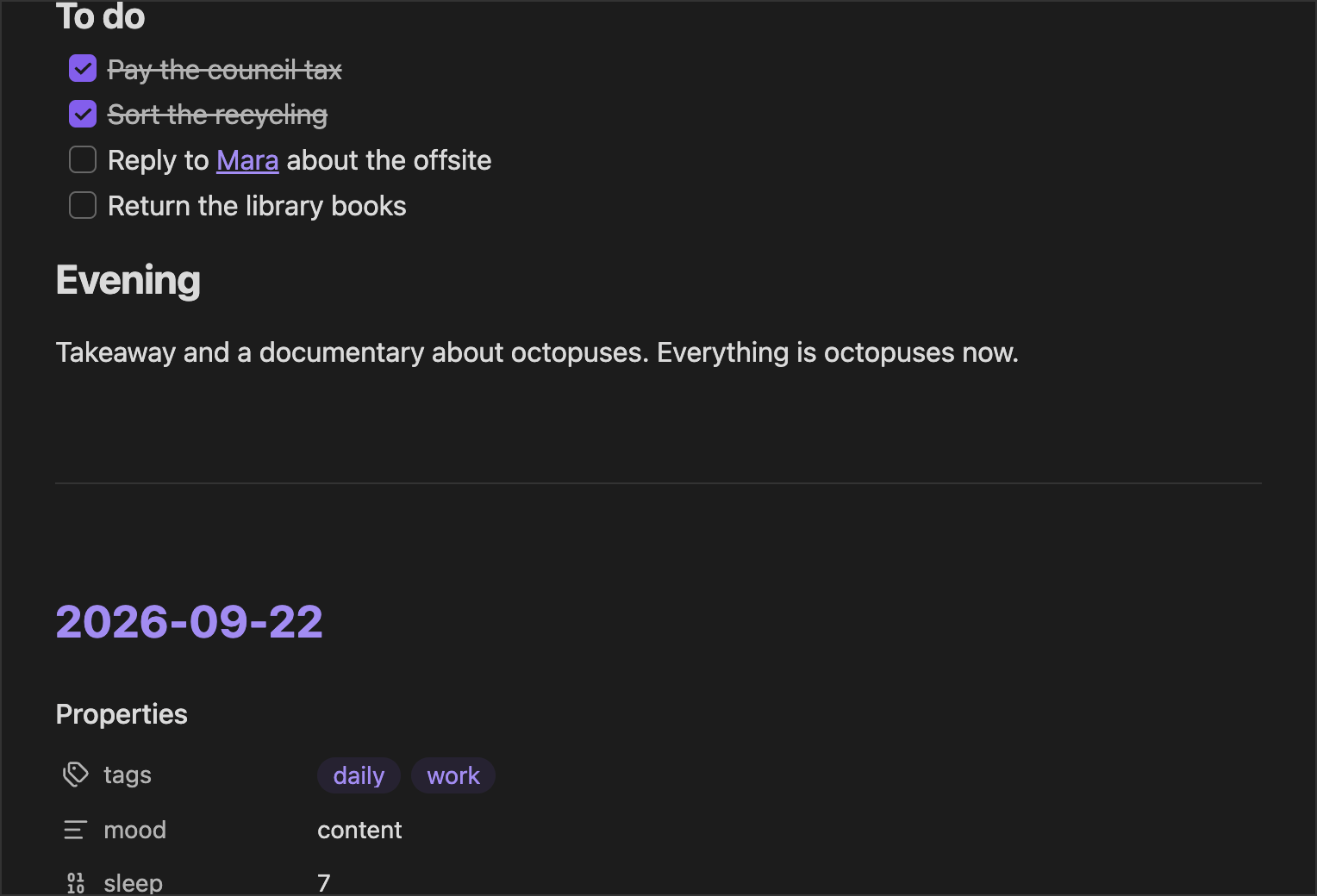
- Properties. Each note's properties appear at its top. You can hide or collapse them in settings.
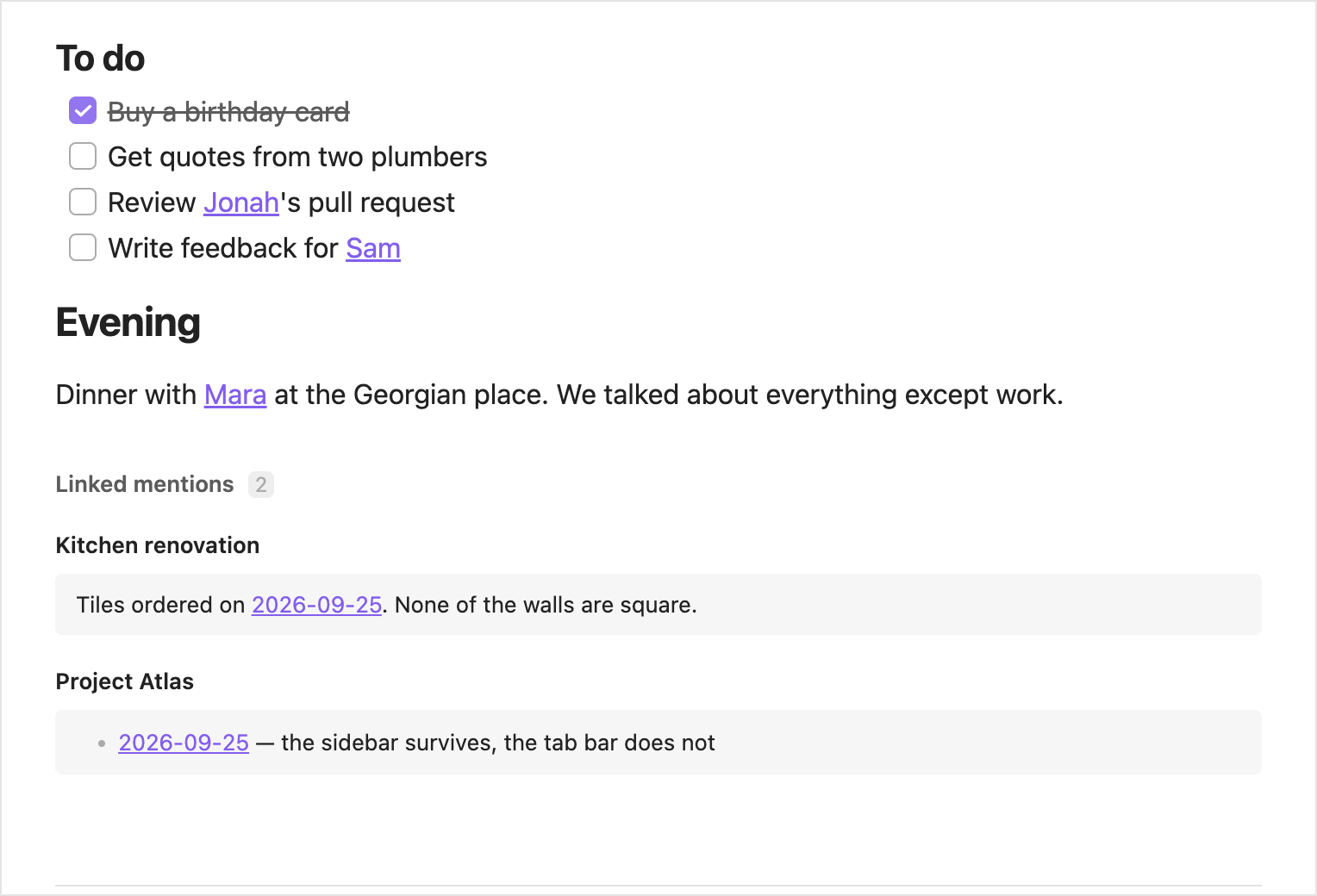
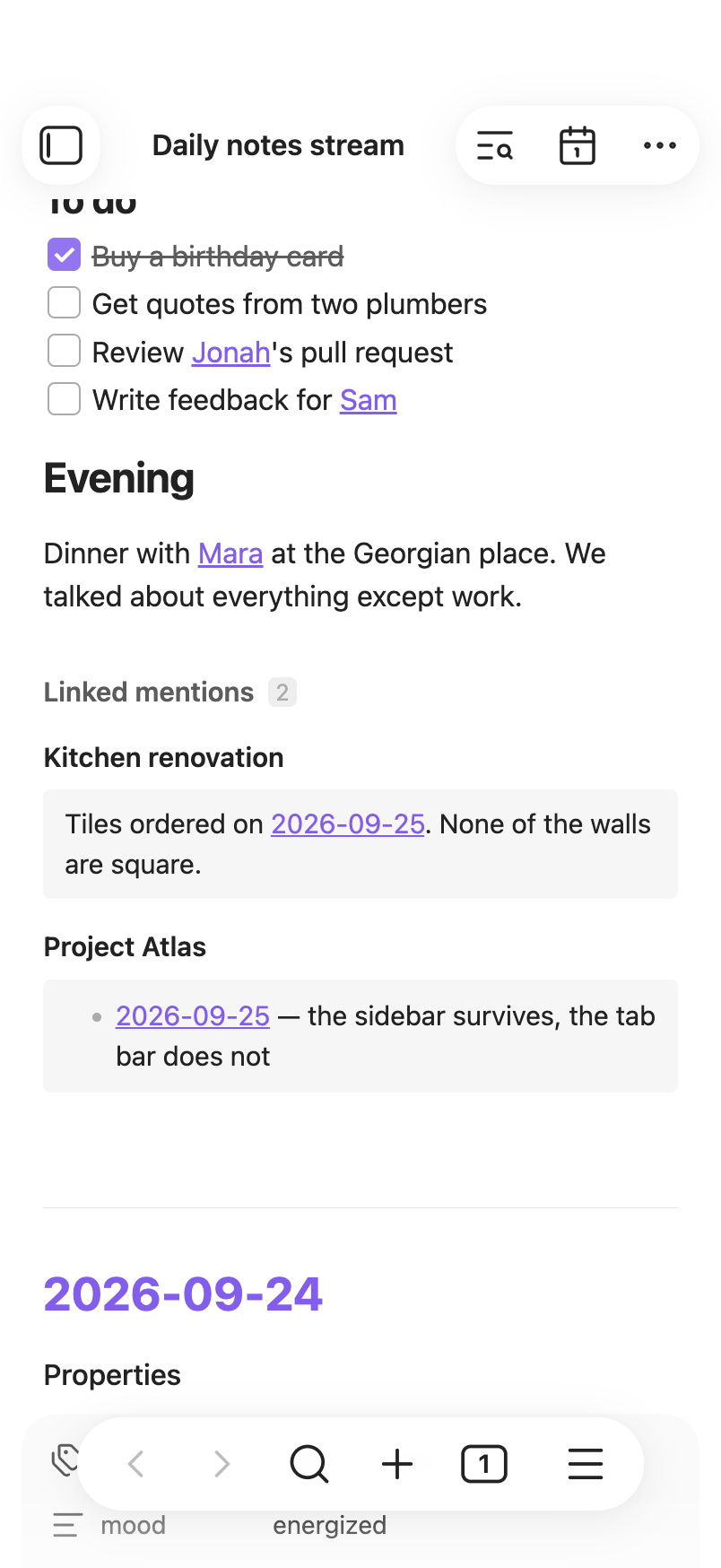
- Linked mentions. Each note ends with the notes that link to it. You can hide or collapse them in settings.
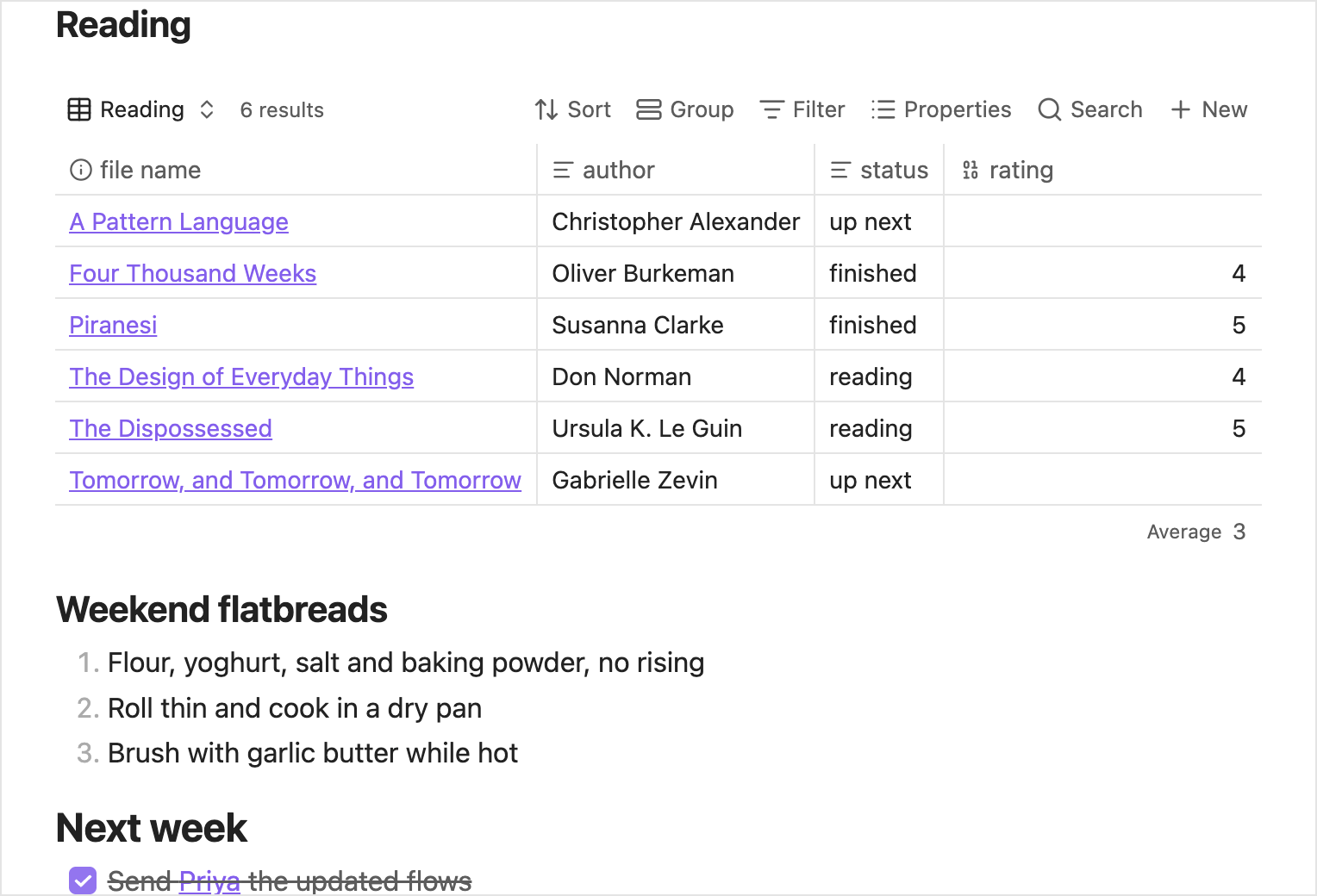
- Full notes. Each note is shown in full, the way Obsidian shows it, with its images, tables, embeds, links, tasks and Bases. The stream is read-only, so you can't tick a task in it.

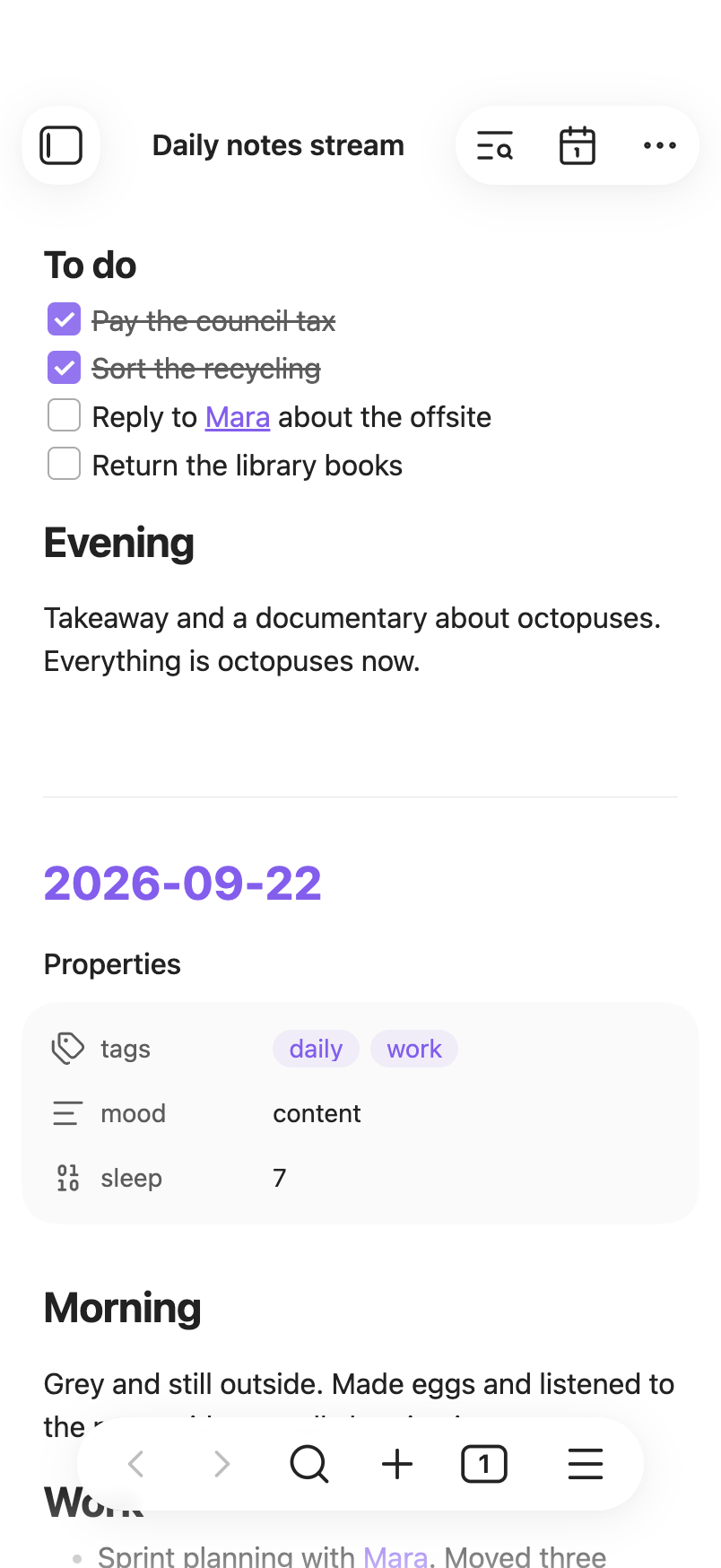
- Phone and tablet. Tables, Bases and Kanban Bases too wide for the screen are shown as cards, so one swipe moves the whole stream.
Before you install
- Which notes does it show? The notes in the folder set in Settings → Daily notes, including its subfolders, whose names match the date format set there. If you use Periodic Notes with its daily notes turned on, the stream uses Periodic Notes' folder and format instead.
- What does it store? Your settings, saved in the plugin's folder. Which sections you folded, and layout measurements that keep scrolling steady, are kept separately on each device.
- Is it private? Yes. It collects no telemetry or analytics, needs no
account, and never sends your notes or anything about you anywhere. The only
things that load from the web are embeds you put in your notes yourself, such
as videos. On a phone or tablet, a YouTube video shows as its preview image,
loaded from YouTube (
i.ytimg.com), because a YouTube embed inside the stream causes scroll issues. - Does it slow down with years of notes? No. It's tested on five years of daily notes, and stays fast and light on memory throughout: only the notes near what you're reading are loaded at a time.
- Does it need anything else installed? No. It has no dependencies: it contains no code from other projects and uses only what Obsidian provides.
- Which devices does it run on? Desktop and mobile. It needs Obsidian 1.14.4 or later.
- Does it show notes the way Obsidian does? On desktop, yes, except that a wide diagram shrinks to fit. On a phone or tablet it's opinionated: nothing inside a note scrolls on its own, so one swipe always moves the whole stream. A table, Base or Kanban Base too wide for the screen becomes a stack of cards, a Kanban Base keeping one group per column. Only the stream's view changes, never your notes; see Phone and tablet.
- Does it work with other plugins? Yes. Dataview tables and Bases are shown the way Obsidian shows them, reshaped on a phone or tablet as above. Templates made with the core Templates plugin or with Templater are recognised when empty notes are hidden; see Empty notes.
If you want to edit notes directly inside the feed, try Daily Notes Editor.
Install
- From the
latest release,
download
main.js,manifest.jsonandstyles.css. - Put them in
<Vault>/.obsidian/plugins/daily-notes-stream/. Create the folder if it doesn't exist;.obsidianis hidden in most file browsers. - Reload Obsidian.
- Enable Daily notes stream in Settings → Community plugins.
On a phone or tablet, install the plugin on a computer first and let your sync service copy the plugin folder to the device. Then enable it there.
To check that the downloaded files were built from this repository, run
gh attestation verify main.js --repo madhurya27/daily-notes-stream with the
GitHub CLI, and the same for the other two files. This works for releases after
1.0.0.
To build from source instead, run pnpm run build and copy the same three files
to the same folder.
Use
Open the stream
Click the ribbon icon (a stack of cards), or run
Daily notes stream: Open stream from the command palette (Ctrl/Cmd+P). It
opens in the current tab; Ctrl/Cmd-click the icon to open it in a new tab.
Each note is shown in full, as it looks in Obsidian's reading view, with its properties, images, tables, embeds, links, tasks and Bases. The stream is read-only, so clicking a task's checkbox doesn't tick it; open the note to edit it. Some content is reshaped so the stream scrolls smoothly, mostly on a phone or tablet; see Phone and tablet.
Empty notes
A daily note that holds nothing, or only the text of your daily-notes template, is left out of the stream. It appears as soon as you write in it or change one of its properties.
Some empty notes still show. Today's note always does, and so does a note that another note links to, so you can see its linked mentions. A note made from an older version of your template shows too, because it no longer matches the current one.
Templates made with the core Templates plugin or with Templater both work. A
placeholder such as {{date}} or <% tp.date.now() %> can fill in anything on
its own line. A Templater command that can write more than one line, such as
tp.file.include or an if that picks between sections, can't be matched. A
note made from a template that uses one always shows, even before you write in
it.
To show every note, turn off Hide empty notes in settings.
Move around
| To | Do |
|---|---|
| Load older notes | Scroll down |
| Go back to the newest | Click the arrow icon at the top, or run Daily notes stream: Scroll to top. On mobile, tap the title at the top |
| Go to a date | Click the calendar icon at the top, or run Daily notes stream: Jump to date |
The jump list opens on your 62 newest notes, about two months. Type to search
the rest: a year, such as 2025, lists every day of it that has a note. You can
type a date in your daily-note format or as YYYY-MM-DD. If that day has no
note, you go to the closest earlier day that does. The calendar button in the
list opens your device's date picker.
Search
Press Ctrl/Cmd+F, or click the search icon at the top. If you changed Obsidian's "Search current file" shortcut, use yours.
| Key | Action |
|---|---|
| Enter | Next matching note |
| Shift+Enter | Previous matching note |
| Escape | Close search |
Search looks only at each note's own text. Content that comes from other notes,
such as a Base, an embedded note or linked mentions, isn't searched. If a match
is inside a folded section, search unfolds it. If the counter reads
2 / 5 · hidden, the match is in a part of the note that isn't shown, such as
hidden properties or an embed.
Fold sections
Click the arrow beside a heading or nested list to fold it. The stream remembers what you folded.
Linked mentions
Each note ends with a list of the notes that link to it, quoting the lines around each link.
Open notes and links
Note dates, links inside notes, and the notes and links in linked mentions all open the way links do elsewhere in Obsidian:
| Gesture | Opens |
|---|---|
| Click | In the stream's tab; Back returns to the stream |
| Ctrl/Cmd-click or middle-click | In a new tab |
| Ctrl/Cmd+Alt-click | Side by side, in a split |
| Right-click | The file menu |
Click a tag to search for it, or Ctrl/Cmd-click it to search in a new tab. Hold Ctrl/Cmd while hovering over a link to preview it. To preview without holding the key, open Settings → Page preview and turn off the switch for "Daily notes stream".
Phone and tablet
On a phone or tablet, nothing inside a note scrolls on its own, so one swipe moves the whole stream. Content that would need its own scrolling is reshaped instead:
| Content | Becomes |
|---|---|
| Table | A card per row, each value under its column's name |
| Base | Narrower columns; if that isn't enough, a card per note, using Bases' own card view |
| Kanban Base | Cards, each column a group |
| Equation | Smaller, to fit the width |
| Code block | Long lines wrap |
| Diagram | Smaller, to fit the width (on desktop too) |
| Embedded note | Shown in full, not in a box of its own that scrolls |
| YouTube video | Its preview image; tap it to watch on YouTube |
| Embedded web page | Shown as it is; tap it to open the page in your browser |
| Any other embed that scrolls | Cut off at its edge |
On desktop, wide tables and code blocks scroll sideways in their own box, as they do in Obsidian.
Phone layout
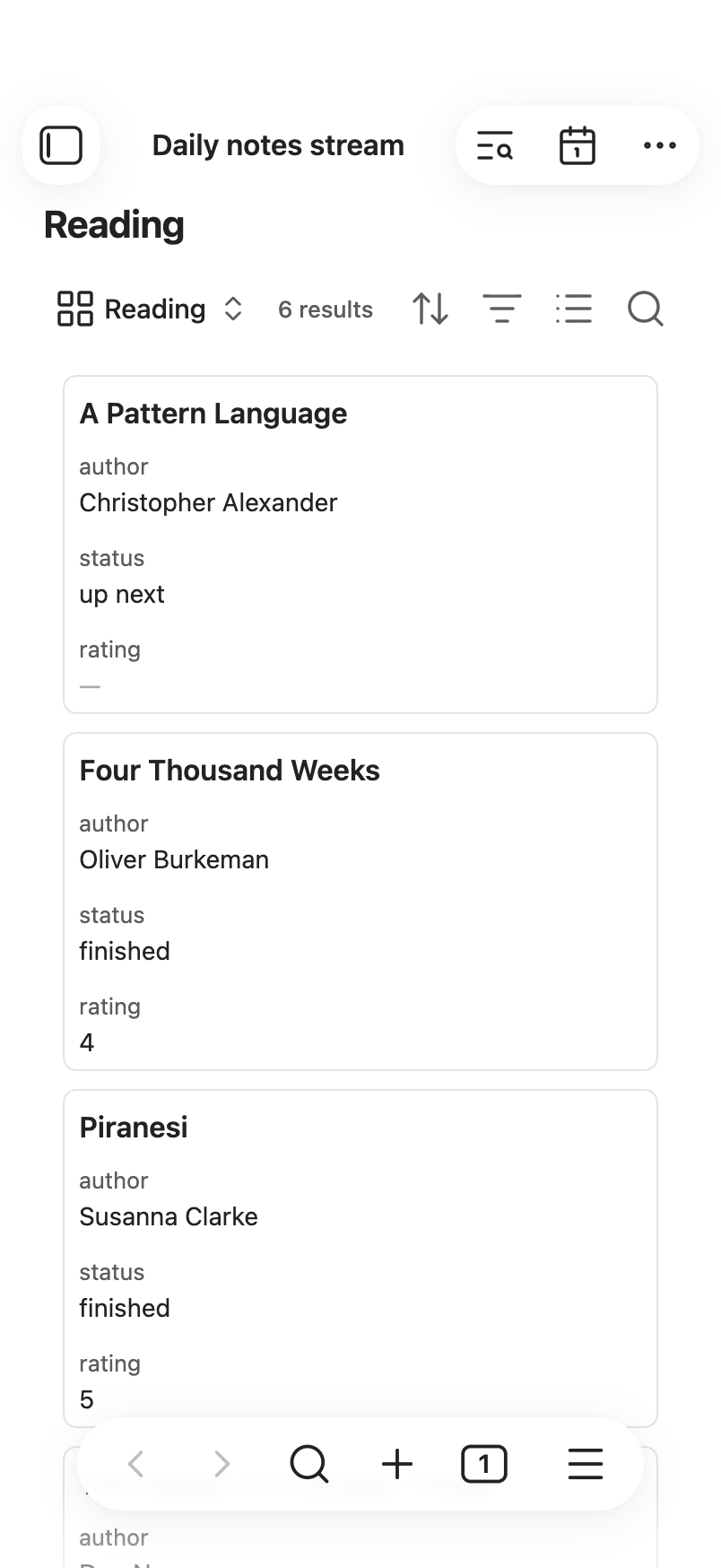
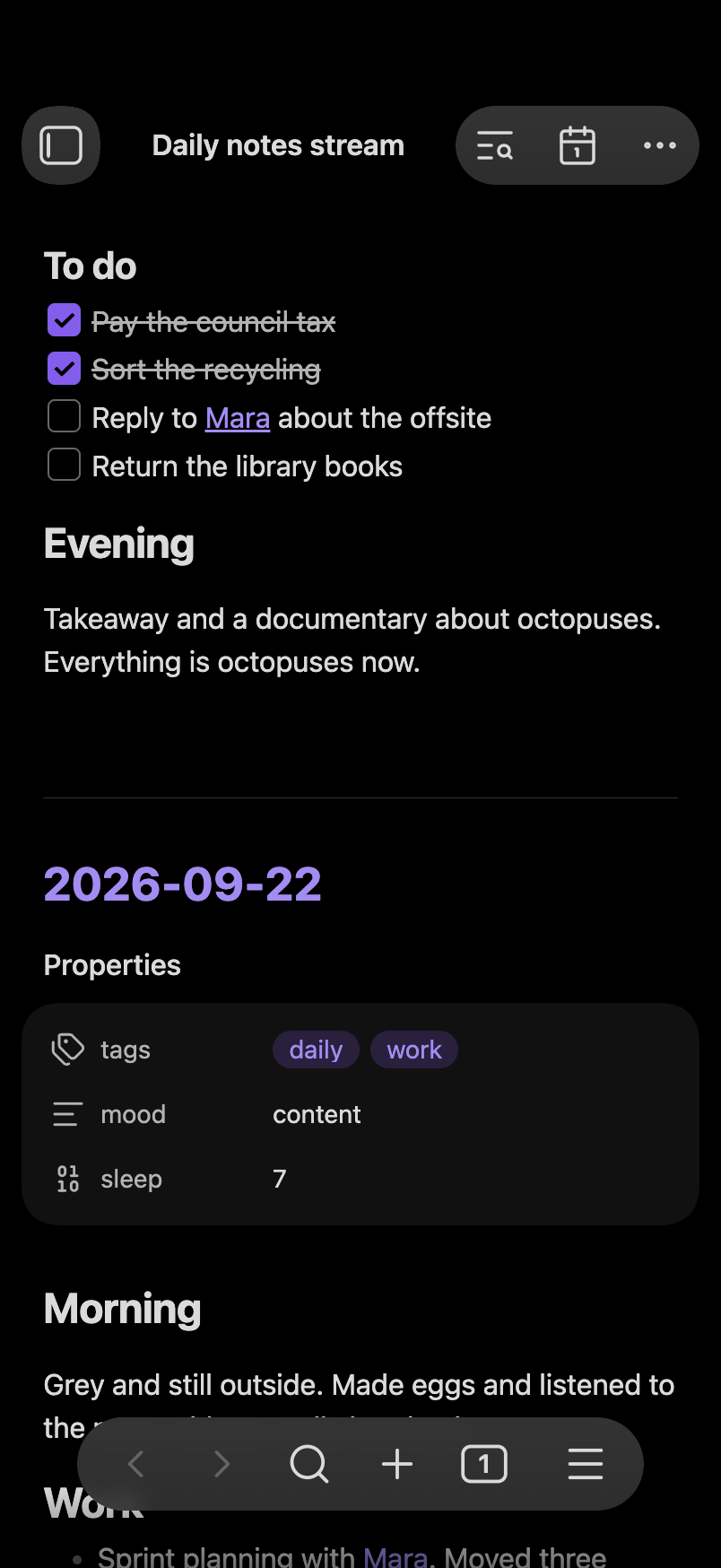
Settings
- Hide empty notes (on by default) leaves out daily notes you never wrote in. See Empty notes.
- Properties
- Show note properties (on by default) shows each note's properties.
- Collapse properties by default (off by default) starts each note with its properties folded.
- Linked mentions
- Show linked mentions (on by default) shows the notes that link to each note.
- Collapse linked mentions by default (off by default) starts them folded.
Each collapse setting appears only while its section is shown.
The stream follows Obsidian's theme, light or dark.
Troubleshooting
| You see | What to do |
|---|---|
| "No daily notes found" | Make sure the folder and date format in Settings → Daily notes match where your notes are and how they're named. |
| "Every daily note is hidden" | Every daily note holds only its template, so all of them are hidden. Write in one, or turn off Hide empty notes. |
| A note you expected is missing | Either it holds only its template (see Empty notes), or its name doesn't match the date format. |
| The plugin isn't listed under Community plugins | Make sure the three files sit directly in daily-notes-stream/, not in a subfolder, then reload Obsidian. |
Development
pnpm install && pnpm test && pnpm run lint && pnpm run build
Credits
Thank you to the authors and maintainers of the projects that inspired this plugin:
- Logseq
- obsidian-daily-notes-interface
- Daily Notes Editor
- Journal Review
- Calendar
- Jump to Date
- Dataview
- Periodic Notes
- Templater
License
MIT
For plugin developers
Search results and similarity scores are powered by semantic analysis of your plugin's README. If your plugin isn't appearing for searches you'd expect, try updating your README to clearly describe your plugin's purpose, features, and use cases.