by theluckystrike
Drag rows into a lasting order stored in a numeric note property.
Bases Manual Order
Put your writing queue, reading list or project notes in the order you want. Bases Manual Order adds a view to Bases with a table layout and a compact list layout. Drag a row handle or press a move button. The result is saved as a number in the note's properties.
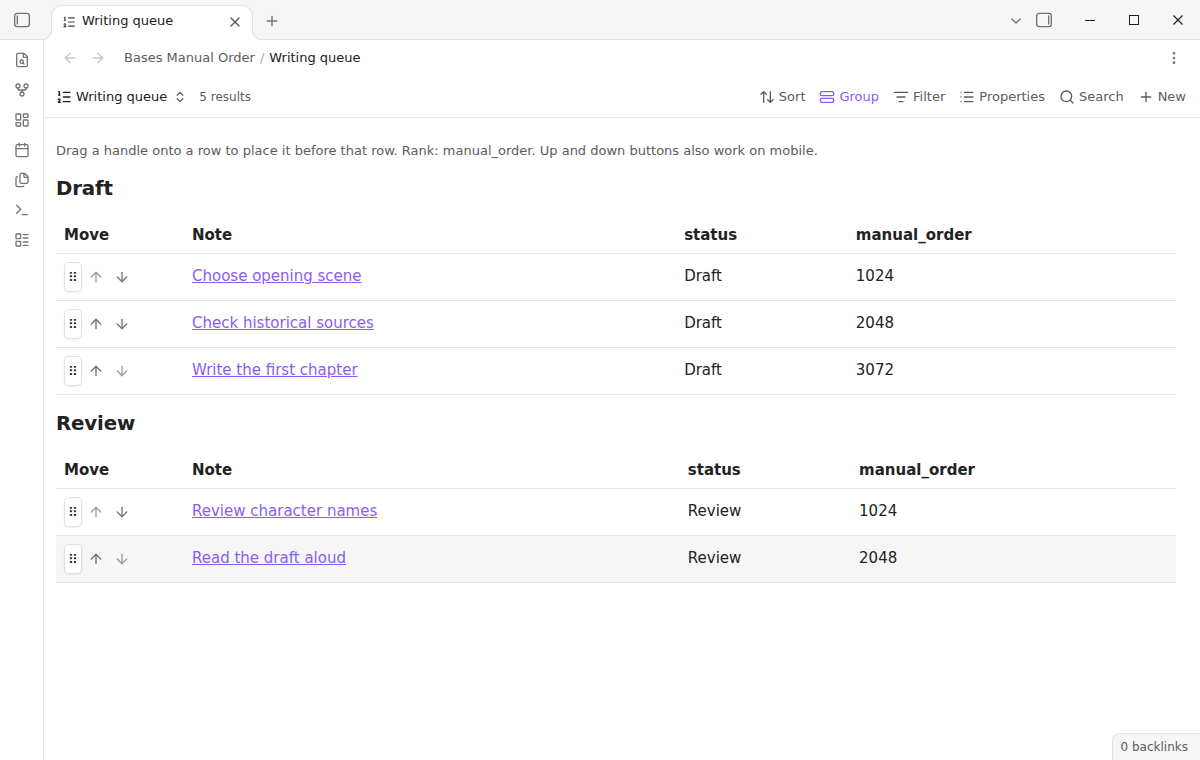
The free tier includes both layouts, every row, grouping, drag handles and move buttons using manual_order. Pro adds custom rank properties for separate orders in different views. It costs $15 one time or $5 a month. Get Pro, or choose the $15 one-time offer.
A queue often needs a judgment that a date or title cannot express. Numeric ranks keep your choices available to other Bases views.
Features
Drag rows in a table
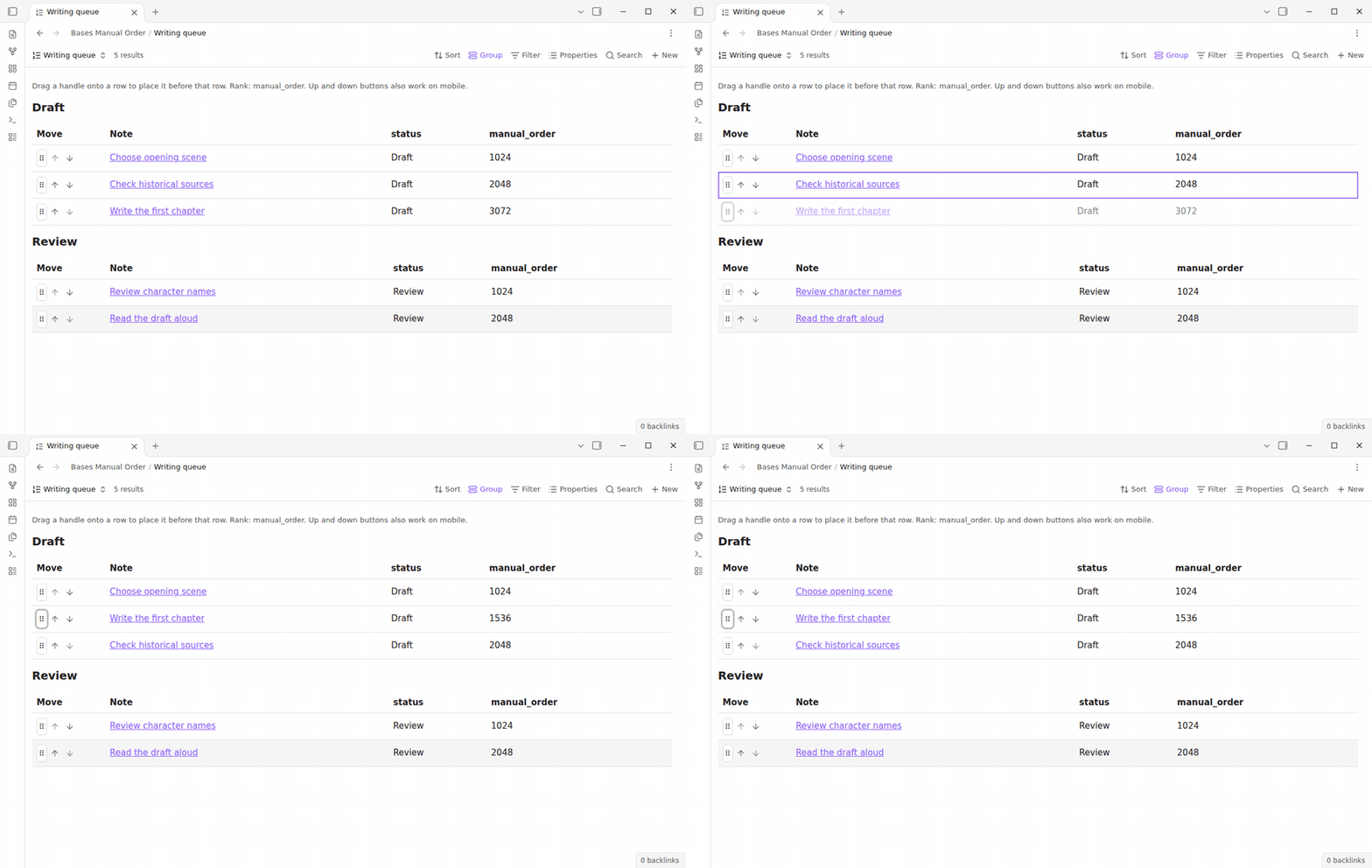
Choose Manual order from the Bases view menu. The table shows note links and the properties selected through the Bases toolbar. Each row has a drag handle. Drop that handle onto another row to place the source immediately before the target. The up and down buttons move one position at a time. To put a row last, use its down button until it reaches the end.
The view follows your base filters and groups. Rows move within their current group. Dropping onto another group has no effect, so arranging a queue cannot accidentally change a status or project value. Open a note by selecting its name. Hold Ctrl or Cmd while selecting the link to open another pane.
A compact list and move buttons
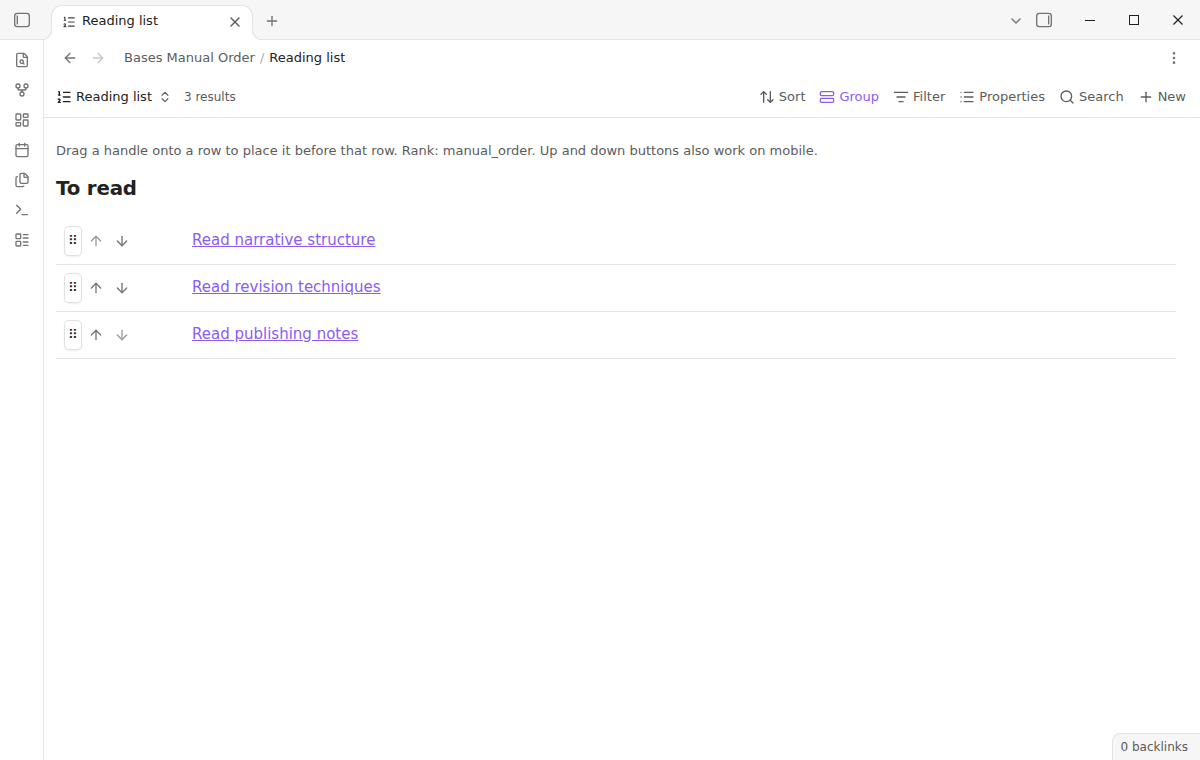
Set Layout to List in the view options when you only need titles. It uses the same saved ranks as the table. Switch between layouts without creating another set of order values. Both layouts have buttons with labels that include the note name, so keyboard users can Tab to a button and activate it with Enter or Space.
Use these buttons on a touch screen as well. They provide the complete ordering operation without a desktop drag gesture. The first up button and last down button are disabled.
Ranks that stay in your notes
An ordinary move changes one note. For example, placing a note between ranks 1024 and 2048 gives it rank 1536. New unranked notes receive numbers after the current maximum before the move is planned. Existing ranked notes keep their values unless equal ranks or exhausted numeric gaps require a rebalance. A move that writes more than ten notes requires confirmation and shows the count. Obsidian re-serializes frontmatter, so YAML comments and formatting can change. Note bodies remain intact.
Missing ranks appear after numbered rows. Equal ranks have a stable order based on full file path. Text, lists and other nonnumeric values in the rank field stop a move with an explanation. The plugin does not silently replace those values. Repair the property or choose another numeric field before trying again.
Separate orders with Pro
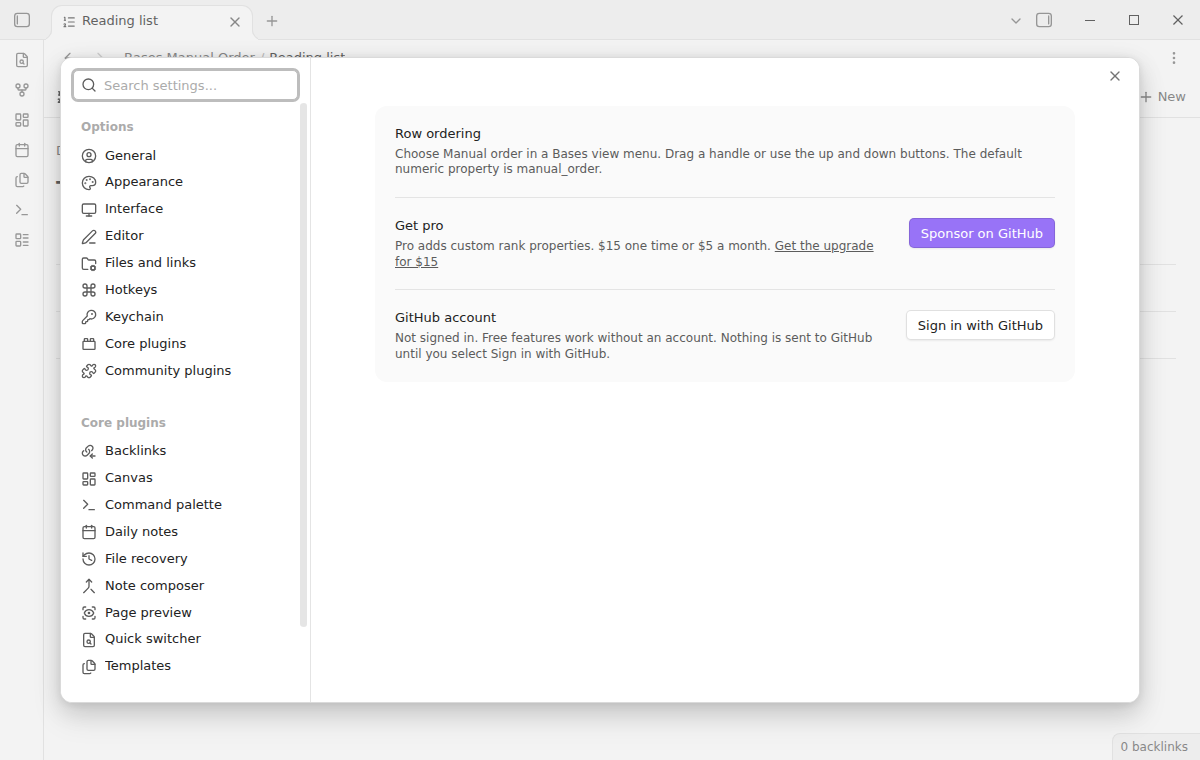
Pro lets each view choose a custom rank property. For example, use reading_order for a research sequence and draft_order for a chapter plan. Moving a row in one ordering leaves the other property's number alone. All notes remain ordinary Markdown files, and their saved numbers remain available even when Pro is off.
Without Pro, new views use manual_order. A view configured with a custom field stays read-only when Pro is off. Reconnect your sponsoring account to move rows in that ordering again. The core row ordering feature has no row limit or trial period.
Install
When this plugin is listed in the community directory, open Settings, Community plugins, Browse. Search for Bases Manual Order, install it and enable it. Also enable the core Bases plugin. The view appears in the view type menu of a base.
For manual installation, put main.js, manifest.json and styles.css from a release in <vault>/.obsidian/plugins/bases-manual-order/. Reload community plugins and enable it. This version needs Obsidian 1.13.4 or newer. It uses public Bases APIs and supports desktop and mobile.
Usage
- Open a base that shows Markdown notes.
- Add a view and choose Manual order as its type.
- Select the properties you want to see through the Properties menu.
- Choose Table or List in the view options.
- Drag a handle onto the row that should follow it, or use the arrow buttons.
- Reopen the base to see the order read from your saved note properties.
To show the same order in a native Bases table, sort that table ascending by manual_order. The plugin supplies its own view and does not add handles to the built-in table or list. Numeric ranks determine the order in this view.
Use one rank property across views of the same queue. Choose separate fields with Pro for unrelated queues. Property names must start with a letter or underscore and contain only letters, numbers, underscore characters or hyphens, with at most 80 characters.
Settings
The view options contain Layout and Rank property. They are saved with the view in the base configuration. The plugin settings tab explains the default field and contains the optional GitHub sign in. There is no startup payment prompt.
Only notes shown in the affected group are updated. Hidden notes keep their numbers and may share ranks with visible notes. Clear filters and result limits to arrange a complete queue.
FAQ
Can I undo a move? Use the opposite move button to put the row back. This plugin does not add an undo history. Keep normal vault backups for recovery of earlier property values.
What happens if a write fails? Each note is updated through Obsidian's frontmatter API, with a check that its rank still matches the planned value. A failure stops further writes and attempts to restore completed writes to their previous ranks. If restoration fails or a rank changed concurrently, a notice names the affected notes for review. A group update is not a transaction across files.
Does this replace a Kanban board? It arranges rows in tables and lists. It does not move cards between status columns, create tasks, or edit status properties. Only Markdown notes can receive ranks. Attachments appear after notes without move controls.
Can two devices arrange the same queue at once? Avoid simultaneous moves on a shared queue. The previous-value check helps with local concurrent edits, but cannot resolve conflicting sync writes from another device.
Payment, account and network
The core features are free. Pro features need a GitHub Sponsors sponsorship of theluckystrike: $5 a month or more, or $15 once. A total payment of $15 meets the payment requirement for Pro without further payment. Sign-in and the checks below still apply. Your notes stay readable and editable with or without Pro.
GitHub handles the payment. Sponsor at https://github.com/sponsors/theluckystrike. You need no account for the free features. Pro needs the GitHub account that sponsors.
Until you select "Sign in with GitHub" in the settings, Bases Manual Order makes no network requests. Sign in uses the GitHub device flow. Bases Manual Order sends its public client ID and the scope read:user to https://github.com/login/device/code and shows you a code. While you enter the code at https://github.com/login/device, it asks https://github.com/login/oauth/access_token every few seconds to check the sign-in status. The scope permits profile reads only. GitHub needs this access to show the sponsorship tier. It grants no repository scope and no write access.
After sign in, Bases Manual Order sends one query to https://api.github.com/graphql. It checks if the signed-in account sponsors theluckystrike. It asks for the tier and the total payment to theluckystrike. The plugin reuses a successful check for 7 days. Failed checks can retry after 6 hours. Select Refresh to request an earlier check. It sends no note content, file names or other vault data, and it has no telemetry.
After a successful check, Pro can work offline for up to 14 days. Sign out or a negative sponsorship answer turns Pro off. The plugin stores the GitHub token through the secret storage API of Obsidian. It does not put the token in its saved settings or its local sponsorship data. The local storage of this device keeps your GitHub login, the tier and the time of the last check. Sign out clears the token. You can also revoke the access in your GitHub settings, under Applications.
Support
Report reproducible problems through the repository issue tracker. Include your Obsidian version, layout, property name and whether filters or grouping were active. Use a small example with private information removed. Visit NoteMods for the product collection. The source is available under the MIT license.
For plugin developers
Search results and similarity scores are powered by semantic analysis of your plugin's README. If your plugin isn't appearing for searches you'd expect, try updating your README to clearly describe your plugin's purpose, features, and use cases.