by danniebgoode
Star your favorite Bases views, switch between centered tabs, and keep Kanban boards compact with hidden empty fields.
Bases Enhancements
Your favorite views, one click away. Cleaner boards. Notes in the right place.
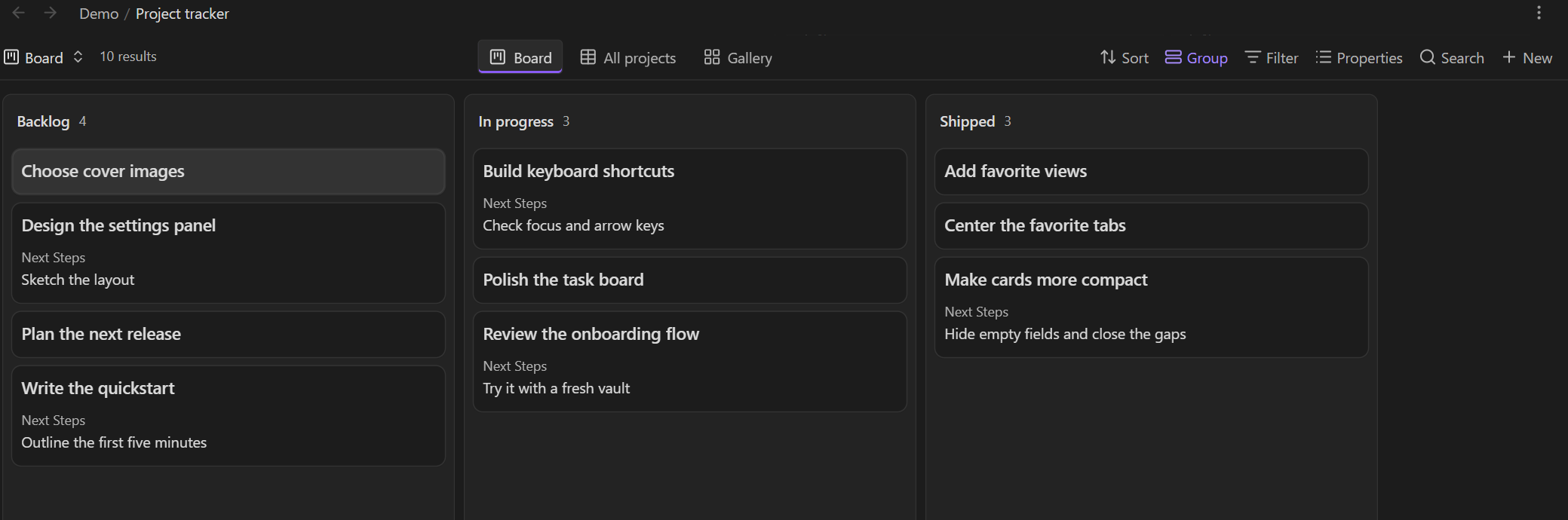
Bring your most-used views to the front of Obsidian Bases and keep your boards focused on what matters. Star the views you reach for every day, switch between them from centered tabs, and let Kanban cards shrink around their content.
Features
- Keep your favorite views in reach. Star any saved view from the view dropdown or Configure view. Your favorites appear as centered tabs above the base.
- Switch layouts without breaking your flow. Jump between Table, Kanban, Cards, List, and registered community layouts from the same tab bar.
- See the next step, skip the empty space. Hide empty Kanban fields, including their labels and placeholders. Cards shrink to fit, and the column closes the gaps.
- Make clickable cards feel clickable. A subtle hover highlight and pointer cursor make the board easier to scan and use. Keyboard focus stays visible.
- Arrange tabs your way. Drag favorites to reorder them, use keyboard shortcuts, or open their context menu. The native view list keeps its original order.
- Take your favorites with you. Favorites belong to each base and follow file sync, moves, and view renames. Multiple panes share favorites while keeping their selected views independent.
- Keep new notes with their project. Use Obsidian's native folder filters so New creates notes in the view's folder. See the folder setup.
- Keep working in small spaces. The tab bar scrolls horizontally in narrow panes and works in standalone bases and file-backed Markdown embeds.
Star a view. Get back to it instantly.
- Open a
.basefile and click its view dropdown. - Click the star beside a view, or open Configure view and turn on Star view.
- Click its favorite tab whenever you want to return to it.
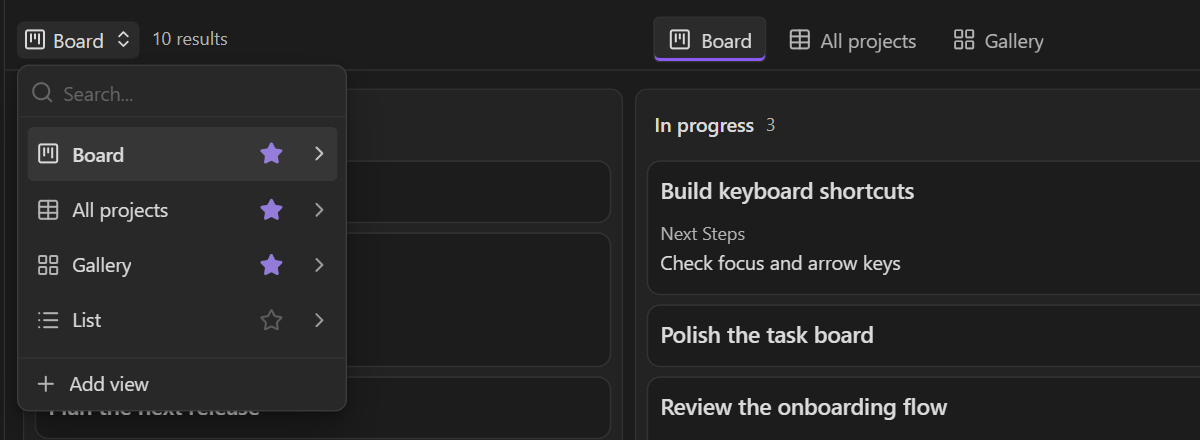
A filled star means the view is a favorite. Click it to unstar the view; click an outlined star to add it. Unstarring the current view leaves it open, and the native dropdown always lists every view.
| Action | Control |
|---|---|
| Open a favorite | Click its tab, or focus it and press Enter or Space |
| Reorder favorites | Drag a tab, or press Alt+Left / Alt+Right while it is focused |
| Move keyboard focus | Left / Right, Home, or End |
| Unstar or reorder a view | Right-click its tab |
| Toggle the current view's star | Run Bases Enhancements: Toggle star for current Bases view from the command palette |
Less empty space. More of your board.
An empty Next Steps field shouldn't make a card taller. Hide empty fields is enabled by default for native Kanban views: missing values, blank text, and empty lists disappear together with their labels and placeholders. Cards pack together at their natural heights.
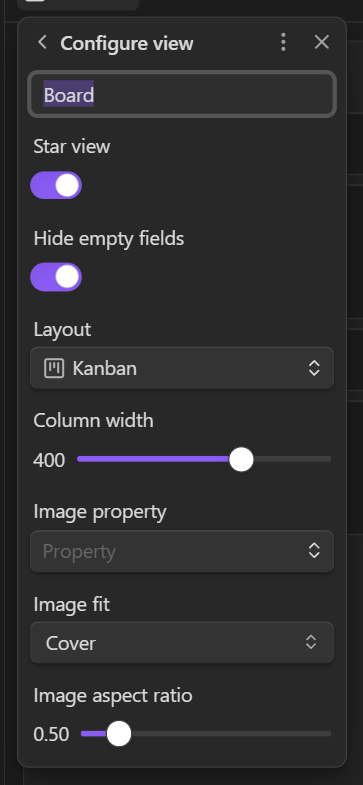
Want the original layout for a particular board? Turn Hide empty fields off in that view's Configure view popup. Zero values and unchecked checkboxes remain visible. Native rendering, virtualization, and drag-and-drop are retained, and reduced-motion preferences are respected.
Create notes in the filtered folder
Keep a project's notes together from the moment you create them. Obsidian supports this natively when a view uses a folder filter.
For a view scoped to one folder, add a rule like this to its filters in the .base file:
views:
  - type: kanban
    name: Projects
    filters:
      and:
        - file.inFolder("Projects/Tasks")
        - file.ext == "md"
Click New to create a note in Projects/Tasks, even when your vault's default location is the root. This works with Table, Kanban, Cards, and List views.
- Use
file.inFolder("Projects/Tasks")to include notes in that folder and its subfolders. - Use
file.folder == "Projects/Tasks"to show only notes directly in that folder. - Put the folder rule under This view when views use different folders, or All views to share one folder across the base. See Obsidian's filter documentation.
In Obsidian 1.14.4, file.path.contains(...) and file.path.startsWith(...) narrow results but do not set the new-note folder. Use one of the folder rules above for folder-aware creation. This is native Obsidian behavior and works with Bases Enhancements disabled too.
Keep new Kanban cards visible
The native New button also carries over property defaults from the view's filters, such as Source == ["Home"]. Adding a folder rule preserves that behavior.
A ticket can match the filter and still be hidden if it has no Status and the board hides the unassigned group. If you use a manual column order, show the unassigned group in the Group menu, or include null in the view's groupOrder:
groupBy:
  property: Status
  direction: ASC
groupOrder:
  - null
  - ToDo
  - In Progress
  - Waiting
  - Done
New tickets appear in the unassigned column with their inherited properties intact. Creating a ticket from a column's New button also assigns that column's value.
Install
Requires Obsidian 1.14.4 or later with the Bases core plugin enabled. You can use it alongside Bases Board View and other community layouts. Empty-field controls apply to native Kanban views.
See the Obsidian Community listing for screenshots and release review details. You can also install the plugin directly from GitHub below.
Install from Community plugins
Open the community listing, choose Add to Obsidian, then Install and Enable.
Download the latest release
- Open the latest release and download
main.js,manifest.json, andstyles.cssfrom Assets. - Place the three files in
<your-vault>/.obsidian/plugins/bases-view-favorites/. - Reload Obsidian, then enable Bases Enhancements under Settings → Community plugins.
The plugin keeps its original bases-view-favorites ID so existing installations and command bindings continue to work.
Build from source
With Node.js 22 or later installed:
git clone https://github.com/DannieBGoode/obsidian-bases-enhancements.git
cd obsidian-bases-enhancements
npm ci
npm run check
node scripts/install.mjs "/path/to/your/vault"
Reload Obsidian and enable Bases Enhancements under Settings → Community plugins. The installer copies the build from dist/. Add --enable to also add the plugin to the vault's enabled plugin list for the next reload.
Privacy
Bases Enhancements works locally inside your vault. It makes no network requests, collects no telemetry, and requires no account or external service. It saves view preferences in your .base files.
Storage and compatibility
Favorites are saved in the .base file, so each board, reading list, or project tracker can have its own shortcuts. Disabling the plugin removes its interface and keeps your preferences for later.
Configuration details
Favorite order is stored on each view:
views:
  - type: table
    name: Home
    viewFavorites:
      order: 0
The Kanban empty-field preference is stored as bvfHideEmptyFields on the view, independently of whether it is starred. Note contents are unaffected by these preferences.
File-backed Markdown embeds are supported. Inline base code blocks use a different save lifecycle and are outside the current scope. Desktop behavior was verified on Windows with Obsidian 1.14.4; narrow desktop panes were checked down to 480 pixels. Mobile hardware has not been tested.
Development
Run npm ci and npm run check. The checks cover TypeScript, unit tests, and the production build; CI runs them on Windows and Linux. Build artifacts are written to dist/.
See TESTING.md for real Obsidian smoke tests, native folder-creation checks, and compatibility notes. The integration uses private Obsidian APIs; rerun the native checks when updating Obsidian.
To prepare a release, keep package.json, manifest.json, and versions.json in sync and push a tag matching the manifest version exactly, such as 0.1.0. The release workflow creates a draft release with the three plugin files. See Obsidian's release guide.
Ideas or issues?
Report a bug or suggest an improvement. Include your Obsidian version, layout type, and steps to reproduce. A small example base with sample notes helps reproduce the issue.
MIT License · Made by DannieBGoode
For plugin developers
Search results and similarity scores are powered by semantic analysis of your plugin's README. If your plugin isn't appearing for searches you'd expect, try updating your README to clearly describe your plugin's purpose, features, and use cases.