Blip Capture
approvedby Jeff Miller
Quickly capture short notes (Blips) via hotkey or ribbon button and save them to a central file. - This plugin has not been manually reviewed by Obsidian staff.
Blip Capture Plugin for Obsidian
Quickly capture short notes ("Blips") and save them to a central Blips.md file in your vault's root directory. Perfect for capturing fleeting thoughts, ideas, and quick notes without interrupting your workflow.
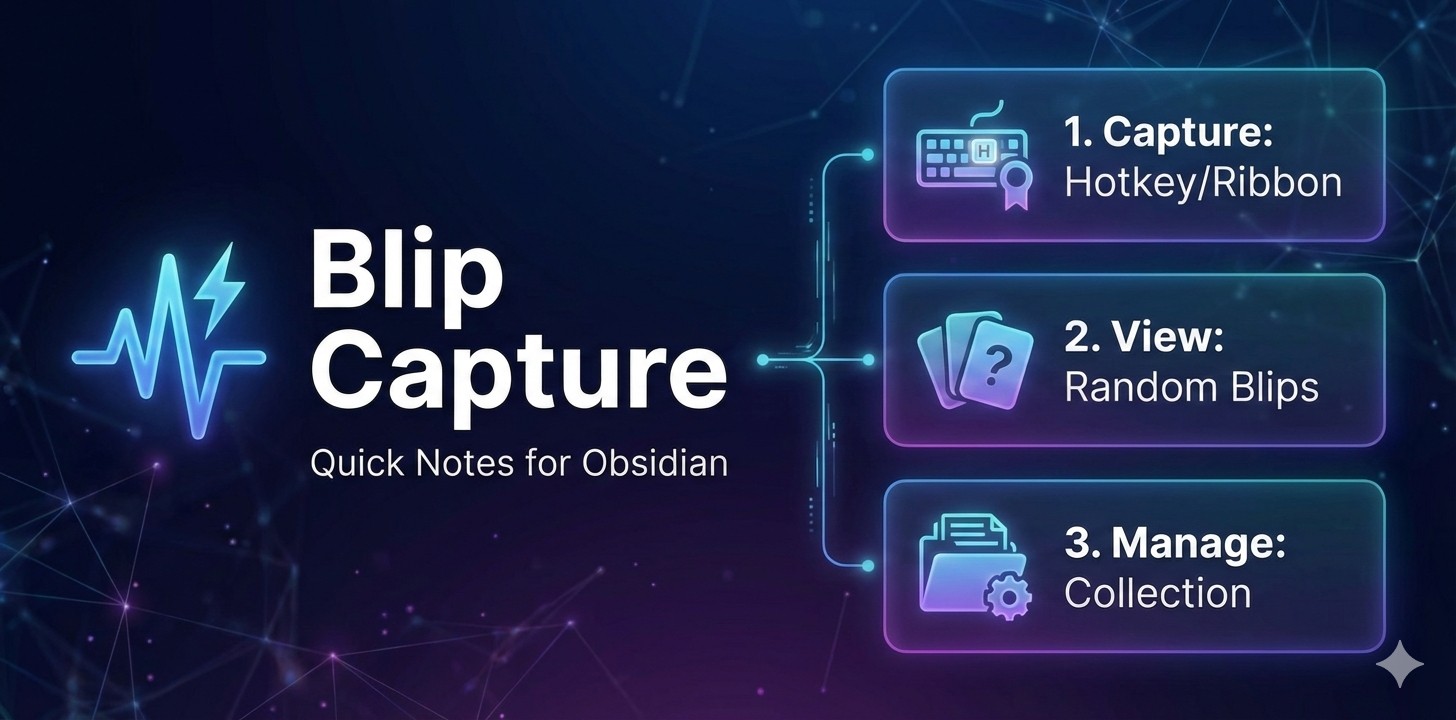
Features
- Capture Blips: Quickly jot down thoughts, ideas, or notes via a popup modal
- Manage Blips: View, reorder (drag and drop), and delete blips
- Random Blip: Display a random blip from your collection for inspiration or review
- Ribbon Icons: Three icons in the left sidebar for quick access
- Hotkey Support: Assign custom hotkeys to all functions
- Keyboard Shortcuts:
Ctrl/Cmd + Enterto saveEscapeto cancel
Installation
From Obsidian Community Plugins
- Open Obsidian and go to Settings → Community Plugins
- Click Browse and search for "Blip Capture"
- Click Install, then Enable
Manual Installation
- Create a folder called
blip-capturein your vault's.obsidian/plugins/directory - Copy these three files into that folder:
main.jsmanifest.jsonstyles.css
- Reload Obsidian (
Cmd/Ctrl + R) - Go to Settings → Community Plugins and enable "Blip Capture"
Usage
Ribbon Icons
- ⚡ Capture Blip — Open the capture modal to add a new blip
- 📋 Manage Blips — View, reorder, and delete blips
- 🎲 Random Blip — Display a random blip from your collection
Capturing a Blip
- Click the ⚡ Capture Blip icon or use your assigned hotkey
- Type your blip in the text area
- Click Save or press
Ctrl/Cmd + Enter - Your blip is instantly saved to
Blips.md
Managing Blips
- Click the 📋 Manage Blips icon or use your assigned hotkey
- Reorder: Drag blips using the handle (⋮⋮) to change their order
- Delete: Click the × button to remove a blip
- Changes are saved automatically
Viewing a Random Blip
- Click the 🎲 Random Blip icon or use your assigned hotkey
- View a random blip from your collection
- Click Another to see a different random blip
- Click Close when done
Setting Custom Hotkeys
- Go to Settings → Hotkeys
- Search for "Blip" to find the commands:
- Capture a new Blip
- Manage Blips (view and delete)
- Show a random Blip
- Click the + button to assign your preferred key combinations
Blip File Format
Blips are stored in Blips.md in your vault's root directory as a bulleted list. Each blip shows bold text followed by a date stamp:
- **My first blip content here** 02/04/26
- **Another thought I captured** 02/03/26
- **An older blip** 01/28/26
The file always begins with a blank line. In Obsidian's preview mode, blips display as a clean bulleted list with bold content.
File Structure
main.js— Compiled plugin codemanifest.json— Plugin metadatastyles.css— Modal stylingREADME.md— Plugin documentation
License
MIT
Support
If you encounter any issues or have feature requests, please visit the plugin repository.
For plugin developers
Search results and similarity scores are powered by semantic analysis of your plugin's README. If your plugin isn't appearing for searches you'd expect, try updating your README to clearly describe your plugin's purpose, features, and use cases.