BookView
approvedby nonkuri
A PDF and EPUB reader with two-page spread support for right-to-left bound (vertical Japanese) books, including an Acrobat-style cover page option. - This plugin has not been manually reviewed by Obsidian staff.
BookView
日本語の説明は README.ja.md にあります。
A PDF and EPUB reader for Obsidian that displays two-page spreads the way a printed book does — including right-to-left binding, as used by vertically written Japanese books, and Acrobat Reader's cover page option.
Obsidian's built-in PDF viewer scrolls one page at a time. BookView pairs the
pages instead, puts them in the right order for the binding, and turns them with
the arrow keys. It also opens .epub files, which Obsidian cannot open at all,
with vertical Japanese typesetting and right-to-left page progression.
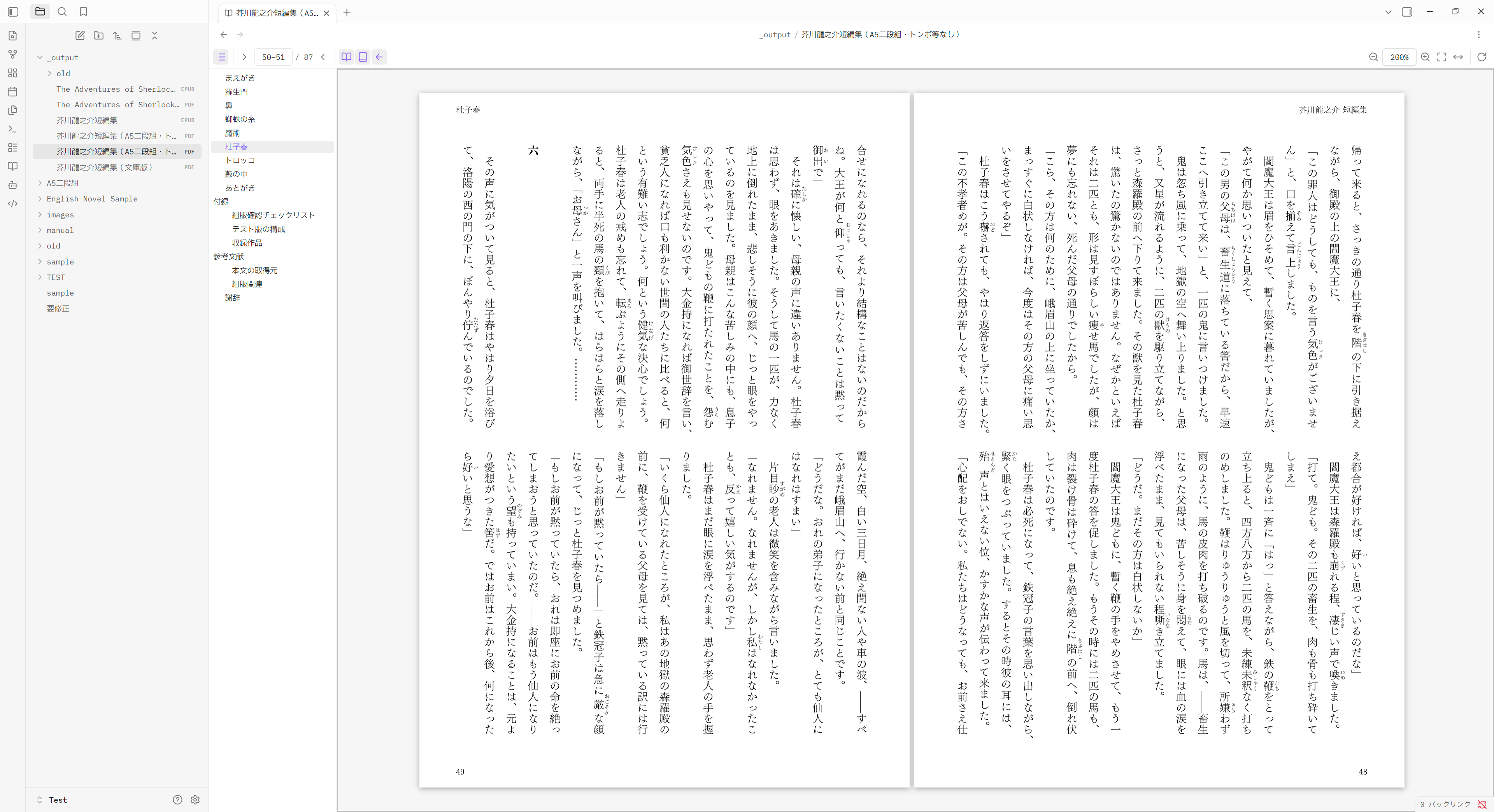
A right-bound Japanese book: page 51 on the left, page 50 on the right, with the document's outline in the side panel.
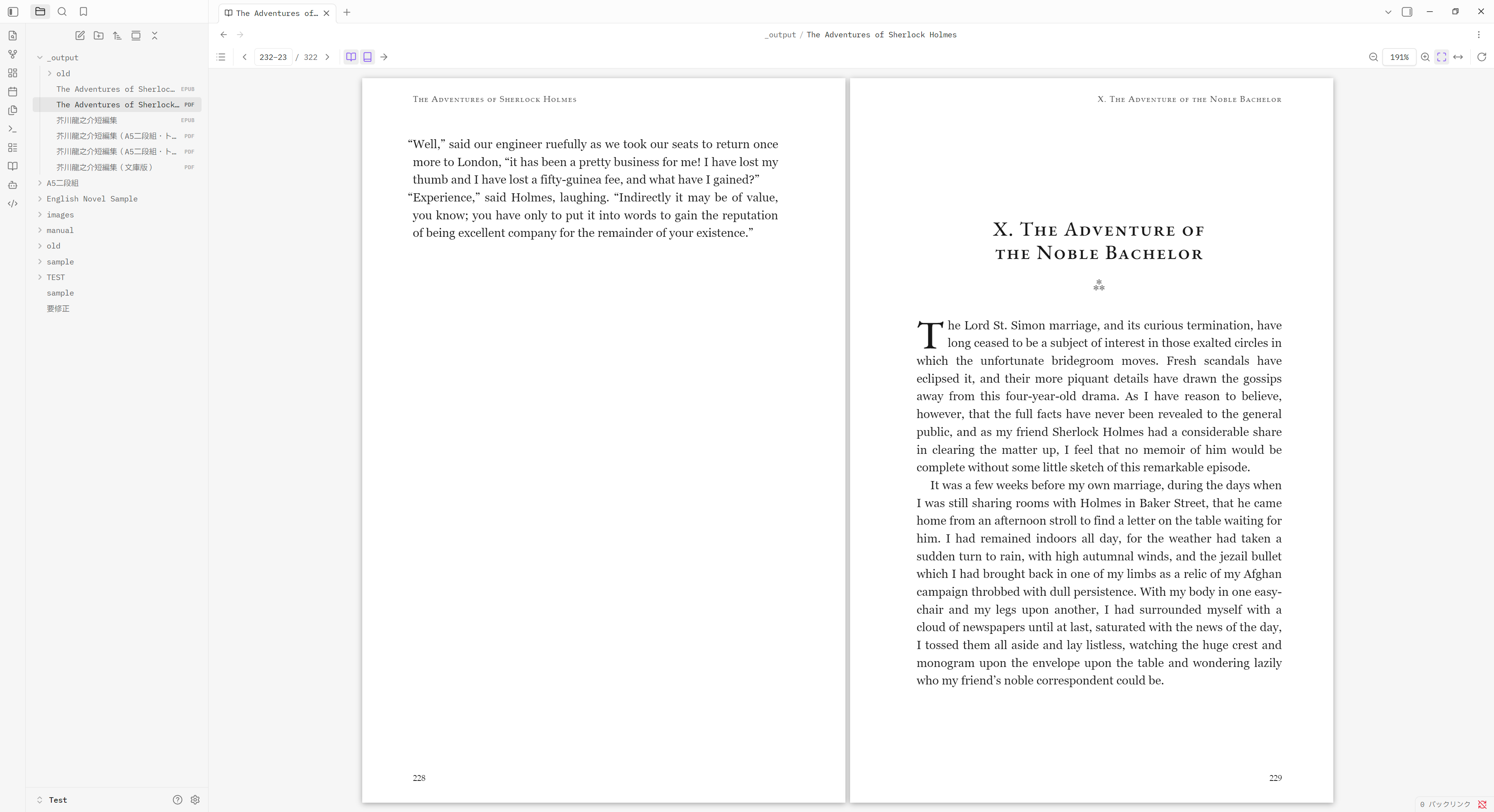
The same viewer on a left-bound English book, which BookView recognises on its own. Both screenshots show the PDF side; EPUBs get a reader of their own.
Features
- Two-page spread or single page, switchable at any time.
- Right-to-left or left-to-right binding. With right-to-left binding the
pages run right to left: in the spread 2-3, page 2 is on the right and page 3
on the left, the order a Japanese book is actually printed in. The arrow keys
follow the binding, so
←means "next" in a right-bound book. - Show cover page. Page 1 is shown on its own and pairing restarts at page 2 (2-3, 4-5, …), so page numbers land on the sides they do in print. A page with no partner, such as the cover or a final page, is kept on the binding side rather than centred — in a right-bound book, that puts page 1 on the left half, exactly where it lands when you open the front cover.
- Works out the binding on its own.
/ViewerPreferences /Direction /R2Lselects right-to-left binding and/PageLayout /TwoPageRightselects a spread with a separate cover — but hardly any PDF says either, so the binding is otherwise read from the text itself: vertically set Japanese, Hebrew and Arabic open right-bound, and a document with none of those opens left-bound. What stays ambiguous — horizontally set Japanese, or a scan with no text at all — keeps whichever default you set. - Zoom and rotate. Fit page, fit width, fixed zoom levels, 90° rotation.
- CJK support built in. The pdf.js CMap tables are bundled, so PDFs that use
a predefined encoding (
UniJIS-UCS2-H,90ms-RKSJ-H, …) render correctly.
EPUB
Obsidian cannot open EPUBs at all, and in a stock vault does not even list them in the file explorer. BookView reads both reflowable and fixed-layout books.
- Vertical Japanese, set vertically, ruby and all — the book's own stylesheet does the typesetting, so it looks the way its designer meant it to.
- The binding is read, not guessed. It comes from the spine's
page-progression-direction, so←means "next" in a right-opening book without any of the sniffing the PDF side has to do. - Two columns side by side for horizontally set books. Vertical text already runs right to left across the full width, which is the spread.
- Type size, and paginated or scrolled reading, switchable at any time.
- The page laid out to taste. Margins, line length, line spacing and the gap between columns. The margins are on the toolbar as well as in the settings, so the page reflows under you as you find the right amount of white — the setting that matters most to a vertically set book, which fills a wide pane quite differently from a horizontal one.
Both
- Contents panel. The book's own outline is shown as a collapsible tree; clicking an entry jumps to it, and the entry covering where you are is highlighted. Empty for a document that carries no outline.
- Per-file memory. For a PDF, the binding direction, spread mode and current page; for an EPUB, your place in the text as an EPUB CFI, restored exactly.
- No network access. pdf.js, its worker, the CMaps, and the EPUB renderer
are all bundled into
main.js; nothing is fetched at runtime. Books are rendered under a Content-Security-Policy that denies scripts and every network request, so an EPUB cannot run code or call home.
Usage
Open any PDF in your vault. By default BookView handles .pdf files in place of
the built-in viewer; you can turn that off in the settings and open individual
files with Open in BookView from the file menu, or from the command palette.
.epub files open the same way. Obsidian has no EPUB viewer of its own — in a
stock vault it does not even list .epub in the file explorer, because nothing
has claimed the extension. BookView claims it, which is what makes those files
appear and open.
If another plugin already handles .epub, BookView takes over from it once the
workspace has loaded, and hands it straight back when BookView is disabled.
Nothing is lost either way: Open in BookView in the right-click menu, and the
matching command, open a book in BookView whoever owns the extension — so you can
also leave the extension to the other plugin (turn off Open EPUB files in
BookView) and reach BookView only when you want it.
| Key | Action |
|---|---|
← / → | Next / previous, flipped to match the binding |
↑ ↓ PageUp PageDown Space | Previous / next |
Home / End | First / last page |
+ / - | Zoom in / out |
0 | Fit page |
W | Fit width |
S | Toggle two-page spread |
C | Toggle cover page |
R | Toggle right-to-left binding |
T | Toggle the outline panel |
- Mouse wheel turns pages. When the spread is zoomed past the edge of the window, it scrolls first and turns the page once it reaches the end.
Ctrl/Cmd+ wheel zooms.
EPUB
| Key | Action |
|---|---|
← / → | Next / previous, flipped to match the binding |
↑ ↓ PageUp PageDown Space | Previous / next |
+ / - | Larger / smaller type |
T | Toggle the contents panel |
- The mouse wheel turns pages, and a sideways wheel follows the binding. In scrolled reading it is left alone to scroll.
Ctrl/Cmd+ wheel changes the type size.- The margins button on the toolbar sets the space kept clear around the text, top and bottom and at the sides, and the page reflows as you drag. The same two sliders are in the settings tab; both write the one setting, so every open book follows.
If a book opens but does not appear, the command Copy EPUB diagnostics puts the renderer's measurements on the clipboard, ready to paste into a bug report.
Every action is also a command, so you can assign your own hotkeys under Settings → Hotkeys.
Settings
- Defaults for newly opened PDFs: spread, binding direction, cover page, zoom.
- Whether a PDF's own layout hints override those defaults.
- Appearance: aligning lone pages to the binding edge, the gap between the halves of a spread, page shadow, colour inversion in dark mode, and render quality.
- Defaults for newly opened EPUBs: paginated or scrolled, two columns, type size, line length, body height and width in vertical writing, line spacing, the gap between columns, and the margins kept at the top and bottom and at the sides.
- Whether BookView handles
.pdfand.epubfiles, and whether per-file state is stored.
Installation
From Obsidian
Settings → Community plugins → Browse, search for BookView, install, and enable it.
Manually
Download main.js, manifest.json, and styles.css from the
latest release
and put them in <vault>/.obsidian/plugins/bookview/, then enable the plugin
under Settings → Community plugins.
Limitations
- There is no text layer, so text cannot be selected, copied, or searched. Pages are rendered as images.
- Links inside a page are not clickable, since annotations are not drawn. Use the outline panel to move around the document.
- PDFs embedded in notes (
![[file.pdf]]) still use Obsidian's own rendering. - CJK PDFs without embedded fonts fall back to the fonts available on the system.
EPUB
- DRM-protected books cannot be opened. An Adobe-encrypted EPUB or an
.acsmfile is not something BookView can decrypt, and it will not try. - Scripted EPUBs do not run their scripts. This is deliberate: the Content-Security-Policy that makes a book safe to open in your vault blocks them, and there is no way to allow them selectively.
- Pagination uses CSS multi-column, so a long chapter takes a moment to lay out and some unusual stylesheets do not survive it intact.
- A book opened in a popout window is not supported: the renderer's custom elements belong to the main window.
- An
.epubembedded in a note (![[book.epub]]) is not rendered.
Development
npm install
npm run dev      # esbuild in watch mode
npm run build    # type check and production build
npm run deploy -- "C:/path/to/Vault" copies the built files into a vault.
Test harness
The view can be run in a plain browser, without starting Obsidian:
npm run test:pdf      # generate test/sample.pdf (5 pages, right-bound, outline, Japanese text)
npm run test:epub     # generate test/vertical.epub and test/horizontal.epub
npm run test:build    # build test/harness.js
npm run test:serve    # http://localhost:4321/test/index.html
?epub=vertical.epub on the harness URL runs the EPUB view instead of the PDF
one; ?pdf= picks a different PDF fixture.
npm test checks how the plugin takes over and hands back .pdf and .epub
— including the case where another plugin already owns one of them — against a
registry that behaves like Obsidian's.
test/obsidian.ts is a minimal stub of the Obsidian API and is not part of the
plugin bundle.
Credits and licence
MIT — see LICENSE.
Bundles pdf.js by the Mozilla Foundation, under the Apache License 2.0, and foliate-js by John Factotum, under the MIT License — which in turn brings zip.js and fflate. See THIRD_PARTY_NOTICES.md.
For plugin developers
Search results and similarity scores are powered by semantic analysis of your plugin's README. If your plugin isn't appearing for searches you'd expect, try updating your README to clearly describe your plugin's purpose, features, and use cases.