Cairn
approvedby cyrill
Collect TODO markers from your vault in a sidebar. - This plugin has not been manually reviewed by Obsidian staff.
Cairn
Collect TODO markers from across your Obsidian vault in one sidebar.



Cairn keeps lightweight, local task lists close to the notes they belong to. Open the sidebar to review markers, jump back to their source notes, and remove a finished item without leaving the panel.
Features
- Scans Markdown files for a configurable marker keyword (default
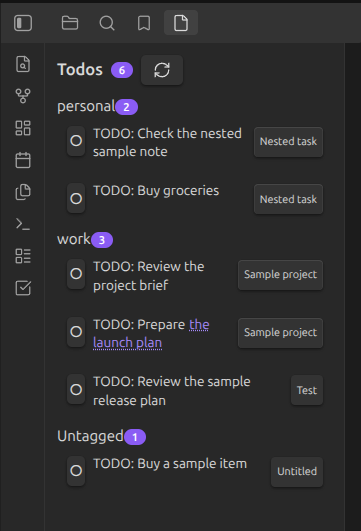
TODOorTODO:). - Shows all matches in a dedicated sidebar, grouped by the first frontmatter tag on each note.
- Opens the source note at the matching line.
- Opens wiki links contained in a todo directly from the sidebar.
- Removes a marker's entire source line when you select its completion button.
- Lets you drag a marker to an existing tag group to update the note's tag.
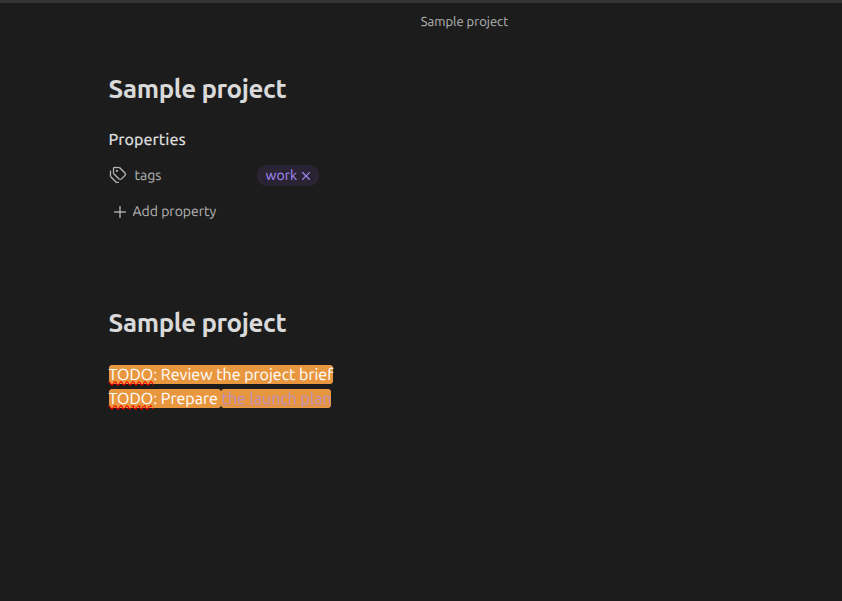
- Highlights the marker keyword in the editor and reading view.
- Marks files that contain active markers in the File Explorer.
Screenshots
Installation
From the Community directory
After Cairn is published, open Settings → Community plugins, search for Cairn, install it, and enable it.
Manual installation
- Download
main.js,manifest.json, andstyles.cssfrom a Cairn release. - Create
<your-vault>/.obsidian/plugins/cairn/. - Copy the three files into that folder.
- Restart Obsidian, then enable Cairn under Settings → Community plugins.
Usage
-
Add markers to your Markdown notes, for example:
TODO: Review the project brief - TODO: Prepare [[Launch plan|the launch plan]] -
Select the Cairn ribbon icon, or run Refresh todos, to open or refresh the sidebar.
-
Select a note name to open the marker at its source line.
-
Select the circle next to a marker to remove that entire source line.
To group a note's markers, add YAML frontmatter with a tag:
---
tags:
  - work
---

TODO: Send the project update
You can drag a marker into another existing tag group in the sidebar to change its note's tag.
Supported marker syntax
Cairn recognizes a case-sensitive standalone keyword, with an optional colon. The default keyword is TODO; you can change it in Settings → Community plugins → Cairn. Markers can appear in ordinary text or Markdown list items. Case variants like todo or Todo are not recognized.
Settings
Open Settings → Community plugins → Cairn to configure:
- Marker keyword — the word that marks a to-do line (default
TODO). The vault is rescanned automatically after changes.
Commands and interface
- Refresh todos rescans every Markdown file in the vault and refreshes the Cairn sidebar.
- The Cairn ribbon icon opens the sidebar. If the sidebar is already open, it brings it into view and refreshes the list.
- A note-name button opens the note at the marker's line.
- A marker's circle button removes the entire matching line from its note.
- Dragging a marker onto a named tag group updates the source note's frontmatter tag.
How Cairn changes notes
Cairn scans vault Markdown files locally. A scan does not add markers or otherwise change their content.
Two actions can modify a note:
- Complete a marker: removes the complete source line. This is deliberate and irreversible from within Cairn; use Obsidian's normal Undo command immediately if needed.
- Move to a tag group: changes the note's YAML
tagsfield. The note must already contain YAML frontmatter, and Cairn uses the first tag as its sidebar group.
Review and back up important notes as you normally would before using any plugin that writes to vault files.
Limitations
- Selecting a marker's completion button deletes the whole matching line; there is no built-in undo or archive action.
- Refresh the sidebar after editing marker text or creating a new marker outside Cairn.
- Grouping uses the first tag in a note's YAML frontmatter. Dragging is available only when a destination tag group already exists.
- Cairn treats matching text literally; it does not interpret task syntax, due dates, priorities, or nested tasks.
Troubleshooting
The sidebar is empty
Run Refresh todos and confirm that the note is a Markdown file containing the configured marker keyword (default TODO).
A marker is in the wrong group
Open the source note and check its YAML frontmatter. Cairn uses the first value under tags. Edit the frontmatter directly, then run Refresh todos.
A File Explorer indicator is missing
Refresh the list, then collapse and expand the relevant folder. The indicator is only applied to visible File Explorer entries.
The plugin does not load
For a manual installation, confirm that main.js, manifest.json, and styles.css are directly inside <your-vault>/.obsidian/plugins/cairn/, then restart Obsidian and enable Cairn.
Privacy
Cairn runs entirely locally. It makes no network requests, sends no vault data or telemetry, and only reads or updates Markdown files in the current vault when you use its features.
Development
This project uses pnpm and Node.js 22 or later.
pnpm install --frozen-lockfile
pnpm run dev
Run the production checks before a release:
pnpm run build
pnpm run test
pnpm run lint
See CONTRIBUTING.md for development and review expectations, SECURITY.md for vulnerability reporting, and RELEASING.md for the release checklist.
See CHANGELOG.md for release history.
License
Licensed under the GNU General Public License v3.0. See LICENSE.
For plugin developers
Search results and similarity scores are powered by semantic analysis of your plugin's README. If your plugin isn't appearing for searches you'd expect, try updating your README to clearly describe your plugin's purpose, features, and use cases.