by zhang
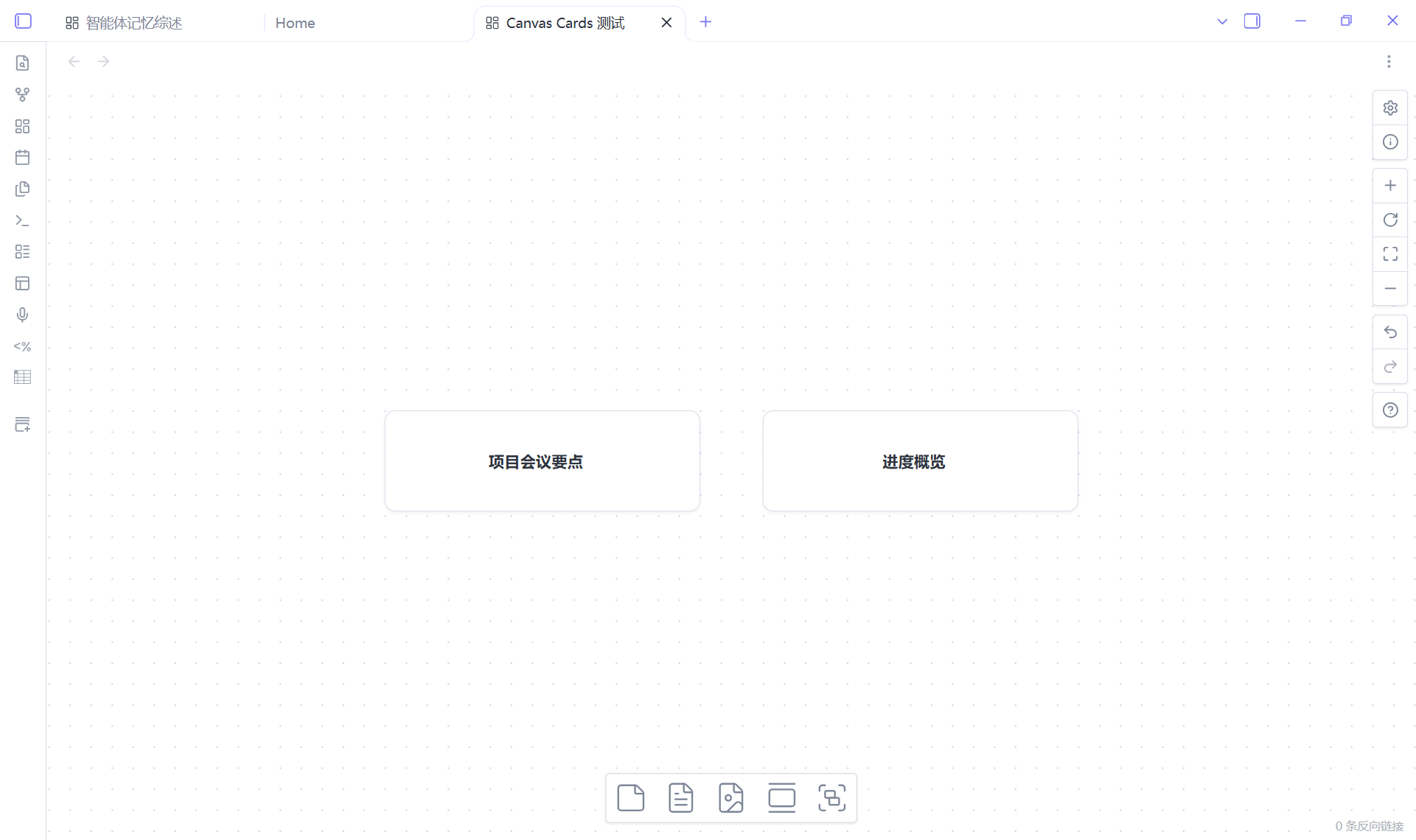
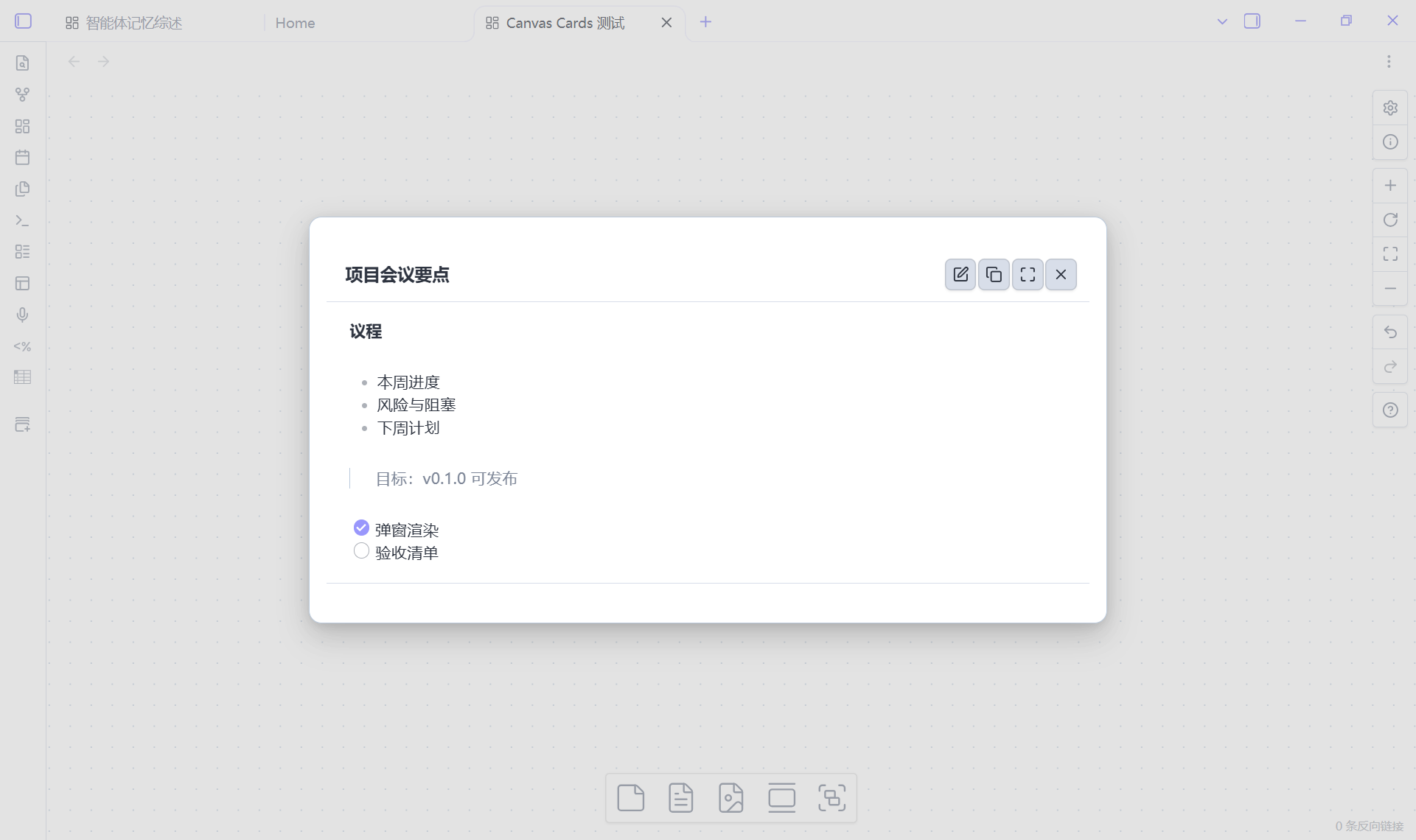
Canvas cards show only a clickable title; click to open a popup with the full body content.
Canvas Cards
Repository: knink-owo/obsidian-canvas-cards
Turn any Canvas text node into a card: the canvas only shows a clickable title
(optionally button-styled), and clicking the title opens a popup with the full,
rendered Markdown body. The body stays hidden inside the .canvas file until you
open it.
Features
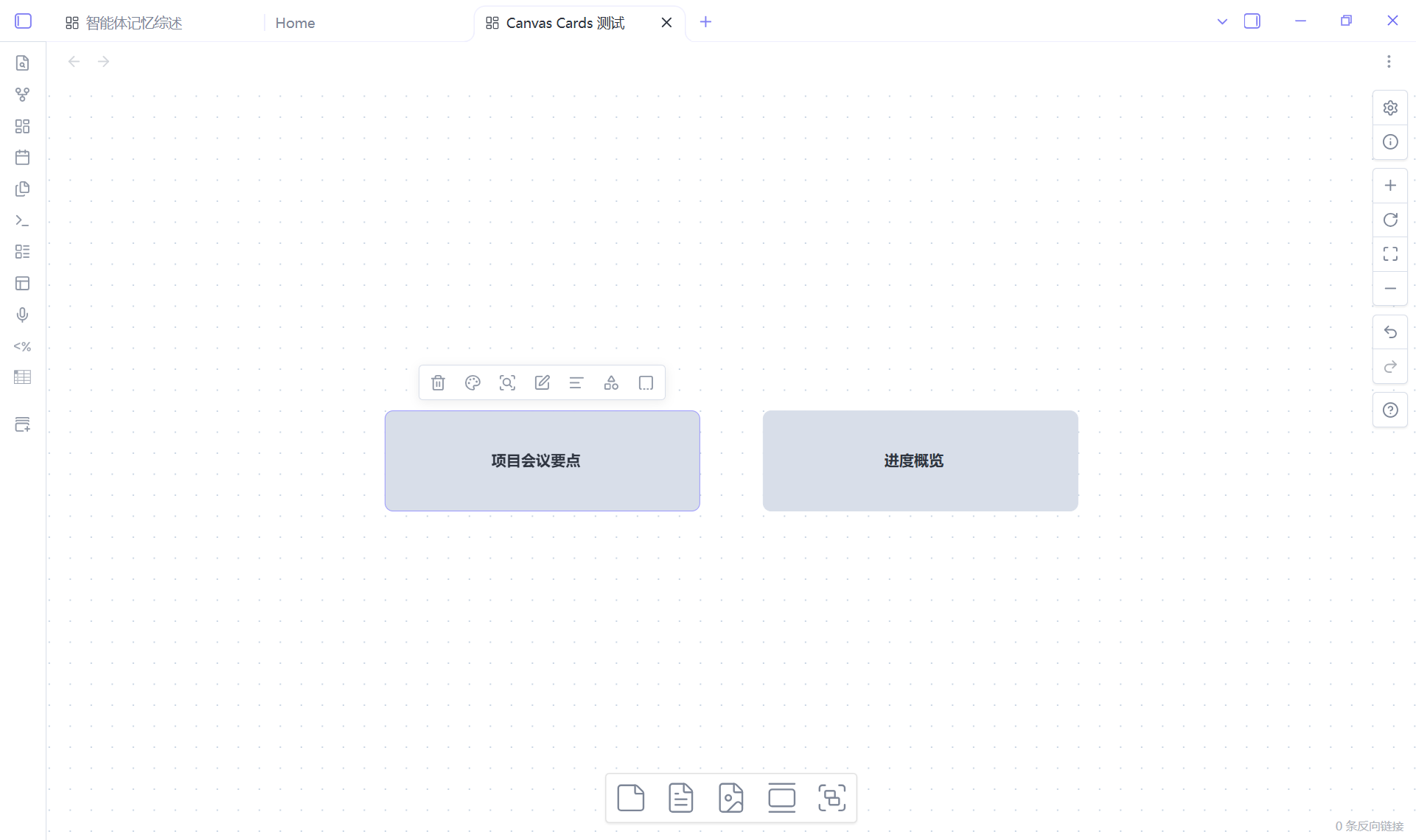
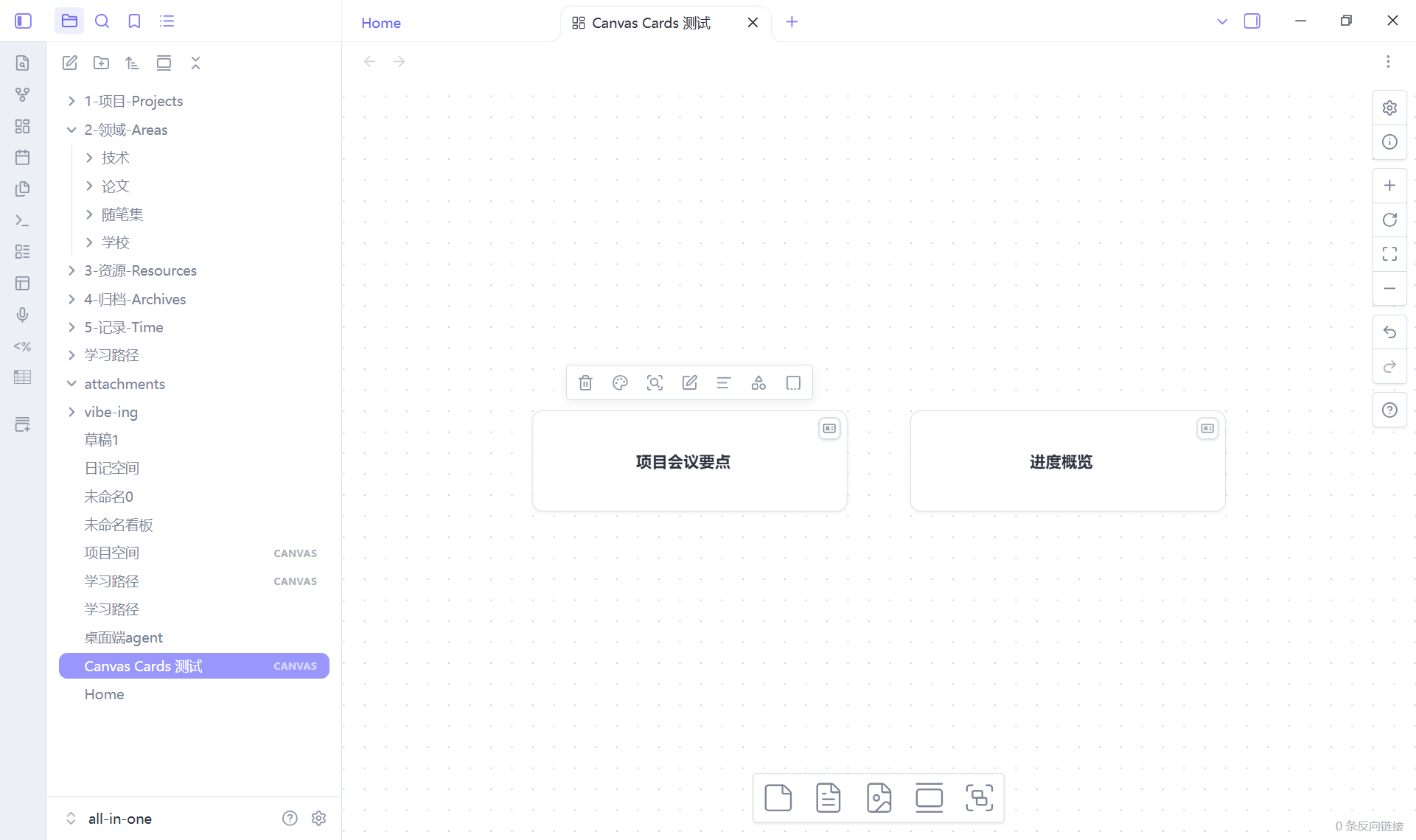
- Card look on the canvas — cards are native Canvas text nodes that render as a compact, centered title. One small corner button is the only injected element; the rest is a CSS class, so dragging, zooming, selecting and the Advanced Canvas features keep working.
- Click to open — a single click opens the card body in a centered popup; Shift, Ctrl/Cmd and middle-click are left to Canvas itself. The click also selects the node, so Delete and the native right-click menu still work. A corner button on each card opens it too, and the trigger can be set to corner button only.
- Rendered Markdown body — headings, lists, tables, callouts, task lists, links,
![[embeds]]and images render through Obsidian's own Markdown renderer with the.canvasfile as source path. - Lightweight editor — toggle the popup into edit mode, edit the raw Markdown in
a textarea, and the body autosaves (400 ms debounce, on blur and on close). Paste
an image into the textarea and it is saved to the attachment folder with an
![[image]]embed inserted. The popup also switches to full screen;Escleaves full screen first, then closes. - Title editing — the popup's title field renames the card (an explicit rename exists because a double-click no longer starts the native text editor, see Behaviour details).
- Commands and context menu — create, convert selected text nodes, cancel a card, edit a body, copy a body and export a card, from the command palette or the node context menu. Works next to Advanced Canvas menu items.
- Bilingual UI — English and Chinese follow Obsidian's language.
- Graceful degradation — the body lives in a normal node field
(
canvasCard), so a card opened in a vault without the plugin is just a text node whose title is the text; nothing is lost or corrupted. - Two appearances — minimal (card) or button (
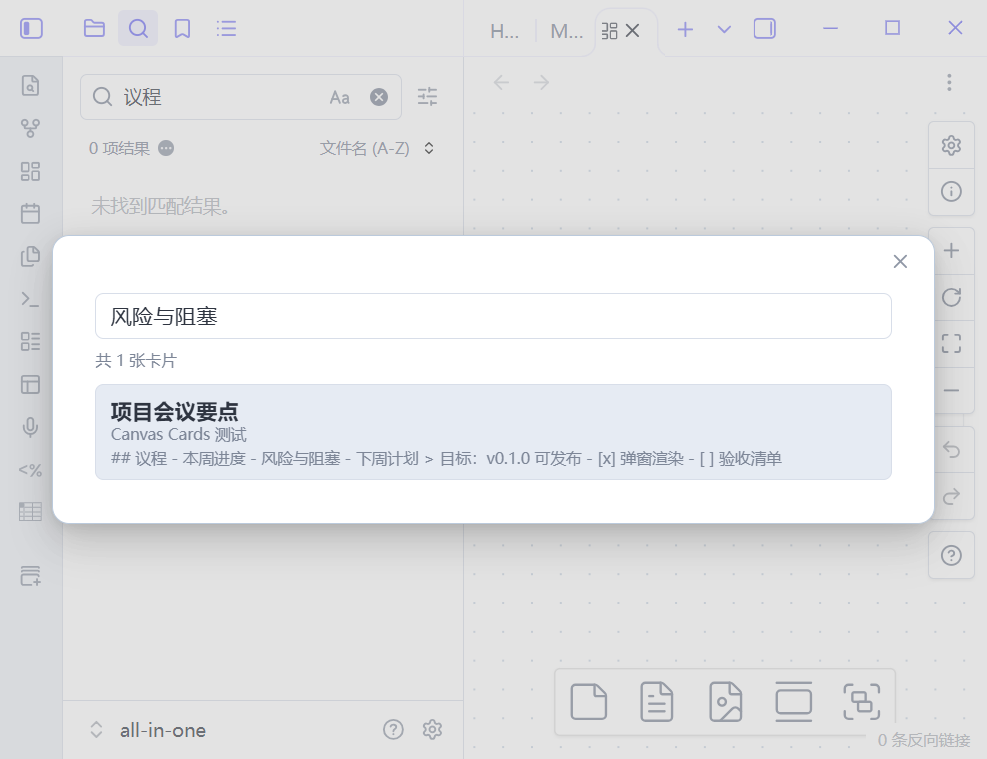
appearancesetting), and cards keep an explicit Canvas node color. - Search card bodies — the Search card bodies command opens a search popup that indexes every card's title and hidden Markdown body across all canvases. Pick a result and the canvas opens, the card gets selected and its popup opens. (Obsidian's own global search still only sees Canvas node titles.)
- Export a card to a note — export the selected card as a Markdown note next to the canvas, with frontmatter recording the source canvas, node id and export time.
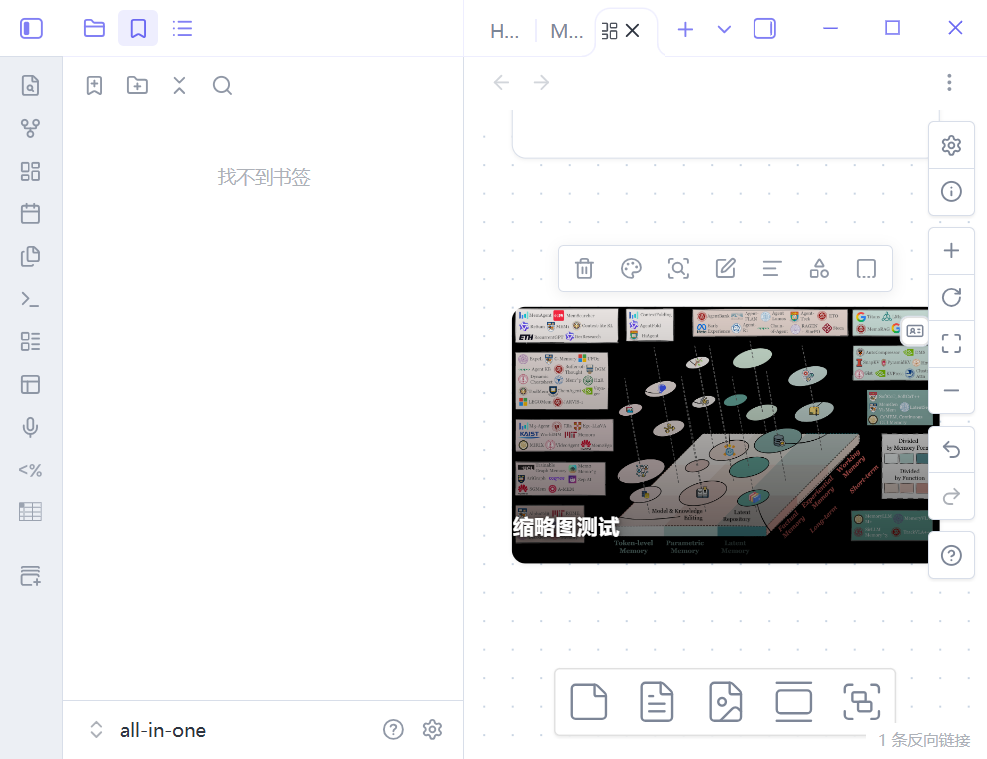
- Cover thumbnail — the first image embed anywhere in the body (
![[img.png]]or) becomes the card cover with a dark gradient behind the title. Disable with the Show thumbnails setting.
Installation
From the community store
- Open Settings → Community plugins → Browse.
- Search for Canvas Cards, install it and enable it.
Manually
- Download
main.js,manifest.jsonandstyles.cssfrom the latest release. - Create
<your-vault>/.obsidian/plugins/canvas-cards/and put the three files there. - Reload Obsidian and enable Canvas Cards in Settings → Community plugins.
Requires Obsidian 1.14.4+ (desktop). Mobile is not supported (the plugin is
isDesktopOnly). To uninstall, disable the plugin and delete its folder; card data
stays inside the .canvas files and is never deleted by the plugin.
Usage
| Action | How |
|---|---|
| Create a card in the viewport center | Command Create card |
| Convert selected text nodes to cards | Command Convert selection to cards, or node context menu → Convert to card |
| Open a card body | Click the card title or its corner button (or command Edit card body, or context menu → Edit card) |
| Rename a card | Open the popup and edit the title field |
| Remove a card (body kept, hidden) | Command Remove card from selection, or context menu → Remove card |
| Copy a card body | Command Copy card body, or context menu → Copy body |
| Search all card bodies | Command Search card bodies (works from any view) |
| Export a card to a note | Command Export card to note (needs a selected card), or context menu → Export to note |
Settings (Settings → Canvas Cards):
- Card appearance —
minimal(default card look) orbutton. - Opening —
click(default: click the card) oricon(only the corner button opens the popup; the card keeps Canvas' native click behaviour). - Show thumbnails — use the first image embed in the body as the card cover.
- Show save status — show/hide the small status line in the popup.
Behaviour details
- Click vs drag — a press that moves more than 5 px is treated as a drag, not a click, so moving a card never opens the popup.
- Corner button — fades in when a card is hovered or focused, stays visible in
the
icontrigger mode, and is hidden while the native text editor is open. It opens the popup without starting a canvas drag. - Double-click no longer edits the title on a card; use the popup title field. Edits to the body are made in the editor inside the popup.
- Undo — body autosaves are written without pushing every keystroke into the
Canvas undo stack, but closing the popup pushes one history snapshot for the
editing session. So one
Ctrl+Zsteps back over that body edit, and undoing earlier movement/creation actions cannot silently drop a body that was saved before them. Text edits inside the textarea use the browser's own undo. - Loading/rebuilds — cards are re-detected after
rebuildView, tab changes, zooming and plugin reloads; card data and the card look are restored from the.canvasfile.
How the data is stored
A card is an ordinary text node plus one namespaced field:
{
  "id": "10b05ce72fddabb9",
  "type": "text",
  "text": "Card title",
  "x": 200,
  "y": 240,
  "width": 300,
  "height": 96,
  "canvasCard": {
    "v": 1,
    "card": true,
    "body": "## Markdown body\n\n- item",
    "updated": 1792405295679
  }
}
text is the title (rendered natively by Canvas), canvasCard.body is the hidden
Markdown body. Unknown node fields survive Canvas save/reload round-trips; cancelling
a card only flips card to false and keeps body. Advanced Canvas' own fields
(styleAttributes, toFloating, …) are untouched.
Compatibility
- Tested with Obsidian 1.14.4 on Windows and with Advanced Canvas 7.1.0 enabled (cards, dragging, context menus and Advanced Canvas features coexist).
- Obsidian Publish has no Canvas support, so published sites cannot show cards.
Limitations
- Desktop only; the plugin is marked
isDesktopOnly. - The body text is not part of Canvas' own index, so Obsidian's global search and graph do not see it; use Search card bodies or Export card to note instead.
- The body editor is a plain textarea, not CodeMirror: no live preview, autocomplete or in-editor image preview.
- Cards cannot be moved between vaults without the plugin to re-attach the look;
the data itself travels with the
.canvasfile. - The plugin uses a small, documented set of Canvas internals (not public API); see
AGENTS.mdfor the allowlist and constraints. It does not patch Canvas prototypes, so a Canvas update is unlikely to break saving or interaction.
Support
Report bugs and feature requests in the
issue tracker.
Please include the Obsidian version, the plugin version and, when possible, a minimal
.canvas file that shows the problem.
Development
pnpm install
pnpm run dev      # watch build to main.js
pnpm run build    # type-check + production bundle
pnpm run lint
Copy main.js, manifest.json and styles.css into
<vault>/.obsidian/plugins/canvas-cards/ and reload the plugin to test. UI and
interaction changes must be verified in a running Obsidian instance.
Releasing: bump the version with pnpm version <patch|minor|major>, push the tag,
and let the Release GitHub workflow build and attach main.js, manifest.json and
styles.css to the release.
More design material:
docs/DESIGN.md— decisions, data model, interaction spec, milestones.docs/research/m0-runtime-notes.md— runtime probes of Canvas internals.docs/VERIFICATION.md— acceptance evidence for v0.2.0 (v1.0 acceptance + v1.1 features).
License
0BSD — see LICENSE.
For plugin developers
Search results and similarity scores are powered by semantic analysis of your plugin's README. If your plugin isn't appearing for searches you'd expect, try updating your README to clearly describe your plugin's purpose, features, and use cases.